Customer Ratings & Reviews
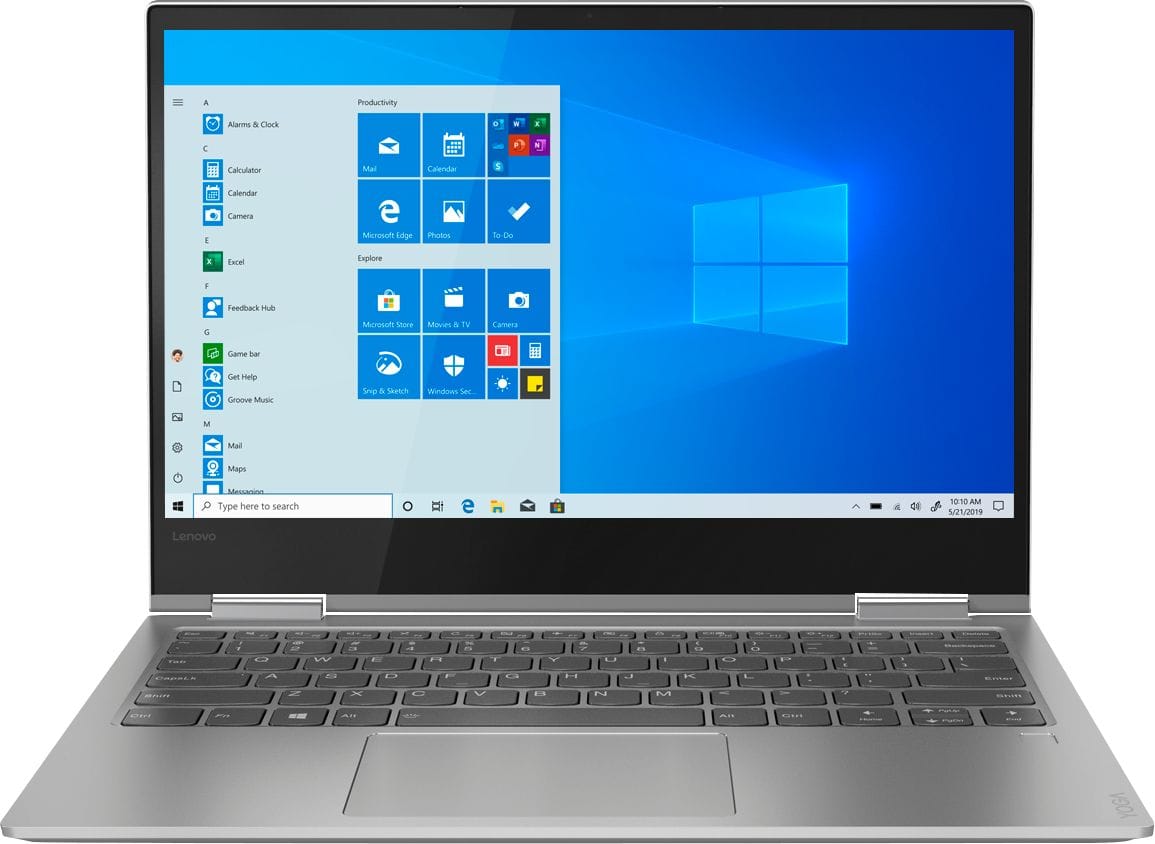

- Model:
- 81CT0008US
- SKU:
- 6201041
Rating by feature
- Battery Life
Rating 4.1 out of 5 stars
- Speed
Rating 4.3 out of 5 stars
- Display
Rating 4.1 out of 5 stars
Customers are saying
Customers are delighted by the Yoga 730's lightweight design, fast performance, and affordable price. They appreciate its long battery life and compact size, making it a great choice for those who are always on the go. However, some users have reported issues with screen flickering, Wi-Fi connectivity, keyboard quality, and speaker volume.
This summary was generated by AI based on customer reviews.
- Cons mentioned:Screen flickering
DO NOT BUY
Posted .This reviewer received promo considerations or sweepstakes entry for writing a review.Laptop can’t hold a WiFi signal, no matter who’s and where it is trying to connect. Screen is defective and apparently happens to a lot of lenovo’s. Best Buy won’t do anything to compensate for all the problems. I’m a full time student and NEED a computer but this one is TRASH. Go towards MacBooks, they may be expensive but well worth it. I will never purchase another Lenovo again. If you don’t believe me, google the defective hardware on lenovo’s... it’s a lot.
No, I would not recommend this to a friendBrand response from Lenovo Product Expert
Posted .We are sorry to hear that you are having issues with your Lenovo Yoga 730-13. This model ships with the latest 5G, 802.11AC frequency WiFi. We have found that most WiFi connectivity issues can be fixed by, first, updating the firmware on the router being used to the latest version available at the router manufacturer's web site. Second, updating the operating software on the computer, including being sure you have the latest version of Windows 10, updated BIOS files and drivers on the computer. This is easily accomplished by scanning the computer with the Lenovo Utility software installed on the device. This system has Lenovo utilities installed to help maintain the health of the device and keep the operating system software up to date. Type "Lenovo Vantage" in the Cortana Search window (if Lenovo Vantage is not installed on your device, you can download the APP and install it now). Select Lenovo Vantage from the list. In the window that opens, click on "Health and Support". In the expanded menu, select "Hardware Scan" In the window that opens, select "Run Quick Tests". This will scan your entire system for errors. Follow any directions that may pop up. If the problem continues after this scan, now click on "System Update". First select Windows update from the menu. Scan your system to be sure you have the latest version of Windows 10. Once that scan is complete, select "Additional Updates". This will scan your device to be sure there are no new BIOS/Driver updates needed. Follow any instructions that may pop up. If the issue still continues after these updates, we recommend you call Lenovo Tech Support at: 877-453-6686 for additional help. For 2018, Lenovo retained its place for a second year as the best laptop vendor:
https://www.laptopmag.com/articles/laptop-brand-ratings
- Cons mentioned:Screen flickering
Very Disappointed
Posted .This reviewer received promo considerations or sweepstakes entry for writing a review.I purchased this in August 2019 and have rarely used it because I use my personal ipad for just about everything and a Dell touchscreen for work. Now that I'm stuck at home, I took it out to use for my online yoga practice and the touch screen won't work. Discovered that the screen is cracked from one of the hinges. Turns out this is a typical problem with this laptop. I do not recommend purchasing this product.
No, I would not recommend this to a friendBrand response from Lenovo Product Expert
Posted .The Lenovo Yoga 730-13 ships with two 360-degree hinges on the screen that have been bench tested through 25,000 cycles (8 to 10 years of normal use) without a failure. We recommend you call Lenovo Tech Support for your options for having your Yoga 730-13 repaired at: 877-453-6686.
Lots of issues
Posted .This reviewer received promo considerations or sweepstakes entry for writing a review.I've had this a month and wish I could return it. I have a hub attached to the usb-c port and I have to unhook it for the Wifi to turn on. Every time I turn around its something else. 12 hours trying to get it to see a second monitor. Updated to Windows 1803 and things just went downhill. Apparently there are many issues with 1803 and drivers. But I did a complete clean install twice which gave me no option to revert back to 1709. Lenovo support was terrible saying that all software tech support was fee based. I should have went with the XPS 13. I went with this because I wanted to give my local Best Buy the sale. Shame on me.
No, I would not recommend this to a friendBrand response from Lenovo Product Expert
Posted .We are sorry to hear you are having issues with the recent Windows 10 update and BIOS/Driver compatibility. This system has Lenovo utilities installed to help maintain the health of the device and keep the operating system software up to date. Type "Lenovo Vantage" in the Cortana Search window (if Lenovo Vantage is not installed on your device, you can download the APP and install it now). Select Lenovo Vantage from the list. In the window that opens, click on "Health and Support". In the expanded menu, select "Hardware Scan" In the window that opens, select "Run Quick Tests". This will scan your entire system for errors. Follow any directions that may pop up. If the problem continues after this scan, now click on "System Update". First select Windows update from the menu. Scan your system to be sure you have the latest version of Windows 10. Once that scan is complete, select "Additional Updates". This will scan your device to be sure there are no new BIOS/Driver updates needed. Follow any instructions that may pop up. If the issue still continues after these updates, we recommend you call Lenovo Tech Support at: 877-453-6686 for additional help.

Works excellent on the field
Posted .This reviewer received promo considerations or sweepstakes entry for writing a review.Been using this laptop for work and school. It hasn't failed on me once. The battery life is great. And its the perfect weight for on the go tasks.
I would recommend this to a friendBrand response from Lenovo Product Expert
Posted .Thank you for choosing the Lenovo Yoga 730-13. We are pleased to hear that the Yoga 730-13 meets your computing needs so well.
- Cons mentioned:Screen flickering
Do NOT buy this computer
Posted .This reviewer received promo considerations or sweepstakes entry for writing a review.I've had 2 of these laptops. First one, within 2 months the screen started flashing and wouldn't stay on. I sent it in to lenovo support and they couldn't find a part to fix it.... 3 months after the problem started they finally sent me a new computer of the same model. Worked fine for awhile but had problems connecting to the internet and with the drivers, etc. Then less than 6 months after getting the new computer, the screen breaks AGAIN. Do not buy this computer, as it is unreliable and you WILL have hardware issues.
No, I would not recommend this to a friendBrand response from Lenovo Product Expert
Posted .We are sorry to hear that you are having issues with your Lenovo Yoga 730-13. As you point out the second device you received worked fine for 3 months. This may mean that the issue is software based. You can check to be sure that you have the latest updates for all operating software on the computer, by scanning the computer with the Lenovo Utility software installed on this computer. This system has Lenovo utilities installed to help maintain the health of the device and keep the operating system software up to date. Type "Lenovo Vantage" in the Cortana Search window (if Lenovo Vantage is not installed on your device, you can download the APP and install it now). Select Lenovo Vantage from the list. In the window that opens, click on "Health and Support". In the expanded menu, select "Hardware Scan" In the window that opens, select "Run Quick Tests". This will scan your entire system for errors. Follow any directions that may pop up. If the problem continues after this scan, now click on "System Update". First select Windows update from the menu. Scan your system to be sure you have the latest version of Windows 10. Once that scan is complete, select "Additional Updates". This will scan your device to be sure there are no new BIOS/Driver updates needed. Follow any instructions that may pop up. If the issue still continues after these updates, we recommend you call Lenovo Tech Support at: 877-453-6686 for additional help. For 2018, Lenovo retained its place for a second year as the best laptop vendor:
https://www.laptopmag.com/articles/laptop-brand-ratings
- Cons mentioned:Screen flickering
Screen flickers right out of the box
Posted .This reviewer received promo considerations or sweepstakes entry for writing a review.Save your money. I brought this home today and during setup the screen kept flickering. Lenovo says to update the drivers. The screen won't stay on long enough for me to update it. How do you update when you can't see the screen? This is unacceptable. My first Lenovo, not anymore, it's going back.
No, I would not recommend this to a friendBrand response from Lenovo Product Expert
Posted .We are sorry to hear that you are having issues with your Lenovo Yoga 730-13. The screen flicker issue you describe may be caused by a recent Windows 10 update. If the screen flicker does not allow you to run the automated Lenovo Utilities to update your BIOS/divers, reset the device to factory settings first. This system is equipped with OneKey Recovery System. There is a very small pin hole on the left side of the device, right near the headphone jack on the device. You will need a pin to push this reset button. Plug the device in. Let the battery charge for about 15 minutes. Push the reset button. The system should boot to a choice screen where you can choose "Restore To Factory Default". Select this. It will delete everything from the hard drive except the original factory install of the operating system. You will need to reinstall all programs and files after the reset. If you don't have copies of the files, try to make one before you restore by selecting "Boot to desktop" and trying to back up your files. Once you have restored the device to factory settings, the screen flicker should be reduced or even disappear. Now check for software updates. This system has Lenovo utilities installed to help maintain the health of the device and keep the operating system software up to date. Type "Lenovo Vantage" in the Cortana Search window (if Lenovo Vantage is not installed on your device, you can download the APP and install it now). Select Lenovo Vantage from the list. In the window that opens, click on "Health and Support". In the expanded menu, select "Hardware Scan" In the window that opens, select "Run Quick Tests". This will scan your entire system for errors. Follow any directions that may pop up. If the problem continues after this scan, now click on "System Update". First select Windows update from the menu. Scan your system to be sure you have the latest version of Windows 10. Once that scan is complete, select "Additional Updates". This will scan your device to be sure there are no new BIOS/Driver updates needed. Follow any instructions that may pop up. If the issue still continues after these updates, we recommend you call Lenovo Tech Support at: 877-453-6686 for additional help.
Perfect Laptop
Posted .This reviewer received promo considerations or sweepstakes entry for writing a review.I love this computer. I have never had an issue over the last 4 years.
I would recommend this to a friend- Cons mentioned:Screen flickering
Flickering Screen and Battery Replacement (1 Year)
Posted .This reviewer received promo considerations or sweepstakes entry for writing a review.I bought this computer during back to school around Sept 2018. After owning this laptop a year, the computer told me to replace the battery on the Lenovo app. Another few months go by and I have flickering screen issues going in and out. Lenovo or Best Buy can't fix it since I lost the warranty. Lenovo doesn't want to own up to its mistake. PLEASE DON'T BUY THIS!!!. A complete waste of money. Never in the world, will I buy a Lenovo computer after this issue.
No, I would not recommend this to a friendBrand response from Lenovo Product Expert
Posted .We are sorry to hear that you are having issue with your Lenovo Yoga 730-13. We recommend you contact Lenovo Tech Support for help with your issue at, (have your computer Serial Number available, it is on the bottom of the computer): 877-453-6686
- Cons mentioned:Screen flickering
Defective!
Posted .This reviewer received promo considerations or sweepstakes entry for writing a review.Bought laptop for Christmas gift. When setting up we noticed the touch screen did not work. Calibration would not sense touch. Looked up any help from online only to discover that it is common for these models to have faulty touch screens. Do not buy, Lenovo needs to make better products. Will return and buy another brand name. I am done with Lenovo products. Buyers beware!
No, I would not recommend this to a friendBrand response from Lenovo Product Expert
Posted .We are sorry to hear that you are having an issue with the touchscreen on your Lenovo Yoga 730-13. The issue you describe may be corrected by scanning and repairing the device with the Lenovo Utility software installed on this computer. This system has Lenovo utilities installed to help maintain the health of the device and keep the operating system software up to date. Type "Lenovo Vantage" in the Cortana Search window (if Lenovo Vantage is not installed on your device, you can download the APP and install it now). Select Lenovo Vantage from the list. In the window that opens, click on "Health and Support". In the expanded menu, select "Hardware Scan" In the window that opens, select "Run Quick Tests". This will scan your entire system for errors. Follow any directions that may pop up. If the problem continues after this scan, now click on "System Update". First select Windows update from the menu. Scan your system to be sure you have the latest version of Windows 10. Once that scan is complete, select "Additional Updates". This will scan your device to be sure there are no new BIOS/Driver updates needed. Follow any instructions that may pop up. If the issue still continues after these updates, we recommend you call Lenovo Tech Support at: 877-453-6686 for additional help.
Cursor jumps, touchpad useless, a piece of garbage
Posted .This reviewer received promo considerations or sweepstakes entry for writing a review.I have had this Lenovo Yoga 730 for a only a few months, and it has NEVER WORKED properly or even marginally for a single minute. I am a writer and thus have worked on laptops for literally decades. This is hands-down the worst machine I have ever had the misfortune of purchasing. The cursor jumps around while you are typing. It just did it again while I was typing 'piece of garbage'! (Let that irony sink in.) The touchpad clicks on things randomly on your screen if you come anywhere near it, so it opens and closes windows, documents, etc., constantly. After sending the machine back to the service center thru Geek Squad, I was told it had a loose cable and that it was fixed. The same day, I discovered that in fact, nothing had changed. The machine deletes text of its accord. Cursor is still jumping around and hi-lighting randomly. It still opens and closes things and clicks on things that I did not intend to be opened/closed/clicked on. And before some 'expert' sends me a worthless suggestion for a 'fix', the touchpad is already set at the lowest sensitivity, I've had multiple tech people look at this thing, I've sent it back to the service center, and still the only thing that marginally helps is to turn off the touchpad completely. And even that doesn't totally fix the problem! Newsflash: A laptop needs a functional cursor and touchpad in order to be usable! It's like selling a car to someone and saying, 'Everything works but the steering and the wheels.' This machine is unusable. I want my money back. Period. Over and out. I WANT A REFUND. This is thing is a piece of junk!!!!
No, I would not recommend this to a friendBrand response from Lenovo Product Expert
Posted .We are sorry to hear that you are having issues with the cursor sensitivity on your Lenovo Yoga 730-13. You can make adjustments to the touchpad in your system settings. You can get there by clicking on the magnifying glass at the bottom left of your Windows 10 screen. Type "touchpad" in the search window. Select "Mouse & touchpad settings" from the list of choices. You can make general adjustments to the touchpad there. You can also select "Additional mouse options" for more detailed adjustments to the touchpad sensitivity by increasing the delay of the touchpad. If the issue continues, we recommend you call Lenovo Tech Support for help with your specific issue at: 877-453-6686.
Has issues
Posted .This reviewer received promo considerations or sweepstakes entry for writing a review.great laptop, till it started freezing randomly forcing me to shut it down every 4 minutes. Bought it about 3 weeks ago so it has nothing to do with wear, tried diagnosing the issue thinking it was a windows error but in the process of reinstalling windows for the second time it crashed again leading me to believe its the hardware. Im quite frustrated because I spent 600 bucks on a laptop thinking it was a good deal but as of right now I would have been better off trying to do work on an iphone 6s than with this piece of crap.
No, I would not recommend this to a friendBrand response from Lenovo Product Expert
Posted .We are sorry to hear that you are having issues with Windows 10 Operating System on your Lenovo Yoga 730-13. Be sure any software you installed is compatible with Windows 10. There is no need to install Microsoft Office software. The software is already part of the operating system, you just need to activate the software with a purchased product key. If you have installed a copy of Microsoft Office, this is conflicting with the existing copy on the system and this will slow your system down. If you have installed a 3rd party anti-virus program, be sure that Windows Defender is turned off and that the trial version of McAfee Anti-Virus software is uninstalled. There can only be one anti-virus program on the system. You may need to restore your system to original factory default settings if any of the programing errors have occurred. You can do that by typing "restore" in the Cortana search window. Just click on the magnifying glass icon at the bottom left of your Windows 10 Desktop. Click on "Reset This PC" Then click on "Get Started" and follow the on screen directions to restore to factory defaults. If the problem persists, we recommend you contact Lenovo Tech Support at: 877-453-6686
- Pros mentioned:Fast
Short Battery Life
Posted .This reviewer received promo considerations or sweepstakes entry for writing a review.This laptop is good in general, being fast BUT it has a short battery life. I can't last through a day in school with this battery life.
No, I would not recommend this to a friendBrand response from Lenovo Product Expert
Posted .The Lenovo Yoga 730-13 ships with a 4CELL 48WH, Lithium Polymer Battery, with a battery life of up to 10 hours, depending on the work the device is performing. To maximize battery life, first adjust your battery saver settings. Here is a link to instruction for doing this in Windows 10: https://www.digitalcitizen.life/how-use-configure-battery-saver-windows-10. Next, to maximize battery life, be sure there are no unwanted programs running in the background, draining the battery. Here is a link to some tips for finding out what is draining your battery:
https://www.laptopmag.com/articles/battery-saver-windows-10. Also, to maximize battery life, try changing your power management setting to a more conservative one. You can do this in the control panel, in the power management category on your system. Select a more conservative power management setting to extend battery life. Finally, if the battery life does not improve, a battery reset may help. Here is a link to instructions for reconditioning a non-removable battery, using the Battery Management Software installed on the computer. If you need further assistance, we recommend you call Lenovo Tech Support at: 877-453-6686. Here is the link: https://windowsreport.com/laptop-battery-not-charging-windows-10/
- Cons mentioned:Screen flickering
Screen works occasionally
Posted .This reviewer received promo considerations or sweepstakes entry for writing a review.Bought this for my wife for Christmas. 7 months into owning it the screen doesn't work. Sometimes it will work and all seems fine, then it just blacks out. Currently the screen is black. No matter where I position the screen it won't work. Yes I've made sure it's powered on. Yes I've made sure the screen isn't set to full dim. I'm about to dive into the torture of Lenovo support so we can send it in and not see it for 2-4 months.
No, I would not recommend this to a friendBrand response from Lenovo Product Expert
Posted .We are sorry to hear that you are having issues with your Lenovo Yoga 730-13. Be sure you have the latest version of Windows 10 on the computer and that all of the BIOS files and drivers are also up to date. Since you are having trouble seeing the screen image, first restoring the device to original factory settings, then updating the operating software may solve the problem. This system is equipped with OneKey Recovery System. There is a very small pin hole on the left side of the device, right near the headphone jack on the device. You will need a pin to push this reset button. Plug the device in. Let the battery charge for about 15 minutes. Push the reset button. The system should boot to a choice screen where you can choose "Restore To Factory Default". Select this. It will delete everything from the hard drive except the original factory install of the operating system. You will need to reinstall all programs and files after the reset. If you don't have copies of the files, try to make one before you restore by selecting "Boot to desktop" and trying to back up your files. Once you have restored the device back to original settings, use the Lenovo Utility software installed on the computer to update all of the operating software on the computer. This system has Lenovo utilities installed to help maintain the health of the device and keep the operating system software up to date. Type "Lenovo Vantage" in the Cortana Search window (if Lenovo Vantage is not installed on your device, you can download the APP and install it now). Select Lenovo Vantage from the list. In the window that opens, click on "Health and Support". In the expanded menu, select "Hardware Scan" In the window that opens, select "Run Quick Tests". This will scan your entire system for errors. Follow any directions that may pop up. If the problem continues after this scan, now click on "System Update". First select Windows update from the menu. Scan your system to be sure you have the latest version of Windows 10. Once that scan is complete, select "Additional Updates". This will scan your device to be sure there are no new BIOS/Driver updates needed. Follow any instructions that may pop up. If the issue still continues after these updates, we recommend you call Lenovo Tech Support at: 877-453-6686 for additional help.
- Cons mentioned:Screen flickering
Screen flickering is infuriating.
Posted .This reviewer received promo considerations or sweepstakes entry for writing a review.Okay. At first I loved this little laptop, but as time has gone by, I've gotten the same screen flickering issues as everyone else. I'm long past warrantee, so I've tried fixing it myself. This worked at first, but only for so long. Poorly designed laptop, and I doubt I will buy another Lenovo product again after this.
No, I would not recommend this to a friendBrand response from Lenovo Product Expert
Posted .We are sorry to hear that you are having issues with your Lenovo Yoga 730-13. We recommend you call Lenovo Tech Support for help with your issue at:877-453-6686.
Piece of garbage
Posted .This reviewer received promo considerations or sweepstakes entry for writing a review.I decided to be spontaneous and purchase something different. I am a Dell/HP person. This time around I wanted to check out thd lenovo yoga 730 as a co worker had good things to say. It was ok .. it was light, had a vivid display but after the 2nd week issues started. First I noticed the touch screen functionality disappeared. A little later I noticed a hairline crack in the bottom right of the screen. I was perplexed as it had not been dropped at all. I live alone so I would know. A few weeks later the laptop started flickering everytime I typed or touched it. It had to be angled a certain way to work.. this went on for a few days when eventually the flickering led to a black screen. This has been the permanent state of a two month old laptop. The charger also stopped working lol. I called Lenovo and the said they would send out a new charger in a few days while I recovered as many files as I could to move to my new HP.. the charger never arrived. The next step was to send out the laptop.. at this point I wrote it off as a sunk cost. Lenovo, you will never get a penny from me ever again.
No, I would not recommend this to a friendBrand response from Lenovo Product Expert
Posted .We are sorry to hear that you are having issues with your Lenovo Yoga 730-13. You mention a cracked screen on your Yoga 730-13, it is possible this is the cause of the problems you are experiencing. We recommend you call Lenovo Tech Support for help wit your specific issues at: 877-453-6686.
Great computer
Posted .This reviewer received promo considerations or sweepstakes entry for writing a review.This i a great computer for the price and 'd definitely recommend it to others.
I would recommend this to a friendBrand response from Lenovo Product Expert
Posted .Thank you for choosing the Lenovo Yoga 730-13. We are pleased to hear that the value, features and performance of the Yoga 730-13 meets your computing needs so well. For 2018, Lenovo retained its place for a second year as the best laptop vendor:
https://www.laptopmag.com/articles/laptop-brand-ratings
Bad screen flicker after 4 months of use
Posted .This reviewer received promo considerations or sweepstakes entry for writing a review.My daughter used this computer from Aug to December, then it began developing an increasingly annoying screen flicker. I initially debated my purchase of this device due to such comments. Luckily, before wiping the hard drive and updating as LENOVO keeps suggesting in their automated replies to these problem posts, I came across an interesting Youtube post (below) that claimed to have a 5 min fix. I followed the advice, taking off the back panel and then bending and giving the video cable a bit more wiggle room and ‘play’. This worked, and my daughters 730 has not flickered since I did this. There’s a chance that the flicker can come back as it did to the person in the video, but regardless if playing with this cable fixes the flicker for a few minutes or few days— that PROVES the problem is NOT software related. So how is it that LENOVO KEEPS SAYING THIS IS A SOFTWARE ISSUE? I have lost all respect for LENOVO and will NEVER buy another product from them. To think, I could have wiped all the data, then sent the machine into the black hole of support where they would have played with software for weeks/months then told me they had no answer for it. Check out the video link below. LENOVO— please own up to this pinched or overstretched video cable problem!!! Video: https://youtu.be/FOWtyMTIsNI
No, I would not recommend this to a friendBrand response from Lenovo Product Expert
Posted .The Lenovo Yoga 730-13 model is not user upgradable. A certified technician must do all of the work, so as to not void the warranty. We recommend you always check software configuration first before looking at any hardware for the source of any problem you are experiencing with any computer. If the problem persists after updating software, we recommend you call Lenovo Tech Support for help with your specific issue at: 877-453-6686.
- Cons mentioned:Screen flickering
Screen Flickering
Posted .This reviewer received promo considerations or sweepstakes entry for writing a review.Search Lenovo Yoga screen flickering and you'll see all the results. Known manufacturing issue with no recall issued. Even better, my screen started flickering shortly after the warranty expired. Issue is so bad it makes the laptop unusable. Stay away and spend some extra money on an XPS 13 or similar.
No, I would not recommend this to a friend - Cons mentioned:Screen flickering
Never buying from Lenovo again.
Posted .This reviewer received promo considerations or sweepstakes entry for writing a review.Lenovo keeps on posting the same reply to every negative review. It is not a Windows update or BIOS issue that is causing screen flickering. It is a factory hardware issue, Lenovo is selling lemon laptops to consumers that after 1 month start flickering with little to no support at all. Never buying a Lenovo product again. Recall the product already, it's a mess.
No, I would not recommend this to a friend 0 Stars
Posted .This reviewer received promo considerations or sweepstakes entry for writing a review.I've only had this laptop for two years, I keep it in a laptop case when I'm not using it in order to keep it protected, and I've never had any damage induced on it. Yet, there's a number of issues I've encountered. My sound stopped working within the first month. Since then, it somehow resolved itself to play again but the volume is still low at the highest setting- my phone can play louder than the laptop. The track pad also stops working randomly, forcing me to do all functions through the touch screen-- God forbid I need to right-click something. The search bar (with Cortana) also would not work- I would type something, and the results would just be blank. I had to use the dictation option if I ever want to search something. The laptop occasionally dies at 50% or higher. Just recently, it won't turn on unless it's plugged into a power source. The fingerprint reader to unlock my laptop only works occasionally. As a college student, I don't have much disposable income and essentially wasted $800 on a laptop that I'm going to have to replace because of its inaccessibility. Unless you're willing to spend nearly $1000 on a laptop that is defective, I wouldn't recommend purchasing this laptop.
No, I would not recommend this to a friendBrand response from Lenovo Product Expert
Posted .We are sorry to hear that you are having issues with your Lenovo Yoga 730-13. This model number 81CT0008US has only been available for sale since September, 2018. The issues you describe indicate the operating system software may be out of date. You can update Windows 10 to the latest version and the supporting BIOS files and drivers for your specific model by scanning your computer with the Lenovo Utility software installed on the computer. This system has Lenovo utilities installed to help maintain the health of the device and keep the operating system software up to date. Type "Lenovo Vantage" in the Cortana Search window (if Lenovo Vantage is not installed on your device, you can download the APP and install it now). Select Lenovo Vantage from the list. In the window that opens, click on "Health and Support". In the expanded menu, select "Hardware Scan" In the window that opens, select "Run Quick Tests". This will scan your entire system for errors. Follow any directions that may pop up. If the problem continues after this scan, now click on "System Update". First select Windows update from the menu. Scan your system to be sure you have the latest version of Windows 10. Once that scan is complete, select "Additional Updates". This will scan your device to be sure there are no new BIOS/Driver updates needed. Follow any instructions that may pop up. If the issue still continues after these updates, we recommend you call Lenovo Tech Support at: 877-453-6686 for additional help. For 2018, Lenovo retained its place for a second year as the best laptop vendor:
https://www.laptopmag.com/articles/laptop-brand-ratings