Customer Ratings & Reviews
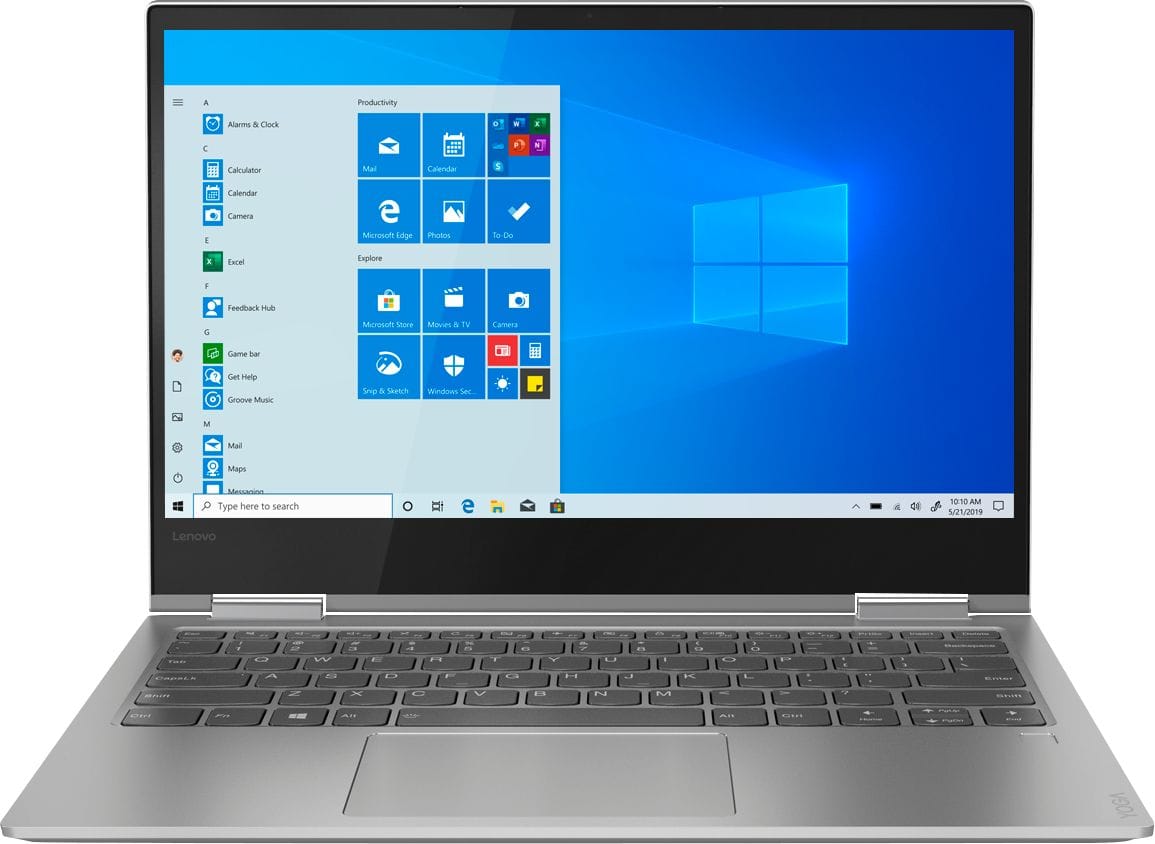

- Model:
- 81CT0008US
- SKU:
- 6201041
Rating by feature
- Battery Life
Rating 4.1 out of 5 stars
- Speed
Rating 4.3 out of 5 stars
- Display
Rating 4.1 out of 5 stars
Customers are saying
Customers are delighted by the Yoga 730's lightweight design, fast performance, and affordable price. They appreciate its long battery life and compact size, making it a great choice for those who are always on the go. However, some users have reported issues with screen flickering, Wi-Fi connectivity, keyboard quality, and speaker volume.
This summary was generated by AI based on customer reviews.
Computer has screen issues
Posted .This reviewer received promo considerations or sweepstakes entry for writing a review.My daughter has only been using the computer for about 6 weeks since school started. 2 weeks in the scree started flickering, sometimes uncontrollably. We sent back to Lenovo under a warranty claim. Waited 8 days for the laptop to return and 2 days later the screen is now worse. Google search this problem...
No, I would not recommend this to a friendBrand response from Lenovo Product Expert
Posted .We are sorry to hear that you are having screen flicker issues with your daughter's Lenovo Yoga 730-13. This issue you describe may be caused by a recent Windows 10 update that requires both a BIOS and video drivers update as well. This is easily accomplished by using the Lenovo Utility software installed on this device. This system has Lenovo utilities installed to help maintain the health of the device and keep the operating system software up to date. Type "Lenovo Vantage" in the Cortana Search window (if Lenovo Vantage is not installed on your device, you can download the APP and install it now). Select Lenovo Vantage from the list. In the window that opens, click on "Health and Support". In the expanded menu, select "Hardware Scan" In the window that opens, select "Run Quick Tests". This will scan your entire system for errors. Follow any directions that may pop up. If the problem continues after this scan, now click on "System Update". First select Windows update from the menu. Scan your system to be sure you have the latest version of Windows 10. Once that scan is complete, select "Additional Updates". This will scan your device to be sure there are no new BIOS/Driver updates needed. Follow any instructions that may pop up. If the issue still continues after these updates, we recommend you call Lenovo Tech Support at: 877-453-6686 for additional help.

loudest laptop ever, not worth price
Posted .This reviewer received promo considerations or sweepstakes entry for writing a review.For the first year, I thought that this was a brilliant mid-range laptop, but after continued use, the touch screen stopped working and it freezes after falling asleep so I have to restart every 30min or so. I can honestly put up with this, but what I can't put up with is the ear-splitting fan. As soon as it turns on, the fan comes on and gets progressively louder. I've had teachers ask me to use a classroom computer because the noise was distracting. We're talking garbage-disposal sound waves here....I would rather spend $300 more than deal with the sound TBH
No, I would not recommend this to a friendBrand response from Lenovo Product Expert
Posted .We are sorry to hear that you are having issues with your Lenovo Yoga 730-13. The issues you are having with the touchscreen and freezing may be the cause of the loud fan noise as well. Be sure you have the latest version of Windows 10 Operating System on the device and that the supporting BIOS files and drivers are up to date. You can easily do this by scanning the computer with the Lenovo Utility software installed on the computer. This system has Lenovo utilities installed to help maintain the health of the device and keep the operating system software up to date. Type "Lenovo Vantage" in the Cortana Search window (if Lenovo Vantage is not installed on your device, you can download the APP and install it now). Select Lenovo Vantage from the list. In the window that opens, click on "Health and Support". In the expanded menu, select "Hardware Scan" In the window that opens, select "Run Quick Tests". This will scan your entire system for errors. Follow any directions that may pop up. If the problem continues after this scan, now click on "System Update". First select Windows update from the menu. Scan your system to be sure you have the latest version of Windows 10. Once that scan is complete, select "Additional Updates". This will scan your device to be sure there are no new BIOS/Driver updates needed. Follow any instructions that may pop up. If the issue still continues after these updates, we recommend you call Lenovo Tech Support at: 877-453-6686 for additional help. For 2018, Lenovo retained its place for a second year as the best laptop vendor:
https://www.laptopmag.com/articles/laptop-brand-ratings
Screen cracks very easily!
Posted .This reviewer received promo considerations or sweepstakes entry for writing a review.I bought this laptop in August 2019 before I went to college because the people at Best Buy recommended to me. It worked great and was very easy to use. Unfortunately, a few weeks after buying it a crack formed at the bottom of the screen out of nowhere. I managed to use it like that for a few weeks until I could not even close my laptop anymore. I got it fixed under warranty and about a month later, another crack has formed in the bottom left hand corner. I am very disappointed because there was no excessive use on this computer.
No, I would not recommend this to a friendBrand response from Lenovo Product Expert
Posted .The Lenovo Yoga 730-13 ships with 360-degree hinges on the screen that have been bench tested through 25,000 cycles (8 to 10 years of normal use).
Loved this computer....
Posted .This reviewer received promo considerations or sweepstakes entry for writing a review.I purchased this laptop new in September of 2017, flash forward to 2019 and it has completely died. Brought it to two repair shops and was told it was an issue with the motherboard, which is a manufacturer fault. Called Lenovo and was told that since it had been more than a year, they were not going to help the situation in any way. I really loved this computer and was planning on using it for at least another two years. Very disappointed in the longevity of the product and the company's disinterest in helping their customers.
No, I would not recommend this to a friendBrand response from Lenovo Product Expert
Posted .The Lenovo Yoga 730-13, model number 81CT0008US was first available for sale March, 2018. We recommend you contact Lenovo Tech Support for help with your model at: 877-453-6686.
Screen Issues are Real
Posted .This reviewer received promo considerations or sweepstakes entry for writing a review.Regardless of any perceived value, it does not make sense to purchase this laptop given the potential for the screen to malfunction so early on after purchase. After 3 months, I was stranded on a business trip without a computer because the screen on my Lenovo Yoga 730 stopped working and falters between flickering and complete black. A laptop needs to be dependable given that your livelihood may depend on a working device. This is not unreasonable. I cannot find any statement about the issue from Lenovo, which is disappointing.
No, I would not recommend this to a friendBrand response from Lenovo Product Expert
Posted .We are sorry to hear that you are having issues with your Lenovo Yoga 730-13. Since the issue you are describing started 3-months after initial activation, the problem may be software based. Be sure you have the latest version of Windows 10 on the computer. Second, be sure all the BIOS files and drivers supporting the operating system are up to date. You can easily accomplish this by scanning the computer with the Lenovo Utility software installed on the device. This system has Lenovo utilities installed to help maintain the health of the device and keep the operating system software up to date. Type "Lenovo Vantage" in the Cortana Search window (if Lenovo Vantage is not installed on your device, you can download the APP and install it now). Select Lenovo Vantage from the list. In the window that opens, click on "Health and Support". In the expanded menu, select "Hardware Scan" In the window that opens, select "Run Quick Tests". This will scan your entire system for errors. Follow any directions that may pop up. If the problem continues after this scan, now click on "System Update". First select Windows update from the menu. Scan your system to be sure you have the latest version of Windows 10. Once that scan is complete, select "Additional Updates". This will scan your device to be sure there are no new BIOS/Driver updates needed. Follow any instructions that may pop up. If the issue still continues after these updates, we recommend you call Lenovo Tech Support at: 877-453-6686 for additional help. For 2018, Lenovo retained its place for a second year as the best laptop vendor:
https://www.laptopmag.com/articles/laptop-brand-ratings
Flickering Screen
Posted .This reviewer received promo considerations or sweepstakes entry for writing a review.Deeply regret purchasing this laptop. I've been lightly using it for 6 months and am having the same flickering screen problem as mentioned. I've tried resetting it, updating BIOS, etc. and the problem persists. Based on other reviews, it sounds like Lenovo is unwilling to work with customers and is happy to let them waste their money on a faulty product. I won't be purchasing a Lenovo again.
No, I would not recommend this to a friendBrand response from Lenovo Product Expert
Posted .We are sorry to hear that you are having screen flicker issues with your Lenovo Yoga 730-13. We recommend you call Lenovo Tech Support for help with your specific issue at: 877-453-6686
Don't update Windows 10 - NO AUDIO
Posted .This reviewer received promo considerations or sweepstakes entry for writing a review.I was extremely excited to purchase this laptop for school. I turned it on and everything went smooth until Windows 10 updated and COMPLETELY WIPED OUT the audio drivers. After resetting the factory settings, the audio was still UNINSTALLED. I'm disappointed and will have to return the laptop. Also, the speakers are on the bottom of the laptop which strains good quality sound from coming out.
No, I would not recommend this to a friendBrand response from Lenovo Product Expert
Posted .We are sorry to hear that you had an issue with a recent Windows 10 update. There may have been a compatibility issue with the BIOS/Drivers that control audio within this device after the Windows 10 update. You can easily update the BIOS/drivers on this device. This system has Lenovo utilities installed to help maintain the health of the device and keep the operating system software up to date. Type "Lenovo Vantage" in the Cortana Search window (if Lenovo Vantage is not installed on your device, you can download the APP and install it now). Select Lenovo Vantage from the list. In the window that opens, click on "Health and Support". In the expanded menu, select "Hardware Scan" In the window that opens, select "Run Quick Tests". This will scan your entire system for errors. Follow any directions that may pop up. If the problem continues after this scan, now click on "System Update". First select Windows update from the menu. Scan your system to be sure you have the latest version of Windows 10. Once that scan is complete, select "Additional Updates". This will scan your device to be sure there are no new BIOS/Driver updates needed. Follow any instructions that may pop up. If the issue still continues after these updates, we recommend you call Lenovo Tech Support at: 877-453-6686 for additional help.
Touchpad malfunctioning
Posted .This reviewer received promo considerations or sweepstakes entry for writing a review.The laptop is overall a decent laptop and it gets the basic job done. BUT the main problem is that the touchpad is non-responsive at times and solutions online are hit-or-miss. This problem appeared about 1.5 years after the purchase. The driver disappears sometimes, and other times the system shows that the driver is working properly but yet still unresponsive. I don't like taking a mouse with me everywhere, and I probably would not have bought this if I had known this issue.
No, I would not recommend this to a friendBrand response from Lenovo Product Expert
Posted .We are sorry to hear that you are having issues with your Lenovo Yoga. This model number 81CT0008US first became available for sale in September, 2018, 7-months ago. You mention the problem you are experiencing started 1.5 years after your purchase. The Lenovo Yoga 730-13 model was not created yet in 2017. Be sure you are selecting the right drivers for your specific model, the specific drivers will vary by model. You can easily do this by scanning the computer with the Lenovo Utility software on your specific Yoga model. First, tap the HotKey in the F6 position on your keyboard. This toggles the touchpad on/off. If the problem persists, your system has Lenovo utilities installed to help maintain the health of the device and keep the operating system software up to date. Type "Lenovo Vantage" in the Cortana Search window (if Lenovo Vantage is not installed on your device, you can download the APP and install it now). Select Lenovo Vantage from the list. In the window that opens, click on "Health and Support". In the expanded menu, select "Hardware Scan" In the window that opens, select "Run Quick Tests". This will scan your entire system for errors. Follow any directions that may pop up. If the problem continues after this scan, now click on "System Update". First select Windows update from the menu. Scan your system to be sure you have the latest version of Windows 10. Once that scan is complete, select "Additional Updates". This will scan your device to be sure there are no new BIOS/Driver updates needed. Follow any instructions that may pop up. If the issue still continues after these updates, we recommend you call Lenovo Tech Support at: 877-453-6686 for additional help. For 2018, Lenovo retained its place for a second year as the best laptop vendor:
https://www.laptopmag.com/articles/laptop-brand-ratings
Won't stay connected to wifi
Posted .This reviewer received promo considerations or sweepstakes entry for writing a review.I purchased a Lenova Yoga last week. Would not stay connected to the wifi even when I was sitting next to the router. Had to return the Lenovo and I am writing this review from my new MacBook Pro...Have yet to have any issues from any room in the house. Price difference was minimal & am much happier knowing that this will last more than one week. Do not recommend the Lenovo.
No, I would not recommend this to a friendBrand response from Lenovo Product Expert
Posted .We are sorry to hear that you had issues with WiFi connectivity within your Lenovo Yoga 730-13. There is a new RealTek WiFi Card Driver update version currently available. This will correct the WiFi connectivity issue that is currently being found within Lenovo models with the RealTek 8822BE WiFi Card.
Install the new driver version on the computer with the WiFi connectivity issue, RealTek Wireless Driver for Windows 10 (64-bit) Lenovo –
https://download.lenovo.com/pccbbs/mobiles/r0prw12w.exe
If the WiFi signal continues to drop after restarting the computer, manually change the Bandwidth setting under the "Advanced Driver Properties" within the Device Manager, from
80Mhz_40Mhz_20Mhz to 40Mhz_20Mhz. If you need additional help or the issue continues, we recommend you call Lenovo Tech Support at: 877-453-6686. For 2018, Lenovo retained its place for a second year as the best laptop vendor:
https://www.laptopmag.com/articles/laptop-brand-ratings
Manufacturers warranty Poor
Posted .This reviewer received promo considerations or sweepstakes entry for writing a review.Purchased Geek Squad. However for the 1st year of service. I have to go through the manufacturer's warranty. Geek Squad sent it off for me. Computer was OUT for a week. Came back with the same issue. Now I have to wait another week so manufacturers repair guy attempts to repair AGAIN.
No, I would not recommend this to a friendBrand response from Lenovo Product Expert
Posted .We are sorry to hear that you had a poor experience with Lenovo Tech Support. While you are waiting for your next service appointment, you may want to scan the device with Lenovo Utility software installed on the device. This system has Lenovo utilities installed to help maintain the health of the device and keep the operating system software up to date. Type "Lenovo Vantage" in the Cortana Search window (if Lenovo Vantage is not installed on your device, you can download the APP and install it now). Select Lenovo Vantage from the list. In the window that opens, click on "Health and Support". In the expanded menu, select "Hardware Scan" In the window that opens, select "Run Quick Tests". This will scan your entire system for errors. Follow any directions that may pop up. If the problem continues after this scan, now click on "System Update". First select Windows update from the menu. Scan your system to be sure you have the latest version of Windows 10. Once that scan is complete, select "Additional Updates". This will scan your device to be sure there are no new BIOS/Driver updates needed. Follow any instructions that may pop up. If the issue still continues after these updates, we recommend you call Lenovo Tech Support at: 877-453-6686 for additional help.
Known hardware problems (Google it)
Posted .This reviewer received promo considerations or sweepstakes entry for writing a review.Mine started having a display screen flickering problem 3 months after purchase and soon became most unusable. Problem caused by bad engineering design of video connector through display-to-keyboard hinge. Very well known problem with entire Lenovo Yoga product line. Avoid !!!! I shouldn’t have bought after terrible reliability of previous Lenovo laptop I had for 3 years before this purchase. Shame on me.
No, I would not recommend this to a friendBrand response from Lenovo Product Expert
Posted .We are sorry to hear that you are having a screen flicker issue with your Lenovo Yoga 730-13. We recommend you call Lenovo Tech Support for help with your specific issue at: 877-453-6686.
don't waste your time and money
Posted .This reviewer received promo considerations or sweepstakes entry for writing a review.I just bought it and I hate it. I would give less stars if I could. The mouse pad is horrible. I installed some apps, was using the device and it just stopped. Now it just keeps trying to repair itself over and over. It is basically dead. And I bought it 3 days ago. I am taking it back today.
No, I would not recommend this to a friendBrand response from Lenovo Product Expert
Posted .We are sorry to hear that you are having issues with your Yoga 730-13. With regard to the touchpad, you can make adjustments to the touchpad in your system settings. You can get there by clicking on the magnifying glass at the bottom left of your Windows 10 screen. Type "touchpad" in the search window. Select "Mouse & touchpad settings" from the list of choices. You can make general adjustments to the touchpad there. You can also select "Additional mouse options" for more detailed adjustments to the touchpad sensitivity by increasing the delay of the touchpad. Concerning the Yoga 730-13 now restarting itself after you installs some APPs, be sure any software you have installed is compatible with Windows 10. Try resetting the computer to original factory settings to correct the issue that is causing the computer to restart. This system is equipped with OneKey Recovery System. There is a very small pin hole on the left side of the device, right near the headphone jack on the device. You will need a pin to push this reset button. Plug the device in. Let the battery charge for about 15 minutes. Push the reset button. The system should boot to a choice screen where you can choose "Restore To Factory Default". Select this. It will delete everything from the hard drive except the original factory install of the operating system. You will need to reinstall all programs and files after the reset. If you don't have copies of the files, try to make one before you restore by selecting "Boot to desktop" and trying to back up your files. If the problem persists after the factory reset, we recommend you contact Lenovo Tech Support at: 877-453-6686.
Junk!!
Posted .This reviewer received promo considerations or sweepstakes entry for writing a review.Screen started flickering shortly after purchase. Lenovo customer service is terrible. Extended warranty was purchased from lenovo. The rep told me he could see the purchase but could not find the warranty and refused to service my laptop. Will never buy Lenovo again. Huge mistake!
No, I would not recommend this to a friendDisconnects from wifi
Posted .This reviewer received promo considerations or sweepstakes entry for writing a review.This laptop sucks. It disconnects from WiFi every 3-10 minutes!! I returned it for a new one twice in a week now and nothing fixes the problem. Frustrating to no end to say the least. It takes me hours on the internet to accomplish anything! And, NO thanks Lenovo I’m not wasting anymore of my time on replacing the WiFi card crap. RETURNING tomorrow.
No, I would not recommend this to a friendBrand response from Lenovo Product Expert
Posted .We are sorry to hear that you are having issues with the WiFi connectivity within your Lenovo Yoga 730-13. There is a new RealTek WiFi Card Driver update version currently available. This will correct the WiFi connectivity issue that is currently being found within Lenovo models with the RealTek 8822BE WiFi Card.
Install the new driver version on the computer with the WiFi connectivity issue, RealTek Wireless Driver for Windows 10 (64-bit) Lenovo –
https://download.lenovo.com/pccbbs/mobiles/r0prw12w.exe
If the WiFi signal continues to drop after restarting the computer, manually change the Bandwidth setting under the "Advanced Driver Properties" within the Device Manager, from
80Mhz_40Mhz_20Mhz to 40Mhz_20Mhz. If you need additional help or the issue continues, we recommend you call Lenovo Tech Support at: 877-453-6686. For 2018, Lenovo retained its place for a second year as the best laptop vendor:
https://www.laptopmag.com/articles/laptop-brand-ratings
Poor performance
Posted .This reviewer received promo considerations or sweepstakes entry for writing a review.Since we purchased this laptop, it has crashed daily. It also pixelates during any video playback. Service at Lenovo has not been helpful. They have had my laptop for over two weeks with no update and they keep changing their response to "it's done and ready to be shipped" to "it has been delayed." Don't waste your money on a Lenovo.
No, I would not recommend this to a friendBrand response from Lenovo Product Expert
Posted .We are sorry to hear that you are having issues with Windows 10 Operating System on your Lenovo Yoga 730-13. Windows 10 should not crash. Be sure any software you installed is compatible with Windows 10. There is no need to install Microsoft Office software. The software is already part of the operating system, you just need to activate the software with a purchased product key. If you have installed a copy of Microsoft Office, this is conflicting with the existing copy on the system and this will slow your system down. If you have installed a 3rd party anti-virus program, be sure that Windows Defender is turned off and that the trial version of McAfee Anti-Virus software is uninstalled. There can only be one anti-virus program on the system. You may need to restore your system to original factory default settings if any of the programing errors have occurred. You can do that by typing "restore" in the Cortana search window. Just click on the magnifying glass icon at the bottom left of your Windows 10 Desktop. Click on "Reset This PC" Then click on "Get Started" and follow the on screen directions to restore to factory defaults. We recommend you stay in touch with your Lenovo Tech Support case worker and mention any incompatible software that may be installed on your computer. This may expedite the repair and return of your computer.
DO NOT BUY
Posted .This reviewer received promo considerations or sweepstakes entry for writing a review.I’ve had it for 20 months now. Worked great for first few months. Then the touchscreen stopped working, trackpad stopped working, delete key, escape key, etc. I called Lenovo and they said I needed to pay $100 to have someone look at it. STAY AWAY!!!
No, I would not recommend this to a friendBrand response from Lenovo Product Expert
Posted .Model number 81CT0008US was first available for sale March, 2018. From the description you provide of the issues you are having, they may be software based. You can be sure your computer has the most up to date operating software on the device by scanning the computer with the Lenovo Utility software installed on the computer. This system has Lenovo utilities installed to help maintain the health of the device and keep the operating system software up to date. Type "Lenovo Vantage" in the Cortana Search window (if Lenovo Vantage is not installed on your device, you can download the APP and install it now). Select Lenovo Vantage from the list. In the window that opens, click on "Health and Support". In the expanded menu, select "Hardware Scan" In the window that opens, select "Run Quick Tests". This will scan your entire system for errors. Follow any directions that may pop up. If the problem continues after this scan, now click on "System Update". First select Windows update from the menu. Scan your system to be sure you have the latest version of Windows 10. Once that scan is complete, select "Additional Updates". This will scan your device to be sure there are no new BIOS/Driver updates needed. Follow any instructions that may pop up. If the issue still continues after these updates, we recommend you call Lenovo Tech Support at: 877-453-6686 for additional help. For 2018, Lenovo retained its place for a second year as the best laptop vendor:
https://www.laptopmag.com/articles/laptop-brand-ratings
Dead pixels...
Posted .This reviewer received promo considerations or sweepstakes entry for writing a review.Two models in a row both had dead pixels one in the middle one in the bottom left. Really bad QA :/
No, I would not recommend this to a friendBrand response from Lenovo Product Expert
Posted .We are sorry to hear that you are having issues with a dead pixel. If it is in fact a dead pixel, you may be able bring back the pixel with an easy fix. Here is a link to an article with the steps: https://lifehacker.com/152062/fix-your-lcds-dead-pixels
Poor Quality
Posted .This reviewer received promo considerations or sweepstakes entry for writing a review.The Laptop is the real China Quality. I accidentally bought it. I will never recommend to anybody. The laptop used to get freezes, the mouse pad is getting jammed some times. right click won't work copy paste and other options. I bought this last year.
No, I would not recommend this to a friendBrand response from Lenovo Product Expert
Posted .We are sorry to hear that you are having issues with your Lenovo Yoga 730-13. We recommend you call Lenovo Tech Support for help with your specific issues at: 877-453-6686. For 2018, Lenovo retained its place for a second year as the best laptop vendor:
https://www.laptopmag.com/articles/laptop-brand-ratings
Useless garbage this was!
Posted .This reviewer received promo considerations or sweepstakes entry for writing a review.Definitely NOT recommended. Got it for only 2 months and they keyboard doesn’t work anymore! Short battery life as well. Definitely not worth the money. Called the Lenovo support and they had a nasty attitude.
No, I would not recommend this to a friendBrand response from Lenovo Product Expert
Posted .We are sorry to hear that you are having issues with your Lenovo Yoga 730-13. It is possible that a reset of the computer back to original factory settings will correct the issues you describe. This system is equipped with OneKey Recovery System. There is a very small pin hole on the left side of the device, right near the headphone jack on the device. You will need a pin to push this reset button. Plug the device in. Let the battery charge for about 15 minutes. Push the reset button. The system should boot to a choice screen where you can choose "Restore To Factory Default". Select this. It will delete everything from the hard drive except the original factory install of the operating system. You will need to reinstall all programs and files after the reset. If you don't have copies of the files, try to make one before you restore by selecting "Boot to desktop" and trying to back up your files. Once you have the computer restored to original settings, be sure any software you installed is compatible with Windows 10. There is no need to install Microsoft Office software. The software is already part of the operating system, you just need to activate the software with a purchased product key. If you have installed a copy of Microsoft Office, this is conflicting with the existing copy on the system and this will slow your system down. If you have installed a 3rd party anti-virus program, be sure that Windows Defender is turned off and that the trial version of McAfee Anti-Virus software is uninstalled. There can only be one anti-virus program on the system. You may need to restore your system to original factory default settings if any of the programming errors have occurred. You can do that by typing "restore" in the Cortana search window. Just click on the magnifying glass icon at the bottom left of your Windows 10 Desktop. Click on "Reset This PC" Then click on "Get Started" and follow the on screen directions to restore to factory defaults. If the problem persists, we recommend you contact Lenovo Tech Support at: 877-453-6686.
Saveyourmoey
Posted .This reviewer received promo considerations or sweepstakes entry for writing a review.IgotthislaptoplastyearadI'mtypigthisreviewothelaptop.Thespacearadtheletterdo'tworkhalfthetime.Theatterylifesucks,adit'sstupid.HUGEwasteofmoey.
No, I would not recommend this to a friendBrand response from Lenovo Product Expert
Posted .The Yoga 730-13 is a truly multimode device, elegantly designed to be equally stylish as you transition from tablet mode to laptop mode and back. Weighing in at 2.47 lbs and polished in premium aluminum, the Yoga 730-13 will complement your style no matter where the day takes you. The Yoga 730-13 is packed with speed and power to amplify your productivity. The latest 8th generation Intel Core i7 processor offers up to a 40 percent performance boost with unprecedented touchscreen and pen responsiveness, faster bootups, and seamless multitasking. The Lenovo Yoga 730-13 ships with a 4CELL 48WH, Lithium Polymer Battery, with a battery life of up to 10 hours, depending on the work that the computer is performing. Experience truly immersive sound with Dolby Atmos, which creates a three-dimensional audio space. Sound comes alive with fullness and depth when you listen through headphones.