Customer Ratings & Reviews


- Model:
- 82BH00DQUS/82BH0006US
- SKU:
- 6426710
Rating by feature
- Battery Life
Rating 4.5 out of 5 stars
- Speed
Rating 4.6 out of 5 stars
- Display
Rating 4.5 out of 5 stars
Customers are saying
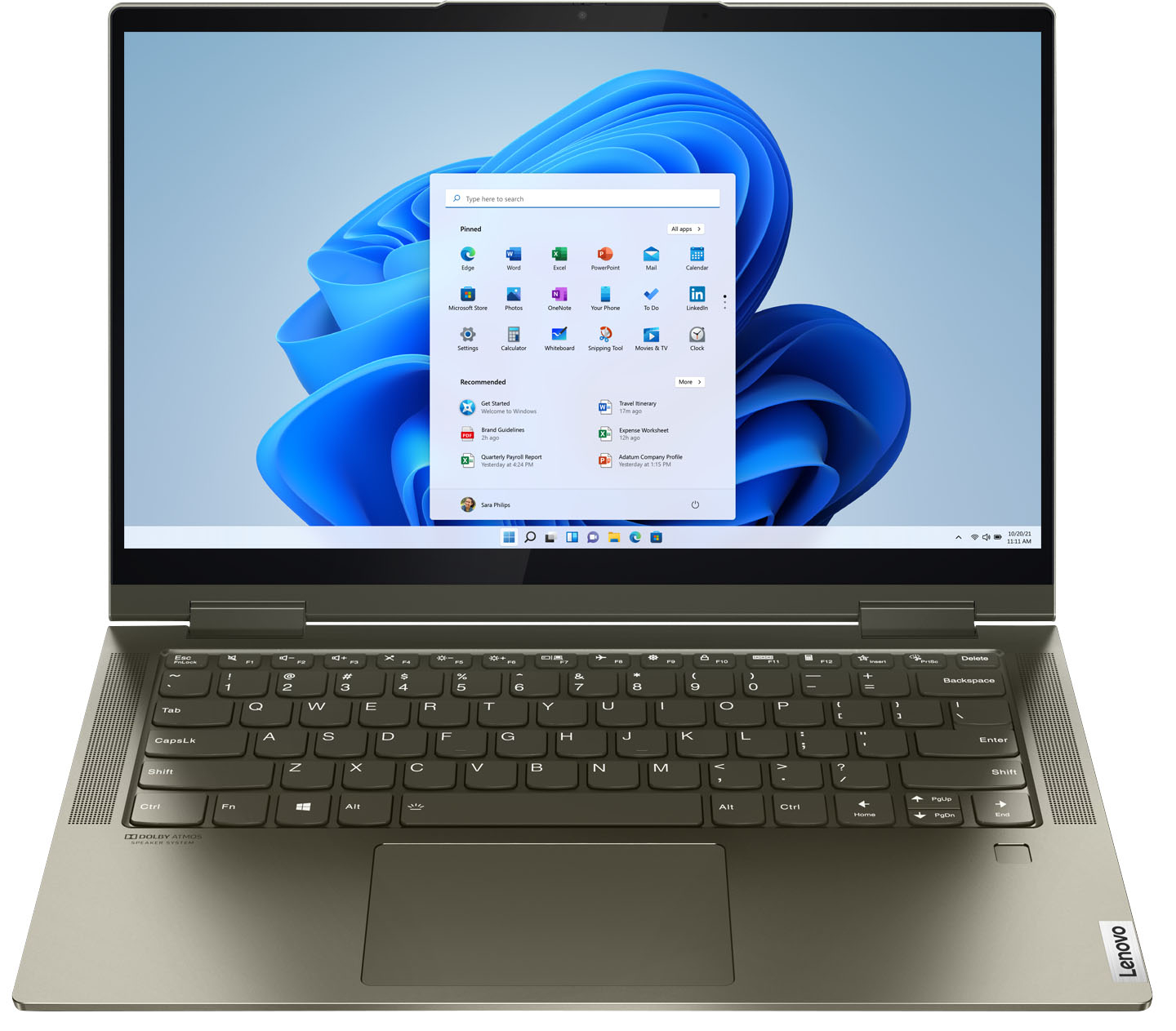
Customers are delighted by the Yoga 7i 2-in-1 laptop's fast performance, lightweight design, and long battery life. They appreciate the touch screen's sensitivity and the overall price of the laptop. However, some customers have concerns about the limited number of USB ports, the durability of the hinge, and the warranty coverage.
This summary was generated by AI based on customer reviews.
Great specs, poor design
||Posted . Owned for 1.5 years when reviewed.This reviewer received promo considerations or sweepstakes entry for writing a review.Great specs, poor design. When opening this device the screen will crack for no apparent reason. After a single web search about this model we found many cases of this. According to the company it is a design flaw in the hinge placement. So the company is aware but doing nothing to fix it or compensate customers.
No, I would not recommend this to a friendbeware unless you have above average computer skil
||Posted . Owned for 1 month when reviewed.This reviewer received promo considerations or sweepstakes entry for writing a review.laptop has am issue with the Intel chipset that causes it to be incapable of finding the hard drive from anywhere but the bios screen. otherwise it's a solid system
No, I would not recommend this to a friendBrand response from Lenovo Product Expert
Posted .We are sorry to hear that you are having issues with the Windows 10 Operating System within your Intel Evo-Certified, Lenovo Yoga 7i-14, model number 82BH0006US. It is possible that resetting the computer back to original factory settings may fix the issue you are having. This system is equipped with OneKey Recovery System. There is a very small pin hole on the bottom right side of the device, right near the top right corner of the cooling vent on the bottom of the device. You will need a pin to push this reset button. Plug the device in. Let the battery charge for about 15 minutes. Push the reset button. The system should boot to a choice screen where you can choose "Restore To Factory Default". Select this. It will delete everything from the hard drive except the original factory install of the operating system. You will need to reinstall all programs and files after the reset. If you don't have copies of the files, try to make one before you restore by selecting "Boot to desktop" and trying to back up your files. If the problem persists after the factory reset, we recommend you contact Lenovo Tech Support at: 877-453-6686.

DO NOT BUY!!!!
||Posted . Owned for 1 month when reviewed.This reviewer received promo considerations or sweepstakes entry for writing a review.I'm beyond disappointed with this purchase and Best Buy!!!! I received this on 6/3/22, after only 2 weeks I started having hardware issues, kept freezing, crashing, overheating, started making a loud fan noise and getting a blue screen, reached out to Best Buy on 7/5/22 to get a refund or an exchange for a new one, they declined! I am now filing a chargeback claim, for $700+ I expected to get a working laptop!
No, I would not recommend this to a friendBrand response from Lenovo Product Expert
Posted .We are sorry to hear that you are having issues with your Intel Evo-Certified, Lenovo Yoga 7i 14, model number 82BH00DQUS. Resetting your computer back to original factory settings may correct the issue you are having. This system is equipped with OneKey Recovery System. There is a very small pin hole on the bottom right side of the device, right near the top right corner of the cooling vent on the bottom of the device. You will need a pin to push this reset button. Plug the device in. Let the battery charge for about 15 minutes. Push the reset button. The system should boot to a choice screen where you can choose "Restore To Factory Default". Select this. It will delete everything from the hard drive except the original factory install of the operating system. You will need to reinstall all programs and files after the reset. If you don't have copies of the files, try to make one before you restore by selecting "Boot to desktop" and trying to back up your files. If the problem persists after the factory reset, we recommend you contact Lenovo Premium Care for additional help at: 888-278-9707.
Lenovo not as expected
||Posted .This reviewer received promo considerations or sweepstakes entry for writing a review.It’s not working as expected. It slow, sometimes doesn’t upload the websites entirely. I believe that for the price it could do better.
No, I would not recommend this to a friendBrand response from Lenovo Product Expert
Posted .We are sorry to hear that you are having issues with your Intel Evo-Certified, Lenovo Yoga 7i 14, model number 82BH00DQUS. This is a fast configuration with its Intel Evo-Certified system configuration. If you are getting slower than expected performance, be sure any software you installed is compatible with Windows 10. There is no need to install Microsoft Office software. The software is already part of the operating system, you just need to activate the software with a purchased product key. If you have installed a copy of Microsoft Office, this is conflicting with the existing copy on the system and this will slow your system down. If you have installed a 3rd party anti-virus program, be sure that Windows Defender is turned off and that the trial version of McAfee Anti-Virus software is uninstalled. There can only be one anti-virus program on the system. You may need to restore your system to original factory default settings if any of the programming errors have occurred. You can do that by typing "restore" in the Cortana search window. Just click on the magnifying glass icon at the bottom left of your Windows 10 Desktop. Click on "Reset This PC" Then click on "Get Started" and follow the on screen directions to restore to factory defaults. If the problem persists, we recommend you contact Lenovo Tech Support at: 877-453-6686.
Would NOT buy!!!
||Posted .This reviewer received promo considerations or sweepstakes entry for writing a review.Purchased this computer, turned it on to complete set up. It would not work. Had to go the next day to get a new one. Had the second one for a month. It was working great and then suddenly would not turn on. Completely stopped working. Had to return AGAIN. I would NOT recommend this computer.
No, I would not recommend this to a friendBrand response from Lenovo Product Expert
Posted .We are sorry to hear that you are having issues with your Intel Evo-Certified, Lenovo Yoga 7i-14 model number 82BH0006US. Be sure that you are using the correct port to charge the battery within the Yoga 7i-14. There is only one port on this laptop that can charge the computer's battery: It is the one on the left side of the computer with the electric plug icon next to the Thunderbolt icon. Use this port only to charge the computer. Plug the computer in using the proper charging port and the AC adapter/charger that came with the computer. A white LED light next to the charging port will light up when there is power going to the computer. Let the computer charge for 15-minutes. Now push the power button and the computer should boot normally. If the issue continues, we recommend you contact Lenovo Tech Support for additional help at: 877-453-6686.
Meh
||Posted . Owned for 3 weeks when reviewed.This reviewer received promo considerations or sweepstakes entry for writing a review.Had high hopes because of other reviews. But really, I kind of wish I'd kept my old computer.
No, I would not recommend this to a friendCrashed after two days
||Posted .This reviewer received promo considerations or sweepstakes entry for writing a review.Worked fine for two days. Could not finish overnight windows update and after finally reaching home screen (after spinning wheel on blue screen for hours) all functions were non responsive. Best Buy rep got to the Home Screen in the store and told me everything was fine and to “give it some time”. Had to show him that everything on the Home Screen would not respond. Returned it and bought something else
No, I would not recommend this to a friendBrand response from Lenovo Product Expert
Posted .We are sorry to hear that you had an issue with a Windows 10 update to your Intel Evo-Certified, Lenovo Yoga 7i-14. You can rollback an update that fails to either download or install properly. Here is a link to information about rolling back a Windows 10 update: https://support.microsoft.com/en-us/windows/recovery-options-in-windows-10-31ce2444-7de3-818c-d626-e3b5a3024da5. If you are unable to properly boot your computer after the failed update, this system is equipped with OneKey Recovery System. There is a very small pin hole on the bottom right side of the device, right near the top right corner of the cooling vent on the bottom of the device device. You will need a pin to push this reset button. Plug the device in. Let the battery charge for about 15 minutes. Push the reset button. The system should boot to a choice screen where you can choose "Restore To Factory Default". Select this. It will delete everything from the hard drive except the original factory install of the operating system. You will need to reinstall all programs and files after the reset. If you don't have copies of the files, try to make one before you restore by selecting "Boot to desktop" and trying to back up your files. If the problem persists after the factory reset, we recommend you contact Lenovo Tech Support at: 877-453-6686.
windows update issue
||Posted . Owned for 2 months when reviewed.This reviewer received promo considerations or sweepstakes entry for writing a review.Bought this in November. Used about 3 times. I have a PC as well. Just updated Windows update. Laptop seemed liked it was going to restart but it was on the "restarting" screen for over an hour. I powered down and the update started again automatically. Now its on 98% complete for over half an hour. I just bought this laptop and barely used it! Need to call Lenovo in the morning.
No, I would not recommend this to a friendBrand response from Lenovo Product Expert
Posted .We are sorry to hear that you are having issues with a recent Windows 10 Update. You can rollback a Windows 10 update if there is an issue. Here is a link to rollback options: https://support.microsoft.com/en-us/windows/recovery-options-in-windows-10-31ce2444-7de3-818c-d626-e3b5a3024da5#:~:text=For%20a%20limited%20time%20after,previous%20version%20of%20Windows%2010. If you are unable to properly boot the computer to rollback the Windows 10 update, this system is equipped with OneKey Recovery System. There is a very small pin hole on the bottom right side of the device, right near top right edge of the cooling vent on the device. You will need a pin to push this reset button. Plug the device in. Let the battery charge for about 15 minutes. Push the reset button. The system should boot to a choice screen where you can choose "Restore To Factory Default". Select this. It will delete everything from the hard drive except the original factory install of the operating system. You will need to reinstall all programs and files after the reset. If you don't have copies of the files, try to make one before you restore by selecting "Boot to desktop" and trying to back up your files. If the problem persists after the factory reset, we recommend you contact Lenovo Tech Support at: 877-453-6686.
Lemon
||Posted . Owned for 1 month when reviewed.This reviewer received promo considerations or sweepstakes entry for writing a review.Stopped turning on after less than 6 weeks that I had it. Contacted Lenovo tech support and they could not fix it remotely. Tried anything possible. Told me to take it back to Bestbuy. Geek squad checked it and said problem was not the charger but computer. They replaced it with another. Hopefully this one lasts more than 6 weeks!
No, I would not recommend this to a friendScreen Flickering
||Posted . Owned for 1 month when reviewed.This reviewer received promo considerations or sweepstakes entry for writing a review.The screen keeps flickering. The screen flickers when in use and turns off and on.
No, I would not recommend this to a friendBrand response from Lenovo Product Expert
Posted .Response –
We are sorry to hear that you are having display issues with your Lenovo Yoga 7i 2-in-1 14 in. Touch-Screen Laptop. Often, display issues can be caused by display driver issue or incompatible apps. To determine whether it is a display driver or app that is causing this issue, please refer to this article for step-by-step instructions as to how you can figure it out
https://support.microsoft.com/en-us/windows/troubleshoot-screen-flickering-in-windows-10-47d5b0a7-89ea-1321-ec47-dc262675fc7b
If you need to update drivers, please type "Lenovo Vantage" in the Windows search bar at the lower left corner > Select Lenovo Vantage from the list > click on "Health and Support” > select "Hardware Scan" > select "Run Quick Tests". This will scan your entire system for errors. Please follow any prompts that pop up. If the problem continues after this scan, please select "System Update.” First select Windows update from the menu. Scan your system to be sure you have the latest version of Windows 10. Once that scan is complete, select "Additional Updates". This will scan your device to be sure there are no new BIOS/Driver updates needed.
If the issue still continues after these updates, we recommend you call Lenovo Tech Support at: 877-453-6686 for additional help.
Does not work with ThinkPad hub
||Posted .This reviewer received promo considerations or sweepstakes entry for writing a review.Beautiful laptop, quality materials. However there are issues with this connecting to Lenovo's hub. I have exchanged 2 laptops and both will not stay connected to a Lenovo usb-hub. The hub works with multiple other Lenovo laptops. Great if you do not use a hub, completely terrible if you use a hub for your laptop.
No, I would not recommend this to a friendBrand response from Lenovo Product Expert
Posted .The Intel Evo-Certified, Lenovo Yoga 7i 14 model number 82BH0006US, is compatible with either a universal USB-c or Thunderbolt 3.0 universal docking station like this one: https://www.bestbuy.com/site/belkin-thunderbolt-3-docking-station/6343826.p?skuId=6343826. Be sure you are using a compatible docking station with your computer.
Microsoft Office
||Posted . Owned for 3 weeks when reviewed.This reviewer received promo considerations or sweepstakes entry for writing a review.I bought Office for students and home. I followed the directions to install it. When we boot up Office it says the version is expired in 2015. Because I just bought the computer and software I didn’t buy a subscription to Geek Squad. I called asking for assistance and was told they would not help me until I bought the subscription!
No, I would not recommend this to a friendBrand response from Lenovo Product Expert
Posted .We are sorry to hear that you are having issues activating your free 1-year subscription to Microsoft Office 365. When you activate Microsoft Office 365, it updates to the latest, most current version of Microsoft Office currently available. Here is a link to a YouTube Video, demonstrating the activation of your free 1-year subscription to Microsoft Office 365 on your computer: https://www.youtube.com/watch?v=zetZh7zGgOA&feature=youtu.be
Trash
||Posted . Owned for 1 year when reviewed.This reviewer received promo considerations or sweepstakes entry for writing a review.It was working fine until now. It lasted only a year. Ridiculous!
No, I would not recommend this to a friendBrand response from Lenovo Product Expert
Posted .We are sorry to hear that you are having issues with your Intel Evo-Certified, Lenovo Yoga 7i 14 model number 82BH0006US. Resetting this computer back to original factory settings may correct the issue you are having. This system is equipped with OneKey Recovery System. There is a very small pin hole on the bottom right side of the device, right near the top right corner of the cooling vent on the bottom of the device. You will need a pin to push this reset button. Plug the device in. Let the battery charge for about 15 minutes. Push the reset button. The system should boot to a choice screen where you can choose "Restore To Factory Default". Select this. It will delete everything from the hard drive except the original factory install of the operating system. You will need to reinstall all programs and files after the reset. If you don't have copies of the files, try to make one before you restore by selecting "Boot to desktop" and trying to back up your files. If the problem persists after the factory reset, we recommend you make an appointment with the Geek Squad at your local Best Buy Store so the Geek Squad Agents can assess the potential for paid repairs to your Yoga 7i 14.
Appalling build quality
||Posted . Owned for 1.5 years when reviewed.This reviewer received promo considerations or sweepstakes entry for writing a review.The screen cracked just 5 months into the usage, without being dropped once. 1.5 years later the joint jammed and completely shattered the screen from the lower left. I have left with no choice but to purchase another laptop since Best Buy claimed this as a user error!
No, I would not recommend this to a friendError Prone Laptop - Avoid
||Posted . Owned for 2 months when reviewed.This reviewer received promo considerations or sweepstakes entry for writing a review.This laptop is a dud. I bought one for my wife for Christmas, and by mid January it regularly has a screen flickering issue where it has to be restarted for it to function again. The fingerprint scanner has also ceased to function. Avoid this model.
No, I would not recommend this to a friendBrand response from Lenovo Product Expert
Posted .We are sorry to hear that you are having issues with your Intel Evo-Certified, Lenovo Yoga 7i-14, with the screen image and the fingerprint reader on this model. First, be sure any software you installed is compatible with Windows 10. Incompatible software can cause the issues you describe. There is no need to install Microsoft Office software. The software is already part of the operating system, you just need to activate the software with a purchased product key. If you have installed a copy of Microsoft Office, this is conflicting with the existing copy on the system and this will slow your system down. If you have installed a 3rd party anti-virus program, be sure that Windows Defender is turned off and that the trial version of McAfee Anti-Virus software is uninstalled. There can only be one anti-virus program on the system. You may need to restore your system to original factory default settings if any of the programming errors have occurred. You can do that by typing "restore" in the Cortana search window. Just click on the magnifying glass icon at the bottom left of your Windows 10 Desktop. Click on "Reset This PC" Then click on "Get Started" and follow the on screen directions to restore to factory defaults. If there is no incompatible software installed, or the issue continues after the incompatible software is removed, be sure you have the latest version of Windows 10 on the computer. Then update all of the BIOS file and drivers up to that latest version of Windows 10. You can easily accomplish this by scanning the computer with the Lenovo Utility software available on this computer. This system has Lenovo utilities installed to help maintain the health of the device and keep the operating system software up to date. Type "Lenovo Vantage" in the Cortana Search window (if Lenovo Vantage is not installed on your device, you can download the APP and install it now). Select Lenovo Vantage from the list. In the window that opens, click on "Health and Support". In the expanded menu, select "Hardware Scan" In the window that opens, select "Run Quick Tests". This will scan your entire system for errors. Follow any directions that may pop up. If the problem continues after this scan, now click on "System Update". First select Windows update from the menu. Scan your system to be sure you have the latest version of Windows 10. Once that scan is complete, select "Additional Updates". This will scan your device to be sure there are no new BIOS/Driver updates needed. Follow any instructions that may pop up. If the issue still continues after these updates, we recommend you call Lenovo Tech Support at: 877-453-6686 for additional help.
not happy!!!!!!!!!!!!
||Posted .This reviewer received promo considerations or sweepstakes entry for writing a review.the screen is too small i thought i was getting the 15 inch screen i cant see anything i am very disappointed the salesman didnt tell me i would need an adapter i had to ask --what if i came home and couldnt connect it????? !!!!!!!!!! very poor service !!!!!!!!!!!!!!
No, I would not recommend this to a friendNot for me
||Posted . Owned for 3 weeks when reviewed.This reviewer received promo considerations or sweepstakes entry for writing a review.There was a malfunction and this computer was returned. It was giving me a warning with alarms saying USB overload unplug immediately. It wasn’t even plugged in. It was returned. It was a small keyboard but had nice picture when it worked and was quick to sign into
No, I would not recommend this to a friendBrand response from Lenovo Product Expert
Posted .We are sorry to hear that you had issues with your Intel Evo-Certified, Lenovo Yoga 7i 14, model number 82BH0006US. Be sure any software you installed is compatible with Windows 10. There is no need to install Microsoft Office software. The software is already part of the operating system, you just need to activate the software with a purchased product key. If you have installed a copy of Microsoft Office, this is conflicting with the existing copy on the system and this will slow your system down. If you have installed a 3rd party anti-virus program, be sure that Windows Defender is turned off and that the trial version of McAfee Anti-Virus software is uninstalled. There can only be one anti-virus program on the system. You may need to restore your system to original factory default settings if any of the programming errors have occurred. You can do that by typing "restore" in the Cortana search window. Just click on the magnifying glass icon at the bottom left of your Windows 10 Desktop. Click on "Reset This PC" Then click on "Get Started" and follow the on screen directions to restore to factory defaults. If the problem persists, we recommend you contact Lenovo Tech Support at: 877-453-6686.
Overpriced
||Posted . Owned for 1 month when reviewed.This reviewer received promo considerations or sweepstakes entry for writing a review.Very inconvenient to open , battery doesn't last long
No, I would not recommend this to a friendBrand response from Lenovo Product Expert
Posted .The Intel Evo-Certified, Lenovo Yoga 7i-14 has an Easy-Open lid, with a notch at the front of the lid, for easy opening. Thanks to the Evo-Certification, The Yoga 7i-14 provides All-Day-Battery life through its 4CELL_71WH_INTERNAL, Lithium Polymer Battery, which within this configuration, has a battery life of up to 13 hours, depending on the work the device is performing. If you are getting substantially less battery life, first, set your screen brightness at less than 100-percent - try 80-percent to start with. Then, be sure Battery conservation Mode is turned off. This power management setting should only be used when the laptop is plugged in all the time. It will prolong overall battery life by only charging the battery to 60-percent of capacity. Here is a link to instructions for turning off Battery Conservation Mode: https://support.lenovo.com/us/en/solutions/ht103159. Also check what programs are running in the background on the computer. Be sure only the programs you want running in the background are. These programs will drain the battery. Here is a link to information about how to find out what programs are running in the background on your Windows 10 computer and how to manage them for better system performance: https://www.windowscentral.com/how-prevent-apps-running-background-windows-10. Then, finally, be sure any software you installed is compatible with Windows 10. Incompatible software will drain the battery at a faster rate. There is no need to install Microsoft Office software. The software is already part of the operating system, you just need to activate the software with a purchased product key. If you have installed a copy of Microsoft Office, this is conflicting with the existing copy on the system and this will slow your system down. If you have installed a 3rd party anti-virus program, be sure that Windows Defender is turned off and that the trial version of McAfee Anti-Virus software is uninstalled. There can only be one anti-virus program on the system. You may need to restore your system to original factory default settings if any of the programming errors have occurred. You can do that by typing "restore" in the Cortana search window. Just click on the magnifying glass icon at the bottom left of your Windows 10 Desktop. Click on "Reset This PC" Then click on "Get Started" and follow the on screen directions to restore to factory defaults. If the problem persists, we recommend you contact Lenovo Tech Support at: 877-453-6686.
STAY AWAY
||Posted . Owned for 3 months when reviewed.This reviewer received promo considerations or sweepstakes entry for writing a review.Less than 3 months in this horrible laptop has stopped working. This is my second and last lenovo. Same thing happened to the first but i figured quality control improved. Unfortunately not.
No, I would not recommend this to a friendBrand response from Lenovo Product Expert
Posted .We are sorry to hear that you are having issues with your Intel Evo-Certified, Lenovo Yoga 7i 14. Try resetting your Yoga 7i 14 back to original factory settings: This system is equipped with OneKey Recovery System. There is a very small pin hole on the bottom right side of the device, right near the top right corner of the cooling vent on the bottom of the device. You will need a pin to push this reset button. Plug the device in. Let the battery charge for about 15 minutes. Push the reset button. The system should boot to a choice screen where you can choose "Restore To Factory Default". Select this. It will delete everything from the hard drive except the original factory install of the operating system. You will need to reinstall all programs and files after the reset. If you don't have copies of the files, try to make one before you restore by selecting "Boot to desktop" and trying to back up your files. If the problem persists after the factory reset, we recommend you contact Lenovo Tech Support at: 877-453-6686.
Do Not Purchase
||Posted . Owned for 1.5 years when reviewed.This reviewer received promo considerations or sweepstakes entry for writing a review.The computer has not worked correctly since I purchased it. It is hands down the worst computer that I have purchased. I can not start a project on it because it malfunctions and must be repaired.
No, I would not recommend this to a friend