Customer Ratings & Reviews




- Model:
- 82BJ007TUS/82BJ0001US
- SKU:
- 6426705
Rating by feature
- Battery Life
Rating 4.6 out of 5 stars
- Speed
Rating 4.7 out of 5 stars
- Display
Rating 4.7 out of 5 stars
Customers are saying
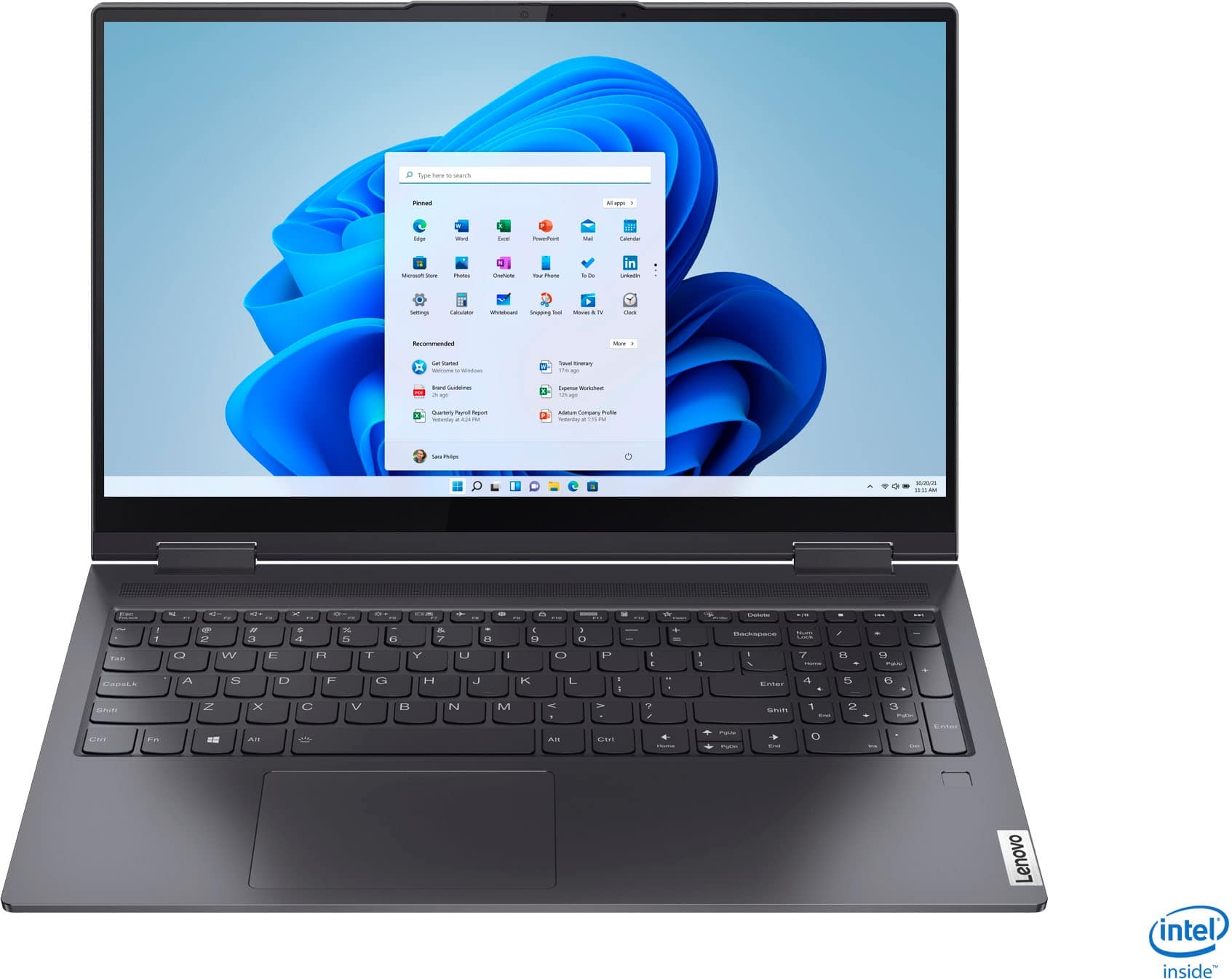
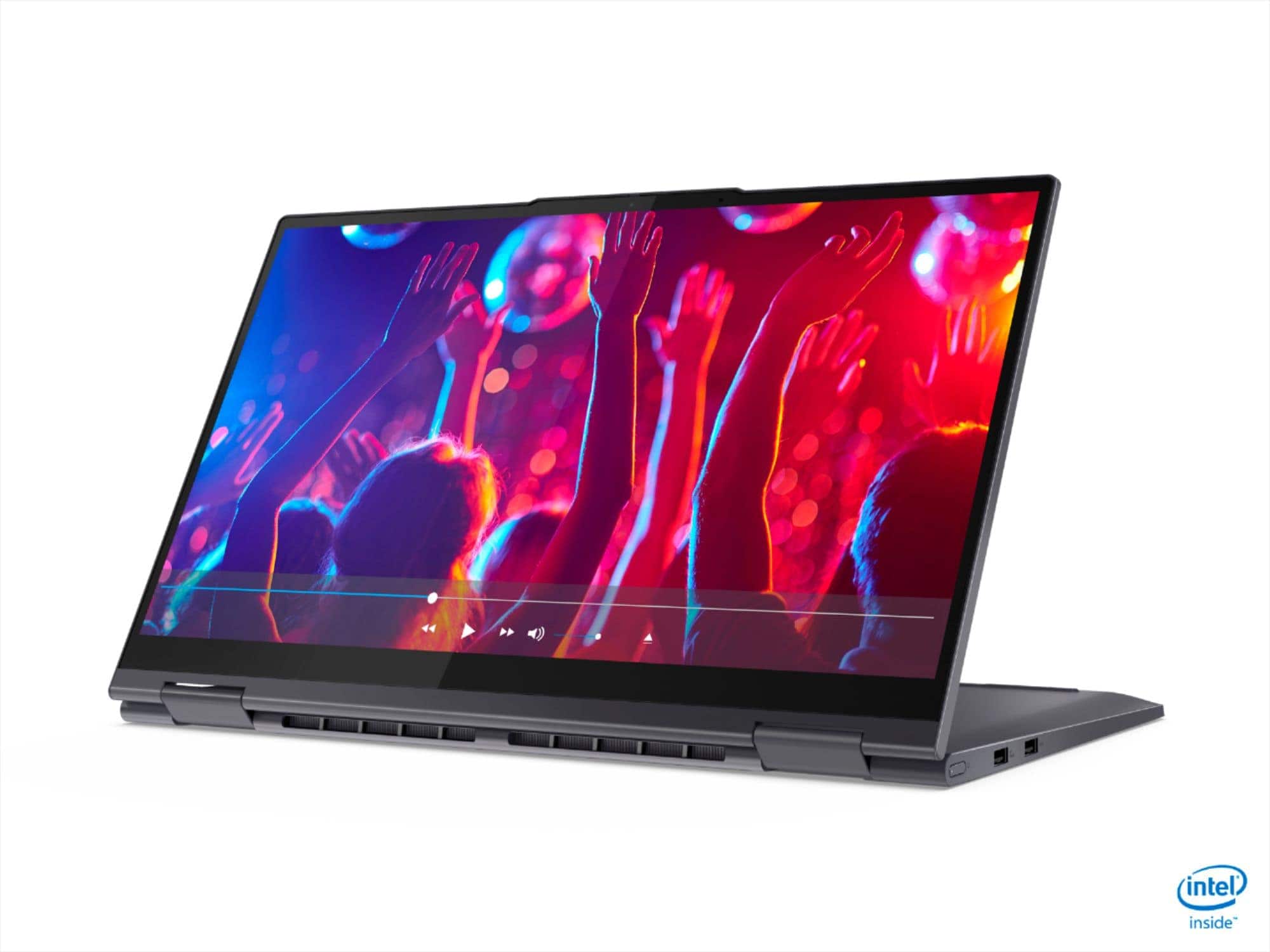
Customers are enthusiastic about the Yoga 7i's touchscreen, ease of use, and performance. Many appreciate its lightweight design, long battery life, and reasonable price. Positive feedback also highlights the laptop's size and attractive design. However, some customers point out limitations in RAM and the number of USB ports.
This summary was generated by AI based on customer reviews.
New Lenovo
||Posted . Owned for less than 1 week when reviewed.This reviewer received promo considerations or sweepstakes entry for writing a review.Initially, I was delighted with my purchase. However, shortly after continued usage, it started blinking, and blinking as if trying to restart. I plan to return the purchase: it shouldn't be malfunctioning at this point.
I would recommend this to a friendBrand response from Lenovo Product Expert
Posted .We are sorry to hear that you had issues with your Lenovo Yoga 7i-15. Be sure any software you installed is compatible with Windows 10. There is no need to install Microsoft Office software. The software is already part of the operating system, you just need to activate the software with a purchased product key. If you have installed a copy of Microsoft Office, this is conflicting with the existing copy on the system and this will slow your system down. If you have installed a 3rd party anti-virus program, be sure that Windows Defender is turned off and that the trial version of McAfee Anti-Virus software is uninstalled. There can only be one anti-virus program on the system. You may need to restore your system to original factory default settings if any of the programming errors have occurred. You can do that by typing "restore" in the Cortana search window. Just click on the magnifying glass icon at the bottom left of your Windows 10 Desktop. Click on "Reset This PC" Then click on "Get Started" and follow the on screen directions to restore to factory defaults. If the problem persists, we recommend you contact Lenovo Tech Support at: 877-453-6686.

High Tech Automotive Ownewr
||Posted . Owned for 11 months when reviewed.This reviewer received promo considerations or sweepstakes entry for writing a review.Every using it’s freezing I had to restart again the mouse not moving
No, I would not recommend this to a friendBrand response from Lenovo Product Expert
Posted .We are sorry to hear that you experienced an issue with your Yoga 7i 15. If this freezing happens consistently, In advance, this is a lengthy response, however we want to give you as much information as possible to help ensure your issue is resolved. Be sure any software you installed is compatible with Windows 11. Incompatible software will cause the system to not perform properly and impair function. If the software is compatible with your device, yet the issues persist, we recommend checking for updates through Windows Update settings. These updates can help resolve issues from operating system bugs to driver software improvements. To navigate there, select start on the taskbar (windows logo) or press the windows key on the keyboard then select Settings. In Settings, select Windows Update, and then select the Check For Updates button. Install any available updates and restart your PC if required. If you didn’t have any updates that required a restart, it’s still a good idea to restart your device to make sure any pending updates are installed. Additionally, check for updates in the Lenovo Vantage application that is preinstalled on Windows devices. You can check by opening the app, navigating to the device tab, and selecting the “check for updates” option. If there are updates to install, follow the onscreen directions to finalize those updates. If your issues persists after these steps, we also recommend that you reach out to Lenovo Tech Support at this number for additional assistance: 877-453-6686.
Battery died in 9 months
||Posted . Owned for 9 months when reviewed.This reviewer received promo considerations or sweepstakes entry for writing a review.Did a lot of research before purchasing. Was able to get a great price, but battery died about 9 months in. Luckily it was still under manufacturers warranty. After about an hour on the phone with them and multiple pics and recordings, they sent me a box to ship it in for repair. Seems to be functioning now but expected more reliability when purchased.
No, I would not recommend this to a friendBrand response from Lenovo Product Expert
Posted .We are sorry to hear that you had issues with the internal battery within your Lenovo Yoga 7i 15. Resetting your laptop back to original factory setting may also reset your internal battery and get the battery operational again. This system is equipped with OneKey Recovery System. There is a very small pin hole on the bottom right side of the device, right near the top right corner of the cooling vent on the bottom of the device. You will need a pin to push this reset button. Plug the device in. Let the battery charge for about 15 minutes. Push the reset button. The system should boot to a choice screen where you can choose "Restore To Factory Default". Select this. It will delete everything from the hard drive except the original factory install of the operating system. You will need to reinstall all programs and files after the reset. If you don't have copies of the files, try to make one before you restore by selecting "Boot to desktop" and trying to back up your files. If the problem persists after the factory reset, we recommend you contact Lenovo Tech Support at: 877-453-6686.
Poor quality
||Posted .This reviewer received promo considerations or sweepstakes entry for writing a review.I would not recommend this computer. Within the first 2 weeks of usage the computer screen went black multiple times and applications froze on several occasions. All software was updated and no cause could be found by the technicians. Also, the quality of the camera is not great. Unfortunately, I could not return the product because I missed the return window by 1 day.
No, I would not recommend this to a friendBrand response from Lenovo Product Expert
Posted .We are sorry to hear that you are having issues with your Lenovo Yoga 7i-15. Be sure any software you installed is compatible with Windows 10. There is no need to install Microsoft Office software. The software is already part of the operating system, you just need to activate the software with a purchased product key. If you have installed a copy of Microsoft Office, this is conflicting with the existing copy on the system and this will slow your system down. If you have installed a 3rd party anti-virus program, be sure that Windows Defender is turned off and that the trial version of McAfee Anti-Virus software is uninstalled. There can only be one anti-virus program on the system. You may need to restore your system to original factory default settings if any of the programming errors have occurred. You can do that by typing "restore" in the Cortana search window. Just click on the magnifying glass icon at the bottom left of your Windows 10 Desktop. Click on "Reset This PC" Then click on "Get Started" and follow the on screen directions to restore to factory defaults. If the problem persists, we recommend you contact Lenovo Tech Support at: 877-453-6686.
Ok
||Posted . Owned for 2 months when reviewed.This reviewer received promo considerations or sweepstakes entry for writing a review.Cool just need more space and a case, can’t find one online for this specific computer
I would recommend this to a friendBrand response from Lenovo Product Expert
Posted .This Lenovo Yoga 7i 15, model number 82BJ007TUS, ships with a 256GB M.2 2242 PCIe 3.0x4 NVMe solid state hard drive installed. You can expand your storage space by using a Windows compatible external hard drive, like this one: https://www.bestbuy.com/site/wd-easystore-2tb-external-usb-3-0-portable-hard-drive-black/6406513.p?skuId=6406513. You can use any universal 15.6 inch laptop case with this Yoga 7i 15, like any one of these: https://www.bestbuy.com/site/searchpage.jsp?st=15.6+inch+laptop+case&_dyncharset=UTF-8&_dynSessConf=&id=pcat17071&type=page&sc=Global&cp=1&nrp=&sp=&qp=&list=n&af=true&iht=y&usc=All+Categories&ks=960&keys=keys
2 problems one week
||Posted . Owned for 3 weeks when reviewed.This reviewer received promo considerations or sweepstakes entry for writing a review.Brought it for my girlfriend on Christmas, it worked for a week. Took it back to best buy with internet problems, they did a hard reset that fixed it temporarily, The next day the mouse and track pad stopped working. Best buy gave me a full refund, I dont think I will buy another Lenovo product, first time was just a bad experience.
No, I would not recommend this to a friendNo disk drive
||Posted . Owned for 3 weeks when reviewed.This reviewer received promo considerations or sweepstakes entry for writing a review.Perfect except no disk drive. I dont use often but I do miss it.
I would recommend this to a friendBrand response from Lenovo Product Expert
Posted .Although the Lenovo Yoga 7i-15 does not have a built in CD/DVD drive, you can use an external, USB-based Windows 10 compatible CD/DVD drive with this ultra-portable, 2 in 1 laptop.
Island girl
||Posted . Owned for 1 month when reviewed.This reviewer received promo considerations or sweepstakes entry for writing a review.Everything works well so far, for the exception of that 1 of the numbers key doesn’t work properly
I would recommend this to a friendOk but need improvement.
||Posted . Owned for 4 months when reviewed.This reviewer received promo considerations or sweepstakes entry for writing a review.It was ok but didn't meet my expectation of design and performance. Had to return
No, I would not recommend this to a friendDon't Get This! It Sucks
||Posted . Owned for 4 months when reviewed.This reviewer received promo considerations or sweepstakes entry for writing a review.Worst ever. Right out of the package the two ports on the right hand side did not work properly. I didn't think it was the ports and returned my 329.00 second screen because I thought that was faulty. By the time I realized it the expiration for the return date had come and gone. And now I have only had this laptop a few months and the screen is going out. The text is literally blurring and trembling on the screen as I write this review. Previous to this I had an Imac that I bought in 2009 AND it was still going STRONG till 2021! What a piece of crap. I am now out $900.00
No, I would not recommend this to a friendBrand response from Lenovo Product Expert
Posted .We are sorry to hear that you are having issues with your Lenovo Yoga 7i 15 model number 82BJ007TUS. First, Be sure any software you installed is compatible with Windows. There is no need to install Microsoft Office software. The software is already part of the operating system, you just need to activate the software with a purchased product key. If you have installed a copy of Microsoft Office, this is conflicting with the existing copy on the system and this will slow your system down. If you have installed a 3rd party anti-virus program, be sure that Windows Defender is turned off and that the trial version of McAfee Anti-Virus software is uninstalled. There can only be one anti-virus program on the system. You may need to restore your system to original factory default settings if any of the programming errors have occurred. You can do that by typing "restore" in the Cortana search window. Just click on the magnifying glass icon at the bottom left of your Windows Desktop. Click on "Reset This PC" Then click on "Get Started" and follow the on screen directions to restore to factory defaults. If there is no incompatible software installed, but you are unable to use the Windows restore process due to the screen error issues, this system is equipped with OneKey Recovery System. There is a very small pin hole on the bottom right side of the device, right near the top right corner of the cooling vent on the bottom of the device. You will need a pin to push this reset button. Plug the device in. Let the battery charge for about 15 minutes. Push the reset button. The system should boot to a choice screen where you can choose "Restore To Factory Default". Select this. It will delete everything from the hard drive except the original factory install of the operating system. You will need to reinstall all programs and files after the reset. If you don't have copies of the files, try to make one before you restore by selecting "Boot to desktop" and trying to back up your files. If the problem persists after the factory reset, we recommend you contact Lenovo Premium Care for additional help at: 888-278-9707.
Lenovo -YOGA
||Posted . Owned for 1 month when reviewed.This reviewer received promo considerations or sweepstakes entry for writing a review.Just OK-had problems -they replaced but still not working properly Software issue
No, I would not recommend this to a friendBrand response from Lenovo Product Expert
Posted .We are sorry to hear that you are having issues with your Yoga 7i 15. Be sure any software you installed is compatible with Windows 10. There is no need to install Microsoft Office software. The software is already part of the operating system, you just need to activate the software with a purchased product key. If you have installed a copy of Microsoft Office, this is conflicting with the existing copy on the system and this will slow your system down. If you have installed a 3rd party anti-virus program, be sure that Windows Defender is turned off and that the trial version of McAfee Anti-Virus software is uninstalled. There can only be one anti-virus program on the system. You may need to restore your system to original factory default settings if any of the programming errors have occurred. You can do that by typing "restore" in the Cortana search window. Just click on the magnifying glass icon at the bottom left of your Windows 10 Desktop. Click on "Reset This PC" Then click on "Get Started" and follow the on screen directions to restore to factory defaults. If the problem persists, we recommend you contact Lenovo Tech Support at: 877-453-6686.
Display
||Posted .This reviewer received promo considerations or sweepstakes entry for writing a review.the display screen seems yellow to me. Is that happening with anyone else?
I would recommend this to a friendBrand response from Lenovo Product Expert
Posted .We are sorry to hear that you are having issues with the screen settings of your Lenovo Yoga 7i 15, model number 82BJ007TUS. Check to be sure that the Night Light Feature is turned off within your Display Settings. The yellow appearance your screen is displaying is the low Blue Light Feature of this Night Light setting. Here is a link to more information about the Night Light Feature and how to turn it off or on as you need it: https://www.windowscentral.com/how-reduce-eye-strain-using-night-light-windows-11. If the issue continues after you have turned off the Night Light Feature, we recommend you contact Lenovo Premium Care for additional help at: 888-278-9707.
audio problem
||Posted .This reviewer received promo considerations or sweepstakes entry for writing a review.Purchased to replace an older Lenovo. Issue started as soon as the computer was turned on. Experienced a hissing noise with audio. Spent time with Lenovo support and completed a system update for drivers. After working well over an hour trying to fix the issue, it is unresolved. Computer returned as defective
No, I would not recommend this to a friendBrand response from Lenovo Product Expert
Posted .We are sorry to hear that you are having audio issues with your Lenovo Yoga 7i-15. If you have updated to the latest version of Windows 10 and updated all of the BIOS files and drivers to that latest version of Windows 10, now check the computer for any hardware issues. You can easily accomplish this by scanning the computer with the Lenovo Utility software available on this computer. This system has Lenovo utilities installed to help maintain the health of the device and keep the operating system software up to date. Type "Lenovo Vantage" in the Cortana Search window (if Lenovo Vantage is not installed on your device, you can download the APP and install it now). Select Lenovo Vantage from the list. In the window that opens, click on "Health and Support". In the expanded menu, select "Hardware Scan" In the window that opens, select "Run Quick Tests". This will scan your entire system for errors. Follow any directions that may pop up. If the problem continues after this scan, now click on "System Update". First select Windows update from the menu. Scan your system to be sure you have the latest version of Windows 10. Once that scan is complete, select "Additional Updates". This will scan your device to be sure there are no new BIOS/Driver updates needed. Follow any instructions that may pop up. If there are no reported hardware issues and the operating system software is up to date, be sure any software you installed is compatible with Windows 10. There is no need to install Microsoft Office software. The software is already part of the operating system, you just need to activate the software with a purchased product key. If you have installed a copy of Microsoft Office, this is conflicting with the existing copy on the system and this will slow your system down. If you have installed a 3rd party anti-virus program, be sure that Windows Defender is turned off and that the trial version of McAfee Anti-Virus software is uninstalled. There can only be one anti-virus program on the system. You may need to restore your system to original factory default settings if any of the programming errors have occurred. You can do that by typing "restore" in the Cortana search window. Just click on the magnifying glass icon at the bottom left of your Windows 10 Desktop. Click on "Reset This PC" Then click on "Get Started" and follow the on screen directions to restore to factory defaults. If the problem persists, we recommend you contact Lenovo Tech Support at: 877-453-6686.
Lenovo review
||Posted . Owned for 1 month when reviewed.This reviewer received promo considerations or sweepstakes entry for writing a review.Good computer. Would have rated higher but returned because of defect in audio card.
I would recommend this to a friendBrand response from Lenovo Product Expert
Posted .The Lenovo Yoga 7i-15 ships with the stereo, 2W Dolby Atmos Speaker System. For the best audio experience, be sure Dolby Atmos is turned on and adjusted to your personal preferences. Thanks to the user-facing Dolby Atmos speaker system. The Yoga 7i 2 in 1 laptop offers portable entertainment that will go anywhere. If you continue to experience less than expected audio performance, be sure you have the latest version of Windows 10 on the computer. Then update all BIOS files and drivers up to that latest version of Windows 10. You can easily accomplish this by scanning the computer with the Lenovo Utility software available on this computer. This system has Lenovo utilities installed to help maintain the health of the device and keep the operating system software up to date. Type "Lenovo Vantage" in the Cortana Search window (if Lenovo Vantage is not installed on your device, you can download the APP and install it now). Select Lenovo Vantage from the list. In the window that opens, click on "Health and Support". In the expanded menu, select "Hardware Scan" In the window that opens, select "Run Quick Tests". This will scan your entire system for errors. Follow any directions that may pop up. If the problem continues after this scan, now click on "System Update". First select Windows update from the menu. Scan your system to be sure you have the latest version of Windows 10. Once that scan is complete, select "Additional Updates". This will scan your device to be sure there are no new BIOS/Driver updates needed. Follow any instructions that may pop up. If the issue still continues after these updates, we recommend you call Lenovo Tech Support at: 877-453-6686 for additional help.
Large display
||Posted . Owned for 1 month when reviewed.This reviewer received promo considerations or sweepstakes entry for writing a review.I returned item. Display to large for me. Otherwise great value for money -
I would recommend this to a friendepson et-2800
||Posted . Owned for 3 weeks when reviewed.This reviewer received promo considerations or sweepstakes entry for writing a review.Great printer -- poor instructions, had to pay to have it set up.
I would recommend this to a friendQuit working after 30 days
||Posted .This reviewer received promo considerations or sweepstakes entry for writing a review.Owned the computer for 30 days and now it won't turn on. Best Buy will not help, fix, or replace. Sent me to Lenovo tech support. Best Buy Support wasn't even going to give me a Lenovo phone number. When they did it was the wrong number. I do not want to purchase an expensive item from Best Buy or Lenovo every again. Definitely will not purchase an open box item again either. Thank goodness this had a warranty, check your manufacturer warranties before purchasing from Best Buy.
No, I would not recommend this to a friendBrand response from Lenovo Product Expert
Posted .We are sorry to hear that you are having issues with your Lenovo Yoga 7i-15 model number 82BJ0001US. First, be sure the computer internal battery has a charge. Plug the AC adapter/charger that ships with your Yoga 7i-15 into the proper charging port on the left side of the computer. It is the port with the electric plug icon next to it. This is the only port that can be used to charge the computer. There is an LED light right next to the charging port. If the AC adapter is sending power to the computer, the LED light will be on. If the LED does not light, the problem may be with the AC adapter and we recommend you visit your local Best Buy Geek Squad for assistance. If the computer is charging (LED light is on) let the computer charge for 15-minutes, then boot the computer normally by pushing the power button. The computer should boot normally. If it does not, resetting the computer back to original factory settings may correct the issue. Since you can not boot the computer normally, this system is equipped with OneKey Recovery System. There is a very small pin hole on the bottom right side of the device, right near the top right corner of the cooling vent on the bottom of the device. You will need a pin to push this reset button. Plug the device in. Let the battery charge for about 15 minutes. Push the reset button. The system should boot to a choice screen where you can choose "Restore To Factory Default". Select this. It will delete everything from the hard drive except the original factory install of the operating system. You will need to reinstall all programs and files after the reset. If you don't have copies of the files, try to make one before you restore by selecting "Boot to desktop" and trying to back up your files. If the problem persists after the factory reset, we recommend you contact Lenovo Tech Support at: 877-453-6686.
Avoid — Lenovo systems freeze up
||Posted . Owned for 3 weeks when reviewed.This reviewer received promo considerations or sweepstakes entry for writing a review.Extremely disappointed with this purchase- would not recommend & wished I could have returned! Terrible power management sys… when Lenovo goes into low power mode or hibernation, it locks up/freezes & doesn’t readily start up; tried moving mouse, repressing power button, Microsoft+X etc; remains ongoing issue… product of poor design
No, I would not recommend this to a friendBrand response from Lenovo Product Expert
Posted .We are sorry to hear that you are having issues with your Lenovo Yoga 7i 15. This system ships with Windows 10 Home 64-bit Operating System. To wake this Windows 10 system from Hibernation Mode: move the mouse or press any key on the keyboard. If this does not work, press the power button to wake up the computer. If this does not wake the laptop, now check to be sure you have the latest version of Windows 10 on the computer. Then update all BIOS files and drivers up to that latest version of Windows 10. You can easily accomplish this by scanning the computer with the Lenovo Utility software available on this computer. This system has Lenovo utilities installed to help maintain the health of the device and keep the operating system software up to date. Type "Lenovo Vantage" in the Cortana Search window (if Lenovo Vantage is not installed on your device, you can download the APP and install it now). Select Lenovo Vantage from the list. In the window that opens, click on "Health and Support". In the expanded menu, select "Hardware Scan" In the window that opens, select "Run Quick Tests". This will scan your entire system for errors. Follow any directions that may pop up. If the problem continues after this scan, now click on "System Update". First select Windows update from the menu. Scan your system to be sure you have the latest version of Windows 10. Once that scan is complete, select "Additional Updates". This will scan your device to be sure there are no new BIOS/Driver updates needed. Follow any instructions that may pop up. If after updating the Operating Software the problem continues, try these Windows 10 troubleshooting tips: https://support.microsoft.com/en-us/topic/troubleshoot-problems-waking-computer-from-sleep-mode-6cf5b22f-5111-92c3-4a28-eec6e6ff908e. If the issues continue, we recommend you contact Lenovo Tech Support for additional help at: 877-453-6686.
Lenovo Yoga computer
||Posted . Owned for 1 month when reviewed.This reviewer received promo considerations or sweepstakes entry for writing a review.Just setting computer up after receiving for Christmas.
I would recommend this to a friendGreat buy
||Posted .This reviewer received promo considerations or sweepstakes entry for writing a review.Good laptop; however the battery life runs down quickly.
I would recommend this to a friendBrand response from Lenovo Product Expert
Posted .The Lenovo Yoga 7i 15 model number 82BJ0001US, ships with a Integrated 71Wh, Lithium-Polymer Battery, which within this model, has a battery life of up to 16 hours, depending on the work the device is performing. If you are getting substantially less battery life, first, set your screen brightness at less than 100-percent - try 80-percent to start with. Then, be sure Battery conservation Mode is turned off. This power management setting should only be used when the laptop is plugged in all the time. It will prolong overall battery life by only charging the battery to 60-percent of capacity. Here is a link to instructions for turning off Battery Conservation Mode: https://support.lenovo.com/us/en/solutions/ht103159. Also check what programs are running in the background on the computer. Be sure only the programs you want running in the background are. These programs will drain the battery. Here is a link to information about how to find out what programs are running in the background on your Windows 10 computer and how to manage them for better system performance: https://www.windowscentral.com/how-prevent-apps-running-background-windows-10. Then, finally, be sure any software you installed is compatible with Windows 10. Incompatible software will drain the battery at a faster rate. There is no need to install Microsoft Office software. The software is already part of the operating system, you just need to activate the software with a purchased product key. If you have installed a copy of Microsoft Office, this is conflicting with the existing copy on the system and this will slow your system down. If you have installed a 3rd party anti-virus program, be sure that Windows Defender is turned off and that the trial version of McAfee Anti-Virus software is uninstalled. There can only be one anti-virus program on the system. You may need to restore your system to original factory default settings if any of the programming errors have occurred. You can do that by typing "restore" in the Cortana search window. Just click on the magnifying glass icon at the bottom left of your Windows 10 Desktop. Click on "Reset This PC" Then click on "Get Started" and follow the on screen directions to restore to factory defaults. If the problem persists, we recommend you contact Lenovo Tech Support at: 877-453-6686.