Customer Ratings & Reviews
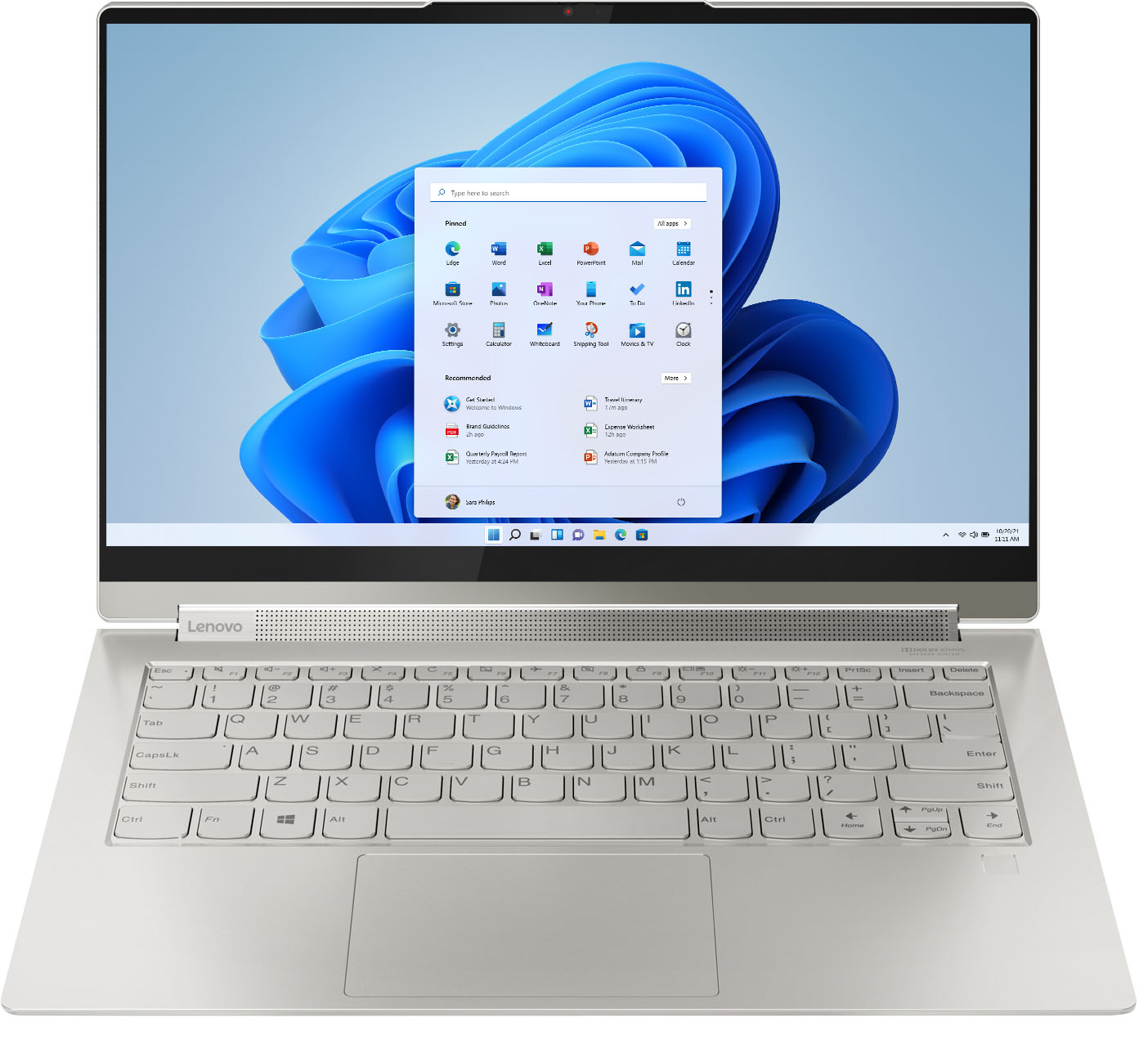



- Model:
- 82BG0090US/82BG000CUS
- SKU:
- 6426709
Rating by feature
- Battery Life
Rating 4.4 out of 5 stars
- Speed
Rating 4.5 out of 5 stars
- Display
Rating 4.6 out of 5 stars
Customers are saying
Customers recognize the Yoga 9i 14 2-in-1 laptop's excellent sound quality, light weight, and impressive battery life as significant strengths. Many appreciate its touchscreen functionality, ease of use, and elegant design. However, some users express concern regarding the limited number of USB ports. A few also mention the price point and occasional overheating issues.
This summary was generated by AI based on customer reviews.
Died within 3 months and parts are not available
||Posted . Owned for 3 months when reviewed.This reviewer received promo considerations or sweepstakes entry for writing a review.I bought this laptop at Best Buy. From the start it had the same lockup, random rebooting, and failure to restart problems that many others have discussed here and on the Lenovo forum. Last week when using it, the screen went black, random blocks started dancing around the screen, and then it shut down and will not restart. Lenovo customer support was fine at scheduling an in person repair, but unfortunately I received a text that parts are not available (even though they haven't diagnosed the problem on site yet and don't know what exact parts will be needed) and they don't know when they will be available. They refuse to replace the laptop instead of repair it. You can draw you own conclusions, but I would suggest you look long and hard at other manufacturers since Lenovo seems to have so many quality control problems right now.
No, I would not recommend this to a friendBrand response from Lenovo Product Expert
Posted .We are sorry to hear that you are having issues with your Intel Evo-Certified, Lenovo Yoga 9i 14 model number 82BG0090US. Resetting this computer back to original factory settings may clear the issues you are having. This system is equipped with OneKey Recovery System. There is a very small pin hole on the bottom right side of the device, right near the top right corner of the cooling vent on the bottom of the device. You will need a pin to push this reset button. Plug the device in. Let the battery charge for about 15 minutes. Push the reset button. The system should boot to a choice screen where you can choose "Restore To Factory Default". Select this. It will delete everything from the hard drive except the original factory install of the operating system. You will need to reinstall all programs and files after the reset. If you don't have copies of the files, try to make one before you restore by selecting "Boot to desktop" and trying to back up your files. If the problem persists after the factory reset, we recommend you contact Lenovo Premium Care for additional help at: 888-278-9707.

Review of lenovo laptop
||Posted . Owned for 1 week when reviewed.This reviewer received promo considerations or sweepstakes entry for writing a review.Excellent customer service and quality of products.
I would recommend this to a friendBrand response from Lenovo Product Expert
Posted .Thank you for choosing the Intel Evo-Certified, Lenovo Yoga 9i 14. We are pleased to hear that the Yoga 9i 14 is working out so well for you.
- Pros mentioned:Weight
useless computer
||Posted .This reviewer received promo considerations or sweepstakes entry for writing a review.this computer is basically unusable!!!! I needed a light weight computer to start a class and be able to take it where ever I go. It freezes up most times within 20 minutes, no materr what site I am on. Keep calling premium tech support through Lenovo, they have not been able to resolve this issue! Don't buy!
No, I would not recommend this to a friendBrand response from Lenovo Product Expert
Posted .We are sorry to hear that you are having issues with your Intel Evo-Certified, Lenovo Yoga 9i 14 model number 82BG000CUS. First, be sure any software you installed is compatible with Windows 10. There is no need to install Microsoft Office software. The software is already part of the operating system, you just need to activate the software with a purchased product key. If you have installed a copy of Microsoft Office, this is conflicting with the existing copy on the system and this will slow your system down. If you have installed a 3rd party anti-virus program, be sure that Windows Defender is turned off and that the trial version of McAfee Anti-Virus software is uninstalled. There can only be one anti-virus program on the system. You may need to restore your system to original factory default settings if any of the programming errors have occurred. You can do that by typing "restore" in the Cortana search window. Just click on the magnifying glass icon at the bottom left of your Windows 10 Desktop. Click on "Reset This PC" Then click on "Get Started" and follow the on screen directions to restore to factory defaults. If there is no incompatible software installed but the issues persist, now check to be sure you have the latest version of Windows 10 on the computer. Then update all BIOS files and drivers up to that latest version of Windows 10. You can easily accomplish this by scanning the computer with the Lenovo Utility software available on this computer. This system has Lenovo utilities installed to help maintain the health of the device and keep the operating system software up to date. Type "Lenovo Vantage" in the Cortana Search window (if Lenovo Vantage is not installed on your device, you can download the APP and install it now). Select Lenovo Vantage from the list. In the window that opens, click on "Health and Support". In the expanded menu, select "Hardware Scan" In the window that opens, select "Run Quick Tests". This will scan your entire system for errors. Follow any directions that may pop up. If the problem continues after this scan, now click on "System Update". First select Windows update from the menu. Scan your system to be sure you have the latest version of Windows 10. Once that scan is complete, select "Additional Updates". This will scan your device to be sure there are no new BIOS/Driver updates needed. Follow any instructions that may pop up. Finally, if there is no incompatible software installed and all Operating System software is up to date, resetting the computer back to original factory settings may clear the freezing issue. This system is equipped with OneKey Recovery System. There is a very small pin hole on the bottom right side of the device, right near the top right corner of the cooling vent on the bottom of the device. You will need a pin to push this reset button. Plug the device in. Let the battery charge for about 15 minutes. Push the reset button. The system should boot to a choice screen where you can choose "Restore To Factory Default". Select this. It will delete everything from the hard drive except the original factory install of the operating system. You will need to reinstall all programs and files after the reset. If you don't have copies of the files, try to make one before you restore by selecting "Boot to desktop" and trying to back up your files. If the problem persists after the factory reset, we recommend you contact Lenovo Premium Care for additional help at: 888-278-9707.
2 uses before it completely died
||Posted . Owned for 1 week when reviewed.This reviewer received promo considerations or sweepstakes entry for writing a review.Lots of research, with great ratings. I had used this exactly two times before it died. When I unboxed, it wouldn't power up. I dug out the power supply and plugged it in. After a 2-3 minutes, it powered up. Once up, the battery charge level was 80%. That's weird ... if the battery had been fully discharged, it couldn't have charged that much that quick. Oh well. (20/20 hindsight ==> that was a warning.) I used it for a couple of hours that night and shut down. The next time I turned it on, all was well for another two hours. But when I returned from supper, it had shut itself down. This time, it refused to power up. I connected power for 30+ minutes ... nothing. I've pressed and held the power button for 60 seconds. Nothing. I found the paper-clip reset button, and pressed/held that for 60 seconds. Nothing. No lights, no whir of fans, nothing. It's just dead. The only sign of life is a small charging indicator lamp near the power supply connection. (This confirms that the power supply works). Back to Best Buy tomorrow. Infant mortality.
No, I would not recommend this to a friendBrand response from Lenovo Product Expert
Posted .We are sorry to hear that you had issues with your Intel Evo-Certified Lenovo Yoga 9i 14 model number 82BG000CUS. If you have tried OneKey Recovery on your Yoga 9i 14 and nothing happen, be sure you are using the right reset port. On the Yoga 9i 14 the OneKey Recovery port is located on the bottom of the computer, near the top right corner of the cooling vent on the bottom of the computer. You will need a pin to push this reset button. Plug the device in. Let the battery charge for about 15 minutes. Push the reset button. The system should boot to a choice screen where you can choose "Restore To Factory Default". Select this. It will delete everything from the hard drive except the original factory install of the operating system. You will need to reinstall all programs and files after the reset. If you don't have copies of the files, try to make one before you restore by selecting "Boot to desktop" and trying to back up your files. Once you have the computer reset, be sure any software you installed is compatible with Windows 10. There is no need to install Microsoft Office software. The software is already part of the operating system, you just need to activate the software with a purchased product key. If you have installed a copy of Microsoft Office, this is conflicting with the existing copy on the system and this will slow your system down. If you have installed a 3rd party anti-virus program, be sure that Windows Defender is turned off and that the trial version of McAfee Anti-Virus software is uninstalled. There can only be one anti-virus program on the system. You may need to restore your system to original factory default settings if any of the programming errors have occurred. You can do that by typing "restore" in the Cortana search window. Just click on the magnifying glass icon at the bottom left of your Windows 10 Desktop. Click on "Reset This PC" Then click on "Get Started" and follow the on screen directions to restore to factory defaults. If the problem persists, we recommend you contact Lenovo Tech Support at: 877-453-6686.
WiFi range issues otherwise great computer
||Posted .This reviewer received promo considerations or sweepstakes entry for writing a review.The WiFi range of this computer is not good. Unfortunately I will need to return this as otherwise it’s a great computer.
No, I would not recommend this to a friendBrand response from Lenovo Product Expert
Posted .The Intel Evo-Certified, Lenovo Yoga 9i-14 model number 82BG000CUS, ships with the latest 6G, Wide-Range/High Speed 2x2 802.11AX frequency WiFi. If you are having issues with your WiFi connectivity, be sure you have the latest version of Windows 10 on the computer. Then update all BIOS files and drivers up to that latest version of Windows 10. You can easily accomplish this by scanning the computer with the Lenovo Utility software available on this computer. This system has Lenovo utilities installed to help maintain the health of the device and keep the operating system software up to date. Type "Lenovo Vantage" in the Cortana Search window (if Lenovo Vantage is not installed on your device, you can download the APP and install it now). Select Lenovo Vantage from the list. In the window that opens, click on "Health and Support". In the expanded menu, select "Hardware Scan" In the window that opens, select "Run Quick Tests". This will scan your entire system for errors. Follow any directions that may pop up. If the problem continues after this scan, now click on "System Update". First select Windows update from the menu. Scan your system to be sure you have the latest version of Windows 10. Once that scan is complete, select "Additional Updates". This will scan your device to be sure there are no new BIOS/Driver updates needed. Follow any instructions that may pop up. If the issue still continues after these updates, we recommend you call Lenovo Tech Support at: 877-453-6686 for additional help.
My review
||Posted . Owned for 3 weeks when reviewed.This reviewer received promo considerations or sweepstakes entry for writing a review.I didn't know I would have to purchase microsoft office. I thought it would already be downloaded. I was disappointed
No, I would not recommend this to a friendComputer
||Posted . Owned for 3 months when reviewed.This reviewer received promo considerations or sweepstakes entry for writing a review.Lenovo is not the top of the line in my opinion. Bought this for my wife as she is a fan. I would suggest HP.
I would recommend this to a friendDead pixel out of box
||Posted .This reviewer received promo considerations or sweepstakes entry for writing a review.As so many people say " I wanted to like it". Very nice overall quality feel and look. I can't speak much on performance ( i didn't make it that far). I can tell you quality control isn't doing the best job. I had a dead pixel out of the box. I wanna try another one but I feel like this maybe an indication of what's to come with quality issues from this brand, disappointing.
No, I would not recommend this to a friendBrand response from Lenovo Product Expert
Posted .We are sorry to hear that you had issues with your Intel Evo-Certified, Lenovo Yoga 9i-14. It is possible that the pixel on your screen is stuck and there is a fix for that. Here is a link to some troubleshooting tips for a stuck pixel on your IPS, LCD screen: https://www.makeuseof.com/tag/best-software-solutions-to-fix-a-stuck-pixel-on-your-lcd-monitor/. If the issue continues we recommend you contact Lenovo Tech Support for additional help at: 877-453-6686.
Noisy laptop
||Posted . Owned for 3 weeks when reviewed.This reviewer received promo considerations or sweepstakes entry for writing a review.It works great but it is really noisy. Others can hear it running when I am on zoom calls.!!!
No, I would not recommend this to a friendBrand response from Lenovo Product Expert
Posted .Thank you for choosing the Intel Evo-Certified, lenovo Yoga 9i 14 model number 82BG000CUS. You can use Lenovo Q-Control to manually control fan and system performance: ( Fn + Q ) option to change the fan by undervolting the processor. If the issue continues, we recommend you call Lenovo Tech Support at: 877-453-6686.
Freezes everytime MS Office is launched
||Posted . Owned for 3 weeks when reviewed.This reviewer received promo considerations or sweepstakes entry for writing a review.Longtime Lenovo fan. This is my fourth Lenovo laptop. Love the look and feel. However, it continually freezes. I narrowed it down to office. Every time I work in office it freezes and requires a reboot so you lose any work that was being done. I have done OS updates as well as Lenovo and this does not fix the issue.
No, I would not recommend this to a friendBrand response from Lenovo Product Expert
Posted .We are sorry to hear that you are having issues with your Intel Evo-Certified, Lenovo Yoga 9i 14. Be sure you have not installed a duplicate copy of Microsoft Office Software on the computer. There is no need to install Microsoft Office software. The software is already part of the operating system, you just need to activate the software with a purchased product key. If you have installed a copy of Microsoft Office, this is conflicting with the existing copy on the system and this will slow your system down. If you have installed a 3rd party anti-virus program, be sure that Windows Defender is turned off and that the trial version of McAfee Anti-Virus software is uninstalled. There can only be one anti-virus program on the system. You may need to restore your system to original factory default settings if any of the programming errors have occurred. You can do that by typing "restore" in the Cortana search window. Just click on the magnifying glass icon at the bottom left of your Windows 10 Desktop. Click on "Reset This PC" Then click on "Get Started" and follow the on screen directions to restore to factory defaults. If the problem persists, we recommend you contact Lenovo Tech Support at: 877-453-6686.
B rating
||Posted . Owned for 7 months when reviewed.This reviewer received promo considerations or sweepstakes entry for writing a review.You can spend your money on something better. This isn’t that good. It was decent
No, I would not recommend this to a friendLenovo battery
||Posted . Owned for 3 weeks when reviewed.This reviewer received promo considerations or sweepstakes entry for writing a review.Battery life is bad only last for about 6 hours. Everything else is great!
No, I would not recommend this to a friendBrand response from Lenovo Product Expert
Posted .The Intel Evo-Certified, Lenovo Yoga 9i-14 has All-Day Battery Life, thanks to its 4CELL_60WH_INTERNAL, Lithium Polymer Battery, which within this configuration, has a battery life of up to 15 hours, depending on the work the device is performing. If you are getting substantially less battery life, first, set your screen brightness at less than 100-percent - try 80-percent to start with. Then, be sure Battery conservation Mode is turned off. This power management setting should only be used when the laptop is plugged in all the time. It will prolong overall battery life by only charging the battery to 60-percent of capacity. Here is a link to instructions for turning off Battery Conservation Mode: https://support.lenovo.com/us/en/solutions/ht103159. Also check what programs are running in the background on the computer. Be sure only the programs you want running in the background are. These programs will drain the battery. Here is a link to information about how to find out what programs are running in the background on your Windows 10 computer and how to manage them for better system performance: https://www.windowscentral.com/how-prevent-apps-running-background-windows-10. Then, finally, be sure any software you installed is compatible with Windows 10. Incompatible software will drain the battery at a faster rate. There is no need to install Microsoft Office software. The software is already part of the operating system, you just need to activate the software with a purchased product key. If you have installed a copy of Microsoft Office, this is conflicting with the existing copy on the system and this will slow your system down. If you have installed a 3rd party anti-virus program, be sure that Windows Defender is turned off and that the trial version of McAfee Anti-Virus software is uninstalled. There can only be one anti-virus program on the system. You may need to restore your system to original factory default settings if any of the programming errors have occurred. You can do that by typing "restore" in the Cortana search window. Just click on the magnifying glass icon at the bottom left of your Windows 10 Desktop. Click on "Reset This PC" Then click on "Get Started" and follow the on screen directions to restore to factory defaults. If the problem persists, we recommend you contact Lenovo Tech Support at: 877-453-6686.
Laptop
||Posted .This reviewer received promo considerations or sweepstakes entry for writing a review.So so Laptop processing is not up to par and overall mediocre
No, I would not recommend this to a friendBrand response from Lenovo Product Expert
Posted .We are sorry to hear that this Intel Evo-Certified, Lenovo Yoga 9i 14, model number 82BG0090US, with its High-Performance configuration does not meet your computing needs. We always recommend you check the requirements and compatibility of any software you will be installing on your new computer, before you invest in any computer. Be sure your new computer can support the software you will need to use. If you feel that the software you are using with your Yoga 9i 14 is compatible with this model's configuration, but the performance is still less than expected, we recommend you contact lenovo Premium Care for help with your issue at: 888-278-9707.
Included Pen is Very Unreliable
||Posted . Owned for less than 1 week when reviewed.This reviewer received promo considerations or sweepstakes entry for writing a review.When using the included pen, the screen will sometimes detect the pen as being under my palm instead of where the pen actually is. This causes there to be stray lines drawn underneath my hand instead of the words I was intending to write. Because of this, I often have to rewrite words that the pen missed and erase stray lines that were drawn instead of the missed words. The display model at my local Best Buy also had this exact same issue, but I thought the Best Buy display model simply had a defective screen. Unfortunately, the unit I received for my order had the same issue as well. It seems like this might be a common issue for these laptops.
No, I would not recommend this to a friendBrand response from Lenovo Product Expert
Posted .We are sorry to hear that you are having issues using the included, garaged Lenovo Active Pen within the Intel Evo-Certified, Lenovo Yoga 9i 14 model number 82BH000XUS. The active pen has palm rejection and low latency when using the pen on the Yoga 9i 14 screen, with a Windows Ink compatible APP. Here is a link to a YouTube video that demonstrates the actual pen functionality with the Yoga 9i 14 Series: https://www.youtube.com/watch?v=AJMmvi272wE. If you are getting less than expected pen performance, first, be sure you are using the pen with a Windows Ink compatible APP. Then be sure any software you installed is compatible with Windows 10. There is no need to install Microsoft Office software. The software is already part of the operating system, you just need to activate the software with a purchased product key. If you have installed a copy of Microsoft Office, this is conflicting with the existing copy on the system and this will slow your system down. If you have installed a 3rd party anti-virus program, be sure that Windows Defender is turned off and that the trial version of McAfee Anti-Virus software is uninstalled. There can only be one anti-virus program on the system. You may need to restore your system to original factory default settings if any of the programming errors have occurred. You can do that by typing "restore" in the Cortana search window. Just click on the magnifying glass icon at the bottom left of your Windows 10 Desktop. Click on "Reset This PC" Then click on "Get Started" and follow the on screen directions to restore to factory defaults. If there is no incompatible software installed but the issues persist, check to be sure you have the latest version of Windows 10 on the computer. Then update all BIOS files and drivers up to that latest version of Windows 10. You can easily accomplish this by scanning the computer with the Lenovo Utility software available on this computer. This system has Lenovo utilities installed to help maintain the health of the device and keep the operating system software up to date. Type "Lenovo Vantage" in the Cortana Search window (if Lenovo Vantage is not installed on your device, you can download the APP and install it now). Select Lenovo Vantage from the list. In the window that opens, click on "Health and Support". In the expanded menu, select "Hardware Scan" In the window that opens, select "Run Quick Tests". This will scan your entire system for errors. Follow any directions that may pop up. If the problem continues after this scan, now click on "System Update". First select Windows update from the menu. Scan your system to be sure you have the latest version of Windows 10. Once that scan is complete, select "Additional Updates". This will scan your device to be sure there are no new BIOS/Driver updates needed. Follow any instructions that may pop up. If the issue still continues after these updates, we recommend you call Lenovo Tech Support at: 877-453-6686 for additional help.
Freezes over time
||Posted . Owned for 1 month when reviewed.This reviewer received promo considerations or sweepstakes entry for writing a review.Over a month of mild use the computer started to freeze an simple tasks such as web browsing or just in idle. Lenovo support attempts to help by installing the newest software but the problem still persists. It also seems like it’s a constant problem with this model.
No, I would not recommend this to a friendBrand response from Lenovo Product Expert
Posted .We are sorry to hear that you are having issues with your Intel Evo-Certified, Lenovo Yoga 9i 14 model number 82BG000CUS. Be sure any software you installed is compatible with Windows 10. There is no need to install Microsoft Office software. The software is already part of the operating system, you just need to activate the software with a purchased product key. If you have installed a copy of Microsoft Office, this is conflicting with the existing copy on the system and this will slow your system down. If you have installed a 3rd party anti-virus program, be sure that Windows Defender is turned off and that the trial version of McAfee Anti-Virus software is uninstalled. There can only be one anti-virus program on the system. You may need to restore your system to original factory default settings if any of the programming errors have occurred. You can do that by typing "restore" in the Cortana search window. Just click on the magnifying glass icon at the bottom left of your Windows 10 Desktop. Click on "Reset This PC" Then click on "Get Started" and follow the on screen directions to restore to factory defaults. If the problem persists, we recommend you contact Lenovo Tech Support at: 877-453-6686.
Avoid this model
||Posted . Owned for less than 1 week when reviewed.This reviewer received promo considerations or sweepstakes entry for writing a review.Purchased this computer new. Plugged it in, turned it on and ran the updates. I didn't install any other software. After running for about 5 minutes doing some light browsing in Chrome, it froze and had to be manually restarted. This was a persistent problem, so we boxed it back up and returned for an exchange. The second system we received did the exact same thing. This one is going back too. The Lenovo forums seem to indicate there is a problem with the motherboard, specifically on the models with 16G RAM sold at BestBuy. I recommend you avoid this model, especially the open box ones as they are likely returned for the same reason I'm returning mine. Also especially the ones that come with 16G RAM
No, I would not recommend this to a friendBrand response from Lenovo Product Expert
Posted .We are sorry to hear that you are having issue with your Intel Evo-Certified, Lenovo Yoga 8i 14 model number 82BG0090US. This model does not ship with the Chrome Browser Factory installed. Be sure all the software you installed is compatible with Windows 10. There is no need to install Microsoft Office software. The software is already part of the operating system, you just need to activate the software with a purchased product key. If you have installed a copy of Microsoft Office, this is conflicting with the existing copy on the system and this will slow your system down. If you have installed a 3rd party anti-virus program, be sure that Windows Defender is turned off and that the trial version of McAfee Anti-Virus software is uninstalled. There can only be one anti-virus program on the system. You may need to restore your system to original factory default settings if any of the programming errors have occurred. You can do that by typing "restore" in the Cortana search window. Just click on the magnifying glass icon at the bottom left of your Windows 10 Desktop. Click on "Reset This PC" Then click on "Get Started" and follow the on screen directions to restore to factory defaults. If the problem persists, we recommend you contact Lenovo Tech Support at: 877-453-6686.
Do Not Recommend
||Posted . Owned for 1 month when reviewed.This reviewer received promo considerations or sweepstakes entry for writing a review.For a brand-new computer costing more than $1k, I'm very frustrated with this. Had a freezing issue that took me a while to resolve with Lenovo. Also, it will not wake up from sleep mode, but I have to do a hard shut-down and reset my "PIN"? I'm unimpressed
No, I would not recommend this to a friendBrand response from Lenovo Product Expert
Posted .We are sorry to hear that you are having issues with your Intel Evo-Certified, Lenovo Yoga 9i 14 model number 82BG0090US. This model ships with Windows 10 Home 64-bit Operating System and should not freeze or have difficulty waking instantly from Sleep Mode, thanks to the Intel Evo configuration. First, check to see what your laptop is setup to do when you open the lid, be sure it is set to wake from Sleep Mode. Here is a link to information about checking what your laptop is setup to do when you open/close the lid: https://www.thewindowsclub.com/how-to-change-laptop-lid-open-action-in-windows-10. If the Issue continues, Be sure any software you installed is compatible with Windows 10. There is no need to install Microsoft Office software. The software is already part of the operating system, you just need to activate the software with a purchased product key. If you have installed a copy of Microsoft Office, this is conflicting with the existing copy on the system and this will slow your system down. If you have installed a 3rd party anti-virus program, be sure that Windows Defender is turned off and that the trial version of McAfee Anti-Virus software is uninstalled. There can only be one anti-virus program on the system. You may need to restore your system to original factory default settings if any of the programming errors have occurred. You can do that by typing "restore" in the Cortana search window. Just click on the magnifying glass icon at the bottom left of your Windows 10 Desktop. Click on "Reset This PC" Then click on "Get Started" and follow the on screen directions to restore to factory defaults. If there is no incompatible software installed but the issues persist, check to be sure you have the latest version of Windows 10 on the computer. Then update all BIOS files and drivers up to that latest version of Windows 10. You can easily accomplish this by scanning the computer with the Lenovo Utility software available on this computer. This system has Lenovo utilities installed to help maintain the health of the device and keep the operating system software up to date. Type "Lenovo Vantage" in the Cortana Search window (if Lenovo Vantage is not installed on your device, you can download the APP and install it now). Select Lenovo Vantage from the list. In the window that opens, click on "Health and Support". In the expanded menu, select "Hardware Scan" In the window that opens, select "Run Quick Tests". This will scan your entire system for errors. Follow any directions that may pop up. If the problem continues after this scan, now click on "System Update". First select Windows update from the menu. Scan your system to be sure you have the latest version of Windows 10. Once that scan is complete, select "Additional Updates". This will scan your device to be sure there are no new BIOS/Driver updates needed. Follow any instructions that may pop up. If the issue still continues after these updates, we recommend you call Lenovo Tech Support at: 877-453-6686 for additional help.
Do not buy!!
||Posted . Owned for 2 months when reviewed.This reviewer received promo considerations or sweepstakes entry for writing a review.This laptop isn't worth the time and money. After less than a week, this laptop screen started flickering...and rapidly. It is lightweight and has a beautiful sleek design; however, it will not endure.
No, I would not recommend this to a friendBrand response from Lenovo Product Expert
Posted .We are sorry to hear that you are having issues with the screen image on your Lenovo Intel Evo-Certified, Lenovo Yoga 9i-14. First, if you have recently installed a Windows 10 update that may be the cause of the screen flicker, roll back this update. here is a link to instructions for rolling back a malfunctioning Windows 10 Update: https://support.microsoft.com/en-us/windows/recovery-options-in-windows-31ce2444-7de3-818c-d626-e3b5a3024da5#ID0EDD=Windows_10. If there has been no recent update to Windows 10 that could have caused this issue, then check to be sure you have the latest version of Windows 10 on the computer. Then update all BIOS files and drivers up to that latest version of Windows 10. You can easily accomplish this by scanning the computer with the Lenovo Utility software available on this computer. This system has Lenovo utilities installed to help maintain the health of the device and keep the operating system software up to date. Type "Lenovo Vantage" in the Cortana Search window (if Lenovo Vantage is not installed on your device, you can download the APP and install it now). Select Lenovo Vantage from the list. In the window that opens, click on "Health and Support". In the expanded menu, select "Hardware Scan" In the window that opens, select "Run Quick Tests". This will scan your entire system for errors. Follow any directions that may pop up. If the problem continues after this scan, now click on "System Update". First select Windows update from the menu. Scan your system to be sure you have the latest version of Windows 10. Once that scan is complete, select "Additional Updates". This will scan your device to be sure there are no new BIOS/Driver updates needed. Follow any instructions that may pop up. If you are un able to make these adjustments due to the screen image issue, This system is equipped with OneKey Recovery System. There is a very small pin hole on the bottom right side of the device, right near the top right corner of the cooling vent on the bottom of the device. You will need a pin to push this reset button. Plug the device in. Let the battery charge for about 15 minutes. Push the reset button. The system should boot to a choice screen where you can choose "Restore To Factory Default". Select this. It will delete everything from the hard drive except the original factory install of the operating system. You will need to reinstall all programs and files after the reset. If you don't have copies of the files, try to make one before you restore by selecting "Boot to desktop" and trying to back up your files. If the problem persists after the factory reset, we recommend you contact Lenovo Tech Support at: 877-453-6686.
Bricked after 2 uses
||Posted .This reviewer received promo considerations or sweepstakes entry for writing a review.Bought this laptop solely to do an online orientation for a new job. Got it set up, installed Microsoft Office and Zoom. That was easy and everything fine so far. Did the orientation via Zoom next day. Went well. Then it had to install updates. Took roughly 4 hours. Next time I went to use it, bricked after about 30 seconds. Multiple hard resets, nothing did the trick. Would turn on, let me sign in, and then no matter what I tried doing it was completely frozen up within 30 seconds. Luckily Best Buy took it back for full refund no questions asked. Don't know if it was just a defective unit or if this is a common problem but I definitely won't be trying another one
No, I would not recommend this to a friendBrand response from Lenovo Product Expert
Posted .We are sorry to hear that you are having issues with your Intel Evo-Certified, Lenovo Yoga 9i-14. You mention installing Microsoft Office. Be sure any software you installed is compatible with Windows 10. There is no need to install Microsoft Office software. The software is already part of the operating system, you just need to activate the software with a purchased product key. If you have installed a copy of Microsoft Office, this is conflicting with the existing copy on the system and this will slow your system down. If you have installed a 3rd party anti-virus program, be sure that Windows Defender is turned off and that the trial version of McAfee Anti-Virus software is uninstalled. There can only be one anti-virus program on the system. You may need to restore your system to original factory default settings if any of the programming errors have occurred. You can do that by typing "restore" in the Cortana search window. Just click on the magnifying glass icon at the bottom left of your Windows 10 Desktop. Click on "Reset This PC" Then click on "Get Started" and follow the on screen directions to restore to factory defaults. If you are unable to reset the computer normally because the computer will no longer boot properly, this system is equipped with OneKey Recovery System. There is a very small pin hole on the bottom right side of the device, right near the top right corner of the cooling vent on the bottom of the device. You will need a pin to push this reset button. Plug the device in. Let the battery charge for about 15 minutes. Push the reset button. The system should boot to a choice screen where you can choose "Restore To Factory Default". Select this. It will delete everything from the hard drive except the original factory install of the operating system. You will need to reinstall all programs and files after the reset. If you don't have copies of the files, try to make one before you restore by selecting "Boot to desktop" and trying to back up your files. If the problem persists after the factory reset, we recommend you contact Lenovo Tech Support at: 877-453-6686.
Avoid!!!
||Posted . Owned for 5 months when reviewed.This reviewer received promo considerations or sweepstakes entry for writing a review.Had a real problem with freezing - well documented on the Lenovo forums by numerous irate customers. Some person (not a Lenovo specialist) found a solution. So at least it's now functional, although the sleep function is spotty and often when closing the laptop the battery drains. Lenovo tech support is terrible; they sound helpful but they seem intent on just evading and stalling. This laptop has a great feel and form factor but it's been a nightmare for me and many others.
No, I would not recommend this to a friendBrand response from Lenovo Product Expert
Posted .We are sorry to hear that you are having issues with your Intel Evo-Certified, Lenovo Yoga 9i 14, model number 82BG0090US. Check to be sure you have the latest version of Windows 10/11 on the computer. Then update all BIOS files and drivers up to that latest version of Windows 10/11. You can easily accomplish this by scanning the computer with the Lenovo Utility software available on this computer. This system has Lenovo utilities installed to help maintain the health of the device and keep the operating system software up to date. Type "Lenovo Vantage" in the Cortana Search window (if Lenovo Vantage is not installed on your device, you can download the APP and install it now). Select Lenovo Vantage from the list. In the window that opens, click on "Health and Support". In the expanded menu, select "Hardware Scan" In the window that opens, select "Run Quick Tests". This will scan your entire system for errors. Follow any directions that may pop up. If the problem continues after this scan, now click on "System Update". First select Windows update from the menu. Scan your system to be sure you have the latest version of Windows 10/11. Once that scan is complete, select "Additional Updates". This will scan your device to be sure there are no new BIOS/Driver updates needed. Follow any instructions that may pop up. If the issue still continues after these updates, we recommend you call Lenovo Premium Care for additional help at: 888-278-9707.