Samsung - 990 EVO PLUS SSD 2TB, PCIe Gen 4x4 | 5x2 M.2 2280, Speeds Up to 7,250 MB/s
Samsung - 990 EVO PLUS SSD 2TB, PCIe Gen 4x4 | 5x2 M.2 2280, Speeds Up to 7,250 MB/s
Storage Capacity
2000GB- Samsung - 870 EVO 2TB Internal SSD SATA$359.99

More Buying Options
Related Item

Specifications
- Storage Capacity2000 gigabytesStorage Drive TypeSSDMaximum Read Speed7250 megabytes per secondMaximum Write Speed6300 megabytes per secondForm FactorM.2 2280Interface(s)PCIe Gen 4 x4
- Key Specs
- Storage Capacity: 2000 gigabytes (Measured in megabytes (MB), gigabytes (GB) and terabytes (TB), this is the amount available for storing files, music, movies, photos and more. The total includes the capacity of the hard disk drive and solid state drive if both are included on the computer.)
- Storage Drive Type: SSD (Traditional, mechanical hard disk drives are the most common type of storage because they're relatively inexpensive and offer huge capacities. However, they also generate both noise and heat. Solid state drives, also known as SSDs, are many times faster than hard disk drives and have no moving parts to wear out, but typically offer less capacity for the same price.)
- Maximum Read Speed: 7250 megabytes per second (The greatest speed at which the device can read information; for example, opening files.)
- Maximum Write Speed: 6300 megabytes per second (The greatest speed at which the device can write information; for example, saving files.)
- Form Factor: M.2 2280
- Interface(s): PCIe Gen 4 x4 (Refers to the types of connections that devices use to interact and communicate with each other.)
- General
- Brand: Samsung
- Model Number: MZ-V9S2T0B/AM
- Product Name: 990 EVO PLUS SSD 2TB, PCIe Gen 4x4 | 5x2 M.2 2280, Speeds Up to 7,250 MB/s
- Capacity
- Storage Capacity: 2000 gigabytes (Measured in megabytes (MB), gigabytes (GB) and terabytes (TB), this is the amount available for storing files, music, movies, photos and more. The total includes the capacity of the hard disk drive and solid state drive if both are included on the computer.)
- Performance
- Storage Drive Type: SSD (Traditional, mechanical hard disk drives are the most common type of storage because they're relatively inexpensive and offer huge capacities. However, they also generate both noise and heat. Solid state drives, also known as SSDs, are many times faster than hard disk drives and have no moving parts to wear out, but typically offer less capacity for the same price.)
- Maximum Read Speed: 7250 megabytes per second (The greatest speed at which the device can read information; for example, opening files.)
- Maximum Write Speed: 6300 megabytes per second (The greatest speed at which the device can write information; for example, saving files.)
- Compatibility
- Internal Or External: Internal
- Product Compatibility: Desktop computers, Laptop computers
- Form Factor: M.2 2280
- Interface(s): PCIe Gen 4 x4 (Refers to the types of connections that devices use to interact and communicate with each other.)
- Features
- Data Encryption: true
- Encryption Algorithm: Class 0 (AES 256), TCG/Opal v2.0, MS eDrive (The algorithm standard used to encrypt data on a device.)
- Usage: Everyday computing, Gaming, Performance computing
- Lighting Type: None
- Memory
- NAND Flash Memory Type: TLC (Single Level Cell (SLC) stores 1 bit of data per memory cell; Multi Level Cell (MLC) stores 2 bits per cell, Triple Level Cell (TLC) 3 bits, and Quad Level Cell (QLC) 4 bits. Vertical NAND (V-NAND) or 3D NAND stores more data by layering cells vertically. Similarly, there are 3D MLC, 3D TLC and 3D QLC stacked cells.)
- Dimensions
- Product Height: 0.093 inches (The out of box height of the item. Height is measured as the vertical distance from the bottom of the item to the top as it would be primarily used or placed.)
- Product Width: 0.87 inches (The out of box width of the item. Width is measured as the horizontal distance from one side of the item to the other as it would be primarily used or placed.)
- Product Weight: 0.32 ounces (The out of box weight of the item.)
- Warranty
- Warranty - Parts: Five (5) Year Limited Warranty
- Warranty - Labor: Five (5) Year Limited Warranty
- Other
- UPC: 887276843674
With faster read/write speeds of up to 7,250/6,300 MB/s*, larger storage capacity of up to 4TB with TurboWrite 2.0 and 73% ** greater power efficiency compared with the 990 EVO, the 990 EVO Plus makes large editing, file transfer or gaming tasks go smoother and faster. It’s the perfect productivity boost helping you tackle a busy day full of work (or play).
- Read/Write Speeds up to 7,250/6,300 MB/s: The 990 EVO Plus features the latest NAND memory, boosting sequential speeds up to 7,250/6,300MB/s*. With a read speed up to 45% faster than the 990 EVO and a similar write speed to our PRO series, allowing huge file transfers to be completed faster than ever.
- Up to 4TB Capacity: Harness the full power of your drive with our first ever 4TB DRAMless SSD, featuring the enhanced large file performance of Intelligent TurboWrite 2.0. With a larger TurboWrite region and double the capacity of the 990 EVO, the 990 EVO Plus is the perfect upgrade for heavier tasks that require smooth and faster performance. Whether it’s heavy video editing, complex animations or game development, this SSD delivers the boost you need.
- Power Efficiency & Thermal Control: Keep your cool as you work or play with no worries about overheating or battery life. Featuring an efficiency boosting nickel coated controller that increases MB/s per Watt by 73% ¹, the 990 EVO PLUS achieves the same power level and thermal control as the 990 EVO with 16% less power consumption.
- PCIe 4.0 and Gen 5.0: Optimized to support the latest technology for SSDs 990 EVO Plus is compatible with PCIe 4.0 x4 and PCIe 5.0 x2. This means you get more bandwidth and higher data processing and performance. Overall, it does more to support smooth storage with less power consumption.
- Always Up to Date via Magician Software: It’s not hocus pocus. Your 990 EVO Plus SSD performs like new with the always up to date Magician Software. Stay up to speed with the latest firmware updates, extra encryption and continual monitoring of your drive health it works like a charm.
- Read/Write Speeds up to 7,250/6,300 MB/s: The 990 EVO Plus features the latest NAND memory, boosting sequential speeds up to 7,250/6,300MB/s*. With a read speed up to 45% faster than the 990 EVO and a similar write speed to our PRO series, allowing huge file transfers to be completed faster than ever.
- Up to 4TB Capacity: Harness the full power of your drive with our first ever 4TB DRAMless SSD, featuring the enhanced large file performance of Intelligent TurboWrite 2.0. With a larger TurboWrite region and double the capacity of the 990 EVO, the 990 EVO Plus is the perfect upgrade for heavier tasks that require smooth and faster performance. Whether it’s heavy video editing, complex animations or game development, this SSD delivers the boost you need.
- Power Efficiency & Thermal Control: Keep your cool as you work or play with no worries about overheating or battery life. Featuring an efficiency boosting nickel coated controller that increases MB/s per Watt by 73% ¹, the 990 EVO PLUS achieves the same power level and thermal control as the 990 EVO with 16% less power consumption.
- PCIe 4.0 and Gen 5.0: Optimized to support the latest technology for SSDs 990 EVO Plus is compatible with PCIe 4.0 x4 and PCIe 5.0 x2. This means you get more bandwidth and higher data processing and performance. Overall, it does more to support smooth storage with less power consumption.
- Always Up to Date via Magician Software: It’s not hocus pocus. Your 990 EVO Plus SSD performs like new with the always up to date Magician Software. Stay up to speed with the latest firmware updates, extra encryption and continual monitoring of your drive health it works like a charm.
Whats Included
- SSD
- User manual
- SSD
- User manual
Disclaimers
- ¹ The nickel coated controller increases MB/s per Watt by 73%, achieving the same power level and thermal control with less power consumption.
- ¹ The nickel coated controller increases MB/s per Watt by 73%, achieving the same power level and thermal control with less power consumption.
Q: Is the SSD compatible with PCIe Gen 4x4?
A: This SSD is compatible with PCIe Gen 4x4.
Q: What are the dimensions of the SSD?
A: The SSD has a height of 0.093 inches, a width of 0.87 inches, and a form factor of M.2 2280.
Q: What is the storage capacity of the SSD?
A: The storage capacity is 2000 gigabytes.
Q: What is the warranty period for the SSD?
A: The warranty period for the SSD is five years.
Q: Does the SSD support data encryption?
A: This SSD supports data encryption.
Q: What is the read speed of the SSD?
A: The read speed of the SSD is 7250 megabytes per second.
Q: Can the SSD be used in a desktop computer?
A: This SSD is compatible with desktop computers.
A: hhecla: The Samsung 990 EVO PLUS SSD 2TB uses a PCIe Gen 4x4 or 5x2 interface, while the MSI MAG Z390 Tomahawk motherboard supports PCIe Gen 3.0 x4 for its M.2 slots. Although the 990 EVO PLUS is backward compatible with PCIe Gen 3.0, it will operate at reduced speeds compared to its full potential on a PCIe Gen 4.0 slot. Therefore, you can use the 990 EVO PLUS SSD with your motherboard, but you may not get the maximum performance out of it. - Samsung Memory
Compare similar products

With faster read/write speeds of up to 7,250/6,300 MB/s*, larger storage capacity of up to 4TB with TurboWrite 2.0 and 73% ** greater power efficiency compared with the 990 EVO, the 990 EVO Plus makes large editing, file transfer or gaming tasks go smoother and faster. It’s the perfect productivity boost helping you tackle a busy day full of work (or play).

Introducing the Crucial P310 Gen4 NVMe SSD, delivering read speeds up to 7,100MB/s, making it a gaming storage leader in the Gen4 space. Engineered with the latest Micron 3D NAND technology, the Crucial P310 can level up your gaming experience in generous capacities and offers backward compatibility, performing 2x faster than Gen3 SSDs.
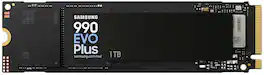
With faster read/write speeds of up to 7,250/6,300 MB/s*, larger storage capacity of up to 4TB with TurboWrite 2.0 and 73% ** greater power efficiency compared with the 990 EVO, the 990 EVO Plus makes large editing, file transfer or gaming tasks go smoother and faster. It’s the perfect productivity boost helping you tackle a busy day full of work (or play).
Designed for tech enthusiasts, hardcore gamers and heavy-workload professionals who want blazing fast speed. Sequential read/write speeds up to 7,450/6,900 MB/s
| Pros for Samsung - 990 EVO PLUS SSD 2TB, PCIe Gen 4x4 | 5x2 M.2 2280, Speeds Up to 7,250 MB/s | |||
|---|---|---|---|
| Speed, Overall Performance, Storage Capacity, Installation | Overall Performance, Speed, Storage Capacity, Installation Ease, Heat Dissipation | Overall Performance, Speed, Installation, Storage Capacity, SSD Performance | Speed, Installation, Performance, Storage, Ease of use |
| Cons for Samsung - 990 EVO PLUS SSD 2TB, PCIe Gen 4x4 | 5x2 M.2 2280, Speeds Up to 7,250 MB/s | |||
| Heat Sink, Heatsink | There were no cons for this product— | There were no cons for this product— | Heat, Firmware, Health |
Specs
Reviews
Customers are saying
Customers often highlight the impressive speed and overall performance of the 990 EVO PLUS SSD, noting its suitability for tasks like video games. The installation process is generally considered standard and easy, and the storage capacity is appreciated. While some users mention the absence of a heatsink, heat doesn't seem to be a major concern for most.
Customer Images
The vast majority of our reviews come from verified purchases. Reviews from customers may include My Best Buy members, employees, and Tech Insider Network members (as tagged). Select reviewers may receive discounted products, promotional considerations or entries into drawings for honest, helpful reviews.
- Rated 5 out of 5 stars
Excellent Choice for replacement or upgrade!
The perfect recommendation for an upgrade. Affordable, with plenty of memory for an OS and programs, fast read/write speeds, and easy to install. I was able to seamlessly migrate Windows OS from my old HD to this one with ease, and it's been running like a champ ever since! I have another PCIe slot open... I'm tempted to buy another one! LOL
Jeremy Posted
- Rated 5 out of 5 stars
Great All Purpose SSD
Great all purpose SSD. I have several of these drives and all but one work great and are as advertised. The only outlier being one that had physical damage and only works externally. Samsung support (as with most support channels for big companies) was of no help. Be aware that they said that physical damage is not covered under the warranty even if the drive didn't work when you get it. Be sure to test as soon as possible (I did not with one of the drives) so that you can make a claim as close to the purchase date as possible. Outside of this issue, the drives work great and I would highly recommend them over the more pricey models for most people.
Angel Posted
- Rated 5 out of 5 stars
The upgrade your been looking for/ guide (kinda)
Recommendation: Take Advantage of Special Offers! If you're looking to upgrade your storage, I recommend this SSD for its fast performance, quick file transfers, and efficient handling of compact files. :) Guide for Upgrading and Replacing an Old SSD: 1. Prepare a Bootable USB Drive: Get a 16GB USB flash drive and create a bootable Windows 11 installer on it. 2. Install the New SSD: Replace your old SSD with the new one. Do not reconnect the old SSD to your PC yet. 3. Access BIOS: Insert the USB drive before entering your PC’s BIOS. 4. Set USB as Boot Device: Check your PC’s BIOS settings and select the USB drive as the primary boot device instead of the SSD. 5. Install Windows: The Windows installation process should start. Follow the on-screen prompts. 6. Select the New SSD: When prompted to choose where to install Windows, select your new SSD (it should display the storage capacity you chose). 7. Complete the Installation: Continue answering the prompts to install a fresh copy of Windows. Handling the Old SSD: - Option 1: Transfer Files: Connect your old SSD to your PC and transfer important files to the new SSD. Note: Research which files can be safely transferred, as some may not be compatible. - Option 2: Wipe and Repurpose: Alternatively, connect the old SSD, wipe it completely (making it unallocated), and reformat it for use as a backup drive. Important: Always research the file transfer process to avoid potential issues.
S3bb Posted