Deals Worth GiftingShop now

Main Content

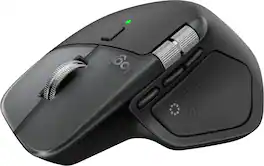
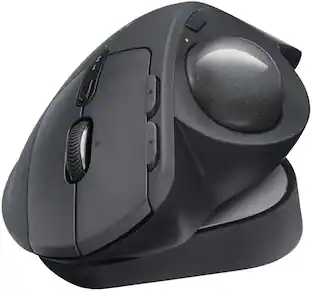
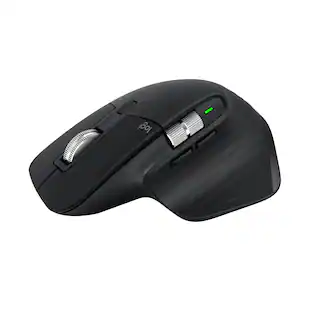
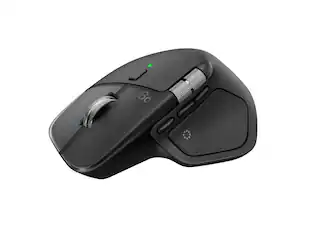
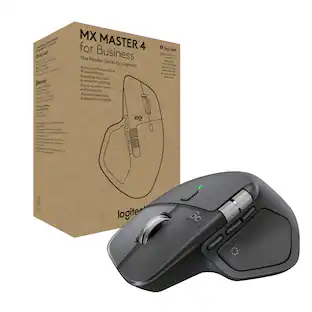
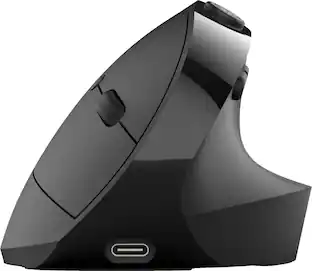
Logitech - MX Master 4 for Mac - Wireless Laser Ergonomic Mouse with Advanced Performance Haptic Feedback - Wireless - Space Black

Model: 910-007575
SKU: 6640820
$119.99
or
Finance OptionsView your offers
Get it for lessWays to save on this item
Accidental Geek Squad Protection
Availability
Fulfillment Options
Pickup at
Act fast - Only 1 left at your store!
Sold by Best Buy

More Buying Options

Specifications
  • Lighting Type
    None
    Maximum Sensitivity
    8000 dots per inch
    Number of Buttons (Total)
    8
    Connection Type
    Wireless
  • Key Specs
    • Lighting Type: None
    • Maximum Sensitivity: 8000 dots per inch (Mouse sensitivity is measured in dots per inch (DPI). The higher the DPI, the more sensitive the mouse is and may be more useful for high-density pixel screens. Lower DPI typically means more precision and accuracy in mouse movement.)
    • Number of Buttons (Total): 8
    • Connection Type: Wireless
  • General
    • Brand: Logitech
    • Model Number: 910-007575
    • Product Name: MX Master 4 for Mac - Wireless Laser Ergonomic Mouse with Advanced Performance Haptic Feedback
    • Color: Space Black
    • System Requirements: Via Bluetooth® Low Energy (BLE): Windows 11, or later, macOS 13 or later, ChromeOS, Linux, Android 12 or later, iPadOS 15 or later. Via Logi Bolt receiver: available USB port, Windows 11, or later,macOS 13 or later, ChromeOS, Linux (The software that a product must have for it to be able to integrate with another product.)
  • Features
    • Mouse Type: Standard
    • Lighting Type: None
  • Performance
    • Mouse Operation: Button(s), Scroll wheel
    • Mouse Grip Style: Ergonomic, Contoured, Palm grip (In comparison to many palm and claw grips, ergonomic grip mice are designed for a specific handedness and put the hand and wrist in a position to promote comfort. Customizable grips feature buttons/keys that can be configured to perform specific actions and may also have customizable calibration and sensitivity settings.)
    • Handedness: Right-handed
    • Tracking Method: Laser (There are several types of computer mice, optical and laser being among the most common. Optical mice detect less detail and provide more precise and accurate movement. Laser mice detect more detail and can be used on a wider variety of surfaces, but are more sensitive to small movements.)
    • Maximum Sensitivity: 8000 dots per inch (Mouse sensitivity is measured in dots per inch (DPI). The higher the DPI, the more sensitive the mouse is and may be more useful for high-density pixel screens. Lower DPI typically means more precision and accuracy in mouse movement.)
    • Minimum Sensitivity: 200 dots per inch (Mouse sensitivity is measured in dots per inch (DPI). The higher the DPI, the more sensitive the mouse is. Lower DPI typically means more precision and accuracy in mouse movement, but higher DPI may be useful for high-density pixel screens.)
    • Number of Buttons (Total): 8
    • Number of Thumb Buttons: 3
    • Number of Programmable Buttons: 8
    • Adjustable Weight: false
  • Connectivity
    • Connection Type: Wireless
    • Wireless Connectivity: Radio Frequency (RF - 2.4 Ghz/Low Latency), Bluetooth (The manner in which a device sends data to another device over a short distance without the use of wires or cables.)
    • Maximum Wireless Range: 33 feet
    • Operating System Compatibility: Mac, Apple iPadOS
    • Plug and Play Operation: true
    • Number of Devices Connectable Simultaneously: 3
  • Power
    • Mouse Power Source: Battery-powered
    • On/Off Switch: true
    • Rechargeable Battery (Mouse): true
    • Wireless Charging: false
    • Charging Interface(s): USB-C (The connection for transmitting power to charge the device.)
    • Battery Chemistry: Lithium
  • Dimensions
    • Product Height: 2 inches (The out of box height of the item. Height is measured as the vertical distance from the bottom of the item to the top as it would be primarily used or placed.)
    • Product Length: 5.05 inches (The out of box length of the item. Length is measured as the longest dimension of the item.)
    • Product Width: 3.48 inches (The out of box width of the item. Width is measured as the horizontal distance from one side of the item to the other as it would be primarily used or placed.)
    • Product Weight: 150 grams (The out of box weight of the item.)
  • Warranty
    • Warranty - Parts: 1 year
    • Warranty - Labor: None
  • Other
    • UPC: 097855205933

MX Master 4 for Mac Wireless Ergonomic Mouse with Advanced Performance Haptic Feedback

  • Mastered for Mac: With matching Apple finishes, Logi Options+ functions for macOS, USB-C charging while you work (cable not included), MX Master 4 for Mac makes for a perfect fit with your Apple setup.¹
  • Precision you can feel with the Haptic Sense Panel: Customizable haptic feedback on specific actions, shortcuts, notifications enhancing productivity on this wireless Bluetooth mouse.¹
  • Effortlessly access favorite tools with Actions Ring on this MX Series mouse: A dynamic, customizable overlay adapts to each app, placing most used filters, adjustments, and shortcuts at your cursor.
  • Ultra-fast scrolling: Scroll 1,000 lines per second and stop on a pixel with the MagSpeed scroll wheel—Logitech’s fastest, quietest, and most precise scrolling experience.
  • Ergonomic mouse designed for comfort: MX Master 4 for Mac keeps you in flow with a natural tilt, intuitive buttons, and a thumb scroll wheel that reduces hand stress for fluid navigation.
  • Quiet Clicks: Quiet Clicks on MX Master 4 for Mac reduce noise and distractions, offering a soft, satisfying feel with 90% less click noise—perfect for focused workflows.³
  • MX + Adobe Creative Cloud: Get a complimentary 1-month Adobe Creative Cloud subscription with your purchase of MX Master 4 for Mac.
  • Designed for a positive future: Plastic parts include recycled plastic - 54% Space Black; 48% White Silver; 100% recycled cobalt in the battery; Built to last with improved stain resistance.⁴
  • 1-month of Adobe Creative Cloud on us (a value of $59.99)*: Pair two of the world’s top creative tools. Buy one MX Master 4 and claim your free 1-month Adobe Creative Cloud membership. *Value calculated based on Adobe Creative Cloud All Apps monthly value of $59.99 valid on Adobe.com on Sept 12, 2024. Terms & Conditions apply.¹ ² ³
  • Mastered for Mac: With matching Apple finishes, Logi Options+ functions for macOS, USB-C charging while you work (cable not included), MX Master 4 for Mac makes for a perfect fit with your Apple setup.¹
  • Precision you can feel with the Haptic Sense Panel: Customizable haptic feedback on specific actions, shortcuts, notifications enhancing productivity on this wireless Bluetooth mouse.¹
  • Effortlessly access favorite tools with Actions Ring on this MX Series mouse: A dynamic, customizable overlay adapts to each app, placing most used filters, adjustments, and shortcuts at your cursor.
  • Ultra-fast scrolling: Scroll 1,000 lines per second and stop on a pixel with the MagSpeed scroll wheel—Logitech’s fastest, quietest, and most precise scrolling experience.
  • Ergonomic mouse designed for comfort: MX Master 4 for Mac keeps you in flow with a natural tilt, intuitive buttons, and a thumb scroll wheel that reduces hand stress for fluid navigation.
  • Quiet Clicks: Quiet Clicks on MX Master 4 for Mac reduce noise and distractions, offering a soft, satisfying feel with 90% less click noise—perfect for focused workflows.³
  • MX + Adobe Creative Cloud: Get a complimentary 1-month Adobe Creative Cloud subscription with your purchase of MX Master 4 for Mac.
  • Designed for a positive future: Plastic parts include recycled plastic - 54% Space Black; 48% White Silver; 100% recycled cobalt in the battery; Built to last with improved stain resistance.⁴
  • 1-month of Adobe Creative Cloud on us (a value of $59.99)*: Pair two of the world’s top creative tools. Buy one MX Master 4 and claim your free 1-month Adobe Creative Cloud membership. *Value calculated based on Adobe Creative Cloud All Apps monthly value of $59.99 valid on Adobe.com on Sept 12, 2024. Terms & Conditions apply.¹ ² ³
Whats Included
  • MX Master 4 wireless mouse
  • Logi Bolt USB-C receiver
  • User documentation
  • MX Master 4 wireless mouse
  • Logi Bolt USB-C receiver
  • User documentation
Disclaimers
  • ¹ Requires Logi Options+ app, available for Windows and macOS at app.logi.com
  • ² Compared to MX Master 3S
  • ³ Compared to MX Master 3, MX Master 4 has 90% less Sound Power Level left and right click.
  • ⁴ Excludes plastic in printed wiring assembly (PWA), receiver, wire, FFC cable, and packaging.
  • ¹ Requires Logi Options+ app, available for Windows and macOS at app.logi.com
  • ² Compared to MX Master 3S
  • ³ Compared to MX Master 3, MX Master 4 has 90% less Sound Power Level left and right click.
  • ⁴ Excludes plastic in printed wiring assembly (PWA), receiver, wire, FFC cable, and packaging.
Sponsored

Compare similar products

Logitech - MX Master 4 for Mac - Wireless Laser Ergonomic Mouse with Advanced Performance Haptic Feedback - Wireless - Space Black
4.8(48)

MX Master 4 for Mac Wireless Ergonomic Mouse with Advanced Performance Haptic Feedback

Logitech - MX Master 4 - Adobe Edition - Wireless Laser Ergonomic Mouse with Advanced Performance Haptic Feedback - Wireless - Black
4.6(77)

MX Master 4 Wireless Ergonomic Mouse with Advanced Performance Haptic Feedback

Logitech - MX Master 2S Bluetooth Wireless Laser Mouse with Hyper-Fast Scrolling - Wireless - Graphite
4.6(54)

The ultimate precision mouse for power users. Harness the power of Logitech Flow and seamlessly move content between three computers. Scroll through documents and web pages faster and easier with the speed-adaptive scroll wheel. Powers up for an entire day in just three minutes. A sculpted, hand-crafted shape ensures comfortable hand and wrist support.

Logitech - MX Master 4 Wireless Laser Ergonomic Mouse with Advanced Performance Haptic Feedback - Wireless - Pale Gray
4.6(19)

MX Master 4 Wireless Ergonomic Mouse with Advanced Performance Haptic Feedback

Pros for Logitech - MX Master 4 for Mac - Wireless Laser Ergonomic Mouse with Advanced Performance Haptic Feedback - Wireless - Space Black
Ergonomics, Button Functionality, Haptic Feedback, Build Quality, ConnectivityButton Functionality, Ergonomics, Haptic Feedback, Build Quality, Battery LifeThere were no pros for this productErgonomics, Button Functionality
Cons for Logitech - MX Master 4 for Mac - Wireless Laser Ergonomic Mouse with Advanced Performance Haptic Feedback - Wireless - Space Black
There were no cons for this productSize, WeightThere were no cons for this productThere were no cons for this product

Specs

Reviews

Customer Images

The vast majority of our reviews come from verified purchases. Reviews from customers may include My Best Buy members, employees, and Tech Insider Network members (as tagged). Select reviewers may receive discounted products, promotional considerations or entries into drawings for honest, helpful reviews.

  • Rated 5 out of 5 stars

    Logitech MX Master 4 for Mac

    Really good mouse with amazing productivity features. Grip is ergonomic and feels premium in hand. Buttons are super silent and infinite scroll is a bliss!!!

    Posted by AdvikK

  • Rated 5 out of 5 stars

    Great for power-users, those with disabilities

    As computer mice go, you have the left-click button, the right-click button, and the scroll wheel. Many people don’t even realize that the scroll wheel can be pressed on some mice. For a basic mouse, this functionality is not customizable and the wheel press is rarely needed. As more of a power-user, I won’t use a mouse unless it has the back button on the side of it, which I use heavily in web browsers and file explorers on the computer. I’m too used to that functionality that it will actually drive me nuts to not have it. Of course, then you have the Logitech MX Master 4 mouse, with literally a half-dozen more buttons than a standard mouse. The increased productivity in this mouse makes it comparable to a keyboard with dedicated customizable buttons. It’s both exciting and overwhelming at the same time. I've included a couple of screenshots to show you examples of what all can be done. Before beginning, if you are accustomed to using a mouse with your left hand, this is not designed in any way for you. Nothing to see here. Another note - if you are considering this mouse for yourself or someone who has mobility issues, read on. There are some helpful features but also some caveats. Finally, this mouse can be paired with up to 3 devices. ———————————————————————————— First off, if the only thing you use your computer for is browsing the internet, email, and maybe typing up an occasional document, this mouse may very well be overdoing it for you, depending on your needs. If you use your computer for any type of production (graphics, video, even programming), there are a lot of advantages to this device. Be prepared, thought, if you have never used a device like this, as there is a learning curve, especially in muscle memory. As mentioned, anyone with certain mobility issues may find this mouse quite useful as well. I will cover the basics of this mouse and then the extra buttons and features. ————————————————————— OVERALL ————————————————————— This mouse is big and rather heavy. I have small to medium size hands and long fingers. While the mouse is ergonomic for me to use, it took me getting used to it as a gravitate toward a smaller mouse. Because of this, and also because I occasionally will get spasms in my hands that cause unintended movements, in the short time I have used this mouse, I have still not gotten the muscles trained to use it easily, although that is coming along quickly, as it’s just a muscular learning curve. Since it is also heavy, it will require more deliberate movements to move it around, but this also helps with the resistance to use the other buttons on it. Anyone with mobility issues in their hands may struggle with this, but arm or shoulder issue sufferers may actually benefit. The sides have a grippy rubber feel with an added texture that feels good to hold. I imagine that it will take frequent wiping to keep it clean though. The left and right buttons are very quiet, as the weight of the device likely absorbs a lot of the noise produced by clicking them. They are definitely not a disturbance compared to lower-quality mice. ———————————————————————————— As mentioned, there are 6 additional buttons on this mouse that may be new to you. Nearly every button on this mouse can be programmed using the Logi Options+ application that can be downloaded from Logi’s website (Windows and Mac, unfortunately not Linux although there is a community-driven program). In many cases, the buttons can be further customized by application, so if you use graphic design software, office applications, video editing software, or really any application on your computer (there is a selector to choose the application), you are able to create profiles specific to that application that will allow you to customize the behavior of the mouse buttons. This is where it’s both exciting and overwhelming since there are SO many possibilities. ————————————————————— 1 & 2. - The back and forward buttons ————————————————————— As I mentioned, I basically cannot use a mouse without these buttons, as they have been part of my computer usage for as long as I can remember. Basically, they are the Back and Forward buttons that exist in your web browser and your file explorer. Press the back button to go back a page, press forward to go forward a page. These are on the side of the mouse very near where your thumb rests, making it easy for your thumb to control. Of course, these buttons are programmable for other features. Ironically, the back button does not perform as expected in the Logi Options+ app! ————————————————————— 3. The Soft Wheel Mode button ————————————————————— Located on the top of the mouse, this is a button that changes the scroll of the mouse wheel from a “click” feel as you move it to a perfectly smooth scroll. This is easily just a user preference, but there are instances where one might be better than the other, such as smooth scrolling for extremely precise control, or click scrolling to keep scrolling consistent. There is intelligence built into the mouse (called SmartShift) that will sense when you are scrolling rapidly, such as in a long web page, so that even when smooth scrolling is not on, the mouse will briefly switch to smooth scrolling to allow faster and less janky scrolling, similar to a smart phone. This can be turned off in the settings if not desired. You can also program this button to perform other functions if you don’t want to use that feature. ————————————————————— 4. A Gestures button ————————————————————— Located on the side of the mouse just a little further from your thumb as the Forward button, this button can be used in conjunction with specific mouse movements to perform gestures in much the same way you might use multiple fingers and dragging motions on a trackpad. One of the default settings is to switch desktops if you use that feature in your operating system. While I like the idea of this feature, I found it hard to use as the button is harder to press than I think it should be, and with the weight of the mouse requiring more effort to move, I had difficulty using this feature without accidentally pressing other mouse buttons that I didn’t mean to. The functions are highly customizable though, so you can build the gestures to do all sorts of actions. The default on my Mac uses features like desktop switching and Mission Control. I made this my switch application button - far more useful to me. ————————————————————— 5. A side scroll wheel ————————————————————— Another one for your thumb. This wheel can be used to scroll sideways in a document that you might otherwise use a click-and-drag panning feature. This wheel is customizable like the other buttons, and one that I see as a candidate for programming in different application profiles. For example, a large PDF document would benefit from the side scrolling, while a photo editing app benefits from this button being programmed to zoom in and out (yes, that’s an option), and as someone who regularly has 18 tabs open in my browser, the ability to scroll through them with this wheel (yes, that’s an option too!). This is my favorite feature in this mouse overall! ————————————————————— 6. The Show Action Button ————————————————————— The side grip of the mouse where your thumb rests has a button that can be pressed as though you are squeezing the sides of the mouse. Like the others, it can be programmed for other functions, but the default will bring up a visual on your screen.- a circle of 8 visual buttons that each can be programmed to perform different actions, from copy and paste to opening an application to visiting a specific webpage and countless more. This is another button that can add significantly to productivity with application profiles, since you can build this wheel based on the application. It’s customization paradise. One feature I’m very grateful for with this button is to adjust it’s sensitivity. When I first started to use this mouse, I found it WAY too sensitive and was accidentally pressing it all the time, especially with the other ergonomic factors I was getting use to. While the sensitivity levels are not all that different, I was at least able to make it require a firmer press to work. In this same region is a haptic feedback feature. When using this for the Show Action visual, the mouse will vibrate to indicate when your screen cursor is hovering over one of the on-screen buttons. Even better, the haptic feedback can be disabled or customized to varying levels. The combination of these two features in this mouse can be a huge aid to anyone with mobility issues. This makes it possible to perform functions that might otherwise be better done with a keyboard, while instead only requiring very slight mouse movements. The ability to program them per application makes it possible to tailor the shortcuts created in this feature to the specific application. Finally, the haptic feedback can also help with visual impairments. ———————————————————————————— Overall, the customization offered by this mouse is a dream-come-true for power users who want to balance keyboard shortcuts with mouse usage, as well as anyone with certain mobility or visual limitations. However, those with small hands may have some difficulty using it, and it is heavier than many mice on the market. Be prepared to spend some time setting it up, customizing it to your needs, changing those customizations a dozen times, and retraining everything your hand muscles know, but afterwards, you may find this mouse as indispensable as the back button is to me.

    Posted by GirlsCanTechToo

  • Rated 5 out of 5 stars

    Best professional mouse

    Besides specific gaming scenarios, this is un my opinion the best computer mouse. I'm already using an MX series keyboard and had a travel MX mouse on my work computer. Already had experience with the MX Master series at my home computer so I'm happy to add the MX Master 4 to my workflow. I used an ergonomic mouse before and this is a happy middle ground. While it doesn't fit the hand in a handshake position, it still works in a slight angle, very similar to a typing position and not flat like a traditional mouse. While older MX Master series mouse are as good as it gets, this takes it to a whole new level. Let me explain: All the touch surfaces have been redesigned: the body of the mouse is now a hard plastic that is more resistant to oils. The buttons are now of a thick clear plastic with a dark background. This material is meant to prevent the 'polished' look that other Logitech products develop after a while, so it's expected to look like new for longer. The bottom of the mouse has more sliding surfaces, and adds a ring around the sensor. It now has exposed screws on the bottom so it should be easier to service/clean inside. There is no longer a need to peel off the sliding material, as it's all exposed on the bottom of the mouse (Not visible while in use). The charging USB-C port remains on the front and can be used while charging. However the USB-C port, like in other models, cannot be used for data, so the mouse is always connected via wireless. The main scrolling wheel is all metal, and can dynamically switch between step and freewheeling modes. This is configurable via the Options software or from the button in front of the wheel. The purpose for that button is also configurable. On the right side there is a separate wheel that is normally configured for horizontal scrolling. This wheel does provide some friction so it can only scroll when intentionally pushed. Behind this wheel there are three buttons. Two are close together are usually used as Back and Forward keys. The third button is meant to use with Expose or Control Center. The surface where the thumb rests is now a large button that also provides haptic feedback. This is all new. The default function for this button is to launch the Logitech Action Ring, that can be configured via their Options+ software and it's intended as application-specific ring with shortcuts. This was originally introduced with the MX Creative Console, which I'm also using, so I'm familiar with the action ring. This can be configured per application but there a are very few applications that are pre-defined, and mostly includes creative suites, conferencing and music applications, but for the most part you might have to build your own actions, and it's fairly straightforward to do so. The haptic feedback is currently very limited, it works when using the action ring and in a handful of other cases that can be configured. I expect that the number of scenarios where haptic feedback works would increase. The amount of feedback force can be configured and I left it at it's lowest setting. It can pack a punch in higher settings that did not find comfortable. Like other MX series devices, it can connect to three different devices (computers, phones, etc) and if the computers have the Logitech flow configured, can directly see each other on the local network (as in, not in a VPN), and the keyboard is also an MX series device, Flow can seamlessly switch control between computers when crossing the edge of the screen, as configured. This is a great way to share the same keyboard and mouse. It worked great for me, but doesn't work when my work laptop is on VPN, and this is a VPN-specific restriction. Normally this works very well in a desktop with two or three computers. One can manually switch the mouse by pressing the pairing button on the bottom, which has a device indicator light as well. Recent Logitech devices, besides Bluetooth, support the 'Logitech Bolt' USB adapter. When using the adapter, the computer sees it as an USB device, and the computer's Bluetooth is not involved. I like this better on my macs, because I leave the adapter in their docking hub, and can use the keyboard and mouse during the boot password (FileVault), otherwise macOS no longer allows 3rd party Bluetooth devices at this stage until macOS started. It's important to me when using the laptop with its lid closed. However, the MX Master 4 for Mac does not include the Bolt adapter, while the PC version (not Mac) is exactly the same hardware, with slight color variations, and does not include the adapter in the box and has to be purchased separately, while costing the same. I find this quite disingenuous. Because I already use an MX keyboard, I could pair it with my existing bolt adapter. Overall, it's as good as it gets. Currently the best professional mouse bar none, although I'd argue that the PC version is better because it includes the Bolt adapter at the same price. Note that the USB-C cable for charging is also not included. I can use the same cable that I use to charge my phone however and that's fine.

    Posted by emiliosic

No content
Sponsored

Similar products from outside of Best Buy

sponsored

Finance Options

My Best Buy® Credit Card
10% back in rewardson your first day of purchases when approved for the My Best Buy® Credit Card.
Buy Now, Pay Later
4 payments starting at $30.00

Get it for less

Save $6 with Plus or Total