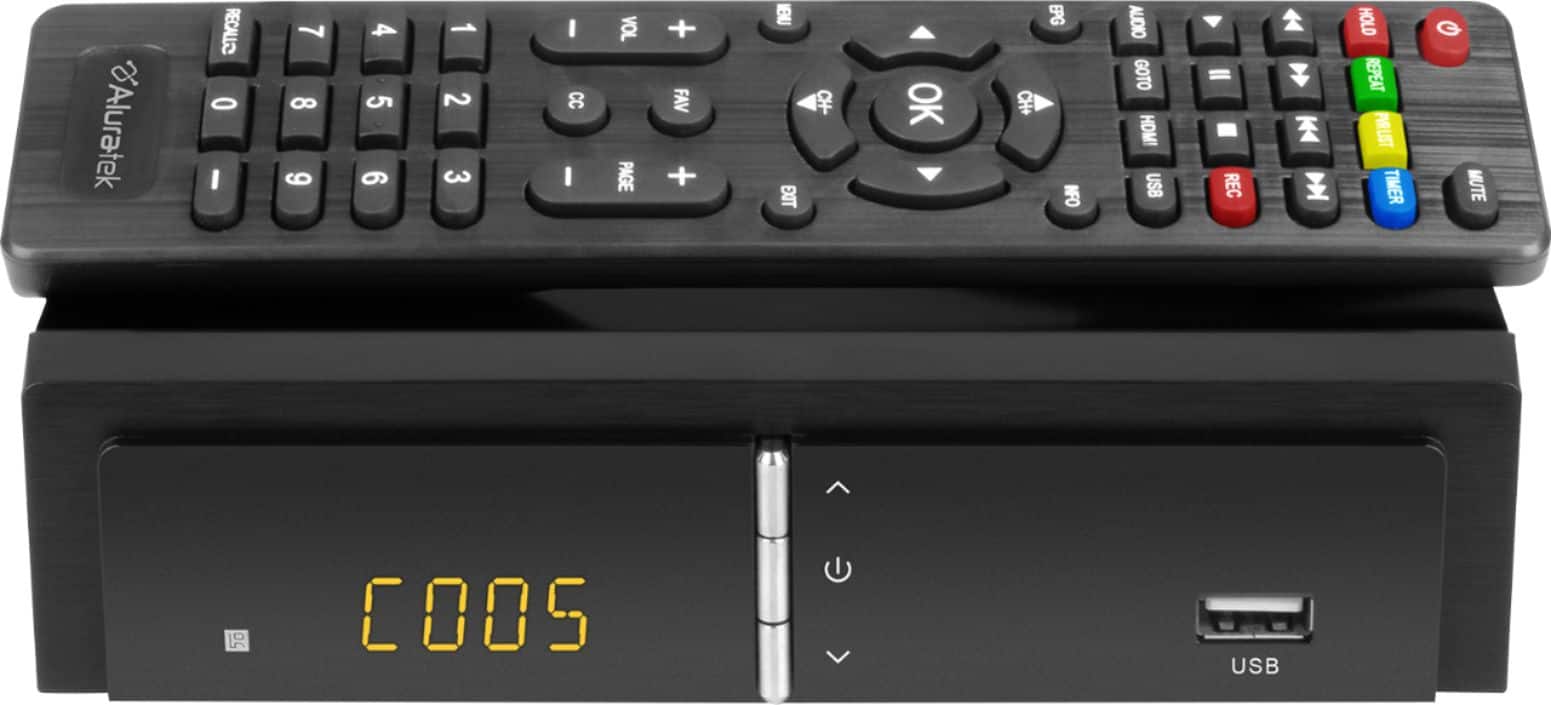
A:Answer1. First the device says (boot)! When it first to turns on. After that the screen will tell you what channel your on. In your case CO30 says your viewing channel 30. The channel can be changed by the remote that comes with the device.
A:AnswerPlease contact our support team at [email protected] or toll-free 1-866-580-1978 and our technical support team will help you on how to set the recording.
A:Answeryou need a digital converter box; the Aluratek device works for that purpose; for years, I used one from something called 'mediasonic,' I believe, which was okay, but would shut down with no warning, then re-boot. So far the Aluratek device works; a high-end antenna that also plugs in has greatly improved the picture quality of the old tv I use. However, because of a lack of directions, I haven't been able to figure out how to record a program using the Aluratek device using a flashdrive. I'll continue to attempt to do that. good luck
A:AnswerTry to use a 32GB card. Those will be formatted in FAT32 which will work better with this TV Box. In order to SETUP RECORDING ON TV CONVERTER BOX---You will need to go to the remote control, tap menu, navigate over to the USB tab. ---> Then choose PVR configure, choose format and make sure your USB stick or drive is formatted for recording. ---> Then back out of that page and go to Record Device. You will see your Disk (C: USB1), choose Timeshift size and set that to 4.0 GB. Then exit.
A:AnswerI’m not sure if an external hard drive works the same as a thumb drive, but you can try using the DVR button on the remote to pull up the list of recordings. This is how I find recorded programs using the thumb drive plugged into the front of the DVR.
A:AnswerNo. You can record using a USB thumb drive but you need to be on the channel you are recording and you cannot record multiple programs at the same time.
A:AnswerI believe that once the thumb drive has been used to record a program using this DVR, you need the DVR to be hooked up to the TV you want to watch on. Then you can use the DVR remote control to pull up and play the recording. I’m not 100% sure of this but I believe that is how it works.
A:AnswerPlease press menu and go to Program Edit menu with the password. Scroll to the channel that you want to unlock and press 03 after you enter the password to access this channel.
A:AnswerYou probably will be able to do this. First, I bought my Aluratek ADTB01F as a digital TV converter box, which we use with an old but still surprisingly good analog TV that relies on an outside antenna for reception. That it also is able to record over-the-air broadcasts on a flash drive is a bonus. However, there are some limitations.
Unless I’m doing something wrong, I’ve not been able to watch a recorded program while recording another program. In addition, I haven’t been able to watch the program being recorded from the beginning while recording continues to the end of the broadcast. So, if I come home half way through a program I’m recording, I have to wait until the recording session has ended to watch it.
Setting up recordings is a little clunky. My biggest gripe is that there is no Mon-Fri option. Select “daily” for a regular program you want to record Monday through Friday and it will also record on Saturday and Sunday. In addition the video files it creates are not recognized by my Panasonic TV with a USB input or by my computer. If I want to watch a program on the flash drive the only option I have is to play it using the Aluratec Digital Converter.
Also, the box that my Aluratek came in proclaims that it is a dual-tuner unit, and that I can watch one program while recording another. I’ve not found any evidence of a second tuner and I think that this is probably a boxing error.
On the plus side, the picture is crisp when watched live or from the flash drive and the tuner does a reasonable job of pulling in weaker stations.
A:AnswerMost likely no because the video format is more proprietary. No slo-motion video either. It is mainly setup to play and record over the air TV channels.
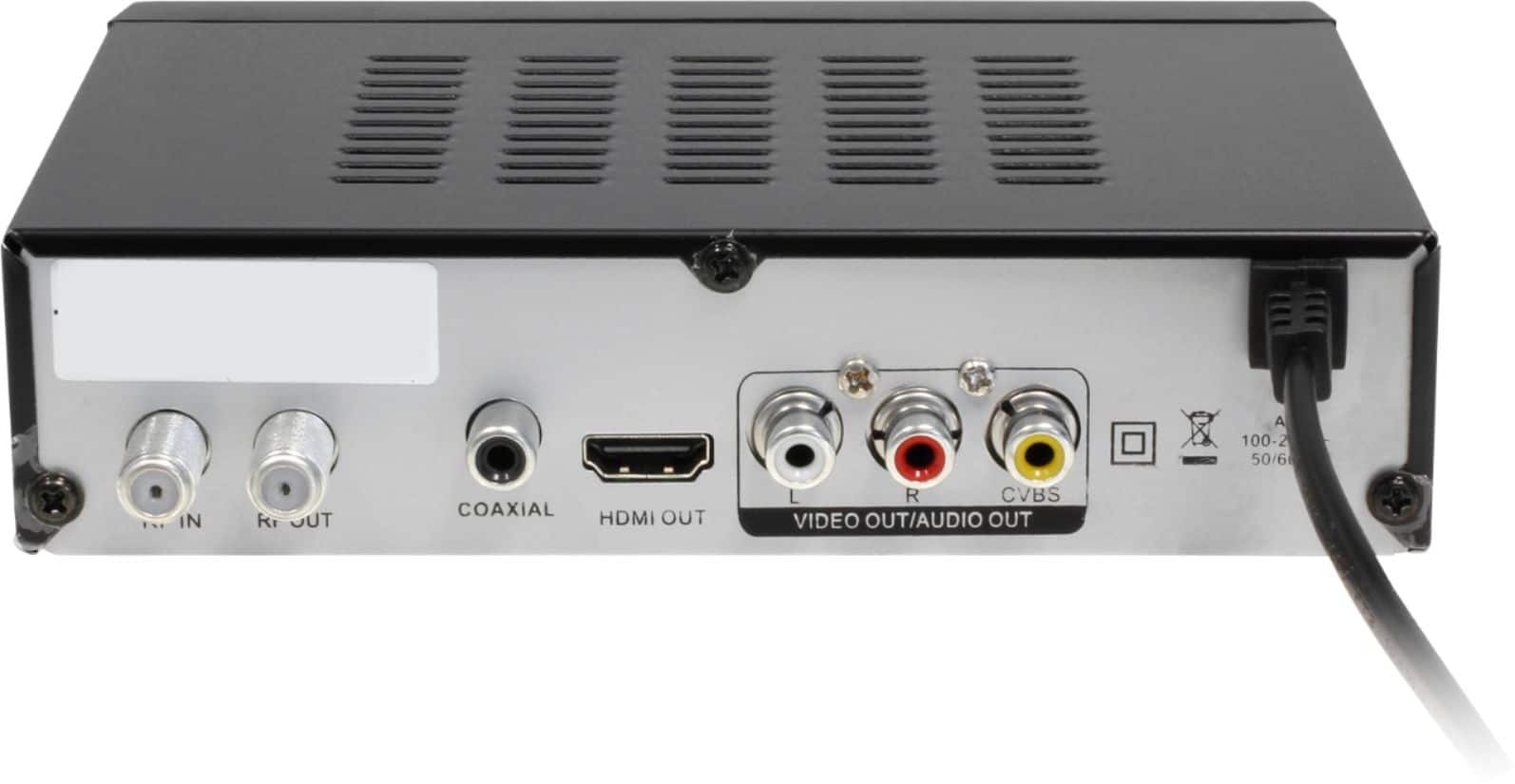
A:AnswerNo. This unit does not have WIFI. It can only record OTA channels and play the recordings using the DVR by using cables (RCA or HDMI) connecting the DVR to the TV.
A:AnswerThese represents your channels you are on or you have switched to. For example C001 maybe ABC on your TV or C034 maybe Channel 36 on your screen. Hope this is helpful.
A:AnswerIf you have recorded a program using the Aluratek DVR and a thumb drive plugged into the front of the unit, then want to watch the recording, first find the recording using the PVR function from the menu, then click OK to confirm. Once the program has started, but it is shown as a small square picture, push the ‘HOLD’ button on the remote to make it full screen.