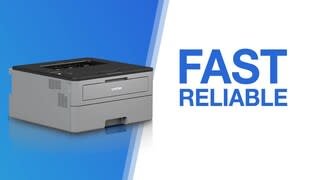
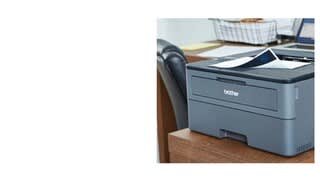
A:AnswerWe are sorry to hear that your Brother HLL2370DW machine is not working properly. We know this is frustrating. We would love to hear from you with details to be able to get your machine up and running again. Our Brother Customer Support Team is on stand-by to provide quality products and service to our customers via online, email or live chat: www.brother-usa.com/brother-support
A:AnswerYes, if you have the driver / utilities. I am currently looking for mine Brother utilities software. However, I have had it installed on XP virtual machines for the last few years.
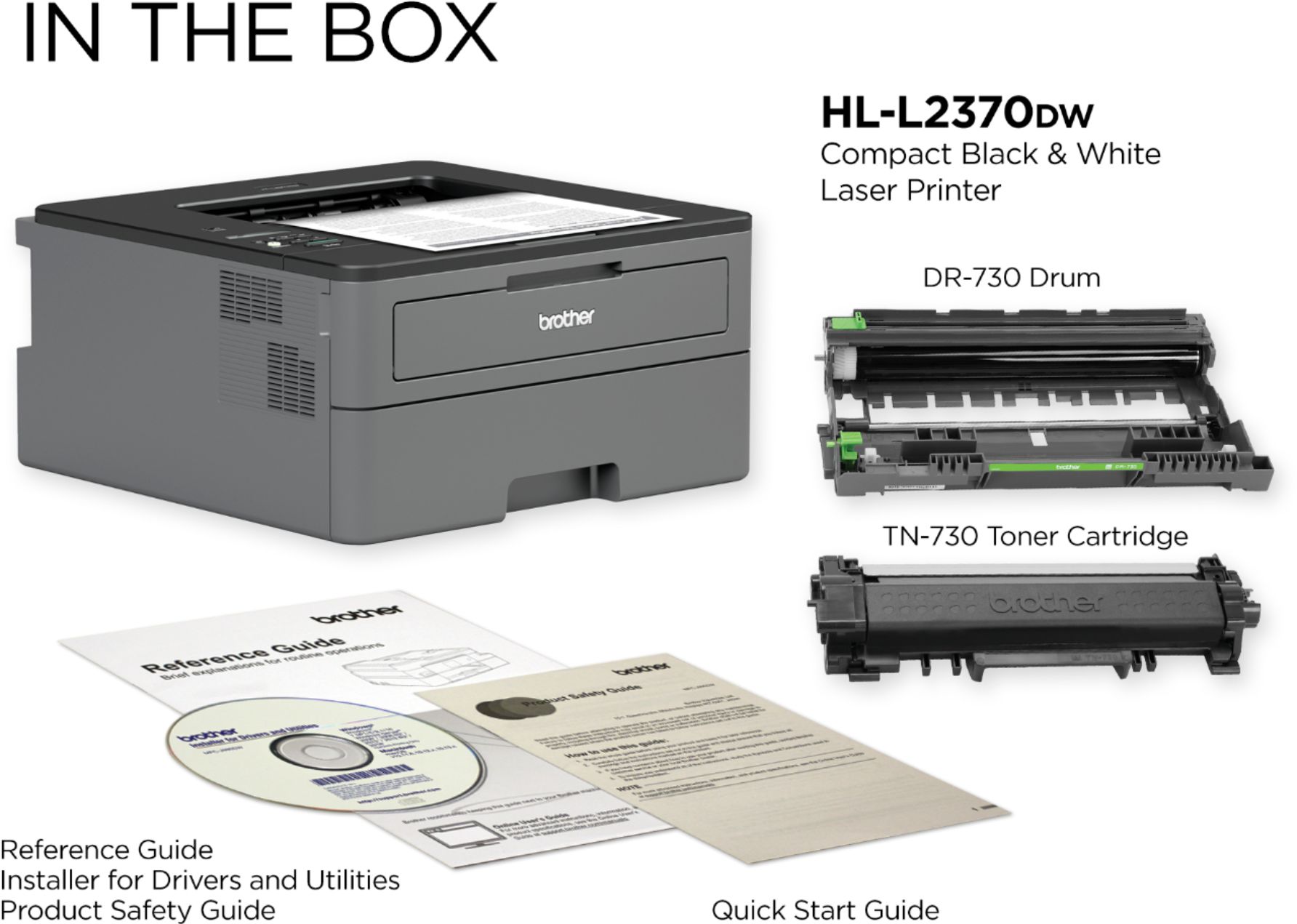
A:AnswerA USB cable is not included with the purchase of your Brother HL-L2370DW. A list of components included with the machine is printed on the outside of the carton.
Brother doesn't include USB cables with its printers, fax machines, or Multifunction Centers (MFC) because there are often multiple ways to connect these machines to a computer or network, and we are unable to anticipate which of these connection methods you will use. Including multiple cables for multiple connection types would unnecessarily contribute to environmental waste. Brother is committed to conserving the global environment.
If your Brother machine is wireless-capable and you require a USB cable to initially connect the machine to a wireless network, you may be able to 'borrow' a USB cable from another device, use it to connect your machine to the network, and then reconnect the cable to the original device.
The Brother machine has a Standard-B USB port, so you must use type A/B USB cable. We recommend the cable be 6 feet or less.
A:AnswerNo, Brother does not produce a cartridge specifically for check printing for the Brother HL-L2370DW. Please see the Safety Data Sheet for your country. http://sds.brother.co.jp/sdsapp/index.html
A:AnswerThis actually is a technical question best addressed by the manufacturer. MICR toner is a specialty banking industry toner for printing the encoding on checks. Because it is different from regular "plain" toner, Brother is your ONLY reliable source of information to answer this question. MY best guess would be that if you swapped out the regular toner cartridge for the MICR cartridge EXCLUSIVELY for printing your checks, and then revert to the regular toner cartridge you likely will be OK. Just how a magnetic element might react with the drum is unknown to me anyhow. I strongly suggest you contact Brother and ask them.
A:AnswerYou just have to use the setup and tell it to print on both sides. What will happen, is when it prints on one side it will pull the paper back in and print on the other side automatically. You can change to print on one side or both sides it is up to you. Saves a lot of paper.
A:AnswerIf the machine is in Deep Sleep Mode for a certain length of time, based on your model and settings, the machine will go into Power Off Mode automatically. The machine doesn't go into Power Off Mode when connected to a network. Here is a FAQ that may help.
https://help.brother-usa.com/app/answers/detail/a_id/152779/session/L3RpbWUvMTU2ODcyOTk5OS9zaWQvbXJSQUk0cG8=?R3ModelID=HLL2370DW