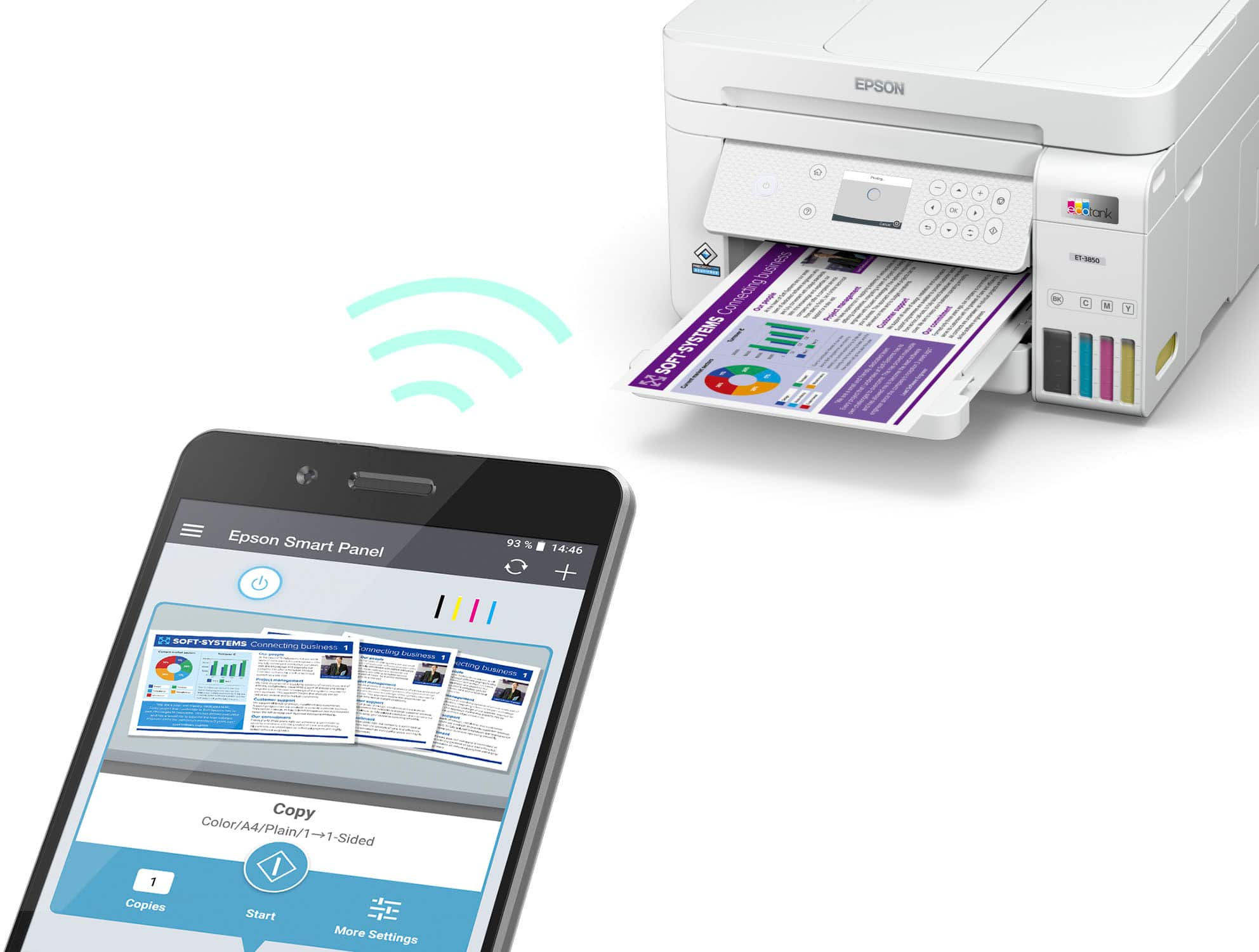
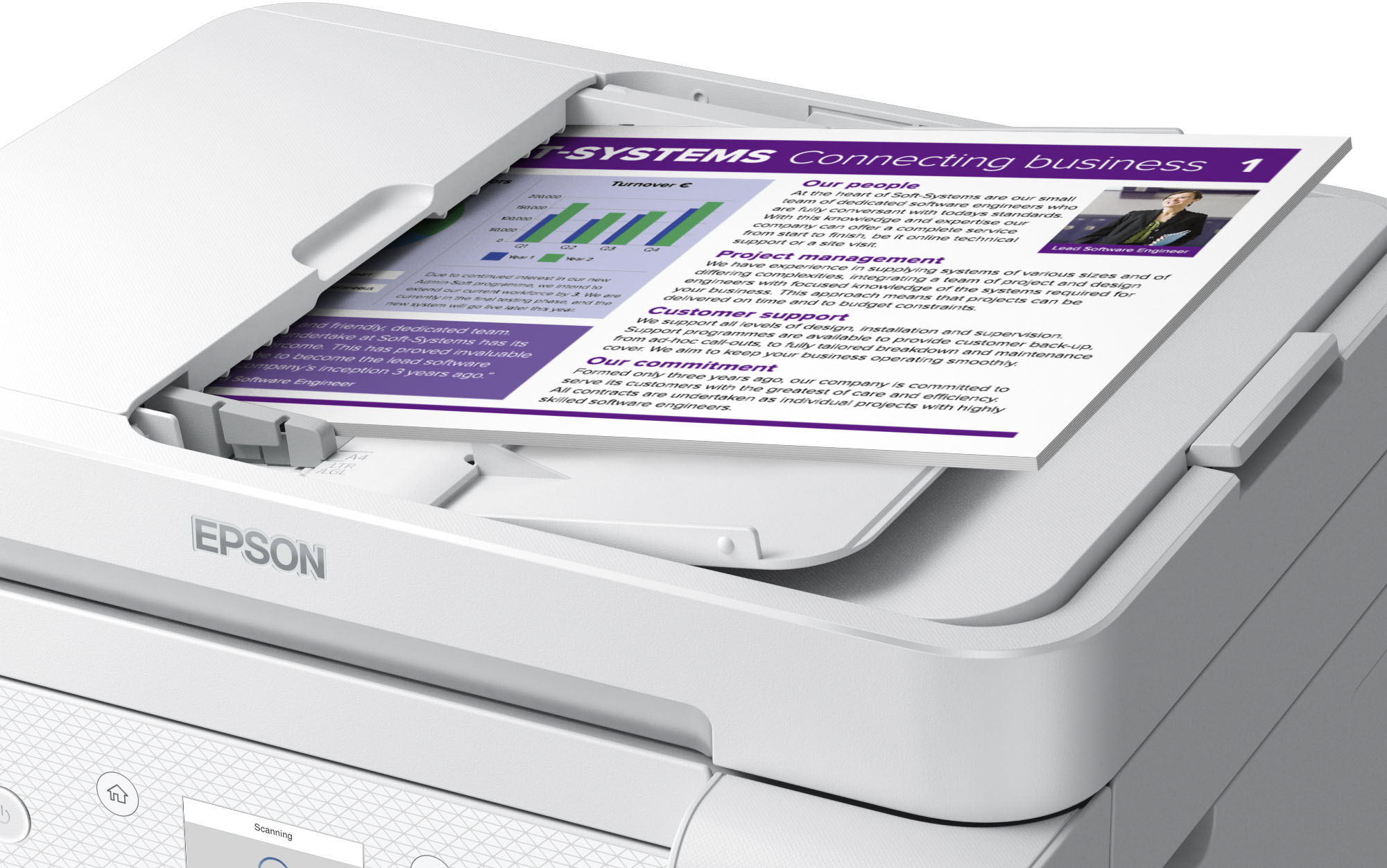
A:AnswerHi Scanning, The EcoTank ET-3850 cannot scan to a memory device. It is Wi-Fi compatible. You can scan to any PC, Mac, smart phone or tablet that is connected to the same Wi-Fi network. Higher-end EcoTanks like the ET-5850 have a USB port in the front to allow scanning to a memory stick. Regards, Mark - The Epson Team.
A:AnswerReyofSun. Yes, the ET-3850 can print on 5" x 8" paper size. Your results will vary depending on the card stock used, as the heaviest supported paper is 27 lb (100 g/m2). We recommend confirming your paper meets these specifications and is compatible to work on Epson Inkjet All-In-One printers. Regards, Kevin - The Epson Team.
A:AnswerHello maddie. Yes, the ET-3850 is compatible to work with macOS 10.15. To download the latest print drive, please visit our official Epson Support page. Regards, Kevin - The Epson Team.
A:AnswerHello. Unfortunately, Epson does not have an "ET-3860" model. It appears the original question was regarding an ET-3850; if so, the widest supported paper size is 8.5". Regards, Kevin - The Epson Team.
A:AnswerHello Rico. The ET-3850 and ET-4800 are very similar printers. The main difference is that the ET-4800 includes fax functionality and uses a different ink set than the ET-3850. Regards, Kevin - The Epson Team.
A:AnswerHello Martone. With the ET-3850, you can expect approximately 7,500 ISO Black pages/6,000 ISO Color pages when using new replacement ink bottles. Regards, Kevin - The Epson Team.
A:AnswerHello. Unfortunately, the ET-3850 cannot print on 11" x 17" paper. The maximum supported paper size is 8.5" x 47.2". Regards, Kevin - The Epson Team.
A:AnswerHi Ed, Yes, Both 32-bit and 64-bit Windows 7 is supported. Visit the Epson support site for the ET-3850 to download the latest drivers. Regards, Mark - The Epson Team.
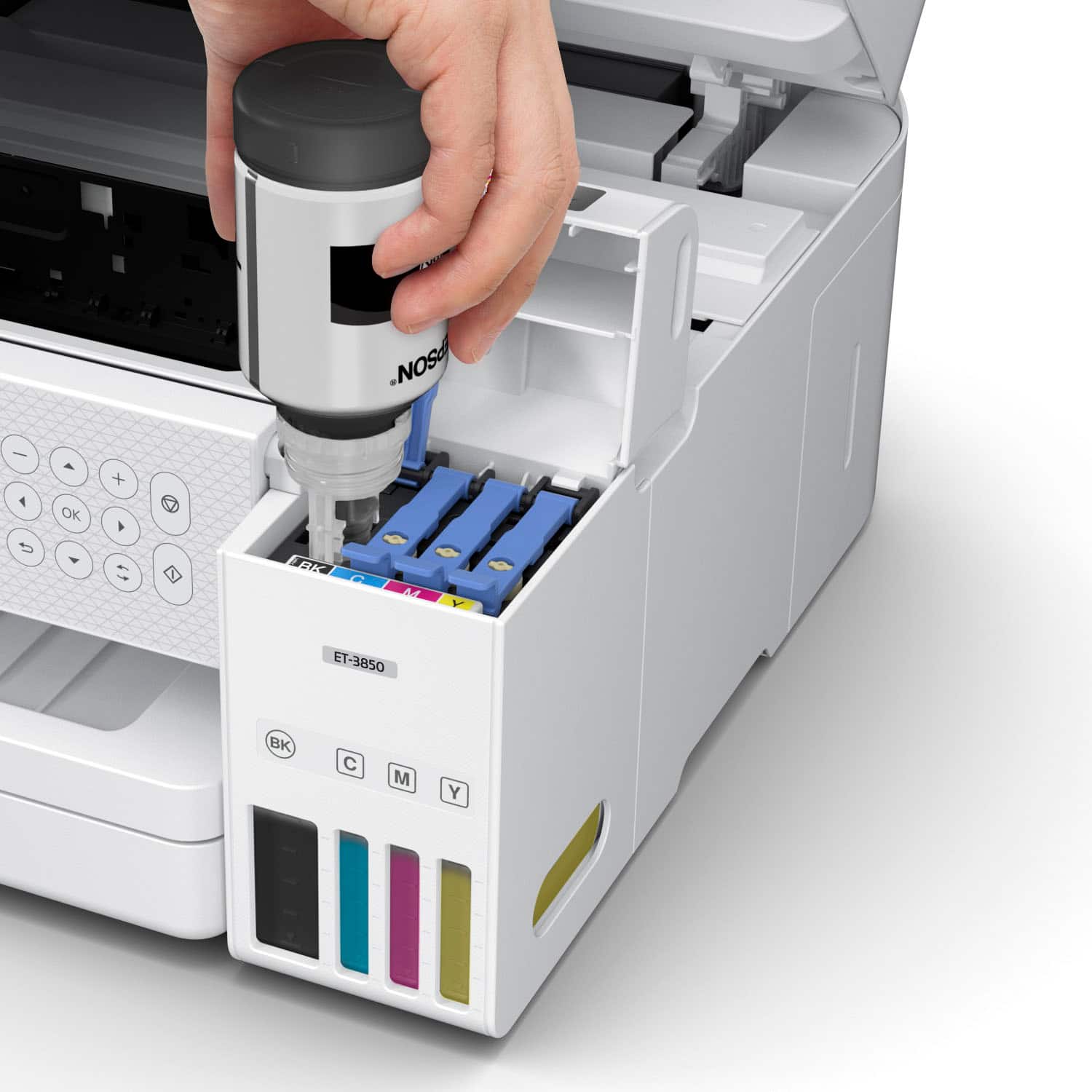
A:AnswerHave you followed the simple but detailed instructions on filling the ink tanks properly? Following the step, you MUST perform the remaining steps EXACTLY! The printer will then test itself and notify you of any failures caused by the owner.once you have gotten an OK after each step, your printer should work perfectly. If you try to HURRY the setup process, you WILL be disappointed. Follow the setup instructions exactly as requested, be patient, and you’ll end up with a great printer!!
A:AnswerYou have the option to select BLACK print only before each print job. It will not print if the printer has only black ink in it’s black ink tank.
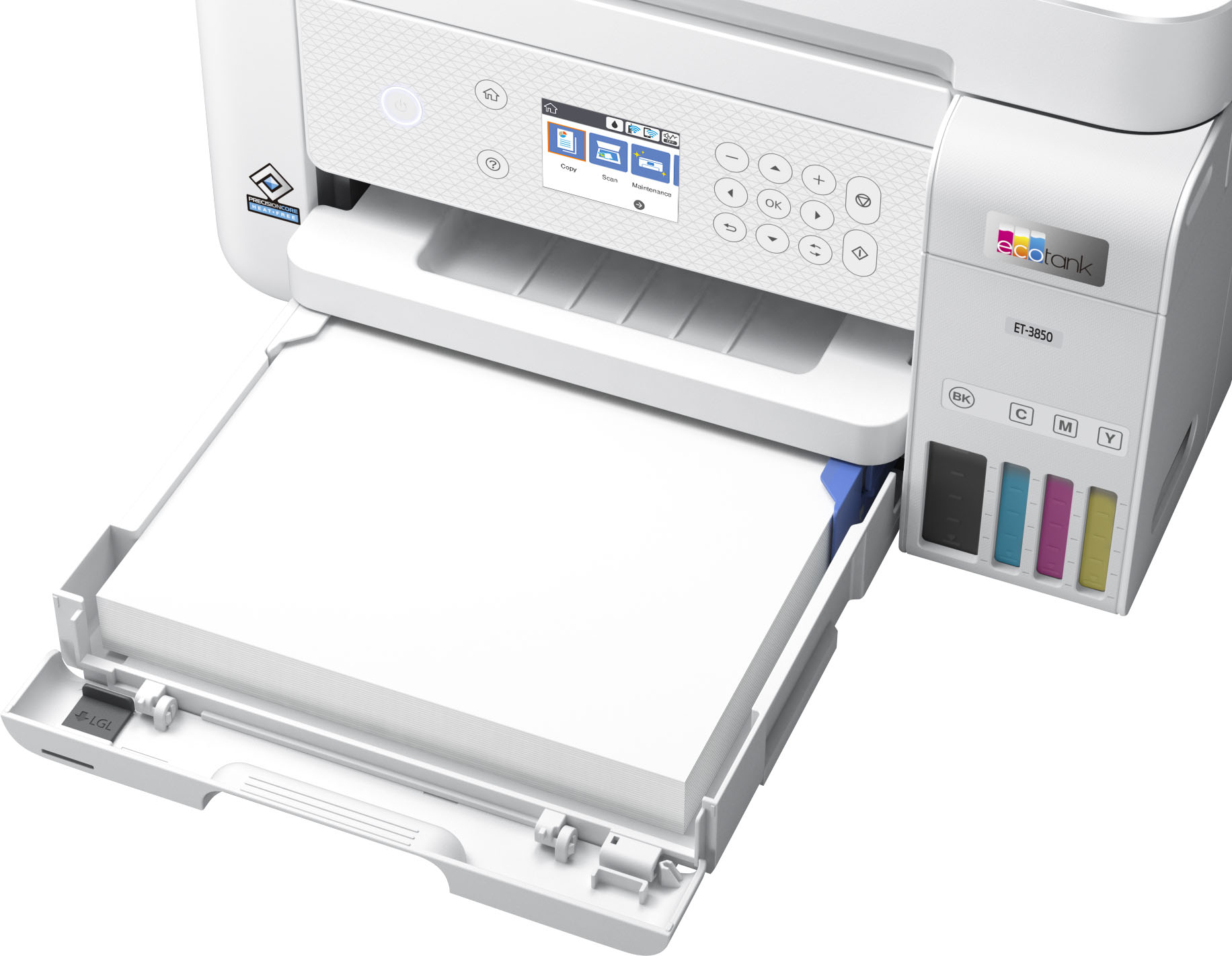
A:AnswerHello Jjmac. The ET-3850 supports various paper sizes ranging from 4" x 6" up to 8.5" x 47.2". For more information on supported paper sizes, please visit our official Epson Support page. Regards, Kevin - The Epson Team.
A:AnswerYou have to select that option on the device you are printing from. It is usually towards the bottom of the screen that pops up for you to select the printer and to print. Just click the little box and then it should ask you to print either on the short edge or the long edge.
A:AnswerSelect Print Settings from the pop-up menu. Select Envelope as the Media Type setting, then select the appropriate Color and Mode settings. See online help for details on Print Settings. Click Print to start printing.
A:AnswerHi flagdonovan, Try using photo or photo matte paper. Visit the Epson support site for the EcoTank ET-3850 to see a list of compatible Epson paper types. You can also change the Quality setting to High in the printer driver. Regards, Mark - The Epson Team.
.](https://pisces.bbystatic.com/image2/BestBuy_US/images/products/0f303e94-82e9-4920-a0f8-610c645cee57.jpg)
. 1 Most features require an Internet connection to the printer, as well as an Internet- and/or email-enabled device. For a list of Epson Connect enabled printers and compatible devices and apps, visit [www.epson.com/connect](http://www.epson.com/connect).](https://pisces.bbystatic.com/image2/BestBuy_US/images/products/08161d2e-edb0-4574-a401-0ac72389cf92.jpg)