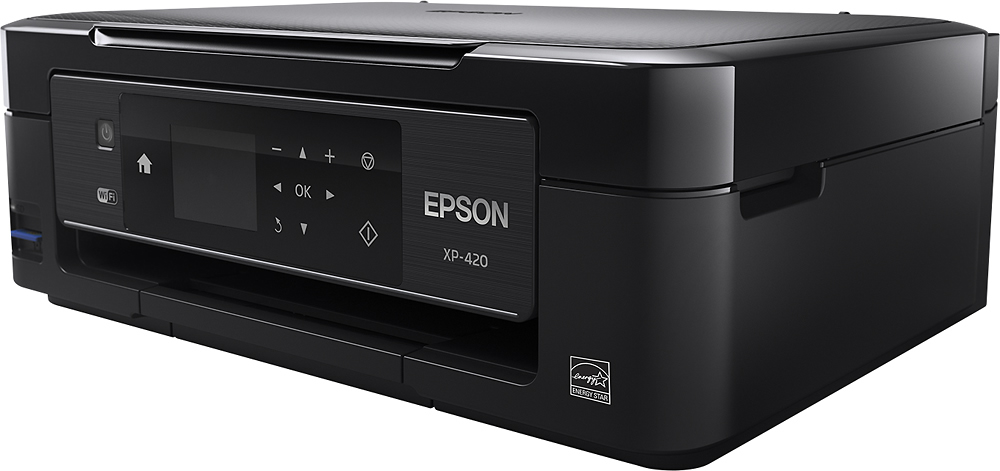
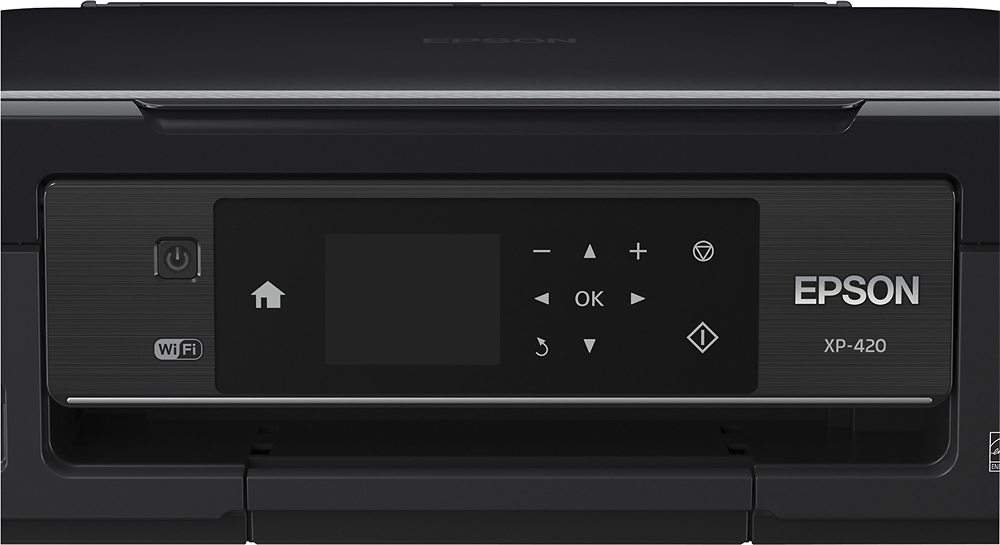
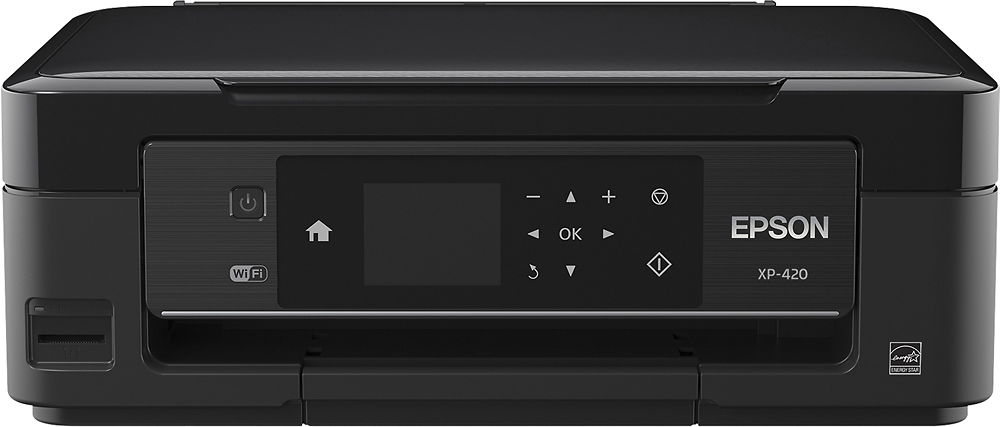
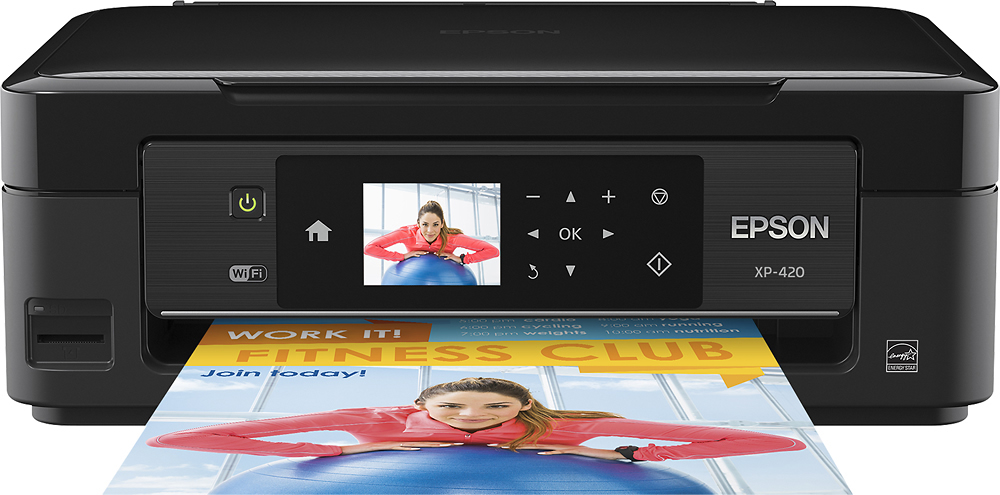
A:AnswerYes 100-240V, just need to correct adapter from the end of your power cord. See Photo from printer back attached. Nice little luggable printer.
WIFI enabled.
Does a bit of everything.
Just be prepared to wait a bit for it. Not a race car.
Epson tech support quickly helped me when I had an issue with printing. (turned out to be debris in the paper feed).
A:AnswerI am not sure what hot box WiFi is but my HP laptop works great with this printer. I have a newer but basic 15.6" with windows 10 and the setup was really easy and I can connect directly to the printer or use it with my router. I had no trouble connecting it to my Netgear router either.
A:AnswerI had the same problem. Call Epson customer support and they will walk you through it. Works fine now. Brush up on your offshore accents as there could be a language issue.
A:AnswerThe instruction is quite clear but sometimes the software might try to take over.
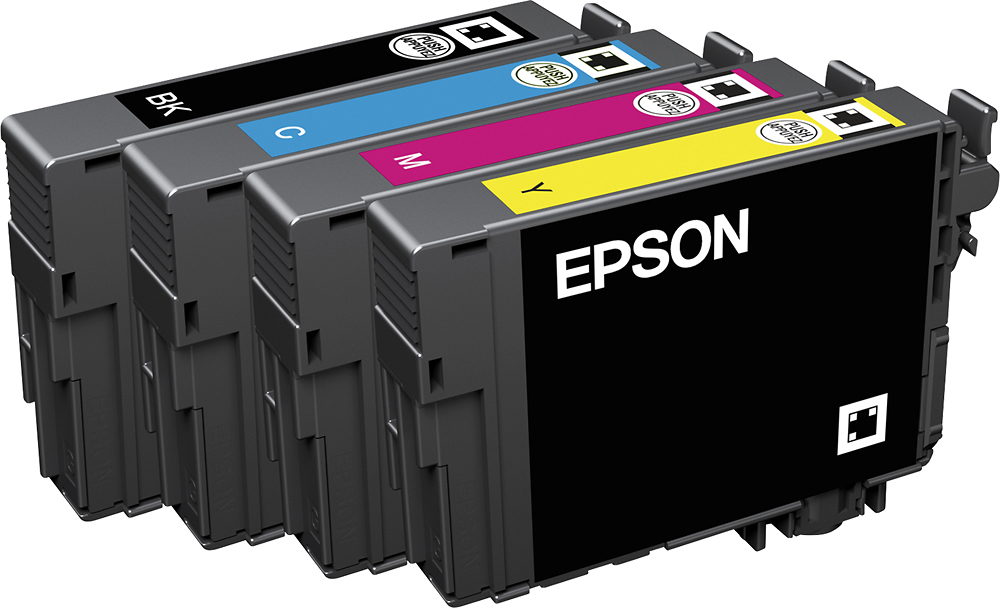
Select Setup/Maintenance/Ink Cartridge Relacement - OK, START
The printer will whir a bit as it purges the extra ink and repositions the heads for changing.
Lift the top cover. See picture below.
Put your finger on the compressible tab on the back of the ink and squeeze in while lifting the cartridge up. The Ink pops out might need a bit of wiggling. Shake the new ink cartridge, take the piece of yellow tape off the new cartridge. You will see a clear film over the place the ink comes out - leave that there it gets busted on install.
Push it down - voila it is done. Push start again on the printer and it will take a few minutes to purge and get ready to print.