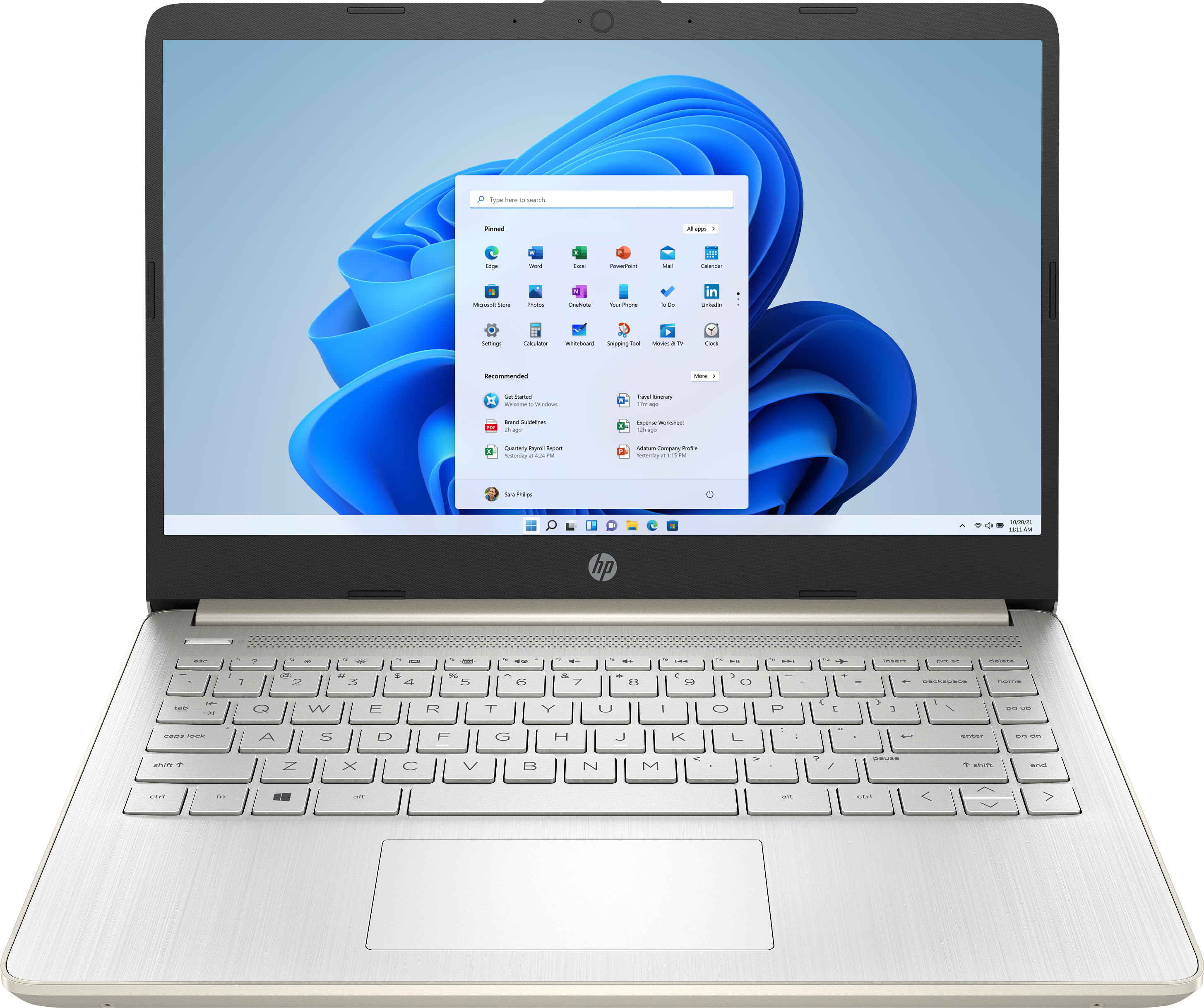
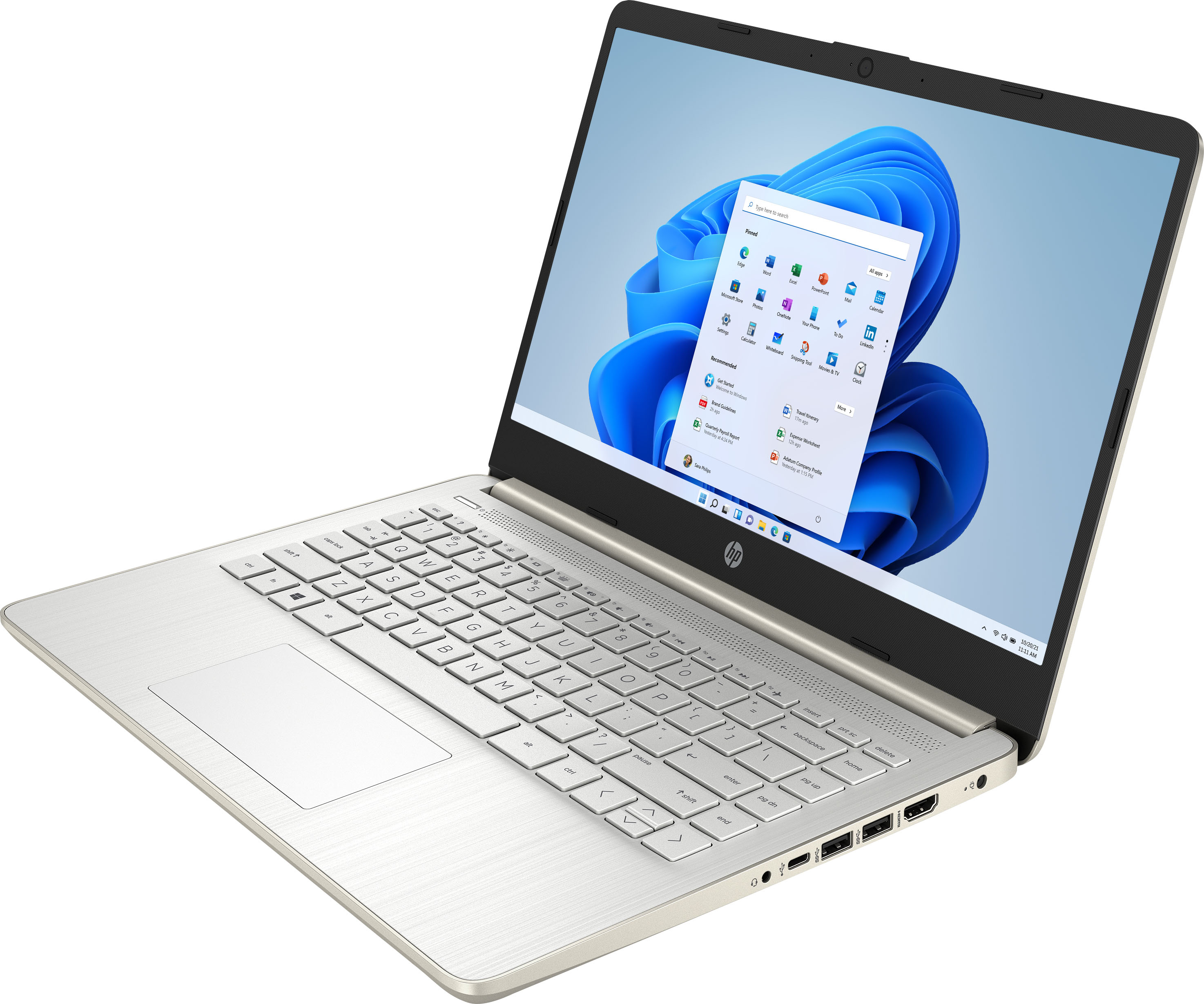
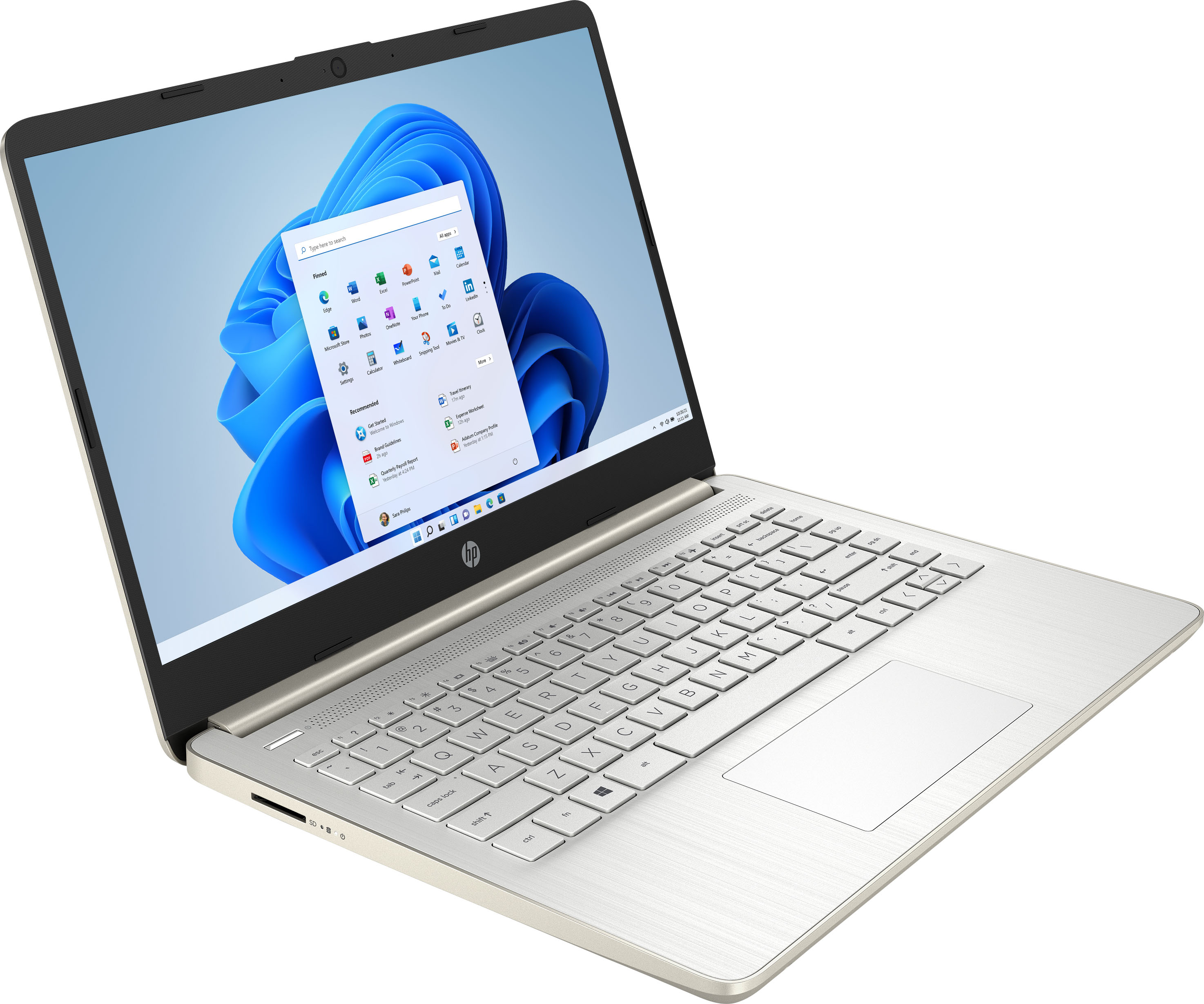
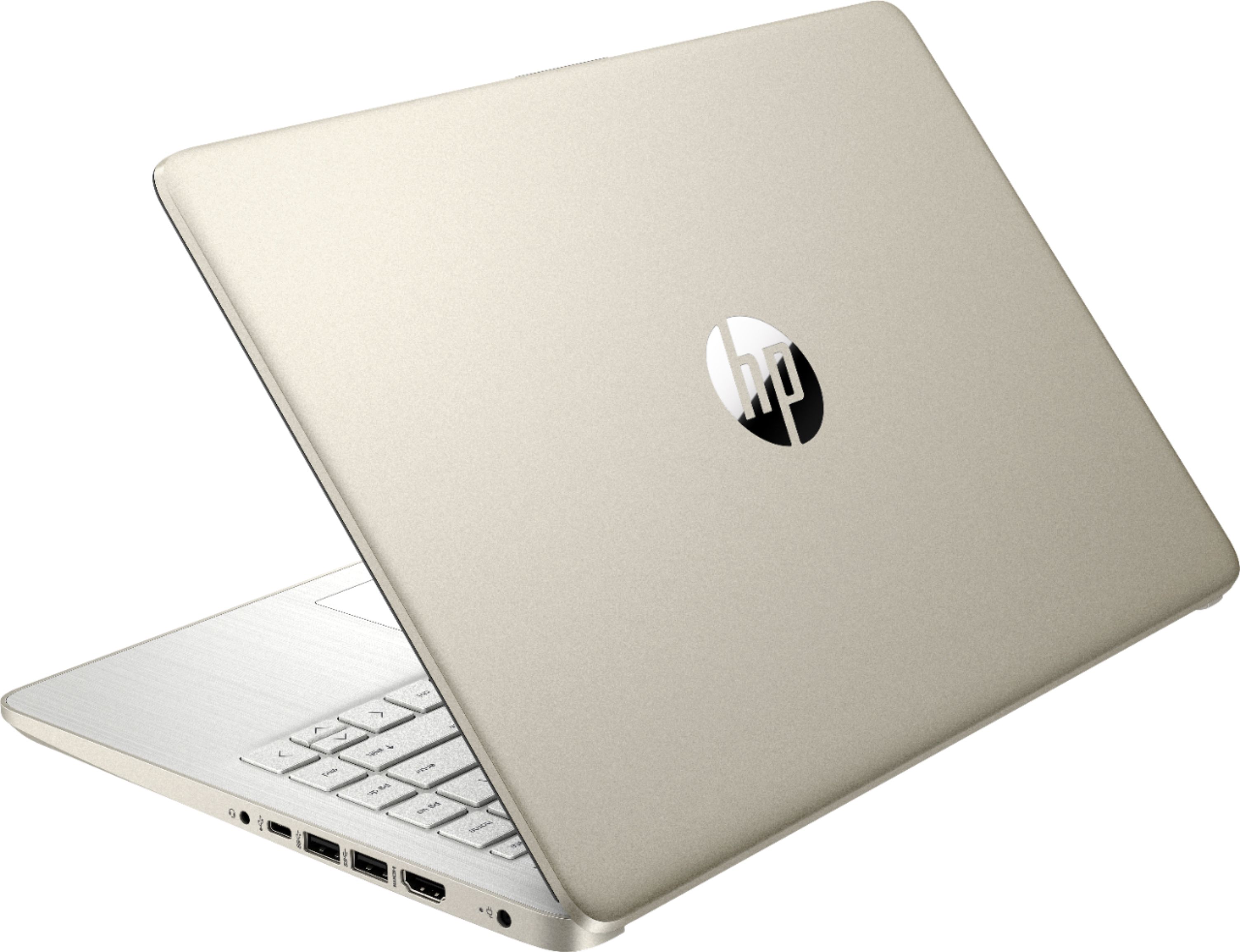
A:AnswerHello, Cam. Thanks for your question. This HP laptop comes with Windows 11 in S Mode. That means you can only download apps from the Microsoft Store and use the Microsoft Edge browser. You can switch out of the S Mode. It is free and easy to do. Here are some instructions: https://bit.ly/3okv4Mj Then, you will be able to download Cisco Webex.
A:AnswerWhile you could certainly play lightweight games on this computer, we would recommend referencing the developers recommended specifications to ensure the computer will meet your needs.
A:AnswerS mode is a version of Windows 11 that is streamlined for security and performance. To increase security, it allows only apps from Microsoft Store, and requires Microsoft Edge for safe browsing.
A:AnswerIt depends on what school you're attending and what sort of classes you're taking. If it's high school or lower division college classes it should work fine, with one caveat: Because this computer is running Windows in "S Mode" it can only download and run apps that are in the Windows Store. If one of your classes require a particular piece of software, it needs to be available in the Windows Store.
A:AnswerIt is recommended that you look at the developer's site to see the system requirements for any software you would like to use. Updates can change the requirements which can affect the settings you can run the software on or if you can run it at all. This model also starts in S Mode which would have to be turned off and that will lower the security on the device.
A:AnswerBecause this computer is running Windows in "S Mode" it can only download and run apps that are in the Windows Store. Roblox is available in the store, so you should have no problem running it on the computer.
A:AnswerBecause this computer is running Windows in "S Mode" it can only download and run apps that are in the Windows Store. Both of those apps are available, but it's impossible to say, because "perfectly" means different things to different people
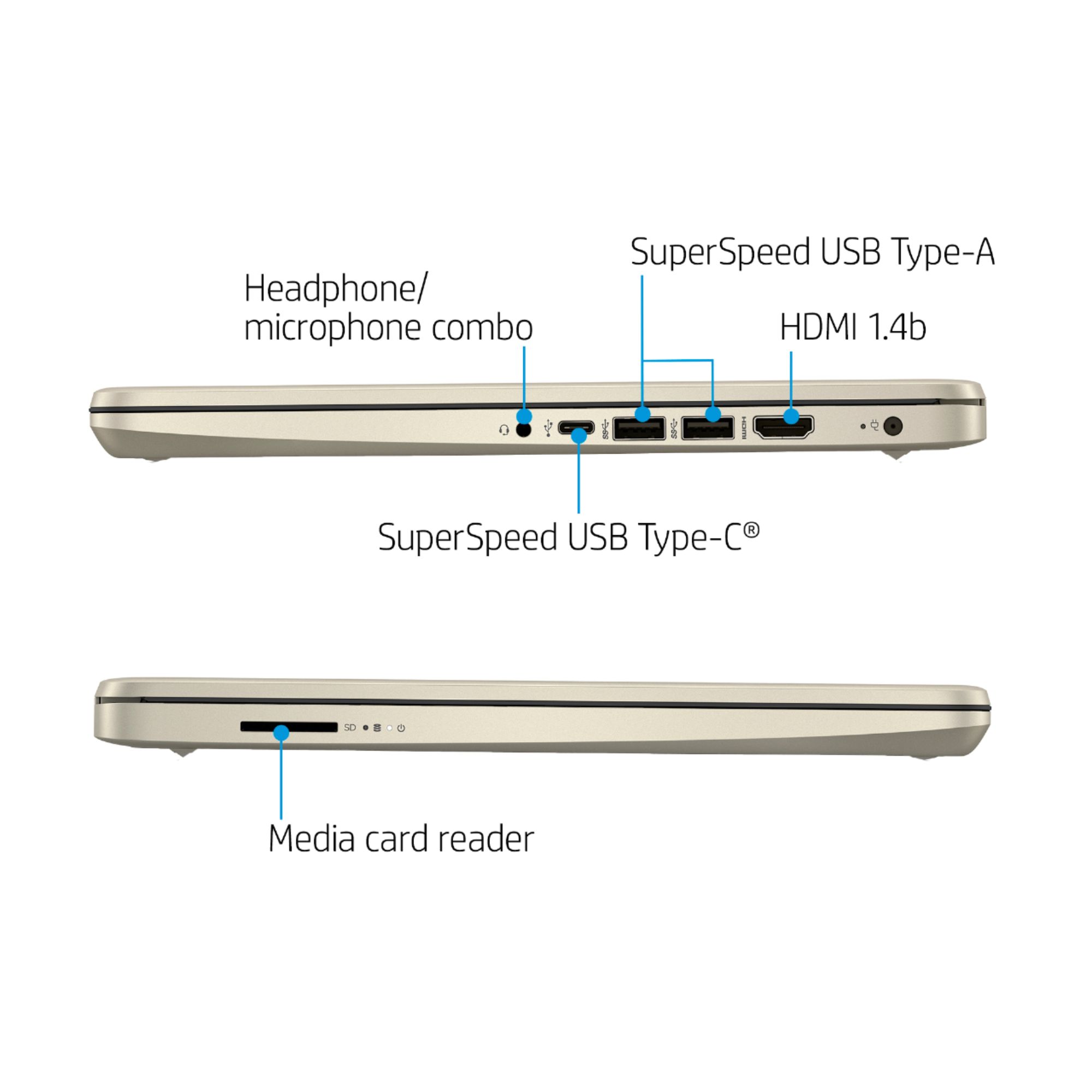
A:AnswerThe SD card will not be flush when placed in the SD card slot. It sticks out a little bit so it can be pressed to get it to pop out and removed from the slot.