A:AnswerYou would want to make sure that it meets the system requirements from the developer's site for the software you would be using and from the manufacture's site for the hardware. You would also likely have to take the unit out of Windows 11 Home S Mode.
A:AnswerYou would want to look at the developer's site for Origin and The Sims 2 and make sure that it meets the system requirements for both applications. When a unit starts off in S mode, you might not be able to download the apps and that would require that you turn off S Mode first.
A:AnswerBecause this computer is running Windows in "S Mode" it can only download and run apps that are in the Windows Store. Unfortunately, Sims isn't one of the available apps.
A:AnswerYes it’s already been taken out of S mode I don’t know why they even have S mode activate it. It should be turned off automatically and turned on if you want it turned on
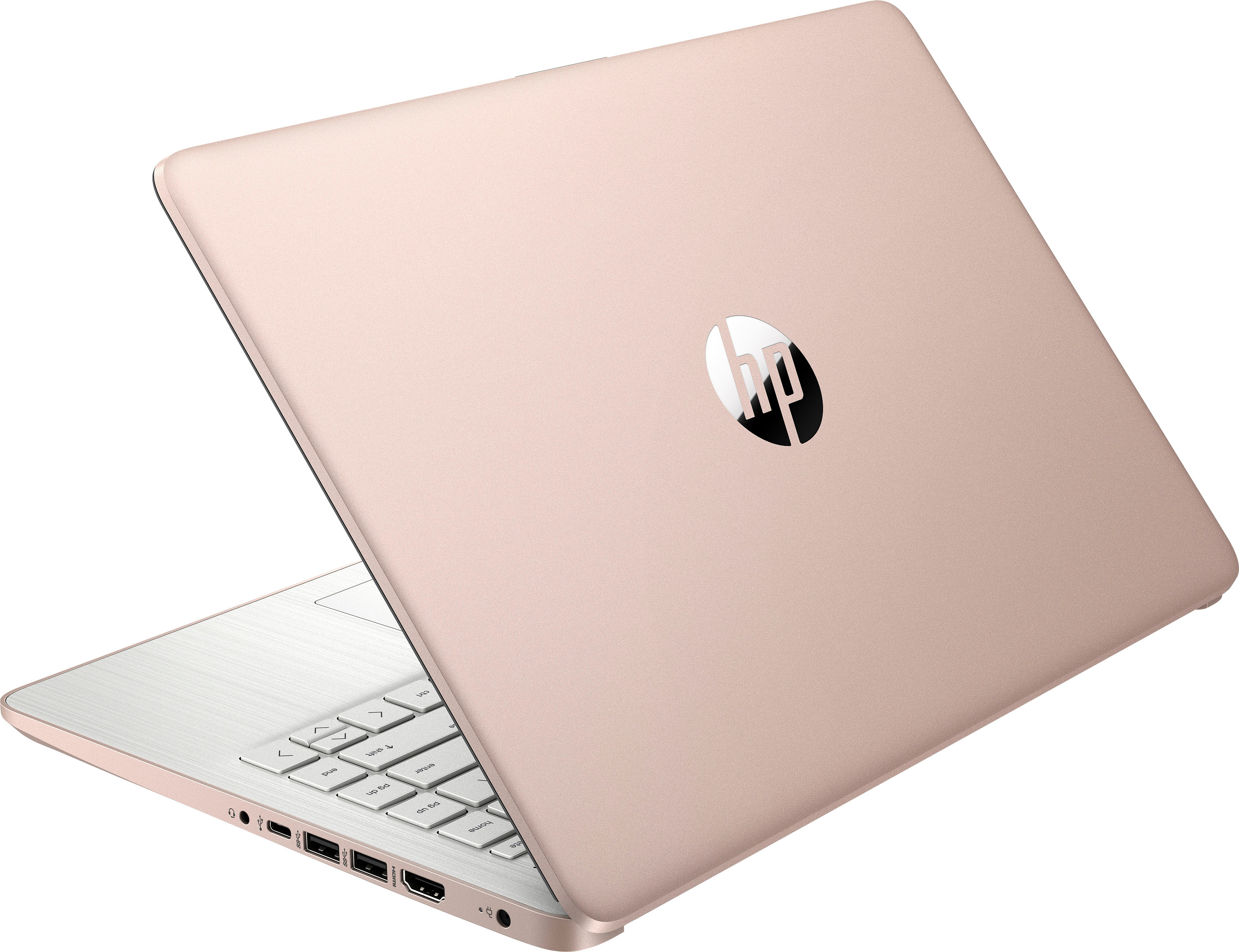
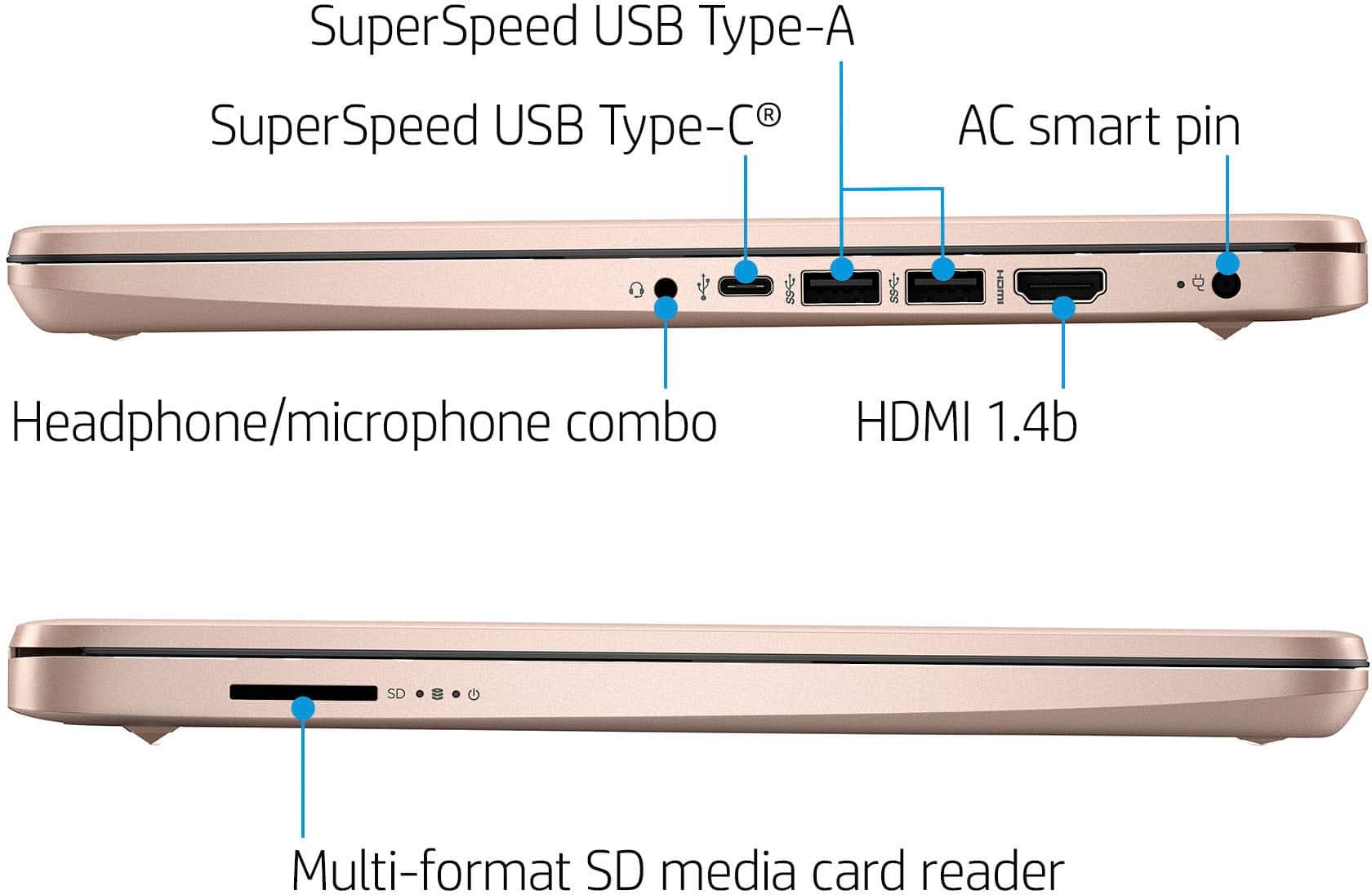
A:AnswerHello. Thanks for your question. You can use a Universal USB Docking Station for a laptop. You want to be sure the docking station has the video ports, i.e. HDMI, that are on the monitors. We recommend reaching out to the Best Buy customer service team for further assistance.
A:AnswerMinecraft and similar will lag even after updating the memory to 8 GB. Unfortunately we have learned the hard way, this should not be used for even the most basic gaming.