A:AnswerYes, you can print directly from iPhone without using the app. Just be sure the iPhone and the printer are on the same wireless network. Here are some instructions on how to print using AirPrint: https://support.apple.com/en-us/HT201387 AirPrint is just the way the iPhone can find then print on the printer.
A:AnswerYes. Once you connect the printer to your wireless network, then you can set up the printer on the Chromebook. Here are some instructions on how to connect the printer to the Chromebook: https://support.hp.com/us-en/document/c04122530
A:AnswerYes, you can use this printer with your Android phone. Just be sure the Android phone and the printer are on the same wireless network. We recommend using the HP Smart App: https://support.hp.com/us-en/document/c03561640
A:AnswerYes, you can print from your smartphone. Just be sure your smartphone and the printer are on the same wireless network. We recommend using the HP Smart App: https://support.hp.com/us-en/document/c03561640
A:AnswerYes. It's dual voltage capable, so it won't have any problem switching between the two. You may need an adapter to fit the US style plug into the socket.
A:AnswerThe Deskjet Plus 4155 can use the following media:
Media types supported Plain paper, photo paper, brochure paper, envelopes and other specialty inkjet papers
Media weight supported Letter: 16 to 32 lb; HP envelopes: 20 to 24 lb; HP cards: up to 110 lb; HP 4 x 6 inch photo paper: up to 145 lb
Media sizes supported Letter; legal; 4 x 6 in; 5 x 7 in; 8 x 10 in; No. 10 envelopes
A:AnswerYes. Here is a link to the user guide for the DeskJet Plus 4155:
http://h10032.www1.hp.com/ctg/Manual/c06611086
You should be able to setup the printer using the included setup poster. If your computer or phone is connected to the jet pack hotspot, navigate to 123.hp.com and it should set the printer up to use it.
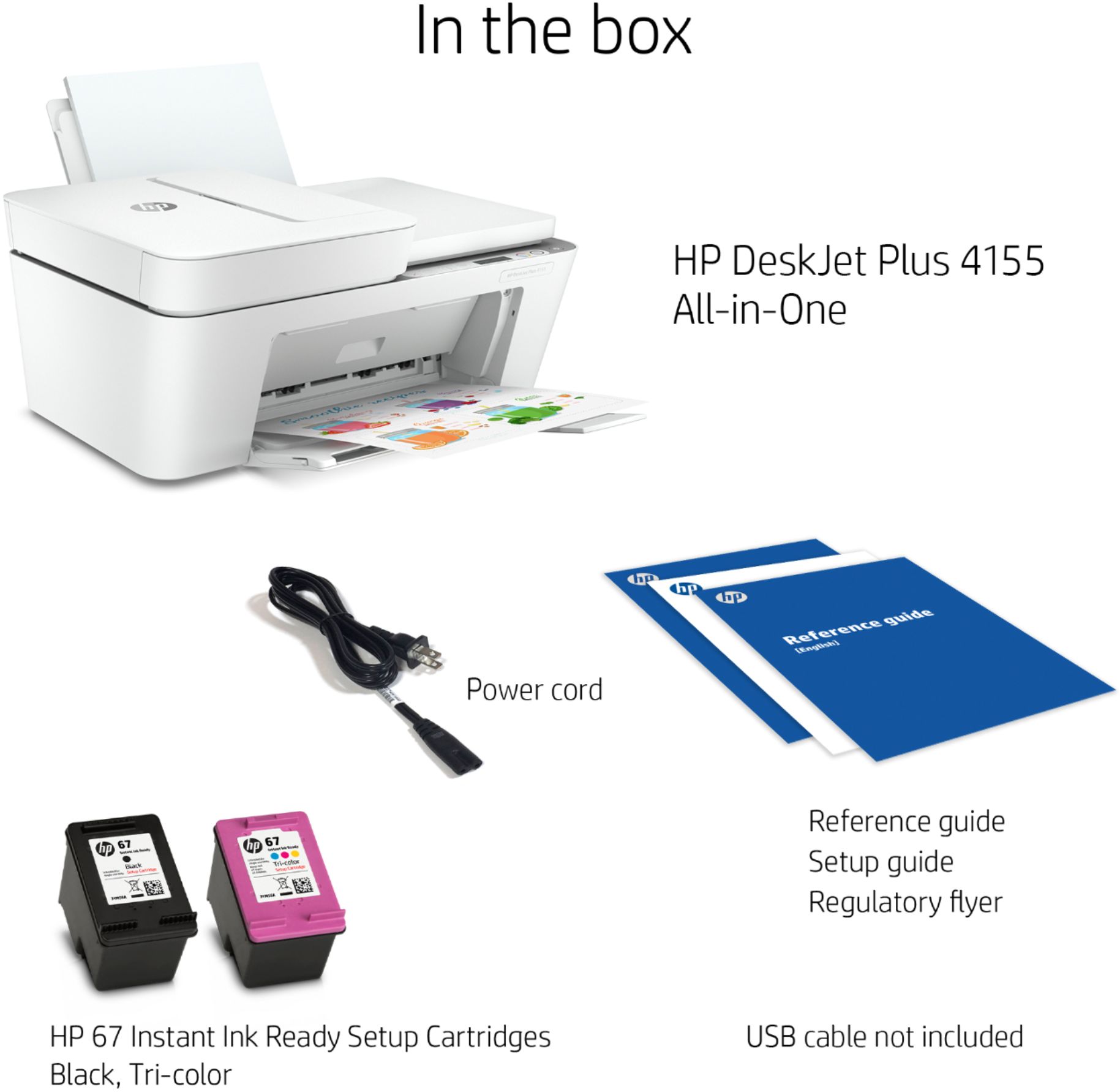
A:AnswerThis printer comes with setup cartridges in the box. The yield of setup cartridges varies by model but tends to be enough to get the average user through setup and initial printing jobs. You can learn more about Ink and Toner by the model at www.hp.com/go/learnaboutsupplies The USB cable is not included with this printer.