A:AnswerThere are several models with the designation "4500" - If your printer still works and you're looking to upgrade, its best not to get hung up on model numbers and shop for the features you're looking for. If you current model meets your needs, I don't think this will be an upgrade by any stretch.
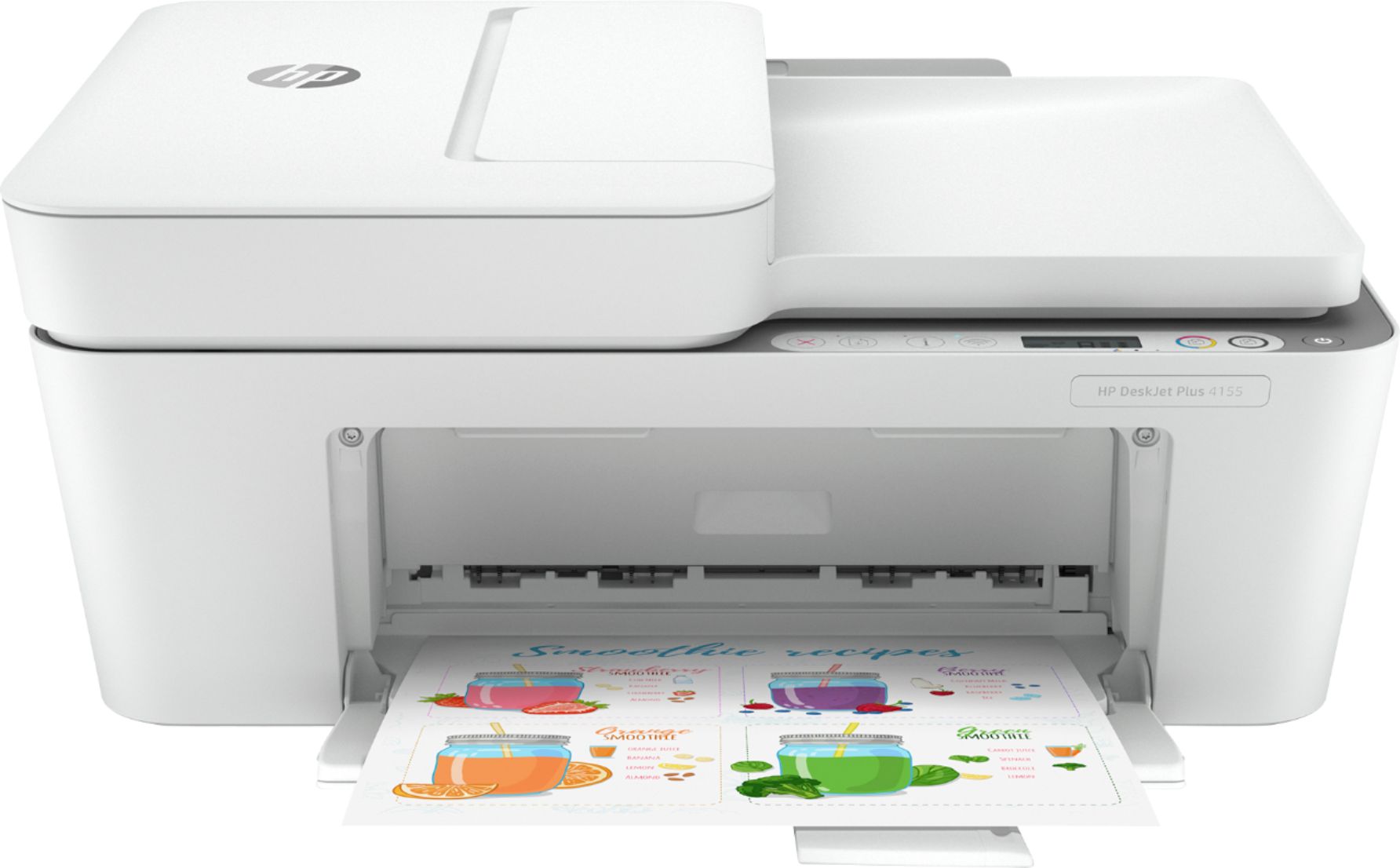
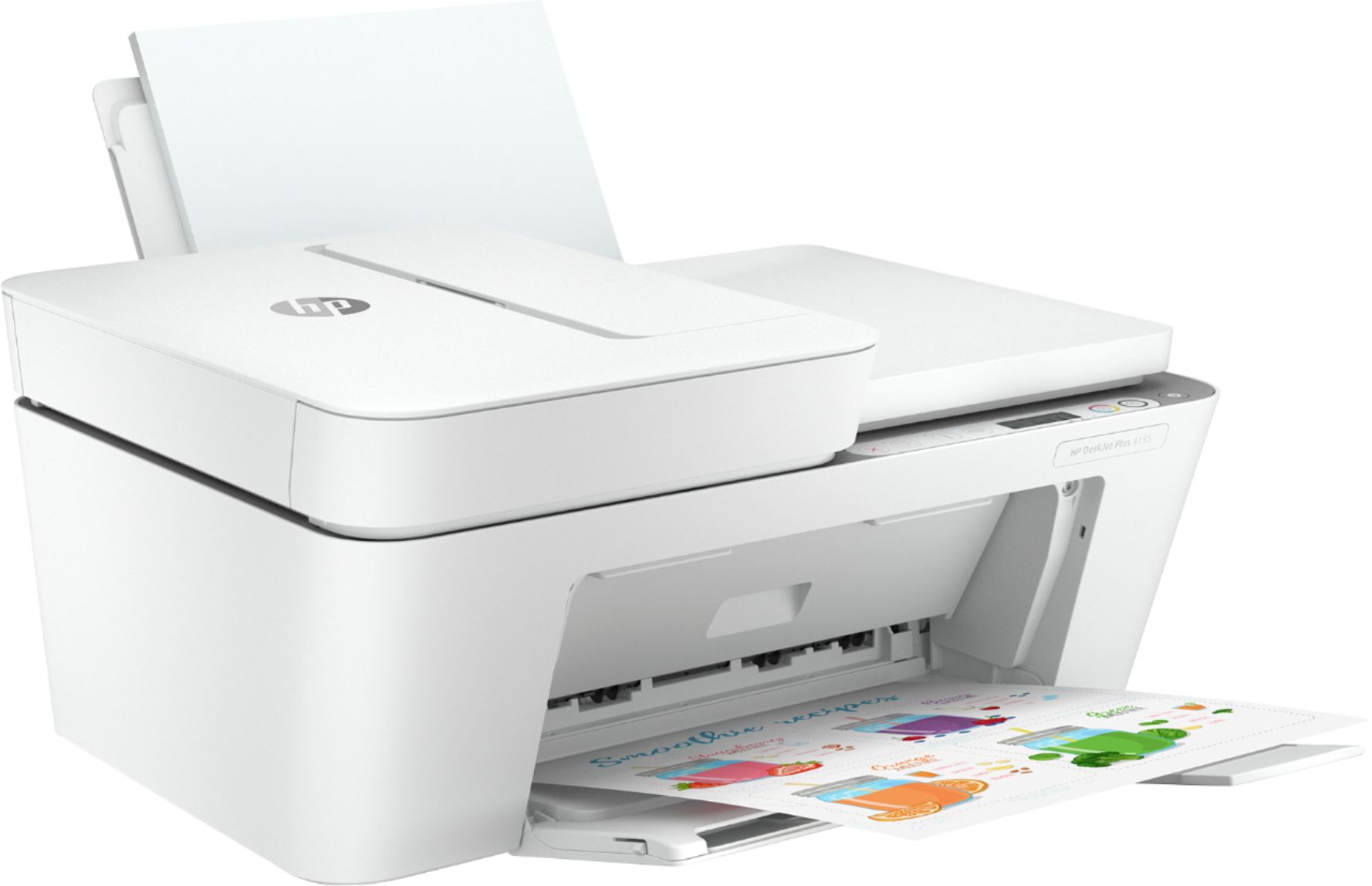
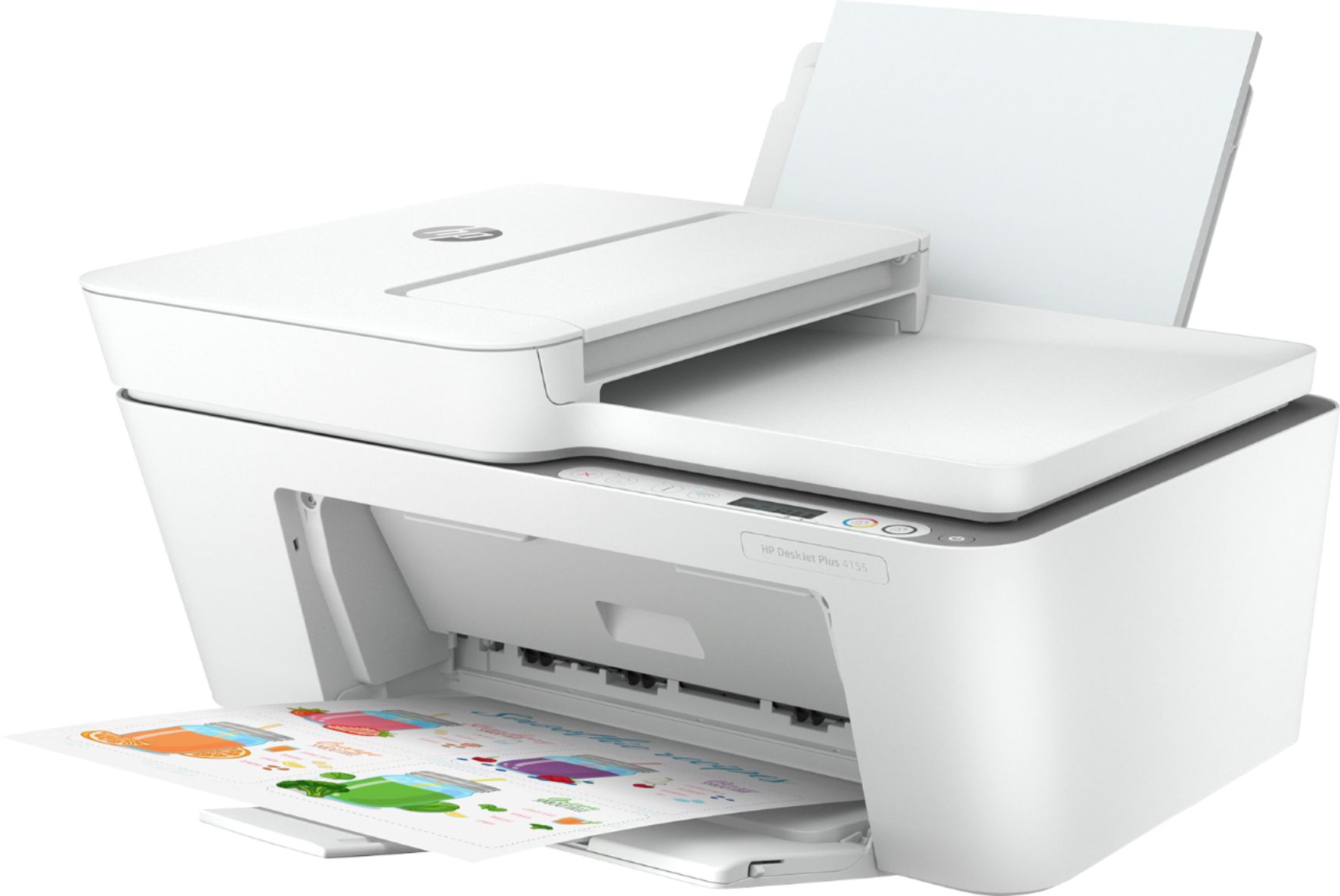
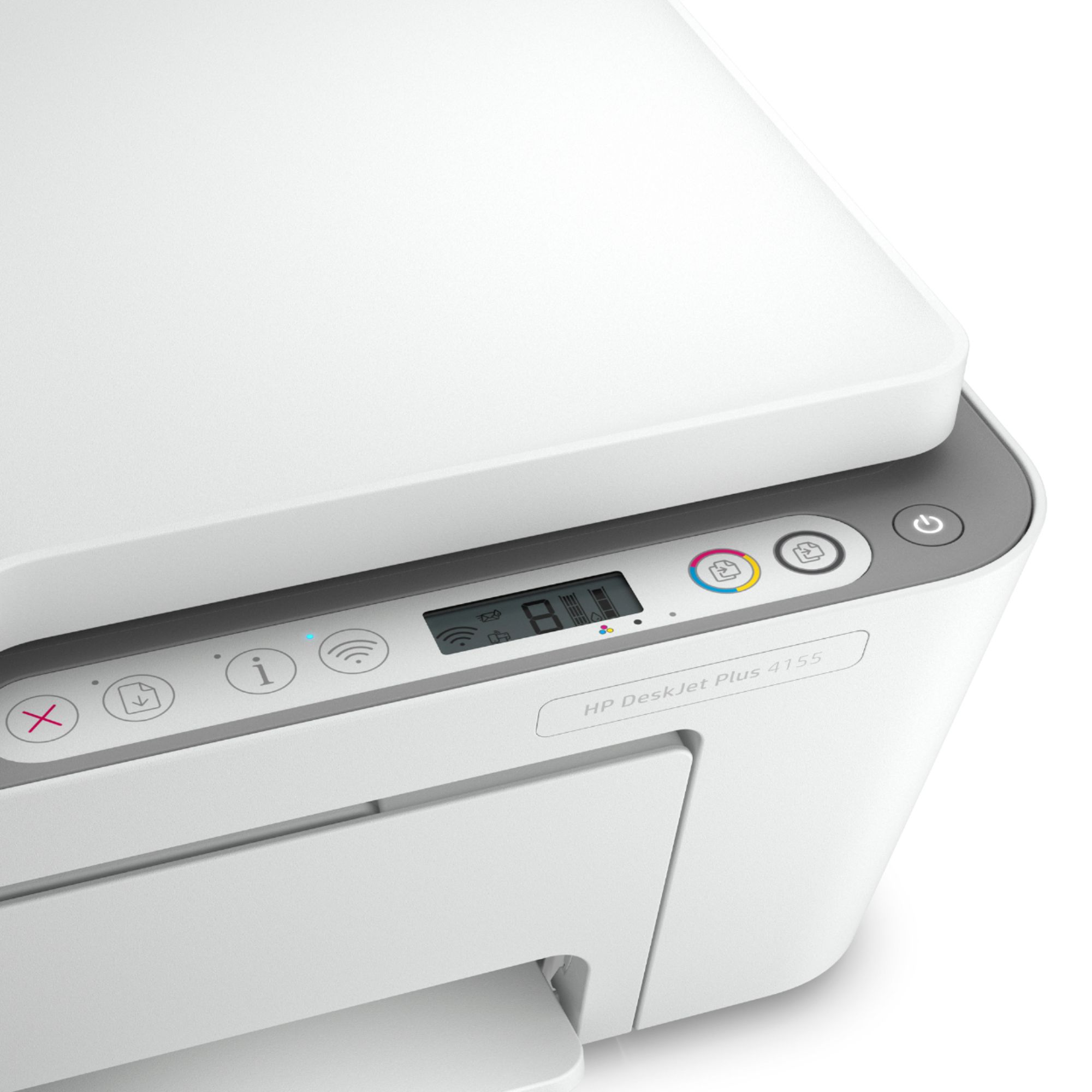
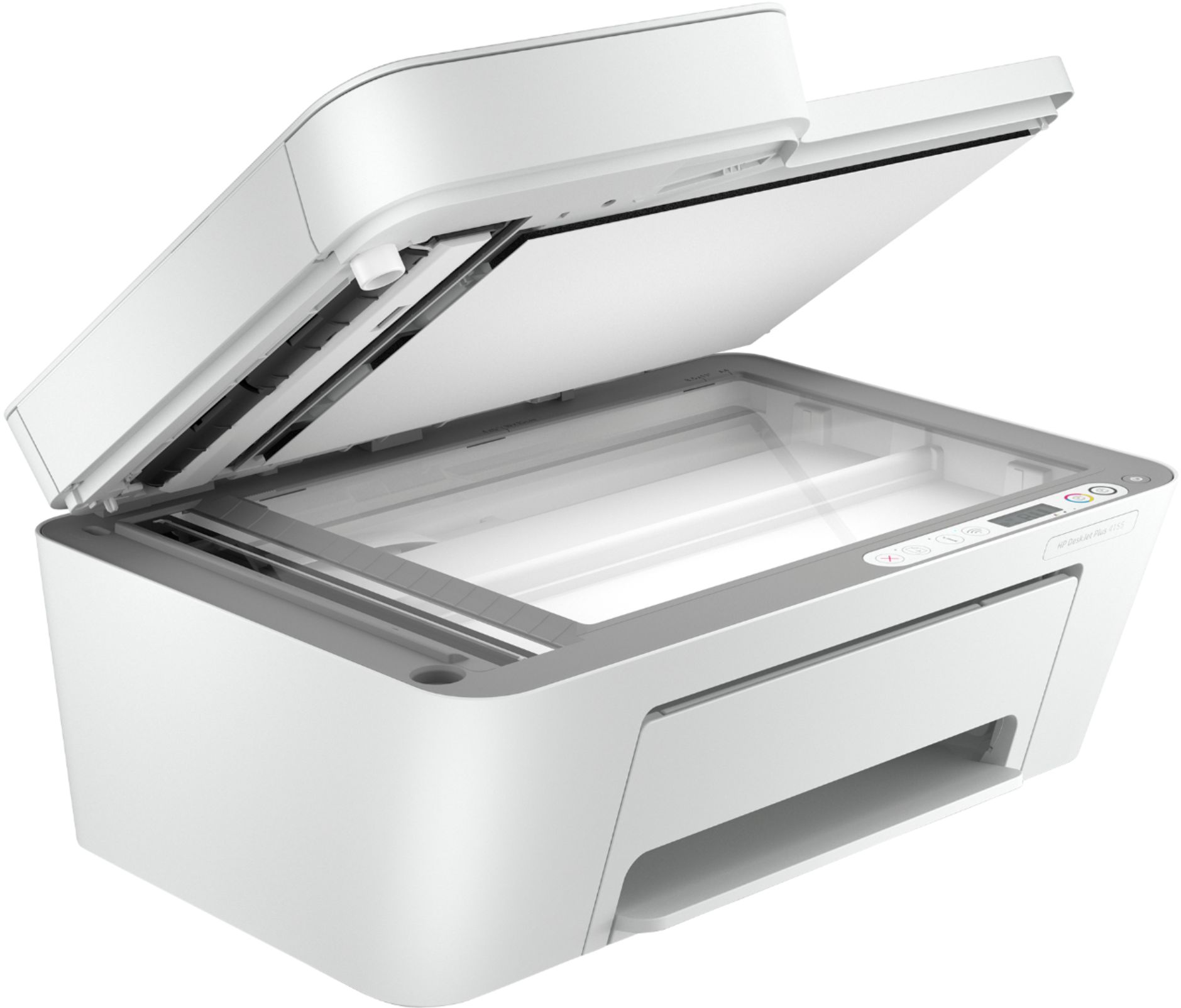
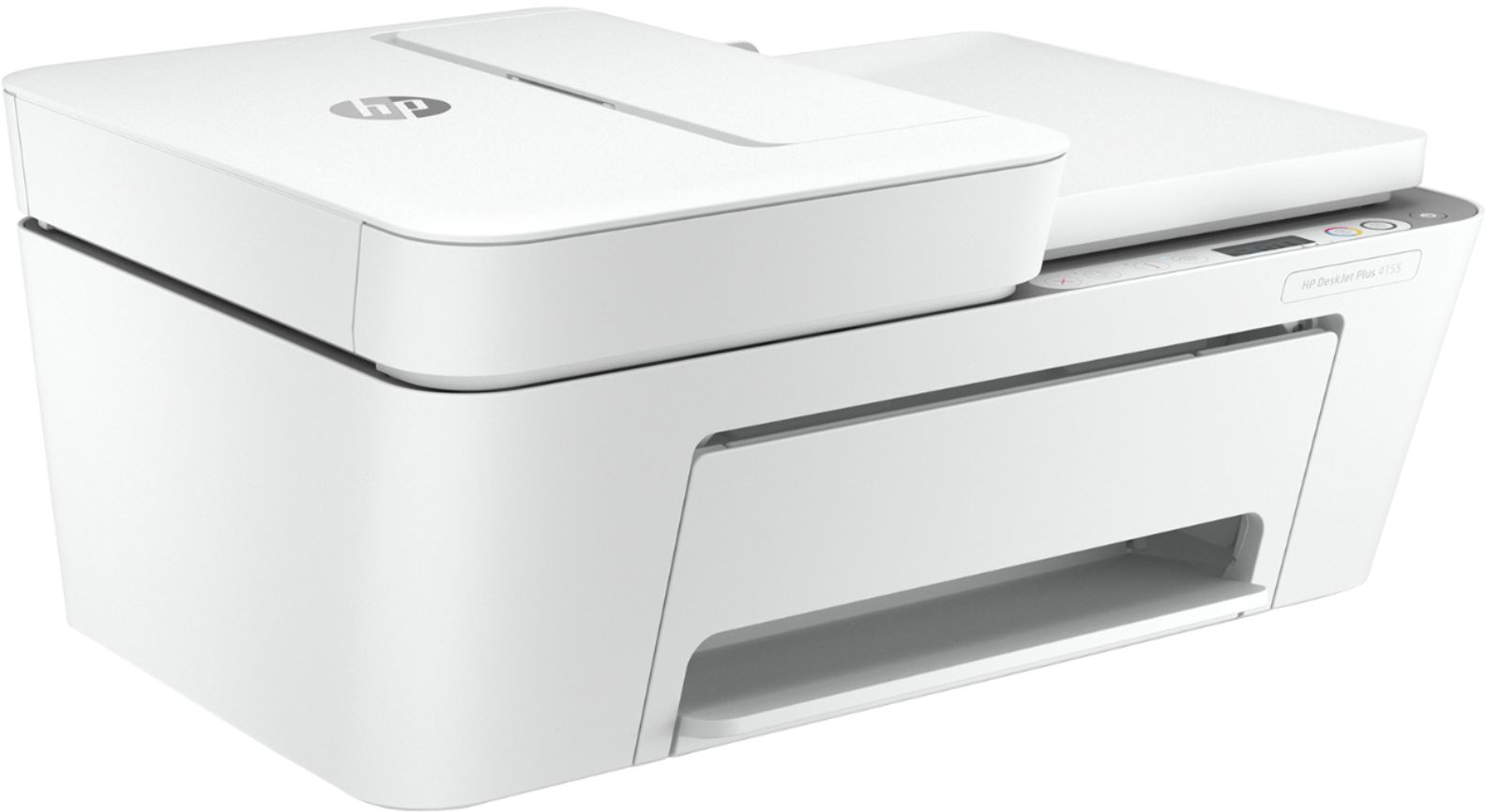
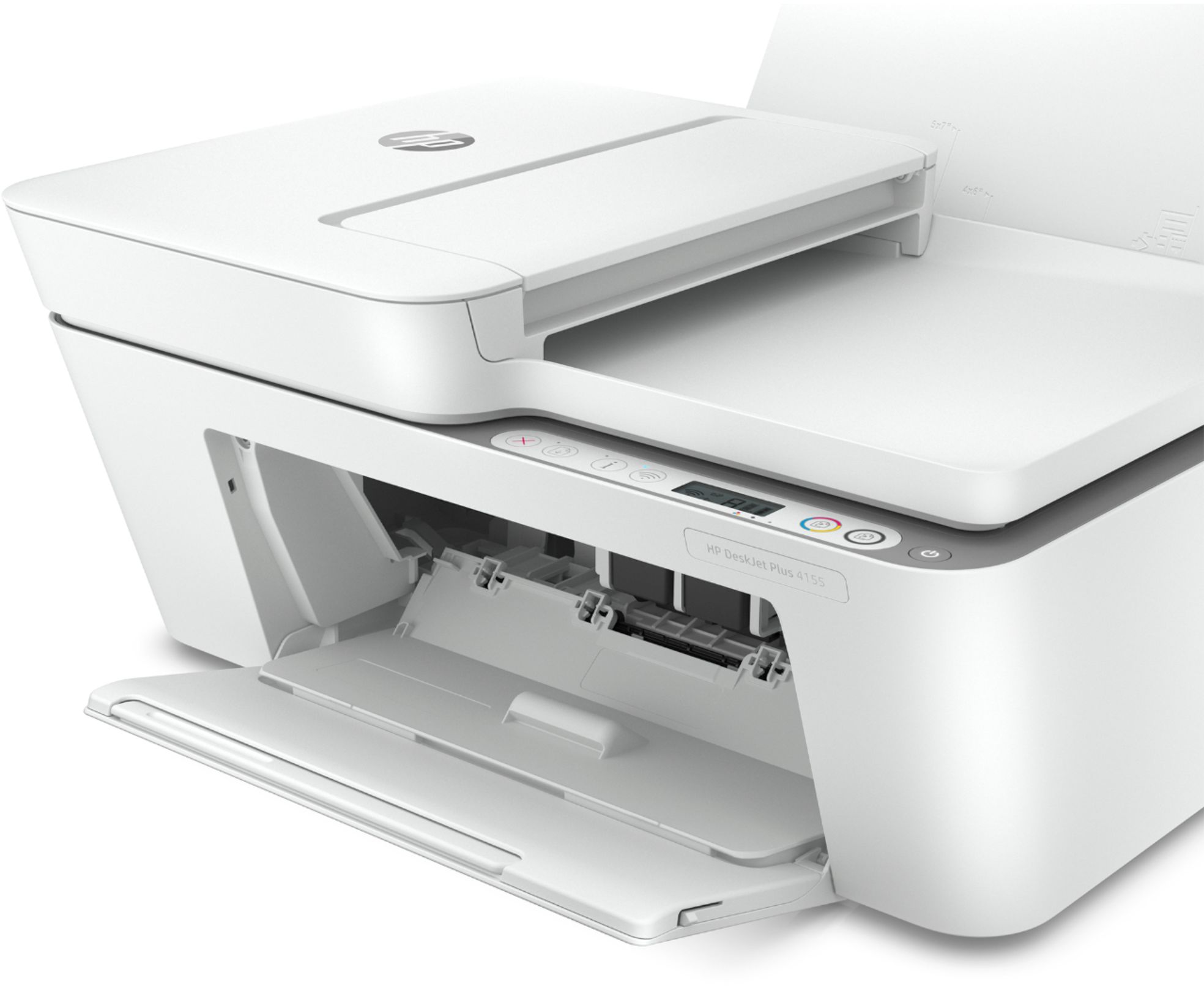
The big standout modern features of this 4155 are as follows:
- Low Price
- Instant Ink subscription compatibility
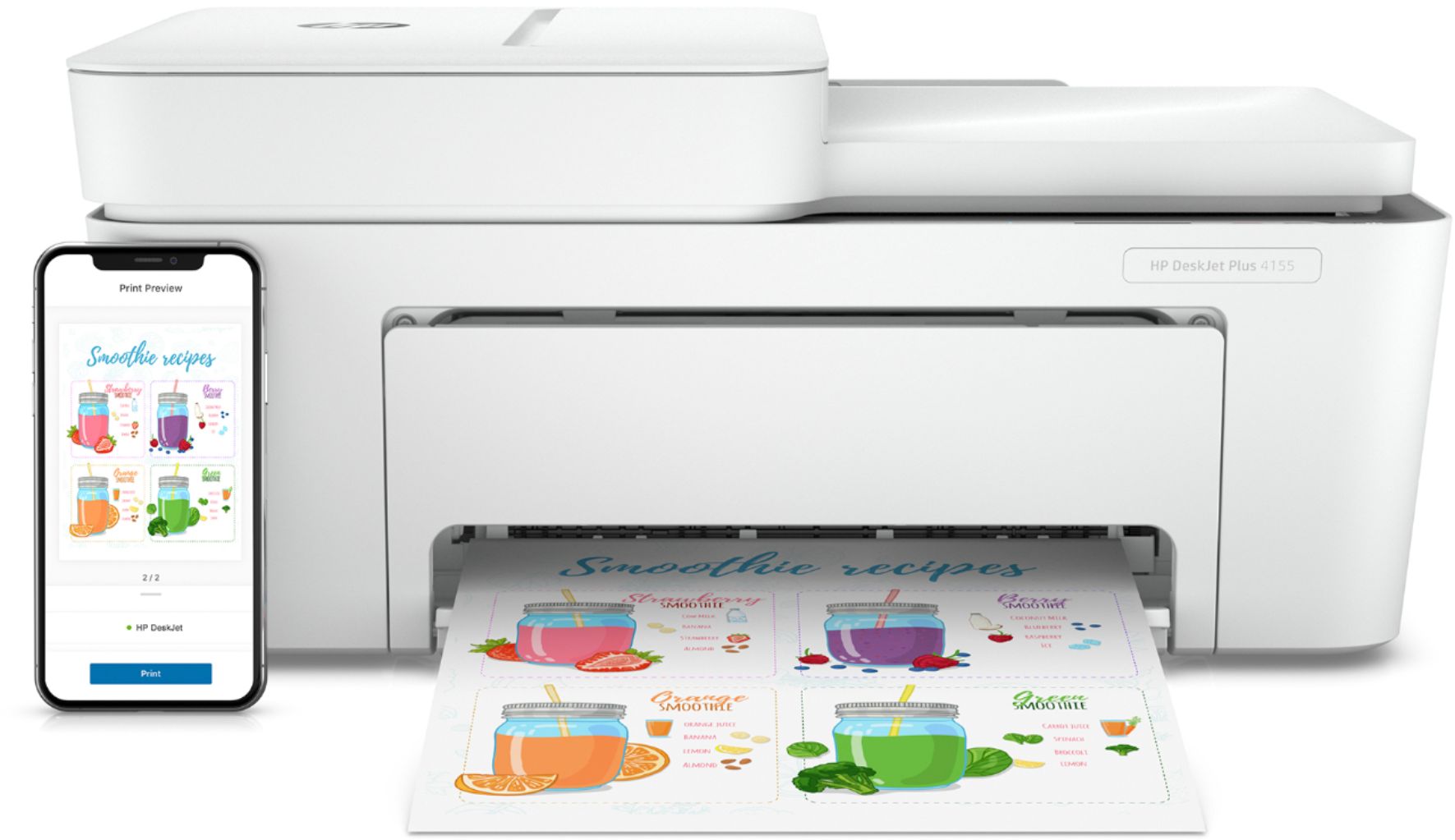
- Wireless printing and scanning for desktop and mobile
- Apple AirPrint Compatibility
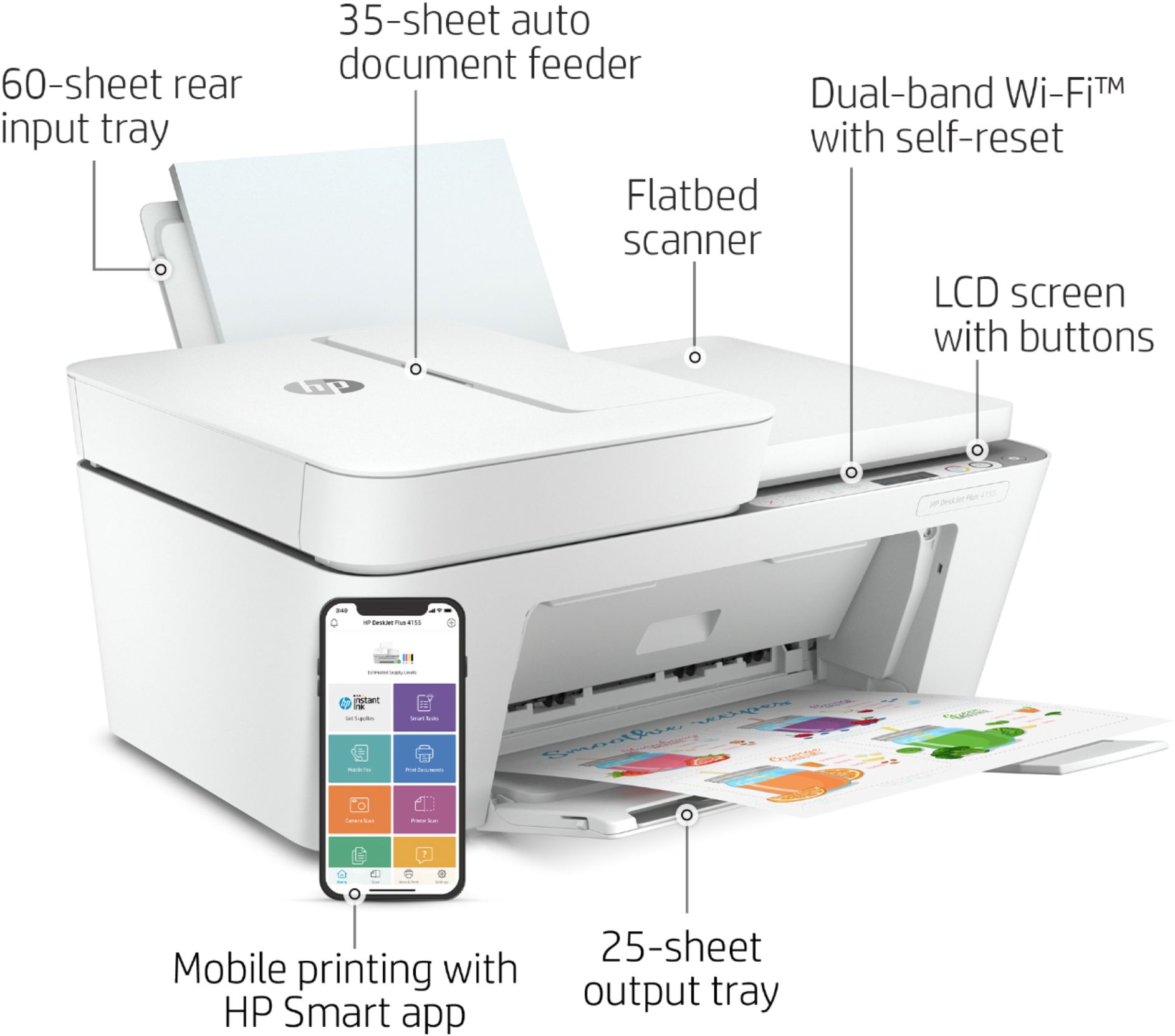
- Auto-document feeder for scanner/copier for large multi-page scans or copies.
A:AnswerMove the blue tab all the way right to left. That tab can move to the right so that can hold different sizes of length and widths.
There is a video of the 4155e to help you with its abilities, and shows how to load the paper.
Important to remove all tape when you take it out of the box.
A:AnswerHi Vickey, apologies for what you're experiencing. 4100e is the series, and 4155e is your particular model. The flashing blue light indicates that the printer is not connected to your WiFi network. As to why you cannot power down the printer, we'd need to ask you a couple of questions to understand the issue. We recommend that you reach out to Support.HP.com for assistance. Note: you can find your manual and other resources here: https://support.hp.com/us-en/product/hp-deskjet-4100e-all-in-one-series/2100187845/model/2100187854/manuals
A:AnswerThank you for the question. You can download the drivers from 123.hp.com. A better solution is to load the HP Smart App on your computer for easiest installation and the benefit of all of the printer's features.
A:AnswerHello, if you are looking to print heat iron-on transfer with an inkjet printer and apply them to fabrics such as t-shirts and bags than that is possible but if you are looking to print tattoos and transfer to skin you will not be able to do that with the HP printers. There are specialized printers specifically designed for the liquid ink used for tattooing stencils on thermal transfer paper. Thank you for being an HP customer!
A:AnswerHello. Thanks for your question. Yes, it is easy to setup. You can set up the printer by visiting https://support.hp.com. It will prompt you on how to setup the printer.