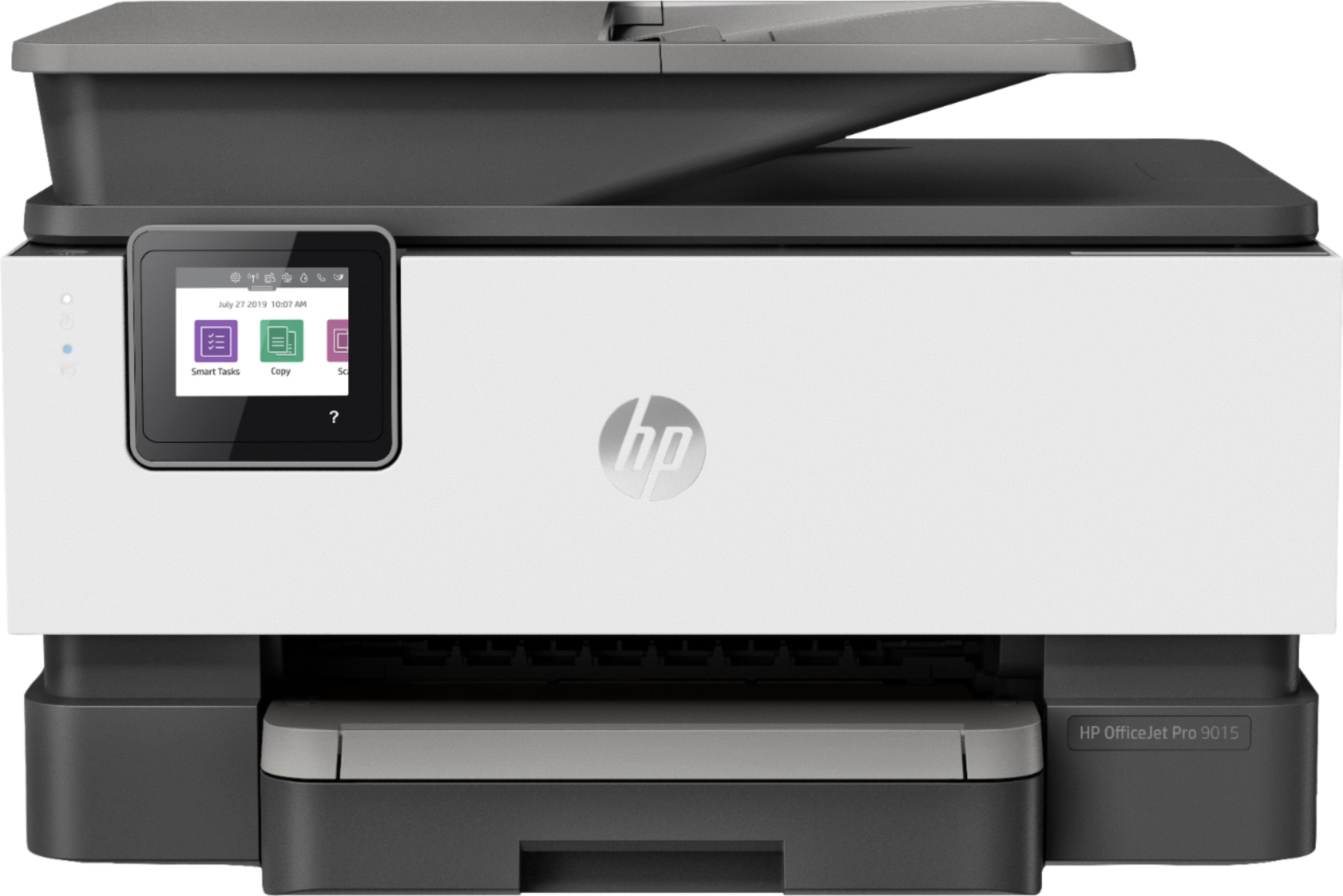
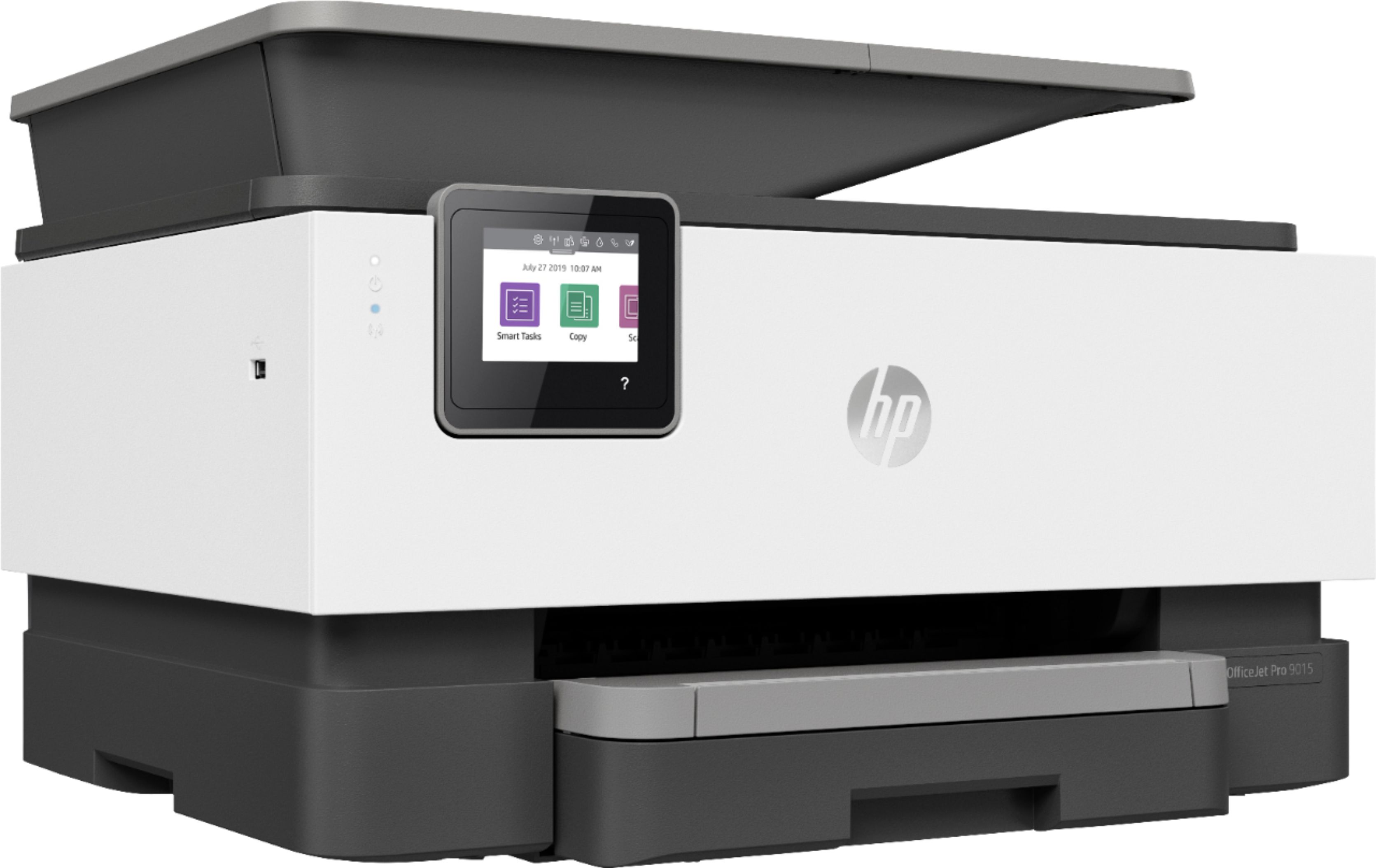
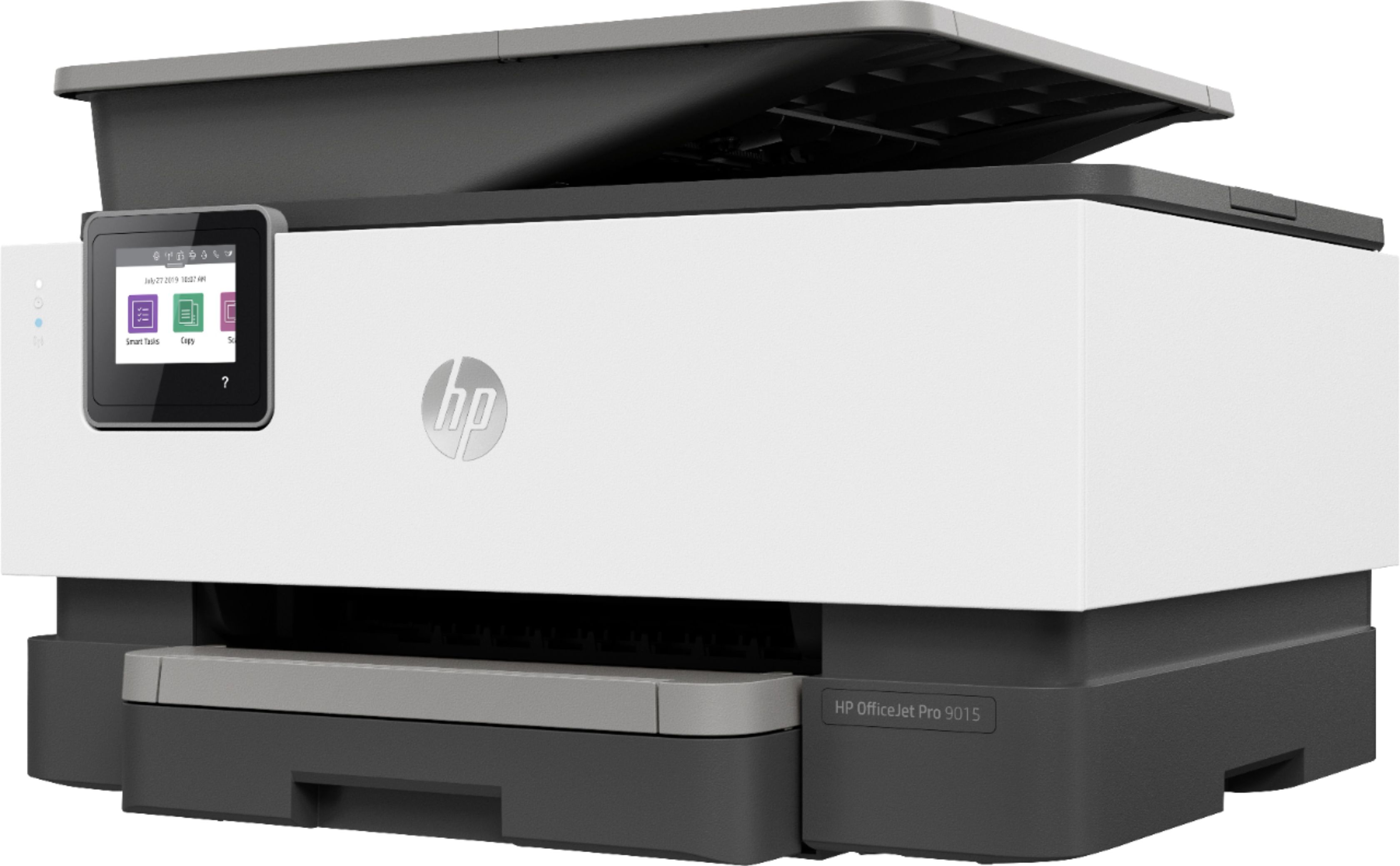
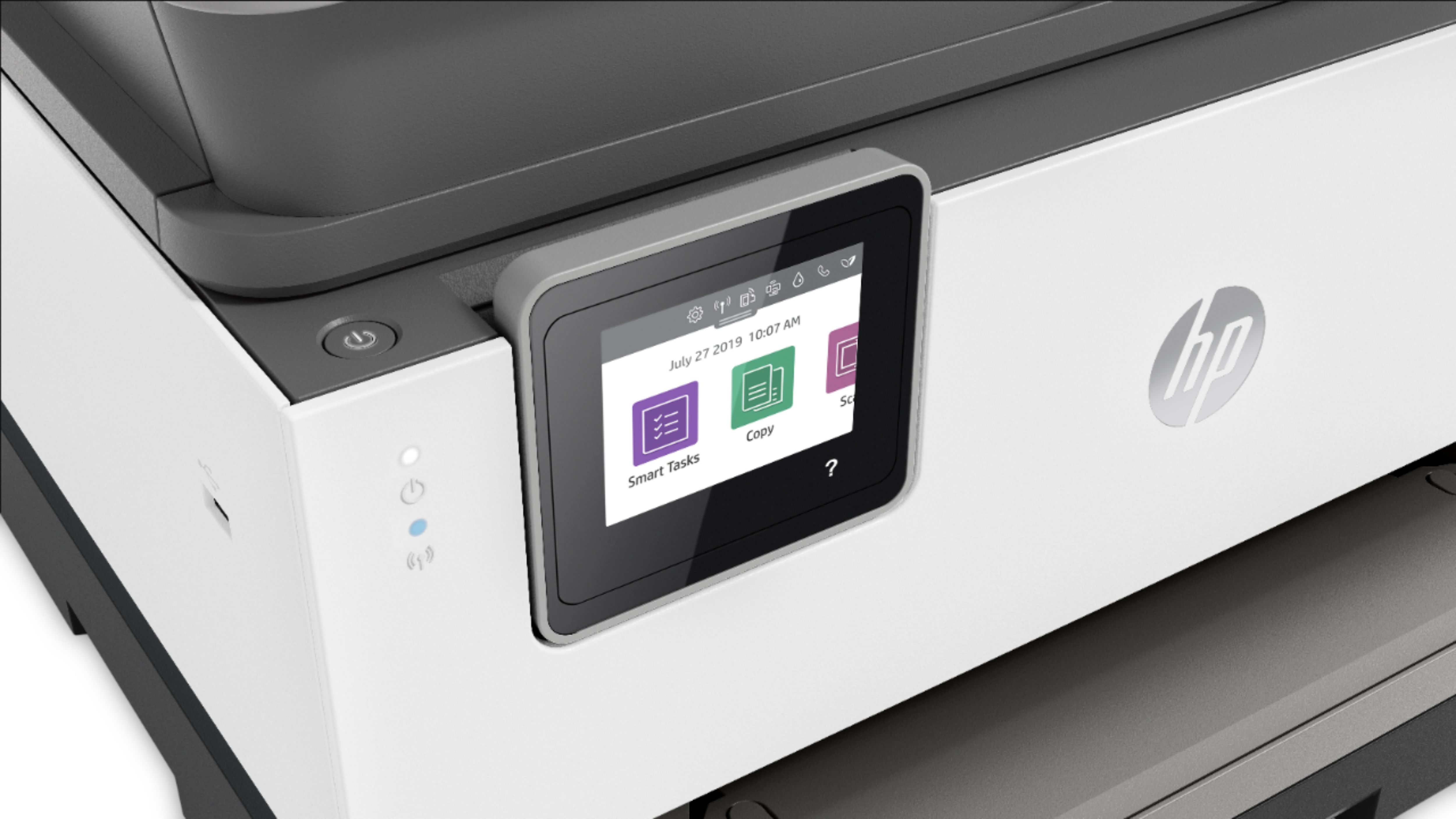
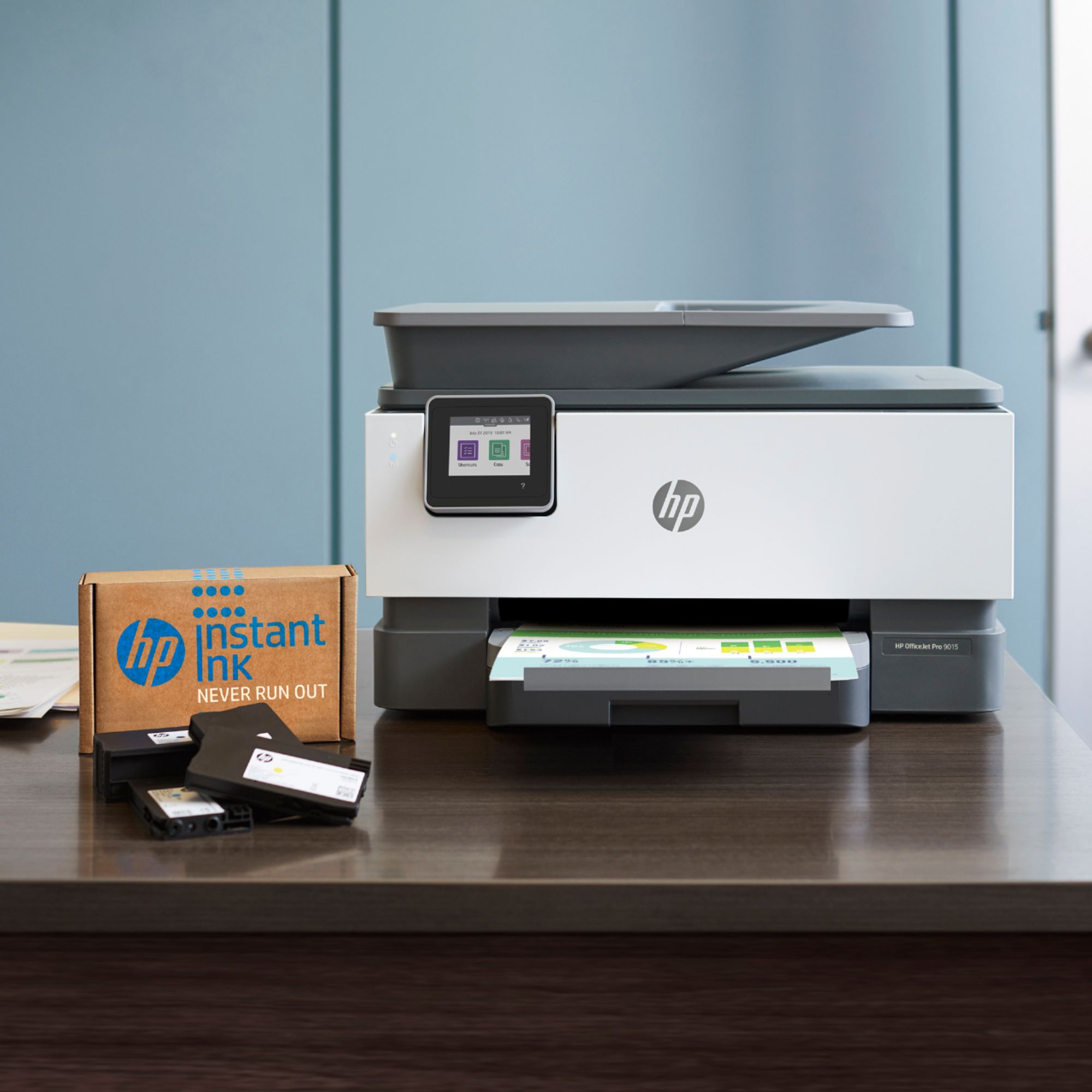
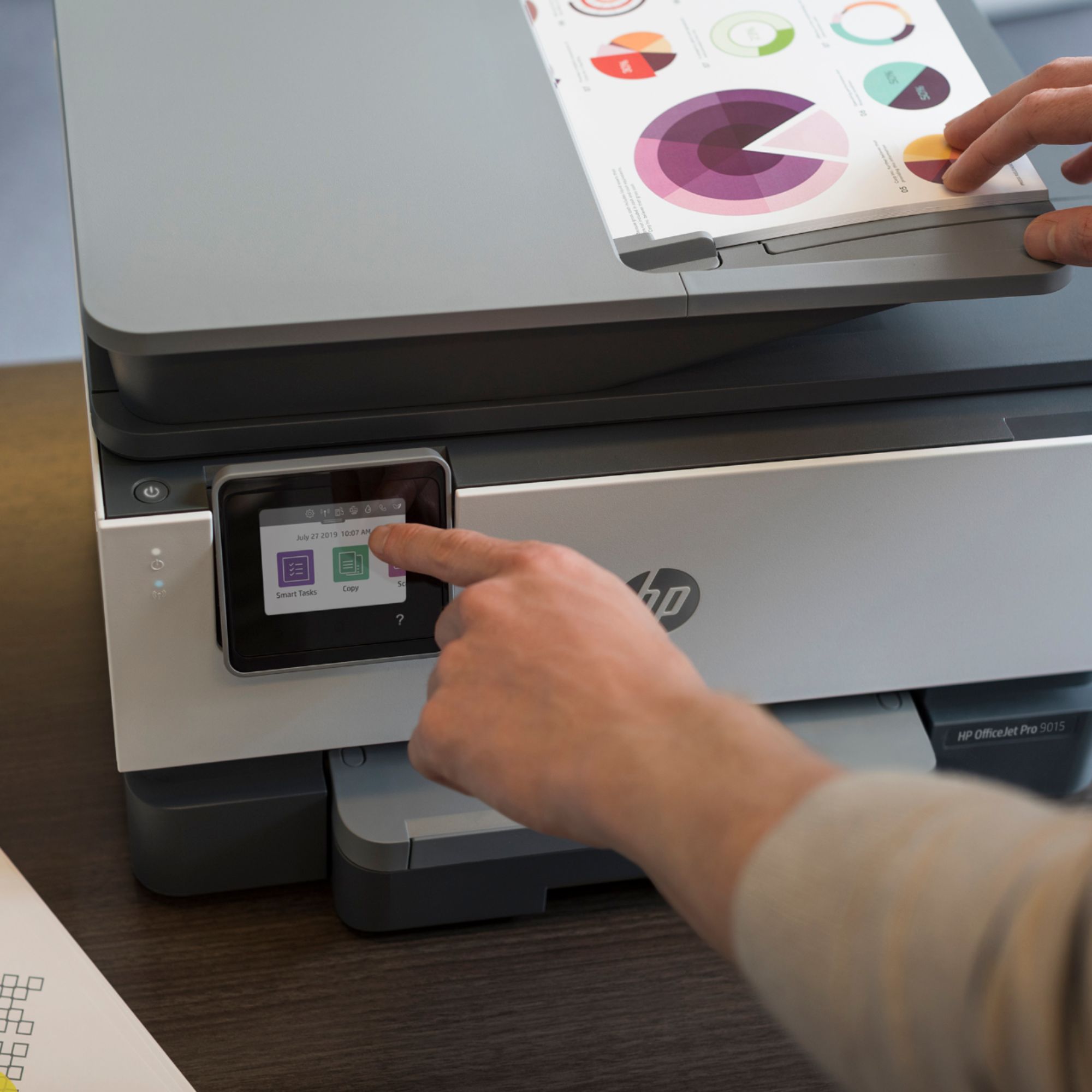
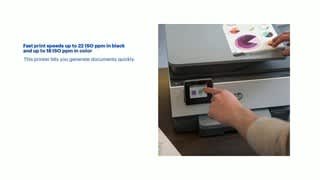
A:AnswerThank you for the question. The hardware of the 9015 and 9015e, is the same. The only differences in these models are the 9015e's lengthier, two-year warranty; the longer, six-month Instant Ink trial, which automatically sends ink when you're running out; and some added software features.
A:AnswerThe only answer is no, you can’t use non-hp cartridges, the firmware prevents printing. I have officepro 9015 & even preventing hp from gathering personal information on how you use the printer disables use of the printer.
A:AnswerThank you for the question. Inkjet vinyl, often referred to as Inkjet Sticker Papers with or without adhesive backing, can feed through most printers in small quantities. Heavier vinyl media is not supported on most inkjet printers for home or small businesses, the OfficeJet Pro 9015e included. For printing on media besides paper, iron-on transfer paper, and card stock, you may need a sublimation printer or a printer marketed for crafting.
A:AnswerThe price of ink will vary over time, and whether you buy the XL cartridges or a pack with several of the standard cartridges, so it's impossible to give you a firm price. But the printer can use either the 962 or high-capacity 962XL cartridges. Your best option is to check the price ink when you need to purchase it.
A:AnswerYes, you'll have no problem printing addresses on envelopes. You'll need to load the envelopes face down, and when you go to print, select the correct size envelope for the paper size.
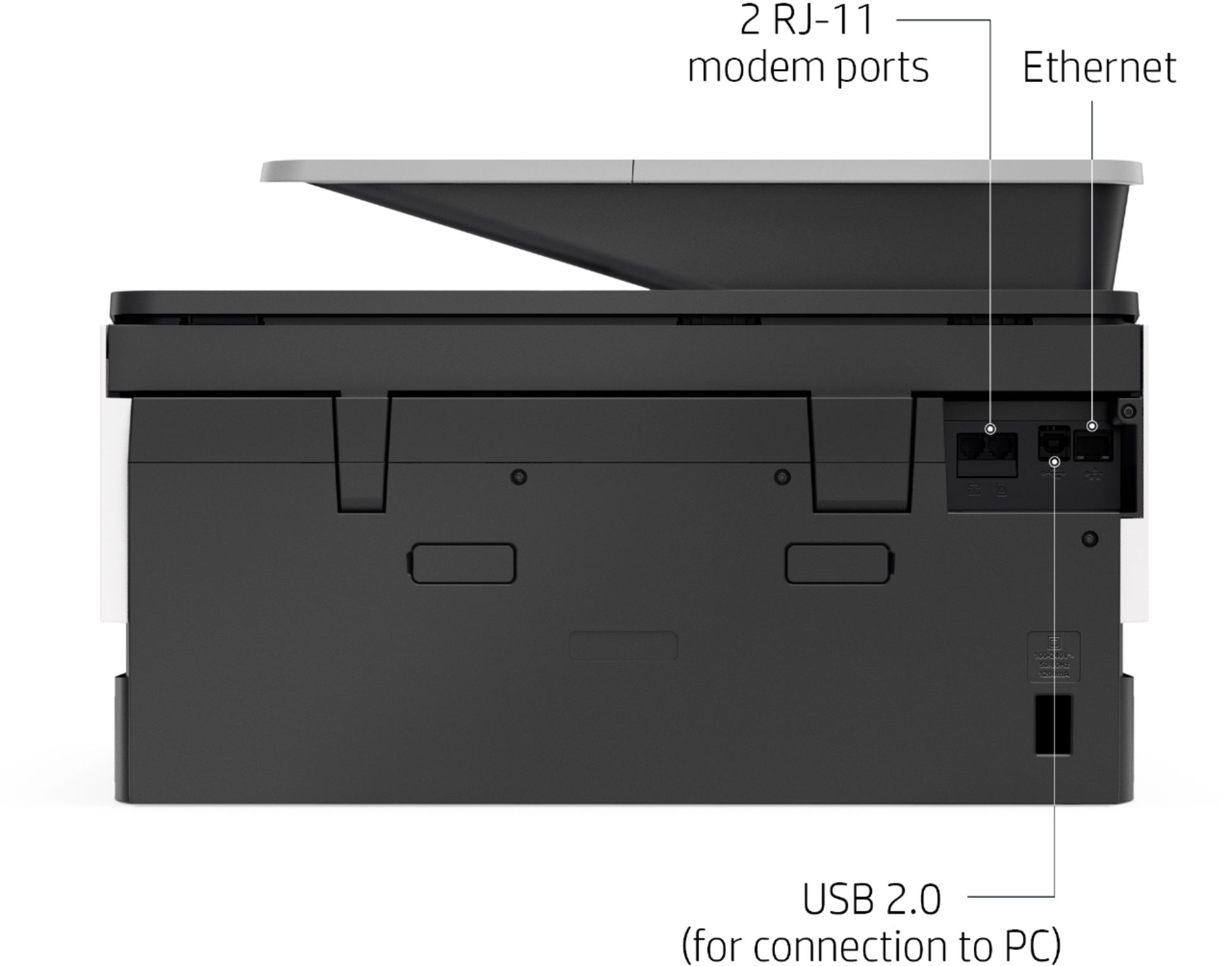
A:AnswerHello, Angie. Thanks for your question. You can take the sticker off the USB port to setup this HP OfficeJet Pro 9015e printer on your computer with the USB A to B 2.0 cable. If you don't have a USB cable, you need to purchase one.
A:AnswerYou can use the 9015 as a stand-alone copier with no computer connected. You will be able to make a copy of both sides and have them on the same piece of paper. This model will work great for those tasks.
A:AnswerHi Dave, thank you for the question. You can adjust the size of your print from the print menu by increasing from 100% upward. The increase may cause the need to adjust the margins. Depending on the software used to create the document, you may be able to increase the text size before you set up to print, also.
A:AnswerTo Hp Support
Thank you for giving me the user guide but it does not tell/show me how to make the printer show me that it is faxing pages. There at times I am faxing over 100 pages and have no way of knowing where I am in the faxing process. Some people might not care, but when you are faxing multiple pages, it's nice to see where the progression is. Any tips?
A:AnswerThere are drivers for macOS, 10.11 (El Capitan) for the HP Envy 4520 printer: https://support.hp.com/us-en/drivers/selfservice/hp-envy-4520-all-in-one-printer-series/5447920 The HP Officejet Pro 9015 printer does not have drivers for macOS, 10.11 (El Capitan).