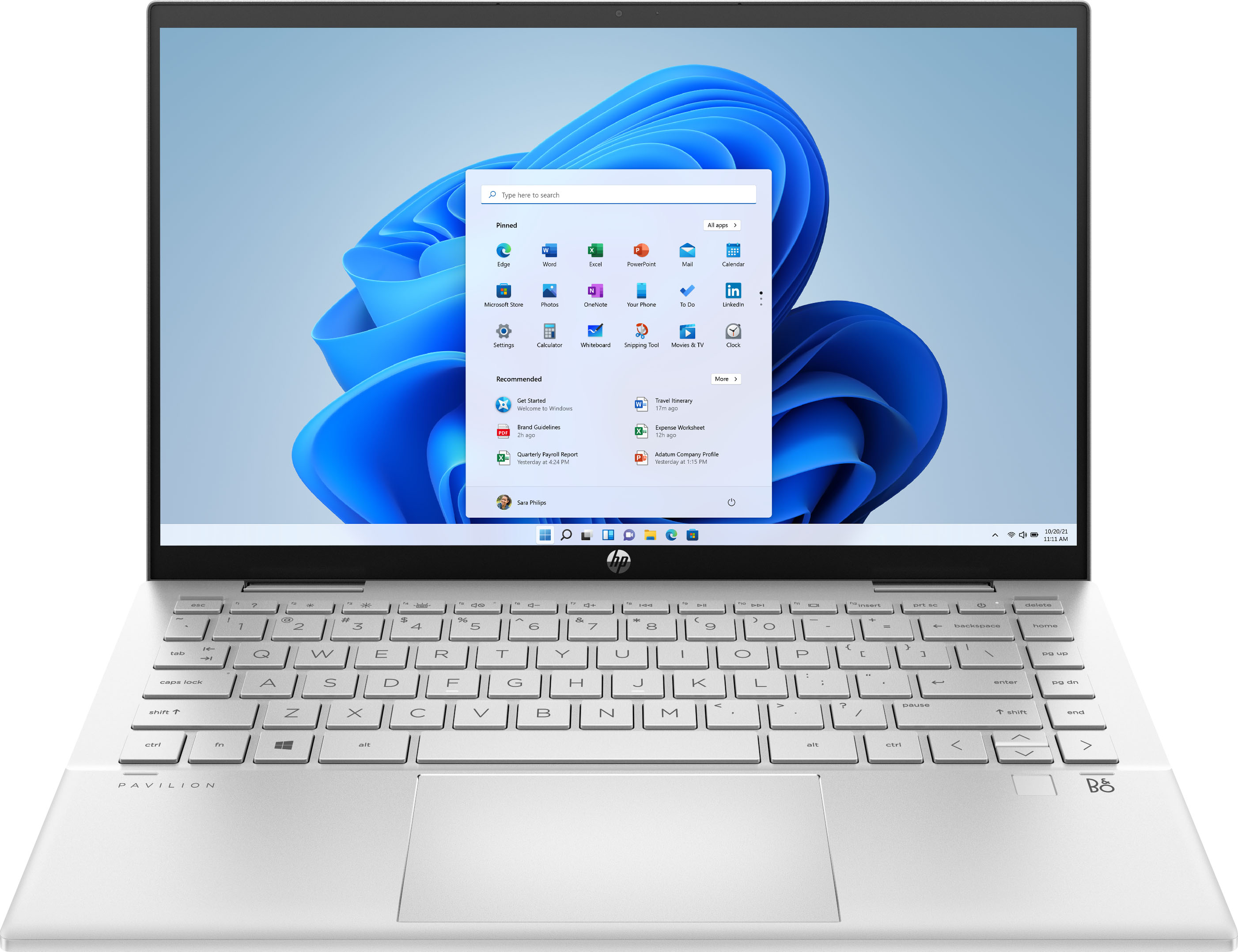
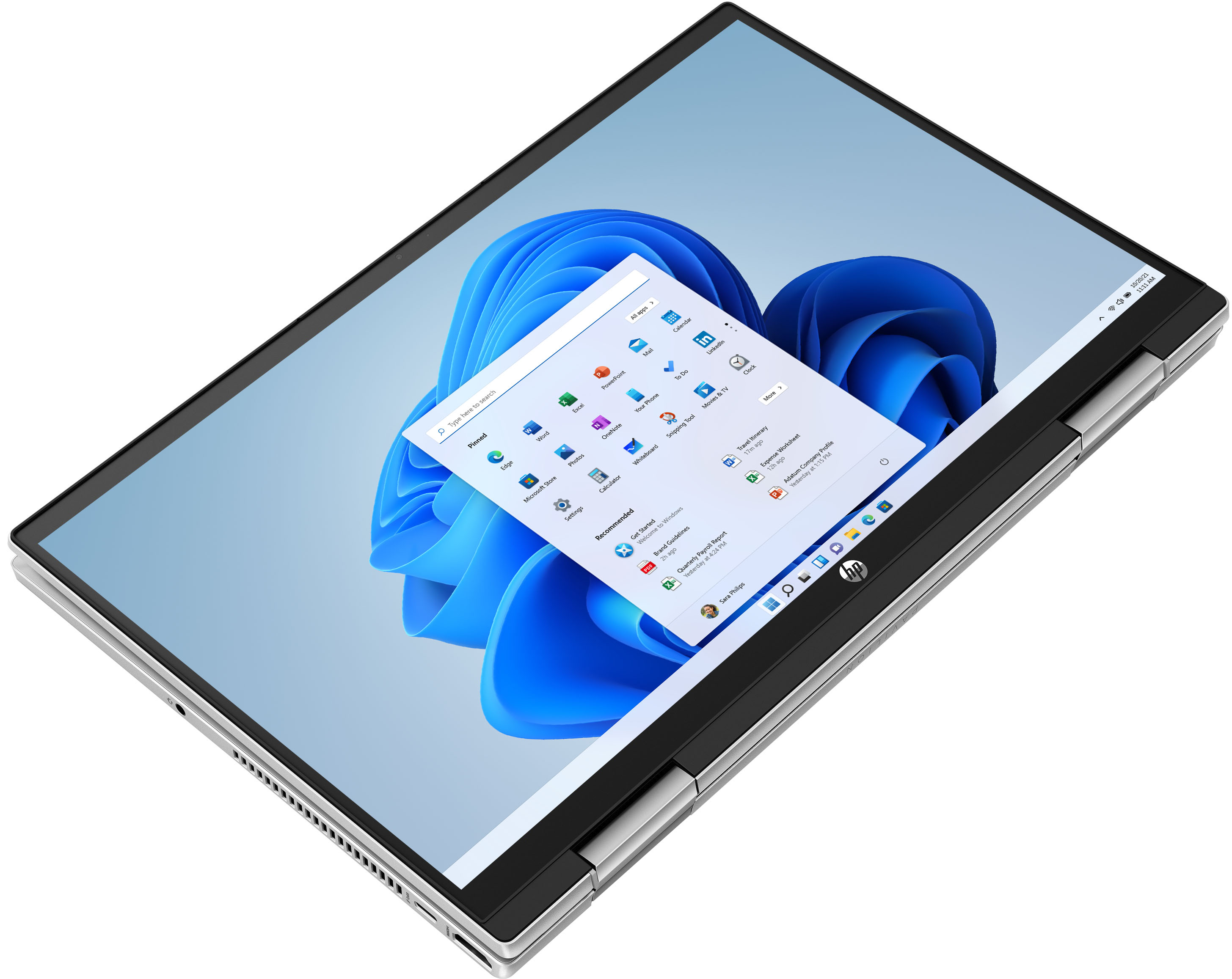
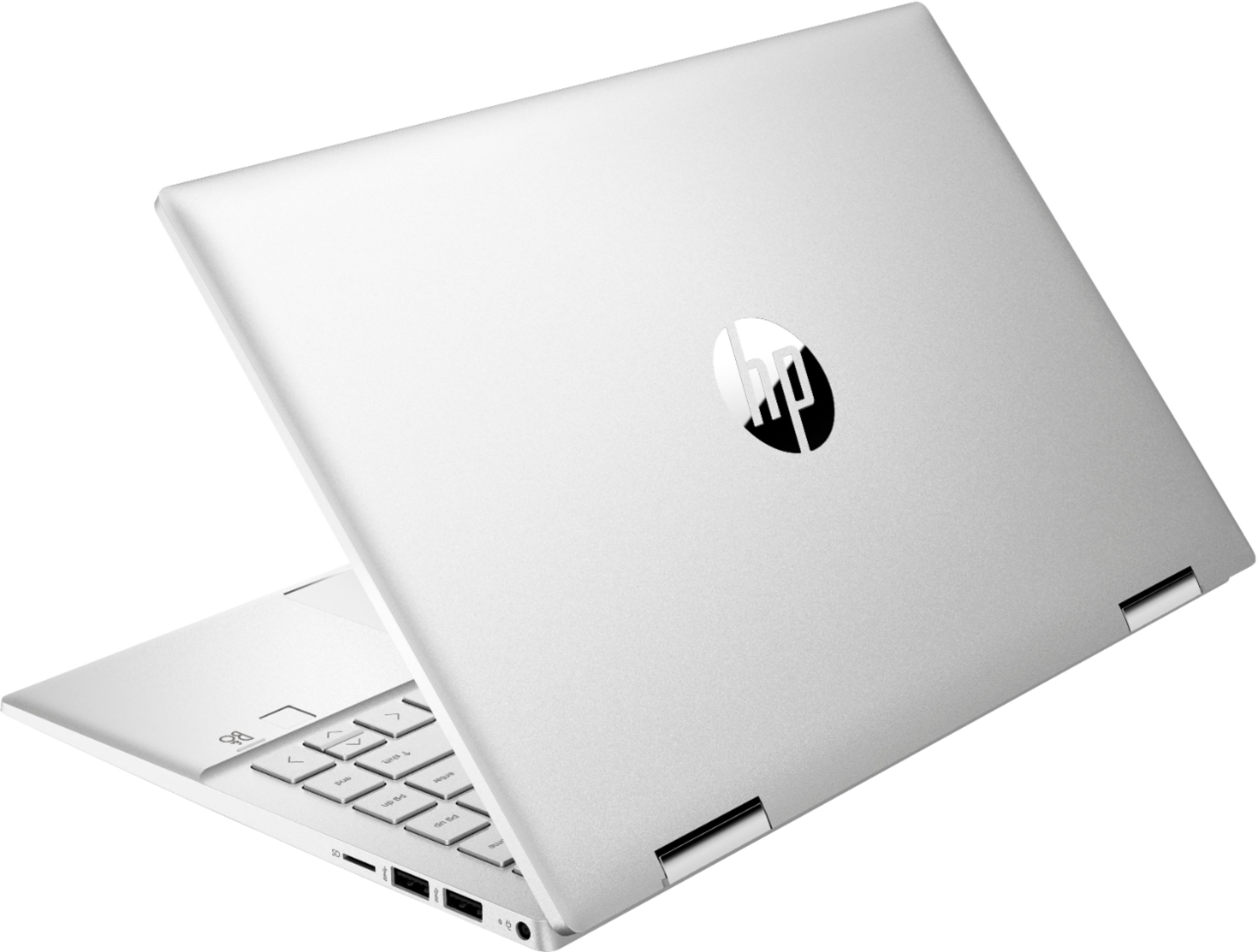
A:AnswerHi, thank you for the question. HP 14m-dy0023dx laptop can run Adobe Photoshop but it will not edit pictures very quickly because it does not have a dedicated graphics card.
A:AnswerToo complex an issue to deal with here, but my preliminary suggestions are that you make sure both laptop and printer are connected to the same Wi-Fi signal from your modem. Also, you will get better results if you cable-connect the two to each other, at least for the initial setup.
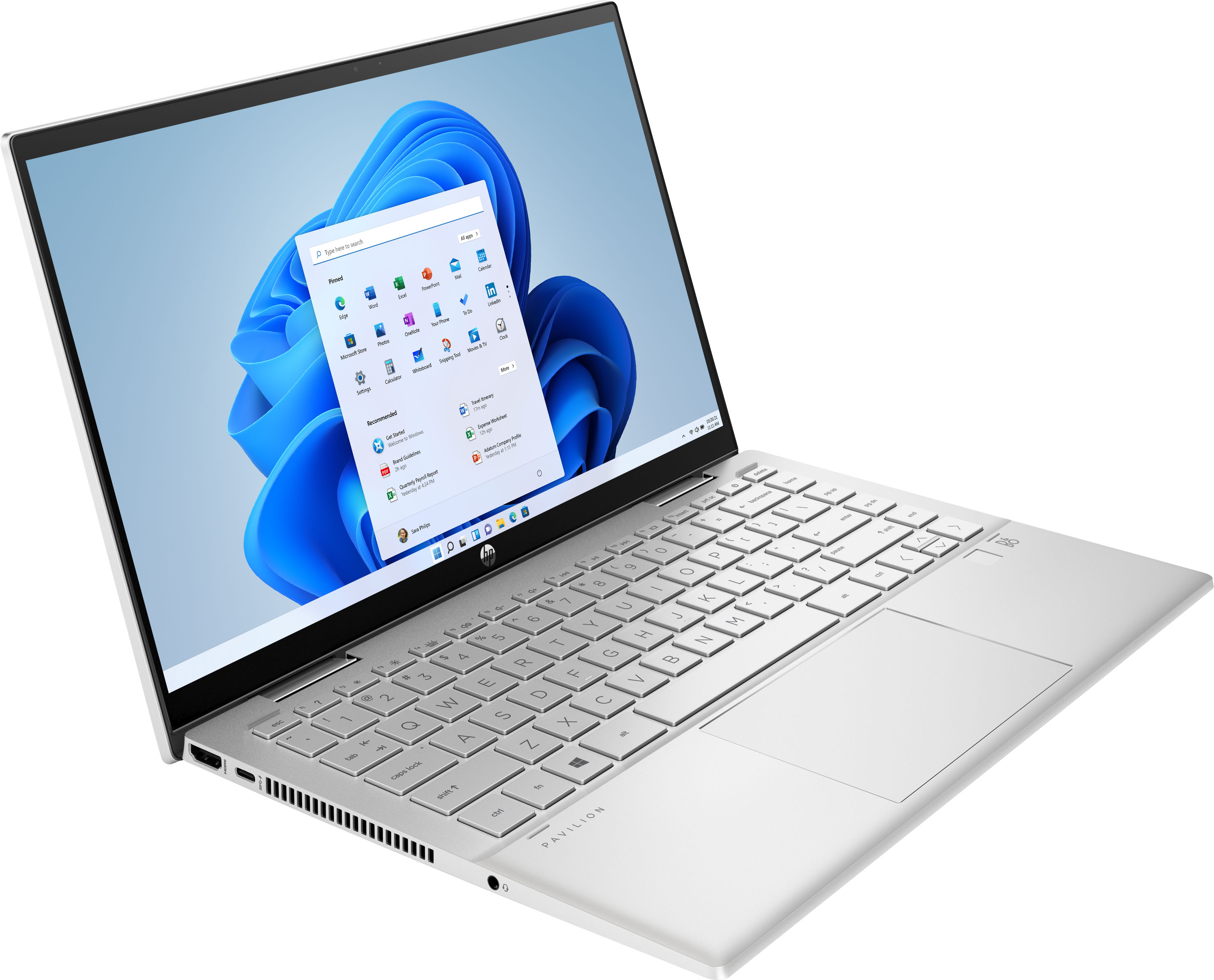
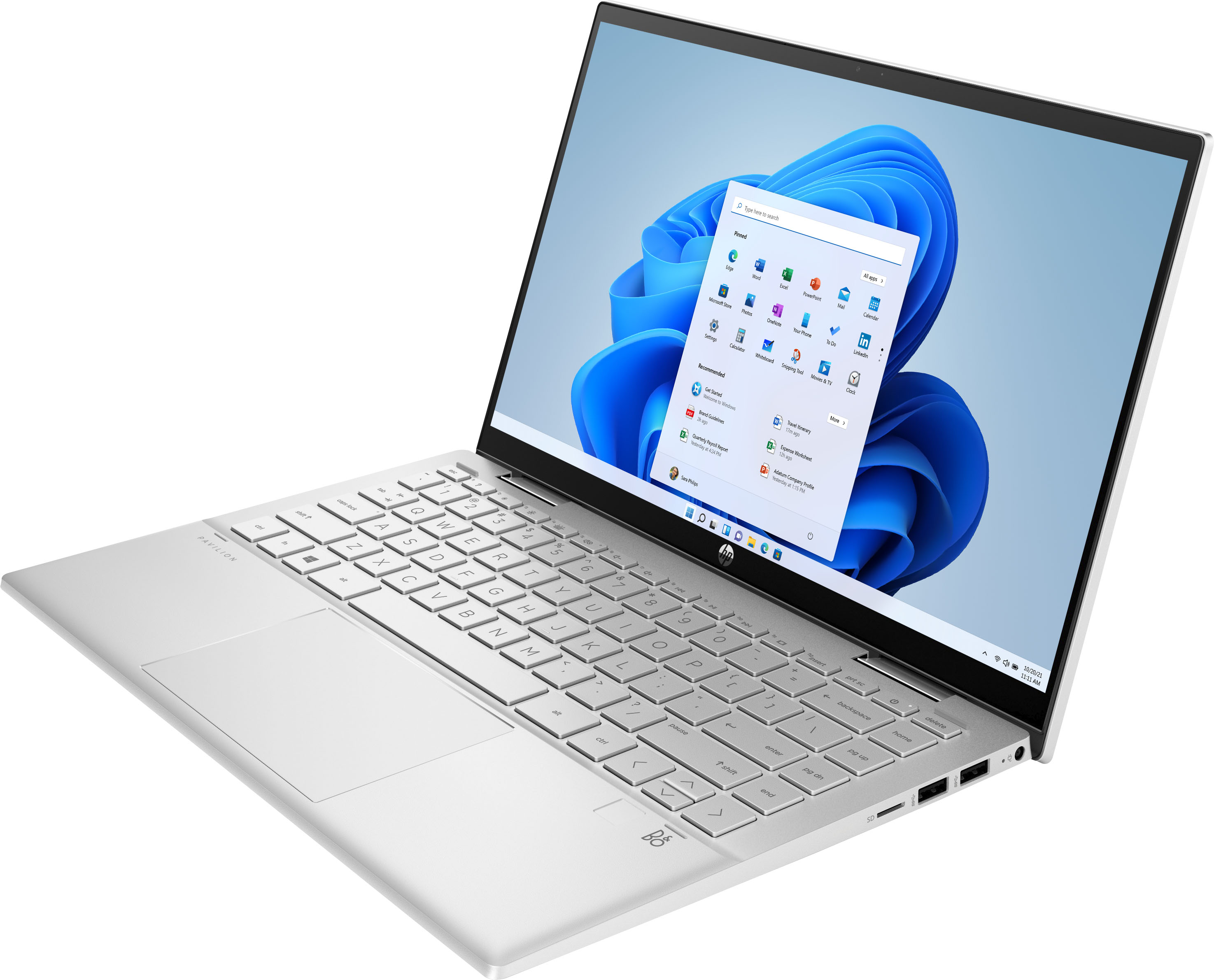
A:AnswerHello. Thanks for your question. Yes, you can connect this HP Pavilion x360 14m-dy0113dx laptop to a TV. There is 1 HDMI port on this laptop. Yes, you can cast your screen to Roku so that you can watch movies.
A:AnswerThis was the response to the above question I asked: A:Answer Hello, yes, there are hard case shells available for the HP Pavilion Touch Screen laptop. A search through Best Buy's search field should produce options for you. Thank you for being an HP customer!
Answered 15 hours ago by HP Team
So I searched thru Best Buys search field and there is nothing that fits this case. Got anymore ideas?
A:AnswerHello, Ronnie! Thank you for your question! The HP Pavilion x360 Laptop is designed with a single video out and will require an adaptor for additional monitors. Modern Intel integrated graphics can support three displays - two external monitors and the laptop's own display. If you are going to use three monitors without the laptop's display, you should have no issue. To have the best experience when working on four screens, counting the laptop's screen as the fourth, I would recommend a model with a dedicated graphics card such as our HP Pavilion Gaming series, Omen Gaming, or our line of Z workstations. Each individual screen takes up memory in the system which would be offset by a good dedicated graphics card. An external graphics card docking station would also improve performance and allow for even more displays.
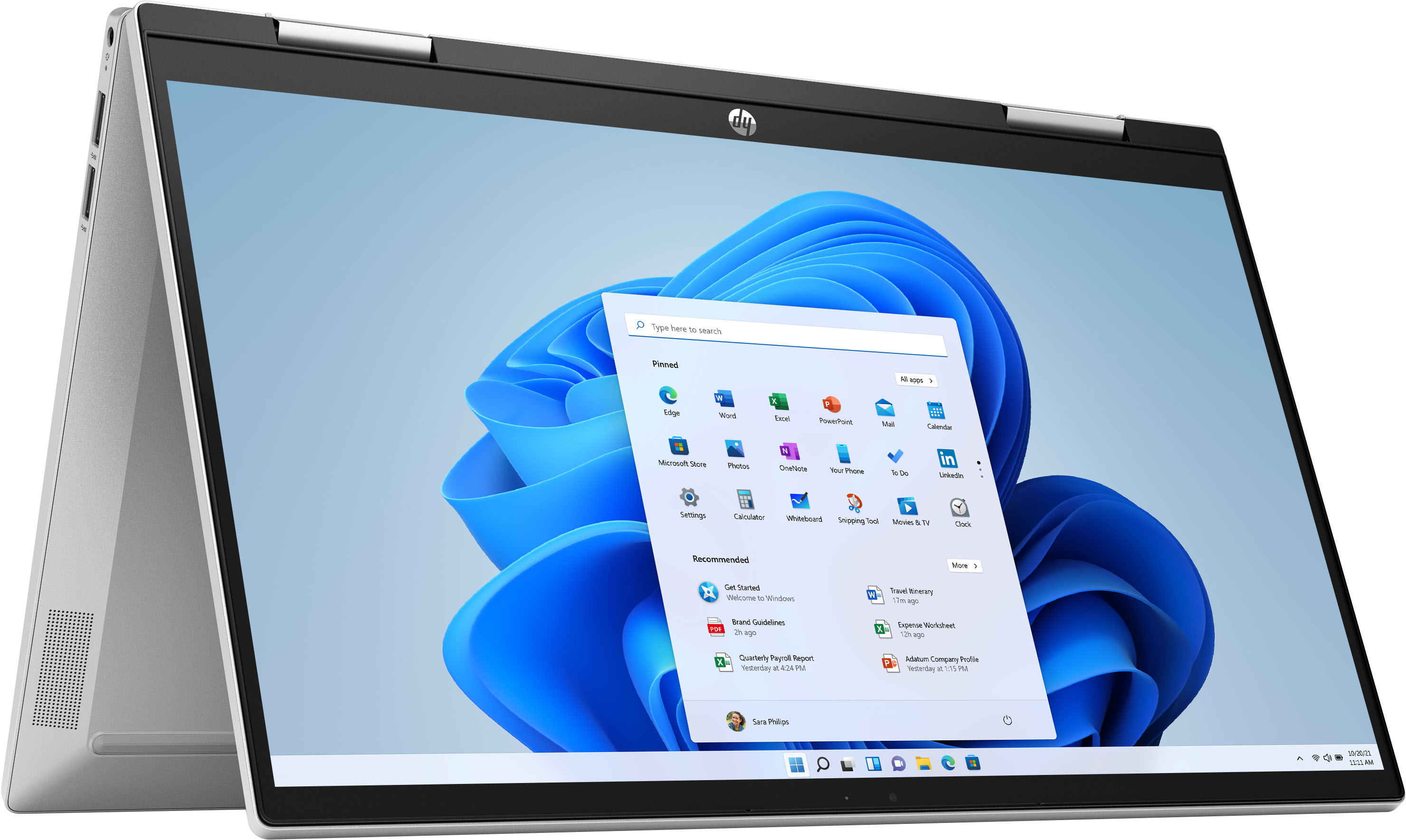
A:AnswerThank you for asking. To adjust the volume while in tablet mode, click the volume icon in the notification area, at the bottom of the Home Screen. Increase or decrease the volume by moving the slider up or down.