A:AnswerThank you for the question. Go to Print... Click on Properties. Select 2-sided print, flip on short edge. Leave all other settings as default (unless specific requirement for your job such as color printing). You can also select 2-sided only and not enter a flip option.
A:AnswerThe honest answer is "it depends". If you have the printer in a very warm location, that will shorten the time before the ink in the heads dry. You also want to make sure that when you're not using the printer you either turn if off with the power button or let the printer go into sleep mode. Either of those actions will cap the printheads so they're not exposed to air, which lengthens the time before the ink dries in the heads. While I've gone several months without printing, it's a good idea to print a full color page every week or two so the ink stays liquid and flowing.
A:AnswerThank you for the question. Depending on the software you're using, you can either set the margins to 0 and select the 4 x 6 media size, or you can select "photo".Make sure the document appears on the screen as you'll want it to print. The Smart Tank 7301 does print borderless, but make sure you're using the recommended paper weight. For cards, it's 28 lb. maximum. Heavier media may not feed properly, especially when loading a full tray.
A:AnswerI have not tried to print on anything other than 8 x 10 . I have only owned this printer for about a month. However, the specs on the HP site say it can print legal size.
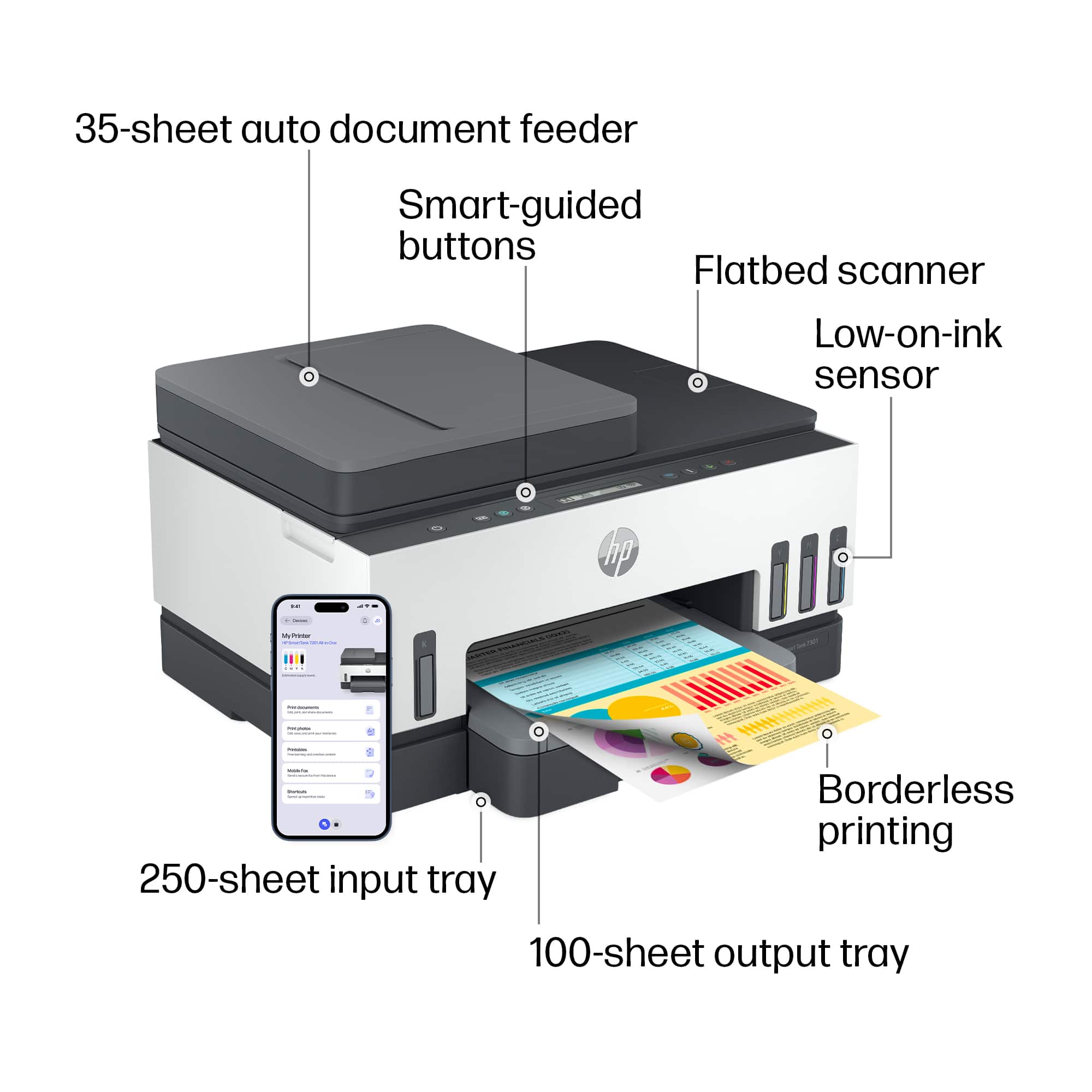
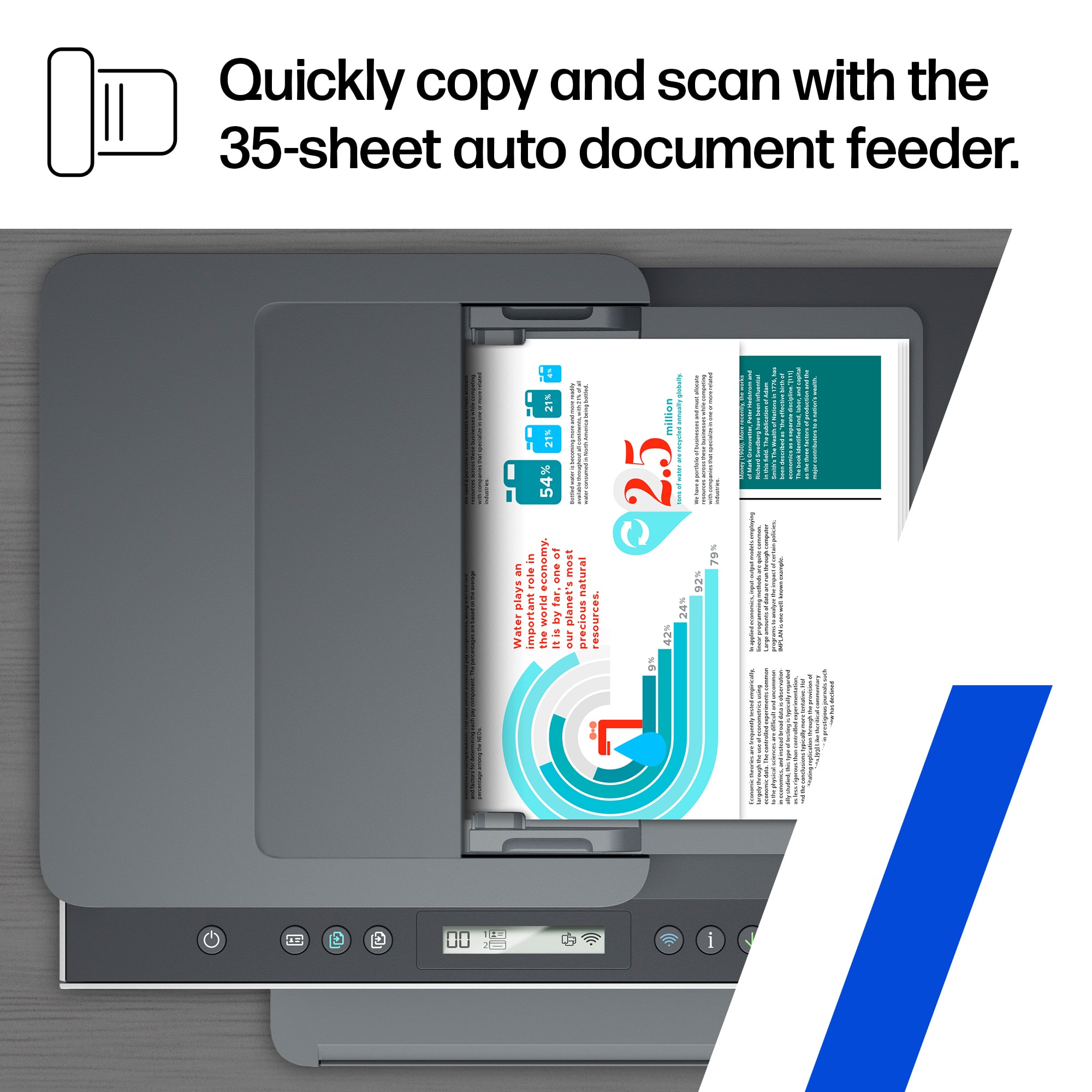
A:AnswerNo. It only does single side scanning from the ADF; however, there are instructions for replacing the documents in the ADF and scan a second side.
A:AnswerHello. Thanks for your question. Here are some instructions on how to print a status report with this HP Smart Tank 7301 printer: https://support.hp.com/ph-en/document/ish_4512640-3975900-16
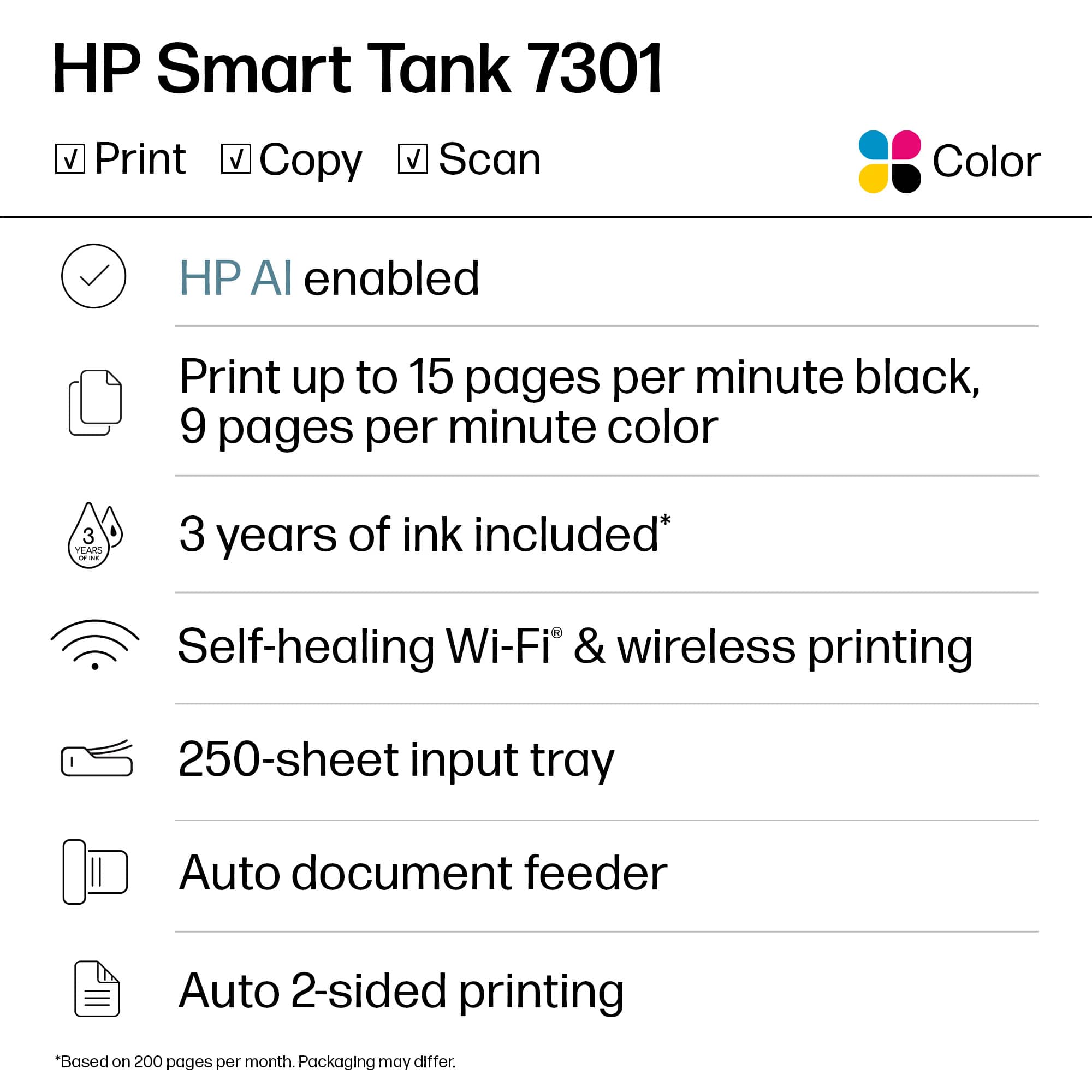
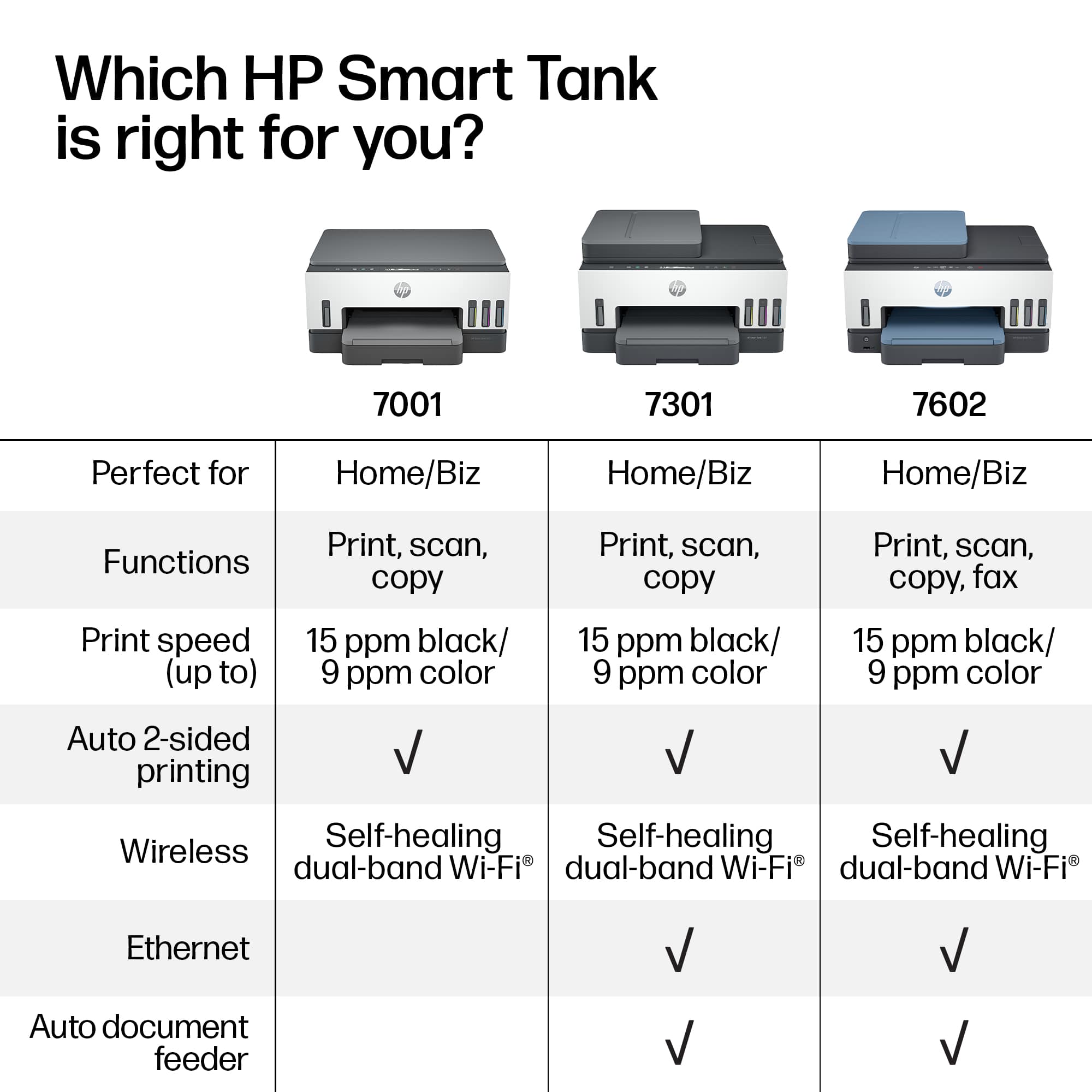
A:AnswerThe HP Smart Tank 7301 does support auto 2-sided printing. The printer will support both scan and copy. Thanks for your question and enjoy the rest of your day!
A:AnswerThank you for the question. You can scan using the printer software or the HP Smart App, using the document feeder or from the scan bed. You can also scan using your smartphone. Please see instructions beginning on page 38 of the User Manual, here: http://h10032.www1.hp.com/ctg/Manual/c07762999.pdf
A:AnswerHello, Peter. Thanks for your question. Yes, you can print from Chrome OS with this HP Smart Tank 7301 printer. We recommend using the HP Smart app to set up the printer on your Chromebook.