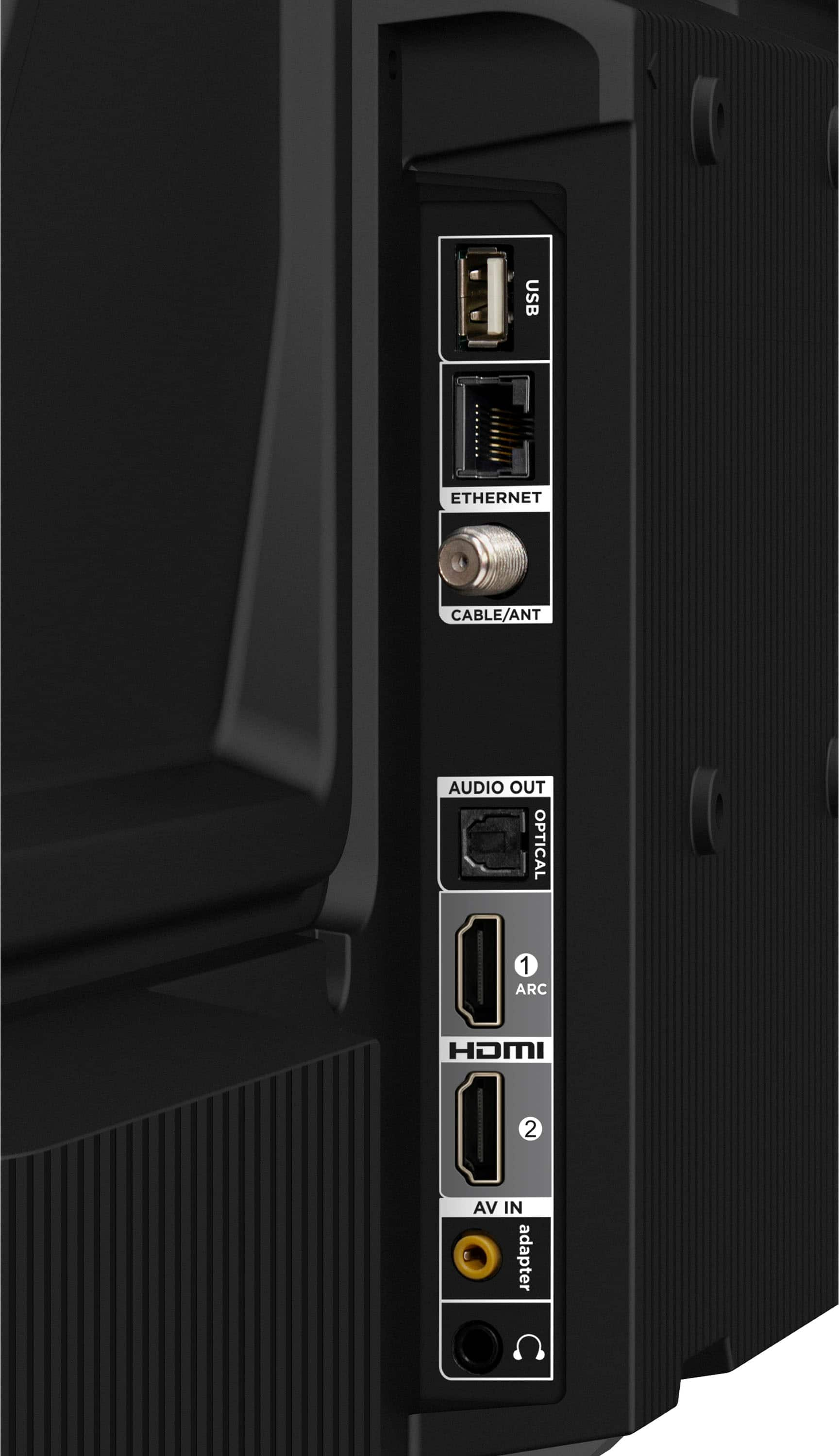
A:AnswerHi there! Connecting your Insignia™ 40" Smart Fire TV to the internet requires a router, as your modem alone provides the internet signal. To do this, first, connect your modem to a router using an Ethernet cable. Then, turn on your TV and navigate to Settings > Network. From there, you have two options: either select Wi-Fi and choose your router's network, entering your Wi-Fi password if prompted, or connect an Ethernet cable directly from the router to your TV for a wired connection. Once connected, you'll be all set!
— Shiela | Insignia Support
A:AnswerThank you for your inquiry! The Insignia™ 40" Class FE Series LED Full HD Smart Fire TV uses Amazon’s Fire TV platform, not Roku. However, you can still use a Roku device with it if you prefer the Roku interface or have Roku-specific apps. Keith | Insignia Support
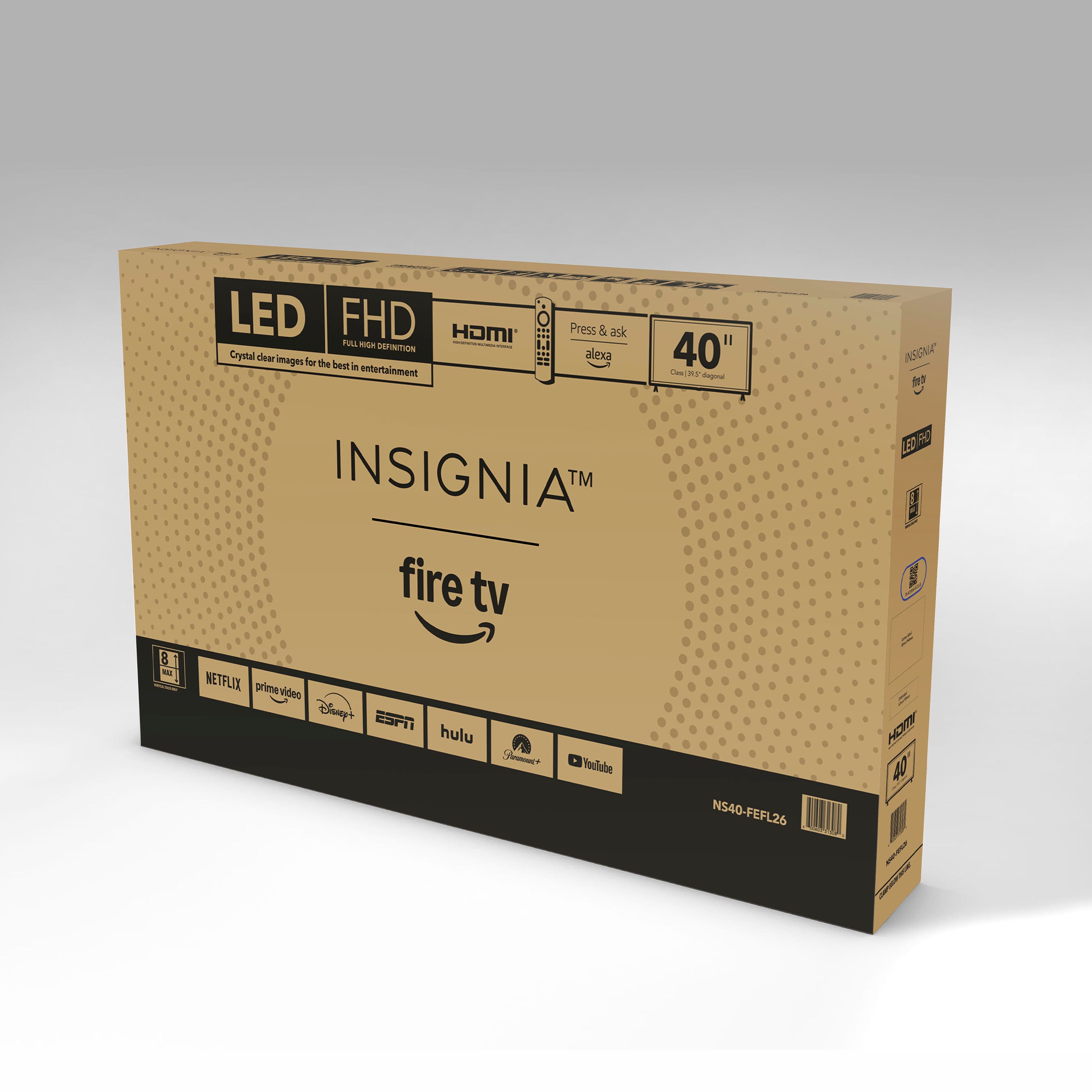
A:AnswerHi Yadiron! Thanks for your question! The Insignia™ 40" Class FE Series LED Full HD Smart Fire TV (Model: NS40-FEFL26) does not support HDR. This model features a 1080p Full HD resolution and is designed for essential smart TV functions with Alexa voice control. HDR is typically found in 4K resolution televisions.
— Shiela | Insignia Support
A:AnswerThe Insignia™ 40" Class FE Series LED Full HD Smart Fire TV (Model: NS-40FEFL26) is a 2025 model, meaning it was manufactured in 2025. Patricia | Insignia Support
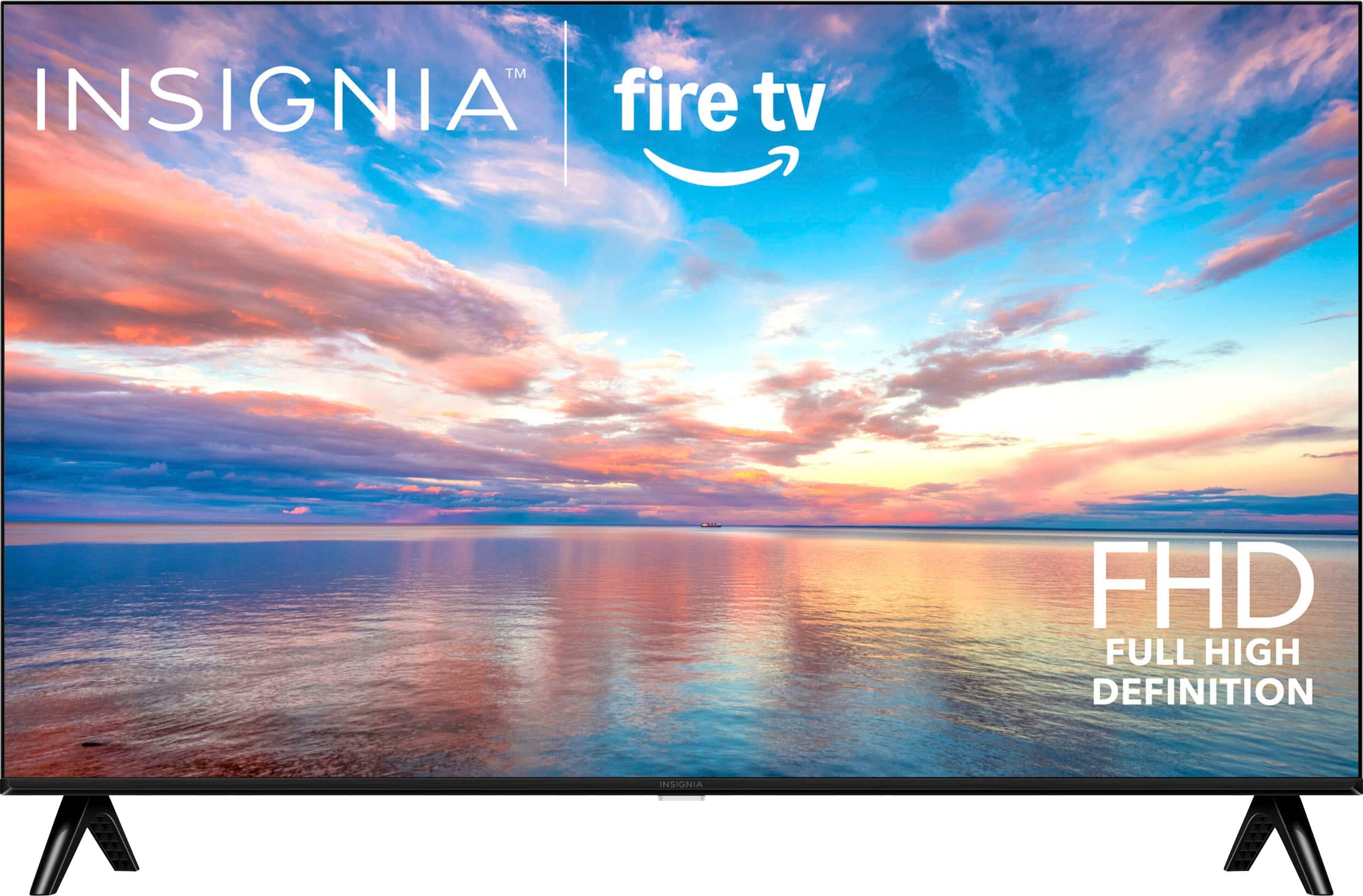
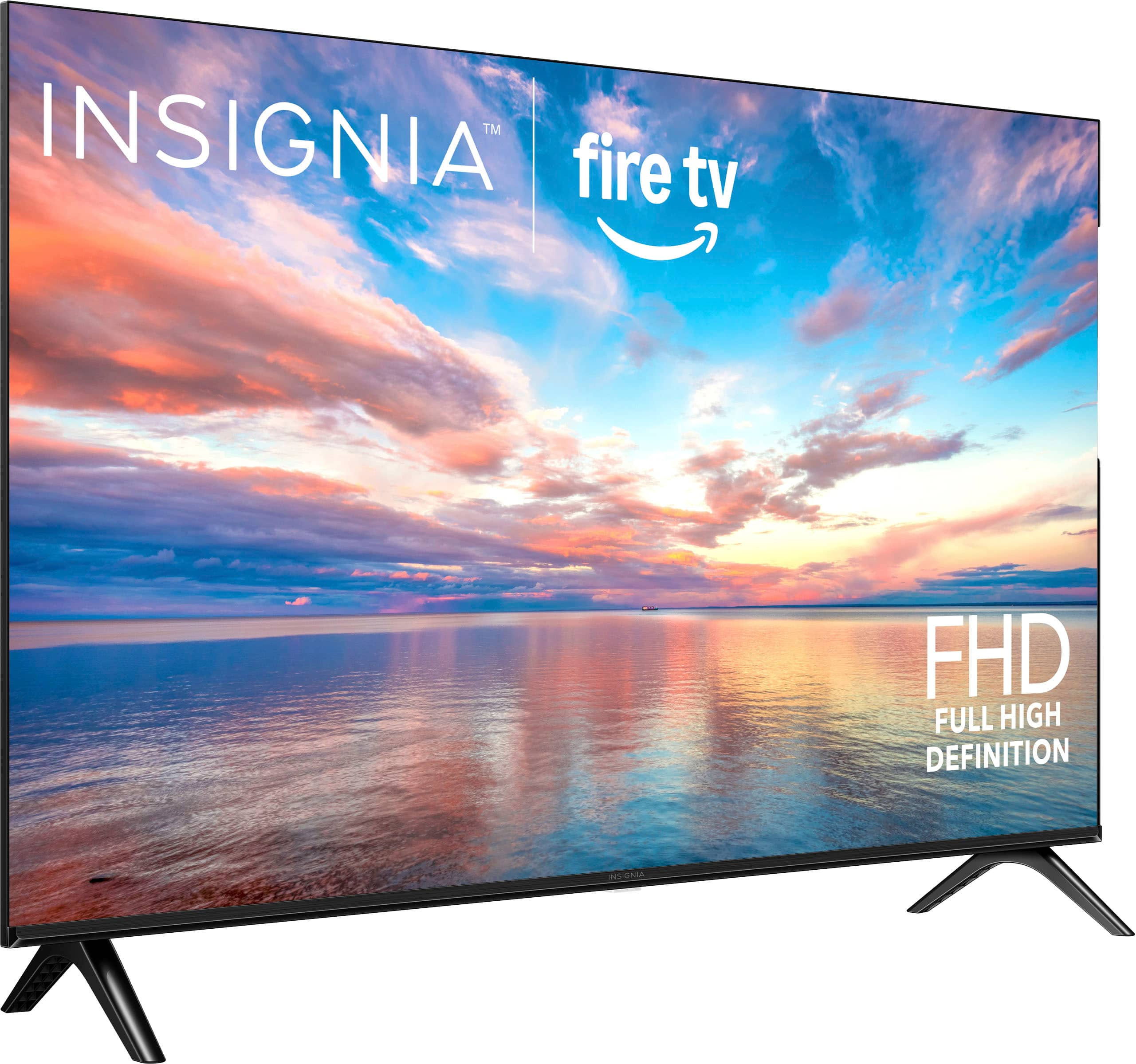
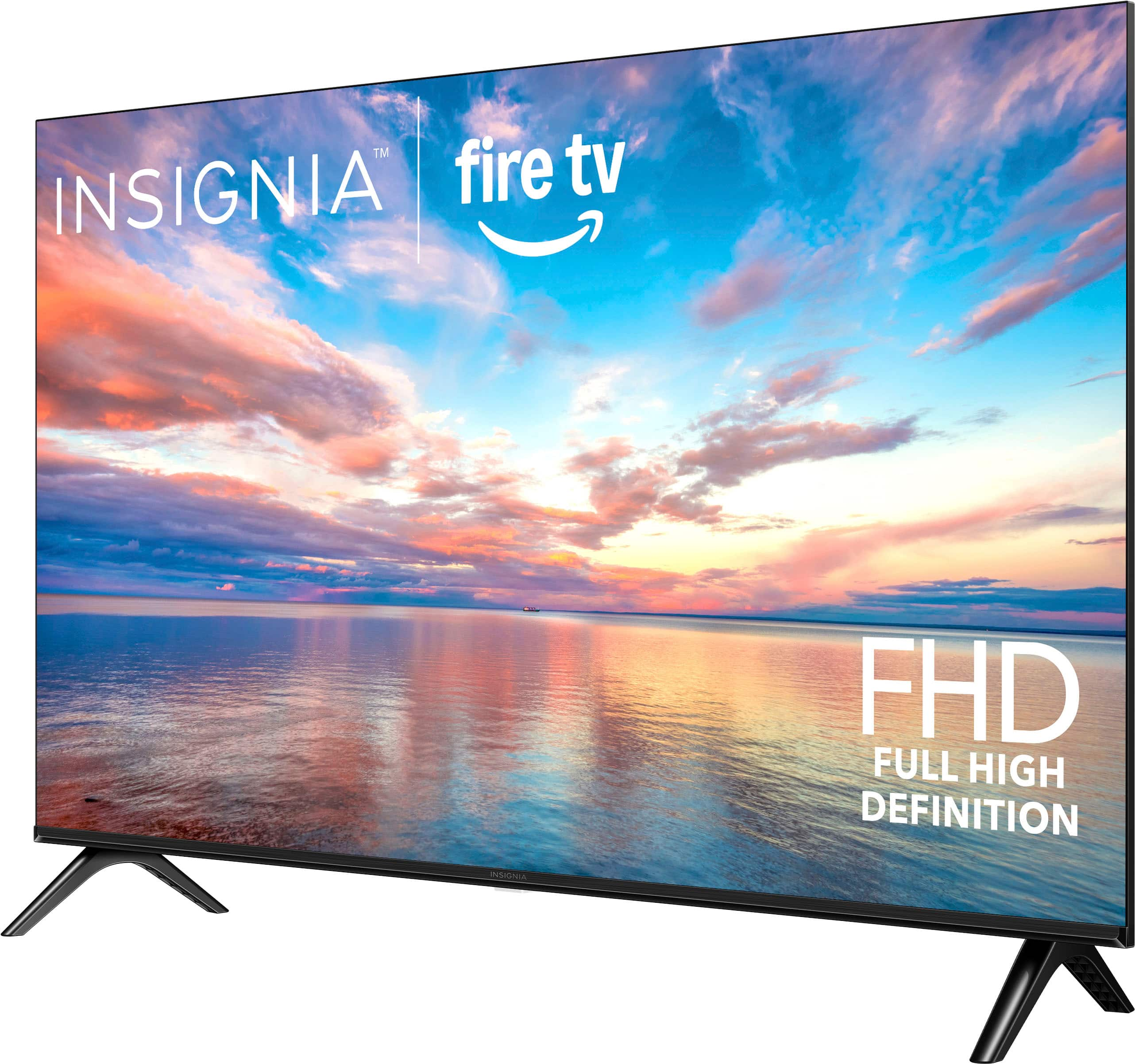
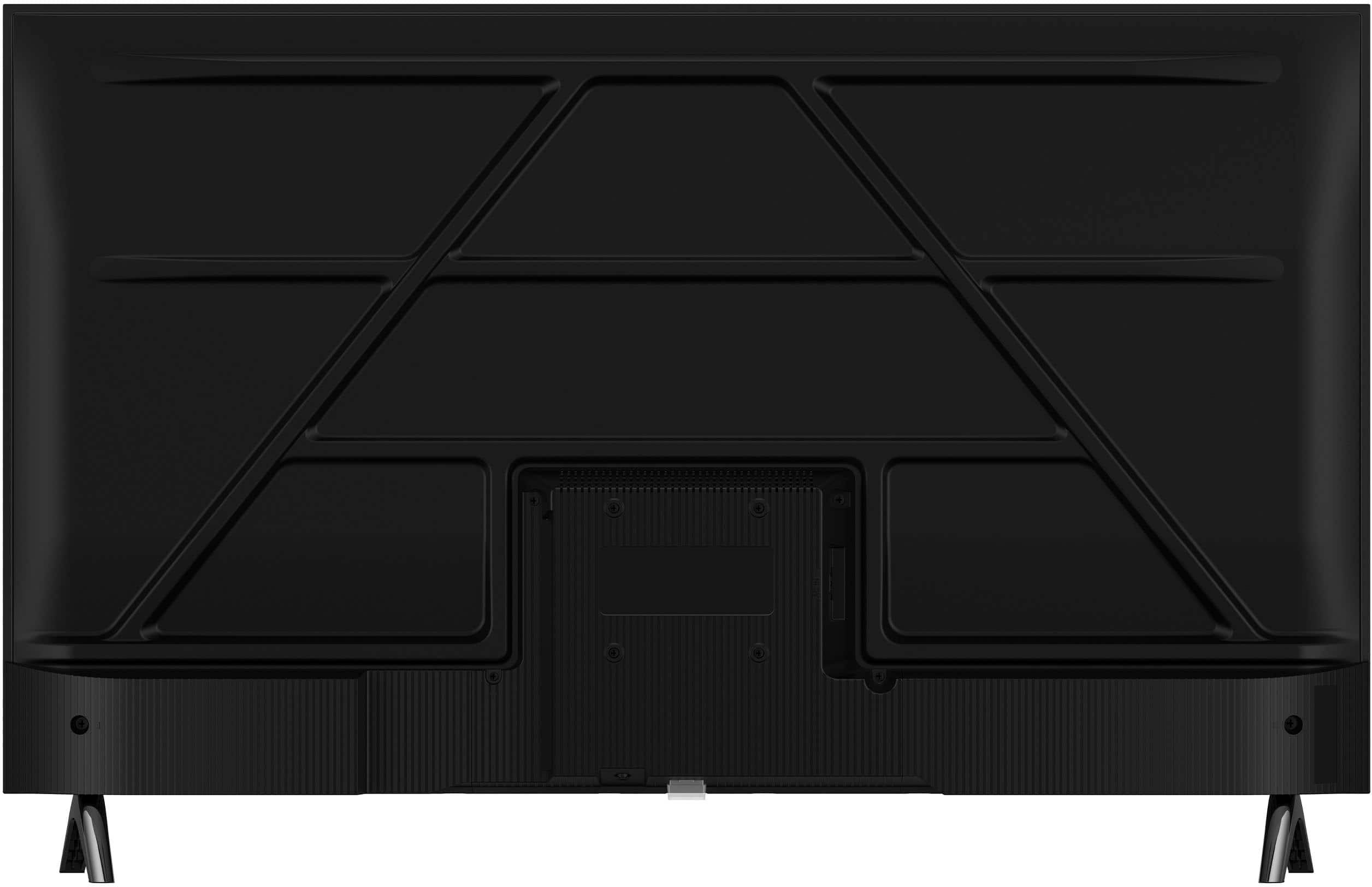
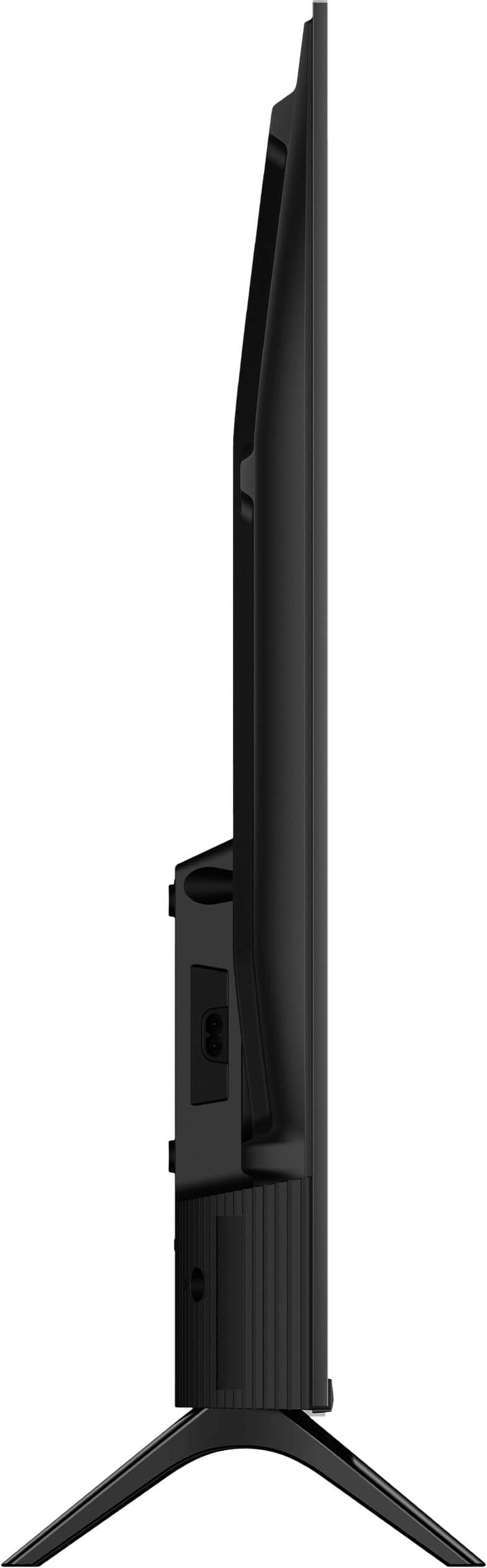
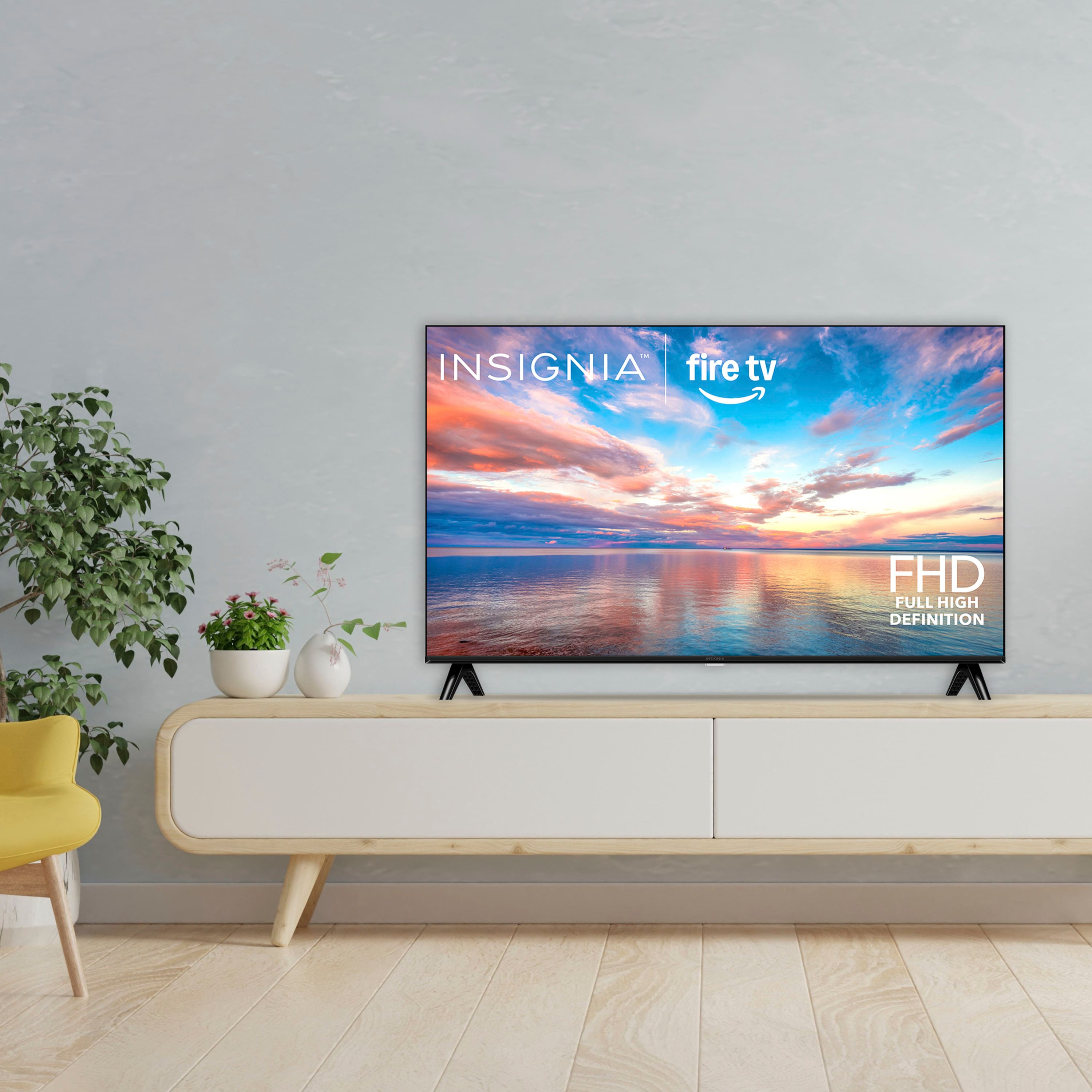
A:AnswerThank you for your inquiry! The Insignia™ 40" Class FE Series LED Full HD Smart Fire TV has a sleek and compact design, making it a great fit for medium-sized spaces. With the stand attached, the TV measures approximately 35.1 inches wide, 22 inches high, and 7.2 inches deep, and it weighs about 11.4 pounds. Without the stand, it becomes even more streamlined, measuring 35.1 inches wide, 20 inches high, and 3 inches deep, with a lighter weight of 8.9 pounds. The stand itself spans 32.4 inches in width and 7 inches in depth, and it is not adjustable. These dimensions are helpful whether you're placing the TV on a console or planning to mount it on a wall. Keith | Insignia Support
A:AnswerThank you for your inquiry, DetailsDetails. It looks like the linked Energy Label and power specifications are for the 65" model, not the 40" Class FE Series LED Full HD Smart Fire TV. To find the correct Energy Label for your specific model, I recommend checking the Best Buy product page or referring to the user manual for detailed specifications under the power ratings.
If the correct label is not available online, you may also contact Insignia customer support for assistance. Let me know if there's anything else I can do to help! Tine | Insignia Support
A:AnswerThank you for your inquiry! Yes, the Insignia™ 40" Class FE Series LED Full HD Smart Fire TV comes with a built-in digital TV tuner. This means you can connect an HD antenna directly to the TV and receive local over-the-air broadcast channels without needing a separate receiver or cable box. It’s a convenient feature for accessing free channels like ABC, CBS, NBC, and others, depending on your location and the strength of your antenna signal. This built-in tuner makes it easy to enjoy both smart streaming features and traditional broadcast TV on the same device. Keith | Insignia Support
A:AnswerHello Steve, thank you for your question. To turn off overscan and see the full computer desktop on your Insignia 40" FE Series Fire TV, you’ll want to adjust the Picture Size or Aspect Ratio settings on the TV. Set the picture mode to Direct or Just Scan so the TV displays every pixel from your computer without cropping the edges. Sudeep | Insignia
A:AnswerHi there! Yes, you can turn off the sleep timer on your Insignia™ 40" Smart Fire TV. Go to Menu > Settings > Time or Power > Sleep Timer, then select Off and press OK. — Shiela | Insignia Support
A:AnswerThank you for your inquiry, Tech40. The storage capacity for additional apps on the Insignia™ 40" Class FE Series LED Full HD Smart Fire TV depends on the built-in storage available on the device. Typically, Fire TV models come with 8GB of internal storage, but a portion of that is used by the operating system and pre-installed apps. This means the actual space available for additional apps may be less. If there’s anything else we can do to assist, we are here to help. Tine | Insignia Support