A:AnswerAfter OS, it has close to 12 gigs available. For reference, I have 25 apps (some preloaded and some by me) and still have just over 8 gigs still available. You can also use an external storage device such as a usb stick to expand it substantially if needed for pretty cheap.
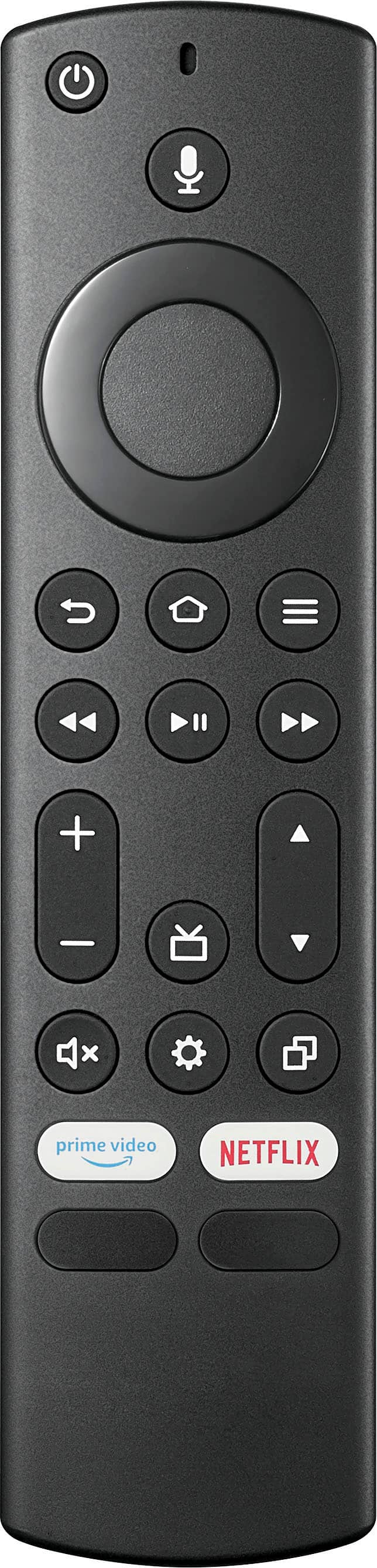
A:AnswerThank you for your inquiry! Yes, the Insignia™ - 43" Class F30 Series LED 4K UHD Smart Fire TV is compatible with a Comcast Xfinity remote. To use your Xfinity remote with this TV, you'll need to program the remote. First, ensure your TV is powered on and your Xfinity remote has fresh batteries. Then, find the remote code for Insignia TVs, commonly 12002, 1326, 10463, or 11463. Press and hold the "Setup" button on the remote until the LED changes from red to green, then enter the 5-digit code. The LED should flash green twice if entered correctly. Test the remote by pressing the "Power" button; if the TV turns off, the setup was successful. If not, repeat the steps with another code. Additionally, you can use the Xfinity remote's "Auto-Search" function by entering code search mode and pressing the "CH+" button until the TV turns off, then locking in the code by pressing the "Setup" button. This should ensure your Xfinity remote fully controls your Insignia TV. Keith | Insignia Support https://www.bestbuy.com/site/insignia-43-class-f30-series-led-4k-uhd-smart-fire-tv/6562495.p?skuId=6562495
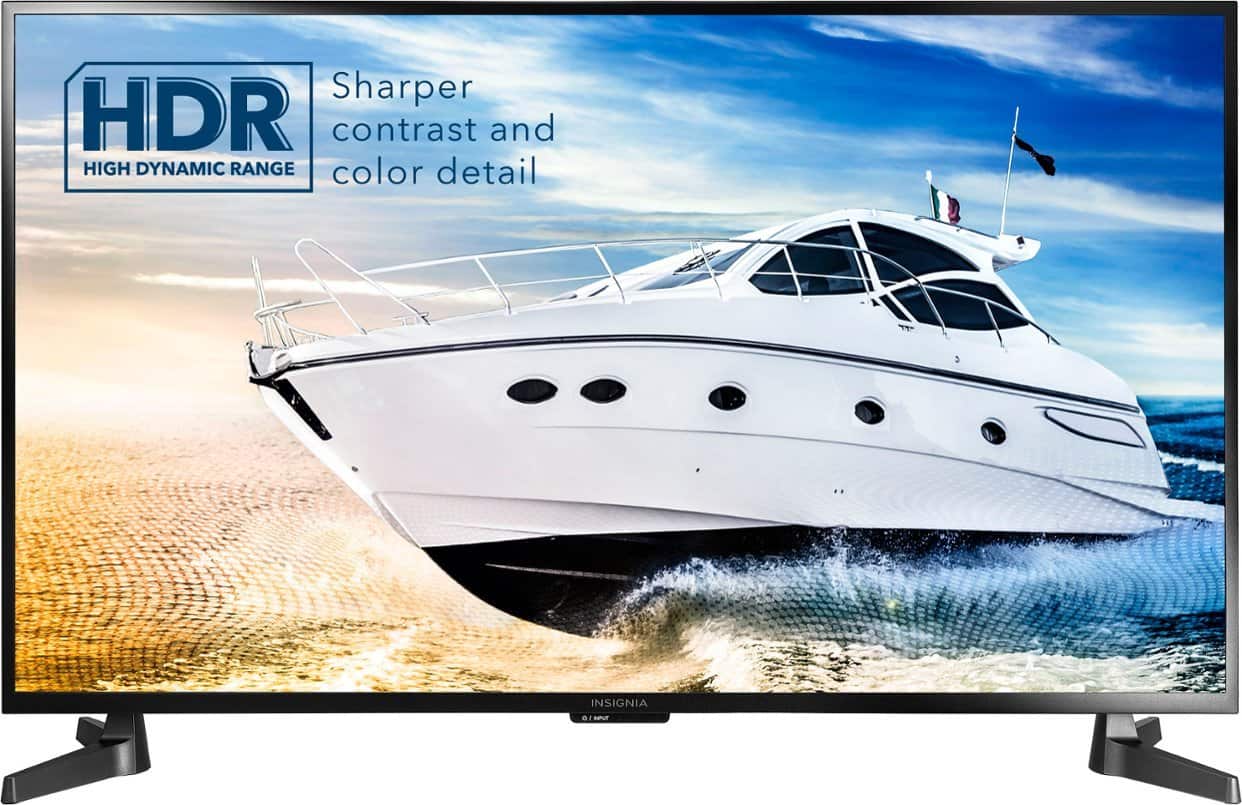
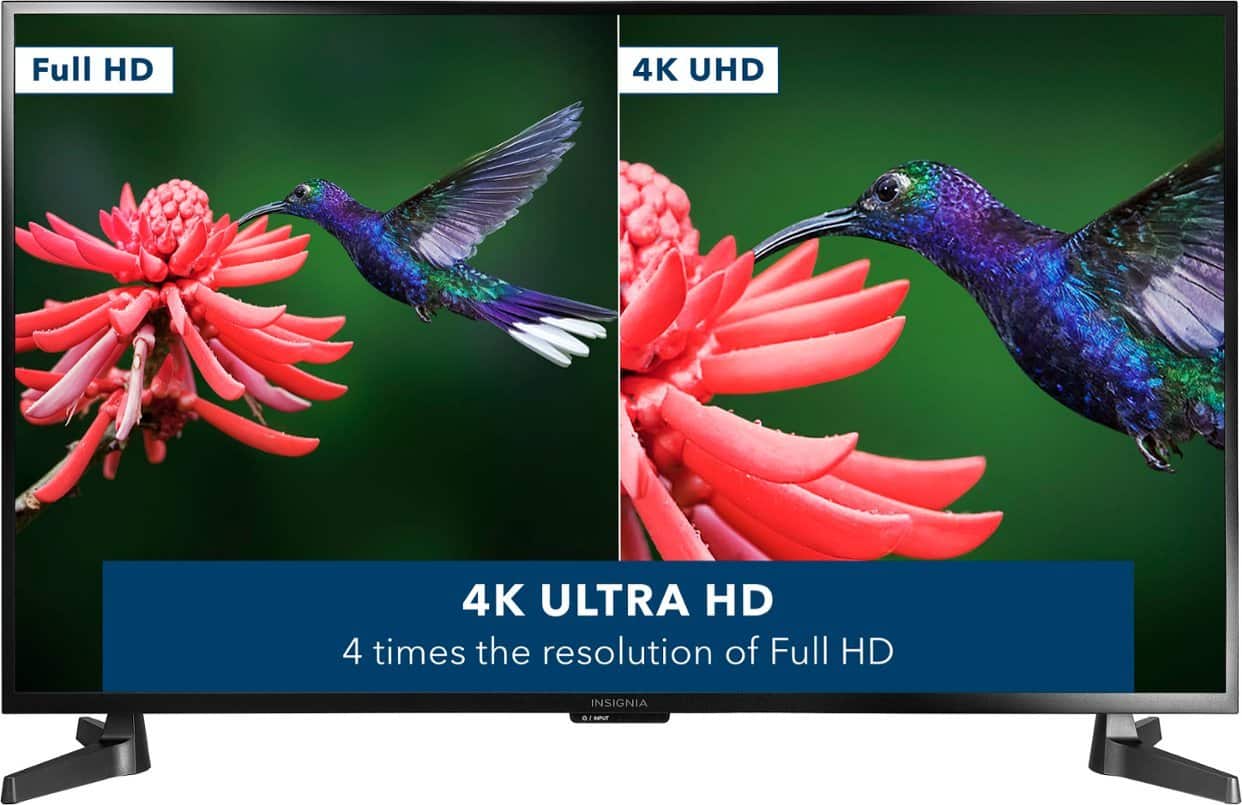
A:AnswerIt does work with PS5. As an ultra hd television, it's made to take advantage of all the graphic and audio beauty PS5 has to offer. And at this price it's a very nice option for a less expensive option to many of the "big" brands quite high price tags.
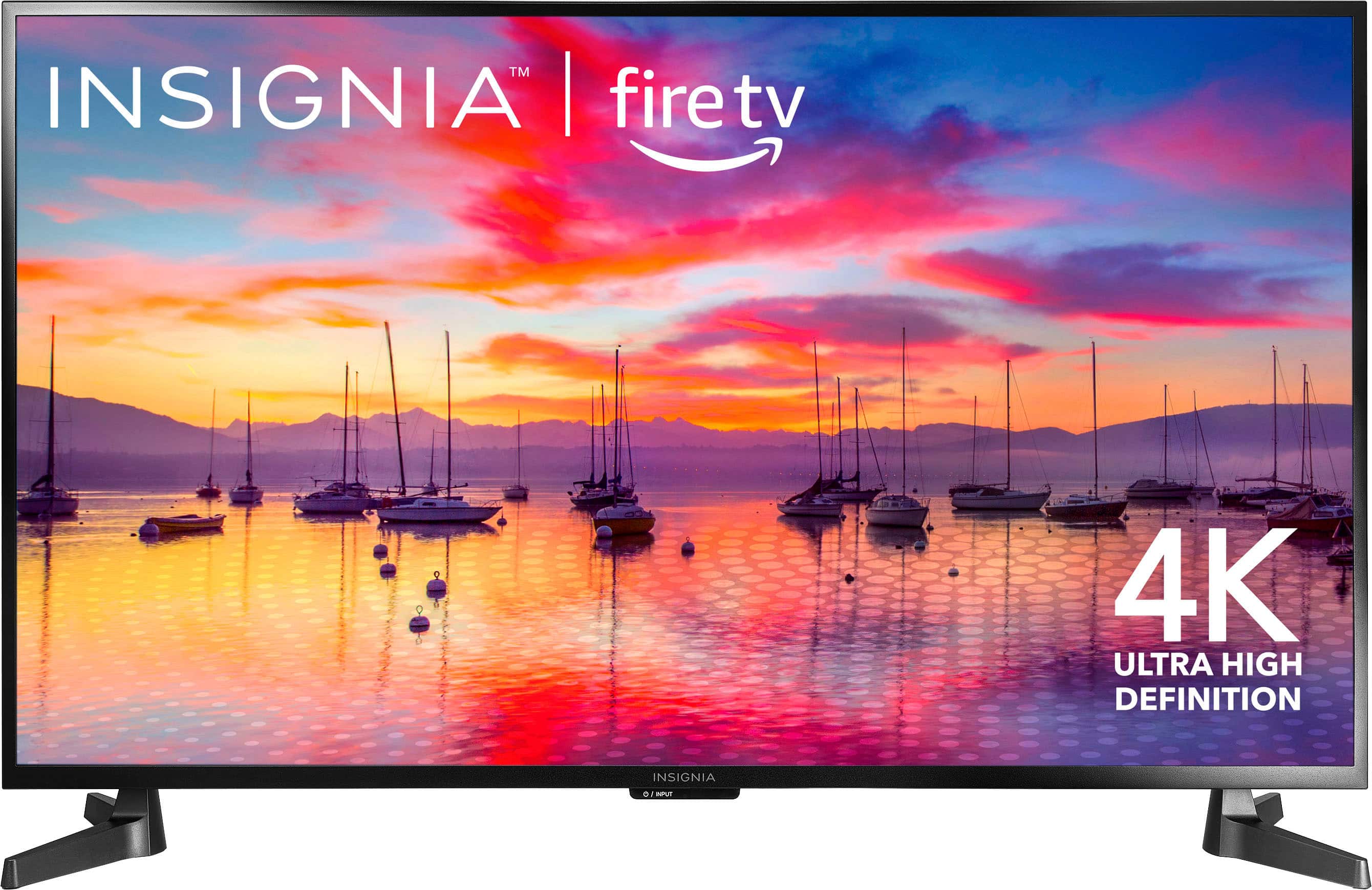
A:AnswerThe total distance measured from the OUTSIDE edges of the legs is 36.36".
It should fit on your cabinet just about right.
You may want to tape the legs to your cabinet just to ensure that it's more secure and stable.
A:AnswerHi Insignia customer! Thanks for reaching out to us regarding this issue on your Insignia™ - 43" Class F30 Series LED 4K UHD Smart Fire TV. It is normal for the TV to turn off if there is a static image on the screen for a period of time. This is to meet various regulatory requirements for power consumption. However, a work around would be saving your slideshow as a video. Download VLC player and play the video on repeat. Apologies for the inconvenience. If you need further assistance, don't hesitate to reach out. We're here to help! - James | Insignia Support | https://www.bestbuy.com/site/brands/best-buy-brands/pcmcat1596746025285.c?id=pcmcat1596746025285
A:AnswerHi DeeJay, we appreciate your feedback! Certainly, adding a center stand to the Insignia NS-43F301NA25 TV can enhance its stability and provide more placement options. You may consider this product: Insignia™ - TV Stand for Most Flat-Panel TVs Up to 65" - Black Model: NS-HTMS1 SKU: 6389372. For more information about the product, please click this link: https://www.bestbuy.com/site/insignia-tv-stand-for-most-flat-panel-tvs-up-to-65-black/6389372.p?skuId=6389372. -Carlo, Insignia Support
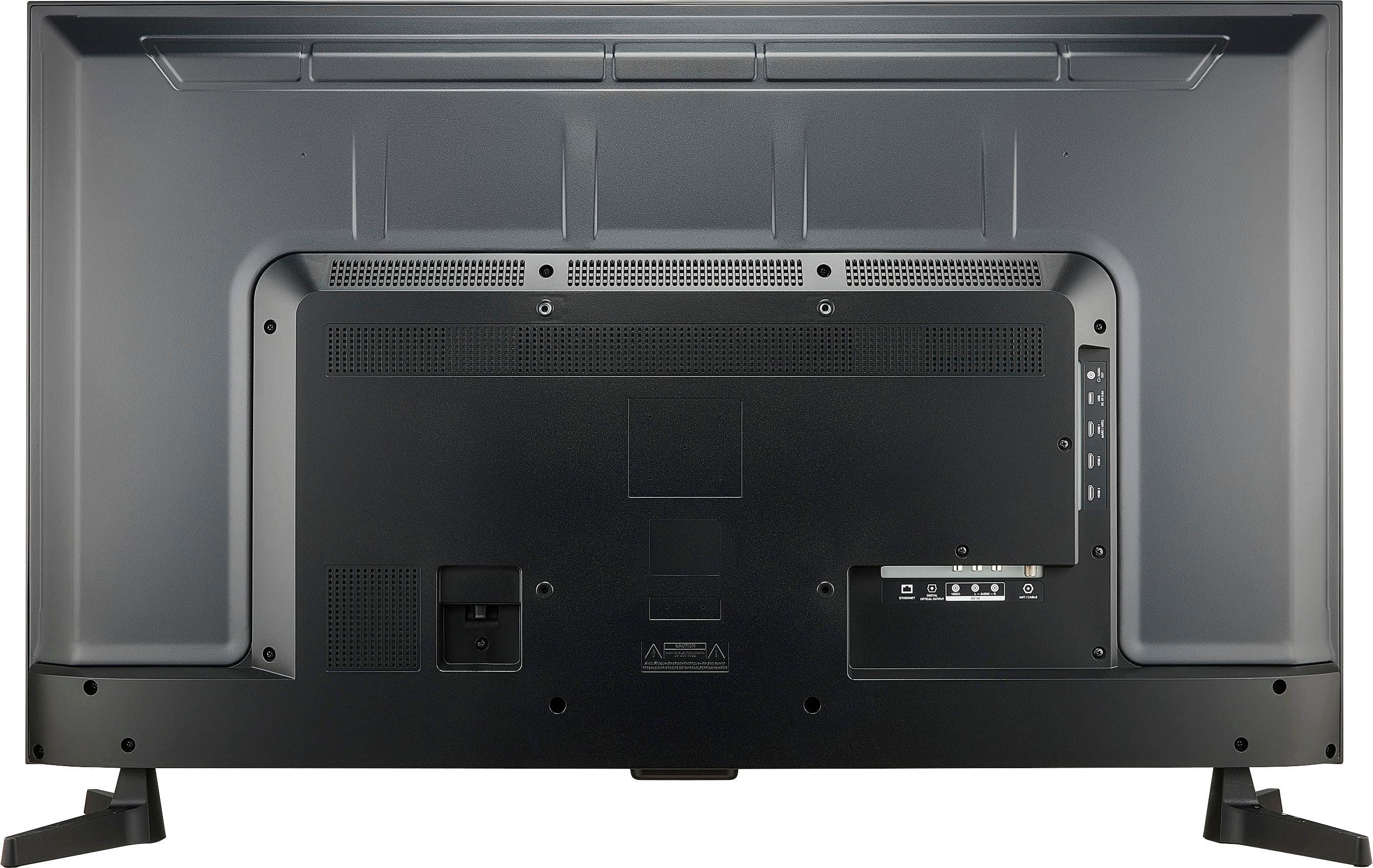
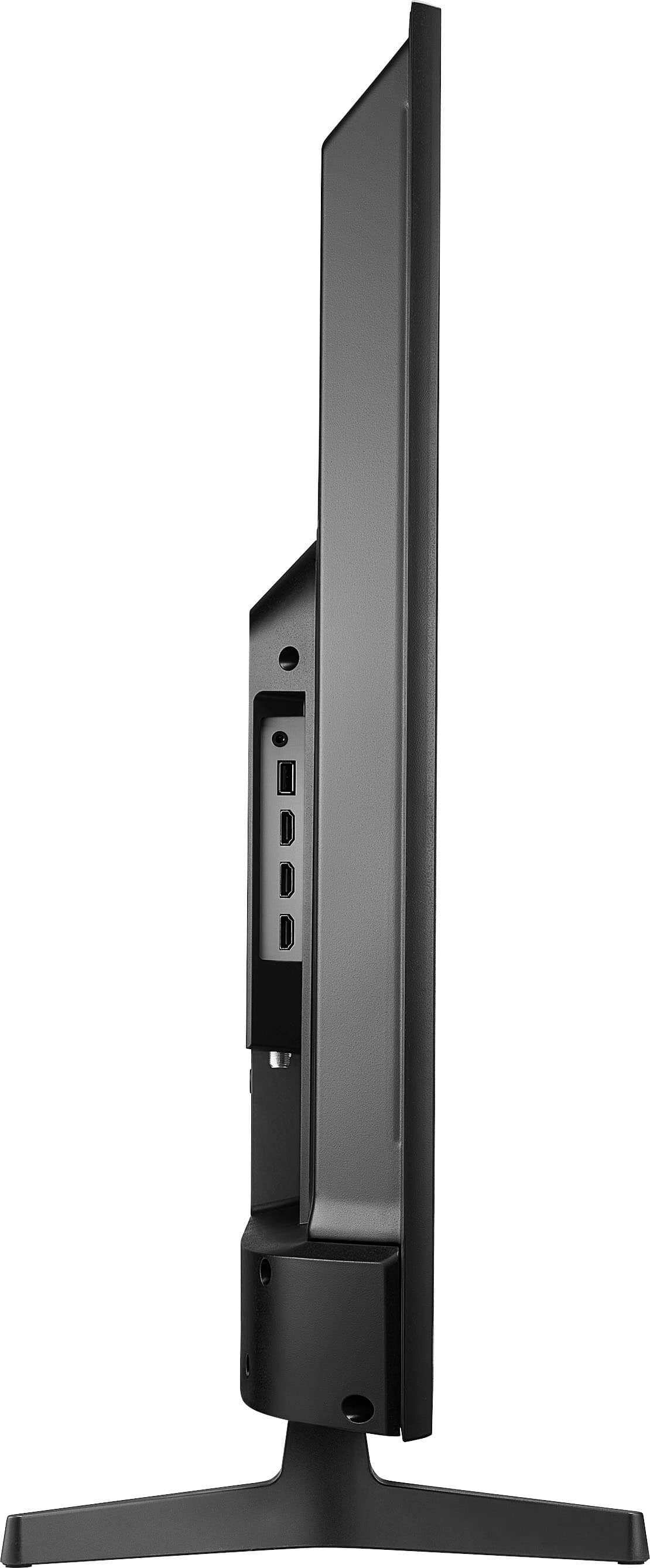
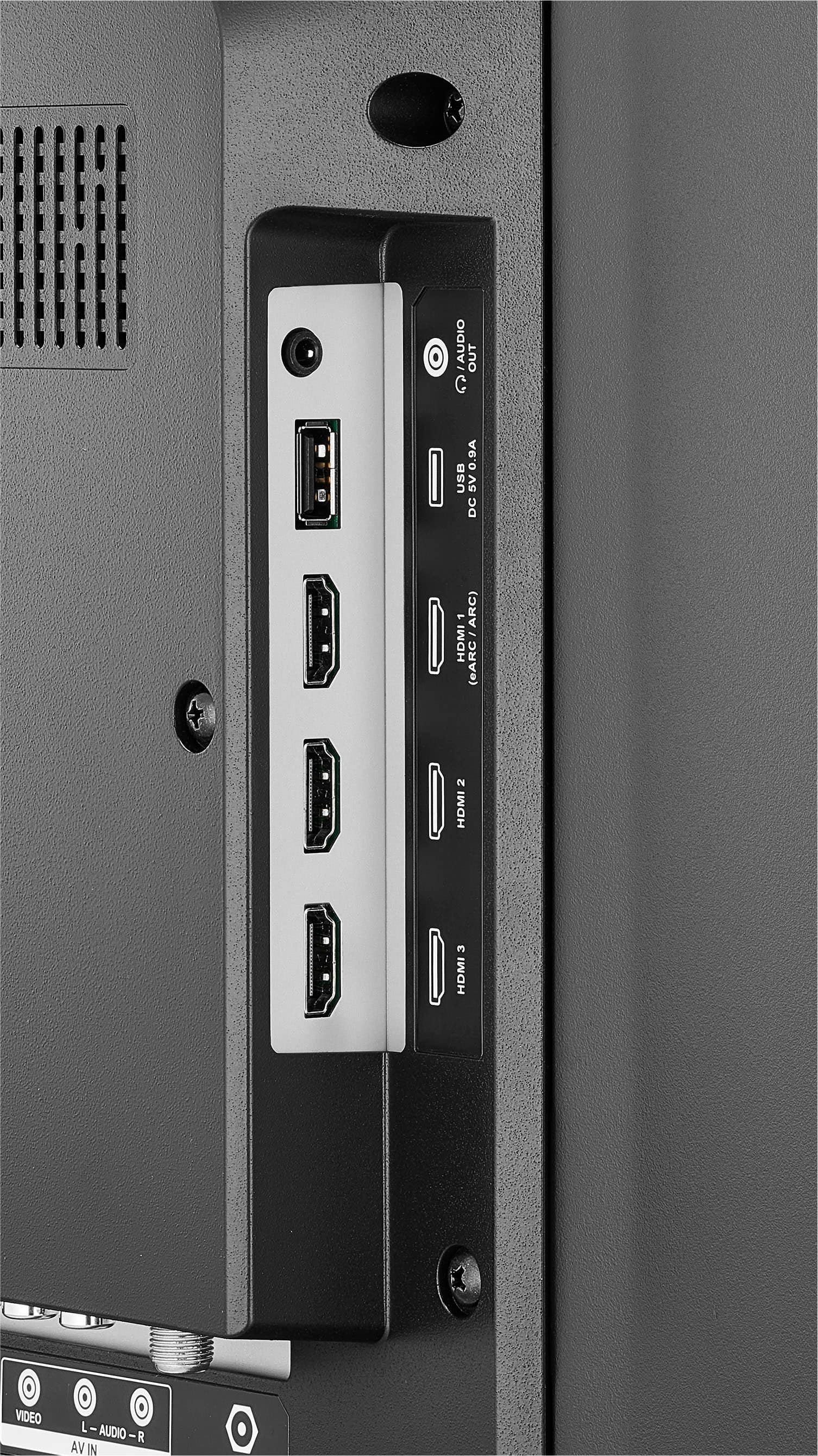
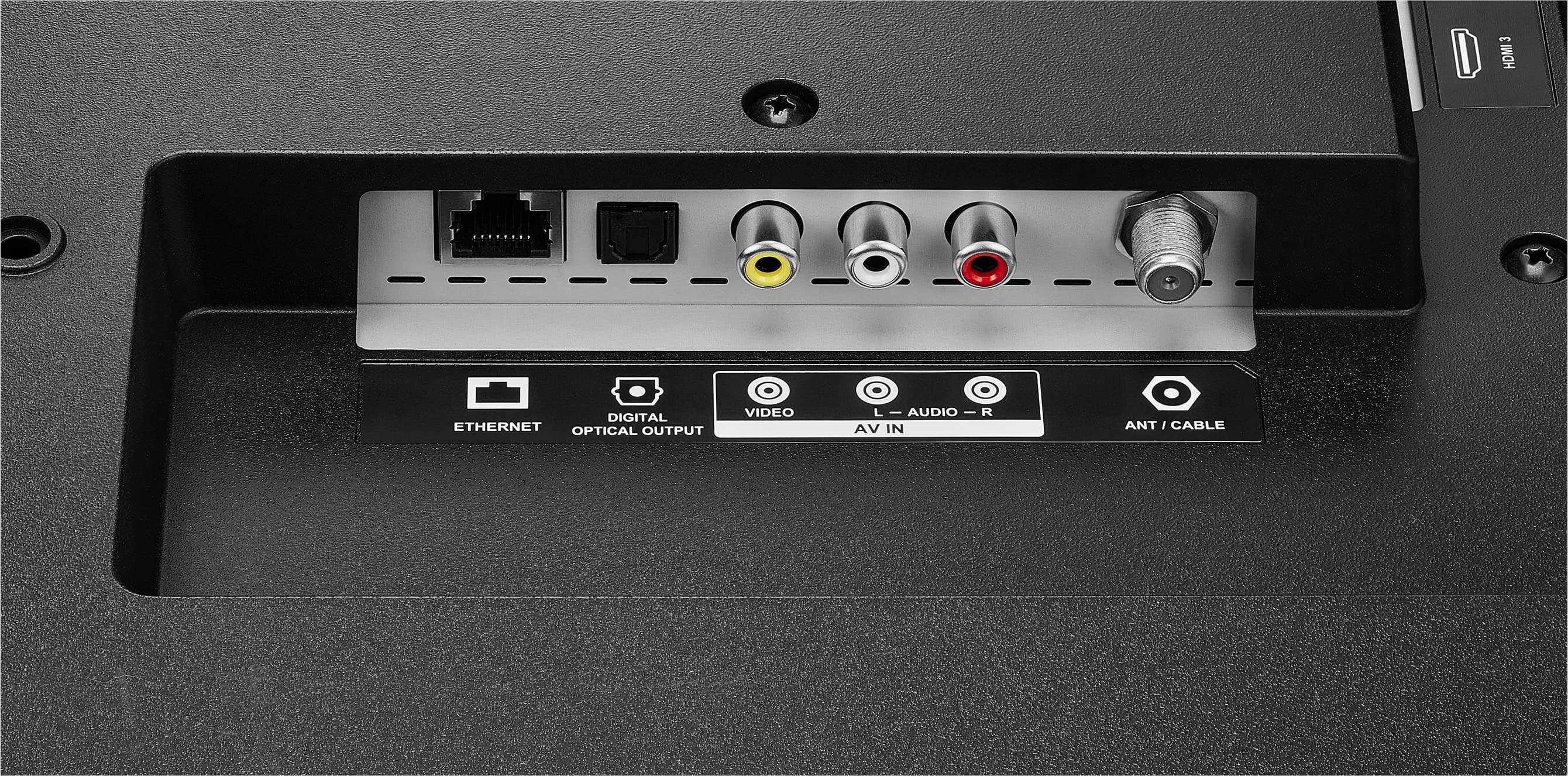
A:AnswerHi Blkwingz! Yes, our Insignia™ - 43" Class F30 Series LED 4K UHD Smart Fire TV will work with your soundbar with RCA connections. For more product information, you can check the link below. |Angelica| Insignia Support| https://www.bestbuy.com/site/insignia-43-class-f30-series-led-4k-uhd-smart-fire-tv/6562495.p?skuId=6562495
A:AnswerHi there.
We appreciate your Inquiry!
Thank you for reaching us, Insignia. I apologize for the inconvenience you’re experiencing with your Insignia 43-inch Class F30 Series LED 4K UHD Smart Fire TV remote. Let’s troubleshoot the issue together:
1. Check Battery Orientation:
- First, ensure that you’ve inserted the new batteries correctly. The positive (+) and negative (-) ends should align with the markings inside the battery compartment.
- Sometimes, even a small misalignment can prevent the remote from functioning.
2. Remove Obstacles:
- Make sure there are no obstructions between the remote and the TV. Objects like furniture or other devices can interfere with the infrared signal.
- Clear any obstacles and try again.
3. Test the Remote:
- Point the remote directly at the TV’s infrared sensor (usually located near the bottom edge of the TV).
- Press various buttons on the remote (e.g., power, volume, menu) to see if any of them work.
- If none of the buttons respond, proceed to the next step.
4. Restart the TV:
- Unplug the TV from the power source and wait for about 30 seconds.
- Plug it back in and turn it on.
- Test the remote again.
5. Pair the Remote:
- Sometimes, the remote needs to be paired with the TV.
- Press and hold the Home button on the remote for about 10 seconds. This should initiate the pairing process.
- Follow any on-screen instructions to complete the pairing.
6. Check for Interference:
- Other electronic devices (such as fluorescent lights or Wi-Fi routers) can interfere with the remote signal.
- Move away from potential sources of interference and try using the remote again.
7. Replace the Remote:
- If none of the above steps work, it’s possible that the remote itself is faulty.
- Consider getting a replacement remote. You can find compatible remotes online or at electronics stores.
Remember to keep the remote within a reasonable range (usually around 15 feet) from the TV for optimal performance. If the issue persists, you may want to contact Insignia customer support (877-467-4289) for further assistance.
Yanne
Insignia Support