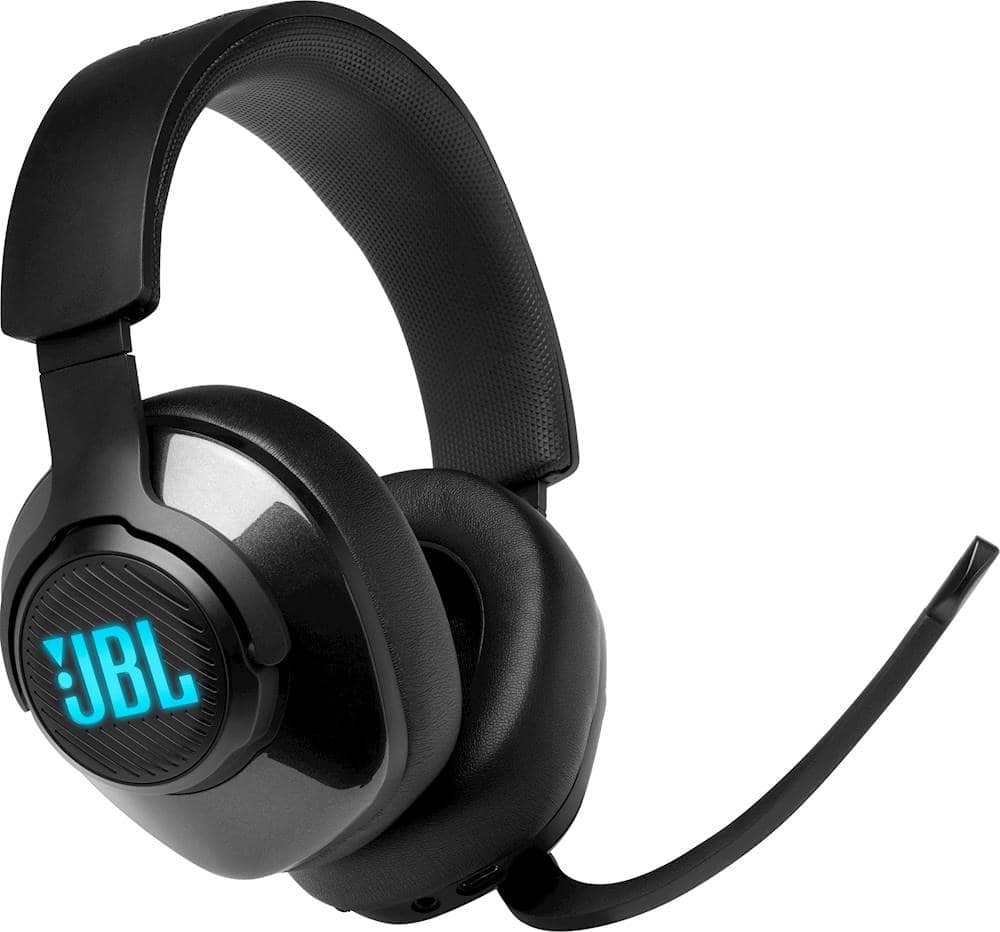
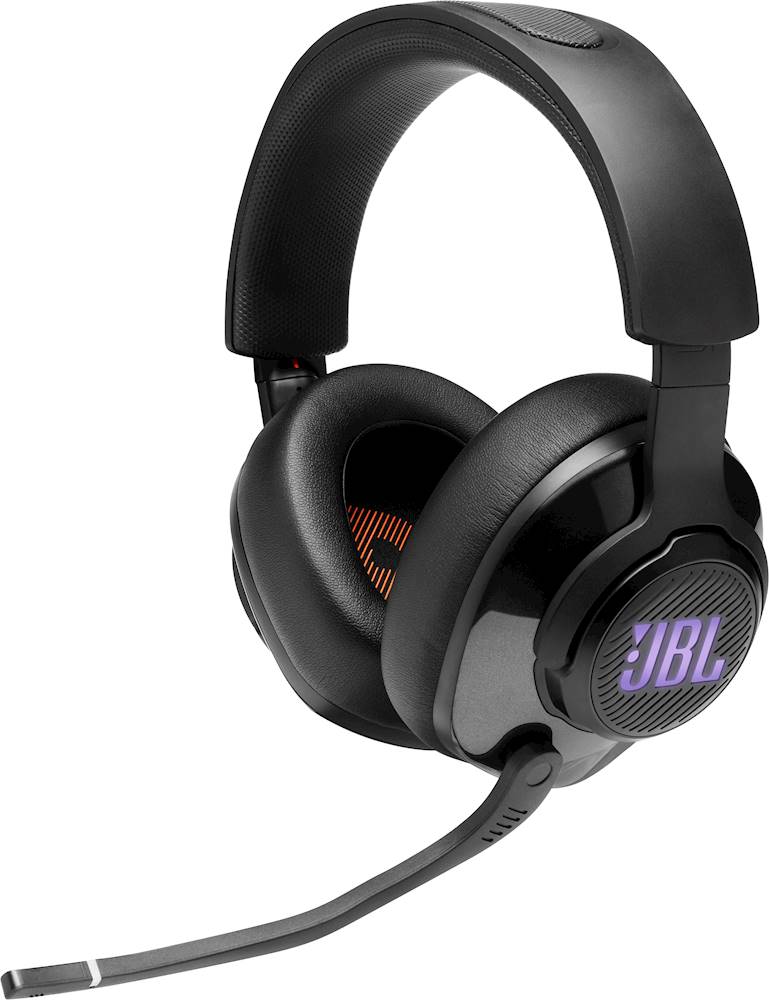
A:AnswerYes. Make sure your headset is configured correctly in your Windows settings. The setting should normally be JBL Quantum *Game* to experience QuantumSURROUND. Please check out this video to assist you further.
https://www.youtube.com/watch?v=LA80RmBrbYg
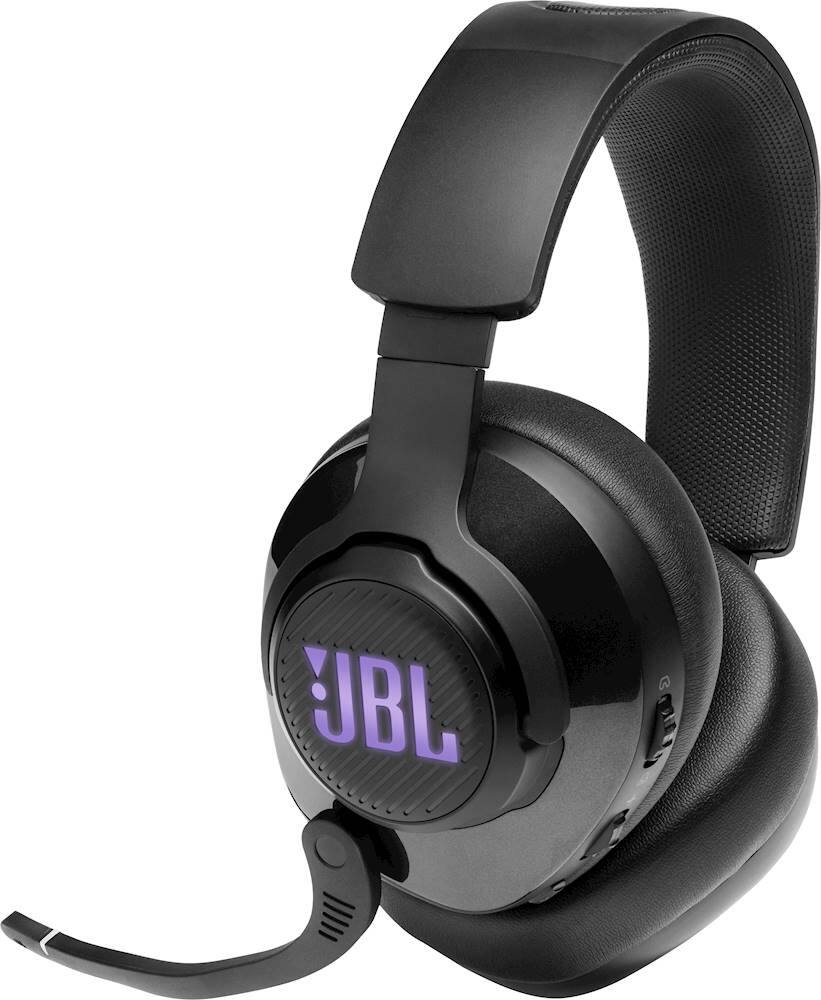
A:AnswerYes. Our JBL Quantum 400 is compatible across all gaming consoles, XBOX, Nintendo, and Playstation. It can also be used for mobile, VR, and PC. (Mac and OS)
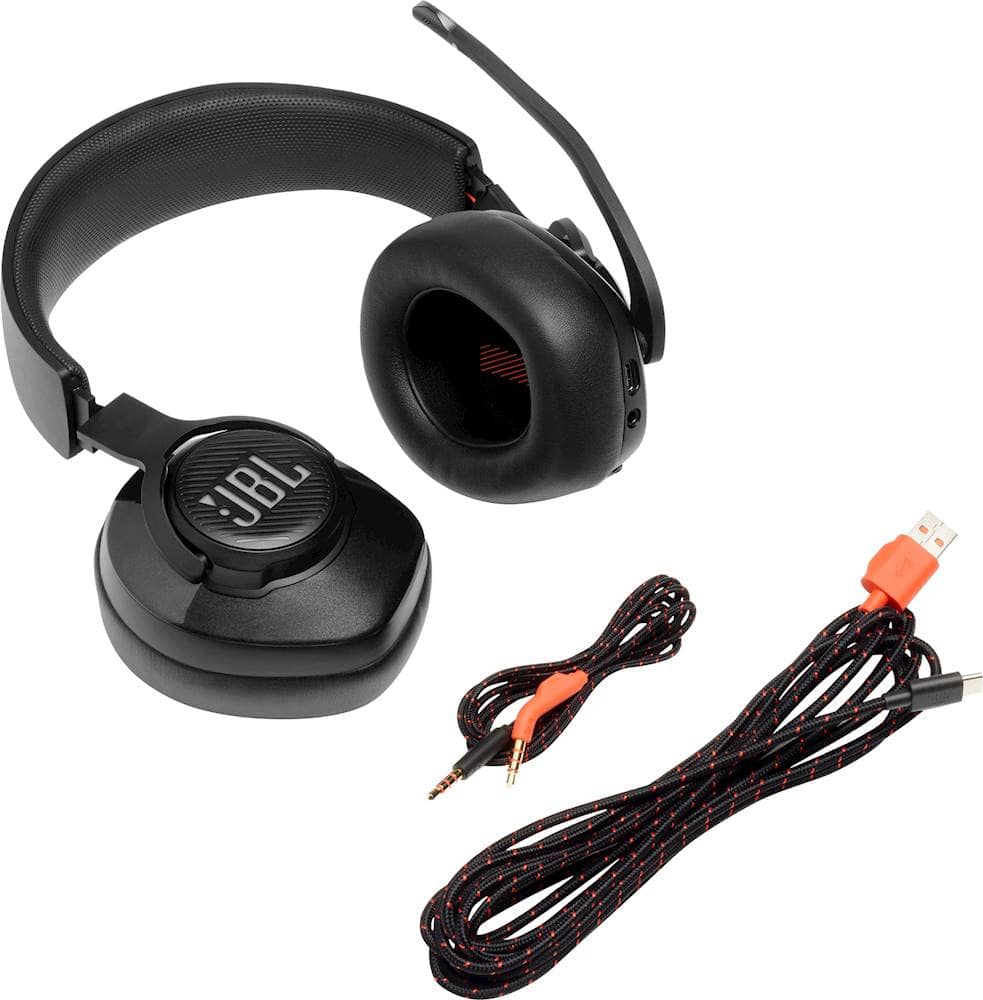
A:AnswerThanks for your question. Our JBL Quantum 400 doesn't have a Bluetooth feature. It can connect to source devices through USB and 3.5mm audio connection. If you need more help, please contact JBL Customer Support.
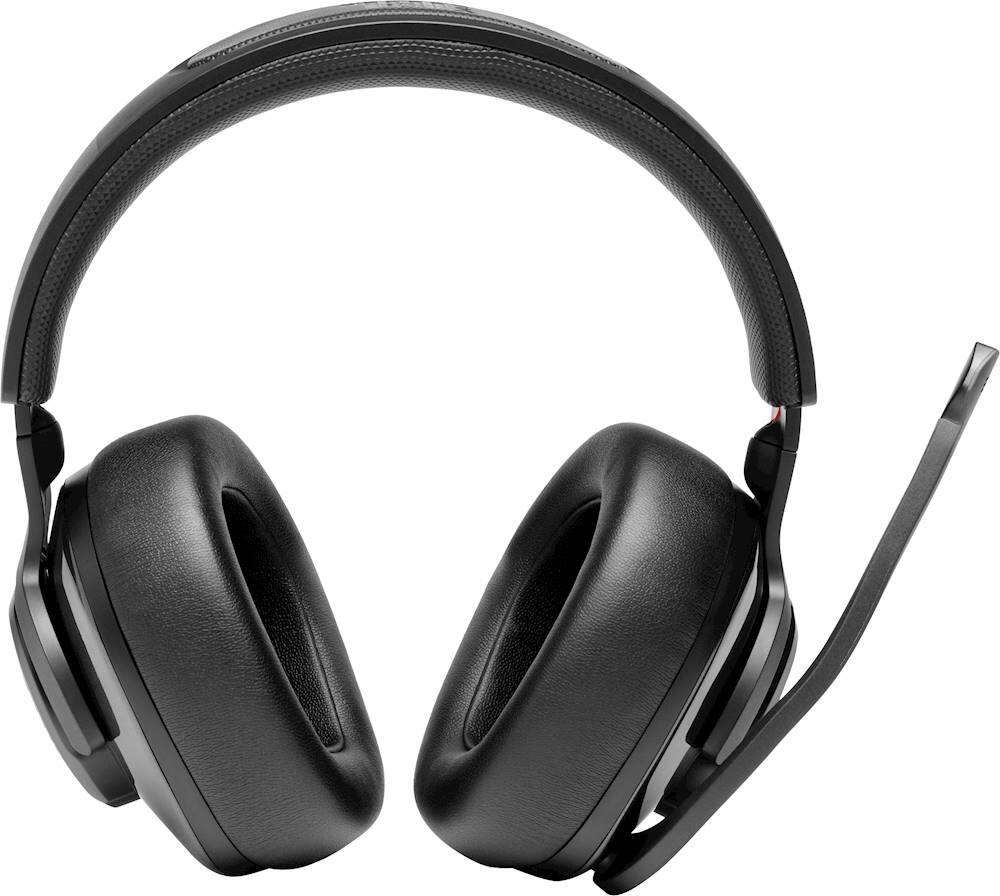
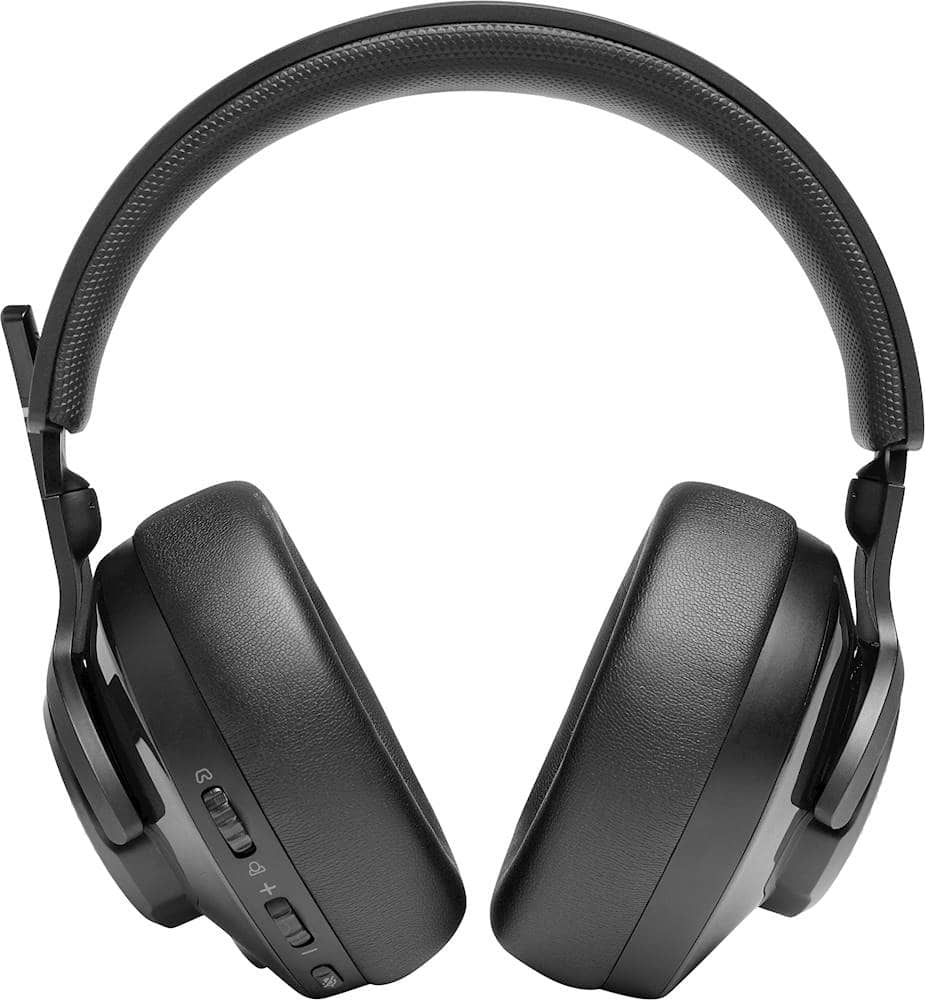
A:AnswerThank you for bringing this to our attention. We're here to help. It's important that you move the microphone of the headset completely down until you hear a loud "click". Please note that you can't change the volume of your headset trough the buttons when it s connected with a aux cable. This can only be done trough the "remote" on the cable. If the issue still persists, please contact our customer support service via our official website or toll-free hotline.
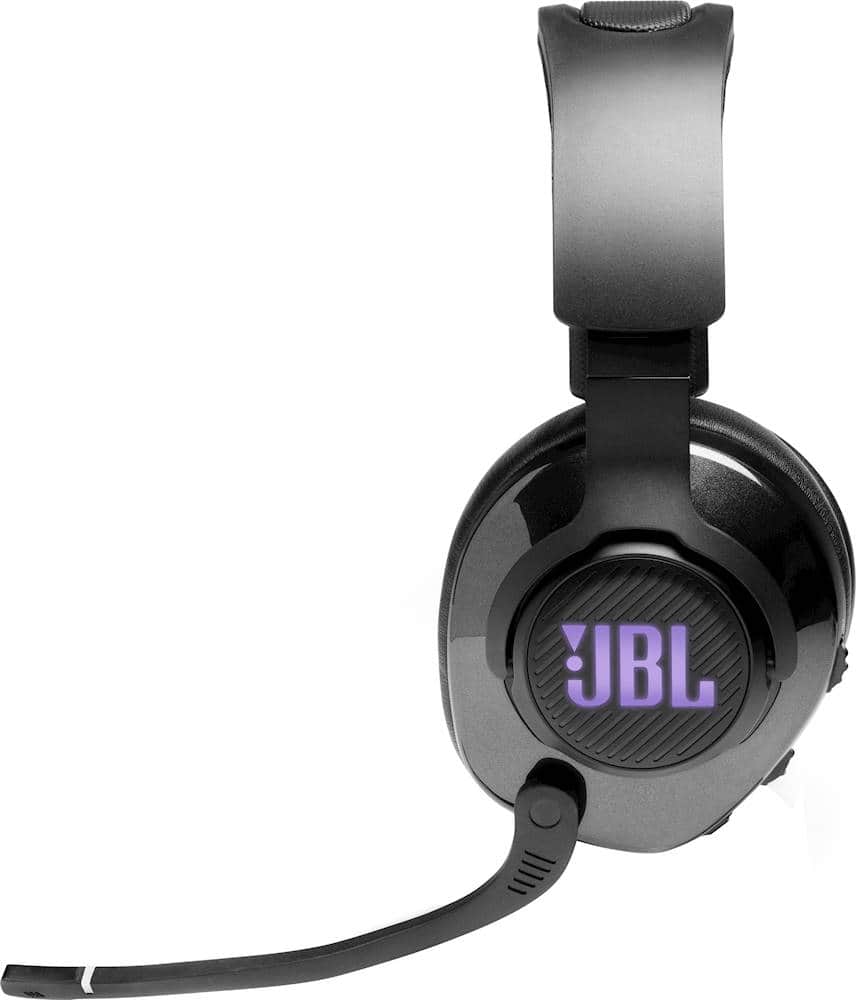
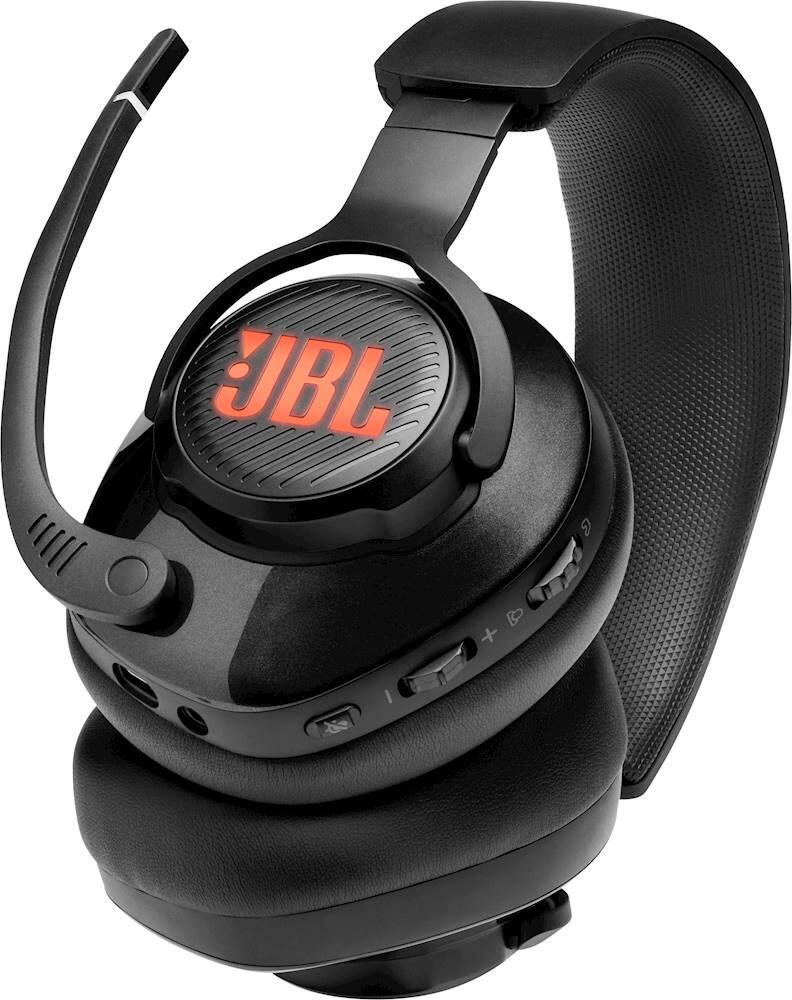
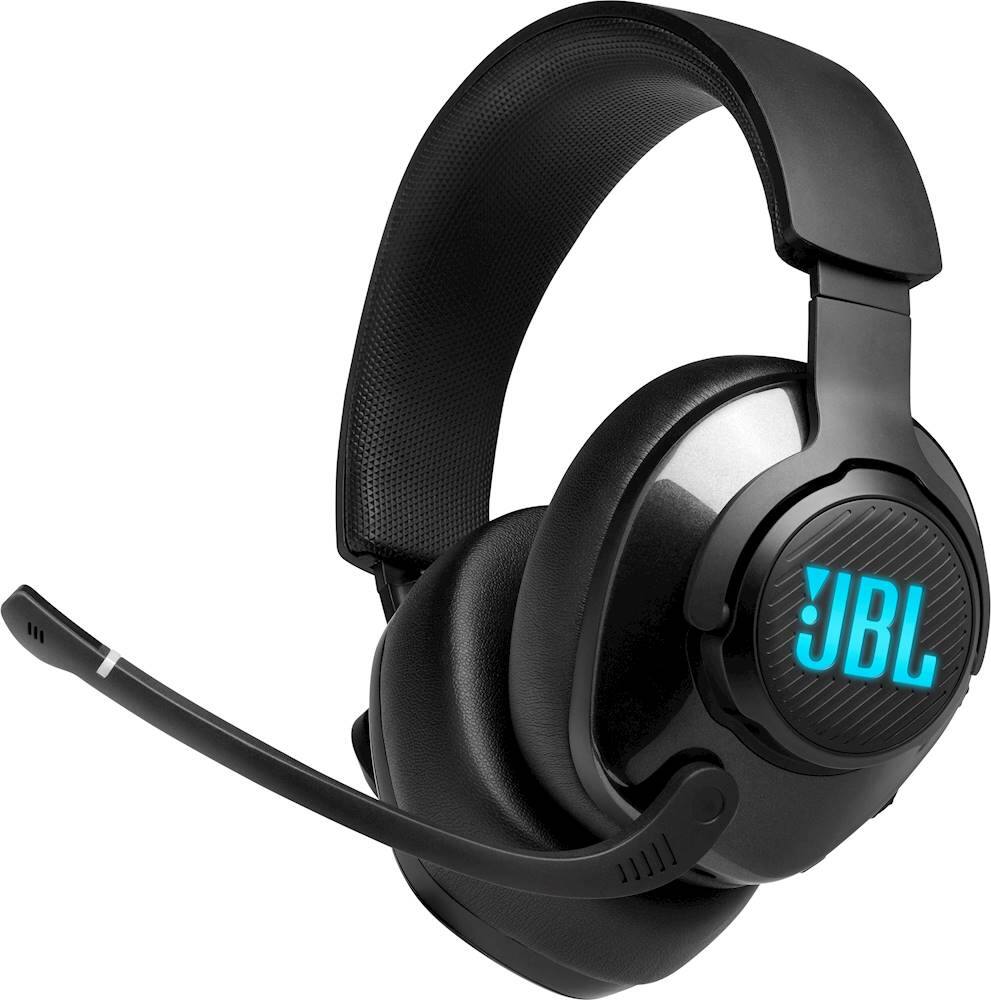
A:AnswerOur JBL Quantum 400's are compatible with USB C to A cable to enjoy PS4 console with RGB Lighting on. RGB will not light up when connecting with 3.5mm cable to any device (PC, Console, Mobile, etc.) because the cable doesn't have power enough for the RBG lighting.
A:AnswerNot really. the plastic cover for the connection to the headphone on most usb cables will prevent it from seating securely in the receptacle, I would keep bugging jbl for a free replacement as the wear on their cables are entirely due to the weight of the cables shear force near the connecting heads.
A:AnswerThe RGB light and the mute function of our Quantum 400 will not work when you're using the 3.5mm headphone jack through the controller of your Xbox Series S.
A:AnswerThank you for the inquiry. Our JBL Quantum 400's RGB will not light up when connected via 3.5mm cable to your Xbox console or any other device (PC, Console, Mobile, etc.) because the cable doesn't have enough power for the RBG lighting.
A:AnswerThank you for bringing this to our attention. We would like to discuss your support request directly with you and find a solution for you. Please reach out to JBL Customer Service for technical support and assistance. https://bit.ly/2WocMfi
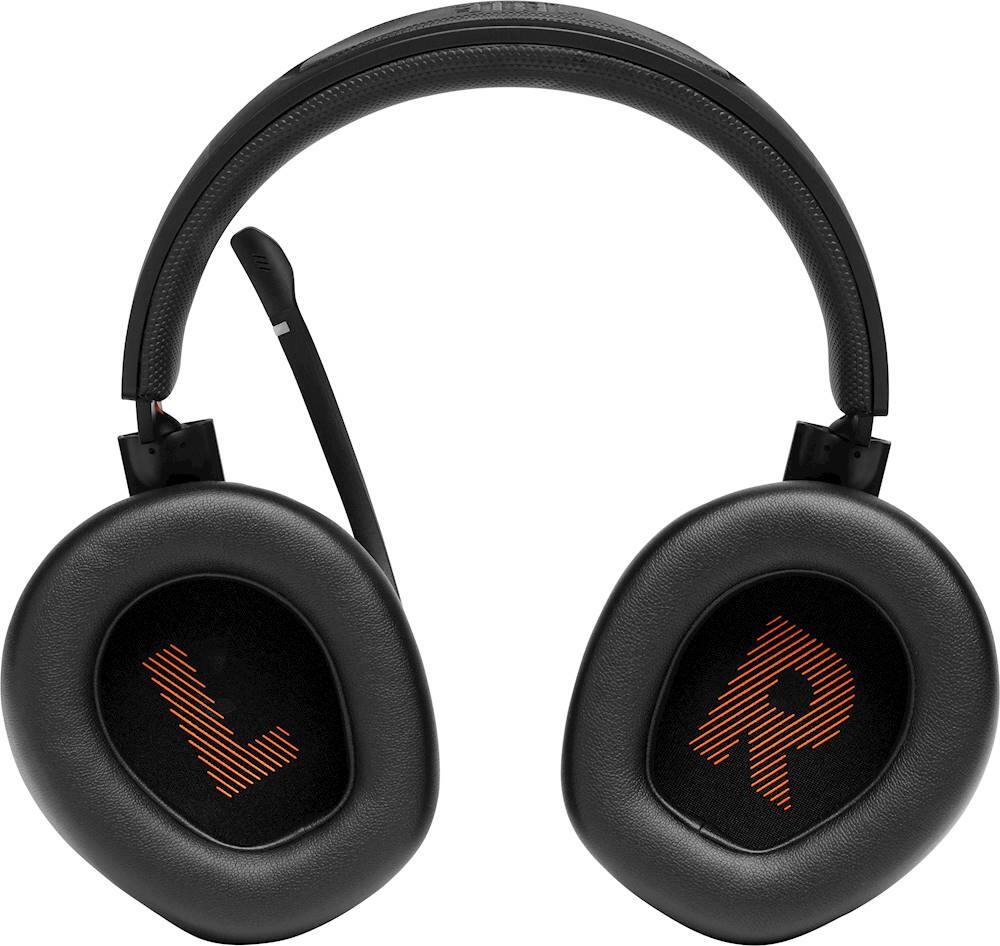
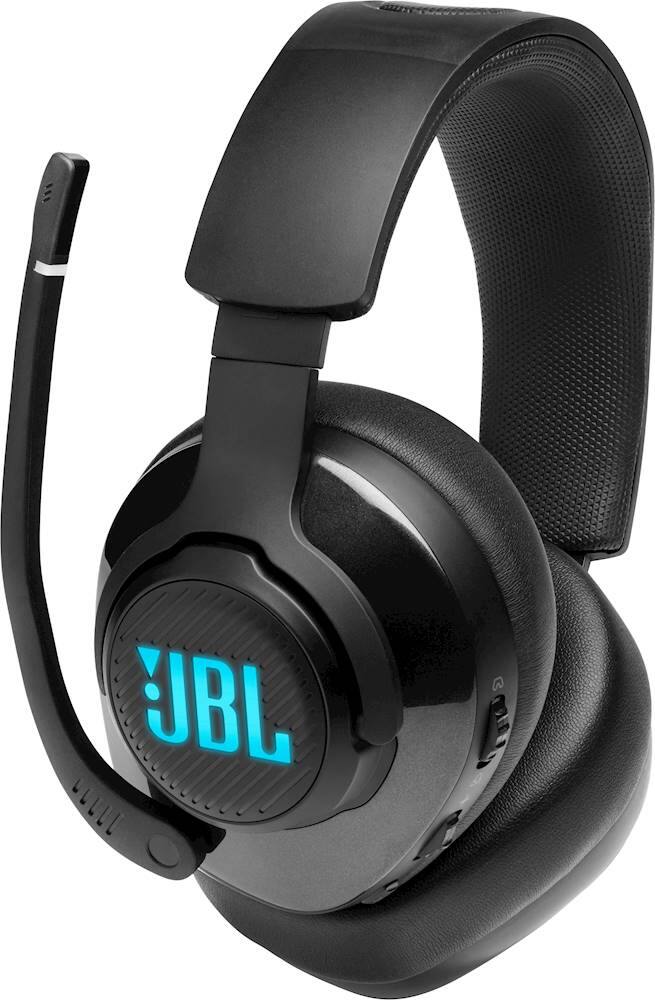
A:AnswerPlease make sure that the microphone is not muted. Put/flip the mic on the down position as this automatically unmute the mic. When you put it back up, the mic goes on mute. Also check if you have chosen the JBL QUANTUM 400 as the default device in the sound settings of your Xbox. Check if the LED light indicator on the mic is turning off. If the light is off, it's unmuted. But if the LED indicator light is on, it's on mute. if the issue persists, Please contact our customer support service via our official website or toll-free hotline
A:AnswerSimply connect the JBL Quantum 400 to your Xbox One controller via the 3.5mm audio cable. You should be able to use the headphones as soon as it is plugged in the wireless controller of your Xbox One.
A:AnswerThank you for bringing this to our attention. We'd like to work with you directly to troubleshoot the issues you're experiencing with our JBL Qunatum 400 headphones. We'd also like to get more information from you so we can check your options. Please contact our customer support team at https://bit.ly/2WocMfi