A:AnswerHello, that accessibility feature is one provided by your Amazon device. There is no direct button/function on our Harmony remotes to enable/disable the feature. We recommend reaching out to Amazon to find out the proper steps to change this setting.
A:AnswerI went to the Logitech Harmony 665 compatibility website and can find no listing for AVGO. There is a way supposedly to "copy" another remote but I haven't tried that so cannot address how well it would work. You could call them and ask but my answer would be that I find no evidence that it would work.
A:AnswerYes, we have the Logitec Harmony 665, and a Sony t v and they worked fine together for almost 3 years. Then the contact points inside the remote started to wear out and had to replace the remote.
A:AnswerHello, compatibly of our Harmony remotes can be checked on our website here, where you may input each device model number to find which features are/are not supported: https://support.myharmony.com/en-us/compatibility
A:AnswerAs long as you know the model numbers of your devices and Logitech has them in their database, it should be pretty easy, you do need a computer and internet connection to setup the remote control, then you just enter your device model numbers and the remote will be programmed
A:AnswerThe Logitech Harmony 655 remote should work with your device and, if not, you can teach it about your device. Logitech’s MyHarmony web-based setup software has a huge inventory of “known” manufacturers and models. And it grows daily as Logitech add more devices. I have setup over 15 of the Logitech 650/655 remotes for friends and family, and I have never had a device that MyHarmony did not already know about.
However, if your specific manufacturer and model for your device is not included in MyHarmony’s “known” device list, you can “learn” your device’s unique IR codes and create your own remote configuration. It is a fairly simple process of aiming your original remote control at the 655 remote and responding to prompts like “press Volume Up” and “press Power” buttons so the 655 “learns” what the IR codes are being sent by the original remote.
Before you actually buy the Logitech 655 remote, you can download the free MyHarmony software from the Logitech web site (you will have to register with an email address and password) and try configuring all your devices to see if they are already “known” – you don’t need a physical 655 remote to do this test.
Sailor Guy
A:AnswerAfter the software is downloaded you can connect the remote to your PC with the USB cable. Once you have gone through the setup choices you have to Sync the remote then you can disconnect it from the PC and try it out. At first my setup did not work, since for "Watch TV" it had all the control keys focused on the TV, but I really wanted to focus on the Apple TV device. I had to re-connect it to the PC and manually assign all the desired buttons for the Watch TV "activity" to the Apple TV. Now when I push the Watch TV button (one of the purple buttons near the top of the remote) it turns on all the right devices and sets the focus of controls to the Apple TV device. Hope that helps.
A:AnswerI don't know. It should include directions! Companies seem to put instructions only on line! Consequently many people have to have technical support to set up their device!
This is an extra expense.
A:Answerchange the batteries with good batteries such as Duracell. Do not use rechargeable batteries. Try cleaning the front of the remote where the signal is emitted. Does your equipment sit behind smoky glass? Might have to open the door.
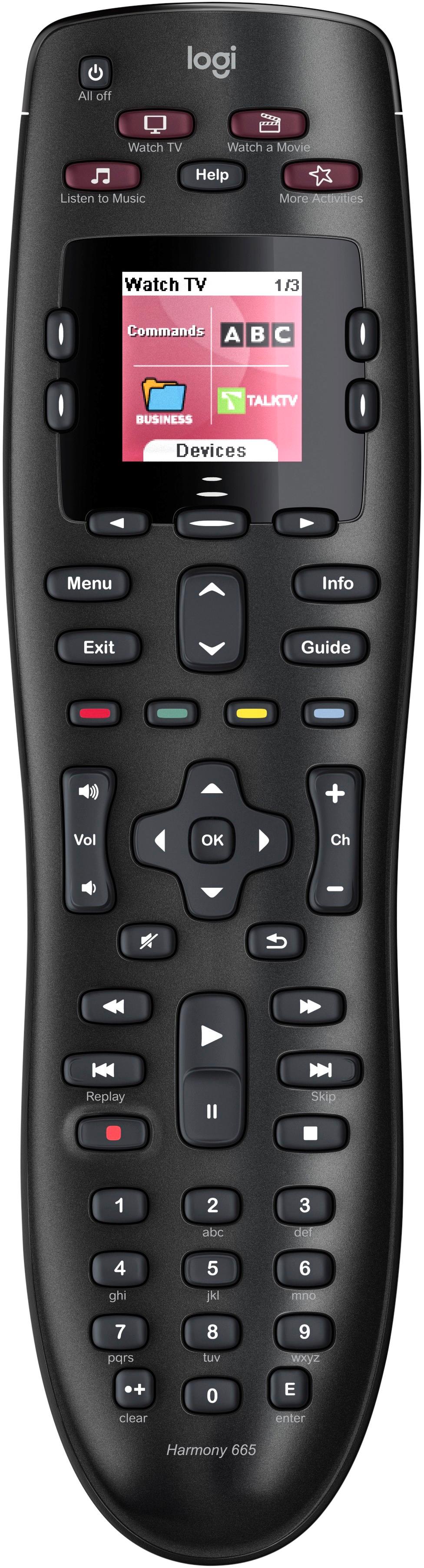
A:AnswerThe star is for information. If you push the button and look at the screen, it will show 4 different items controlled by the buttons next to the screen.
Hope that helps
A:AnswerI do not know. I do not own an Insignia Sound Bar or any other sound bar. I do have a Bose VideoWave TV and it does not work following the Logitech instructions, because the Bose remote works on Bluetooth not IR,