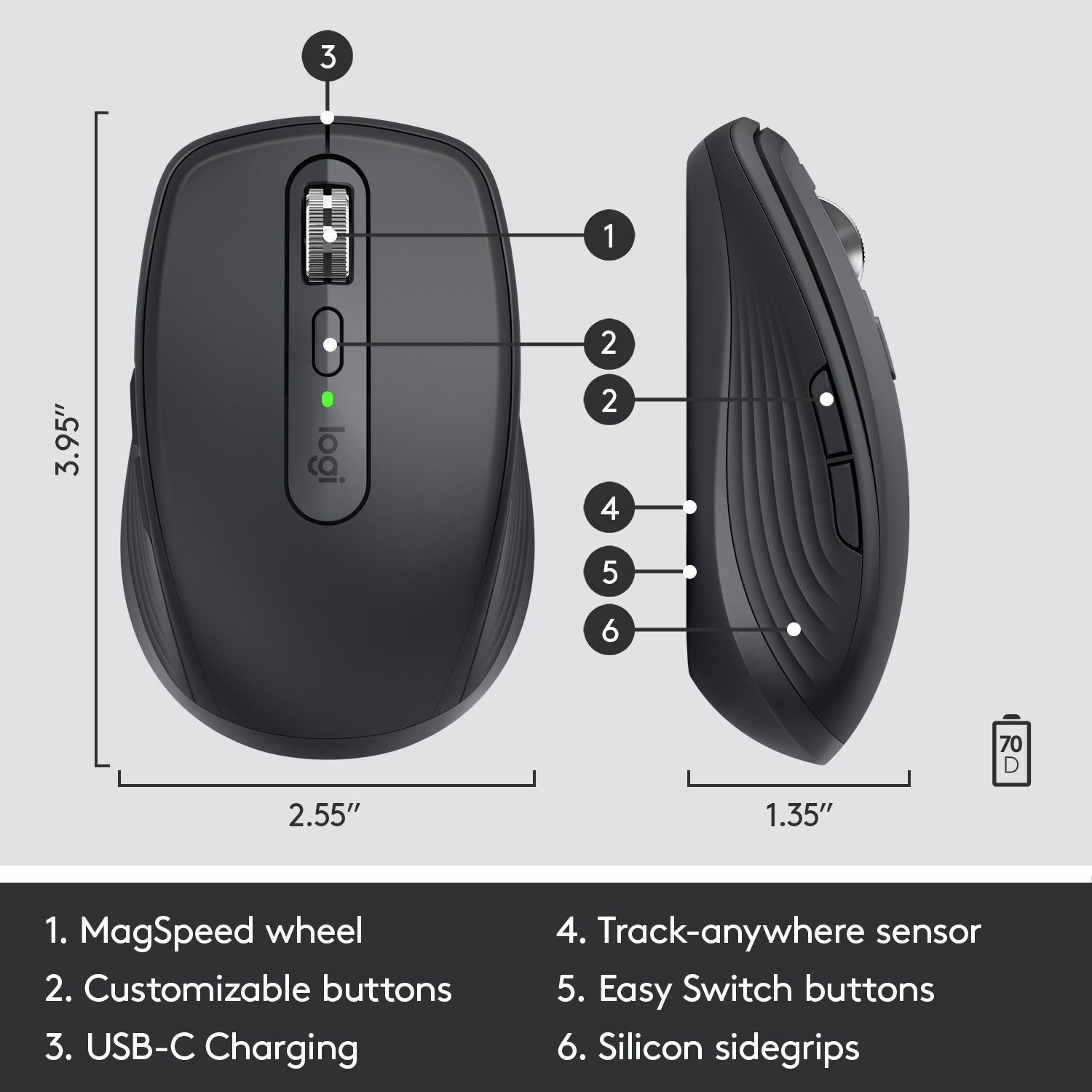
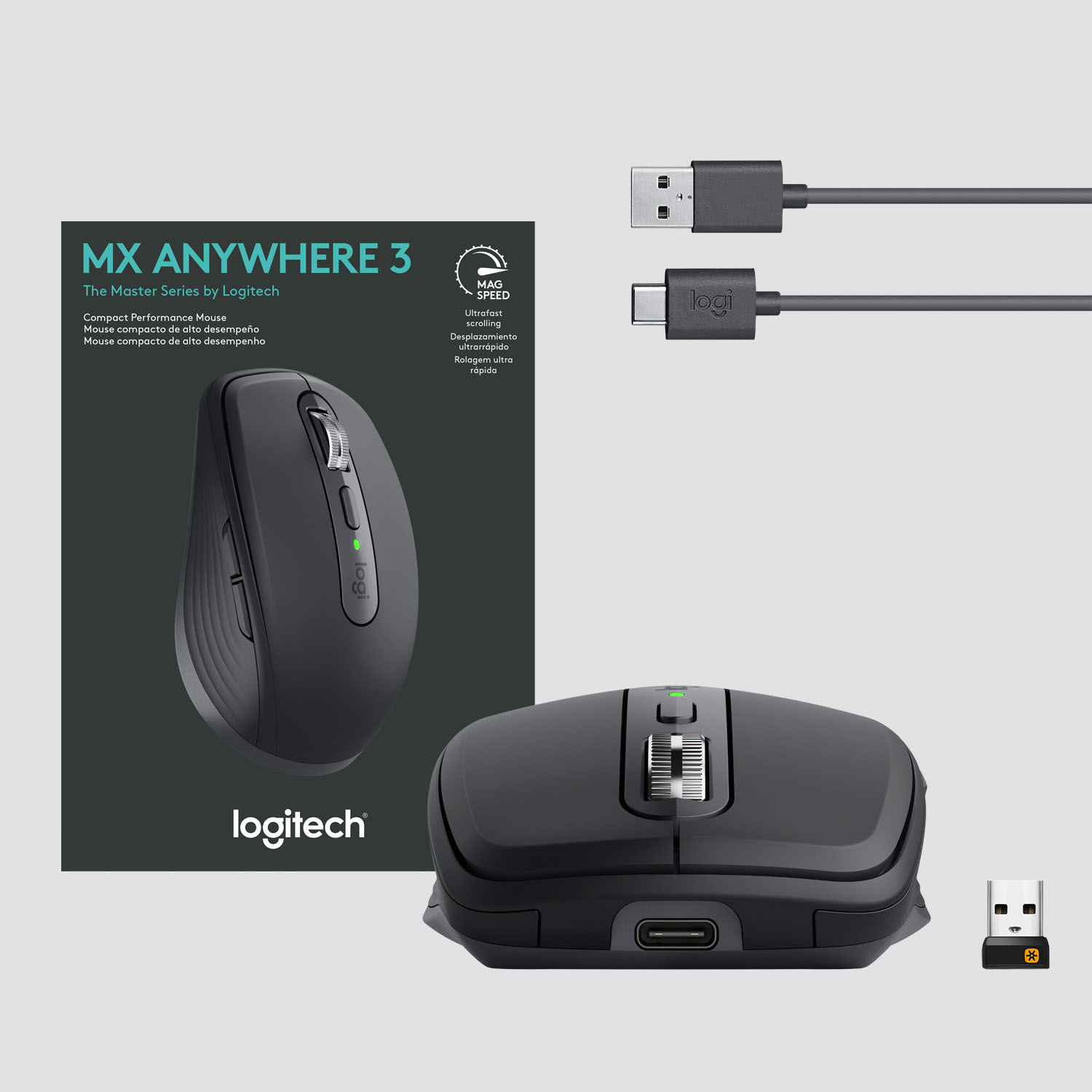
A:AnswerHello Patricia. The MX Anywhere 3 can be connected to a MacBook Pro using Bluetooth. The wireless receiver that comes with the mouse is USB-A, so it will need an adapter if your MBP only has USB-C ports... but Bluetooth won't need any adapters or USB receivers!
A:AnswerHello Arlene,
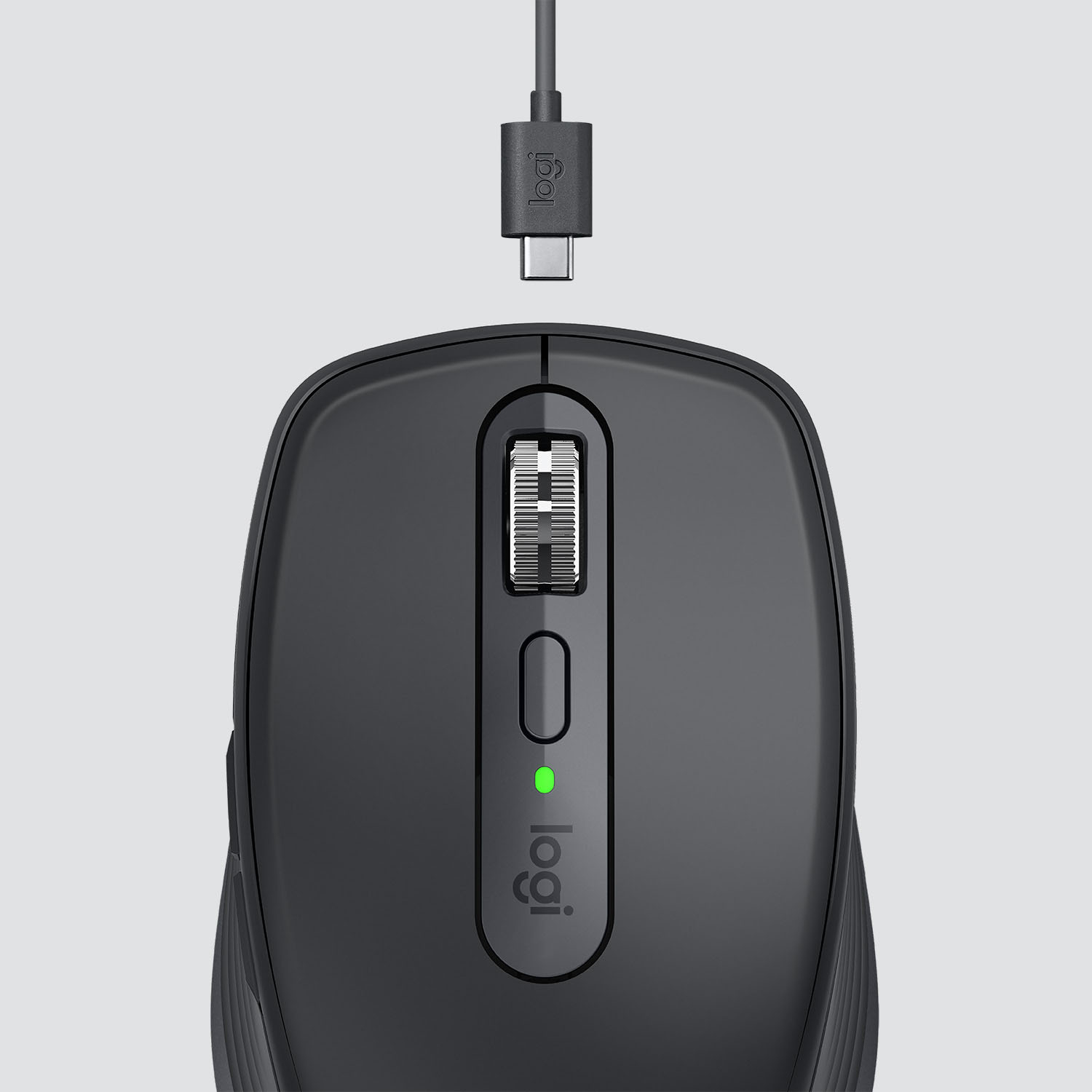
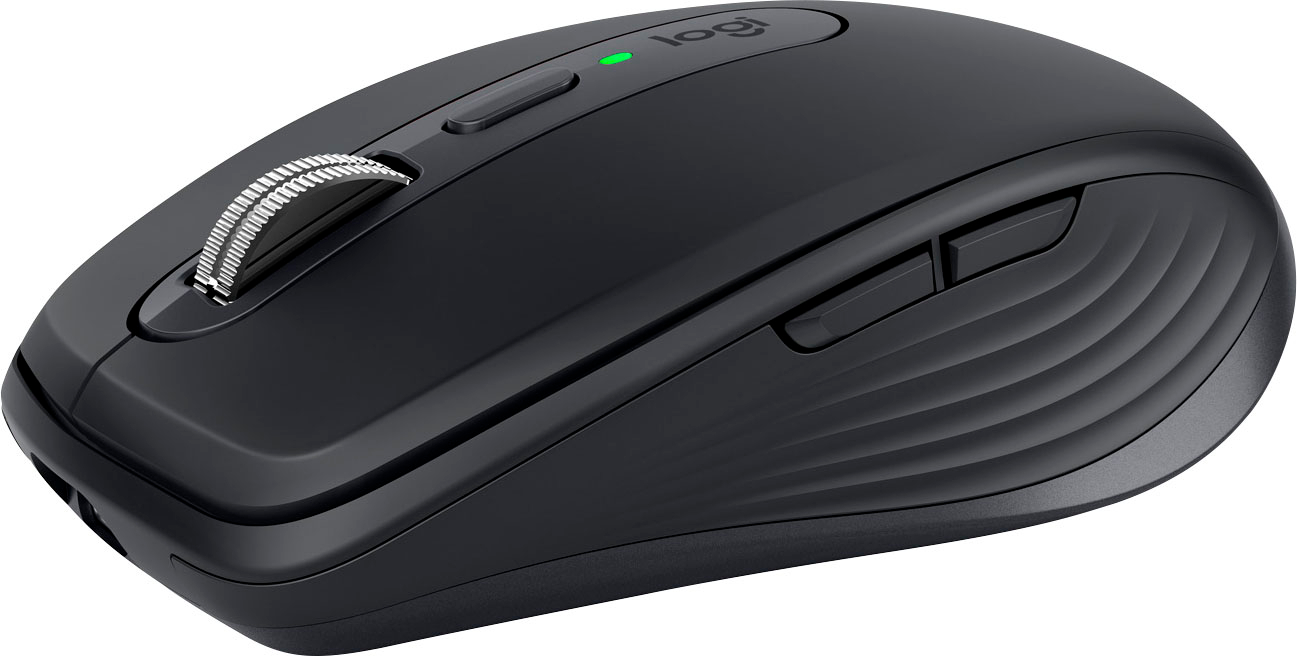
The MX Anywhere 3 is available in two versions. This version is the MX Anywhere 3 for PC, which uses a USB-C to USB-A charging cable. The MX Anywhere 3 for Mac version uses a USB-C to USB-C cable. Both options will work on Mac or PC and are rated at a battery life of 70 days. Always feel welcome to visit the Logitech website for product support, and software downloads.
Best regards,
John at Logitech
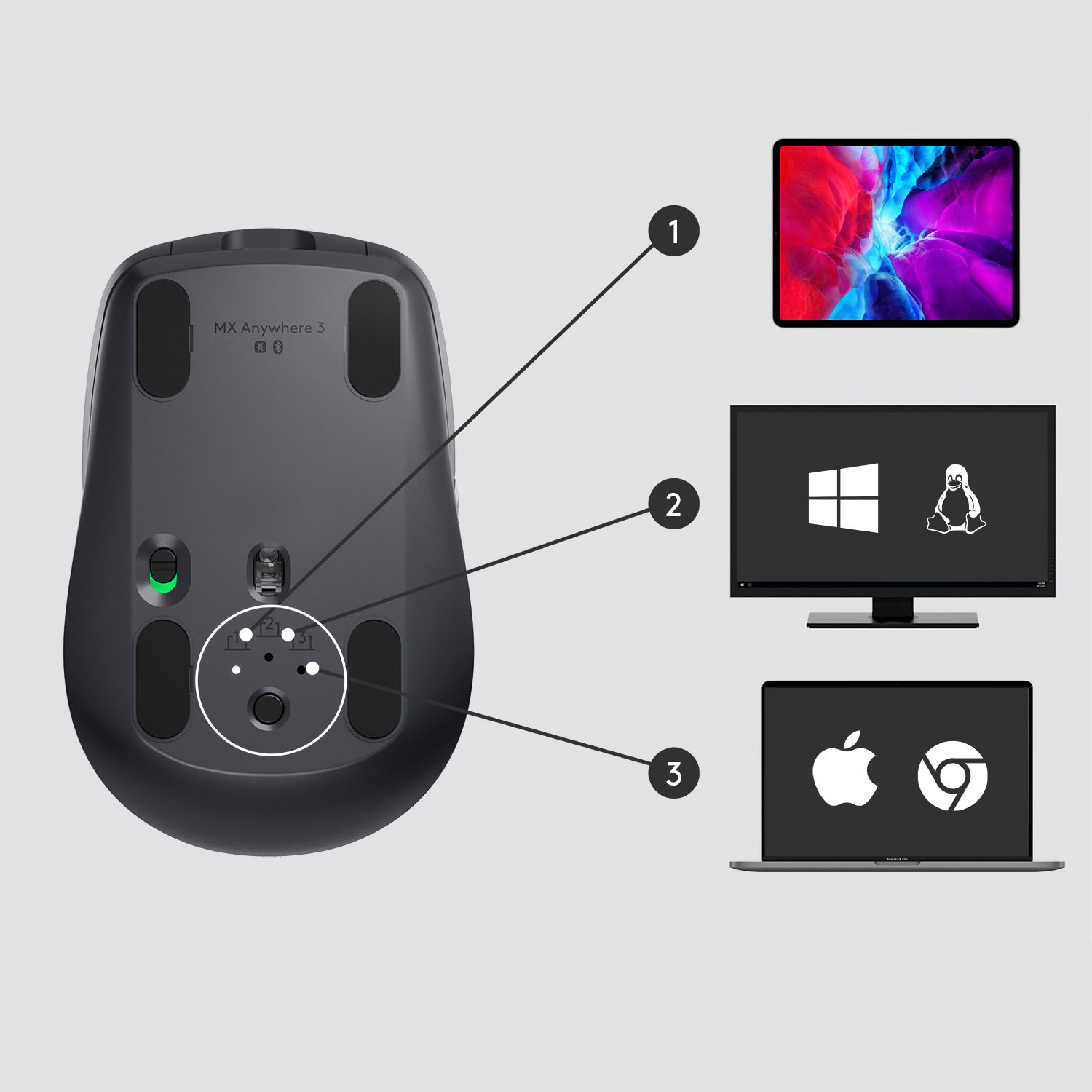
A:AnswerHello. While the MX Anywhere 3 DOES connect to 3 devices, that is not what the 3 in the name stands for. This is the 3rd generation of the MX Anywhere mouse.
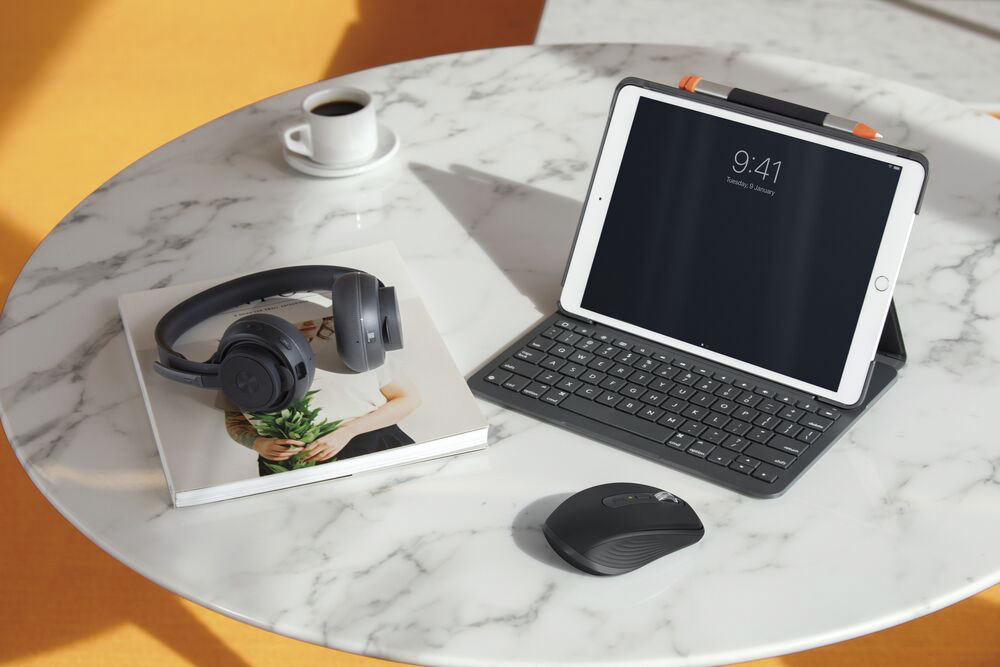
A:AnswerHello Kevin, Only basic functions---point, click, and scroll---are supported when using the MX Anywhere 3 on iPad. Back/forward button, fast mode, and horizontal scroll won't work. Buttons are not customizable on iPad. - Richard from Logitech
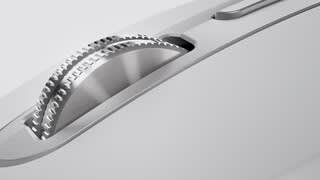
A:AnswerYes, there is a button below the scroll wheel to switch modes between notched and smooth. There is also a smart switch mode that will move from notched to smooth when you scroll at certain speed. This is all configurable in the logitech options software
A:AnswerNo ive had mine charging for 5 days on accident while on vacation and regularly for 2 days ive yet to see a hit in battery life or over heating of any sort.
A:AnswerIt will work with Bluetooth. It also has a dongle so it will work with the dongle. I use it with two computers, one via Bluetooth and the other with the dongle connected. There is a switch at the bottom to select which one to use it with.
A:AnswerHello, guss77! Unfortunately, the cable that comes with the MX Anywhere 3 is only for charging and won't provide a connection to your computer. You will have to use the USB receiver or Bluetooth. - Maggie from Logitech
A:AnswerHello DG! You can assign one of your MX Anywhere 3 Compact Performance Mouse side button or top buttons a "double click button" if you'd like, you'll get this option through the free Logitech Options software https://www.logitech.com/en-us/product/options, by clicking the Mouse Tab at the top, then selecting one of the buttons you want to use as double-click, then in the list of options, scroll down to Mouse Commands, and then select "double click".
A:AnswerHey! You can connect your device to your laptop via Bluetooth. If your Logitech keyboard works with Logi Bolt, you can pair both devices to the Logi Bolt receiver using the Logi Bolt app. If you have any questions, feel free to reach out to our Logi Support.
A:Answerso use the adapter to connect to your pc and then use bluetooth to connect to you macos set up. Thats how i do it and it connected fast and without any issues