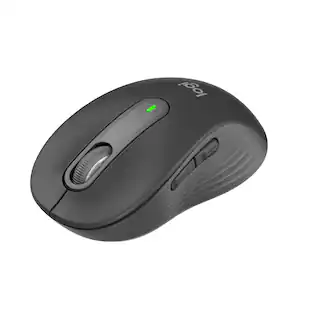
Logitech - MX Anywhere 3 Wireless Bluetooth Fast Scrolling Mouse with Customizable Buttons - Wireless - Graphite
- Key Specs
- Lighting Type: None
- Maximum Sensitivity: 4000 dots per inch (Mouse sensitivity is measured in dots per inch (DPI). The higher the DPI, the more sensitive the mouse is and may be more useful for high-density pixel screens. Lower DPI typically means more precision and accuracy in mouse movement.)
- Number of Buttons (Total): 6
- Connection Type: Wireless
- General
- Brand: Logitech
- Model Number: 910-005987
- Product Name: MX Anywhere 3 Wireless Bluetooth Fast Scrolling Mouse with Customizable Buttons
- Color: Graphite
- System Requirements: Windows 10, 11 or later, Linux, Chrome OS, macOS, iPadOS, Android (The software that a product must have for it to be able to integrate with another product.)
- Features
- Mouse Type: Compact
- Lighting Type: None
- Performance
- Mouse Operation: Button(s), Scroll wheel
- Mouse Grip Style: Ergonomic (In comparison to many palm and claw grips, ergonomic grip mice are designed for a specific handedness and put the hand and wrist in a position to promote comfort. Customizable grips feature buttons/keys that can be configured to perform specific actions and may also have customizable calibration and sensitivity settings.)
- Handedness: Right-handed
- Tracking Method: Laser (There are several types of computer mice, optical and laser being among the most common. Optical mice detect less detail and provide more precise and accurate movement. Laser mice detect more detail and can be used on a wider variety of surfaces, but are more sensitive to small movements.)
- Maximum Sensitivity: 4000 dots per inch (Mouse sensitivity is measured in dots per inch (DPI). The higher the DPI, the more sensitive the mouse is and may be more useful for high-density pixel screens. Lower DPI typically means more precision and accuracy in mouse movement.)
- Minimum Sensitivity: 200 dots per inch (Mouse sensitivity is measured in dots per inch (DPI). The higher the DPI, the more sensitive the mouse is. Lower DPI typically means more precision and accuracy in mouse movement, but higher DPI may be useful for high-density pixel screens.)
- Number of Buttons (Total): 6
- Number of Thumb Buttons: 2
- Number of Programmable Buttons: 6
- Adjustable Weight: false
- Connectivity
- Connection Type: Wireless
- Wireless Connectivity: Radio Frequency (RF), Bluetooth (The manner in which a device sends data to another device over a short distance without the use of wires or cables.)
- Maximum Wireless Range: 32.8 feet
- Operating System Compatibility: Apple iOS, Chrome, Linux, Mac, Windows, Apple iPadOS, Android
- Plug and Play Operation: true
- Power
- Mouse Power Source: Battery-powered
- On/Off Switch: true
- Rechargeable Battery (Mouse): true
- Wireless Charging: false
- Charging Interface(s): USB-C (The connection for transmitting power to charge the device.)
- Battery Chemistry: Lithium-polymer
- Included
- Mouse Pad Included: false
- Dimensions
- Product Height: 1.35 inches (The out of box height of the item. Height is measured as the vertical distance from the bottom of the item to the top as it would be primarily used or placed.)
- Product Length: 6 inches (The out of box length of the item. Length is measured as the longest dimension of the item.)
- Product Width: 2.56 inches (The out of box width of the item. Width is measured as the horizontal distance from one side of the item to the other as it would be primarily used or placed.)
- Product Weight: 99 grams (The out of box weight of the item.)
- Warranty
- Warranty - Parts: 1 year
- Warranty - Labor: None
- Other
- UPC: 097855161802
Master it, anywhere with MX Anywhere 3 –a compact performance mouse designed for mobile work –from the home office, to the cafe, to the airport lounge.The electromagnetic MagSpeed scroll wheel is faster, quieter, and more precise. A low-profile design is contoured for the shape of your hand –with silicone side grips ensure that it’s always soft to the touch.MX Anywhere 3 is built to withstand the bumps and drops of mobile work. And a track-anywhere sensor means you can work on virtually any surface.App-specific button customizations speed up your workflow in the apps you use most.
- MagSpeed scrolling: Speed, precision, and silence. Effortlessly scroll 1,000 lines at once, and stop on a pixel. Auto-shifts between ratchet and hyper-fast modes.
- Go-anywhere comfort: Low-profile design contoured for your hand, with ultra-soft silicone side grips. Built to withstand the bumps and drops of mobile work.
- Logitech Darkfield tracking: Track on virtually any surface, including glass, so you can work seamlessly at a desk, in a cafe, even on a couch.¹
- USB-C quick charging: Stays powered up to 70 days on a full charge – and gets 3 hours of use from a 1-minute quick charge. USB-C to A charging cable included.²
- Multi-device, Multi-OS: Connect up to three devices and switch between them at the tap of a button. MX Anywhere 3 works with Windows, macOS, iPadOS, Android, ChromeOS, & Linux.
- Work faster with button customizations and predefined profiles: MX Anywhere 3 is fully customizable in every app you use – Adobe Photoshop, Adobe Premiere Pro, Final Cut Pro, Google Chrome, Safari, Zoom, Microsoft Teams, Microsoft Word, Microsoft Excel, and Microsoft PowerPoint.³
- Modern design, premium materials: Modern design features a steel scroll wheel, grippy silicon side grips, and comes in Pale Gray, Graphite, and Rose finishes.
- FLOW enabled: Control multiple computers across Windows and macOS operating systems. Effortlessly transfer text, images, and files between computers.³
- More sustainable: Uses FSC-certified paper for responsible packaging. Certified carbon neutral: the carbon impact of the product and packaging has been reduced to zero.
Whats Included
- Logitech MX Anywhere 3 Bluetooth Laser Mouse
- USB Receiver
- USB Type-C to USB Type-A charging cable
- Owner's manual
A: Hello, when the MX Anywhere 3 battery is full, the blinking, green charging indicator will stop blinking, this is normal functionality.
Q: Is this compatible with macbook pro?
A: Hello Patricia. The MX Anywhere 3 can be connected to a MacBook Pro using Bluetooth. The wireless receiver that comes with the mouse is USB-A, so it will need an adapter if your MBP only has USB-C ports... but Bluetooth won't need any adapters or USB receivers!
Q: Do the buttons make a noise when clicked or are they silent?
A: Hello, the buttons on the MX Anywhere 3 are not considered silent, you will hear a faint audible click mechanism.
A: Hello Tushar. Your Mac charger will not damage the mouse. It should be ok to charge the MX Anywhere 3.
Q: How do you charge this. I am getting a Mac air.
A: Hello Arlene, The MX Anywhere 3 is available in two versions. This version is the MX Anywhere 3 for PC, which uses a USB-C to USB-A charging cable. The MX Anywhere 3 for Mac version uses a USB-C to USB-C cable. Both options will work on Mac or PC and are rated at a battery life of 70 days. Always feel welcome to visit the Logitech website for product support, and software downloads. Best regards, John at Logitech
A: Hello. While the MX Anywhere 3 DOES connect to 3 devices, that is not what the 3 in the name stands for. This is the 3rd generation of the MX Anywhere mouse.
A: Hello Kevin, Only basic functions---point, click, and scroll---are supported when using the MX Anywhere 3 on iPad. Back/forward button, fast mode, and horizontal scroll won't work. Buttons are not customizable on iPad. - Richard from Logitech
Q: Can I switch the scroll button to do "notched" scrolling as opposed to the smooth scrolling?
A: Yes, there is a button below the scroll wheel to switch modes between notched and smooth. There is also a smart switch mode that will move from notched to smooth when you scroll at certain speed. This is all configurable in the logitech options software
People also viewed
 Black Friday in July Deal$79.99The price was $99.99
 $54.99The price was $59.99
 Black Friday in July Deal$79.99The price was $89.99
 Black Friday in July Deal$79.99The price was $89.99
 Black Friday in July Deal$24.99The price was $39.99
Today's top picks
 Black Friday in July Deal$749.99The price was $1,199.99
 Black Friday in July Deal$199.99The price was $399.99
 Black Friday in July Deal$69.99The price was $129.99
 $249.99The price was $399.99
 Black Friday in July Deal$199.99The price was $249.99
 Black Friday in July Deal$199.00The price was $419.00
 Black Friday in July Deal$169.99The price was $299.99
 Black Friday in July Deal$499.99The price was $999.99
 Black Friday in July Deal$399.99The price was $899.99