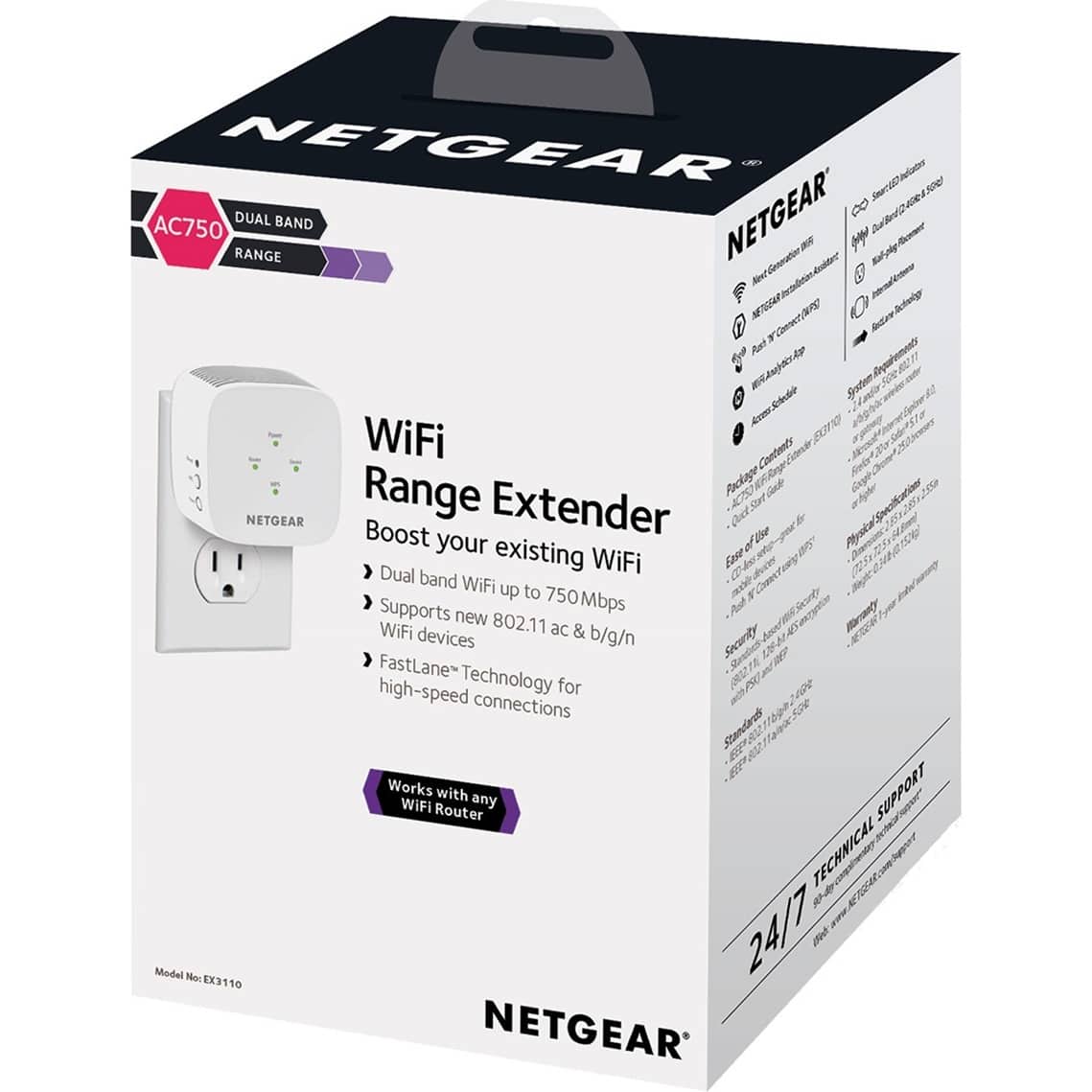
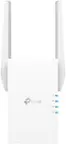
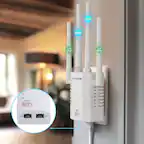
A:AnswerThis will not boost signal strength. Think of it as the wifi equivalent of signal repeaters on phone poles. You place this near the end range of an existing wifi network. You can then connect to this device as a different wifi network and let it relay the signal.
The limitations are it's signal strength with the main wifi network and an available power outlet between your devices and that network. Beyond that once you set it up there's no other interaction.
A:AnswerLook at the labeling on your current Ethernet-connected router and find the MODEL NUMBER and BRAND. (The ethernet router is your main router that is connected by wire to your internet service provider.) Then google the brand and model number to find the User's Manual on-line for your router. Nearly all user's manuals are now found on-line. From there, look at the SPECIFICATIONS ("Specs") in the User's Manual. What you are looking for are TWO (2) things: 1) DOCSIS 3.0 or higher and 2) Dual-band concurrent 802.11ac Wireless Access Point (WAP) with a minimum of eight Service Set Identifiers (SSIDs) compatible with 802.11b/g/n/ac or newer versions. Since the newest Wi-Fi Extenders are capable of accepting signals from older routers, the main thing is to make sure you see 802.11 as the WAP. So long as these two technical things are built into your router, it should work, regardless of brand. If you don't want to bother with a look-up of your current router's specs, then generally, if your router is less than 5 years old, you should have no problem connecting this Extender to your Ethernet-connected router. Nearly all of the modern routers conform to international uniform transmitting standards. Worse case scenario: if the Extender does not work, Best Buy gives you a couple of weeks to return the item for a full refund or exchange, so there really is no risk to try it out.
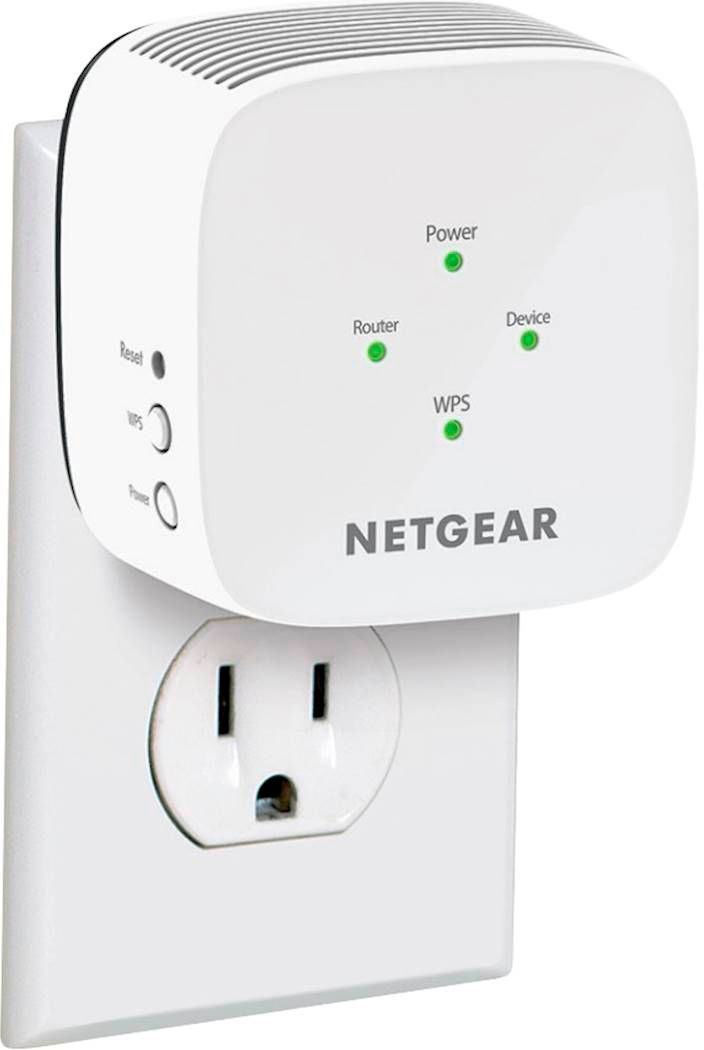
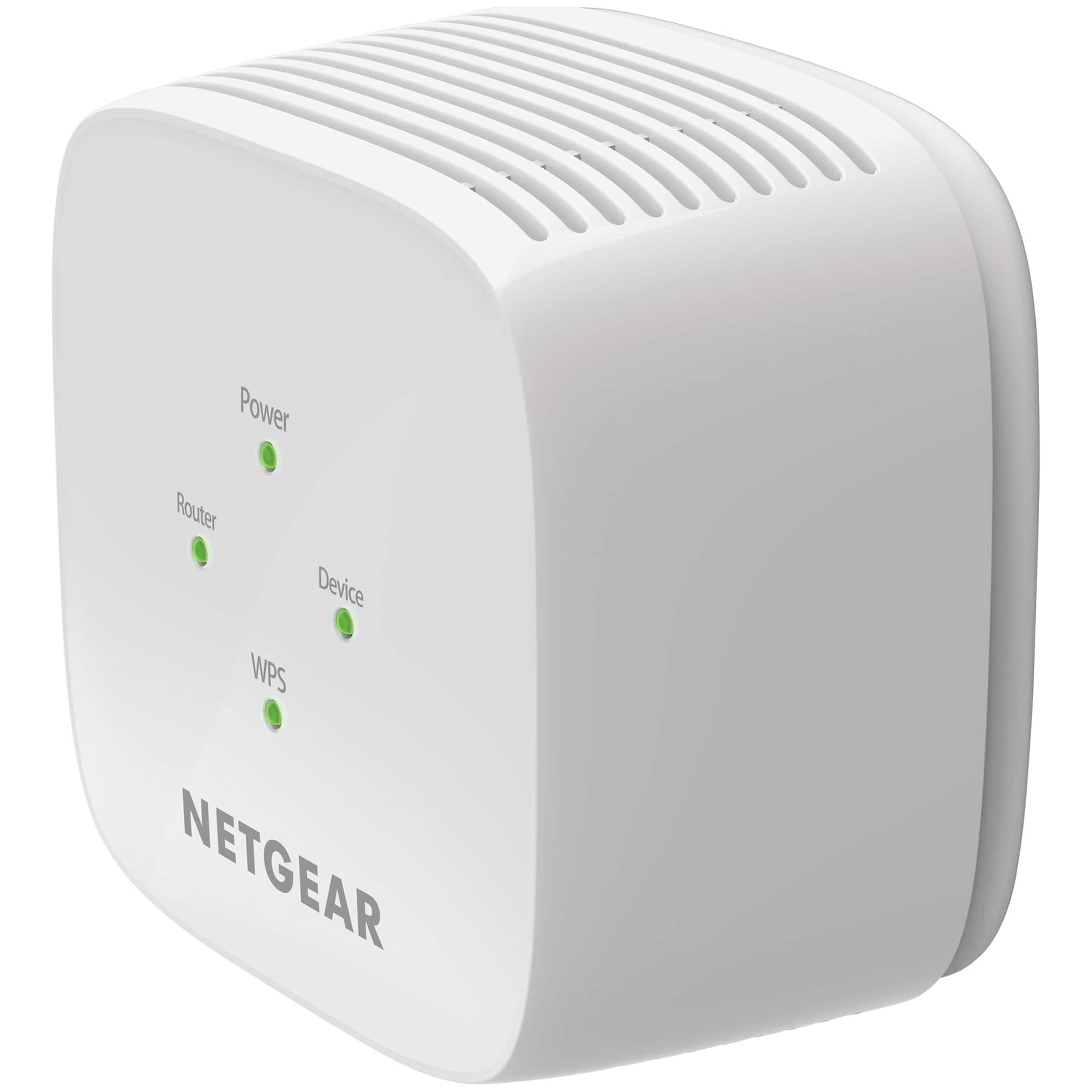
A:AnswerYou would have to setup the WiFi extender first when you are in the area if your current WiFi..then after you set it up there is a display light ( I think it says Range) where if it is Green that means that the WiFi externder is getting a good signal from the original WiFi and after that you can move it around towards you XBox keeping in mind that you want to be kinda at the halfway point between your original WiFi and your Xbox while making sure that Green light is on ( if it is Amber then it is still receiving a signal from the original WiFi but it’s not the best…hopefully I was able to give you some help.
A:AnswerNot really. The Extender is only so fast as your Modem/Router. If the problem is a slow Modem/Router, you need to look into an upgrade of that system first. The very first thing you should do is a speed test of your current service from your Internet Service Provider (ISPs such as X-Finity, Spectrum, etc.). Simply google "internet speed test" and follow the simple instructions to measure the download/upload speed coming into your home or office. Generally, any download speed of 100 mbps or lower is relatively slow. If you are streaming videos or games, you will want get at least 150 mbps or higher. If your speeds are slow, contact your ISP to see how they can increase the speed to your home or office. Generally, most ISPs can increase the speed, but they will charge you more for that convenience. If you live in a rural area, the problem could be the cable or fiber that feeds to your home. Some rural areas can now get faster download speeds through a new satellite system, but that can cost you more money to connect to that. Anyway, once your ISP has increased your speed (hopefully), and you still have slow internet, you might next consider an upgrade of your Modem/Router. Most Wi-Fi 5 and 6 version models can handle greatly increased download and upload speeds. If you have done all of that and you still have slow or dead spots in the house or office, then get this Extender for increased speeds and improved latency.
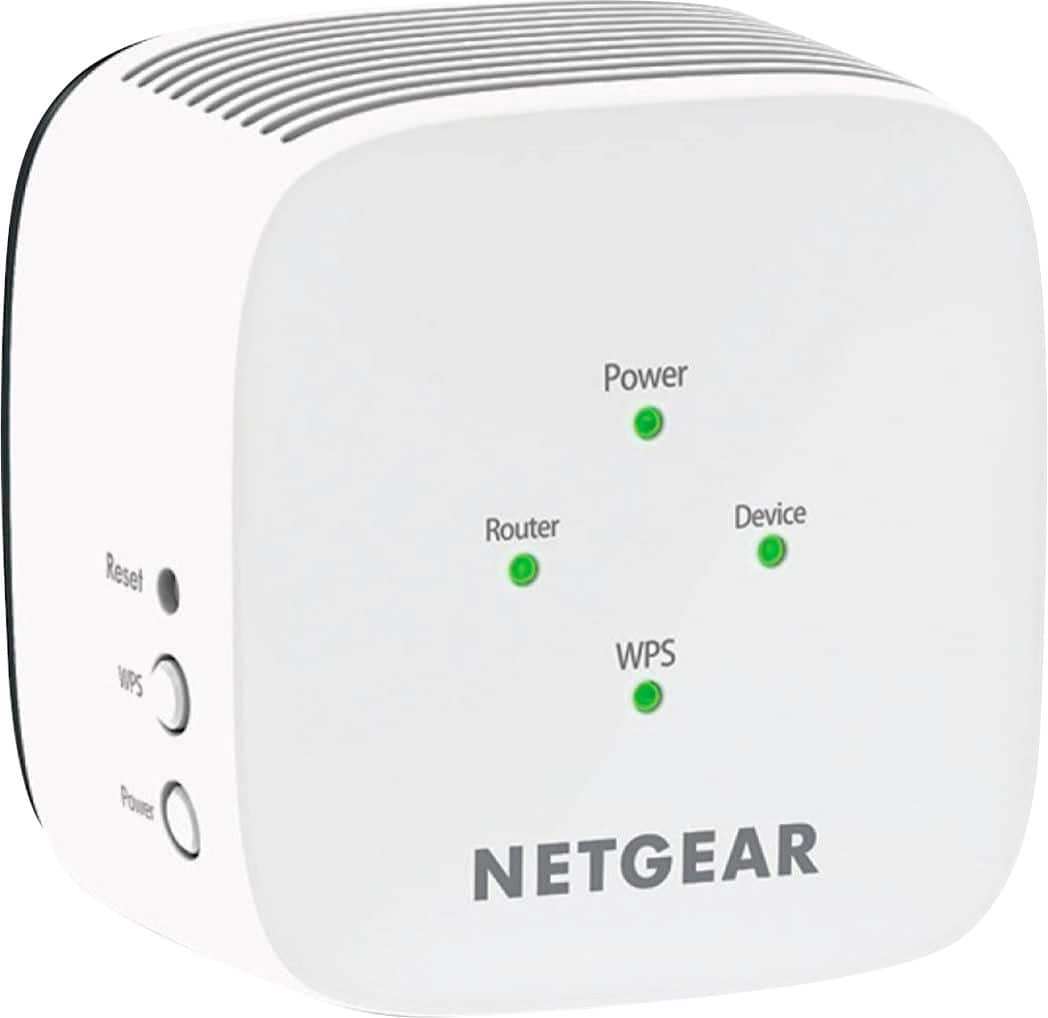
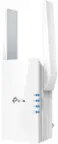
A:AnswerIt depends…there are 4 lights on the WiFi extender ..each one has a different meaning…One is the power light…another one is the range light ( you want all green lights ) an amber light means it’s working but not the best optimal setting…
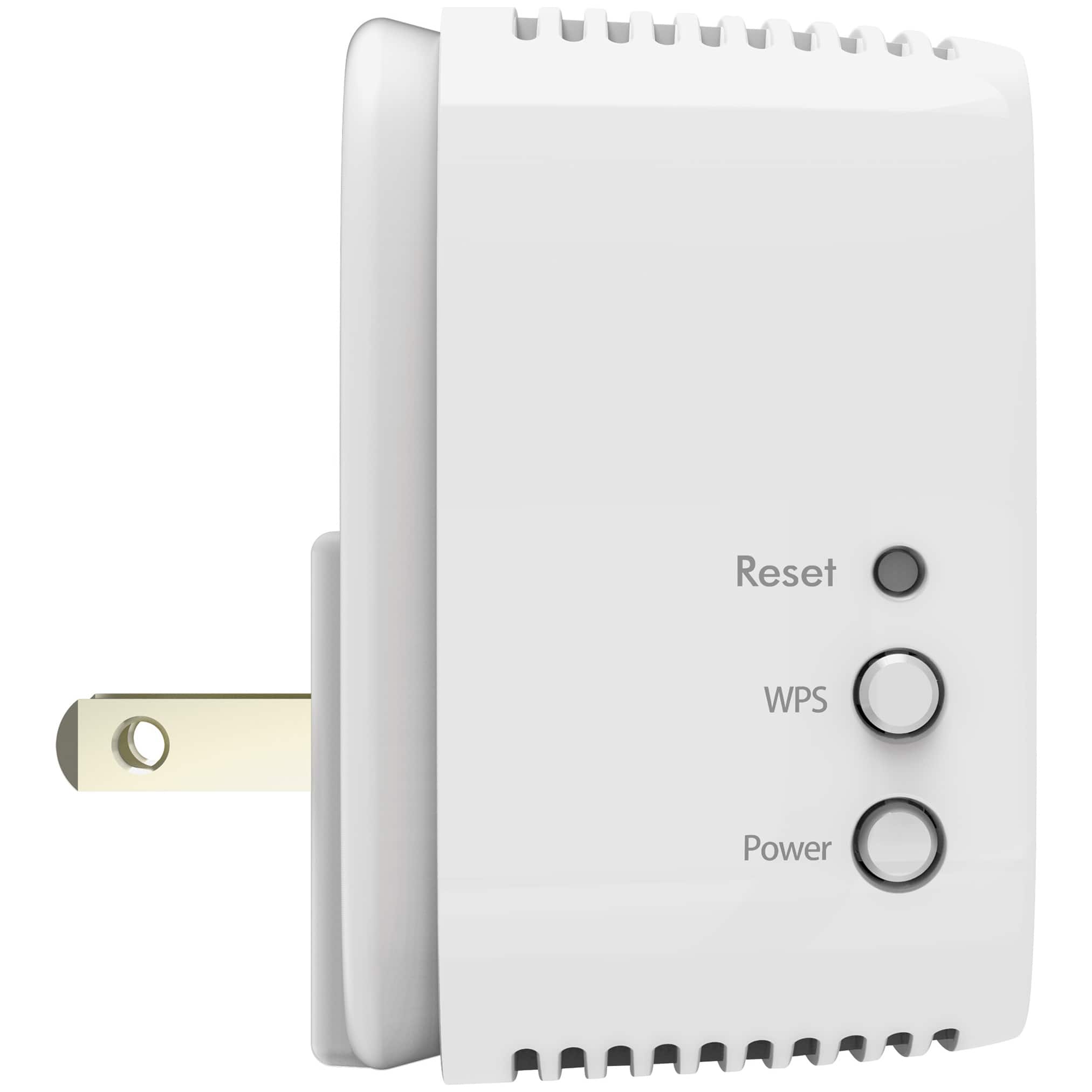
A:AnswerYou have to go through a setup process & sync it to your main router. And don't forget to name it's network the exact same name as your main unit.