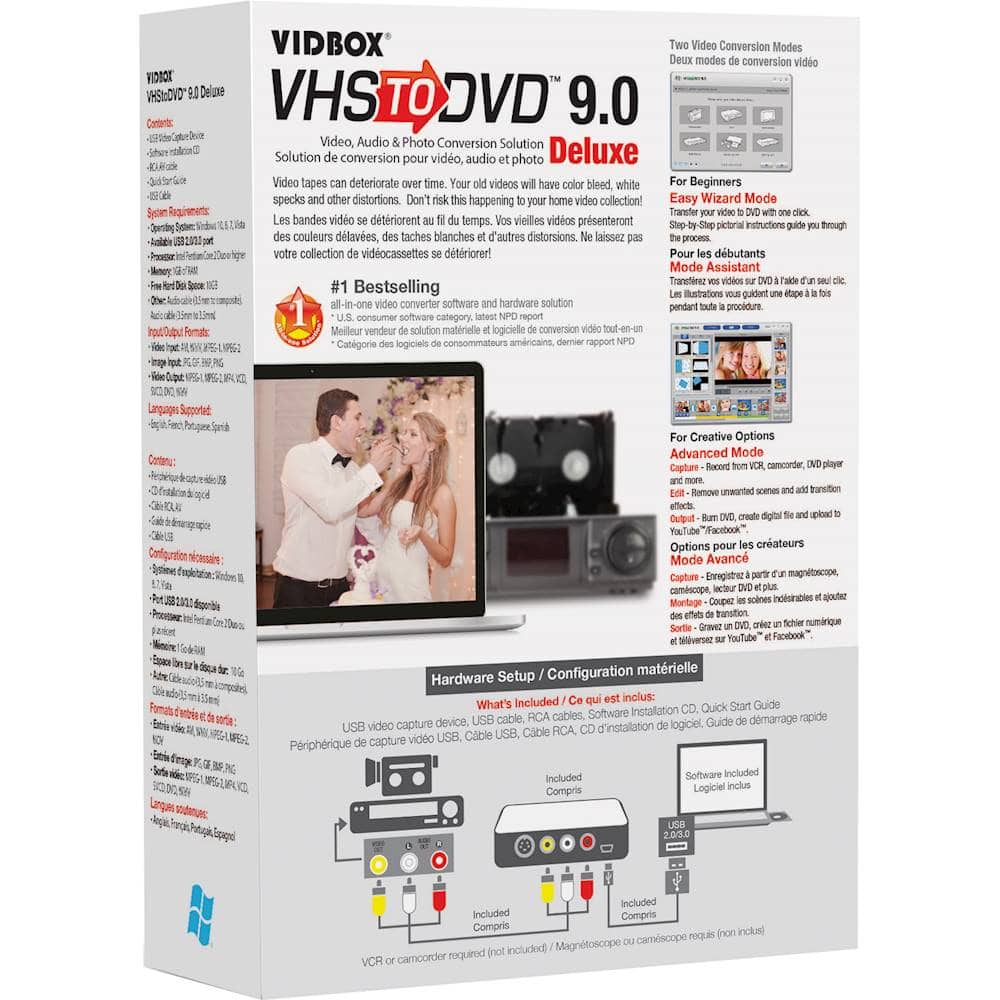
A:AnswerI might, if you have a phono/RCA jacks on the source that you have , It has a standard Phono Plug Cable with 3 plugs on each side, Red Yellow & White - Cable that has the USB connector is included between the VIDBOX and your computer... No specialty cable is included to match your source, If its not Phono plugs. Look at your Camera manual, Hitachi & Others included cable when you bought camera
A:AnswerI had a similar issue.
From support - for Windows 10
Please make sure the software is closed before applying these changes.
Open the Windows Start Menu (Press the Windows Logo on your keyboard or click the Windows Start button on the screen).
Type Privacy, and select Privacy settings from the suggestions.
From the left-side navigation pane, click Camera.
Locate the Allow apps to access your camera setting, and switch it to On if it is currently Off.
Note: You may have to do the same with the Microphone category from the left-side navigation pane as well.
A:AnswerNo, you make the video and audio connections to the out posts in back of the VCR. Connect to the USB port on the computer. Run the program and make the selections and you will be able to watch on the computer.
A:AnswerIn the Manual, It states what the longest Program you should make with this unit. It States a Time More Than 1 hour, But LESS than 2. This allows for processing of video. ALSO, check your HD Free Space, If it is less than 30 to 50 GB, it will slow down the conversion. On larger Files, you cant use your computer to surf the Web & convert a program - Editing may need 50 GB free space and Program can not exceed the Time stated in instructions. I make Part 1 & 2 out of a 2 hour video.
A:AnswerYou can hook directly the camcorder to the adapter box, into the computer. Should need the audio and video cable connects on ur camcorder though.