A:AnswerI have an Inspiron 15 7569 and cannot get the pen to work. I only saw (after purchasing) that 3 Dell models were listed as compatible on Wacom's website, although that isn't complete. My brother has an Inspiron as well and seems to be able to use the pen. Age of the touchscreen may be a factor. Mine was bought mid-2016, while my brother bought his mid-2017, which is a bit close to the actual release date of this stylus.
A:AnswerIt will work. Unless your a digital artist, the bamboo stylus will work just fine. Microsoft Ink is included by default, the stylus doesn't matt r as long as it registers.
A:AnswerI think it depends on the manufacture date/age of the laptop. My experience is with a mid 2016 Inspiron 15 touchscreen, and I have not been able to get it to work with mine. My brother has a similar model Inspiron that he purchased earlier this year (about mid 2017), and it seems that the stylus will work for him. Annotation is more of a option in Microsoft Ink, which can work with a mouse as well.
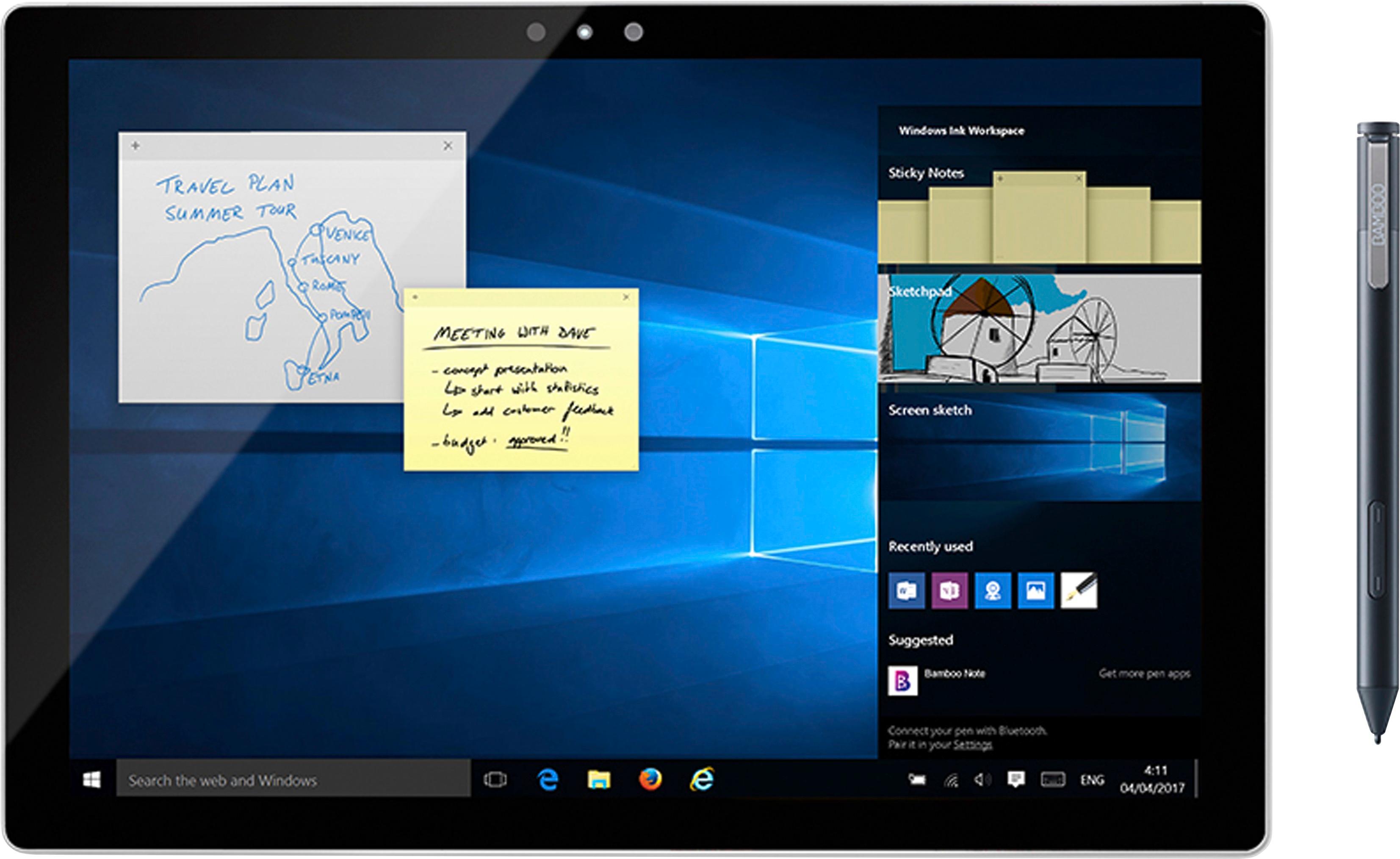
A:AnswerYes, the Bamboo will work with this configuration. You will want to make sure your Windows Ink workspace is turned on. I find this to be quite helpful when using a pen.
A:AnswerI had issues at first with mine as well. I had to reset the pen a couple of times but I eventually got it to work. May also try deleting and reinstalling the drivers.
A:AnswerI use my bamboo pen everyday and I just love it, if you can't figure out how connect your bamboo pen to your laptop well let me tell you how to do this, there is a long button on near the bottom of the pen you hold that down for the count of like 3 and then you should see a blue light on under the button. but first you need to turn on your blue tooth ready so your laptop will pair up with your bamboo pen! it's that easy!!
A:AnswerYes it will, I purchased the two together recently. It took about 5 minutes to synch the pen to the laptop and they worked together immediately. No fuss, no muss
A:AnswerI had the same problem initially at first. The automatic settings of the pen needed to be adjusted. I can't remember what you press on the pen but if you locate the manual that came with the package it tells you how to recalibrate the pen's setting. It may be holding the two side buttons down for a certain amount of time.
A:AnswerIt would work w/ the 2017 Spectre x360 15 that uses N-Trig (remember to hold the two buttons down to switch from Wacom to N-trig). It won't work w/ previous year models.
A:AnswerThe Feel driver is required but that driver is not compatible with the Surface Pro or other Microsoft Pen Protocol (NTrig) devices. The Feel driver will only work with Wacom-equipped tablets or convertibles.