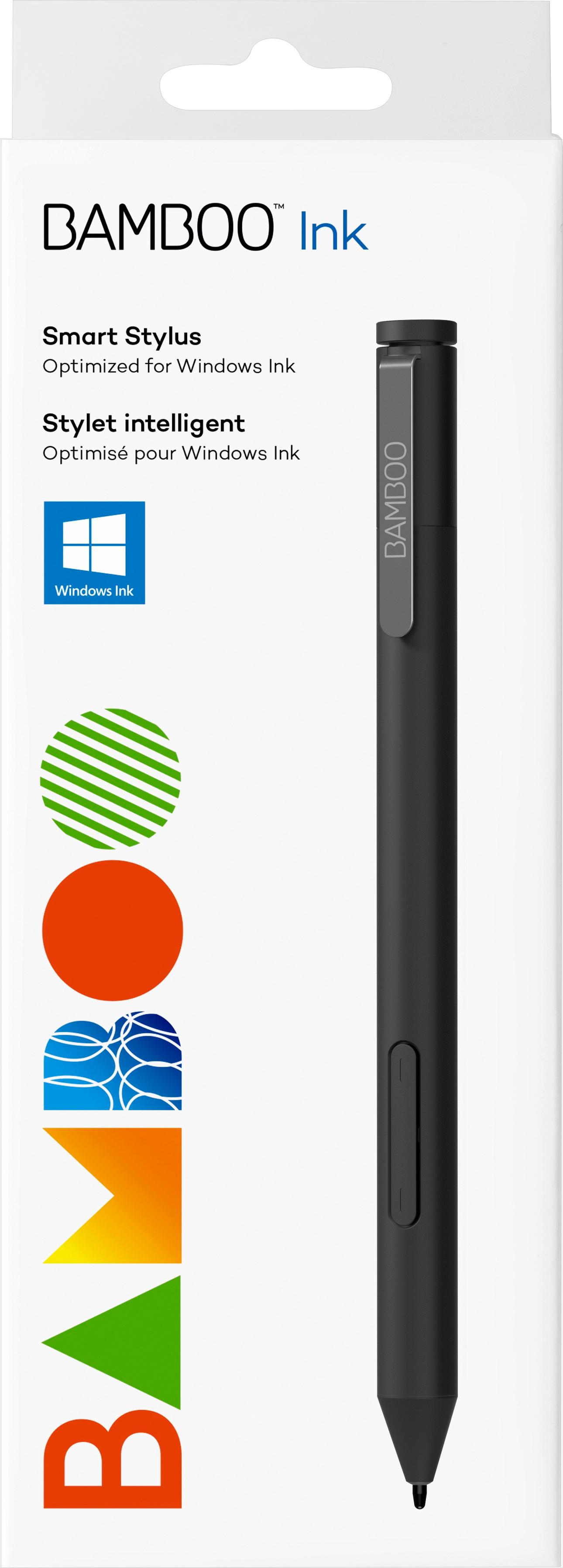
A:AnswerI think so - if the laptop is Windows Ink compatible, then it should work with this pen. Most new Windows touchscreen laptops seem to be supporting Windows Ink, at least that I've seen.
A:AnswerI believe it would, however there maybe other options for you. Dell has pens as well, could save some money and still get the same functionality.
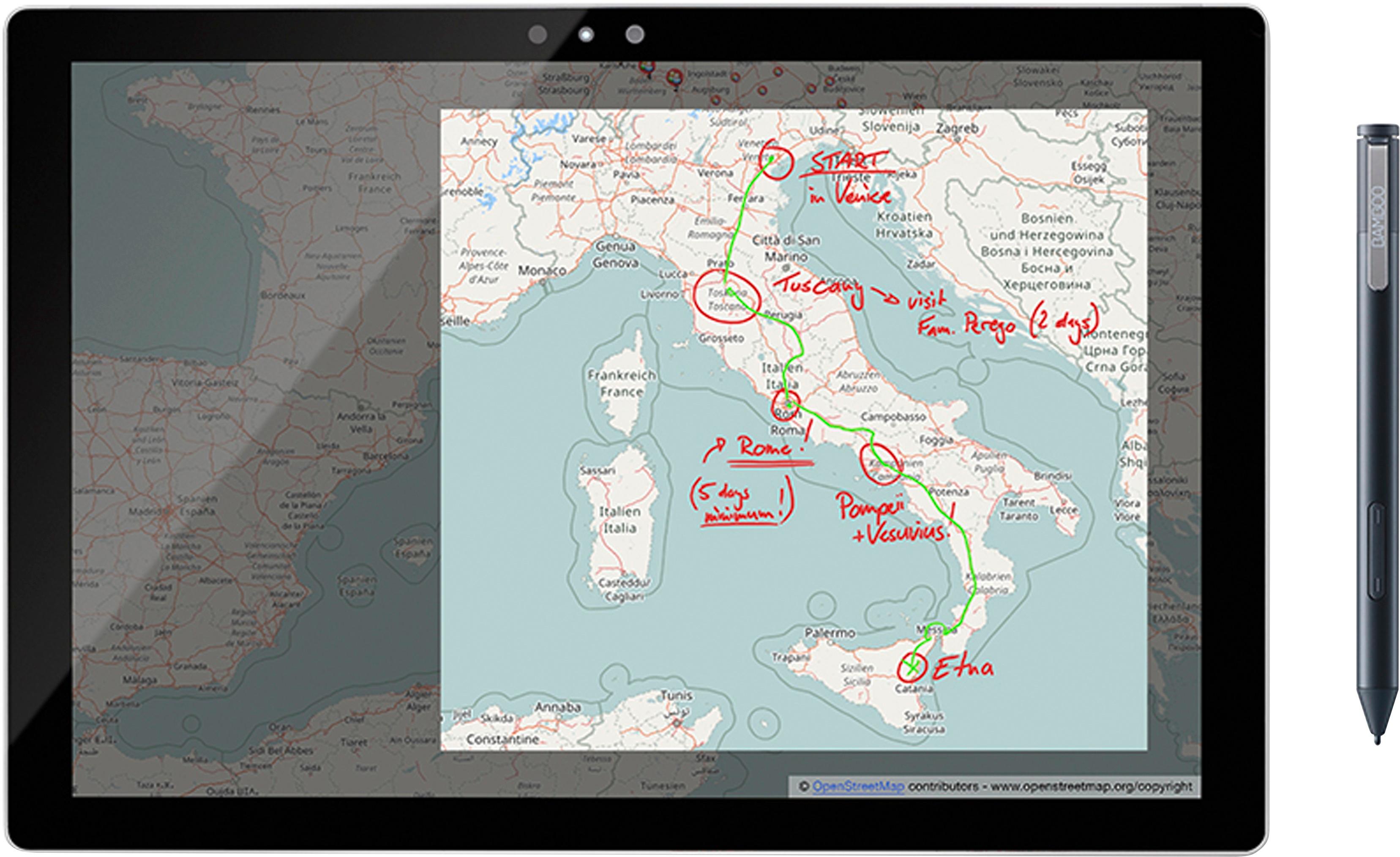
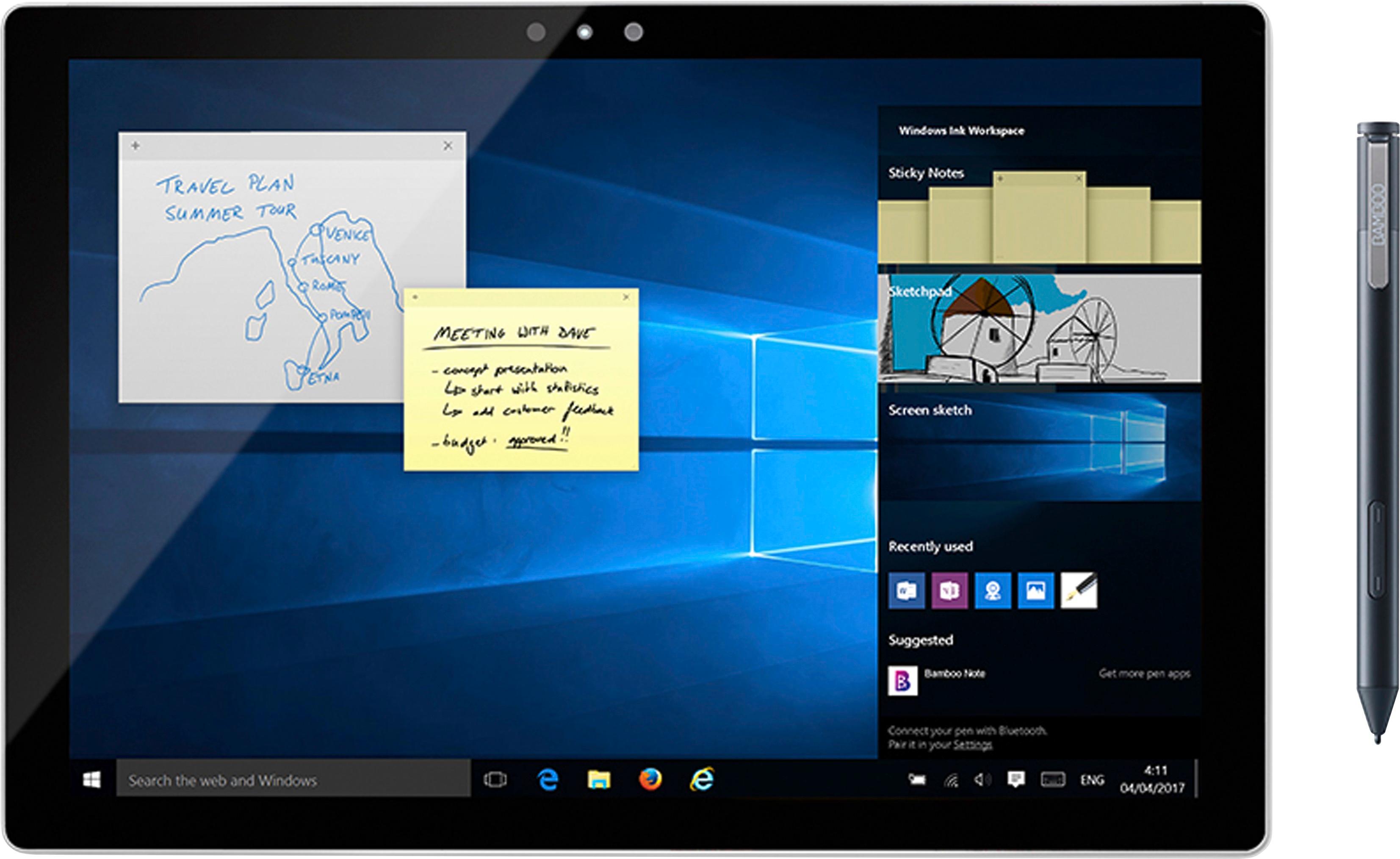
A:AnswerYes. Windows ink is not an application. It is the technology and concept of using an active stylus in Windows. Some applications make special use of the pen, but most at least let you use it as if it were a mouse. It the application is designed so you could use a mouse to draw, you can use the pen to do so. If it is something as un-graphic as notepad, you can still use the pen to place the cursor, just like you would by clicking the mouse where you want it.
A:AnswerAccording to the directions it shouldn't matter. It has palm rejection...maybe its me but I never got that feature to work properly. My pen works better with my palm up, pencil down. I have no problem writing from my prefered angle. You can adjust the pen angle for how you write.
A:AnswerI also was told by a Best Buy salesperson that this PC was compatible with the Bamboo Ink. I was quite frustrated when I later found out that it apparently ISN'T. The other computers in the 7000 line, the 13 and the 15 inch, are, but the 17 isn't.
There is serious misinformation about this going around, because as recently as this past week this computer was still being advertised in their weekly circular as being "Built For Windows Ink", when it's simply not true.
I love this computer, but hoping to use it with an active pen was a small part of my decision in purchasing the product so I do feel somewhat misled by their employee and also their advertising. Very problematic. I am not returning the computer, because I actually am quite happy with it otherwise, but was expecting this capability to be there and it isn't.
I do know of at least one other person who made a buying decision based on this information and it turned out to be false. I'm attaching a screen capture of their weekly ad for this computer that suggested the active pen compatibility
A:AnswerI just bought the same computer, good choice! Did you put in the battery? Did you close the top and line up the little solid dots on the pen? Is the battery still good? Did you pair the pen to your laptop through bluetooth? If you can use the pen as a mouse, it's likely just be a bluetooth issue.
The box the pen came in has a manual slipped inside the plastic holder thing (it's kind of hidden), it has good instructions on how to configure the bluetooth connection.
A:AnswerThe only 7000-series laptop I found that was pen-enabled was the 7568. Look under Settings>>System>>About and check for Pen and Touch. If pen isn't supported, you're out of luck.
A:AnswerI definitively cant say that it will. I bought one for my surface (last years model). And it worked immediately. It works better than the surface pen.
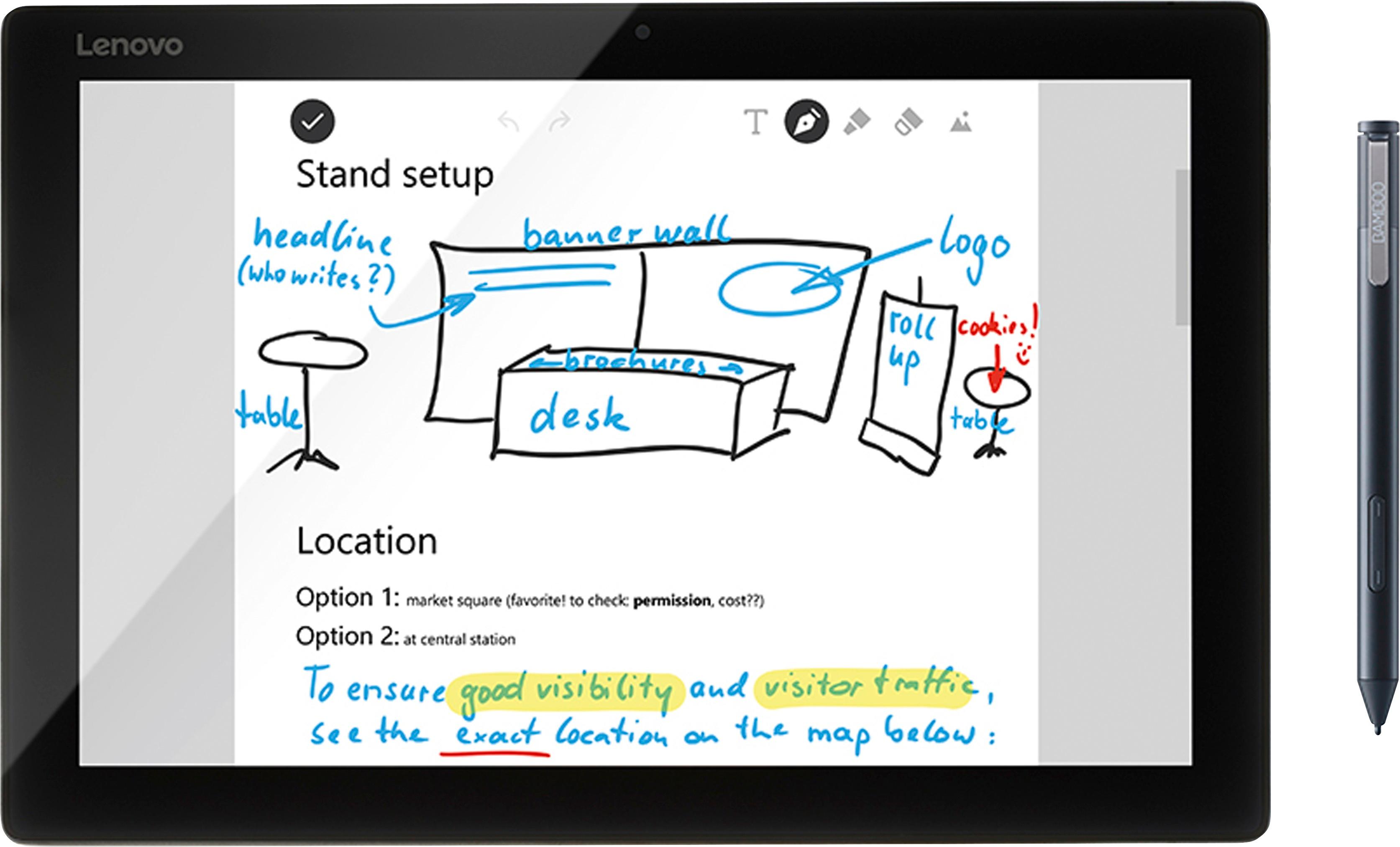
A:AnswerHi there, thank you for asking. The model of 2-in-1 tablet you are sharing is not inside the tested devices. Now that said, that doesn't mean is not compatible, it means you will need to make sure that your Lenovo device supports either MPP (Microsoft Pen Protocol) or AES (Active Stylus), for this you may need to ask the manufacturer (in your case Lenovo).
But with all that said, you may just simply need to change the way the pen is pairing as if you have it in AES mode and your device uses MPP, it won't work unless you change the pairing option. That is outlined inside the Getting Started for Bamboo Ink at wacom.com
Please feel free to reach out to us on weekdays between 6 am and 6 pm PST to 855-MY-WACOM. Best
A:AnswerThank you for asking. No, this is not compatible with iOS devices in general lines.
For your iPad you will want to explore either the Bamboo Fineline or the Bamboo Sketch. Hope that helps.