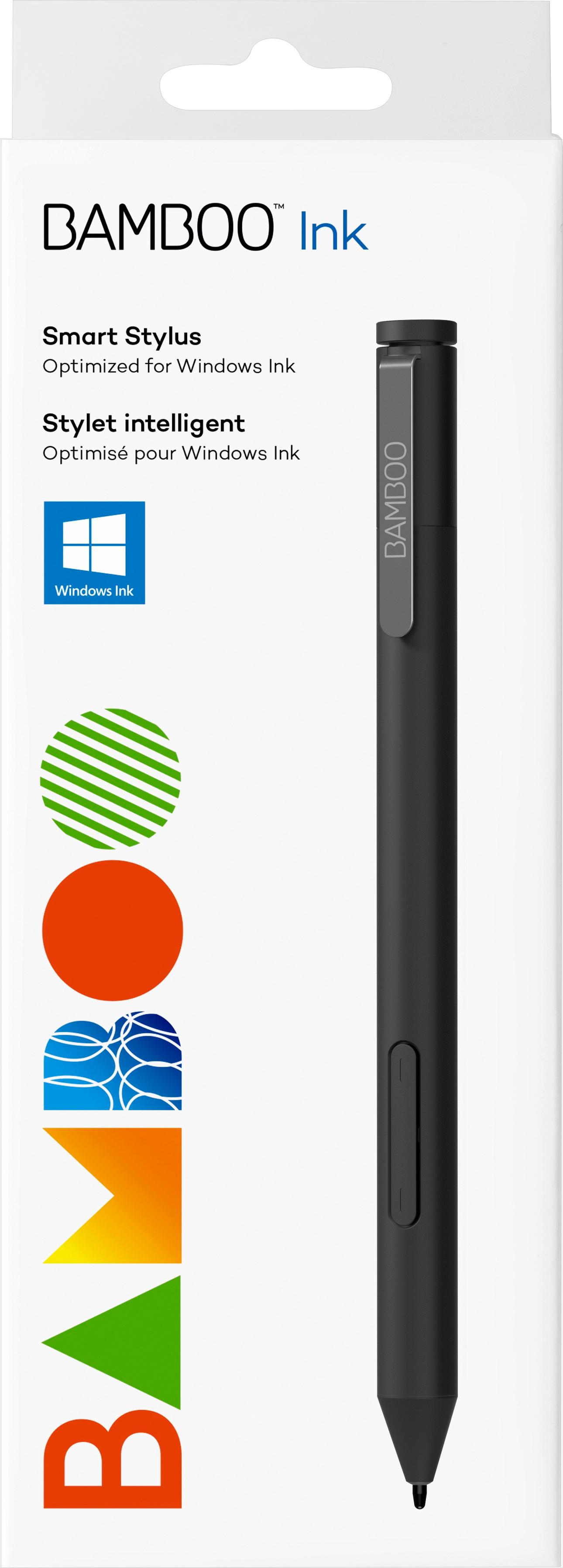
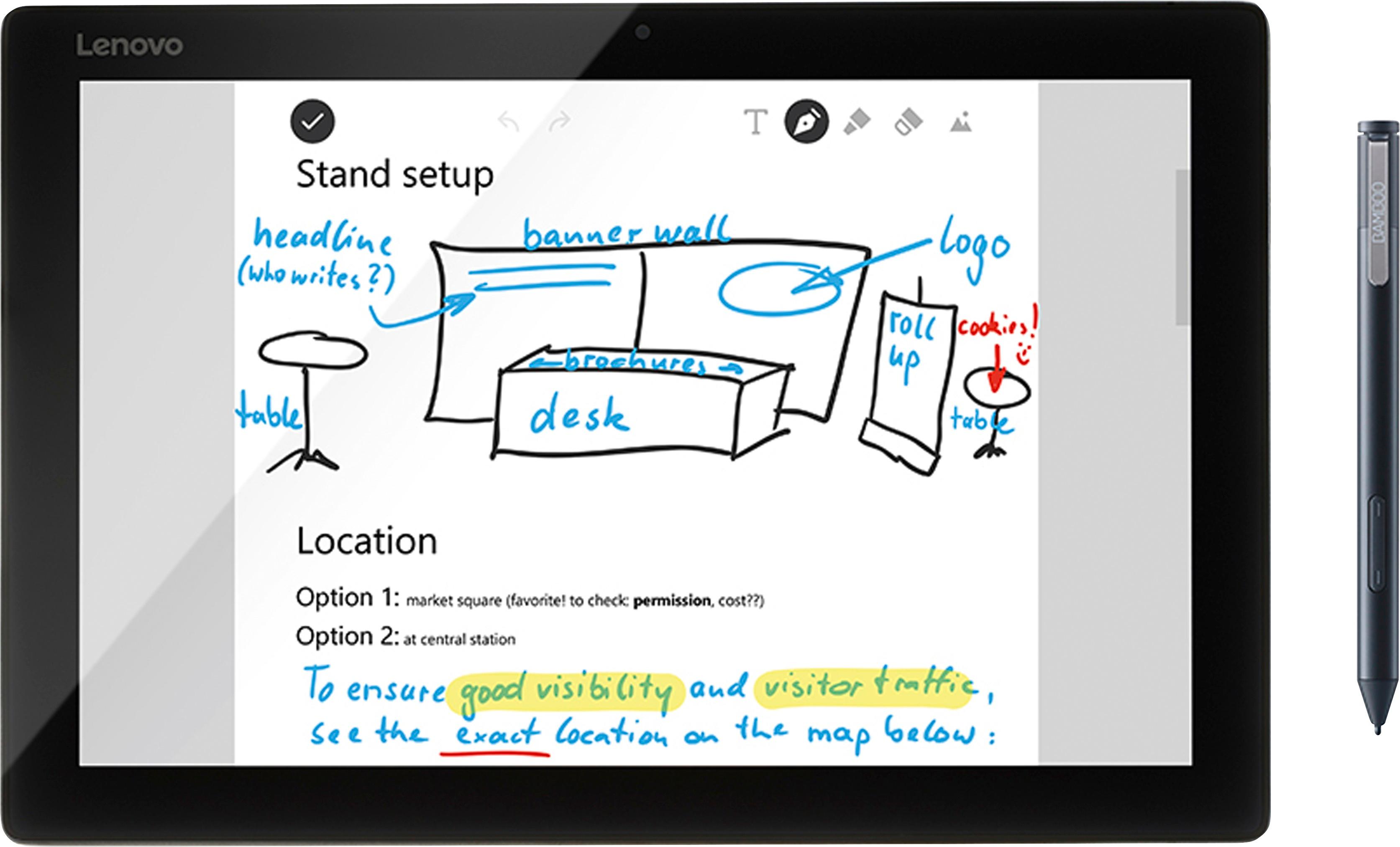
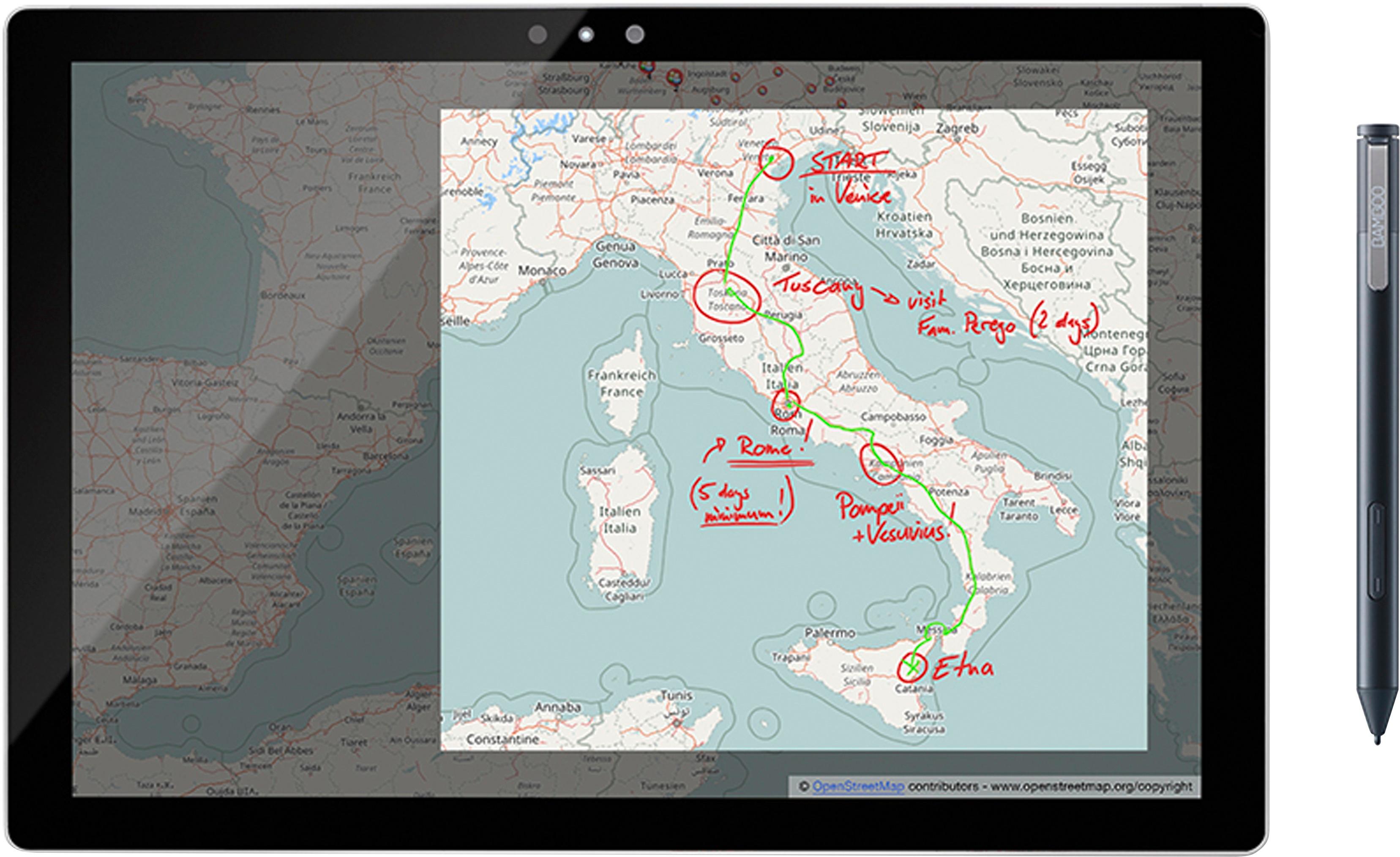
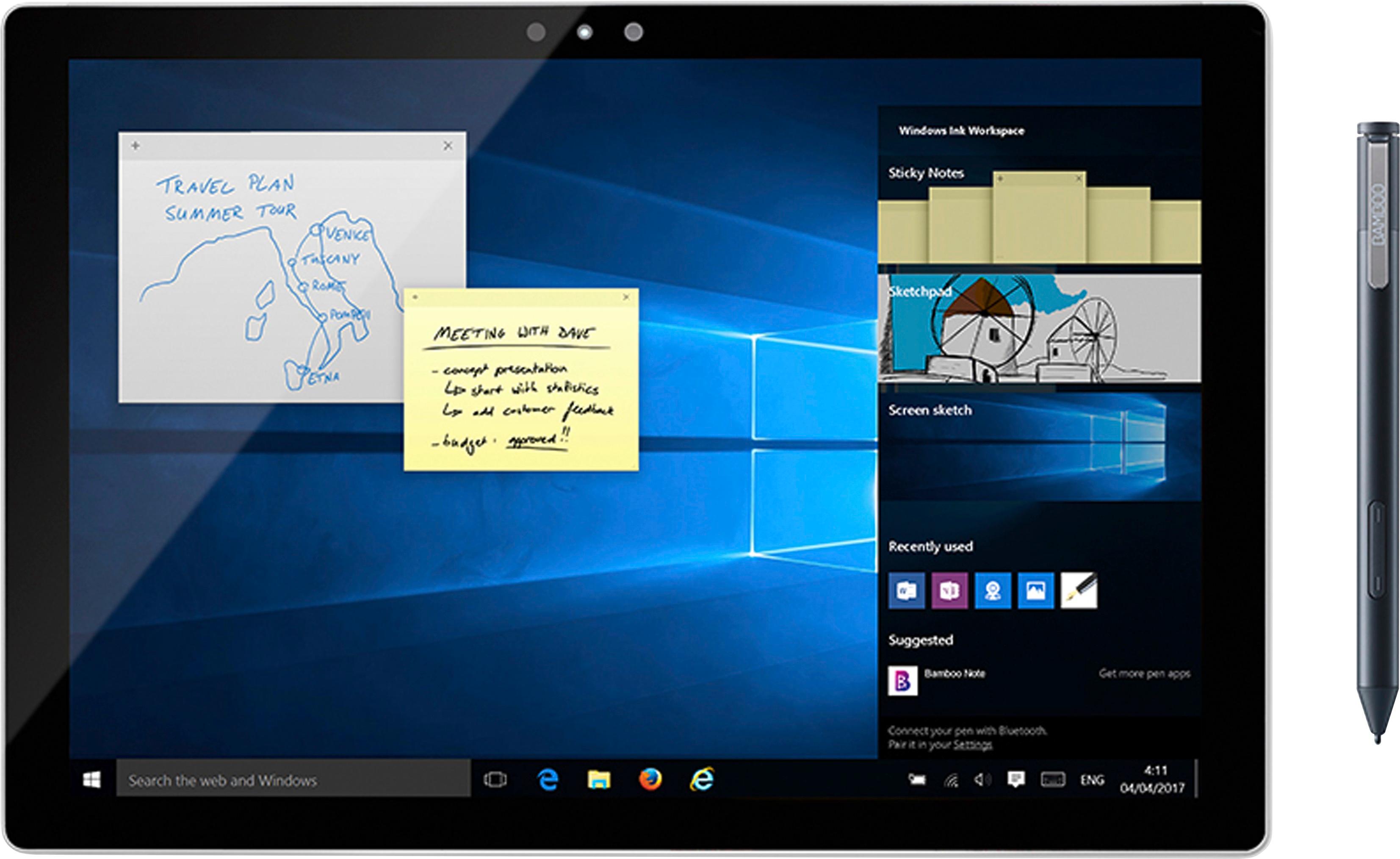
A:AnswerThere are 2 protocols for the pen and it sounds like your device doesn't use the default. On our Envy, we had to do this. Simply hold down both sides of the button on the side of the pen for 2 seconds and it will blink twice and change to the other mode. Then it should pair. Good luck! It is a great digitizer. (Step 4 on the "Getting Started" page explains it more: http://www.wacom.com/en/getting-started/bamboo-ink)
A:AnswerPlease try both of the compatibility settings as shown in the manual. If your device is compatible with neither, try a universal stylus. Universal styluses are compatible with all touchscreen devices and require no wireless setup
A:AnswerHello and thank you for reaching out about the Wacom Bamboo Ink Smart Stylus able to work with the Lenovo C940. While Wacom tests on a wide variety of Lenovo laptops, not all are tested. However, if the Lenovo C940 supports Microsoft Pen Protocol, then the Bamboo Ink Smart Stylus and other pens may work. If you have any further questions I'd like to invite you to reach out to us on weekdays between 6 am and 6 pm PST to 855-MY-WACOM. Best