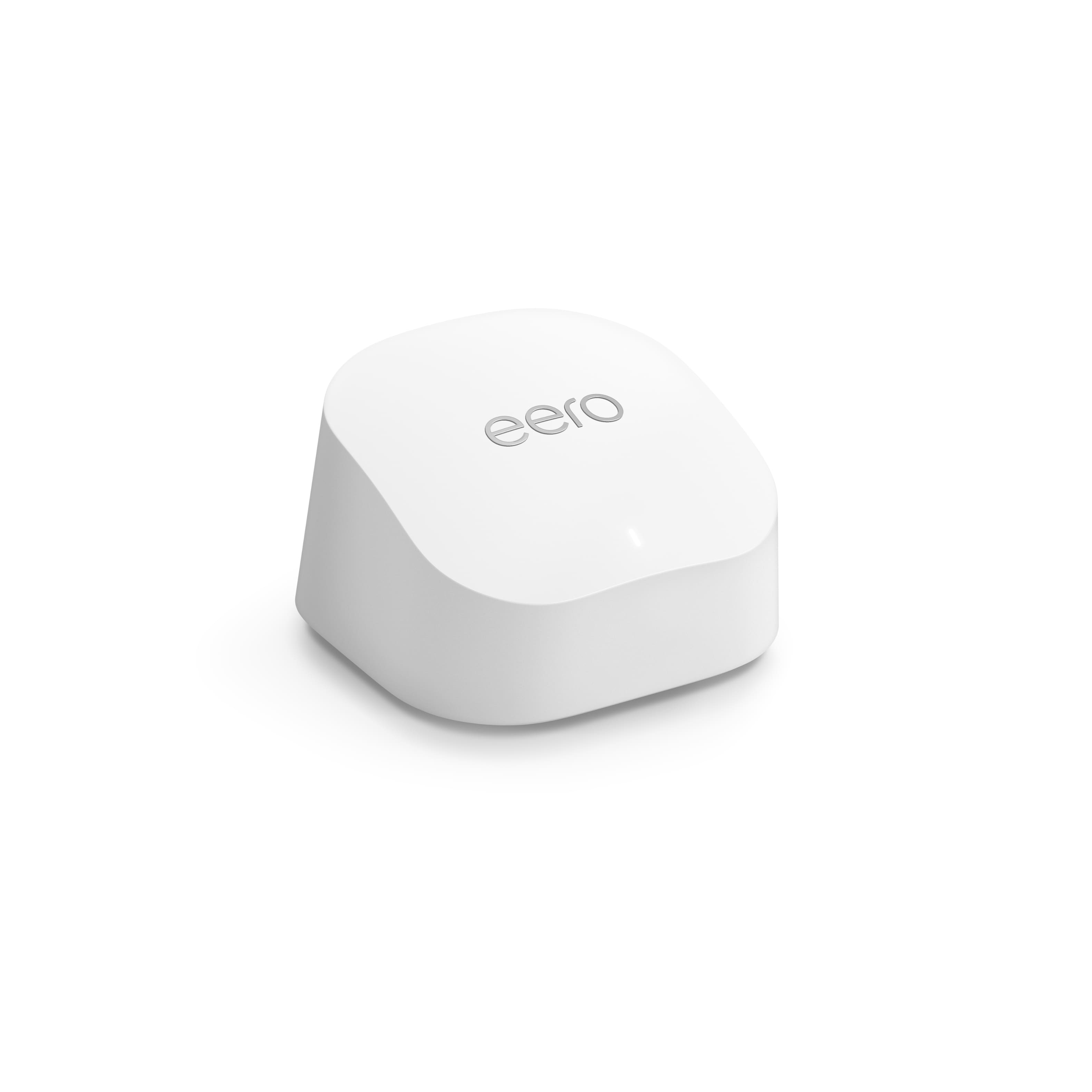
A:AnswerI cannot say for certainty, but you should be connecting the EERO to the modem vs. the router. But having said that, if your modem has an extra Ethernet port, yes you can connect to to the modem vs. via the router. But insofar as connecting to your existing router, if your router has an Ethernet port available, yes you can
A:AnswerYou should check your mbps speeds, if you have a lot of devices connected and using it for gaming, streaming, etc and a low mbps there’s the issue. You should look into upgrading to 90+mbps which is good for 4-6/or 10devices. If your issue is you’re far from the wifi router or on a second floor getting eero6+ and the extenders would be such a life saver as it makes the wifi flow all throughout. Hope this helps!
A:AnswerYou said it right.
Or else you can setup these three as new networks by connecting ethernet cable from your current setup. You just need to plug ethernet in one unit of eero, rest two will backhaul by it self wirelessly and if you keep same SSID (wifi name) & password as current setup you don’t need to add all wifi devices. They will get it automatically
A:AnswerHi so it’s very simple, you’ll keep your xfinity modem you only unplug the xfinity router, set it aside and get the eero device and connect it to the modem as if it were the xfinity router. If it’s the providers device you could return it. Hope this helps.
A:AnswerYou can plug one end into the modem (network cable) and the other into the eero. it replaces your router function and then provides wifi to your place.
If you ISP is providing wifi, you can then have them turn theirs off since you now are using an eero to do this.
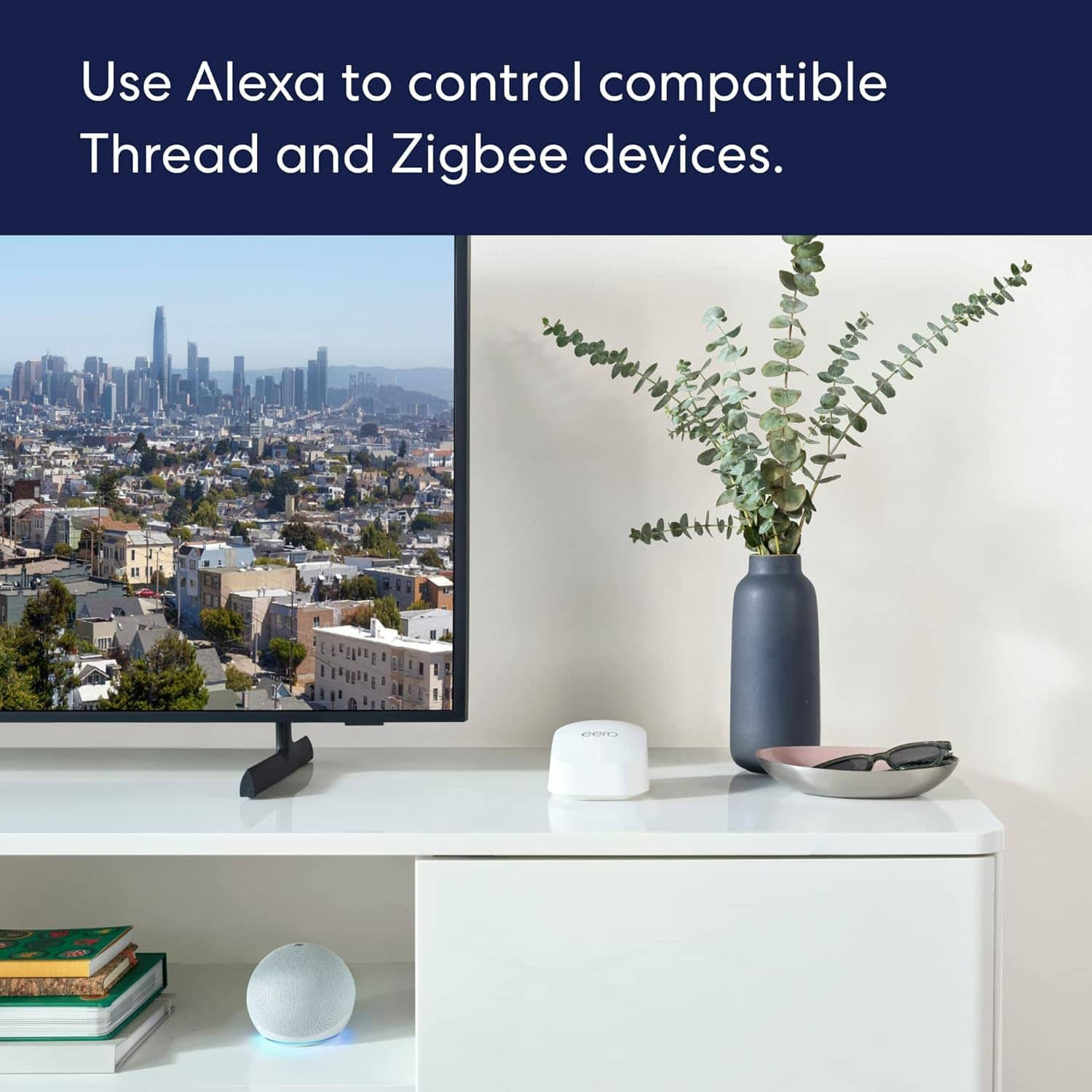
A:AnswerAlexa will recognize that there is a new device and will set it up automatically. If for some reason she doesn’t then you can just open the Alexa app and hit add a new device.
A:AnswerThat's hard to answer. What obstacles could potentially block or hinder the signal. You may want or need an extender that plugs in to outlet. We had to use one in the house and it worked great.