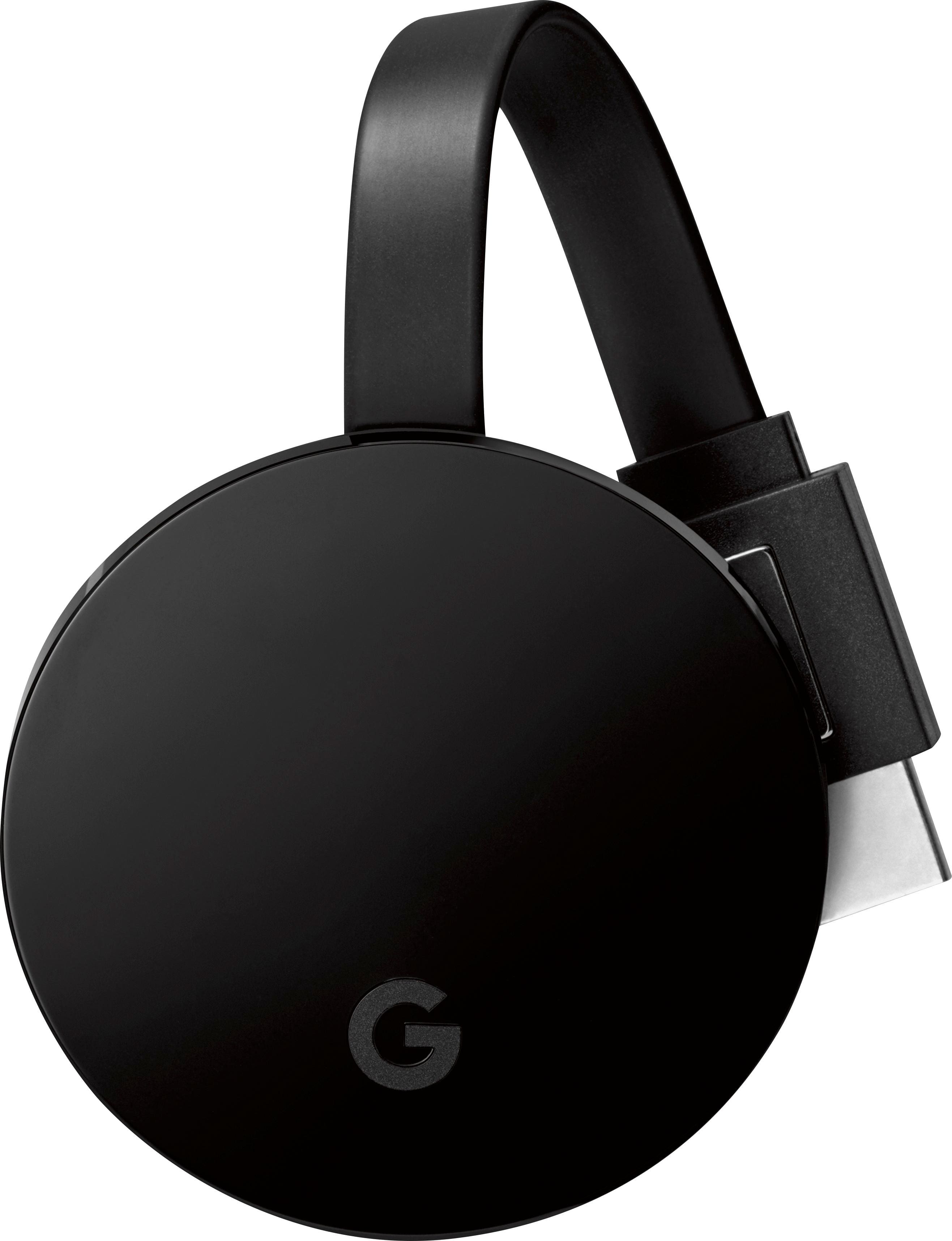
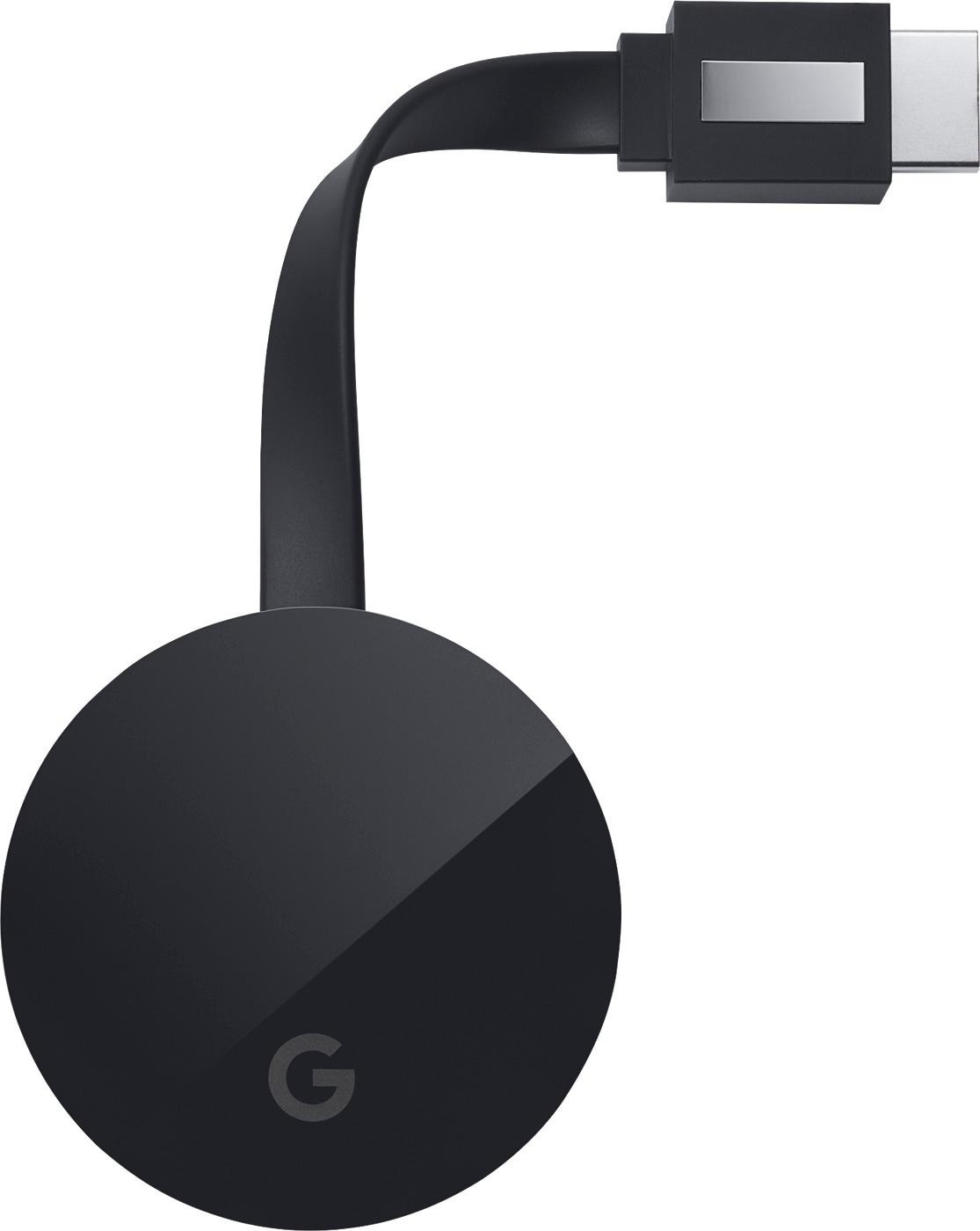
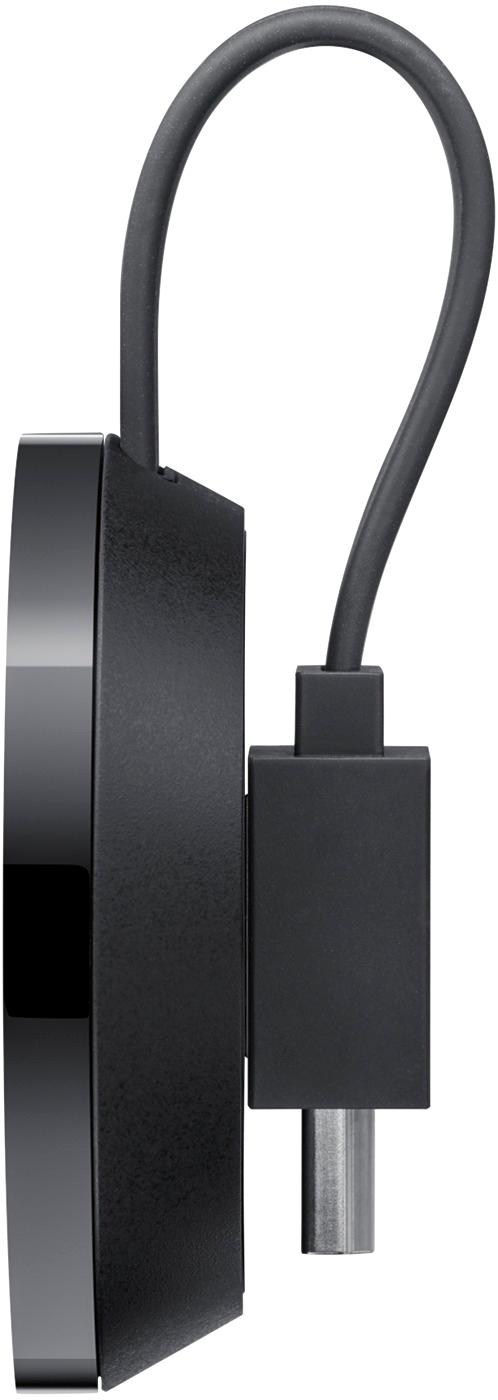
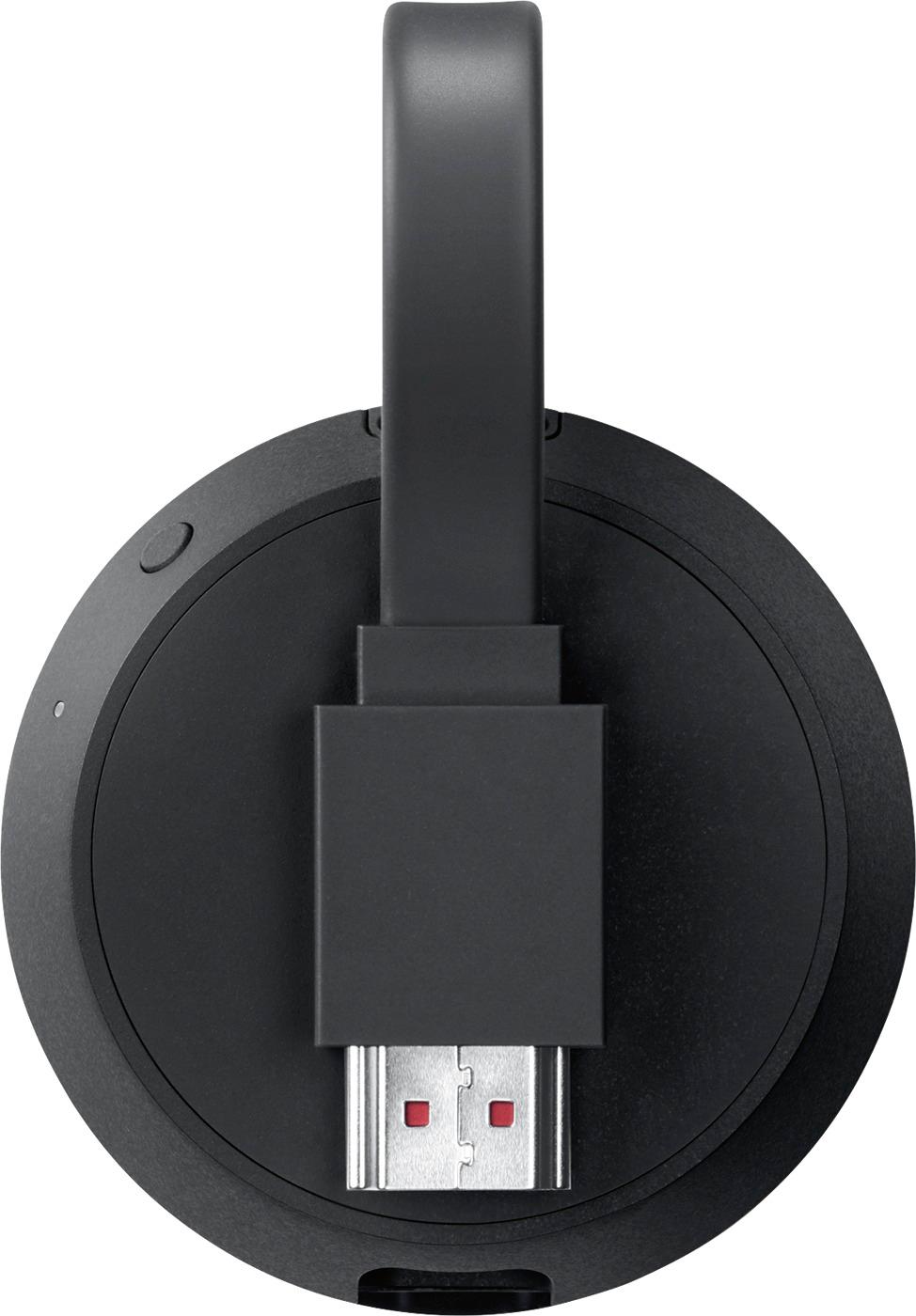
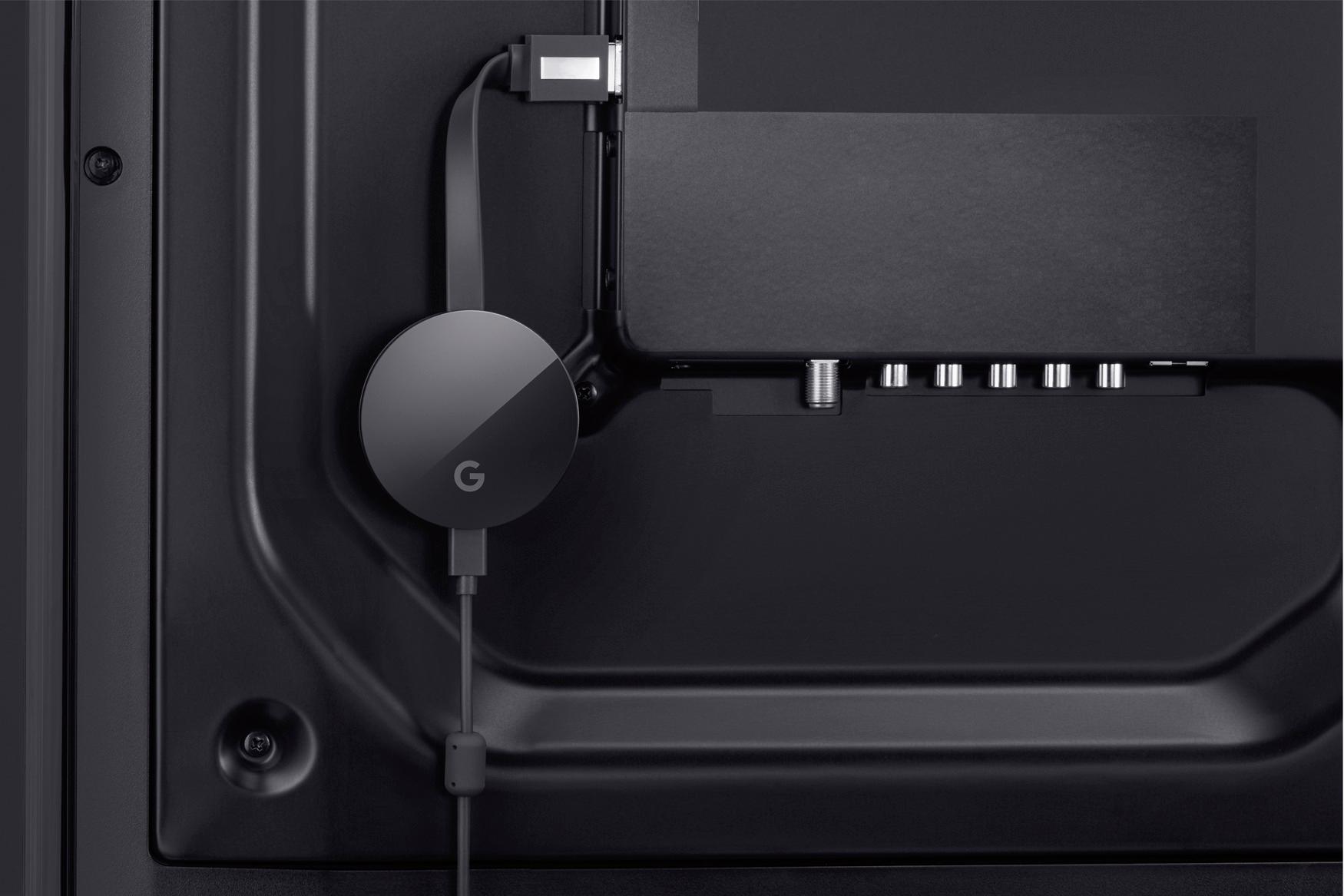
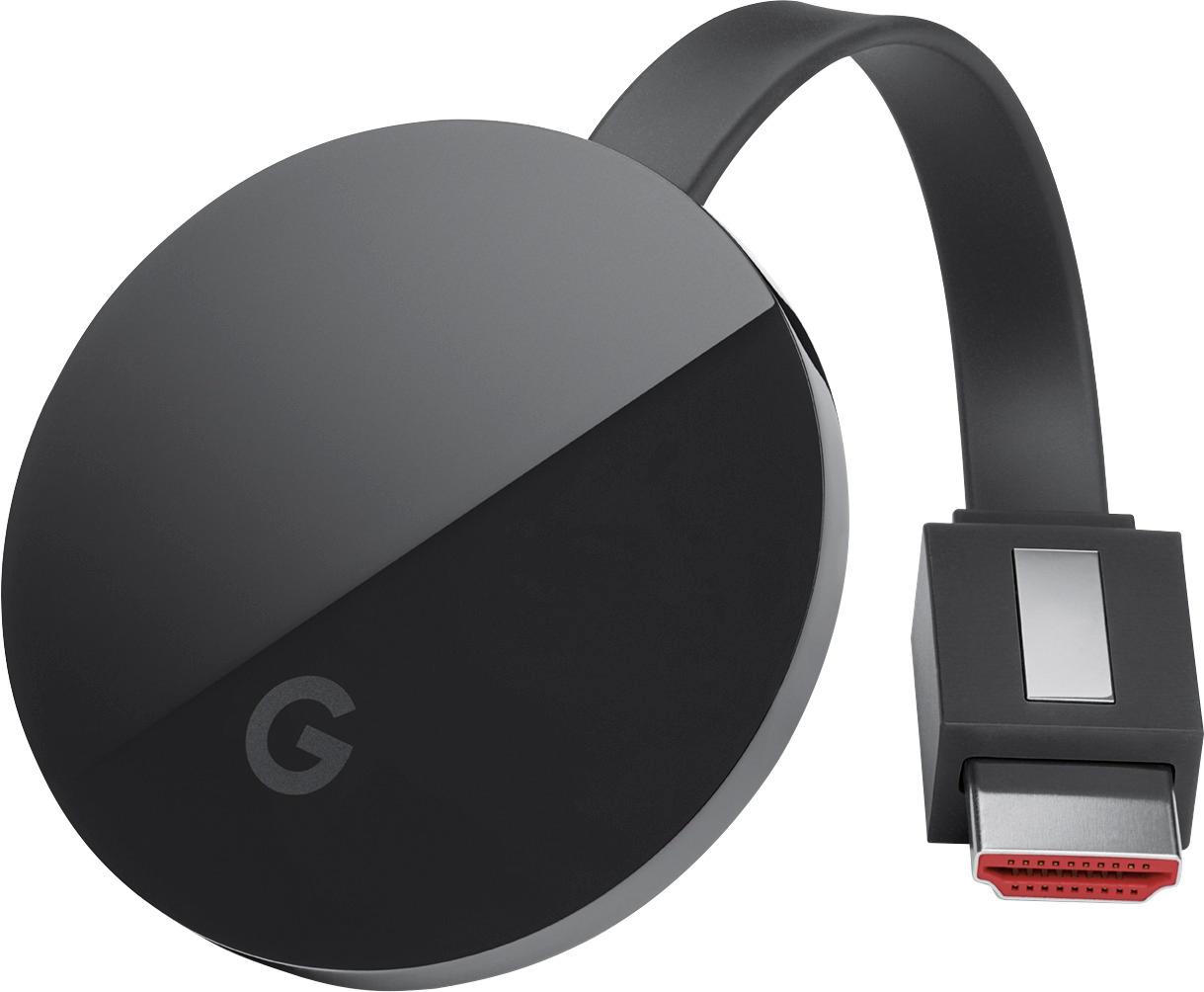
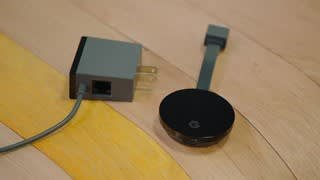
A:AnswerHi, as the late William F. Buckley used to say, "I think not." The device needs an HDMI input on the TV, it comes with a power adapter which has a micro usb connector which plugs into the device to power it. The power adapter plugs into a 110VAC wall socket or power strip, the setup instructions do not indicate that you can use a usb port on the TV to power the device. If the device will allow this, you will need an additional cable which is not provided in the box. In addition, note that unlike Fire TV or VUDU Spark(other streaming devices) this device does not come with a remote, instead you install an app on a phone which becomes the remote.
Regards, Chris.
A:AnswerNo unless you are usually on a super old and slow device. This thing will perform at speeds which are currently typical. It uses your TV as a display only.
Performance will be up to par with industry standard
Quality will depend on your TV/HDMI display
Speed will vary depending on your wifi network internet speeds
A:AnswerI don't think you can search the net right out the box. But it might have an app that you can use. I tried search the net and had no luck. But I was able to put kodi on the stick from the stick it self.
A:Answer4k yes h.265 don't know. I don't think they even supported h.264.
And of course it will downscale a 4k video. But hdcp 2.2 required for tv hdmi if content is protected. So my point is if its in 4k there is a different version in 1080 why would you watch 4k content on a 1080 tv. Hdmi communicates between tv and source to allow 4k so if tv is not 4k then the source will never send it to the tv
Hope that makes sense
A:AnswerUnfortunately, Peacock isn't a supported app. You can check this link to see and check all Chromecast supported and partner apps: https://store.google.com/us/product/chromecast_apps?hl=en-US
A:AnswerYou can definitely use Chromecast to stream Disney+ on your smart TV via Chromecast as long as your smart TV has an HDMI port. Use the cast-enabled app on your phone/tablet or a Chrome browser tab on your laptop/computer to cast. Keep in mind that Chromecast and your casting device should be connected to the same Wi-Fi network.
A:AnswerYes, you need to have a Wi-Fi network to cast videos and photos from your Android phone to Chromecast TV. Make sure that both your phone and Chromecast are connected to the same Wi-Fi network.
A:AnswerYour phone works at the remote and you stream everything directly from your phone. You do not lose video quality over the stream. So for example you would open netflix on your phone and click the "Cast to" button and select the device the chromecast is connected to. Once it is streaming you can scroll on your phone for different movies or show to watch. It all works roughly the same with the other apps that it is compatible with (Youtube, etc.)
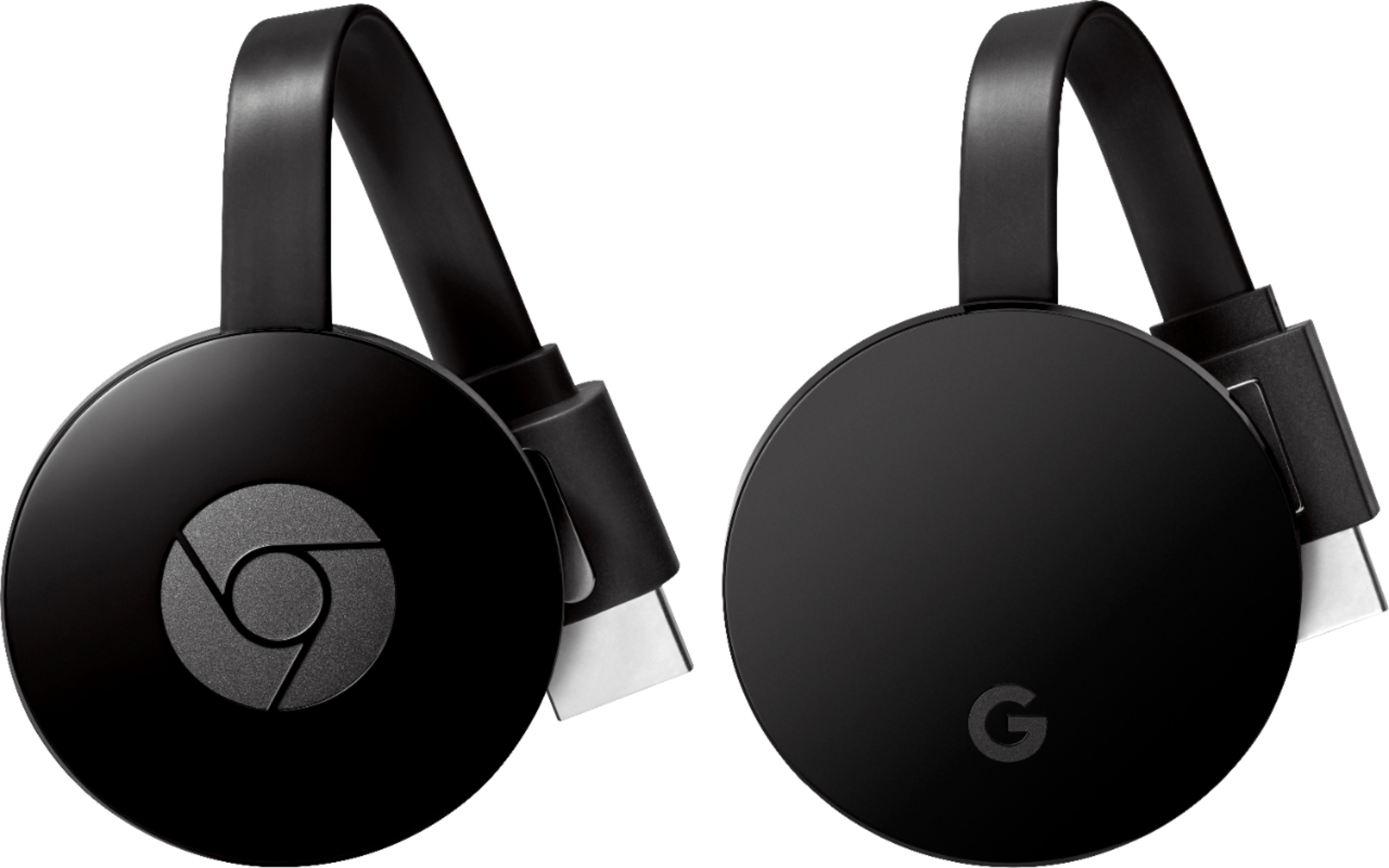
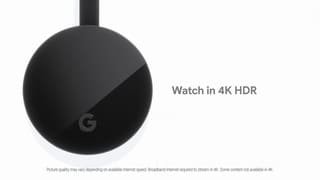
A:AnswerChromecast Ultra should work with any television or display that has an HDMI input. When combined with a 4K, HDR TV and compatible content, it offers 4K content with crisper picture, deeper color and smoother video. No matter what type of TV you have, Chromecast Ultra automatically optimizes your content for the best picture quality your TV can deliver, so you always get your TV’s maximum resolution.
A:AnswerChromecast does not include apps on itself, but you can access in any phone, tablet or laptop /pc in your household and stream it to your TV through Chromecast, so basically no need to purchase any device if you have any of the 3 I mentioned and wifi access.