A:AnswerYes, it does. I would double check the compatibility on Honeywell's website but I went from Nest to this as well (in an apartment too) and it was a smooth transition.
My system has Central air, forced air gas furnace, and a central fan (4 wires with the ground, looks identical to your picture).
A:AnswerHi there! Thank you for reaching out to us. Unfortunately, it is not possible to use the Honeywell Home app and Total Connect Comfort app without having an account; connected devices need a way to authenticate your access to your data and devices. If you have additional concerns or questions, contact us at 1-855-733-5465, or through live chat at http://www.honeywellhome.com/en/support. We're always happy to help!
A:AnswerHi TedinICT! Thank you for reaching out to us. The Aux Heat cannot be adjusted or set on these thermostats. The thermostat work with an algorithm that senses when the system is taking too long to have the heat on, that's when it is going to call for the auxiliary heat. If you have Emergency Heat (E wire connected to E terminal) you will be able to turn it on manually. When you select the "Mode", the status will appear depending on how the system is working, (Heat on, cool on or Emergency Heat). If you have further questions, at your convenience, please contact us at 1-855-733-5465. We have opened a case #00776647 for you. Thanks!
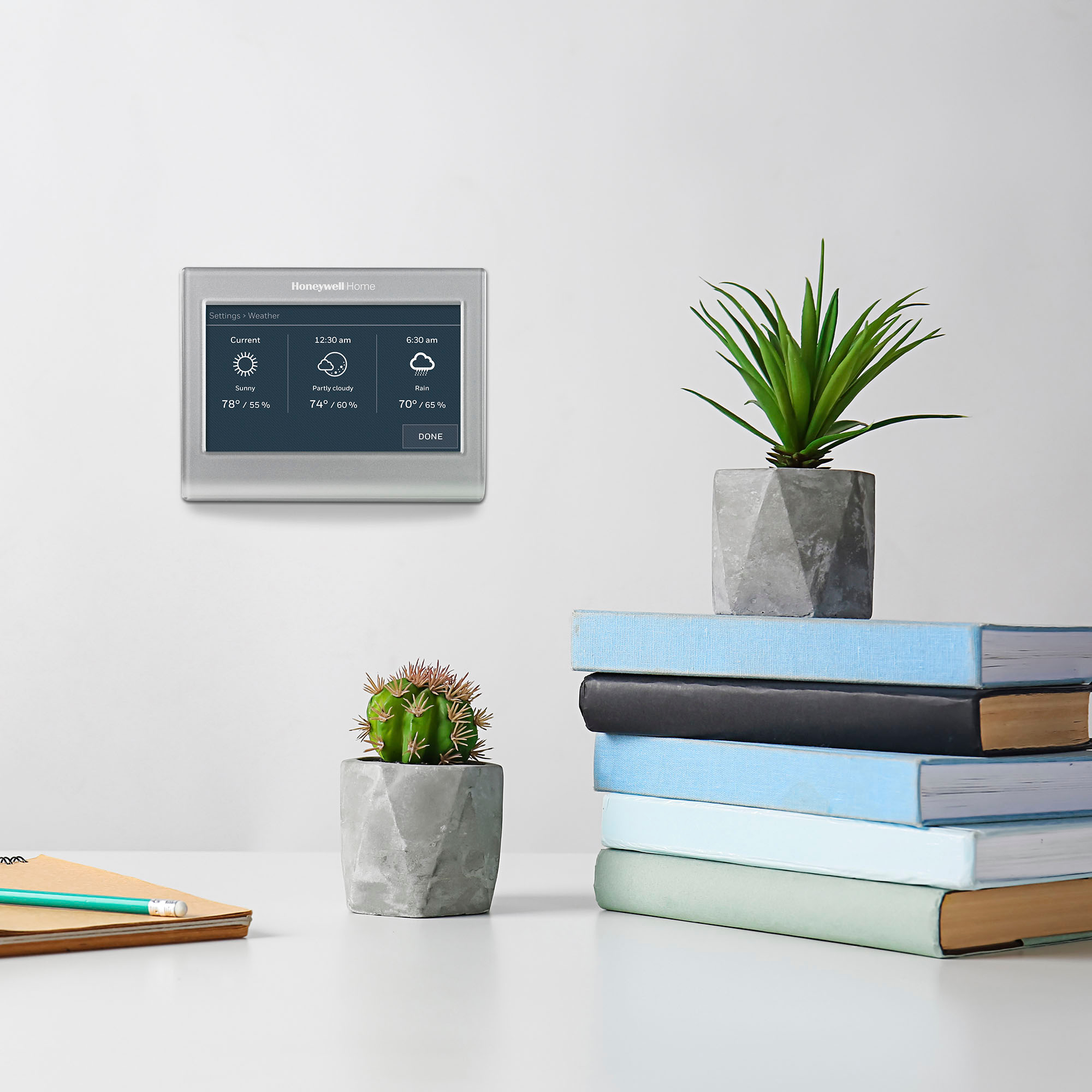
A:AnswerIf your referring to a thermometer to give you the outside temp, no, but it does give you the current outside temp via your wi-fi connection on the thermostats display
A:AnswerHi harrishouse! Thank you for reaching out. In order to reconnect your Wi-Fi thermostat model TH8320WF, please;
1) Press the system key, and you will see five blank squares at the bottom of the screen.
2) Press and hold the middle blank square, the display will show the number 0112, on the left side of the screen.
3) Press the up arrow next to 0112 until the number changes to 0900.
4) Press the down arrow next to the number on the right and change the number to 0.
5) You should have 0900 and 0. After that press "Done"
6) The thermostat will show "Wi-Fi set up"
7) Using a wireless device, go to Wi-Fi settings and select the option "New thermostat".
8) A window should come up that says "Log in WiFi set up". If you are not able to see the "Log in Wi-Fi set up" window. Open a browser and type in the IP address. 192.168.1.1. That window will show a list of different networks, connect to your network by typing in the password of your new router.
9) On the thermostat, you will see the word "connecting" wait about 3 minutes and you should have "Connection Successful"
We hope these steps are useful and if you require further assistance, please feel free to call us at 1-855-733-5465. Thank you!
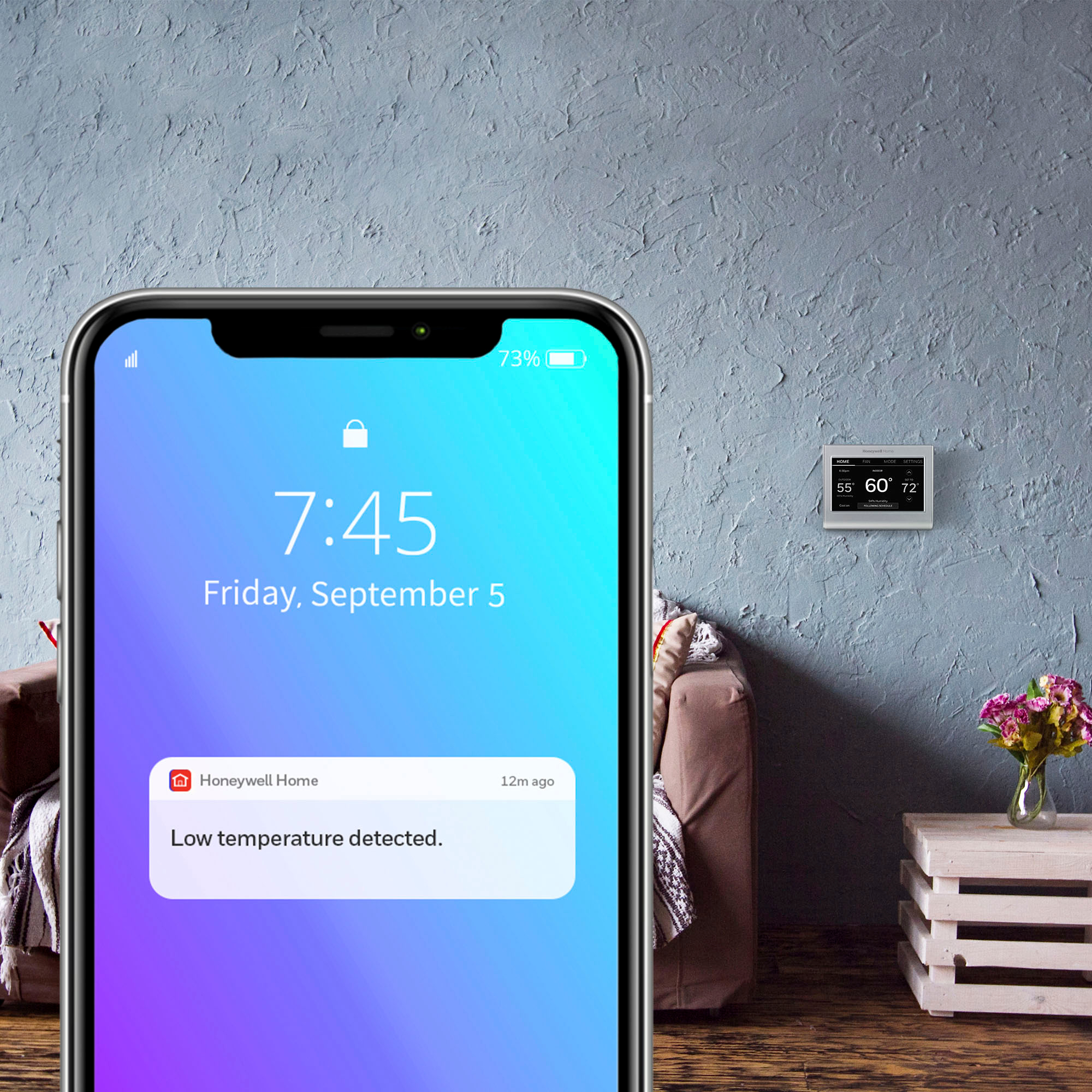
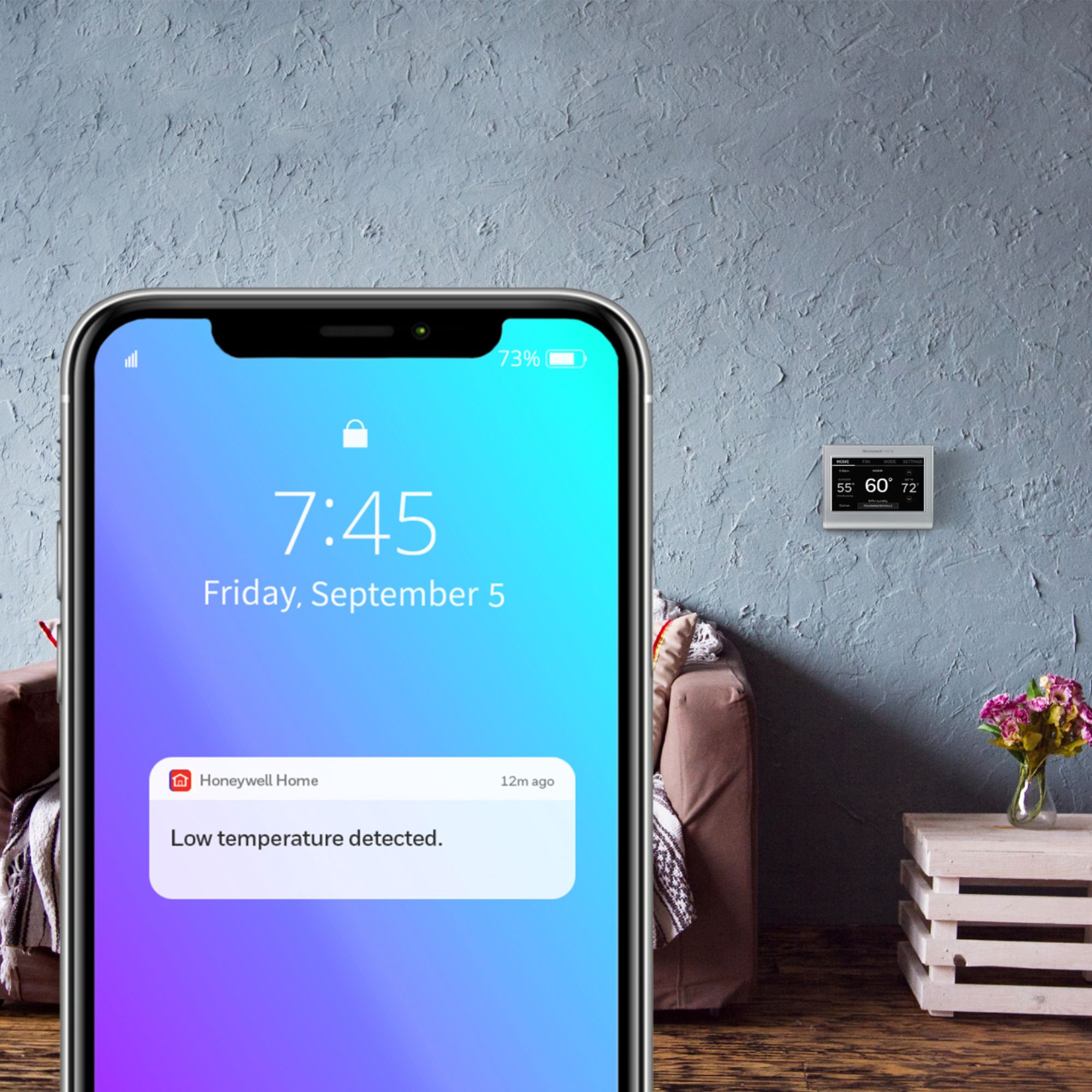
A:AnswerHi Dave! The Honeywell Smart Thermostat with Wi-Fi can be setup to alert you via email if it goes out of a specific temperature range. When you get this thermostat, you will register it to the My Total Connect Comfort website. Once the thermostat is registered, you can customize the notifications you wish to receive using the My Total Connect Comfort website. I hope this was helpful! Enjoy the rest of your day.
A:AnswerThere is no AI in this thermostat
It will measure how long it takes to reach your designated temp and kick in the cycle (recovery mode) a bit earlier than the schedule based times so as to achieve your desired temp at your desired time but that is the extent of its self learning capability
it is fully programmable with 7 days 4 changes per day but you would have program it and the thermostats schedule screen walks you through the schedule setting. It takes about 1 minute to program a 7 day calendar
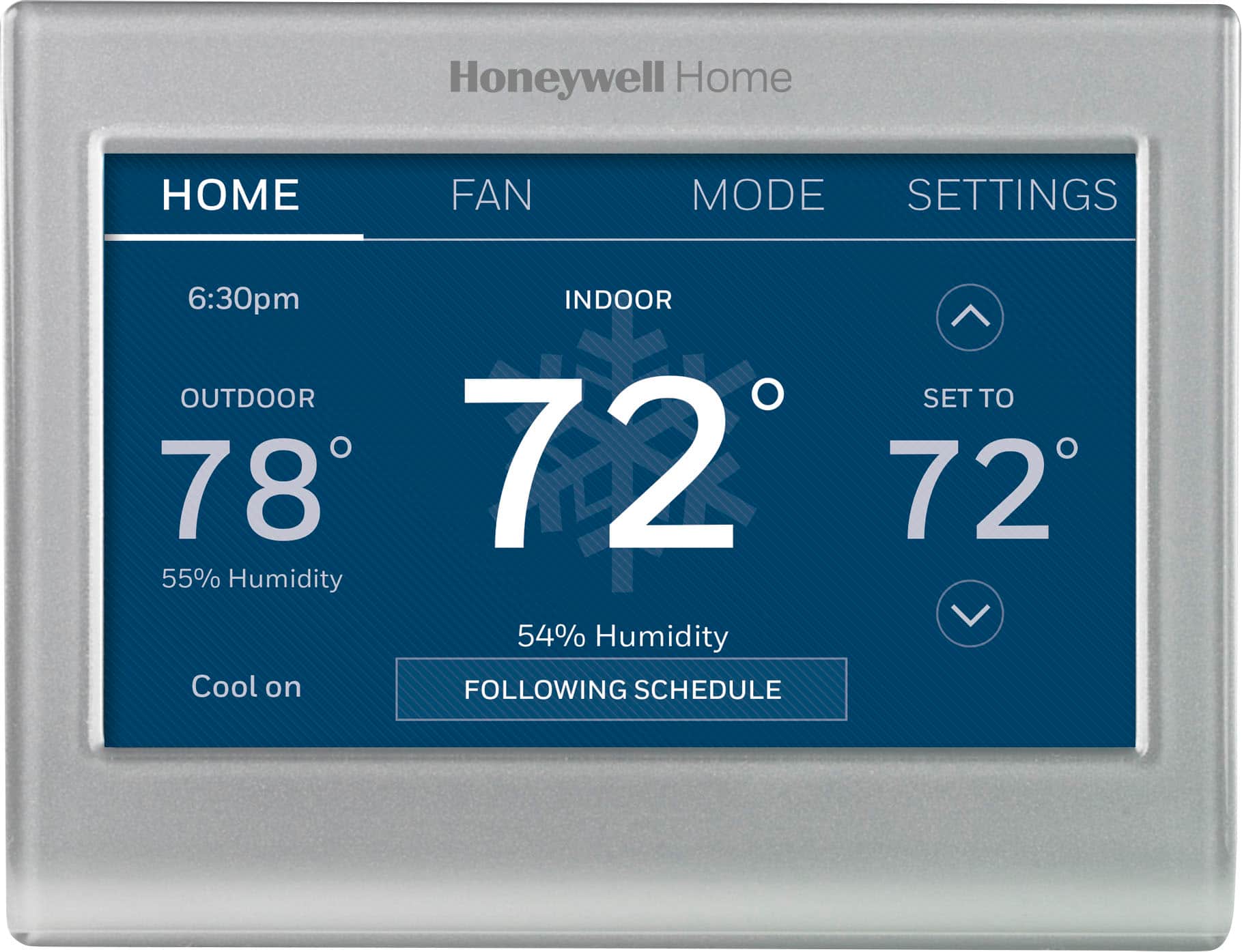
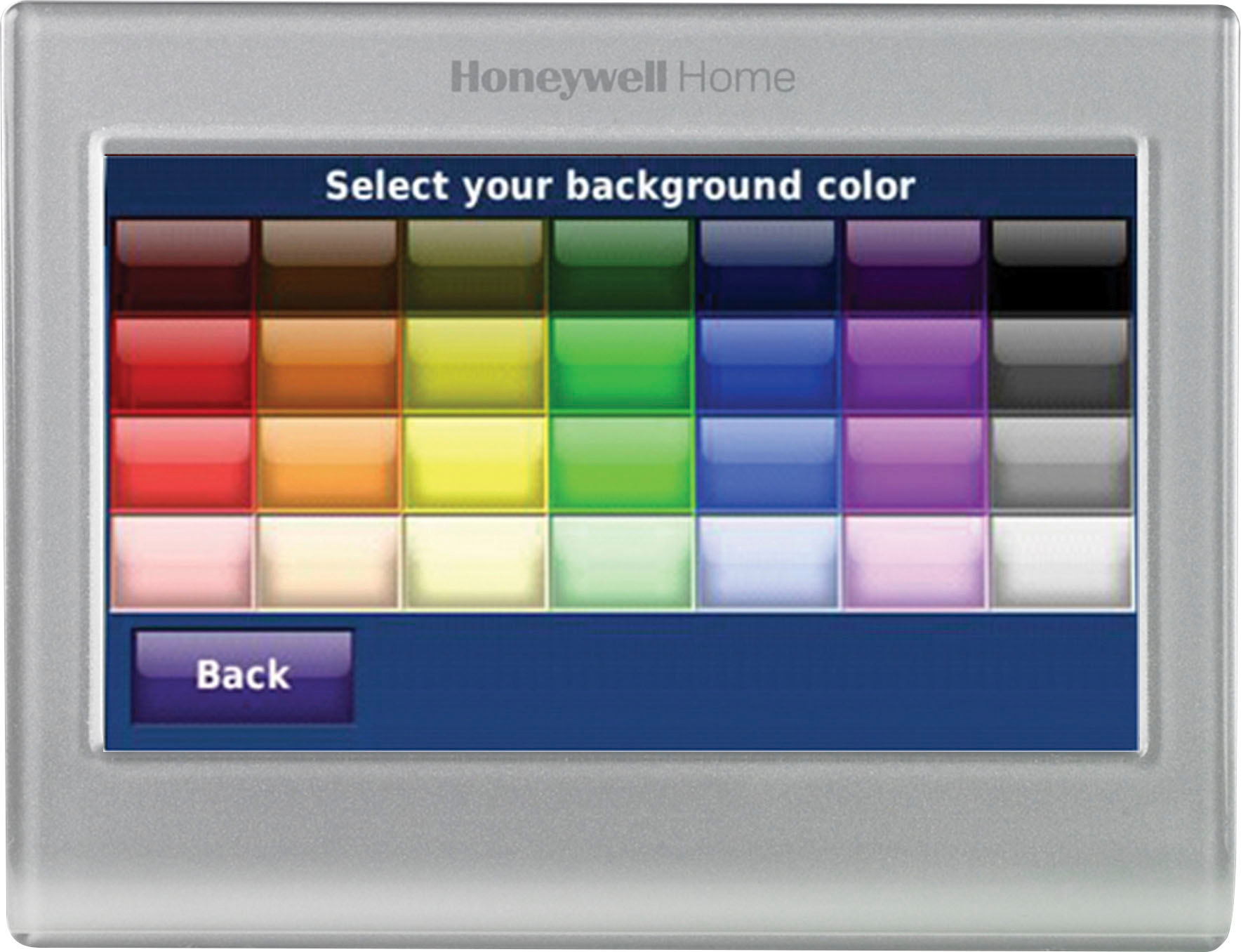
Manual is great and it’s touch screen so changing settings, updating and setting schedule is a snap
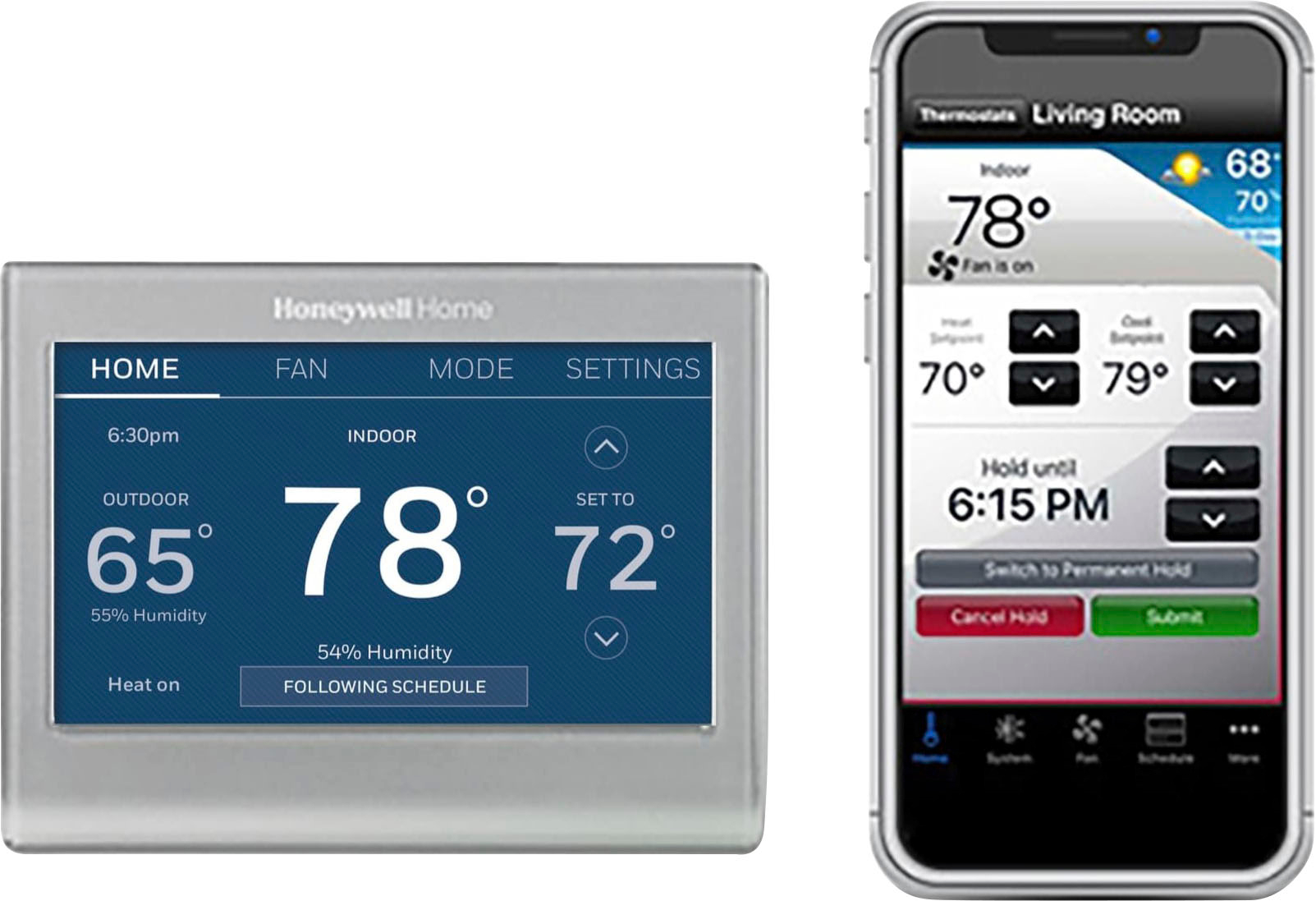
Wifi app is great and you can access your thermostat from anywhere in the world and at any time to view it or change settings and it’s easy to use and very intuitive
It requires you to connect it to your homes wifi and it requires power from the C wire from your heating/cooling system to operate
A:AnswerI had some trouble with mine saying sensor error replace thermostat. I reset the tstat to factory erasing everything I programed and it seems to have fixed the problem. Hope it works for you. You might also have a wifi problem, wifi problems. Usually won't let you sign in. I would just reset and start over
A:AnswerThis does require a "C" wire to operate. The "C" brings power to the place the thermostat is mounted to the wall and this does need that power. If there isn't one on your current thermostat it isn't hard to get one there usually. There are usually 1 to 2 extra wires on the bundle behind your current thermostat. One of those can be hooked up on the control board "C" terminal and now you have a "C" wire at the wall mount location. As long as your system is a usual 24V system. If you're not sure then you should have your HVAC company look at it and let you know. If you're installing wires yourself heed the warning to turn off the breaker at the main panel while working. There is usually not enough power to electrocute you but you can easily short out the main circuit board on your system. Even with all the precautions check your wires. I didn't see it and the insulation was split on one wire at the thermostat and blew a fuse when I turned the power back on. Luckily that was an easy fix but it could run into a couple of hundred dollars if you fry the board! Good Luck!
A:AnswerYou will need to have wifi to use the app on your phone. Otherwise you can set a schedule manually on the thermostat for the temperature of your choosing
A:AnswerNo - but depends on your DIY comfort level. If your existing thermostat has a "C" (common) wire supplying continuous 24 VAC, then this should be a simple change out. If your thermostat has 3 wires (eg heat and fan or AC and fan) then you'll need to pick up 24VAc either by installing a plug-in transformer nearby or by running a new line from your furnace. Honeywell posts a lot of DIY videos to support installation of their thermostats so you might give those a look to see if it looks OK to you.
Good luck!
A:AnswerYes this Tstat will receive updates via wifi. It also sends monthly heat & cool info to your email.
It does not appear this RTH9585WF Tstat controls CPH directly. If you change the heat source settings (default is forced air/gas-oil) you may be able to change the CPH. At least that is what i have read in blogs on this Tstst..