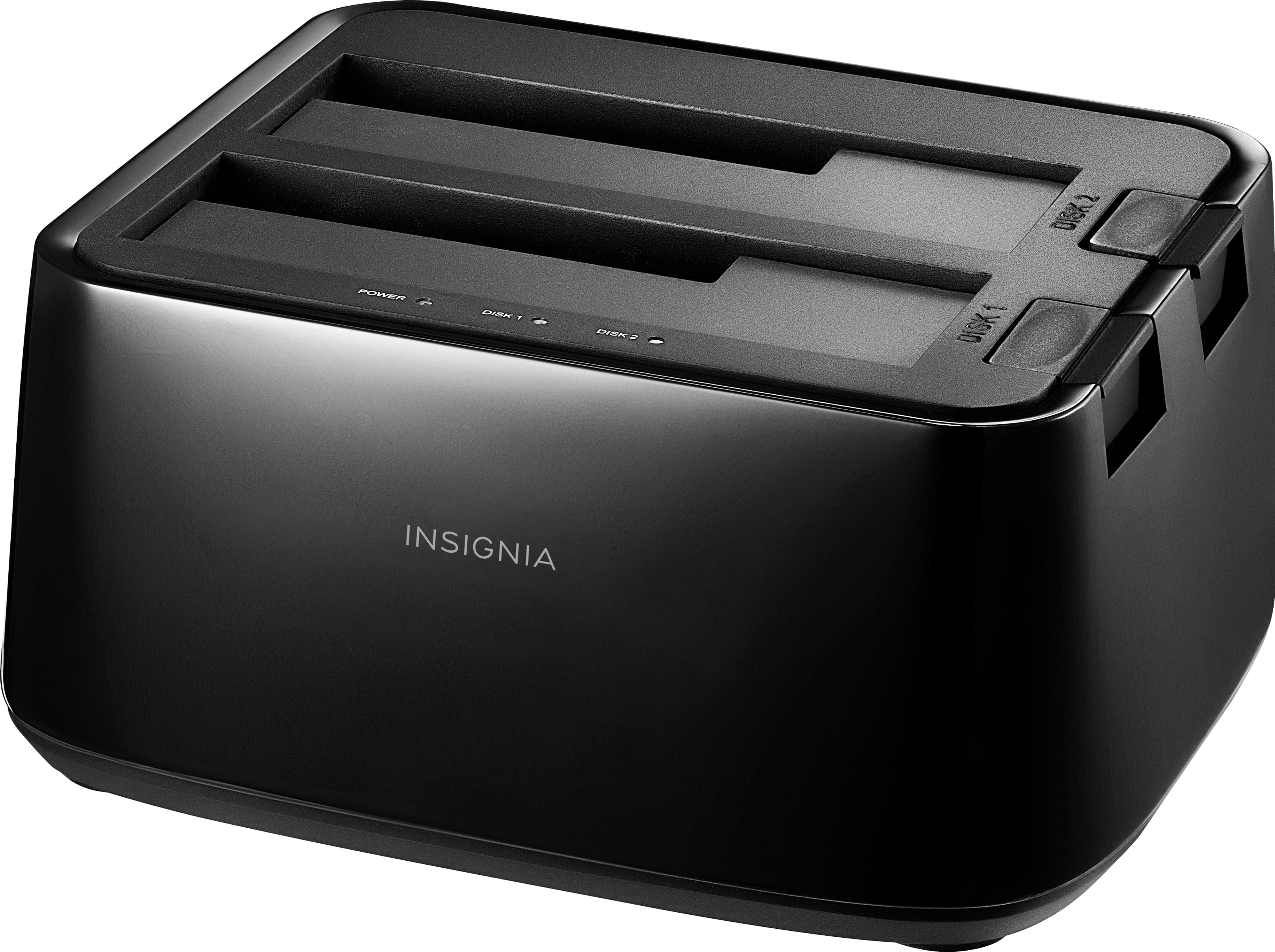
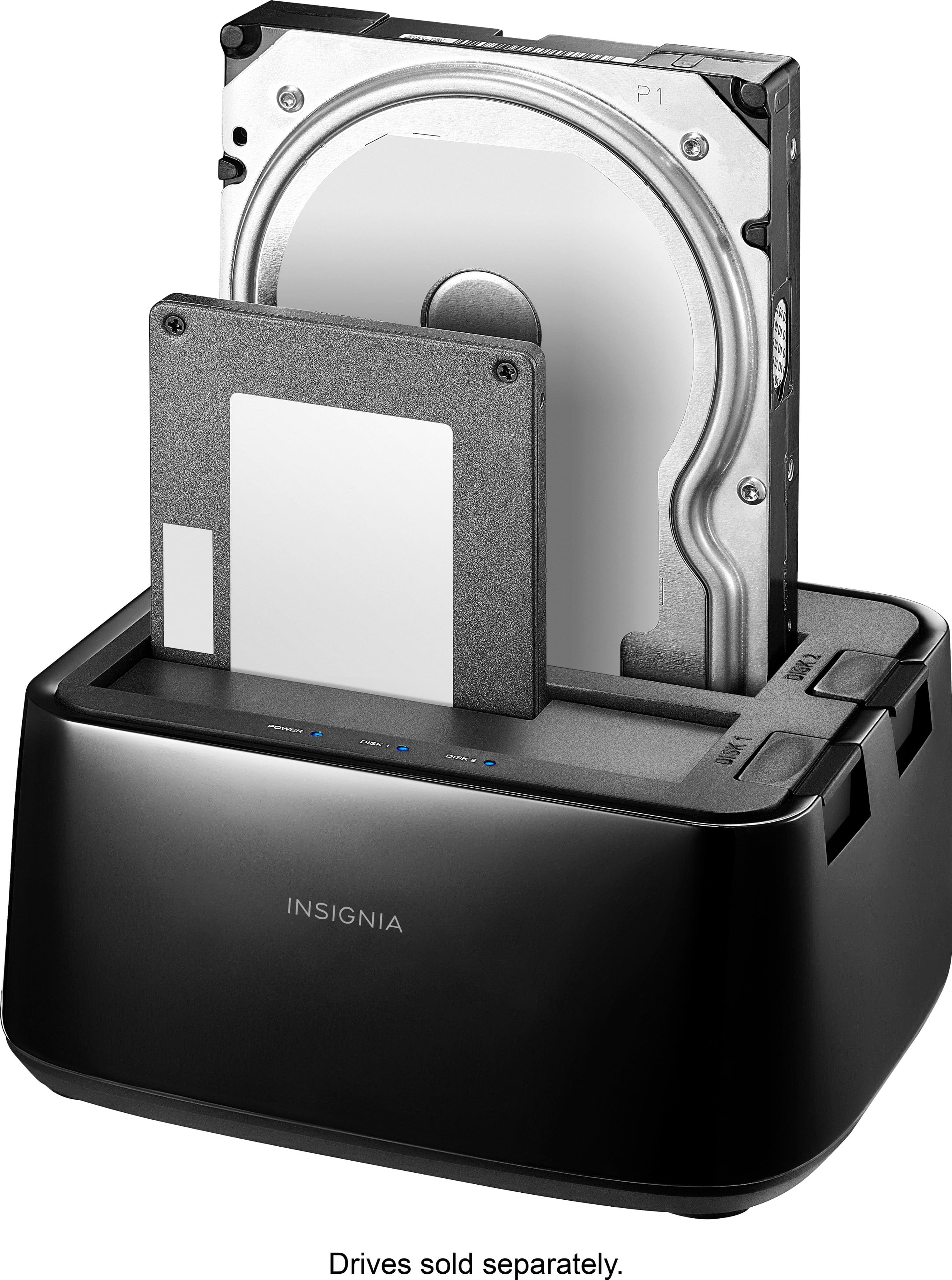
A:AnswerHi there. You can use the Insignia™ 2-Bay HDD Docking Station to clone a hard drive, but not directly from your Surface Pro 8, because the Surface uses an M.2 NVMe SSD, while the docking station only supports 2.5" and 3.5" SATA drives.
To make this work, you’ll need an M.2 NVMe to USB adapter or enclosure to connect your Surface Pro 8’s SSD to your computer. Then, you can either use the docking station for the target SATA drive or connect both drives to your PC and use cloning software like Macrium Reflect, Acronis True Image, or Clonezilla to perform the clone. If you have any questions or need further assistance, please don't hesitate to reach out. Ivy | Insignia Support
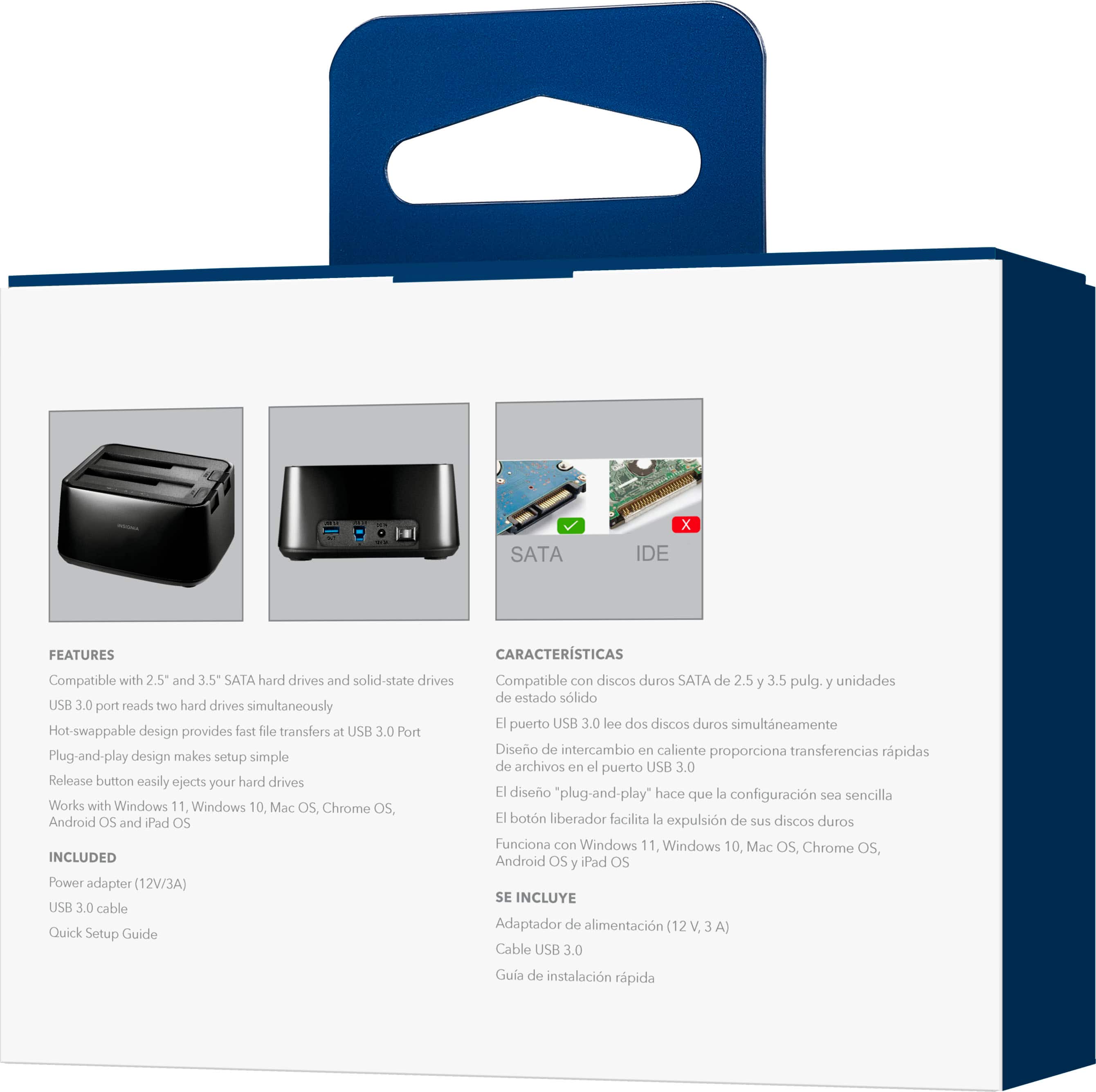
A:AnswerThank you for your inquiry! The Insignia™ 2-Bay HDD docking station is designed to work with SATA (Serial ATA) drives and is compatible with both 2.5" and 3.5" SATA hard drives. Unfortunately, it does not support older PATA (Parallel ATA) drives, also known as IDE drives. Keith | Insignia Support
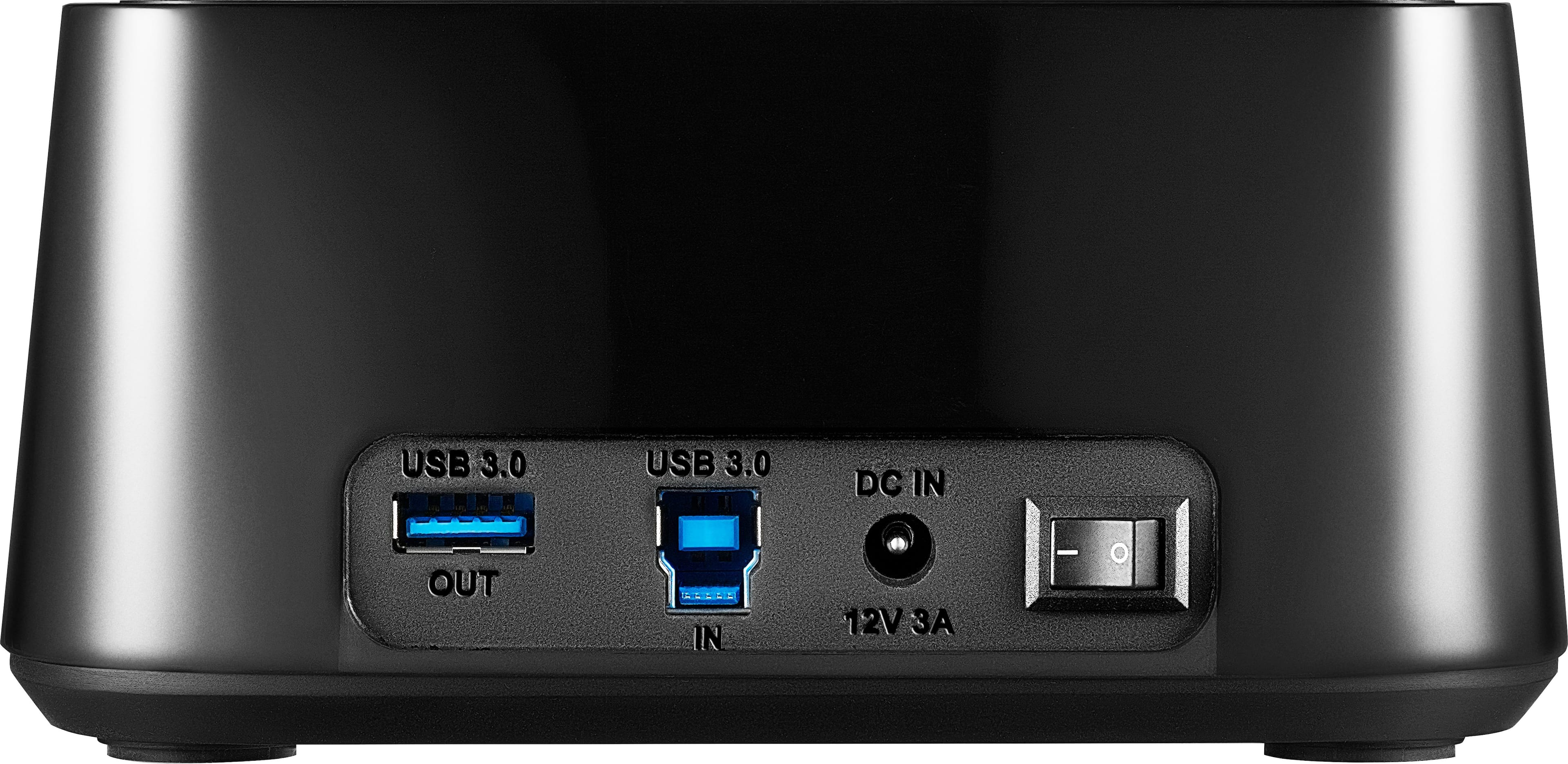
A:AnswerI connect direct to the PC and I was using remotely from another PC on my Network, so believe Normal USB Hub will be Fine, but did not test on USB hub,
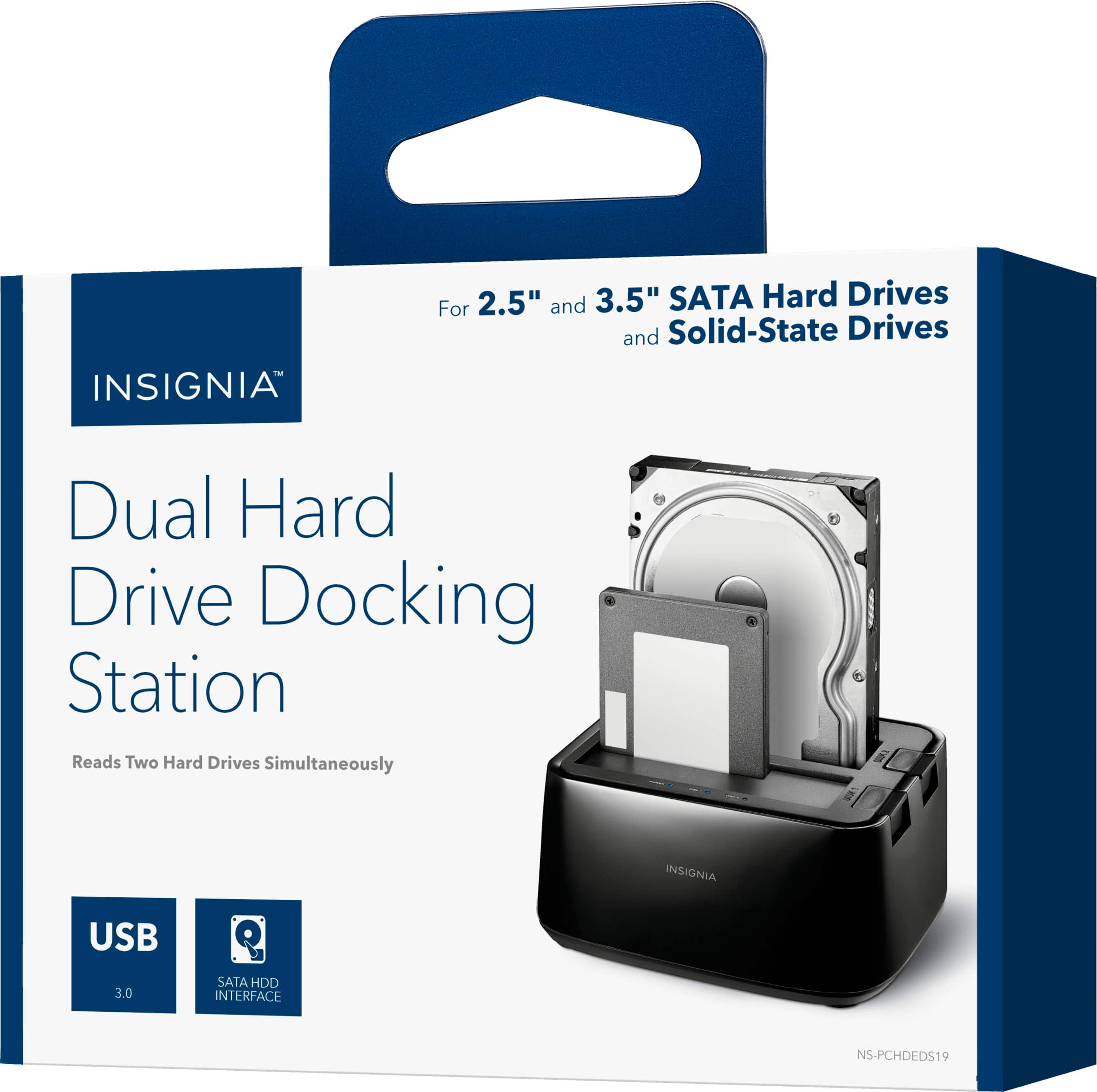
A:AnswerThe front drive on the cover image is a 2.5" drive. This HDD dock has 2 sata ports, that have a 2.5" hole and a door so it can expand to be a 3.5" hole. Both ports will work as 3.5"
A:AnswerHi TampaTom! Yes, you’re correct. When you’re trying to safely remove a drive using the “Safely Remove Hardware” option and it says the drive is still in use, it often means that a file from the drive is open somewhere on your computer.
Closing File Explorer might help, but it’s also important to make sure that there are no programs running that might be using a file from the drive. This includes any documents, images, or other files that might be open.
Once you’ve closed all possible files and applications that might be accessing the drive, you can try the “Safely Remove Hardware” option again. If it still doesn’t work, a restart of your computer should clear any locks on the drive and allow you to safely remove it.
Remember, it’s important to use the “Safely Remove Hardware” option to prevent data corruption by ensuring all data has been written before the drive is disconnected. For more product information, please check the link below. |Angelica| Insignia Support| https://www.bestbuy.com/site/insignia-2-bay-hdd-docking-station/6153102.p?skuId=6153102
A:AnswerWatch as you plug in a drive, they both probably have the same name, rename the one you just plugged in, that should stop the confusion. It could also be seeing the separate partition as the same name.
A:AnswerI down loaded over 2 terabytes of data which took over 3 days to do & the computer will sleep & still work fine. I just let it work till it was done.
A:AnswerYou shouldn't need a driver, is it a fresh drive? if so it may not be partitioned/formatted, you will have to go into disk management, look for it under search in windows, it should say "create and format hard disk partitions" click on that. Check to see if the device is there. If it is, you need to create a partition and then format it. It's a relatively straightforward process.
Here is a link:
https://support.microsoft.com/en-us/windows/help-in-disk-management-ad88ba19-f0d3-0809-7889-830f63e94405
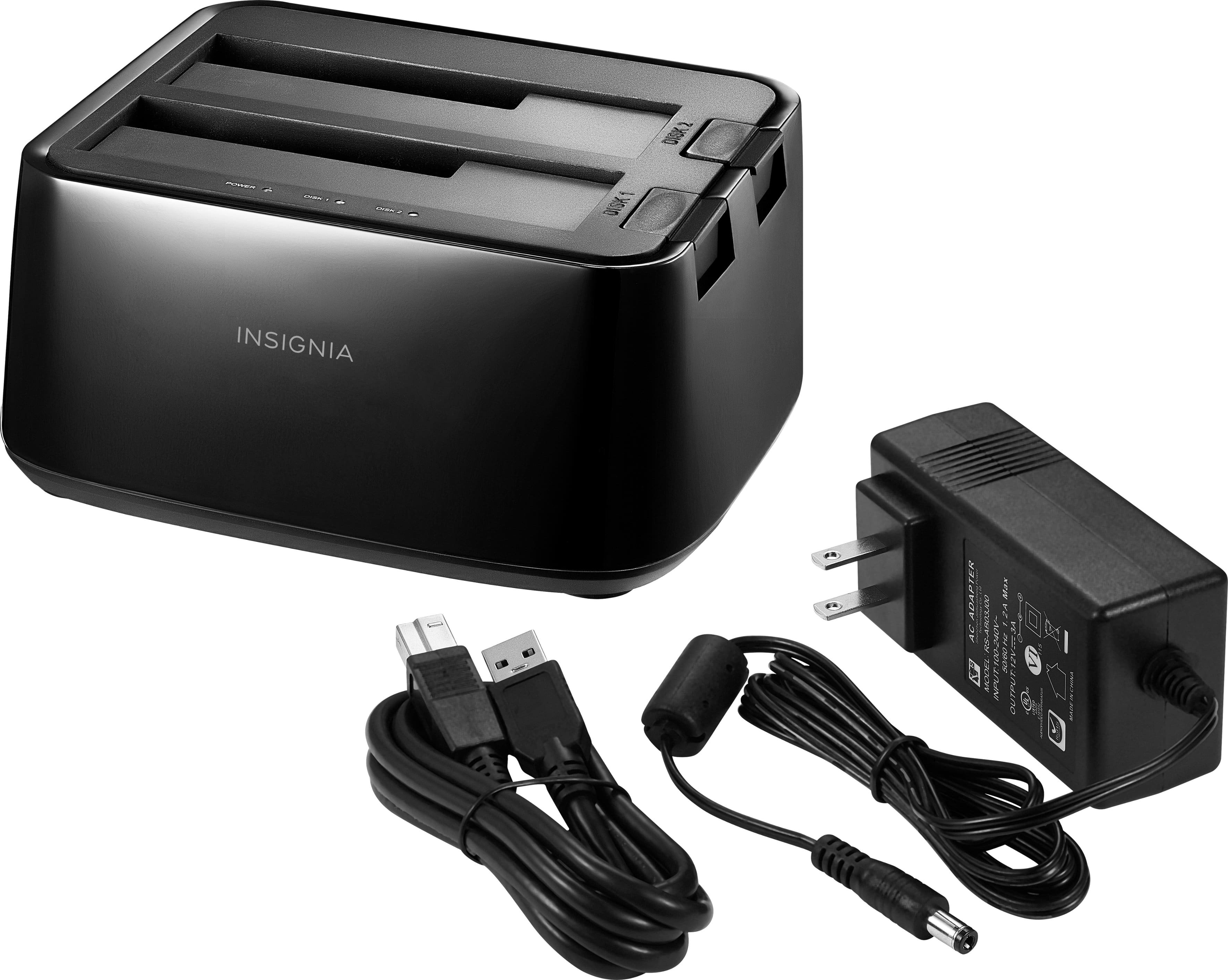
A:AnswerAny universal power adapter WITH THE RIGHT SIZE POWER PLUG AND VOLTAGE OUT, should work, check the voltage numbers from the old supply and purchase accordingly.