A:AnswerI'm sorry to hear about the issues you're experiencing with your Insignia™ 42" Class F20 Series LED Full HD Smart Fire TV. Here are a few troubleshooting steps you can try:
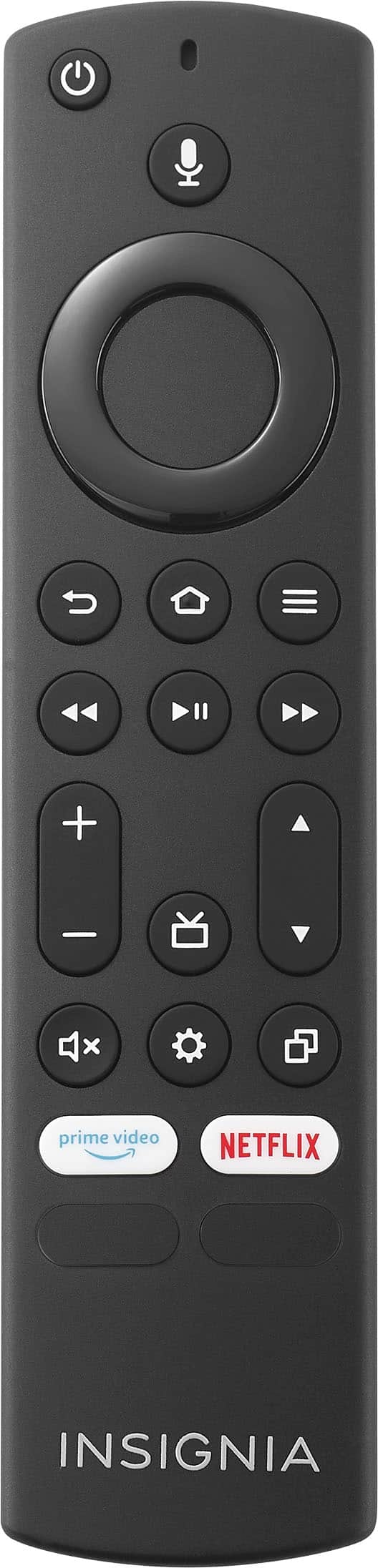
1. Check for Obstructions: Ensure there are no objects blocking the signal between the remote and the TV's sensor.
2. Clean the Remote and Sensor: Sometimes, dust or dirt can interfere with the signal. Gently clean the remote's IR transmitter and the TV's IR sensor.
3. Reset the Remote: Remove the batteries from the remote, press all the buttons to discharge any residual power, and then reinsert the batteries.
4. Power Cycle the TV: Unplug the TV from the power outlet, wait for about a minute, and then plug it back in. This can sometimes resolve responsiveness issues.
5. Pair the Remote Again: If your remote is a Bluetooth remote, try re-pairing it with the TV. Refer to the user manual for instructions on how to do this.
6. Update Firmware: Check if there are any firmware updates available for your TV. Updating the firmware can sometimes fix bugs and improve performance.
If these steps don't resolve the issue, it might be best to contact Insignia customer support for further assistance. They can provide more specific troubleshooting steps or arrange for a repair if necessary.
Let me know if you need any more help!
A:AnswerTo turn off the screensaver on your Insignia™ 42" Class F20 Series LED Full HD Smart Fire TV, follow these steps:
1. Access Settings:
- Press the "Home" button on your Fire TV remote.
- Navigate to the "Settings" menu.
2. Go to Display & Sounds:
- Scroll down and select "Display & Sounds."
3. Select Screensaver:
- Choose the "Screensaver" option.
4. Turn Off Screensaver:
- Set the screensaver to "Off" or adjust the start time to a longer duration to prevent it from activating while displaying your JPEG image.
If you continue to experience issues, you might want to check for any firmware updates for your TV, as updates can sometimes resolve such problems.
Let me know if you need any further assistance!
A:AnswerTo enable developer options on your Insignia™ 42" Class F20 Series LED Full HD Smart Fire TV, follow these steps:
1. Navigate to the Settings menu on your TV.
2. Scroll down and select "My Fire TV."
3. In the "My Fire TV" menu, select "About."
4. Highlight your device's name and press the select button on your remote seven times. You should see a message saying "No need, you are already a developer" or something similar.
After completing these steps, the Developer Options menu should appear in your Settings.
If you have any other questions or need further assistance, feel free to ask!
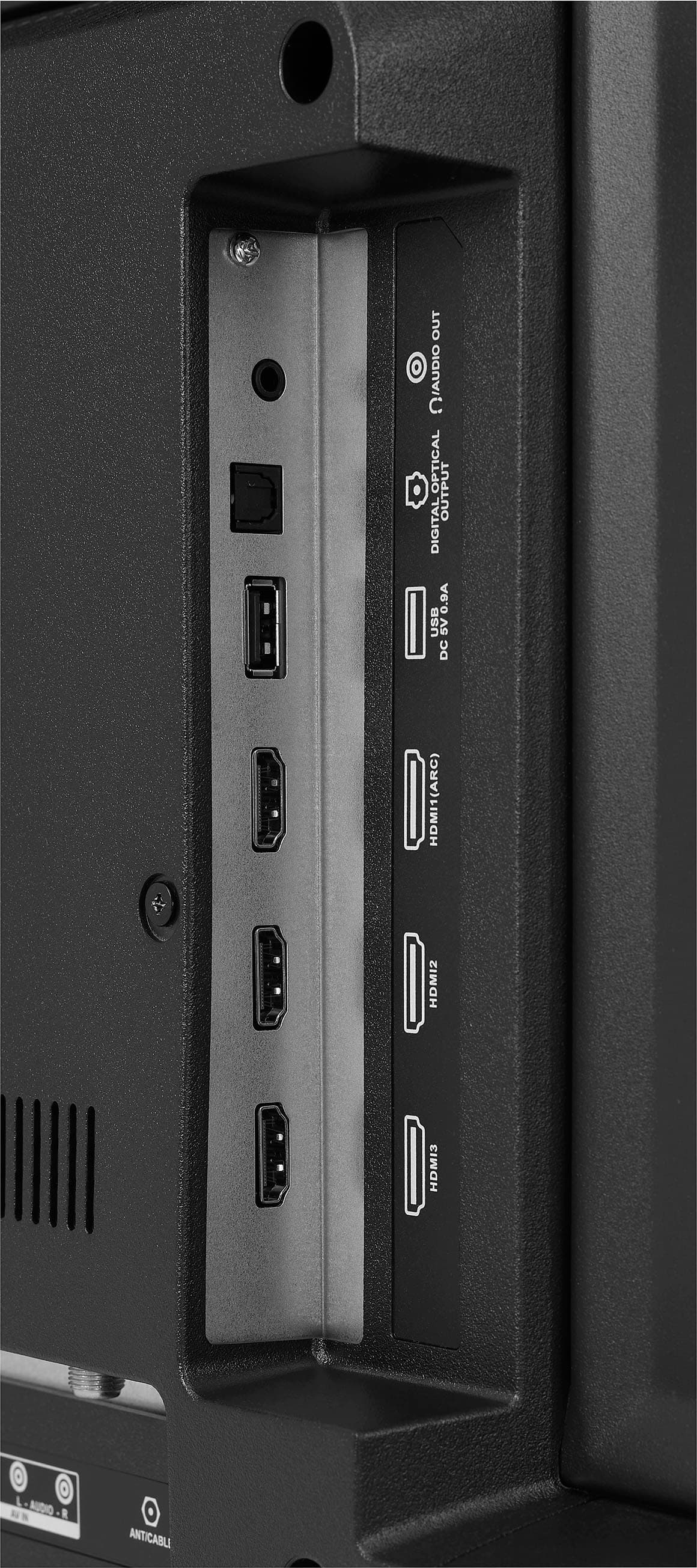
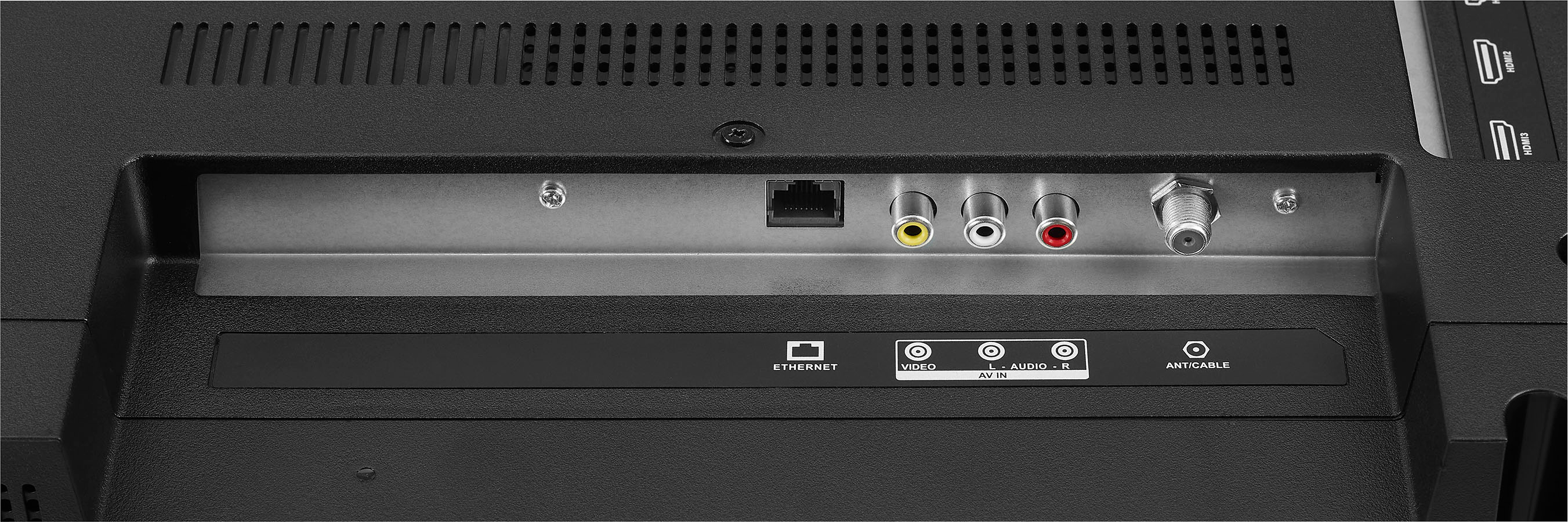
A:AnswerHi there! Thank you for reaching out. Yes, connecting through an Ethernet port can provide faster bandwidth for the TV, as wired signals are generally more stable than wireless ones. I hope this information is helpful. If you have any further questions, please feel free to reach out. - Carl | Insignia Products
A:AnswerYes, you can use the Insignia™ - 42" Class F20 Series LED Full HD Smart Fire TV for a PowerPoint slide show. Just connect your computer or device to the TV and set it up as a secondary display to show your slides. This TV has a full HD resolution and smart TV capabilities, making it suitable for presentations. Patricia | Insignia Support https://www.bestbuy.com/site/insignia-42-class-f20-series-led-full-hd-smart-fire-tv/6495088.p?skuId=6495088
A:AnswerHi Insignia Customer! Thank you for your inquriy. The Insignia™ - 42" Class F20 Series LED Full HD Smart Fire TV is produced by Best Buy Private Label Brand, Insignia. It is designed and manufactured specifically for Best Buy Stores. If you have any questions, please feel free to contact our Insignia Customer Service at 877-467-4289. - Dalainne | Insignia Support | https://www.bestbuy.com/site/insignia-42-class-f20-series-led-full-hd-smart-fire-tv/6495088.p?skuId=6495088
A:AnswerHello, thank you for addressing your concern with us. After performing a factory reset, you will need to re-pair the remote with the TV. To do this, hold the remote one foot or less from the TV and press and hold the "Home" button until you hear a jingle or chime, which may take up to 30 seconds. You can also try using new batteries in the remote. Please let us know if there is anything else we can assist you with. If the issue still persists, you can call our customer service team at this phone number 1-877-467-4289 for further assistance. Patricia | Insignia Support https://www.bestbuy.com/site/insignia-42-class-f20-series-led-full-hd-smart-fire-tv/6495088.p?skuId=6495088
A:AnswerHi Sqlet, thank you for bringing this to our attention. We wanted to inform you that the Insignia™ - 42" Class F20 Series LED Full HD Smart Fire TV is now compatible with Insignia and Toshiba Fire TV Edition Smart TVs. Please feel free to reach out if you require any additional assistance. Patricia | Insignia Support https://www.bestbuy.com/site/insignia-42-class-f20-series-led-full-hd-smart-fire-tv/6495088.p?skuId=6495088
A:AnswerTo access the user guide for the Insignia™ - 42" Class F20 Series LED Full HD Smart Fire TV, please visit the following link: https://www.bestbuy.com/site/insignia-42-class-f20-series-led-full-hd-smart-fire-tv/6495088.p?skuId=6495088. Once on the page, navigate to the Features section and scroll down to find the Manual & Guides section. You can then easily download the User Manual for your reference. Patricia | Insignia Support https://www.bestbuy.com/site/insignia-42-class-f20-series-led-full-hd-smart-fire-tv/6495088.p?skuId=6495088
A:AnswerHi Default, thank you for your inquiry! To set up Insignia™ - 42" Class F20 Series LED Full HD Smart Fire TV (Model: NS-42F201NA23) to default to cable channels when turned on, follow these steps: 1. Turn on your TV. 2. Using the remote control, press the "Menu" button to access the settings menu. 3. Select "Display & Sounds" 4. Look for an option related to "Power On" or "Startup Behaviour". 5. Select "Set Power on to last input" or something similar. 6. Confirm the changes. For more information about this product, you may click this link: https://www.bestbuy.com/site/insignia-42-class-f20-series-led-full-hd-smart-fire-tv/6495088.p?skuId=6495088. Carlo | Insignia Support
A:AnswerHi Kelly,
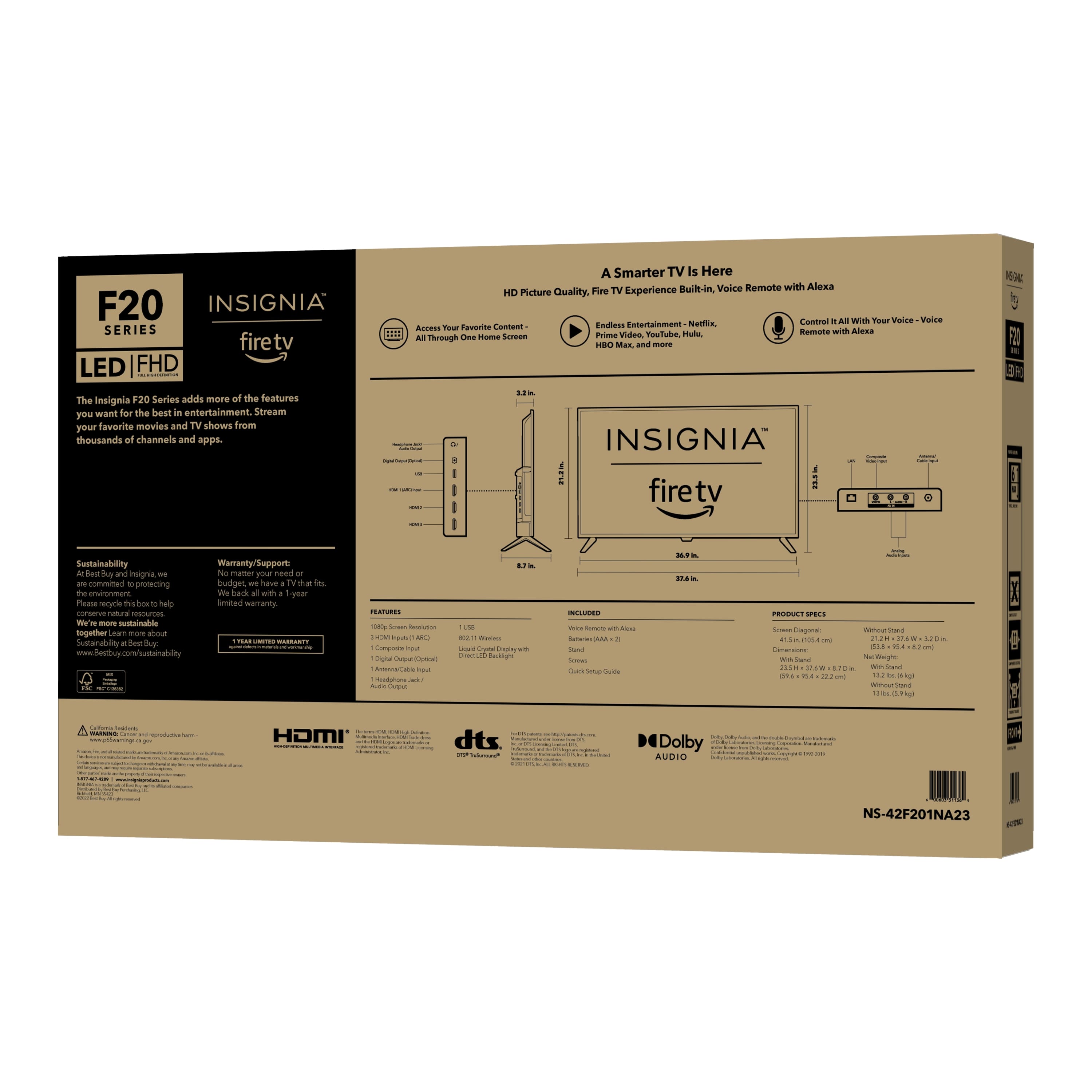
Product Weight With Stand is13.2 pounds. Product Weight Without Stand is 13 pounds.
Dina || Insignia Support || https://www.bestbuy.com/insignia
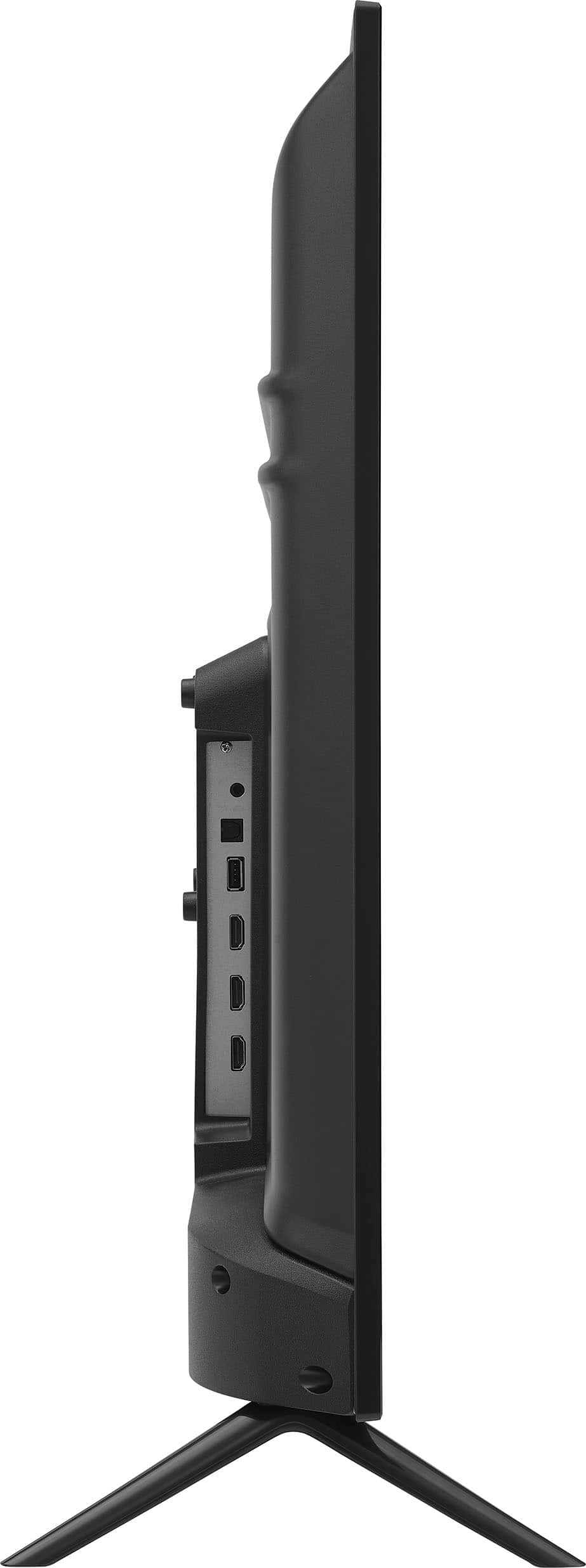
A:AnswerHi there, The USB port is 2.0 and supports USB Flash Drives up to 128 GB.
Rudson S.| Insignia Support. https://www.bestbuy.com/site/brands/best-buy-brands/pcmcat1596746025285.c?id=pcmcat1596746025285
A:AnswerHi there, Please perform the following steps or call Insignia at 877-467-4289 for further troubleshooting assistance:
1- Unplug the television from the power outlet.
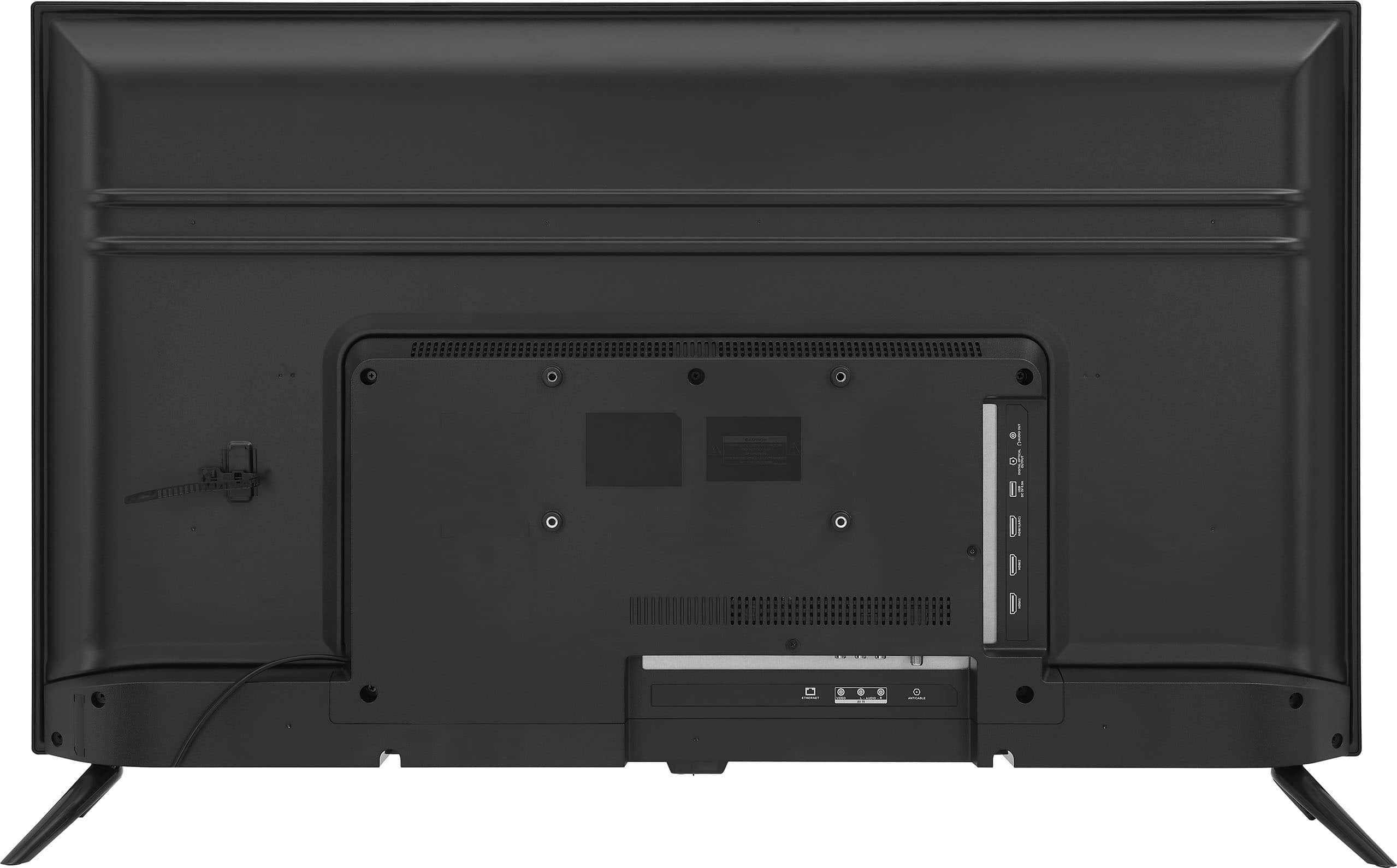
2- Remove all connections from the back of the television.
3- While everything is unplugged, press and hold the "Power" button on your TV for 60 seconds.
4- Connect all devices back into the television, making sure all of them are properly connected
5- Plug the set to the power outlet, if possible, to a different power outlet or a surge protector
6- Turn it on and test it.
Rudson S.| Insignia Support. https://www.bestbuy.com/site/brands/best-buy-brands/pcmcat1596746025285.c?id=pcmcat1596746025285
A:AnswerHi LeoStavJr,
No. If you have any questions or concerns, please use the link below to reach us and also you can contact this phone number 877-467-4289 for further assistance.
Insignia Products
Nikki
Please visit https://www.bestbuy.com/site/insignia-42-class-f20-series-led-full-hd-smart-fire-tv/6495088.p?skuId=6495088
A:AnswerAnswer from tech person doesn't work. I follow the instructions and all that happens is the screen magnifier or the banner instructions show up.
A known problem and no correct way to fix it is disgraceful.