A:AnswerI would assume not unless you want to remove the SSD already in the system. Most laptops only have room for one drive, but in some cases, you can insert an M.2 drive.
A:AnswerAs long as you check your specs on the laptop and it supports a 1TB this will work. I bought a 2TB then found out my system didn't support it so I bought this one. I works great.
A:Answer*********Storage Drive*********
• 500GB (5400 RPM) Serial ATA hard disk drive
*****this is in the manual *******
link to vid : https://www.youtube.com/watch?v=UXD1kBuyb-I
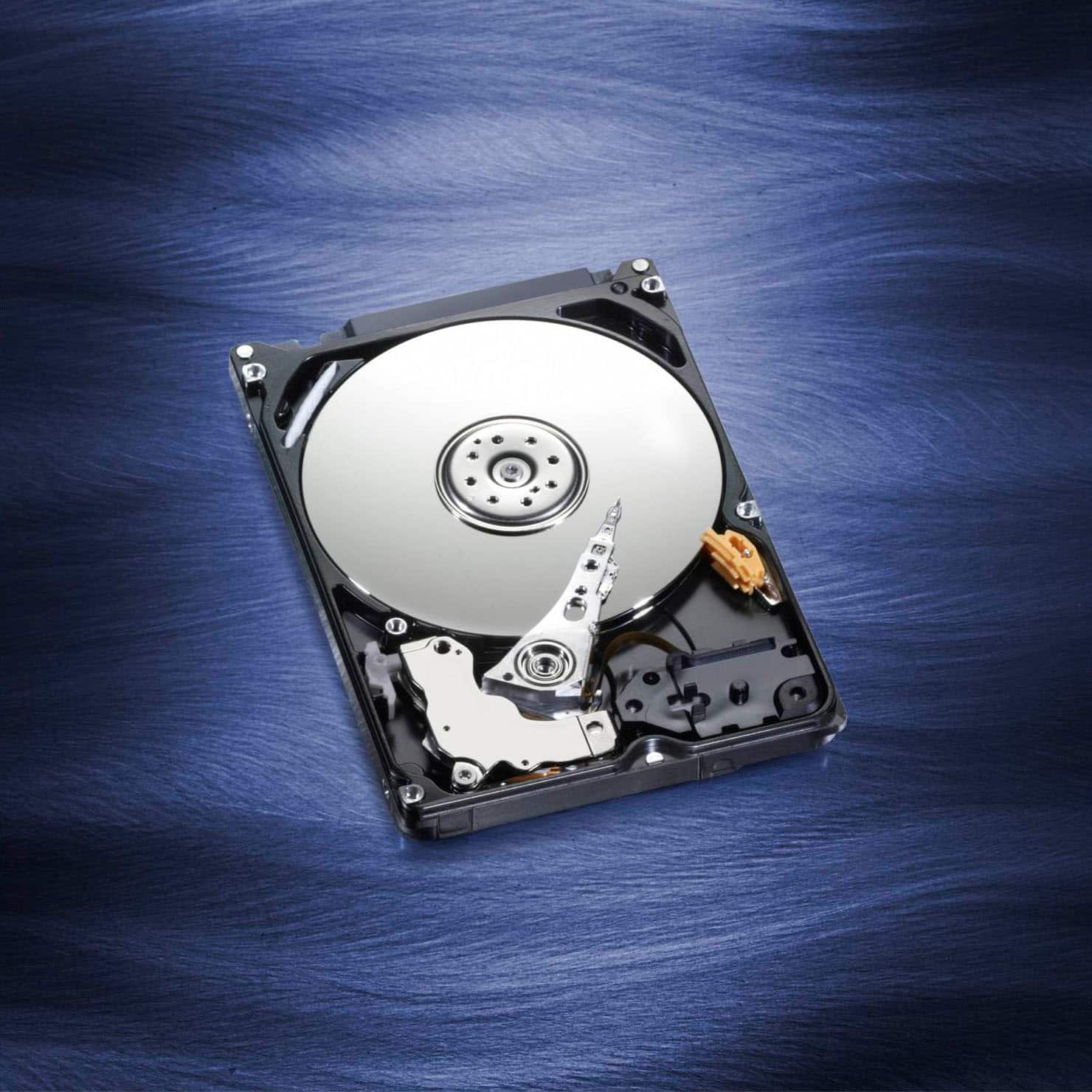
ITS A PRETTY THIN DRIVE AT 7MM SO YEAH !
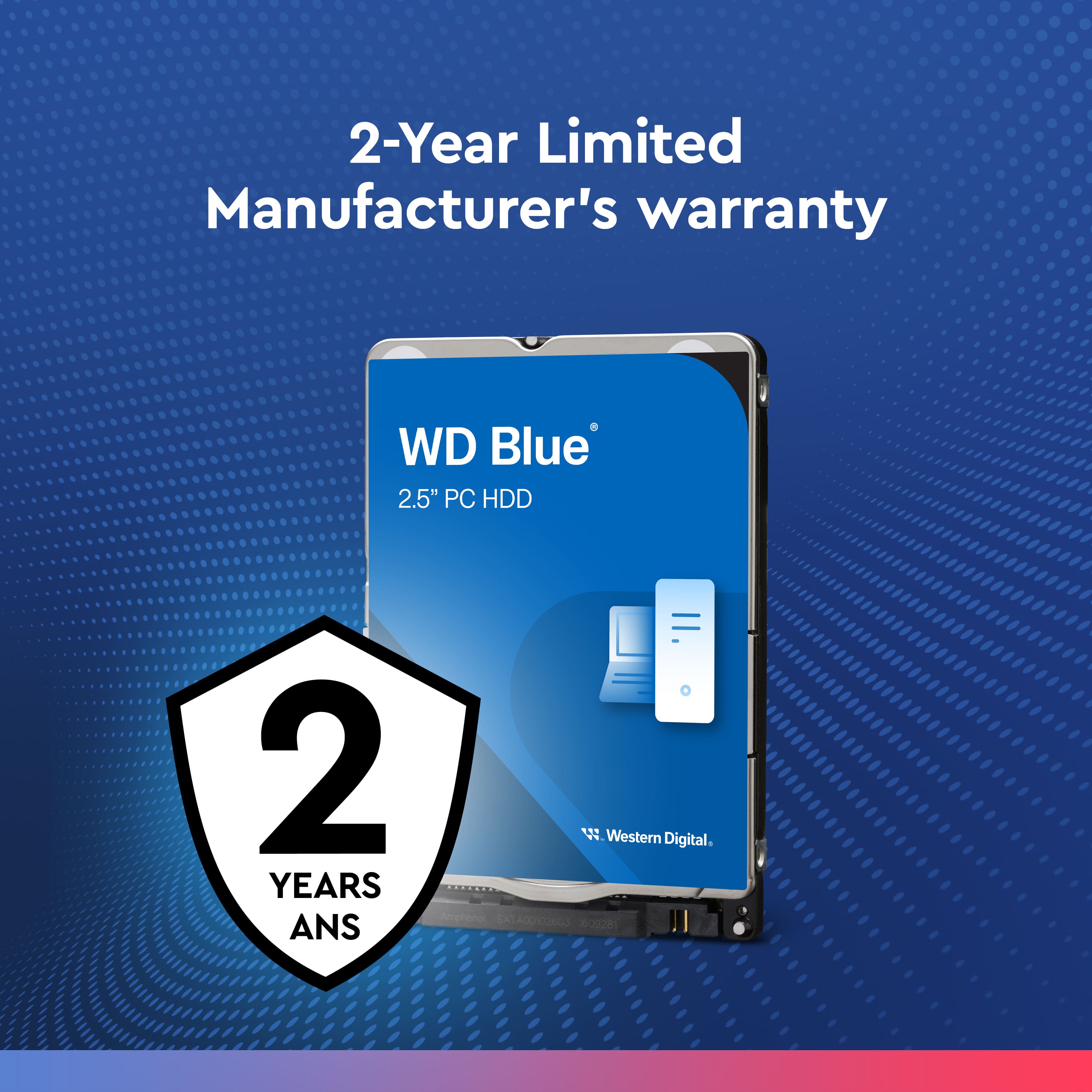
A:AnswerI'm not sure because I really don't worry about a warranty on a hard drive. Hard drives will last for years and years, practically forever if you clean them out and defrag them on a regular basis. But if memory serves me it was a 1 year warranty but the warranty is only against factory defects. It won't cover it if you overwork or overload your hard drive and it crashes.
A:AnswerThis will work in any laptop that you can access the hard drive bay. Most laptops now-a-days are upgradeable, and hard drives are plug and play.
So if you can look up the specs of your laptop and you see that you can unscrew the bay cover on the bottom of the laptop, then you should be good to go.
There are YouTube videos that should be able to show you how to do it.
A:AnswerThis will work in any laptop that you can access the hard drive bay. Most laptops now-a-days are upgradeable, and hard drives are plug and play.
So if you can look up the specs of your laptop and you see that you can unscrew the bay cover on the bottom of the laptop, then you should be good to go.
There are YouTube videos that should be able to show you how to do it.
A:AnswerThis will work in any laptop that you can access the hard drive bay. Most laptops now-a-days are upgradeable, and hard drives are plug and play.
So if you can look up the specs of your laptop and you see that you can unscrew the bay cover on the bottom of the laptop, then you should be good to go.
There are YouTube videos that should be able to show you how to do it.
A:AnswerThis will work in any laptop that you can access the hard drive bay. Most laptops now-a-days are upgradeable, and hard drives are plug and play.
So if you can look up the specs of your laptop and you see that you can unscrew the bay cover on the bottom of the laptop, then you should be good to go.
There are YouTube videos that should be able to show you how to do it.
A:AnswerYou have to initialize the disk. One way to do that is to connect to a computer via USB and go to disk management and it will prompt you to initialize.