Windows 7 Drives
-
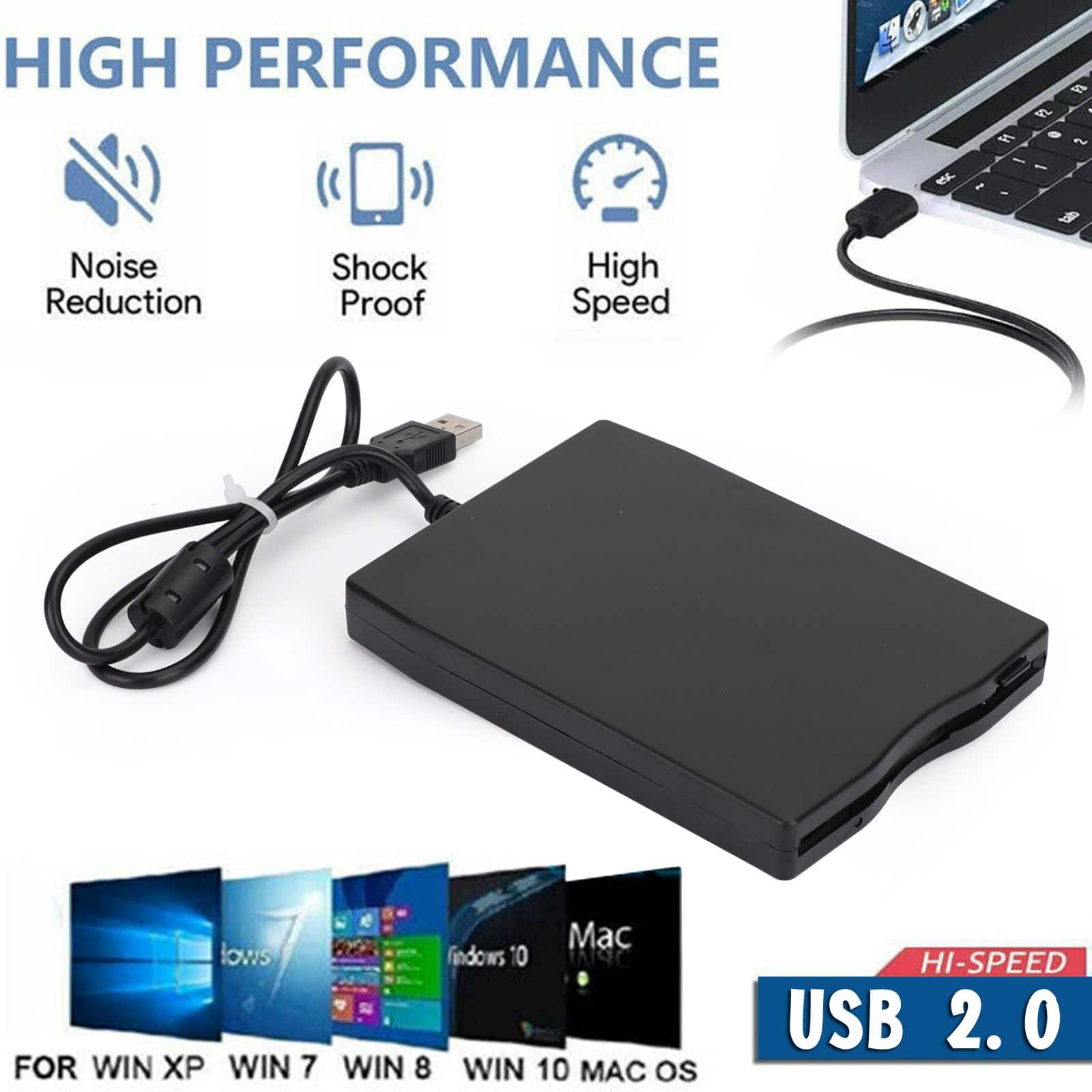
Topteng - USB External Floppy Disk Drive - 3.5" 1.44MB for Laptop/PC, Compatible with Windows 10/8/7 & Mac OS
SKU: J3R9F7Y66WSee all External DVD DrivesProduct Description
A slim, plug-and-play USB floppy drive in durable plastic for accessing 3.5" disks on Windows or Mac.Your price for this item is $27.99 -
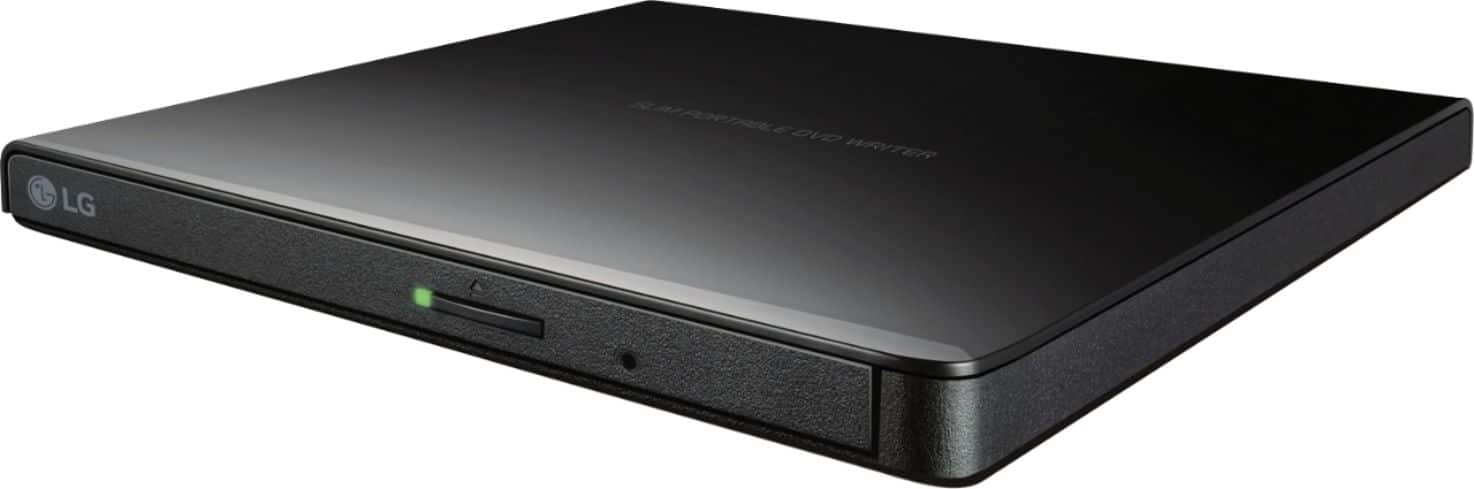
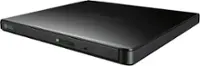
LG - 8x External USB 2.0 Double-Layer DVD±RW/±R/-RAM/CD-RW Drive - Black
SKU: JXTZZLCVWVWell it is totally worth it, now I have my past 7 years memory in external drive and no worries for computer crashes...Just what i needed. A portable drive that i can use on multiple computers that don't...
See all External DVD DrivesProduct Description
An external black DVD writer offering 8x write speed and USB 2.0 connectivity for Windows and iOS.Your price for this item is $28.99 -
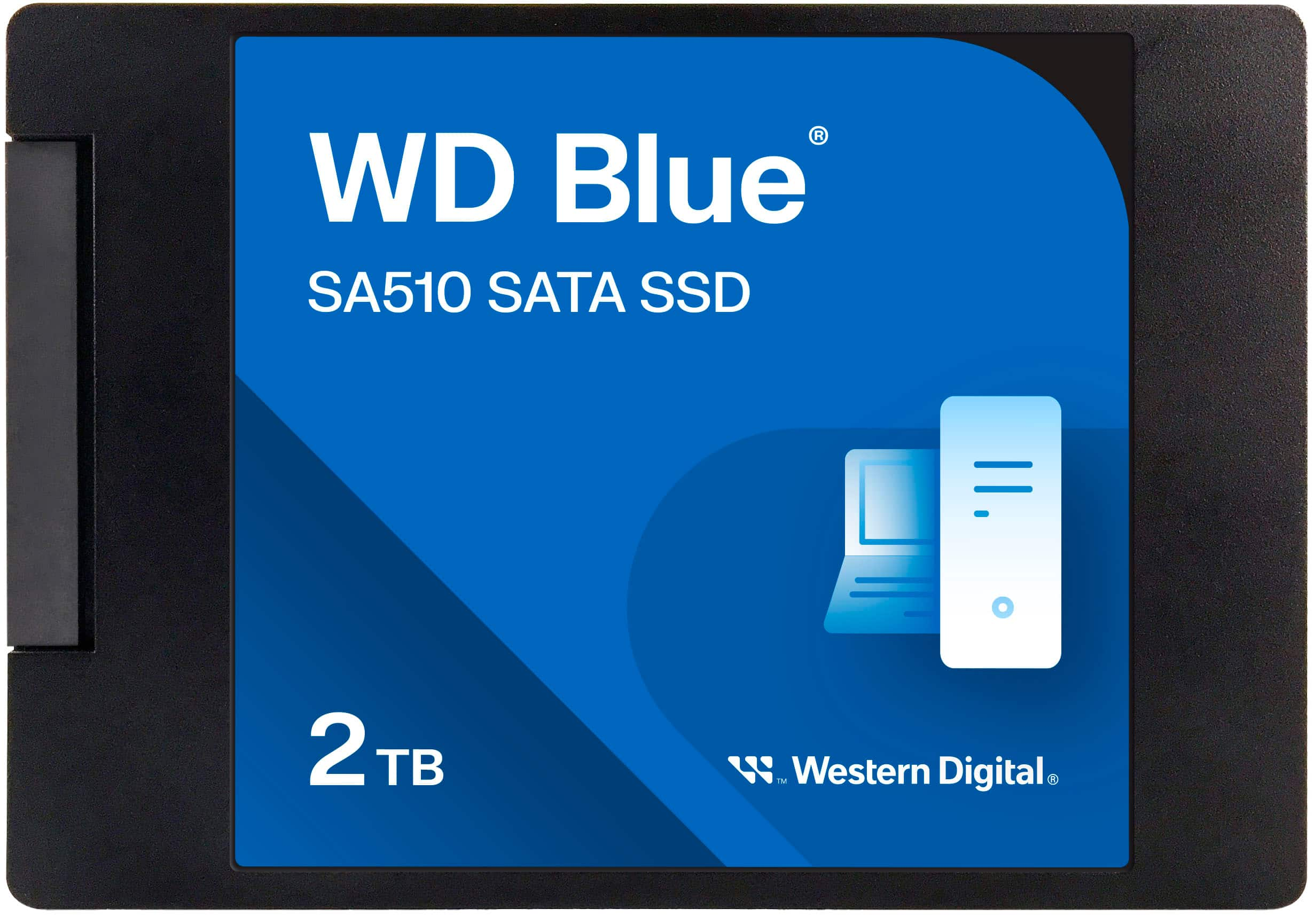
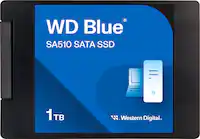
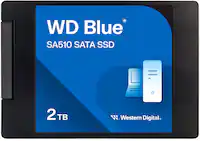
WD - Blue SA510 2TB Internal SSD SATA
SKU: JXJ62C64KXGet a reliable drive....I needed a reliable replacement for a Chinese knock-off that I had purchased. WD-Blue drives are rated as the most reliable and so far it has not disappointed. ...Perfect drive...
See all Internal SSDsProduct Description
A fast, reliable blue internal SSD that boosts PC performance with 2TB storage and SATA interface.Your price for this item is $279.99Save $418The previous price was $697.99 -
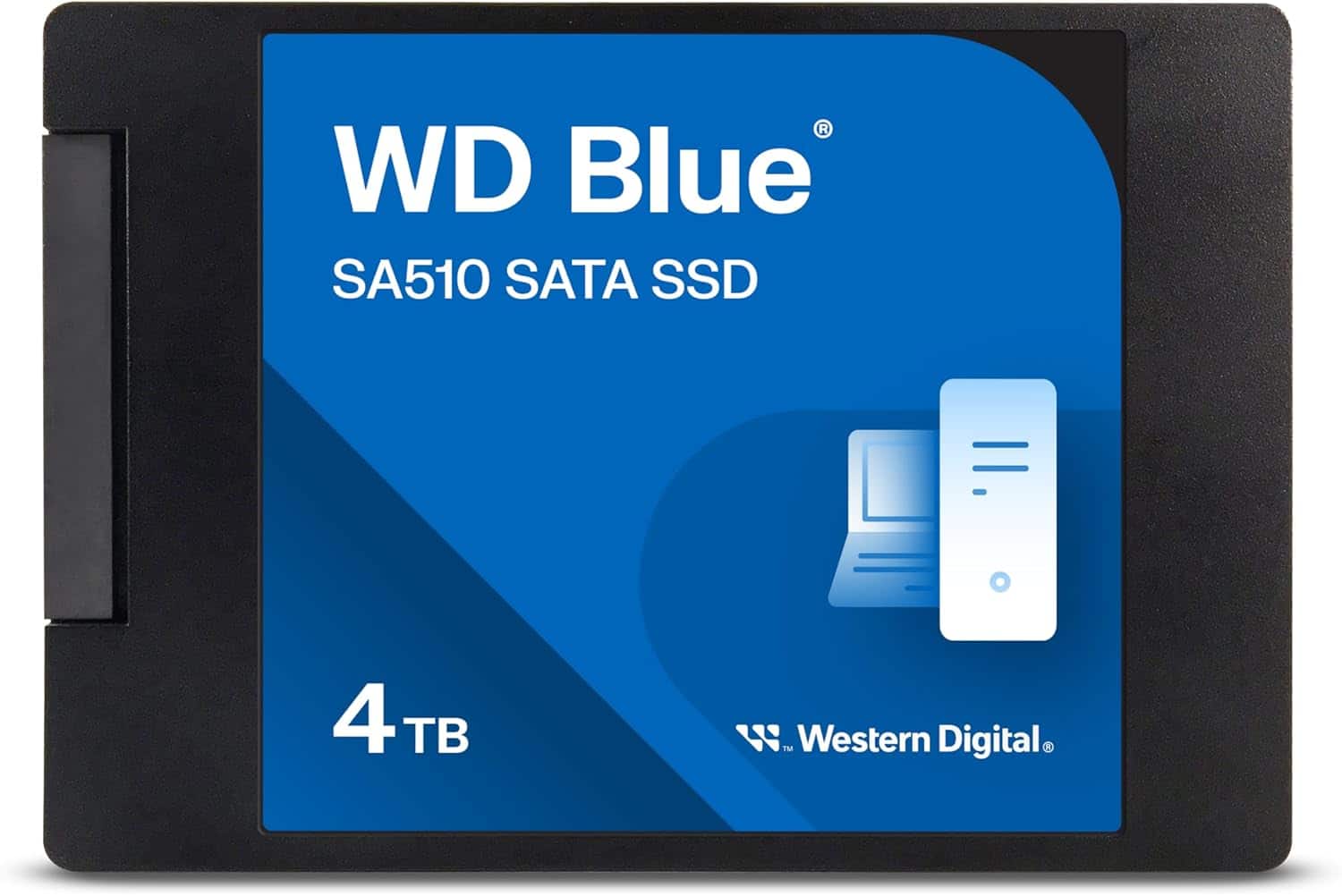
Western Digital - 4TB WD Blue SA510 SATA Internal SSD - SATA III 6 Gb/s, 2.5"/7mm, Up to 560 MB/s - WDS400T3B0A
SKU: JXTHCC7RFSSee all Internal SSDsProduct Description
A fast blue SATA III internal SSD offering up to 560 MB/s read speeds for enhanced PC performance.Your price for this item is $749.99
Best Sellers


Related Pages



FAQ
Windows 7 is compatible with a wide range of drives, including internal and external hard disk drives (HDDs), solid state drives (SSDs), and optical drives such as DVD and Blu-ray drives. Most modern SATA and USB drives are supported without additional drivers.
Most common drives, such as SATA HDDs and SSDs, are automatically recognized by Windows 7. However, some advanced drives or RAID configurations may require you to install specific drivers provided by the manufacturer.
Yes, Windows 7 supports most external USB drives. Simply connect the drive to a USB port, and Windows 7 should automatically detect and install the necessary drivers for use.
To format a new drive in Windows 7, open 'Computer Management,' select 'Disk Management,' right-click on the new drive, and choose the 'Format' option. Follow the prompts to choose the file system and complete the process.
Yes, upgrading to an SSD can significantly improve the performance of a Windows 7 system, offering faster boot times and quicker file access compared to traditional HDDs. Make sure your hardware supports SSDs before upgrading.