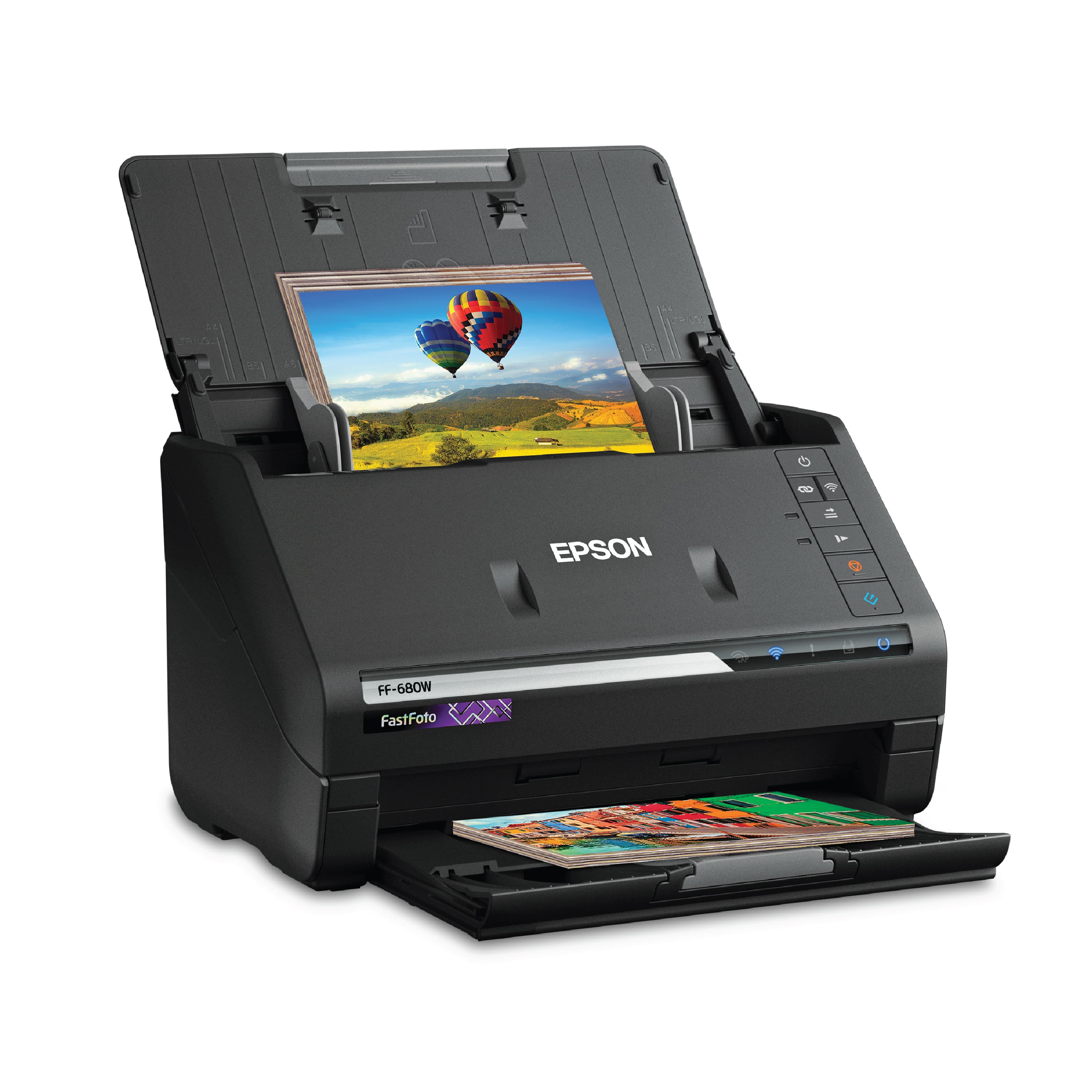
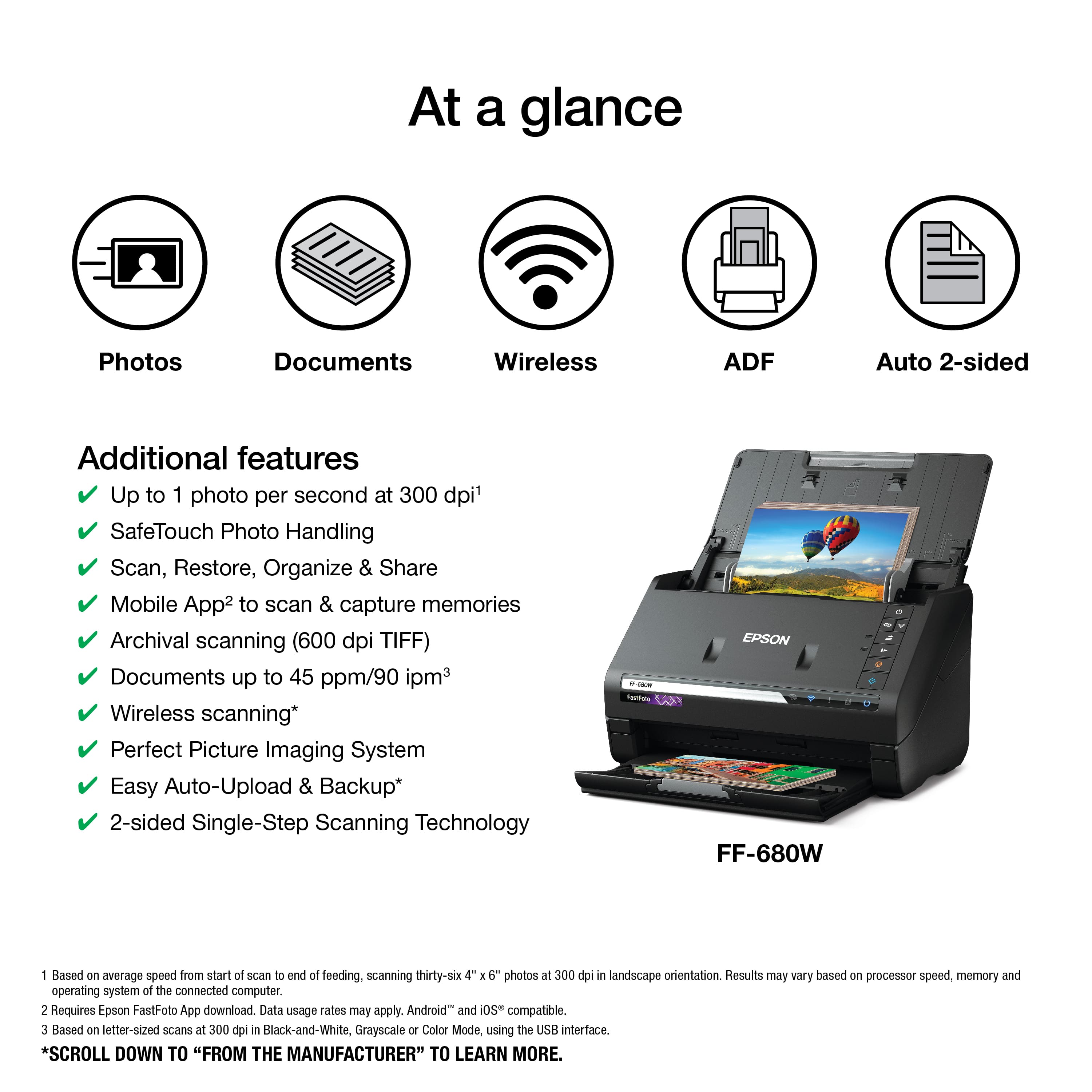
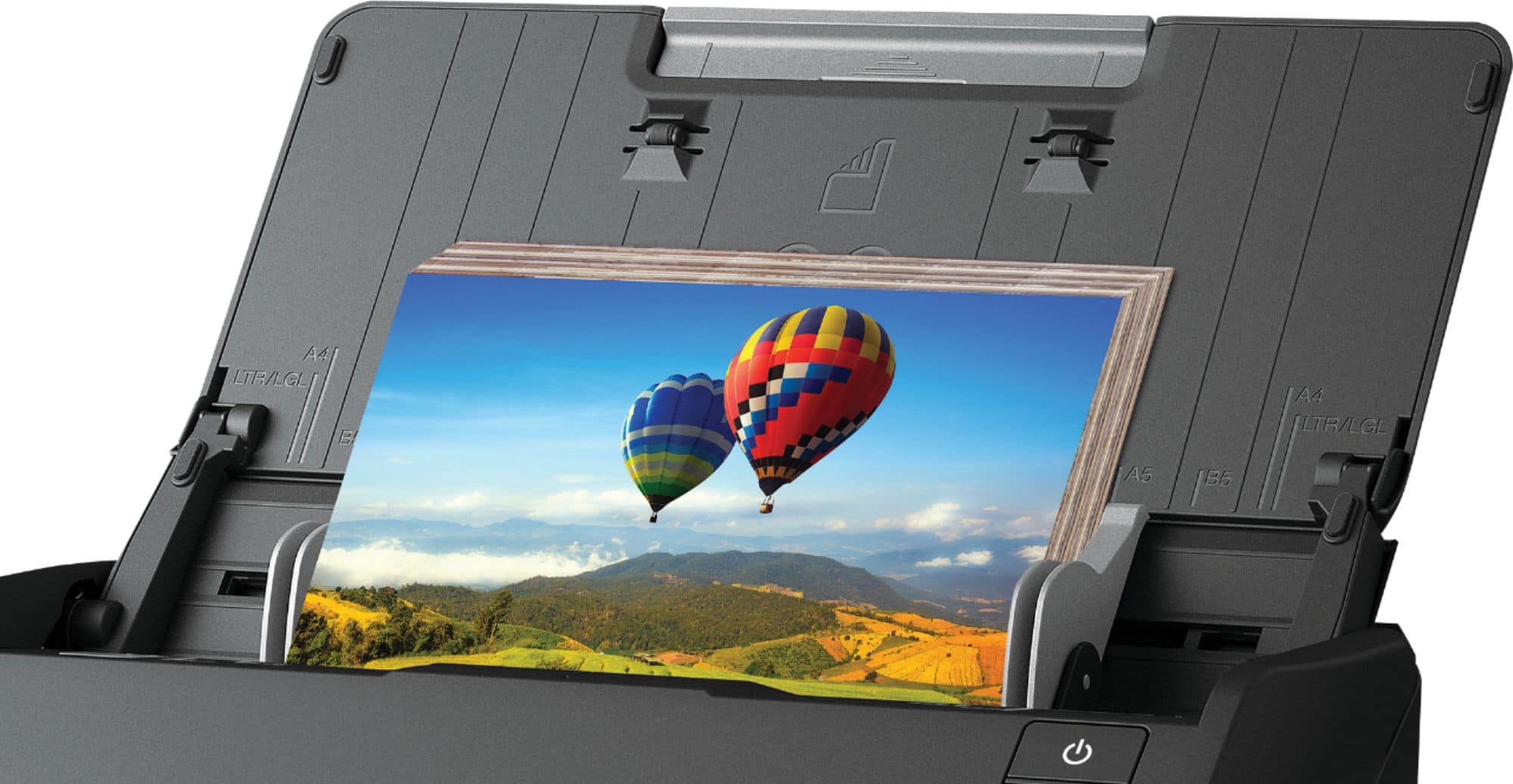
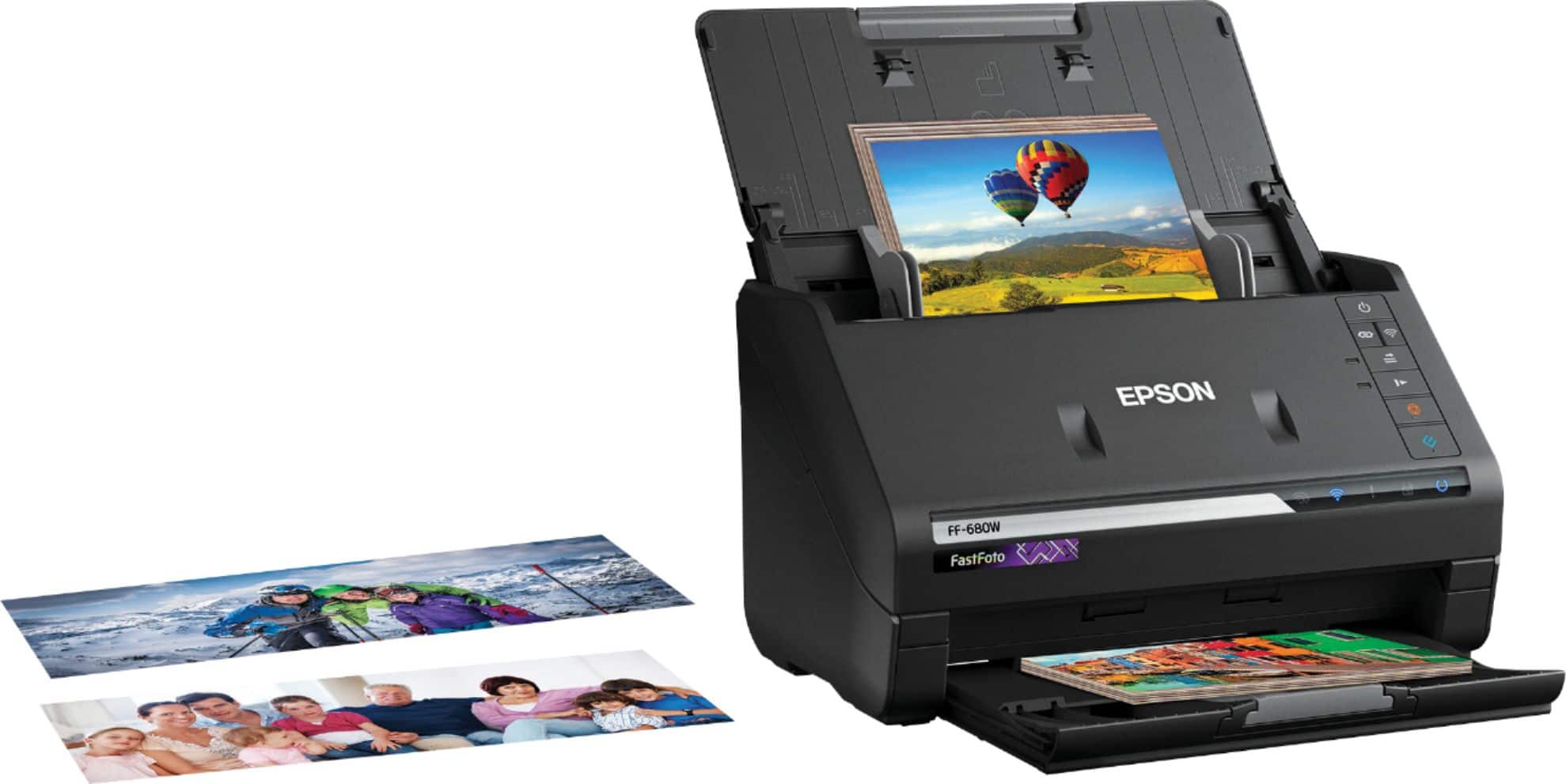
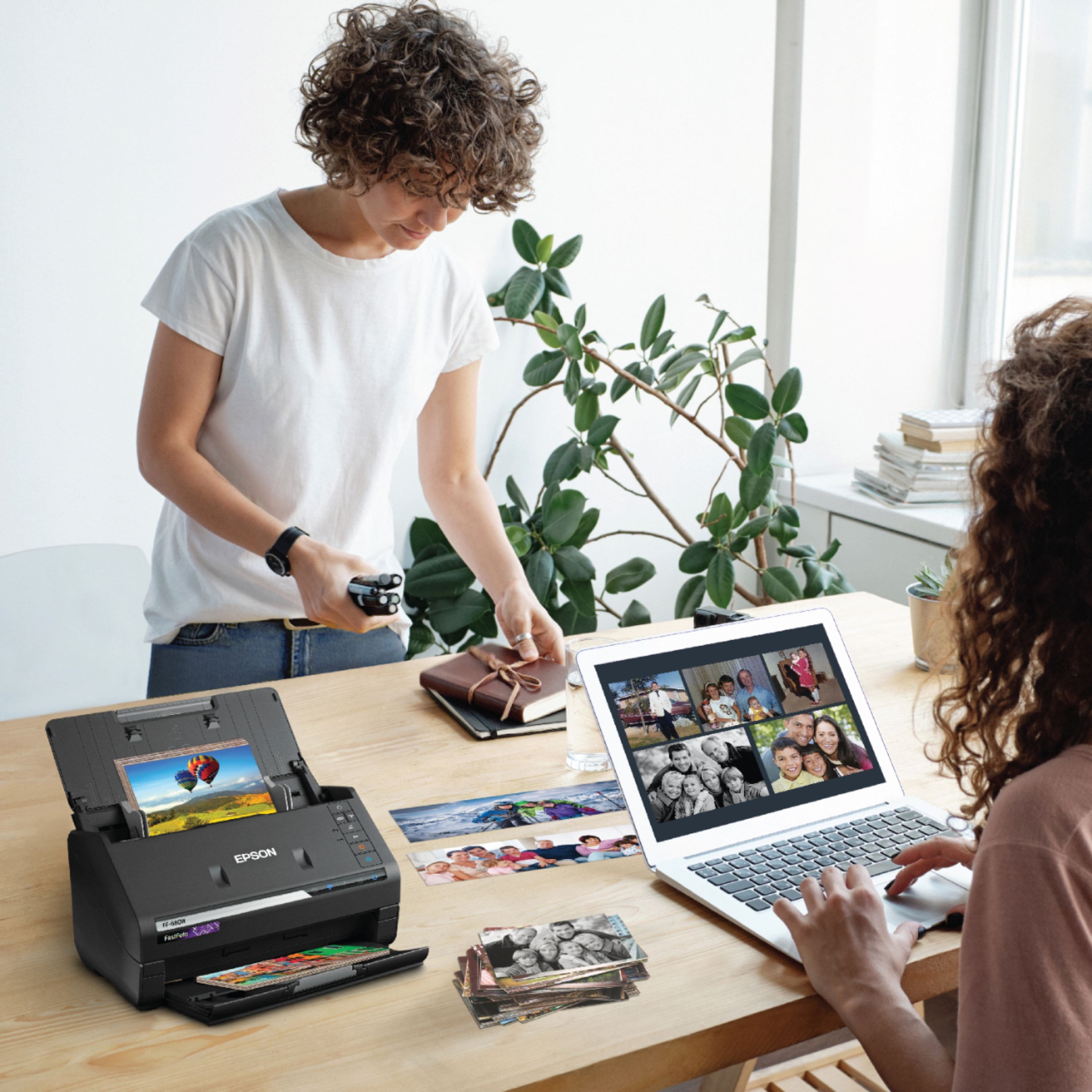
A:AnswerIt scans color photos and they come out in color on the computer. The body of the actual scanner (equipment) is black in color not like white or silver.
A:AnswerFF680W creates all batch folders under a single Fotoscan folder. Select the Fotoscan folder, hit control-C, Select the cd or dvd target, hit control-V to do a "copy and paste". This moves all scanned photos to the cd or dvd.
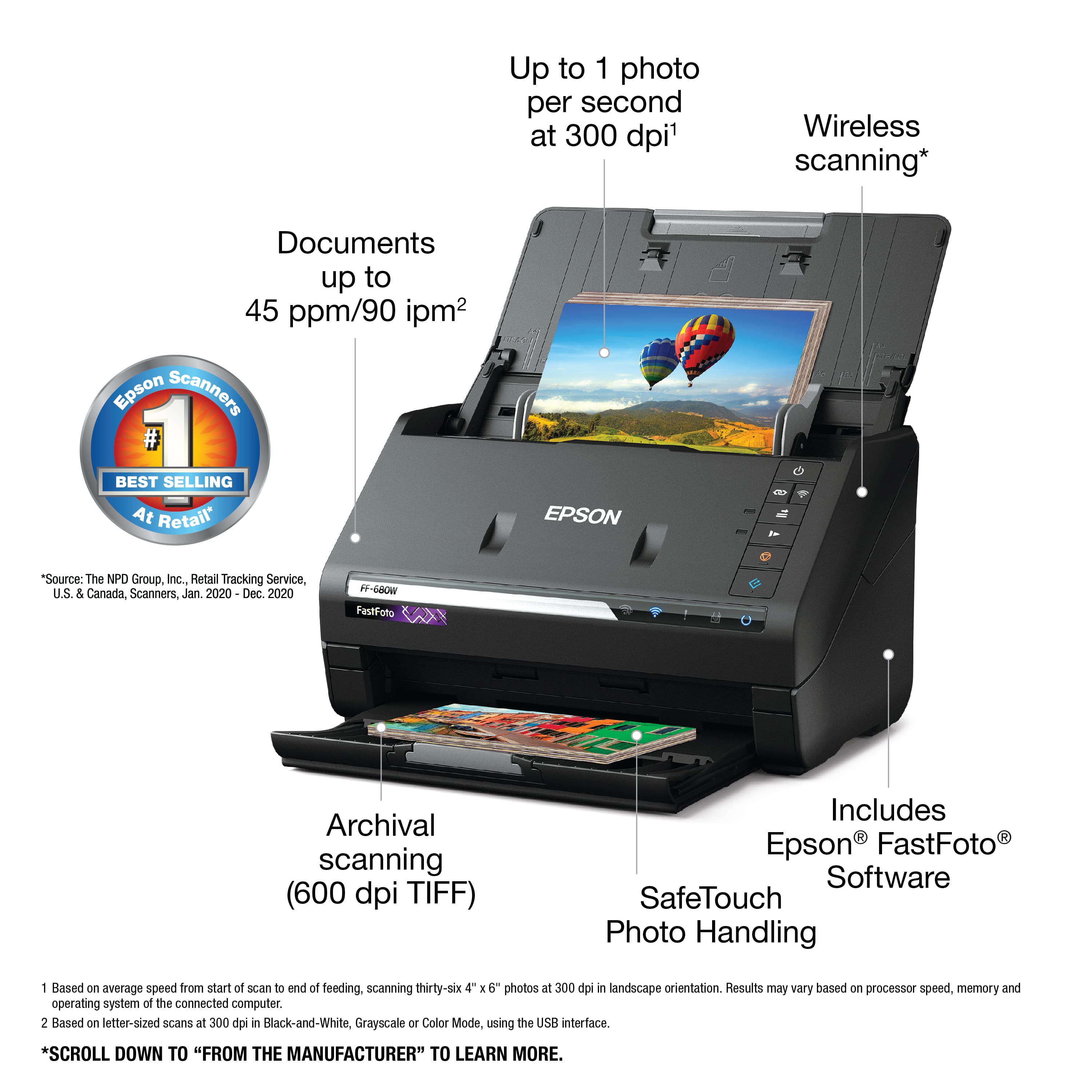
A:AnswerThe machine is awesome! It can scan a large number of pictures very quickly. 8x10 size take a bit longer. You can label the pictures in a group according to year, month, season and category or name. For instance you can choose 1999, February, John (or whatever name you choose) or 1990’s, Spring, Smith family (or whatever name you choose). They can be categorized before or after scanning for easier locating on your computer. I haven’t had the machine long so I don’t know it inside and out but what I’ve seen so far is you can choose a category like year, era, season and then a free form like you could type John in London. I’m not sure if you can put an individual name or location right on a picture if that’s what you’re asking. I will try and check that out today as I am working on a huge project.
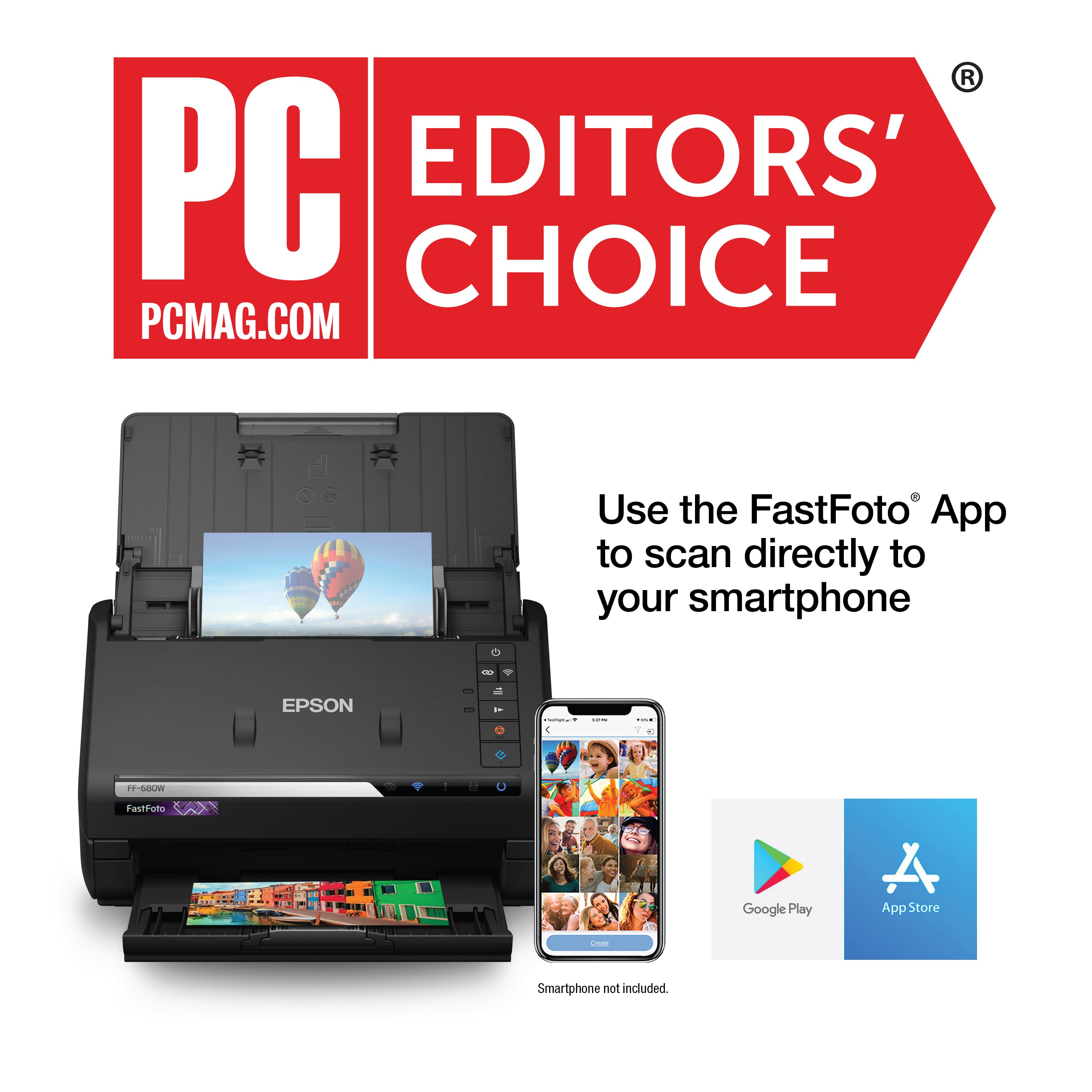
A:AnswerHi ES, the Epson FastFoto FF-680W scanner is compatible with mac OS X 10.11.x to mac OS 10.15.x. Hope this answers your inquiry. Regards, Eduard - The Epson Team.
A:AnswerI am using the Epson Fast Foto scanner with a MacBook Pro and my husband uses it with a Windows based computer. It works seamlessly with both computers. Easy to set up right out of the box. Epson provides very good pictorial directions. Hope this helps.
.
A:AnswerEpson speaks of, " Second-generation Epson® FastFoto Software makes everything easy, with convenient photo editing and smart file organization tools." with the model I bought here on Best Buy,
Model: B11B237201
I don't know if it is the second generation software to which you are referring or not?
A:AnswerThe manual says, "Sharing Photos with Epson FastFoto
You can share your scanned photos via email with the Epson FastFoto software.
1. Do one of the following to start FastFoto:
• Windows 10: Click and select EPSON Software > Epson FastFoto.
• Windows 8.x: Navigate to the Apps screen and select Epson FastFoto.
• Windows (other versions): Click or Start, and select All Programs or Programs. Select
EPSON Software > Epson FastFoto.
• Mac: Open the Applications folder and select Epson FastFoto. "Attaching a Scan to Email
You can attach a scanned image to an email as a file attachment.
Note: Your email app and account settings should be configured before scanning. You must install a
MAPI-type email program such as Outlook Express, Windows Live Mail, Entourage, or Mac Mail. Webbased
email services such as Gmail are not supported. If you do not have a supported email program,
you see an error message.
1. Make sure your originals are scanned and reviewed.
2. In the Select Action window, click Attach to Email.
You see a screen like this:
3. Change the settings as follows:
• The document type and scan date for the file name are automatically detected. You can change
them as necessary.
• You can save the scanned image in a variety of formats. If you select Searchable PDF as the File
type setting, you can select the OCR (Optical Character Recognition) language.
• If you also want to save a copy of the scanned image to your computer, make sure the checkbox
is selected and select the folder on your computer in which to save the file.
4. Click Attach to E-mail."
It sounds to me as if you need a computer to work the software and cannot just send to email directly from the scanner. If this doesn't help, this time, try contacting Epson directly.
A:AnswerThe printer allows you in the printer software to load a location you wish the printer to send the scan files to. I assume if you have mapped the drive then you can automatically send the files to that location.