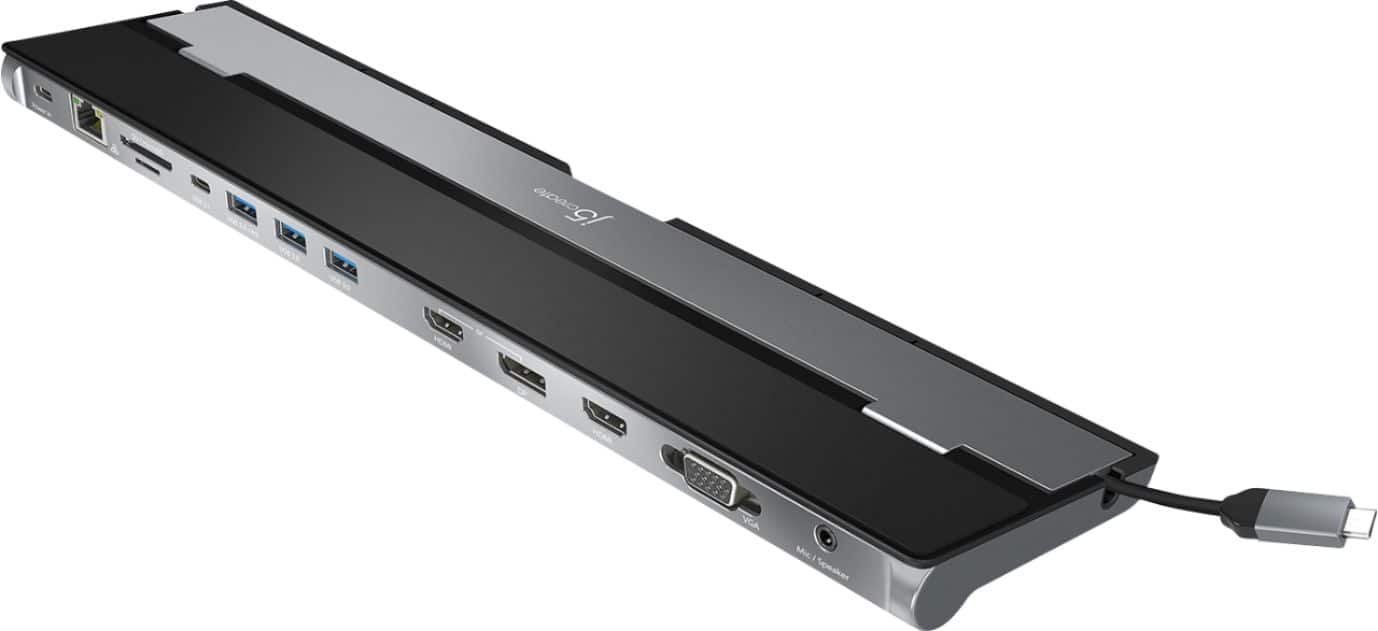
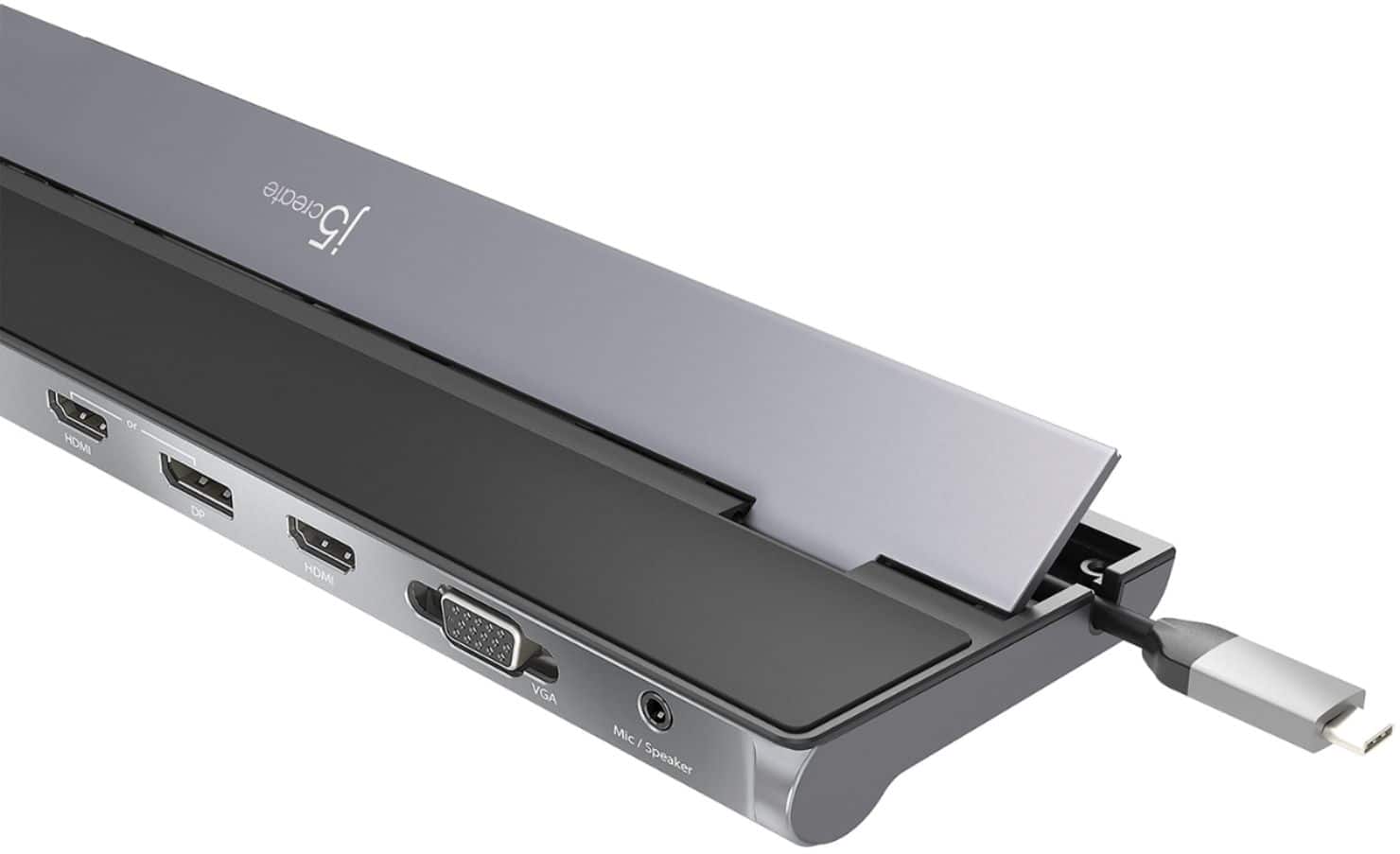
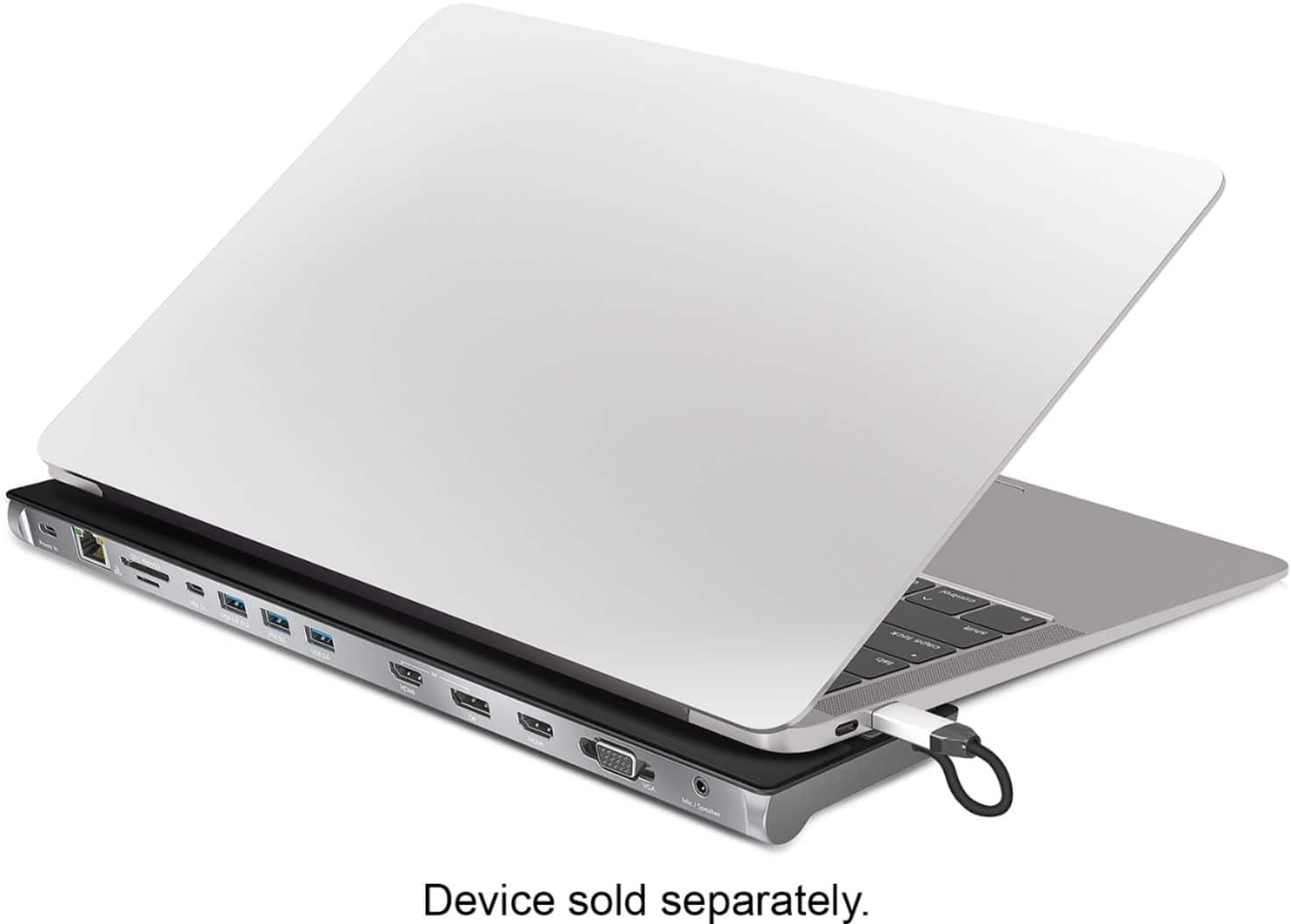
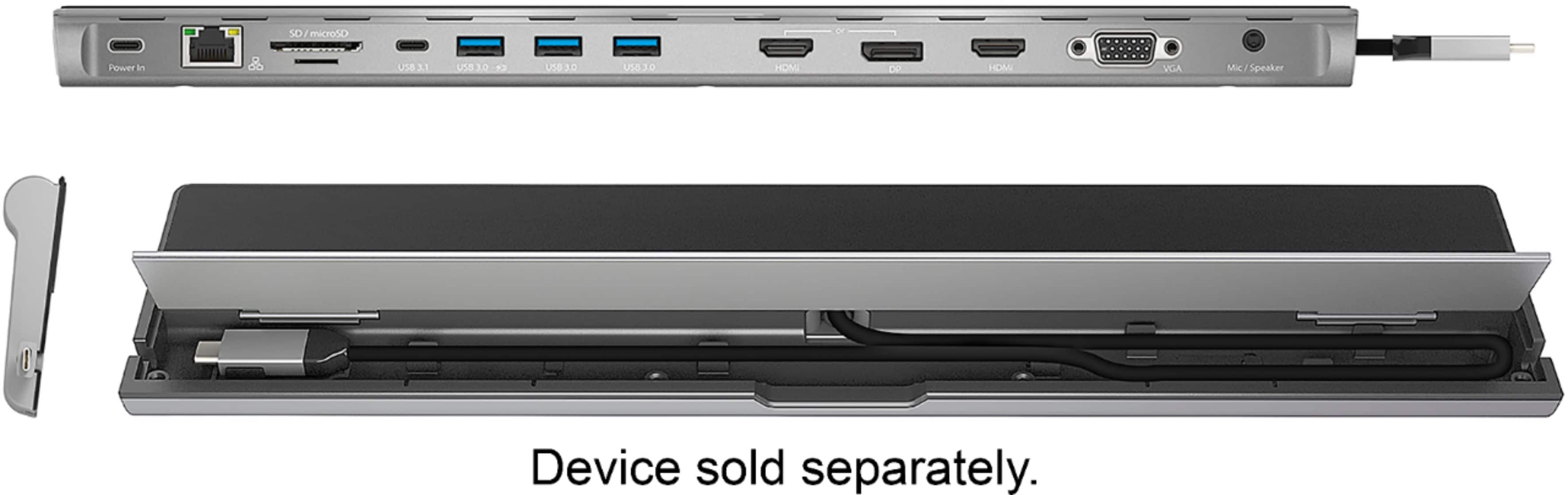
A:AnswerThe only ports that will not work with Chrome OS is the VGA/HDMI and Mic ports. Those require an installation of a driver and is only available for Windows and Mac computers. The rest of the ports are PnP (Plug n Play). However, the Chromebook must support "DisplayPort Alt Mode" and "Power Delivery" through the USB-C port, for the DP or HDMI and Power-in ports to work. Without those features, the Dock will not function correctly. Please refer to the manufacturer of your hardware for more information on your device. Thank you.
A:AnswerIf you have the Legion Slim 7 Gen 6 you should have 2 x USB Type-C (DisplayPort, USB 3.1 Gen 2) that will work on the JCD543 Plug n Play ports. However, your USB-C port must also support "Power Delivery" for pass-through charge via USB-C power-in port on the JCD543 for it to work. You can use your Lenovo charger, if it came with a USB-C connection or the JUP2290. You would also have to download a driver for HDMI/VGA and Mic ports for proper functionality, which can be located on our website under the "Support" tab > "Downloads/Driver".
A:AnswerThe Dock supports Plug n Play and requires installation of a driver for just the HDMI/VGA and Mic ports. Unfortunately, we would need the exact Make and Model# of your laptop to check compatibility. For more info regarding this question, please contact customer support through live chat or create a support ticket. Our phone support will temporarily be unavailable due to COVID. Sincerely, j5.
A:AnswerProper functionality entails downloading and installing a driver on a Mac platform. Depending on the OS you have, different instructions apply and if you could please contact our support team, a specialist will be more than happy to lend a helping hand. Thank you.
A:AnswerYes, Lenovo's website states you should have (2) Thunderbolt 4 ports available. The HDMI/VGA and Mic ports on the Dock requires an installation of a driver. Drivers can be located on our website under the "Support" tab > "Downloads/Drivers".
A:AnswerUnfortunately, HP website does not come up with model 15-dy2XXX. Please contact HP customer service for them to verify if your computer supports "DisplayPort Mode" and "Power Delivery" over USB-C. The JCD543 is a Plug n Play device and driver base but must support those 2 features as well to be compatible with your computer. Cordially, j5.
A:AnswerFor the JCD543 to be fully compatible with your HP x360. The computer's USB-C port must support "DisplayPort Mode" for video out and "Power Delivery" for pass-through charge. The Dock is a Plug n Play and driver base. I would need the exact Model of your HP to verify. Please contact our Support Team and they'll be able to assist you with any questions you may have. Thank you.
A:AnswerYes, just for the HDMI, VGA and Mic. The rest of the ports are Plug n Play. However, computers must support "DisplayPort Mode" for video out (HDMI or DP port) and "Power Delivery" for pass-through charge (USB-C power-in port) over USB-C. If the computer does not support those features, the JCD543 will not be fully compatible. Drivers are available on our website under the "Support" tab > "Downloads/Drivers"
A:AnswerYes, I used mine for both a MacBook pro late 2018 model and for an ASUS ROG M16. The drivers for the macbook are much more complicated to get through than the Windows version. If your macbook is new M1 chip, it may or may not work, recommend checking with j5create website to check compatibility with SOC architecture instead of X86.
A:AnswerComputers must support "DisplayPort Mode" for video out when it comes to PnP video ports. The HDMI next to the VGA will also work since those require an installation of a driver. Please refer to the manufacturer of your hardware for more information on your device. Thank you.
A:AnswerPlease verify with Microsoft Customer Service Support if the USB-C port on the computer will support "DisplayPort Out" for video and "Power Delivery" for pass-through charge. If it does not support those features, the HDMI or DP and USB-C Power-In port will not work. Cordially, j5.
A:AnswerProper functionality entails downloading and installing a driver on a Mac platform. Depending on the OS you have, different instructions apply. ** Feel free to contact j5create Technical Support if you require assistance. Thank you.
A:AnswerUnfortunately, Lenovo's website only comes up with model C630-13Q50. The JCD543 requires "DisplayPort Alt Mode" and Power Delivery" over USB-C. Please refer to the manufacturer of your hardware for more information on your device. The ThinkBook 14s Yoga (14") states one of the ports is a "USB 4 Type-C with Thunderbolt™ 4", therefore the JCD543 is compatible with your ThinkBook.
A:AnswerCheck connections also go into windows display properties and click on the second monitor and activate it if it’s not. If still a problem check device manager to see if there are any conflicts going on. You can also download the driver from their site and this can sometimes fix video issues. Trying a different usb-c connection on your device may also help.