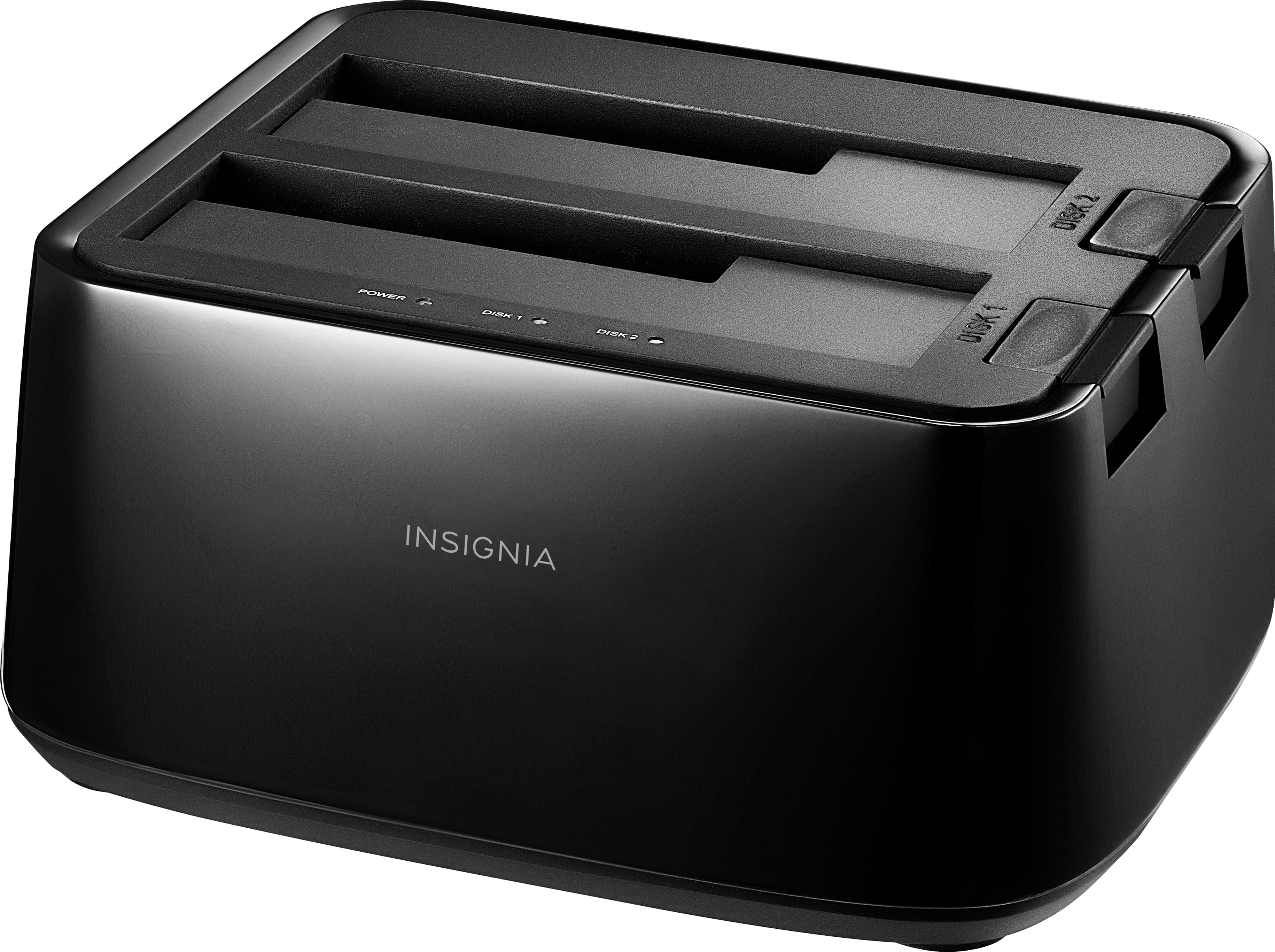
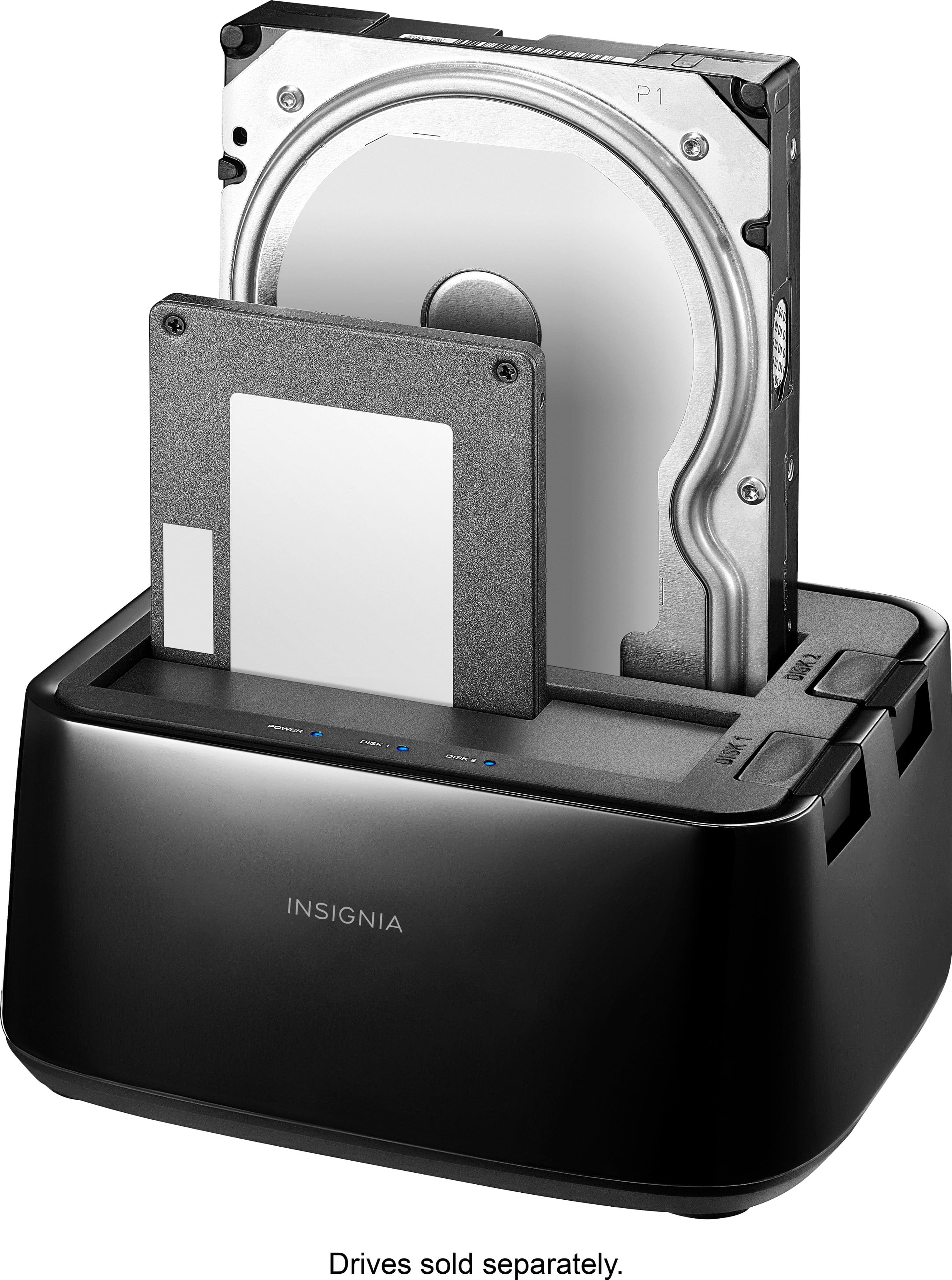
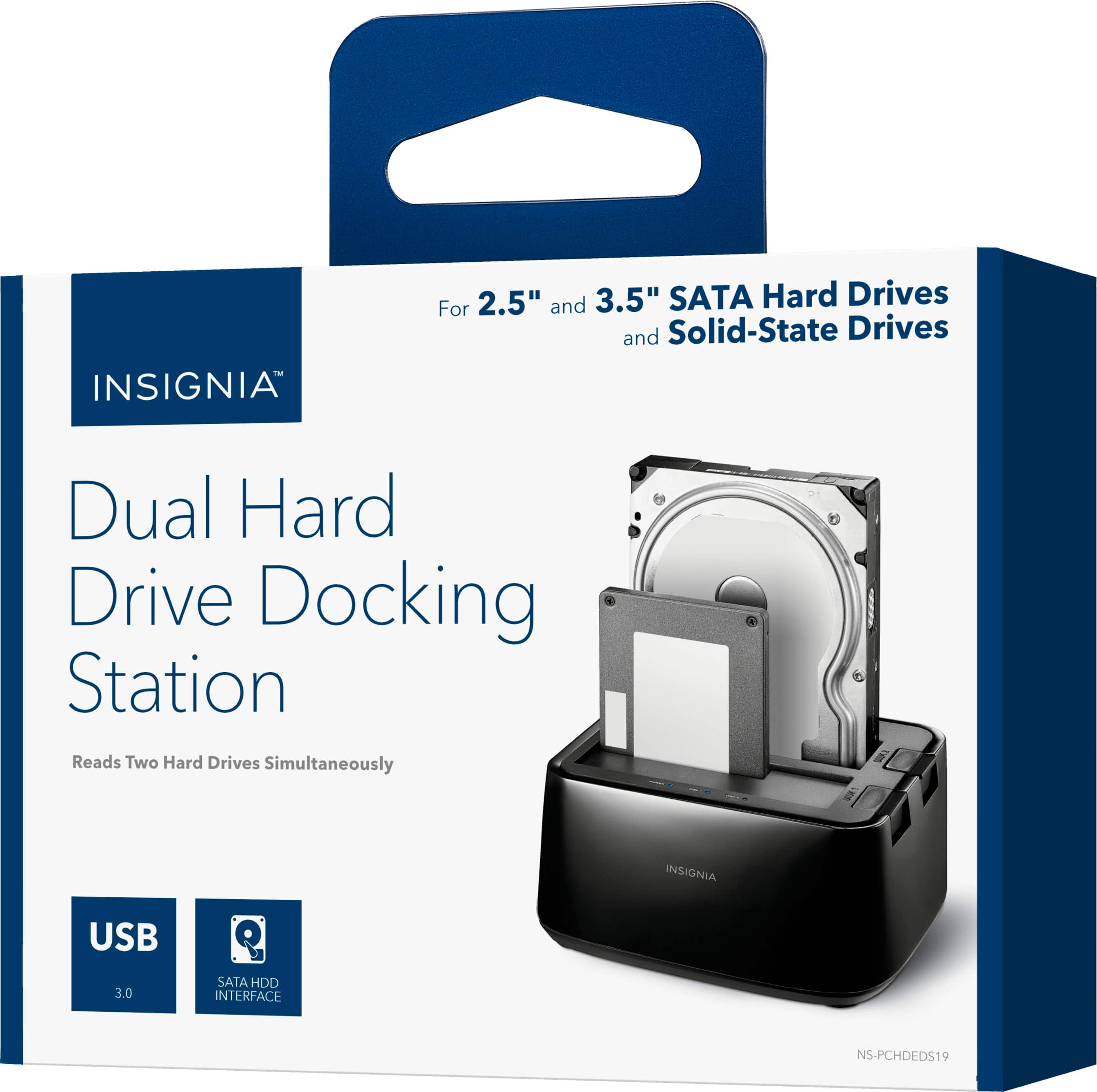
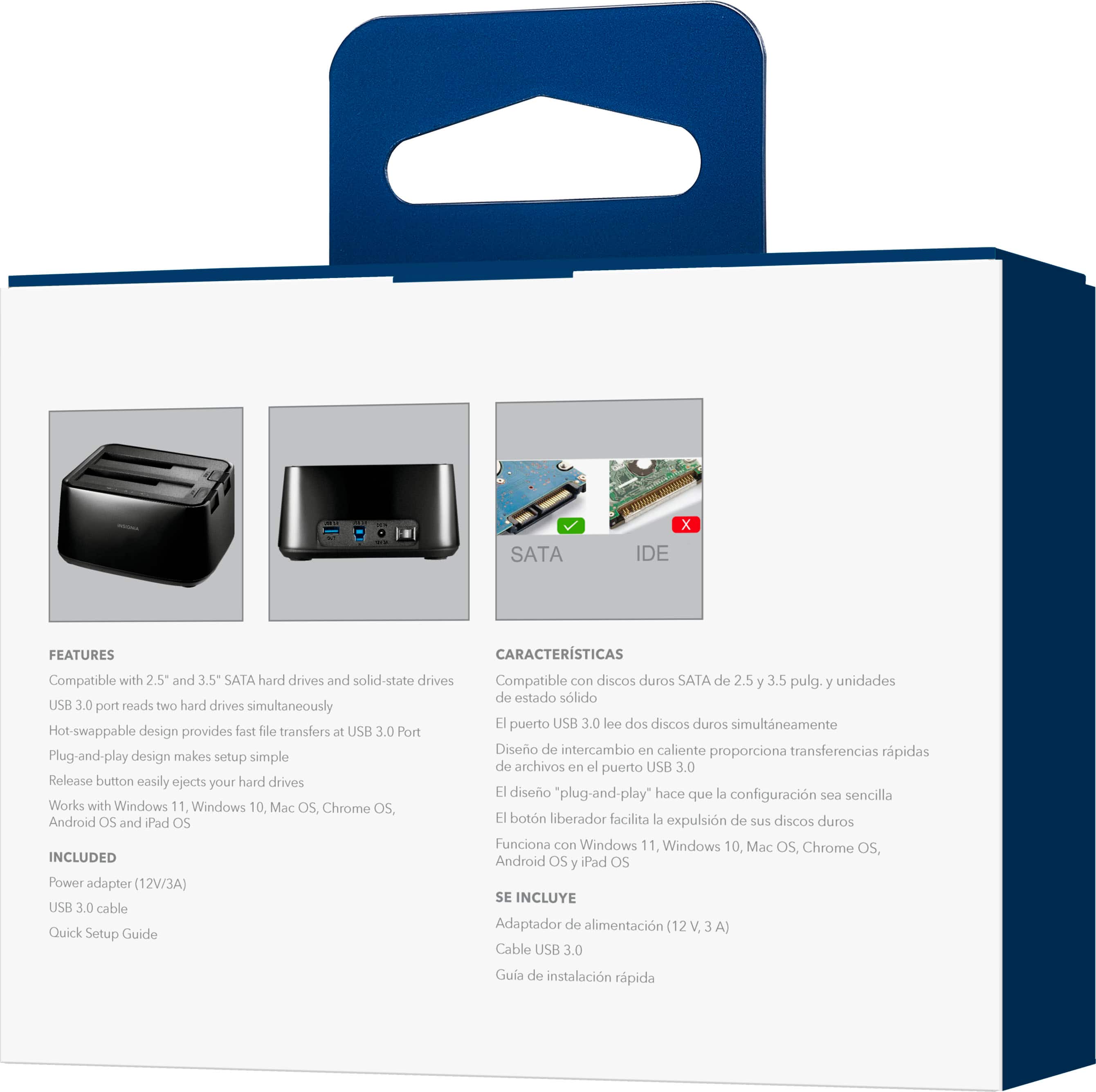
A:AnswerThis only works for SATA drives. It does not work for IDE or SCSI drives. It does work for 2.5 and 3.5 inch drives, both SSD and HDD. (I have been using it to go through old disk drives and it works pretty good, tho when you eject an HDD you have been using, give the drive time to spin down before handling so the platters don't suffer any wobbling. SSDs, no moving parts, so no issue with them.)
A:AnswerIn order to put a drive into this dock, it will need to be removed from any external cases. Also, it is not a duplicator, simply a different type of external hard drive enclosure with space for 2 drives. As far as being able to access data from your hard drive, maybe. There are at several reasons a computer might recognize a drive but not allow you to access the data.
1) It could be a formatting issue. If the old drive was from an Apple computer and you are now using a Windows computer, Windows won't be able to read the data because it doesn't recognize the file formatting system. If this is the case, you could use an apple to access the data and transfer it to a hard drive formatted as a FAT partion (which Windows will read).
2) it could be that your computer isn't able to supply enough power to the current drive to power it up over USB. If your external enclosure has its own external power supply, than this shouldn't be an issue. But if it doesn't, this product will allow the drive to power up since it has its own power source.
3) The drive might be failing. If this is the case, there are services available where you can send the drive away and have them recover the data for you.
4) (and probably least likely) if the computer you are now using is an older model, then the operating system may not be able to recognize the size of the drive you're using. I haven't seen this issue in about 8 years, but it's is possible. If this is the case, you might be able to use free recovery software to pull the data off the drive, you wouldn't need this product to do that though.
There are probably other possible issues, but hopefully this helps.
A:AnswerYes. However, there is no cloning capability built in to the hardware because it is not a dedicated duplicator. You will need some sort of disk image copy software like Acronis Disk Director or Clonezilla.
A:AnswerIf you mean physical size, the flap covering the slot allows either a 2.5” or a 3.5” SATA drive to be inserted.
If you mean storage size, I assume it will support whatever the OS can handle. I’ve used it with 4TB 3.5” hard drives.
A:AnswerYes, theirs nothing to see if there isn’t a drive inserted into one of the ports.
I currently use two of these docks, one attached to my Workstation, and one attached to my NAS, you don’t see the docks, but the laptop will recognize the drive once inserted, if once you insert the drive you don’t see it connected within a minute, you should look in Disk Management to see what problem there is with the inserted drive, NOT a dock issue.
The drives will connect as a typical USB device, and you should see the drive notification detected as a typical USB device connected, and can “eject the drive” from the Laptop with the sys tray app as usual.
Hope that helps.
A:AnswerThe dock has no button to activate a clone feature and drive cloning typically requires a basic os to perform. The form factor is mostly for the wiring and support on a desk to avoid shock damage from a fall (3.5 drives are easy to tip and hefty).
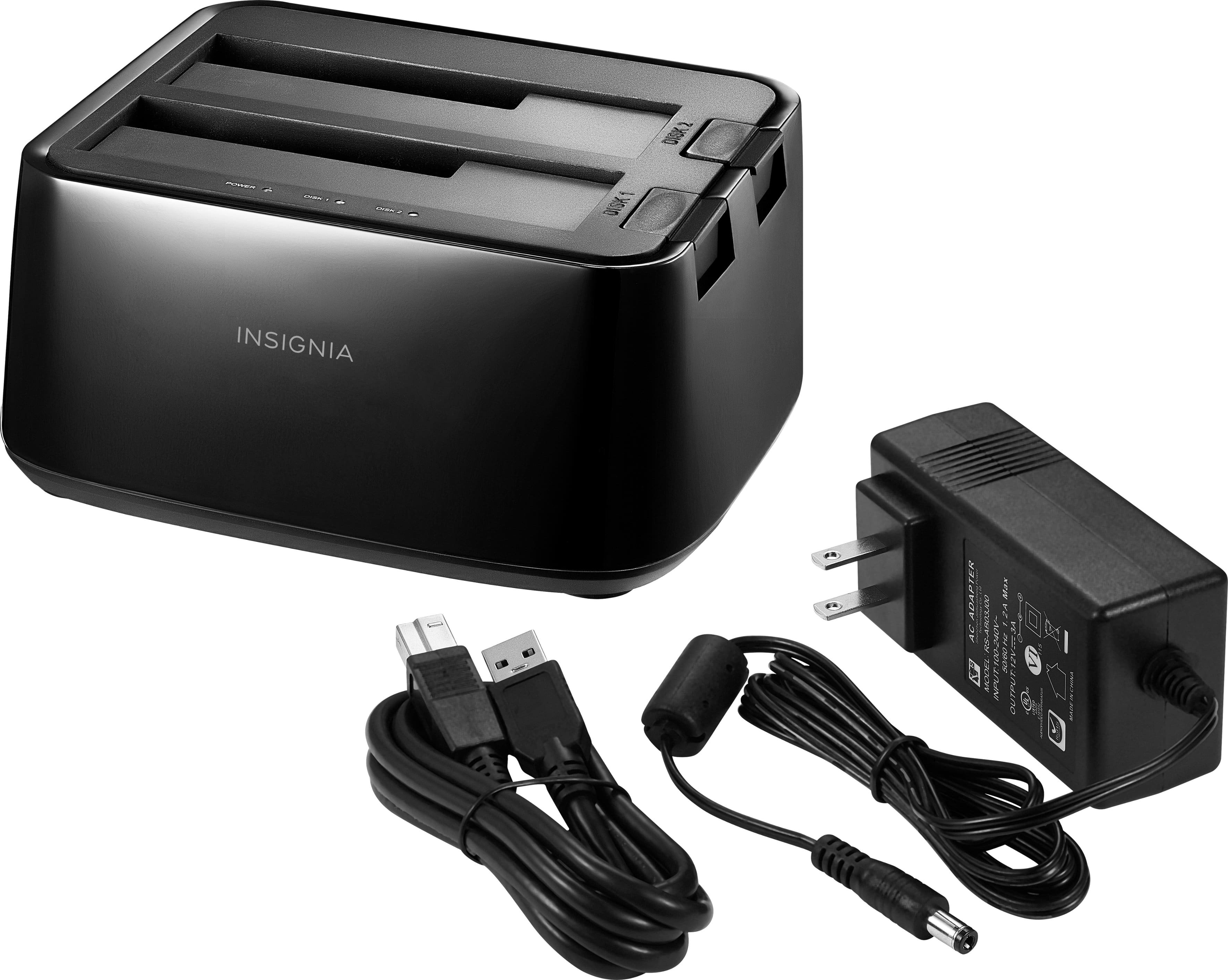
A:AnswerHere is the info from mine:
AC Adapter
Model: RS-AB03j00
input 100-240V
50/60 Hz 1.2 A Max
Output: 12v 3A
Either go to the internet or try the company's site itself. They must sell replacements.
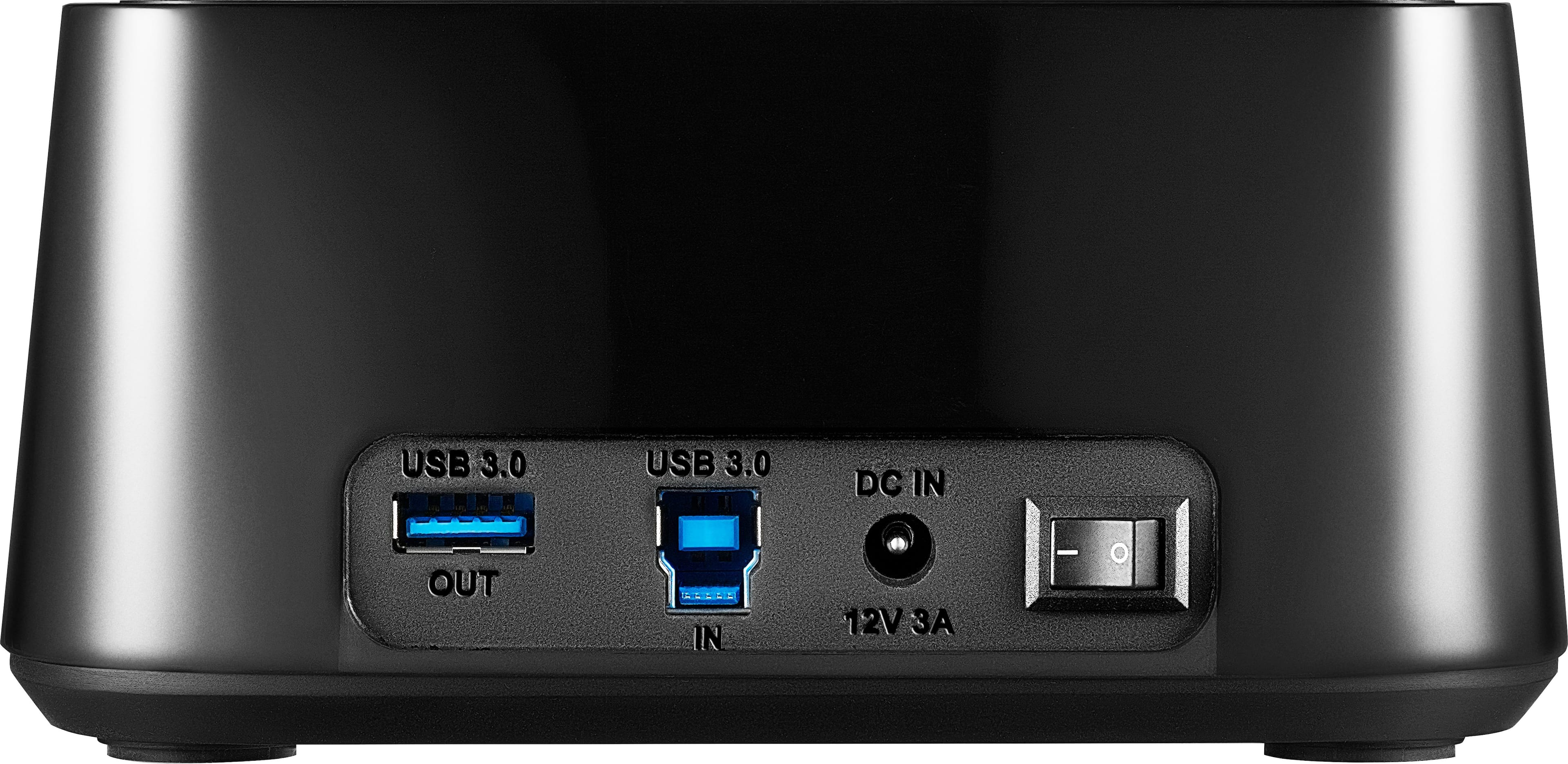
A:AnswerI'm not sure I can answer your question if I understand it but I can give you some info. The max limits of the docking station transferring data is set with the 3.0 usb port and the drive you have in the docking station. Erasing data was always the same . . a question of the speed of the drive I had in the docking station. What I found was a very wide difference in time when transferring data using old hard drives that were very slow. So my answer would be it probably depends on the speed of the drive you have in the docking station.
A:AnswerWhat I did was took the old hard drive out of my old computer and put it in the hard drive slot. Plugged it into my new computer with the usb provided. And it fired right up. I was able to transfer all my old stuff onto new computer at that point. Hope this helps you.
A:AnswerAs long as it is a 2.5 inch or 3.5 inch drive that has sata a connector you will be good. Please keep in mind, if drives used in a nas are in a raid, and you use them in another system, you will not necessarily be able to see anything on the drives.
A:AnswerIt will work, you just have to use it with Mac OS and the hard drive has to be setup to be recognized by Mac OS. I use a hard drive setup as an exFat and both windows/Mac can read it.
A:AnswerHello, Joe2020,
A computer running a compatible operating system will be required in order to transfer data, as it provides the interface to do it.
Eduardo L - Insignia Support
https://www.insigniaproducts.com/contact-us
A:AnswerI didn't have to format any drive to use this. I just stuck them in and they showed up with an assigned drive letter and was immediately accessible.
A:AnswerI have an ASUS notebook that it works with, windows 10
It also works with my DVR to save movies onto that can only be read by the same model DVR. Some kind of Magnavox OS tailored to that model of DVR.
And lastly I've had hooked up to several desktops. Windows 7 and 8.
I wish it had some kind of adapter, or a third slot that could allow me to plug in the older drives also.
I really can't see any reason why it wouldn't work with a chromebook, but can't say for certain.