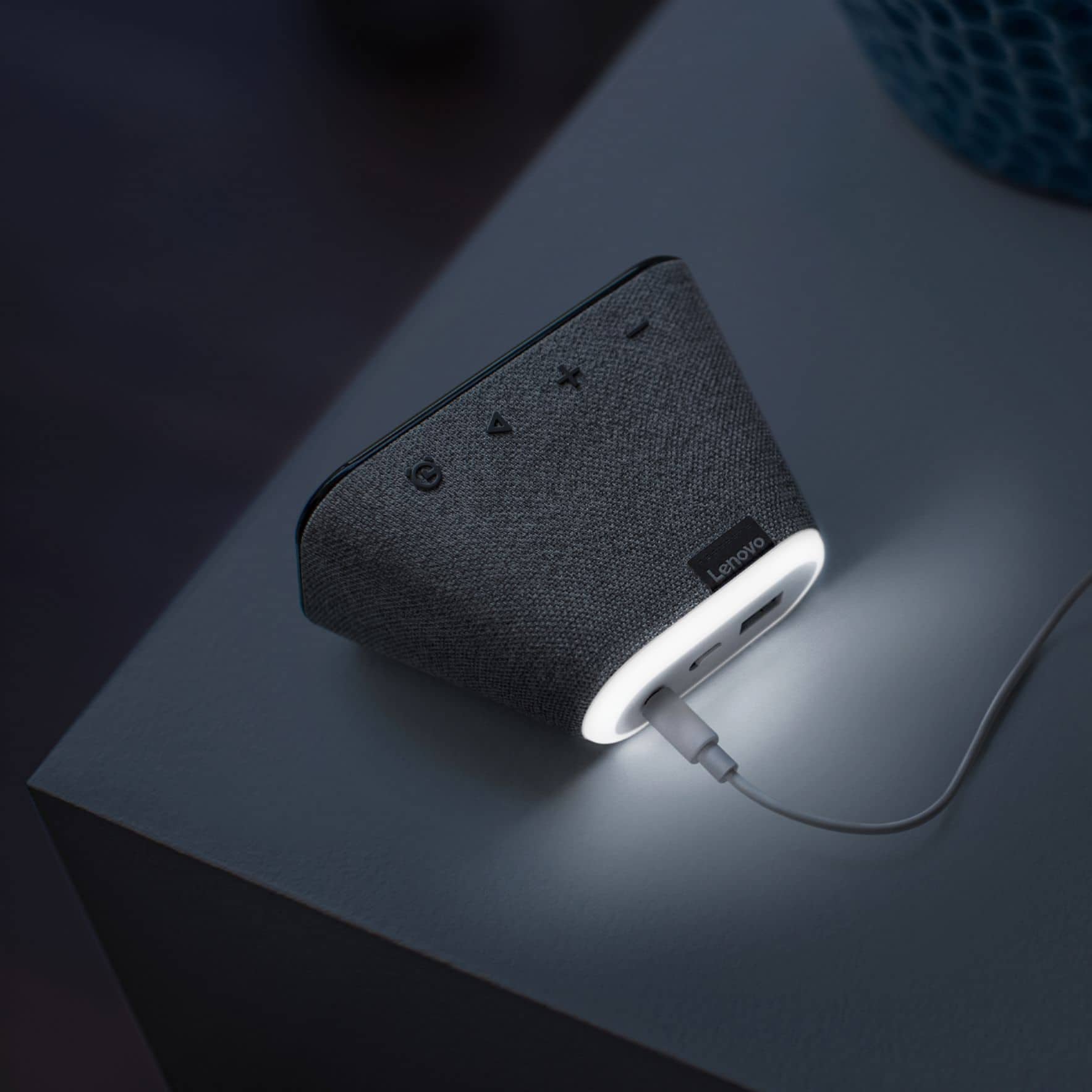
A:AnswerHi there, Yes you can turn the nightlight off or on with a simple voice command "okay Google night light off/on", or by holding down the volume "-" button for 3 seconds.
A:AnswerUse the Google Home APP that you used to setup your Lenovo Smart Clock Essential to adjust the alarm volume. You can also ask the Google Assistant to play music from one of your music streaming accounts that you paired to the Smart Clock Essential through the Google Home APP as well. If the issue continues, you can contact Lenovo Tech Support for Smart Devices at: 866-426-0911.
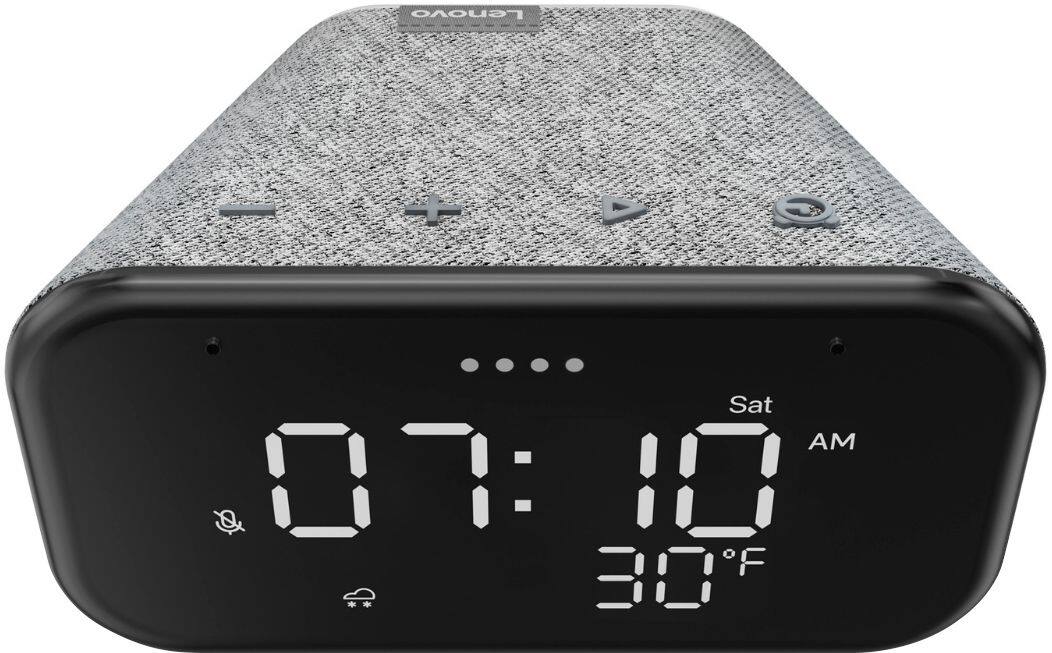
A:AnswerOnce your device has been setup on your home network to set an alarm just say "Okay Google set an alarm" You can manually set the Alarm with the buttons on top of the device as well. If your Smart Clock Essential is having issues setting alarms please power cycle the device by unplugging it for 1-2 minutes. Plugging it back in, and allowing it to power on. If the issue remains please perform a factory reset by holding down the “Volume + and – ” buttons on top of your device for 8 Seconds. If the issue persists, please contact our customer support team at 866-426-0911
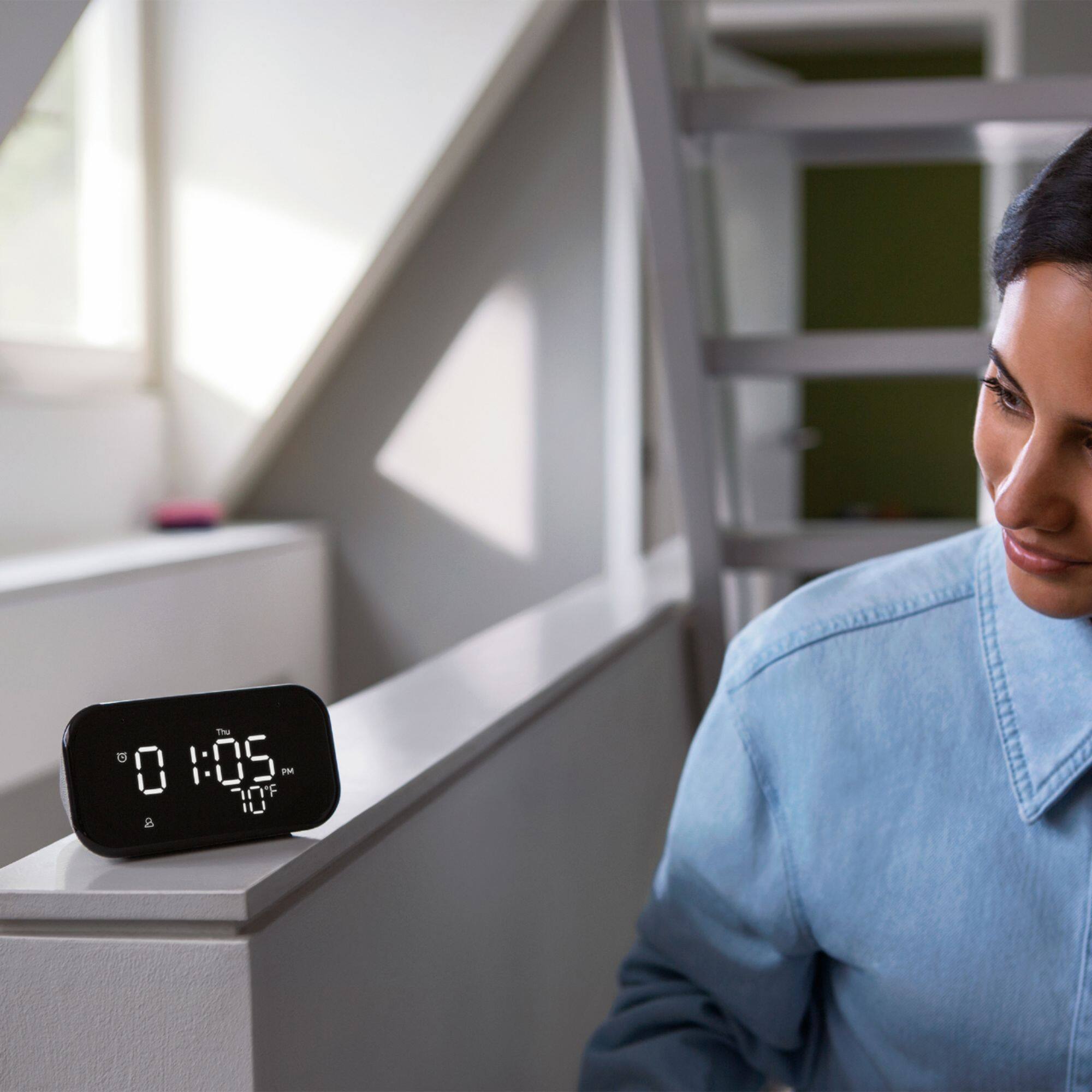
A:AnswerHello, The Lenovo Smart Clock Essential does feature an ambient light sensor that will Dim or Brighten the Display based on the light in the room.
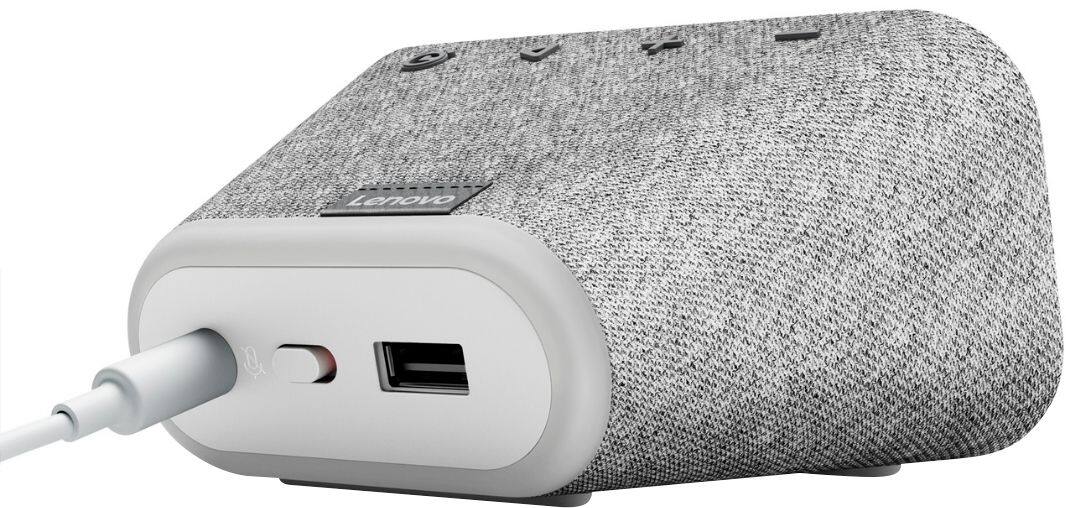
A:AnswerHello, thanks for your question. Yes, you may turn off the alarm of the Lenovo Smart Clock Essential by pressing the button shaped like an alarm (farthest right) on top of the device while the alarm is sounding. To turn off the nightlight you can press and hold the volume "-" button for three seconds.
A:AnswerIs your phone on the same Wi-Fi network as your clock? When you first setup your device, you would have had to choose a network through the Google Home app. Is your clock or phone in good Wi-Fi range? Spotify in my experience can drop streaming from time to time depending on these factors. I feel it has more to do with Spotify communicating with a device than the device dropping Spotify.
A:AnswerHello, thanks for your question. Yes this is possible by setting up a routine. To get started please open up the Google Home app on your smart phone or tablet. Next select "routines". After that please select your Smart Clock Essential from the device list at the bottom of the screen. Next please select the mult-colored "+ " Sign to add a new custom routine. Then Add a starter with the time of day to start the routine. Lastly add a custom action. Please type "Turn on nightlight" in the text box of the custom action. You have now created a custom routine to turn your nightlight on at a certain time. To turn the nightlight off you will need to crate a custom routine again using the above method but changing the routine action text to "Turn nightlight Off" at the specified time.
A:AnswerI don't believe so, I tried, before answering this question, to set it up on my iPhone with Apple Home Kit and I could not find it.
I was able to set it up on my iPhone with the "Google Home" app when I bought it originally.
A:AnswerHello, thanks for your question. You can change the time format of your Smart Clock Essential by opening the Google Home App on your Smart phone or tablet, selecting the Smart Clock Essential, selecting the gear shaped settings icon, and then selecting time format.