A:AnswerIt supports one ethernef out cable—which I have used to connect with a 16-port Ethernet Hub that gives more than enough additional ports for all my needs (you could buy an 8-port or 4-port hub for much less, depending on your needs). Hope this helps!
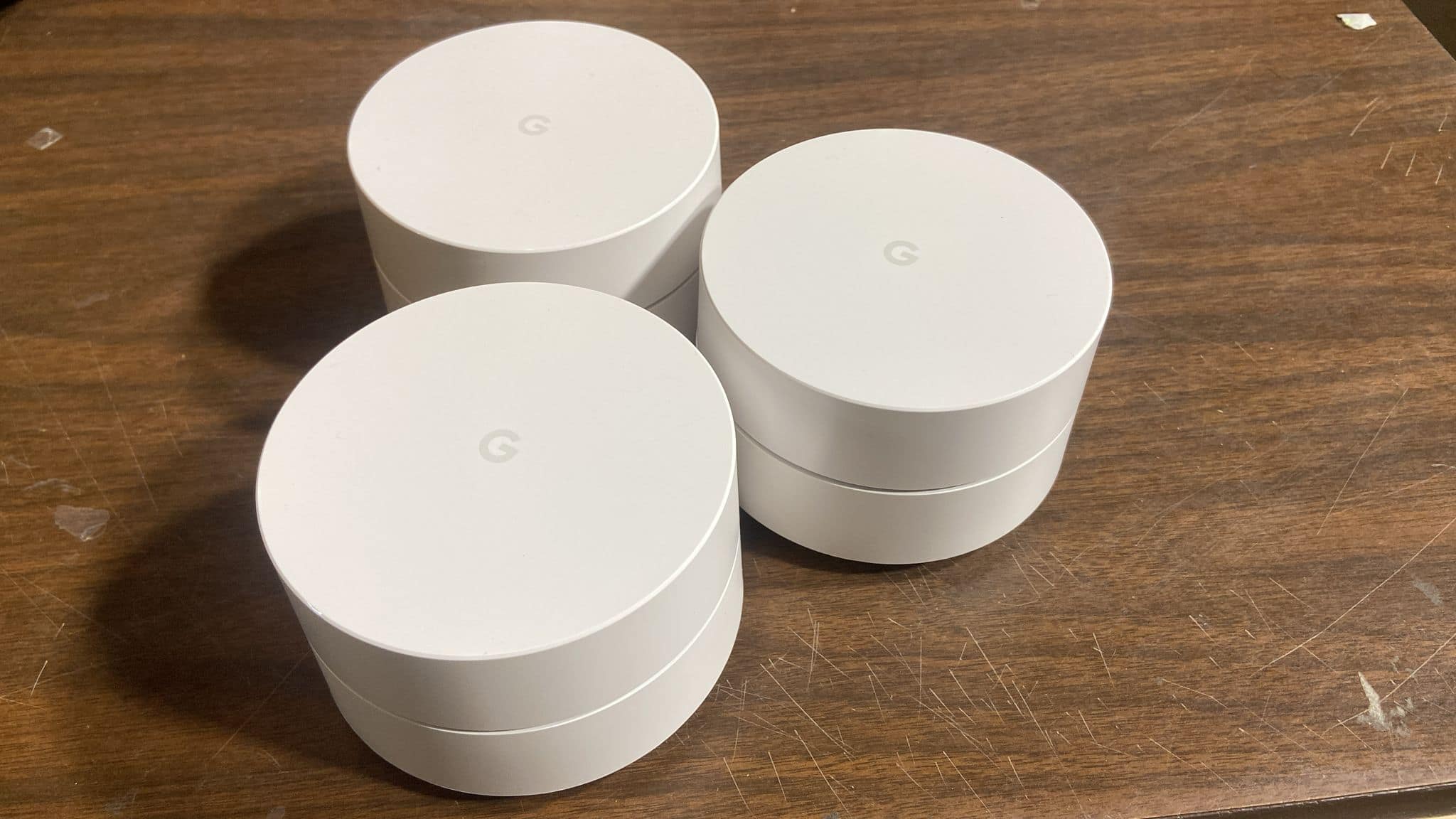
A:AnswerHi, to your question, YES you can add a network switch. In my current setup, I have the 3 google wifi puck system, One in my computer room which is connected to a 5 port gigabyte Ethernet switch. One in my living room which is also connected to a 5 port gigabyte switch. and the other i just have directly hardwired to my android entertainment in my bedroom.
So for the Main Puck that is connected to the modem, that only leaves you 1 port. For the other 2 that are not directly connected to the modem, they have 2 Ethernet ports available (the modem port turns into a reg Ethernet port), since they are turned into bridges, so essentially if you wanted to, at the satellite mesh points, you can connect 2 Network switches on each of the ethernet ports on the puck and expand more.
hope that helps or makes sense
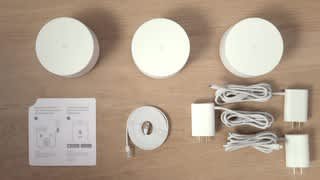
A:AnswerYou start by installing the first unit just like any other router only you have to use an app on your mobile phone. Once the first one is up, the app will ask you if you have additional Google points. The additional ones just need to be plugged into a power outlet and be within range of another unit and that’s it. Very simple installation thanks to the mobile app!!
A:AnswerJohn, it will support well more than 3. Most large homes do not require more than 6 total points. My home is approximately 4500 sq ft and I have 3 with great coverage.
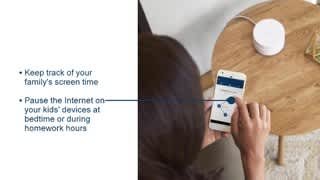
A:AnswerAbsolutely. That's a great feature with these. There's a setting in the app called family wifi. There it will list every device that is connected. From there you can pause any individual device. I have 4 kids and I pause there internet from Sunday when they go to bed until Fri after school. I would say, that when setting this up, if there are certain devices you know you will be wanting to pause, connect them one at a time, so you can rename them, it's much easier in the long run. Once that device connects, you can go into the app and name it whatever you want, and picking it out of the sea of connections is much easier. You will be surprised how many things connect.
A:AnswerI set up my Google mesh wifi on top of my existing original wifi and actually like it this way. Having 2 wifi streams in the house means I can leave my Google "Cast" music speakers on the original wifi... (since they do not need much wifi speed to function) and used the Google wifi for all the tablets and smart phones in the house, which we use quite a lot. This way the music streaming speakers don't take speed away from the tablets and I didn't have to change the passwords in the speakers. It woks out great.
A:AnswerWe used steel screening to secure windows from unauthorized snooping in the Air Force. My barn has metal siding. The signal gets thru somehow. Probably a window. 50 feet plus steel is pushing your luck. But, buy and try like I did. Placement of the devices is key. Move the one in the garage until you get a signal. If no signal, return it. Best Buy will take it back in a reasonable time. Plus, the Google WiFi is simply and eligantly packaged.
A:AnswerYou can hardwire a single device on each google router, so a three pack can have three devices. Or you can hook a switch up if you need multiple in one location.
A:AnswerYes! Each has two Ethernet ports at each pod on the bottom to hook into. The only one that will not have two is the one hooked to your modem, it will only have one usable Ethernet port for a device to hook into since the other is receiving a signal from the modem. I've got a similar set up and this works great.
A:AnswerYou can use it to expand your current router and access point or you can use it as your new main router and access point. My suggestion is to get rid of your old router and use the Google wifi as your main router and AP. I recommend hardwiring all the device if you can but you can also connect it wirelessly.
A:AnswerIt should, I ordered one myself and I'm on Comcast. Any router will work with Comcast, your big thing is going to be getting a compatible Modem. You can see their list of approved modems here: https://mydeviceinfo.xfinity.com/
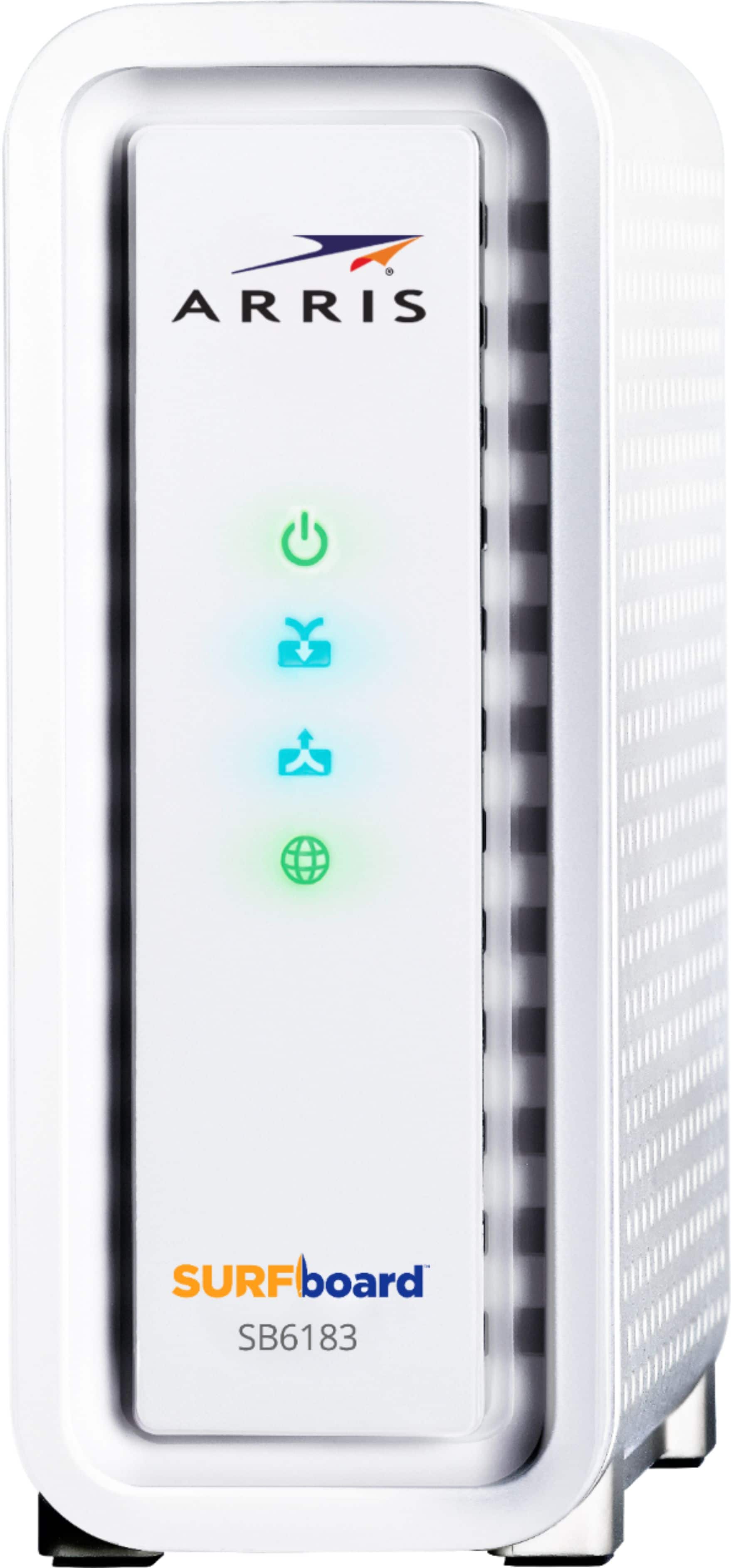
I currently use the Arris SURFboard SB6183 and have had no issues. But my router isn't that good and I think Google's mesh network will help greatly.
A:AnswerOne unit may not provide you the results you are looking for. It will depend how many walls you have in your condo and how many devices you are connected and data load you have.
This can replace a modem, but some internet providers may still charge you a fee to service your account even if you return their modem. Most internet providers only gaurantee wired speeds.
You could always purchase one and return it within the return period. Check and see if there are any fees associated with returning it because it didn’t work for your size home.
A:AnswerThere is more to answering this question than just your network characteristics. For one, yes, your internet pipe is fairly small for gaming. Consider migrating to at least 100mbps. Further, your son's computer may not be optimized for gaming. Things like graphics card, main processor, random access memory (RAM) and hard disk speed all contribute heavily to your gaming experience. Each game typically comes with a list of minimum hardware requirements. I would suggest comparing what you have with that list.
I hope this helps & happy gaming!
A:AnswerYes, this will give you much better WiFi coverage and speed over your ATT equipment. Best bet is to put your ATT modem on bridge mode and then use google WiFi as the only router.