A:AnswerYou can have up to 4 devices connected at the same time on this switch all using internet at the same time. I don't believe the speed is hindered but I'd imagine that depends on how much you need for each device.
A:AnswerYes, just be sure that you have another ethernet cable going from an ethernet source (wall outlet or router) so the switch can send that ethernet to your PS4
A:AnswerIt may contribute to a degraded speed since you basically will have more devices running through it than was originally intended. It's kind of like how you notice changes in your cable internet speeds after the kids get off the bus at the end of the day, everything slows down.
A:AnswerYes. You state that you don't have a router, but the "modem" from your ISP is a router since it routes traffic to/from the internet. Connect port 1 on your new switch (although any port works) to your modem. I like port 1 because it's easy to remember but not necessary. Then connect your 2 wired PC's to a couple of the remaining 4 ports on your new switch and you'll be all set.
A:AnswerThis switch just extends the Ethernet network by allowing additional devices to be connected. Data is send both to and from all devices connected to it. Only the device that the data is intended for will acknowledge and accept it.
A:AnswerYes, it matters which way you connect it because anything downstream of your Eero will go off line if the Eero fails. It becomes a single point of failure and you don't want that. Plug the new switch into the router that has additional ports if possible.
A:AnswerIf the 4 students are connected with a wire (not Wi-Fi) to the switch and the switch is connected to your modem/router then you should be ok. If the reason for the Wi-Fi going down is a failure of one of the components, like the router, and you have to reboot it to get the Wi-Fi back up again, that will drop everyone's connection.
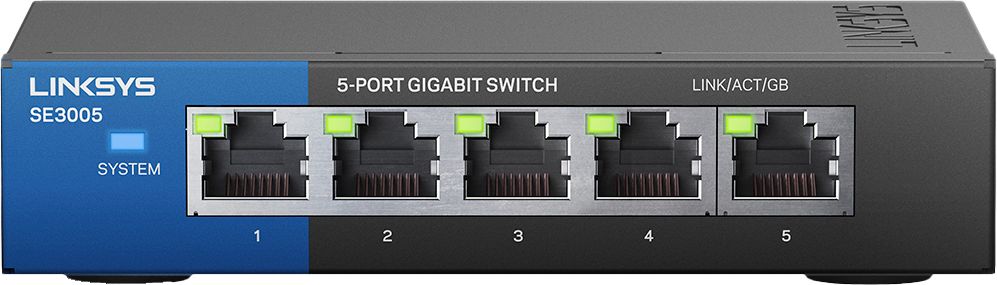
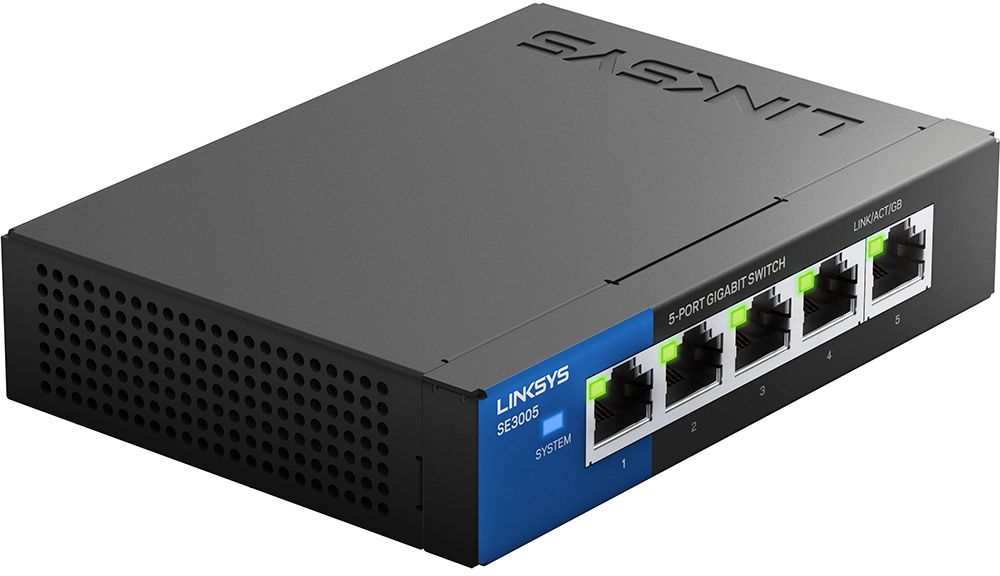
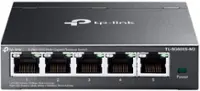
A:AnswerAll 5 of the ports work the same. To remember what cable I've got connected to what port, I like to use the switch's port 1 for the connection to the uplink router because it's easy to remember. If your in a tight spot and have trouble remembering what cable is plugged into what port, it's easy to remember that port 1 is next to the blue power light, something you can see even in the dark.
A:AnswerSet it up as you illustrate at the end of your question MODEM--->ROUTER--->SWITCH--->3 TVs. If possible , don't place a router downstream of a switch for best practice.
A:AnswerYes, you can use a switch to extend the distance and get more than 330 feet (100m). You can continue extending the distance using another switch from your new switch to another destination and so on, however it is recommended no extending more than 7 switches (7 hops)
A:AnswerIt will support wired devices and any traffic traversing through the switch, e.g.; the wireless traffic from the iPad Wi-Fi network and then via a wired connection through the new switch.