A:AnswerHi,
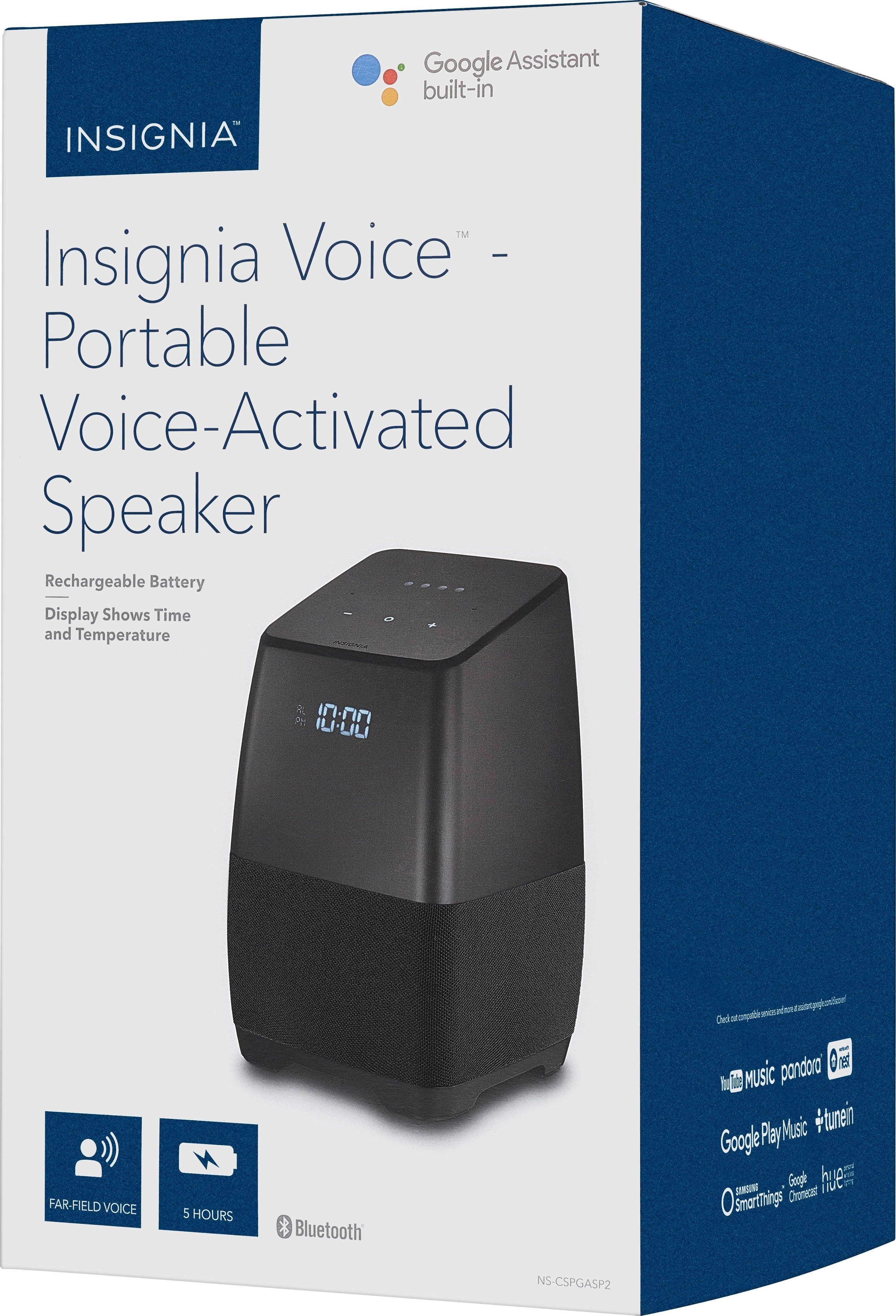
Thank you to choosing Insignia NS-CSPGASP2 "Voice Smart Portable Bluetooth Speaker with the Google Assistant built-in" We are proud to always have the most advanced technology for our customers.
You can use this device without a Wi-Fi connection but you're only going to get access to the built in Bluetooth technology, to feel the whole Google Assistant built-in experience features, you most connect it to the internet.
If you want further assistance, remember to always feel welcomed to contact our Customer Support line at 1-(877)467-4289
Alb O. - Insignia Support
A:AnswerHi there,
Thank you for your interest in our Voice Smart Portable Bluetooth Speaker. To answer your inquiries let me tell you that he Insignia Voice speaker is fully Multi-cast or Multi-room compliant; also they are totally compatible with Google Home.
We hope you enjoy this and other Insignia Products.
Arely R. - Insignia Support
A:AnswerNo harm if you don't intend to use the battery function much, but should still work fine for a few hours when and if you do decide to take it to another room on battery power. Theoretically the long term battery function might suffer, but if you don't plan to use it anyway, I don't see any downsides. The clock dims nicely too.
A:AnswerYou can great a playlist with whatever streaming music service you have. I have youtube red and can create a "brown noise" playlist and have that on repeat until i shut it off.
A:AnswerI don't believe Google Assistant has this baked in - yet. You can use IFTTT to do this, although in my experience, the IFTTT triggers can sometimes be delayed - not cool for an alarm clock.
A:AnswerYes, it has a non-verbal snooze feature. A quick hand wave (<1 sec) over the top triggers a proximity sensor that will snooze an alarm when it is sounding. If you are streaming, the same wave will turn down the speaker to 10% - helpful when you are listening to loud music and Assistant can't hear you.
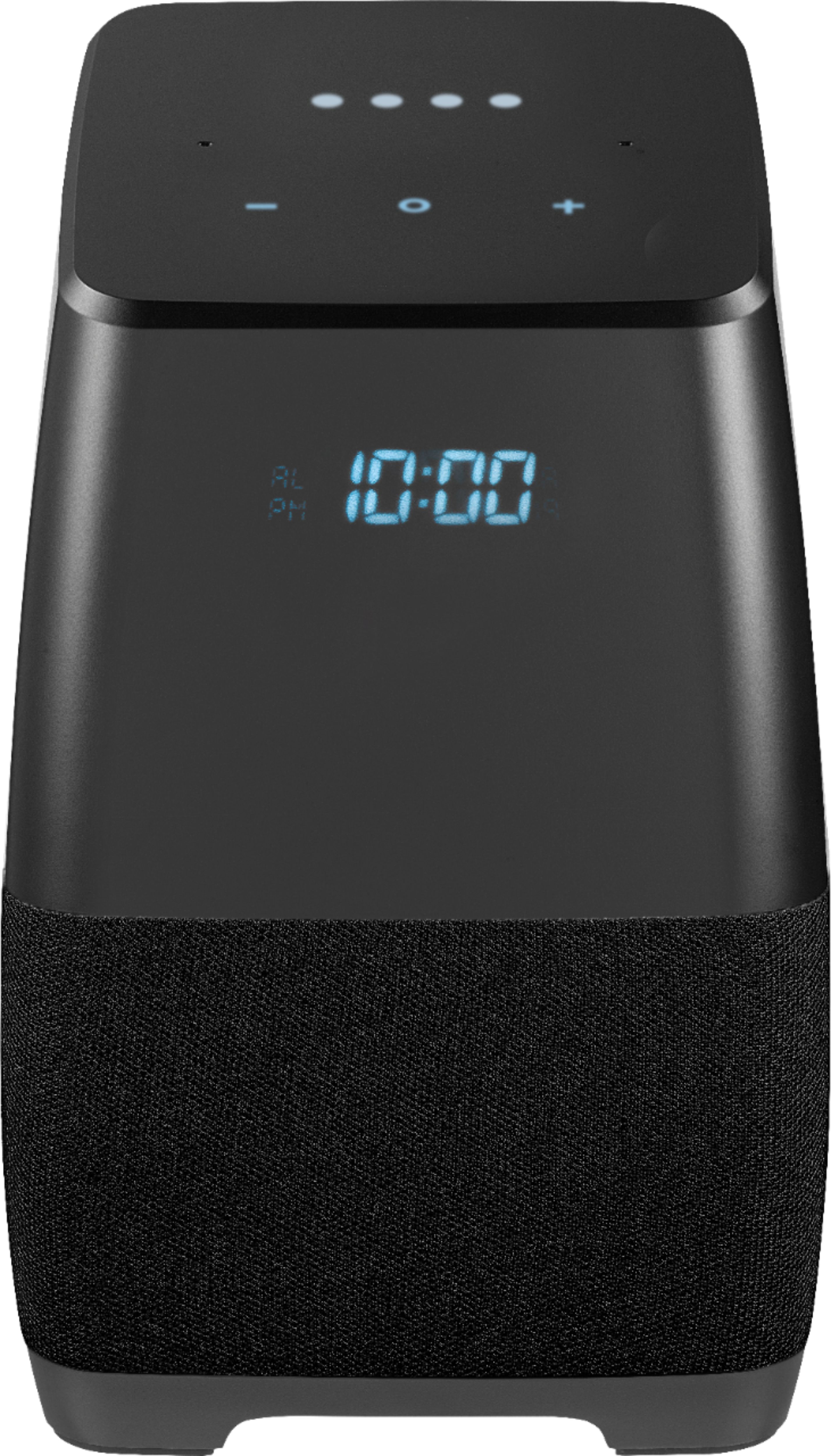
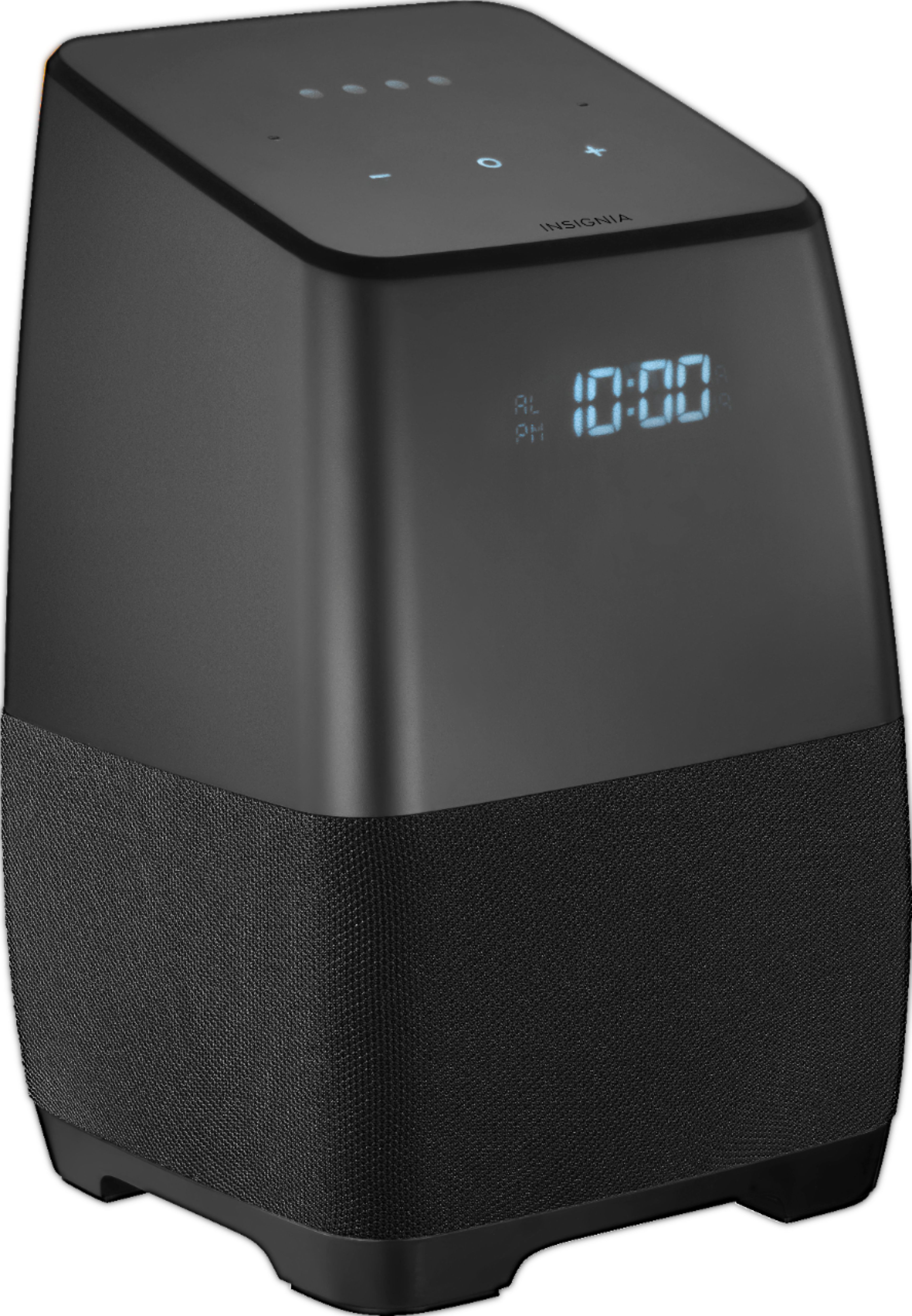
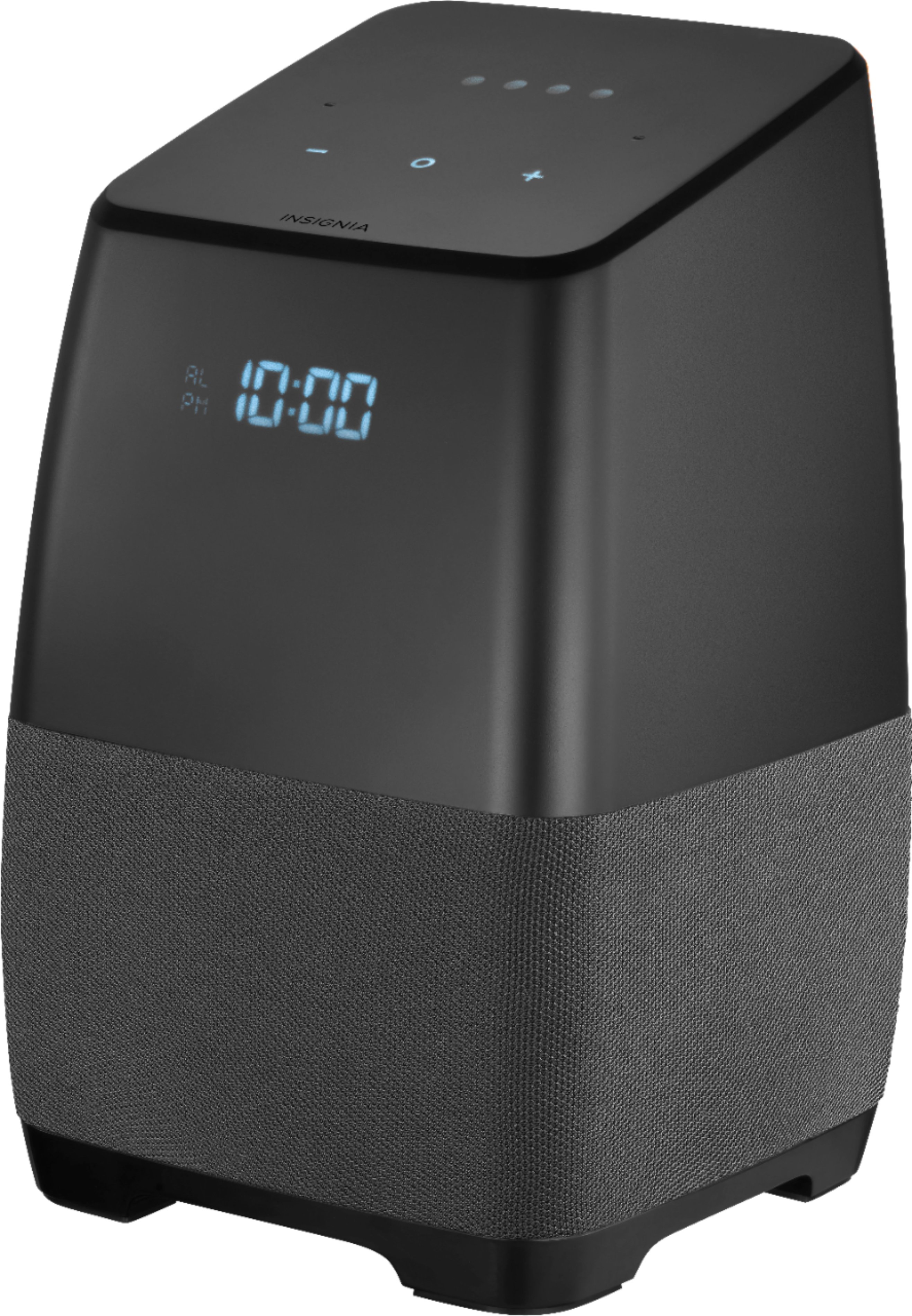
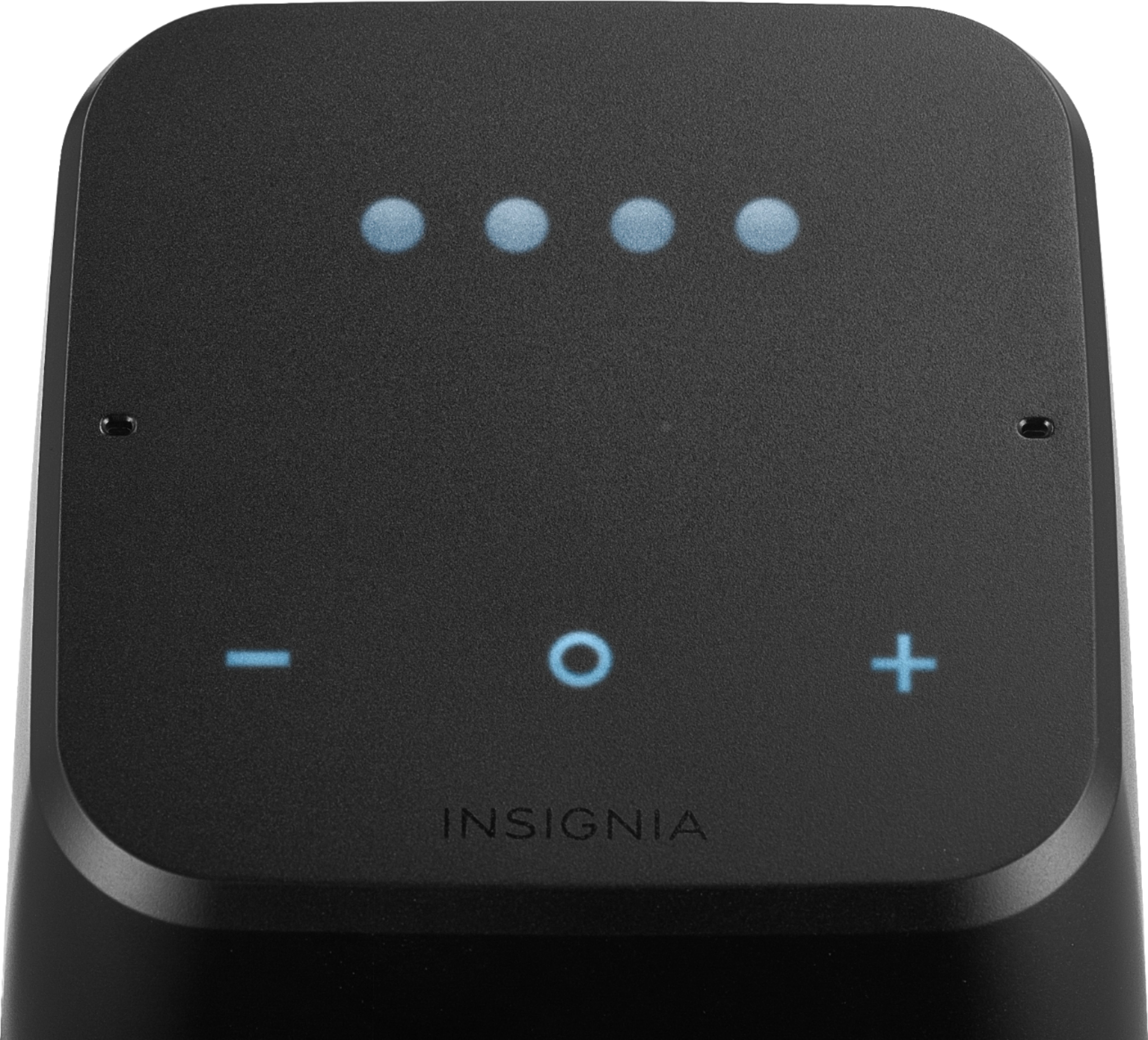
A:AnswerTo dim the display, hold down the center 'o' light and tap the minus "-" light.
To brighten the display, hold down the center 'o' light and tap the plus "+" light.
(I've read you can also say “set display 20 (percent)", etc., but that doesn't work for me.... )
A:AnswerHave you done the full reset yet. Hold the power button down for 12 seconds and make sure to delete it from Google Home completely (Mine shows up twice sometimes, on its own and in the rook I put it in). I've had the timeout happen a few times as I bought four of them and had different experiences with each, but I've also just used an old tablet sitting around to connect them instead of my phone and it worked out great.
A:AnswerLightly press the top of the speaker.
A {L to R} 3 set of virtual buttons will appear as: [ - 0 +]
While gently holding the "0" {center} button, press the + key to brighten, or the - key to dim.
A 3 second solution.
Hope that helped,
A:AnswerThis works just like a Google Home device. You can connect your phone via Bluetooth, but it can work on WifI too. You can play music on all three simultaneously.