Rating 3.4 out of 5 stars with 841 reviews
3.4- Sound Quality (342)
- Comfort (85)
- Design (24)
- Weight (20)
- Fit (164)
- Battery Life (104)
- Bass (56)
- Volume (45)
- Connectivity (40)
Customer Images
The vast majority of our reviews come from verified purchases. Reviews from customers may include My Best Buy members, employees, and Tech Insider Network members (as tagged). Select reviewers may receive discounted products, promotional considerations or entries into drawings for honest, helpful reviews.
- Rated 5 out of 5 stars
Bold Design
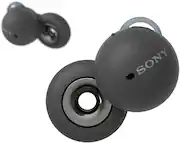
Sony’s attempt at an open design/style wireless earbuds works great but not without some features sacrificed, that many consider a standard. The current price point would suggest otherwise. But price aside; LinkBuds does aim at what it targets to do. Link both online & offline worlds together. From eco packing to recycled plastics to make the buds & case themselves; Sony is in the right direction. There are subtle flakes in the colors of buds & case. Sound signature is great with audio quality that comes balanced. Use with the app can help with audio by tweaking the equalizer. Calls made sound clear. Choosing the right ear fins helps to get the right fit. The “wide tap” feature is something I’ve never expected but works great. It’s very lightweight and the case is very compact. A few features carry over from the wf1000xm4; speak to chat & dsee. The design is bold with literally a hole in the center of the driver. This allows “ambient” sound in naturally. There is no ANC, No Transparency Mode (Technically), and No Wireless Charging; to name a few. These are in line with AirPods (excluding Pro) & Galaxy Live. If the budget allows then I would recommend these.
Posted by VoltageSky
- Rated 5 out of 5 stars
Great fit "for some" great spacial sound
I can barely tell these are in mainly due to the lightweight and the way they anchor themselves. I have oddball ears one side i have the short band on other ear long to be comfortable. I have to pry these out to remove them huge contrast from the xm4s i have that feel like their gonna fall out due to weight. The trick with these is getting the buds to "float" in the ear to where pressure is equaled. These are most definately loud...whoever says the opposite must be wearing them wrong. It isnt until i yell loudly than i can hear myself at loud volume to give an idea of the loudness. Sound quality is really good yes they lack bass but highs n mids sound clear. Toying with the eq settings helps. With volume off and these still in hearing is normal theirs really no reason to take them out which is nice. Overall im happy with them though they should have included wireless charging from the xm4s for the price. Also i think these could have really benefitted having a velvet or silicon sleeve covering applied to cushion the plastic from the ear.
This review is from Sony - LinkBuds True Wireless Open-Ear Earbuds - White
Posted by pimperor
- Rated 4 out of 5 stars
Worth it as long you don’t expect years of use.
I’ve owned a pair of these since 2022. To begin with the sound quality and functionality was excellent. After a year the speakers on the left started going out and the battery life started decreasing rapidly. They are supposed to hold a four hour in use charge. As of today they won’t even charge so if you’re looking for longevity and bang for your buck this isn’t the route you want to going everyday use. Especially for the 150+ price tag.
This review is from Sony - LinkBuds True Wireless Open-Ear Earbuds - White
Posted by BCB2089Luther
- Rated 5 out of 5 stars
Good and works as intended.
Sounds good. Allows clear background audio, just as intended. Doesn’t fall with light jogging. Feels really nice and light. Wide area tap, (tapping on your temple) works great. However, if you cough twice in quick succession, it registers as tap. But that’s not super frequent and totally manageable. Sound quality is good. Crisp highs and decent lows. Comparable to AirPods Pro. Also, great job packing Sony! Everything is paper and eco conscious. Hopefully we’ll see it across other products and other brands.
This review is from Sony - LinkBuds True Wireless Open-Ear Earbuds - White
Posted by Harsh
- Rated 1 out of 5 stars
Fine at best, but not worth it
I purchased these earbuds a hair over a year ago, and in summary - don't buy them. There are several things that I really like about them. I work in an environment that requires a certain level of awareness, and the majority of earbuds out there employ both passive and active noise cancelling - I don't want to constantly toggle "ambient mode" or whatever each manufacturer calls it. So when I saw these goofy lil things with holes in them, it seemed like the perfect fit for me. And in a lot of ways, that's correct - I can listen to music and still be able to hear essentially everything going on around me. They're also quite light, and the case is small, so I can throw them in my pocket and occasionally forget that they're even there. Finally, while there are a lot of things I'd like to see improvements on, I feel like the app expands functionality (such as adjusting EQ) enough to justify having it. Unfortunately that's where the good things end. The buds are just not worth buying, especially if you plan on keeping them long term (which should absolutely be the case when you're paying this much). - The case visually looks like it's degrading. I'm not sure if it's a top coat or what, but the case is now splotchy in spots. Purely aesthetic, but that matters to some people. - The holes of the buds (not the cool hole that I bought these for, but the little holes the sound actually comes from) themselves fill up with ear gunk. Gross, I know, and not unique to these, but I don't feel comfortable enough with digging that crud out without accidentally stabbing the bud's internals. - The sound is... well they have holes in them. That, coupled with absolutely NO passive sound cancellation means that these lack all bass and a healthy amount of mids in general use. If you're in a quiet place or boost the volume, you'll get a wider profile, but in general don't expect these to be more than background noisemakers for your head holes. - THE BATTERY. Look, I understand that itty bitty earbuds are gonna have itty bitty batteries, but the battery life on mine degrading to a shocking degree. As of now, 1 year after purchase, the right earbud maxes out at 45% battery and drains at about 1% per minute. The case ALSO drains faster than usual. These went from an advertised battery life of 5 ish hours to a functional life of less than an hour. This is absolutely unacceptable. - The case design could use some work. The buds are held in with magnets which is good, but they 'click' into place (there's a small latch mechanism that holds them in), and that seems to have introduced some variability of if the buds detect themselves as in the case. There have been multiple times I've put them away, and an hour later noticed that my phone was still playing music through one of them which thought that it was in my ear. I'll be replacing these, but not with another set, and probably not with another set of Sonys. Battery issues seem to be rampant with their earbuds, so I'll be exploring other options going forward. If you wanna spend almost $200 for less than a year of use, be my guest. But I wouldn't recommend you do so.
This review is from Sony - LinkBuds True Wireless Open-Ear Earbuds - White
Posted by Brett