A:AnswerHi Mahin! Before you begin, make sure you have the Alexa app on a compatible mobile device. You also need a valid mobile number to use Alexa Communication features, like announcements or calling. After you have that, follow these steps:
1. Open the Alexa app.
2. Select Communicate.
3. Select the contacts icon.
4. Toggle the switch to On.
5. Select your name.
6. Select Add New Contact.
Hope this helps, Have a great day!
A:AnswerHey Tweetbird82! Here are some troubleshooting steps you can follow to help fix the issues.
1. Make sure that your environment isn't too hot or too cold (tablets are sensitive to extreme temperatures).
2. Disconnect your device from charging equipment, such as the power adapter and cable. If you're using a wireless charging dock or mat, remove the tablet.
3. Press and hold the power button for 40 seconds or until your device restarts.
4. Reconnect your device to charge; plug in the cable to the power adapter and your device then plug the adapter into an outlet. The LED on most wireless chargers is solid white when charging. If your tablet still isn't charging, you may be eligible for a warranty replacement. I hope that helps! Have a great day!
A:AnswerHello DaunnyJD, you want to know if you are able to download ABCMouse to your Amazon Fire HD 8 10th Generation- 8" Tablet. You are able to download ABCMouse to your Amazon Fire HD 8 10th Generation- 8" Tablet from the Amazon Appstore. How this has answered your question. Have an amazing day!
A:AnswerHello! The Square app is not available in the Amazon App Store yet, so it is not accessible with the Fire HD 8 at this time. Thanks for your question, have a great day!
A:AnswerIf you’re asking can you make video calls with this tablet, the answer is yes. You can do through Alexa using the Communications tools or an app like Skype. Since this isn’t an Apple product, you can’t use the FaceTime app. If you need more help on this, you can Google how to do it or watch a YouTube video with step-by-step instructions.
A:AnswerIf your things are backed up you should be able to. I had my Kindle on my phone. When I got the fire and signed into Kindle it has my library, the book I was reading with it book marked. I can look at my Google storage from the fire. The store apps i have transferred the information over. It was seamless for me as if transferring from one laptop to another
A:AnswerHi heime2003! Youtube offers a download option with their subscription. The Fire HD 8 does have 32GB built in, with expandable storage options via Micros SD up to 512GB. Hoe this helps, enjoy your day!
A:AnswerHello, you want to know how the Amazon- Fire HD 8 10th Generation- 8"- Tablet 32GB will fair in the sun for reading. The screen on the Amazon- Fire HD 8 10th Generation- 8"- Tablet 32GB is made of high gloss glass which will give you some difficulties when reading, however if you are able to purchase a matte finished screen protector which will have help you better see your screen in the sun. Hope this has answered our question. Have an amazing day!
A:AnswerHello, the Amazon Fire HD 8 has a built in microphone and front and rear facing cameras that are perfect for video calls. I've used Zoom on mine for the past year.
Have a great day!
A:AnswerHi Fireball! There are several apps available via the Amazon App Store that allow for books to be downloaded to your device. One such app, Overdrive, allows for you to download books for free from your local library as long as you have a membership. You can download games and apps and use them on the go by following these steps: 1. Select Games & Apps or open the Apps or Games app. 2. Select an app from your Library to download it or search for a new app in the Store. You can also use the Kindle App. Here is how you can access and download your books on your device: 1. Navigate to the Home page of your tablet. 2. Select Books or open the Kindle app, then select Library. 3. To see all your previously purchased items, select All from your tablet's library. 4. Select the cover of the item you'd like to retrieve to download it again. Kindle Store purchases are saved to the Cloud. Download them anytime from your Amazon account library. Have a great day!
A:AnswerHello, KWILL!
You should be able to access the files as long as they are MP3, AAC (.m4a), MIDI, PCM/WAVE, OGG, WAV files. There is no USB port in the device, so you would need an adapter to connect the two. You may also need to download a file reader from the app store to allow the device to view the files. I hope this helps. Have a great day!
A:AnswerHi RickR,
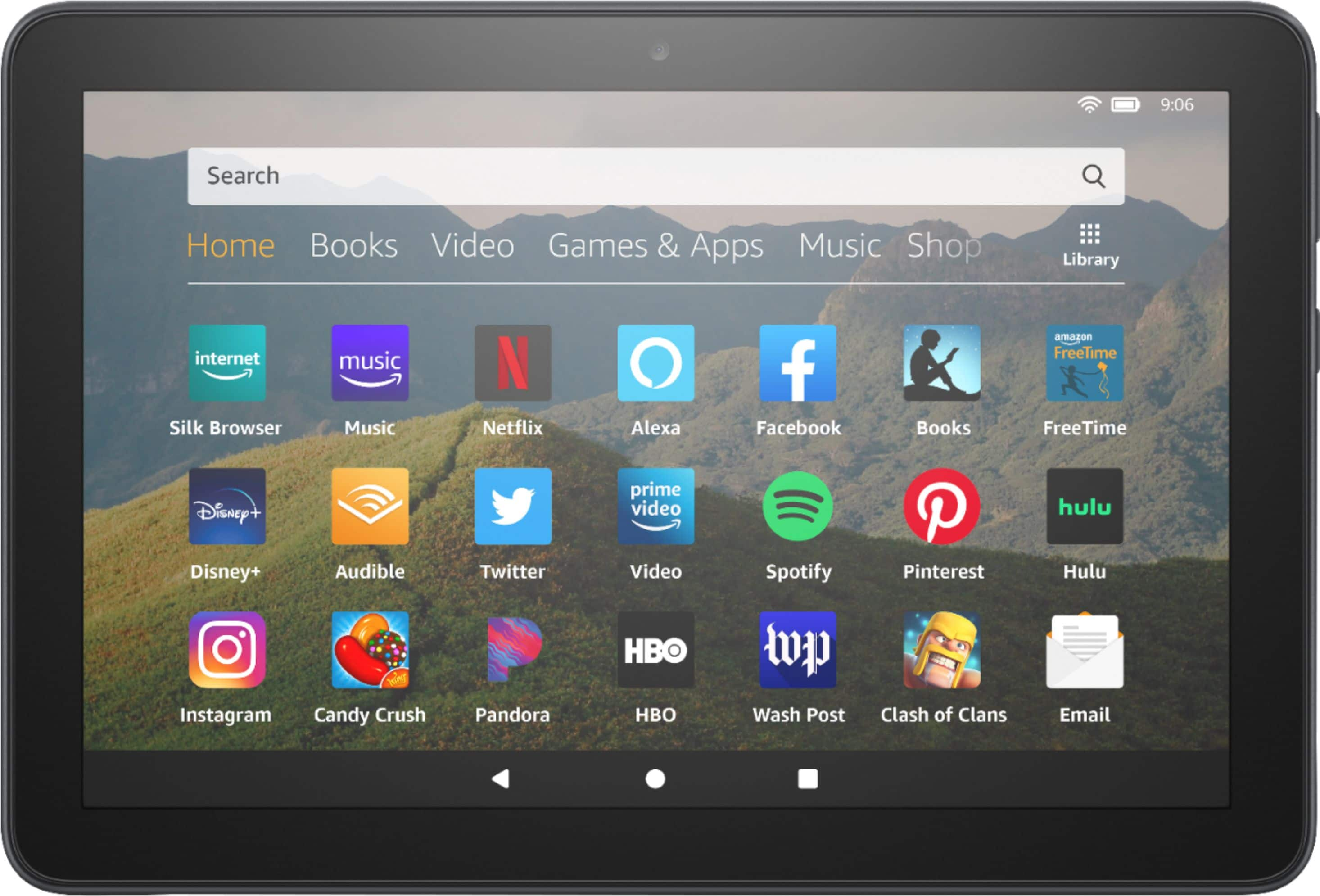
You can use the Silk Browser on your Fire HD8 10th Generation Tablet to search for different websites. To do this you can search for the Silk Browser on the home page of your tablet, or ask Alexa to open the Silk Browser.
Hope that helps!
A:AnswerHello Anild! To remove special offers from your Fire Tablet, follow these steps:
1. Go to Manage Your Content and Devices.
2. Select Devices, and then select your device.
3. Under Special Offers, click Remove offers. A pop-up window then displays the price to remove special offers. Select End Offers and Pay the Fee to proceed.
Thanks so much for your question and I hope you have a great day!