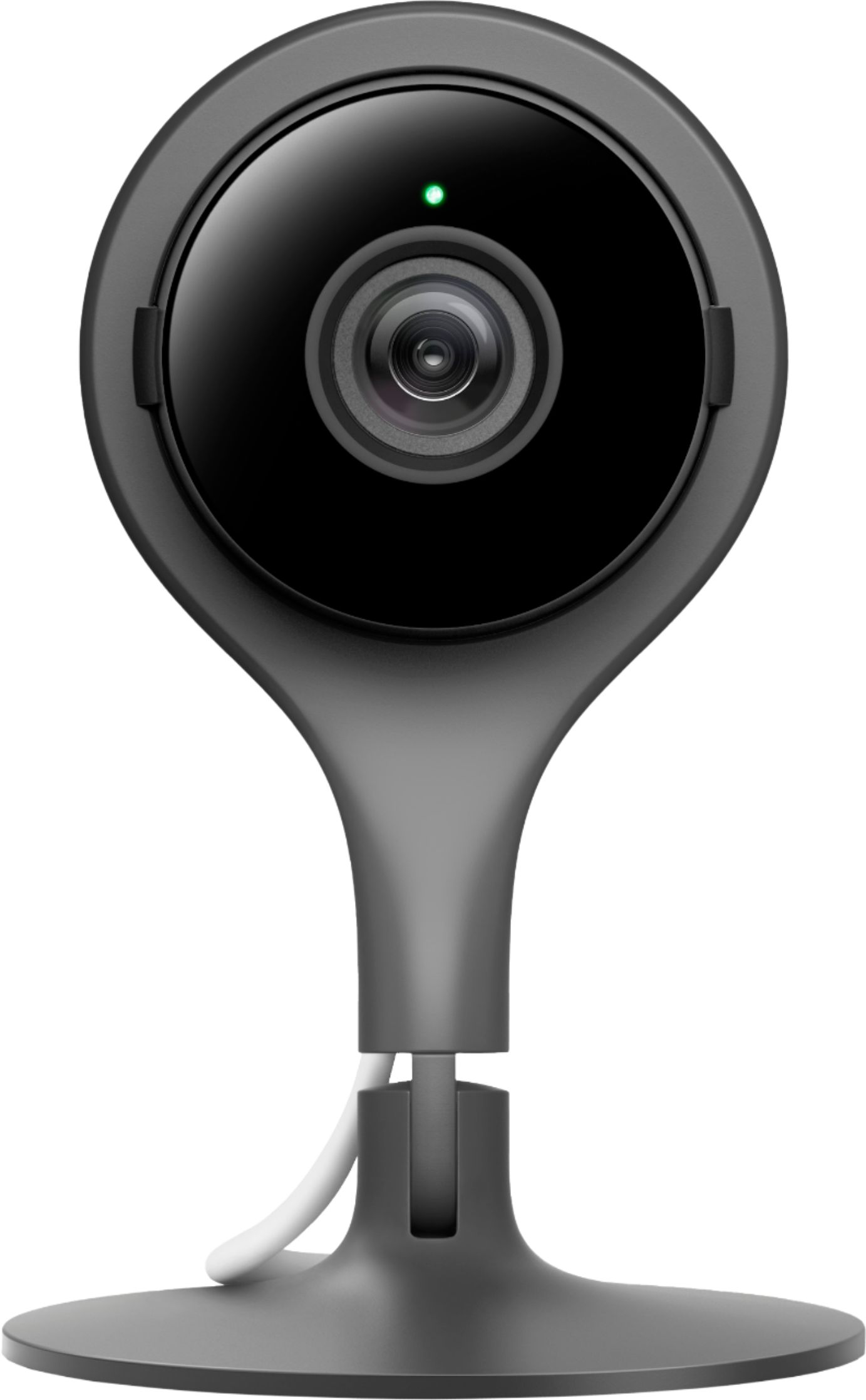
A:Answerboth it will send and alert if it sees movement or hears a sound. But some how it knows when people are around,,because whe. your home, it may one ever or twice advise others saw movement or heard something when you first enter a room. but once you hav entered, it does snot continue to send alerts.
A:AnswerNest cameras are capable of streaming and recording at 1080p. The 4K sensor available in our IQ cameras is used to automatically zoom in and track people as they walk in front of your camera, but the streaming and recording will still be in 1080p.
A:AnswerAll the indoor Nest Cams I have used are wireless in how they broadcast their video to the Nest app. The only cable they have is used for power.
A:AnswerNest Cam Indoor has a Talk and Listen feature. It lets you talk to people with your camera even
when you're away from home. Talk and Listen works one way at a time. So you'll need to take turns talking and listening. To know how it works, You can click here: https://support.google.com/googlenest/answer/9219455
A:AnswerYou can create up to three Homes/Structures per Nest account. We recommend creating a new Home (using your mother's address) within your Nest account. This way, you'll be able to switch between Homes using just one Nest account and app. Here's how to manage Homes in the Nest app: https://support.google.com/googlenest/answer/9293015
A:AnswerYou can use it as baby moniter because it has motion sense, which you get alert everytime there’s movement. However it is pricy for a baby moniter.
A:AnswerWhen your power goes out or your Wi-Fi goes down, Nest Cam Indoor will restart as soon as they come back on. All your settings in Nest Cam Indoor will remain unchanged.
Nest Cam Indoor doesn't have a physical reset button. So if you want to perform a factory reset, you can simply remove the camera from your account in the Nest app and then follow the setup instructions to add it back. This process will reset all your settings to factory settings. You can find the details in this article : https://support.google.com/googlenest/answer/9252162?hl=en
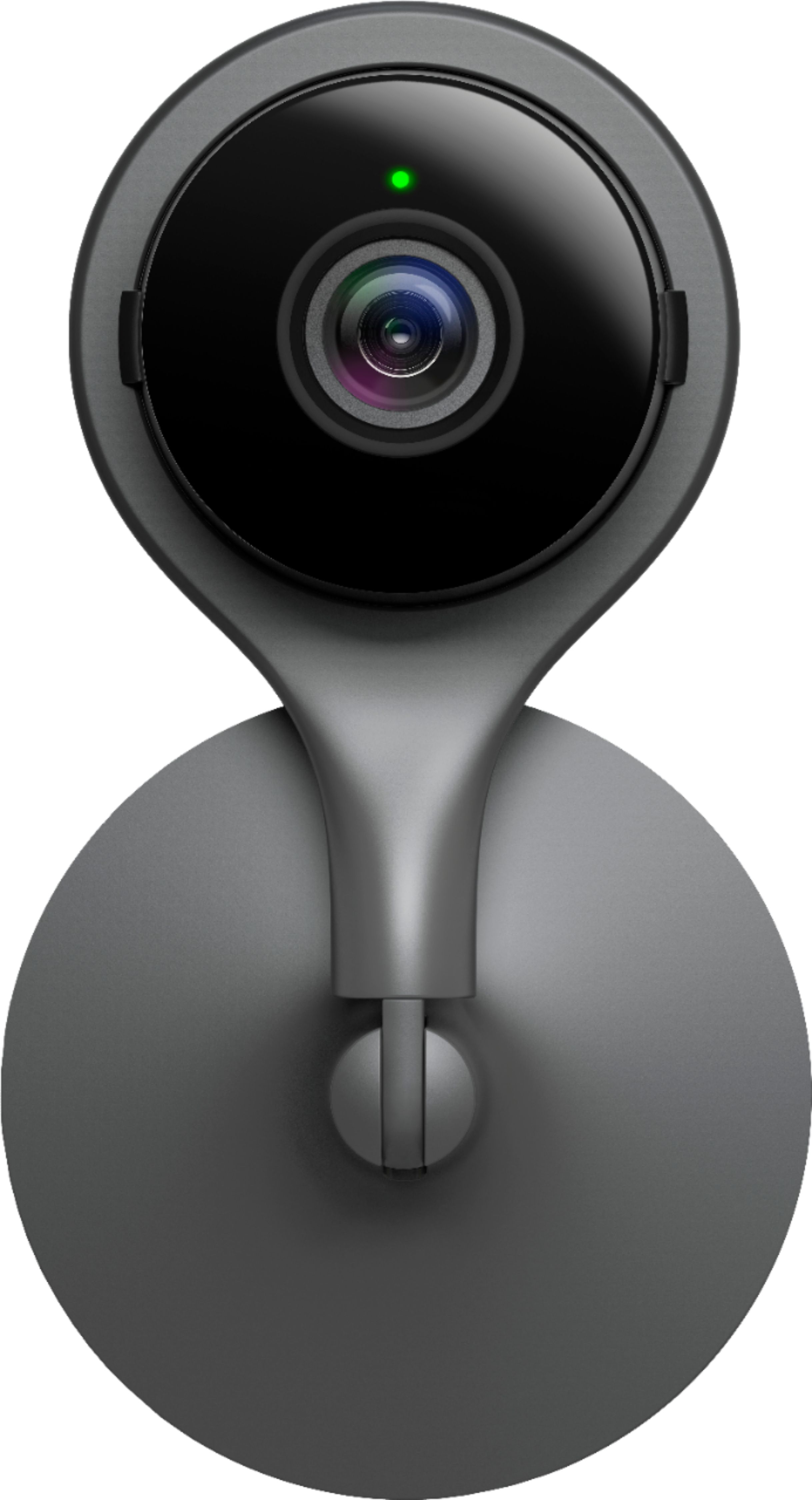
A:AnswerYes, there is. Nest camera lights let you know whether your Nest camera is working normally or not. You can change status light brightness to Low, High or Auto. You can click this link https://support.google.com/googlenest/answer/9268073?hl=en to learn about Nest camera lights and sound and how to change brightness settings.
A:AnswerWe don't recommend using indoor Nest Cam outside as it isn't designed to withstand outdoor conditions. Moreover, outdoor Nest Cams are weatherproof and have been specifically designed for use outside (improved operating temperatures, water and dust resistance, etc.), so you can install them in places indoor Nest Cams can’t go. In addition, outdoor Nest Cam algorithms have also been specifically tuned for optimal capture of outdoor scenes while indoor cameras have algorithms adapted to indoor lighting and environments.
A:AnswerI can access my camera on my TV set via Google Chromecast. In my case the Chromecast is on the same WiFi network, not sure if it would work from a remote location. I know you can see camera from a computer or phone wherever you are if you have an internet connection.