A:AnswerYes, the HP Envy 6055 printer is compatible with the Chromebook. Once you are set up the printer to the wireless network, follow these instructions to set up the printer on the Chromebook: https://support.hp.com/us-en/document/c04122530
A:AnswerYou can use the HP Smart app to scan to email. You can use the scan option on the HP Smart app to share via email. To make it easier the next time, we recommend using the HP Smart Tasks. It allows you to make a shortcut, i.e. a scanned item to be emailed to this email address. Here is more information on the HP Smart app: https://support.hp.com/us-en/document/c03561640 and on the HP Smart Tasks: https://support.hp.com/us-en/document/c06211157
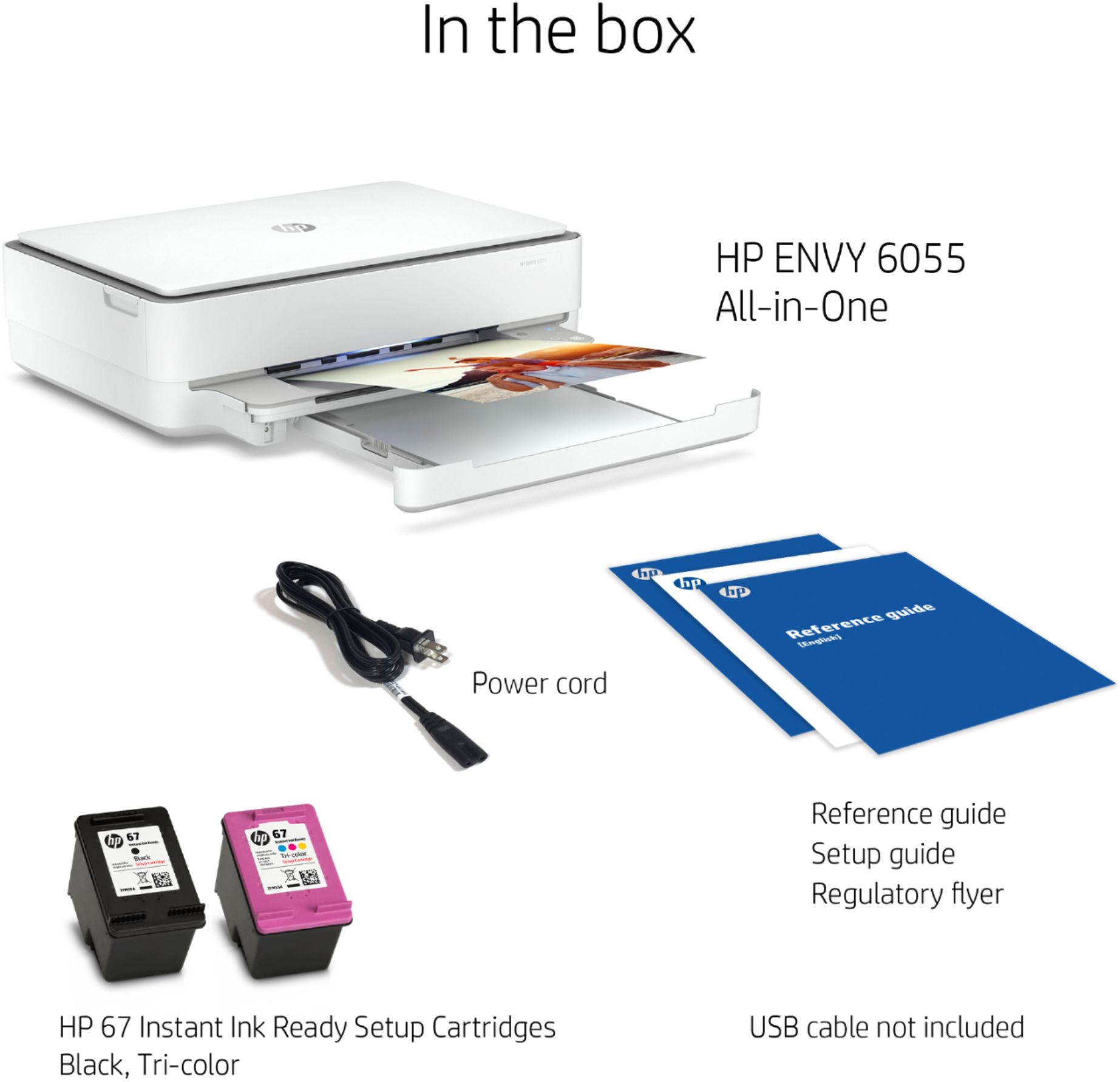
A:AnswerThis printer comes with setup cartridges in the box. The yield of setup cartridges varies by model but tends to be enough to get the average user through setup and initial printing jobs. You can learn more about Ink and Toner by the model at https://bit.ly/3cQrnaN The HP Envy 6055 printer uses the HP 67 or 67XL black and tricolor ink cartridges.
A:AnswerHello. Thanks for your question. If you still need help finding a WiFi router, we recommend partnering with a Blue Shirt team member in the computer department at Best Buy for further assistance.
A:AnswerThe inkjet printer that Best Buy has available is the HP Tango. The other printers have the printer, copier, and scanner like the HP Envy 6055 printer. The Officejet Pro printers also have the fax function.
A:AnswerYes, the HP Envy 6055 printer is compatible with the Android smartphone and tablet. Just be sure the Android smartphone or tablet and the printer are on the same wireless network. We recommend using the HP Smart App: https://support.hp.com/us-en/document/c03561640