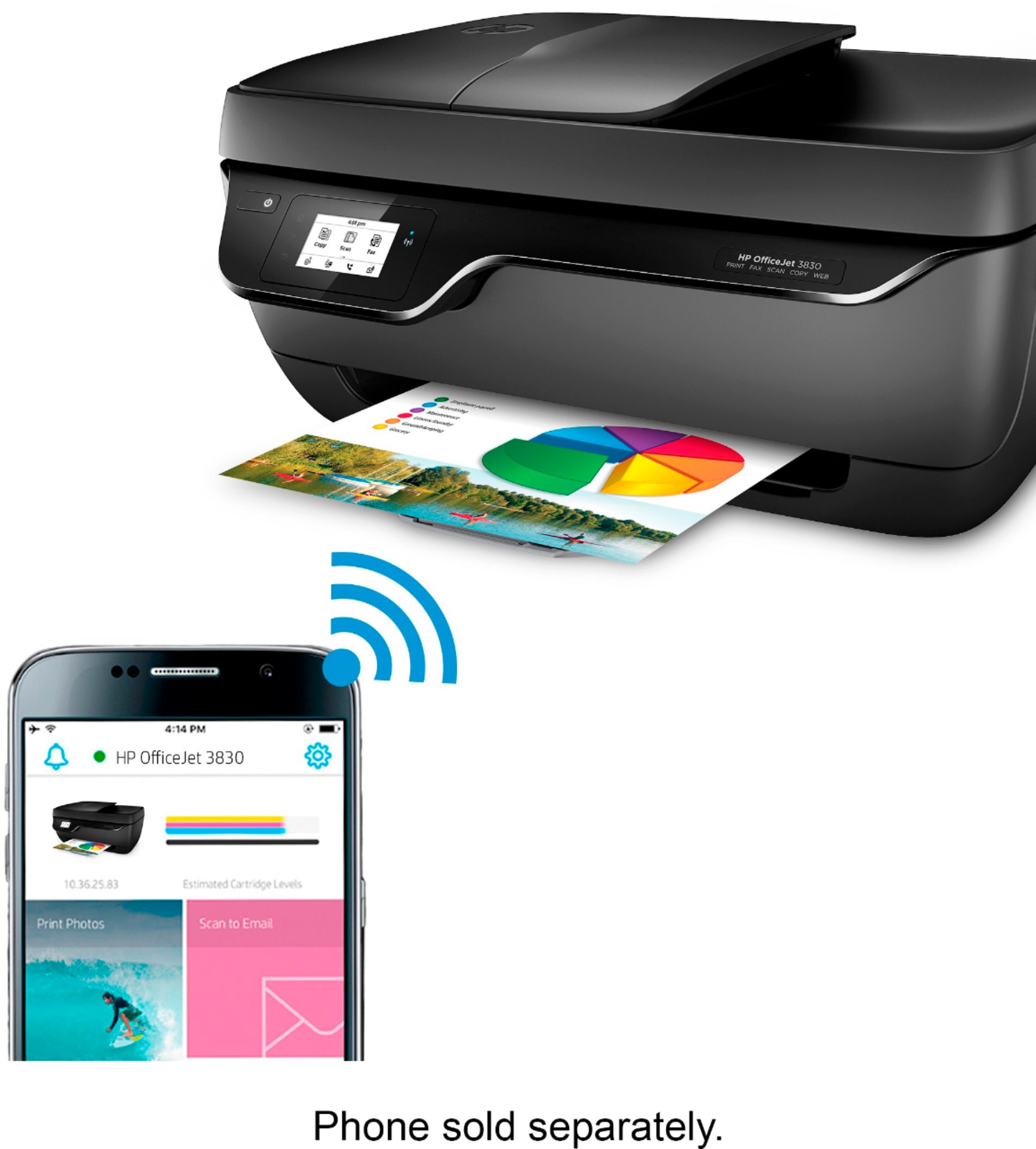
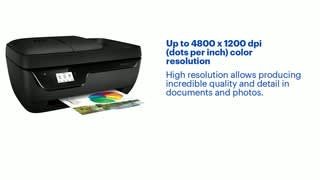
A:AnswerYes. The printer can use wifi direct to receive photos / documents directly from a smartphone. Also the HP Smart app makes that a very simple task to print, scan and copy from your phone.
A:AnswerYes, you can print envelopes and address labels with the OfficeJet 3830. You'll need to specify the envelope size or the label template (that will usually be on the front of the label package) and the labels have to be compatible with an inkjet printer.
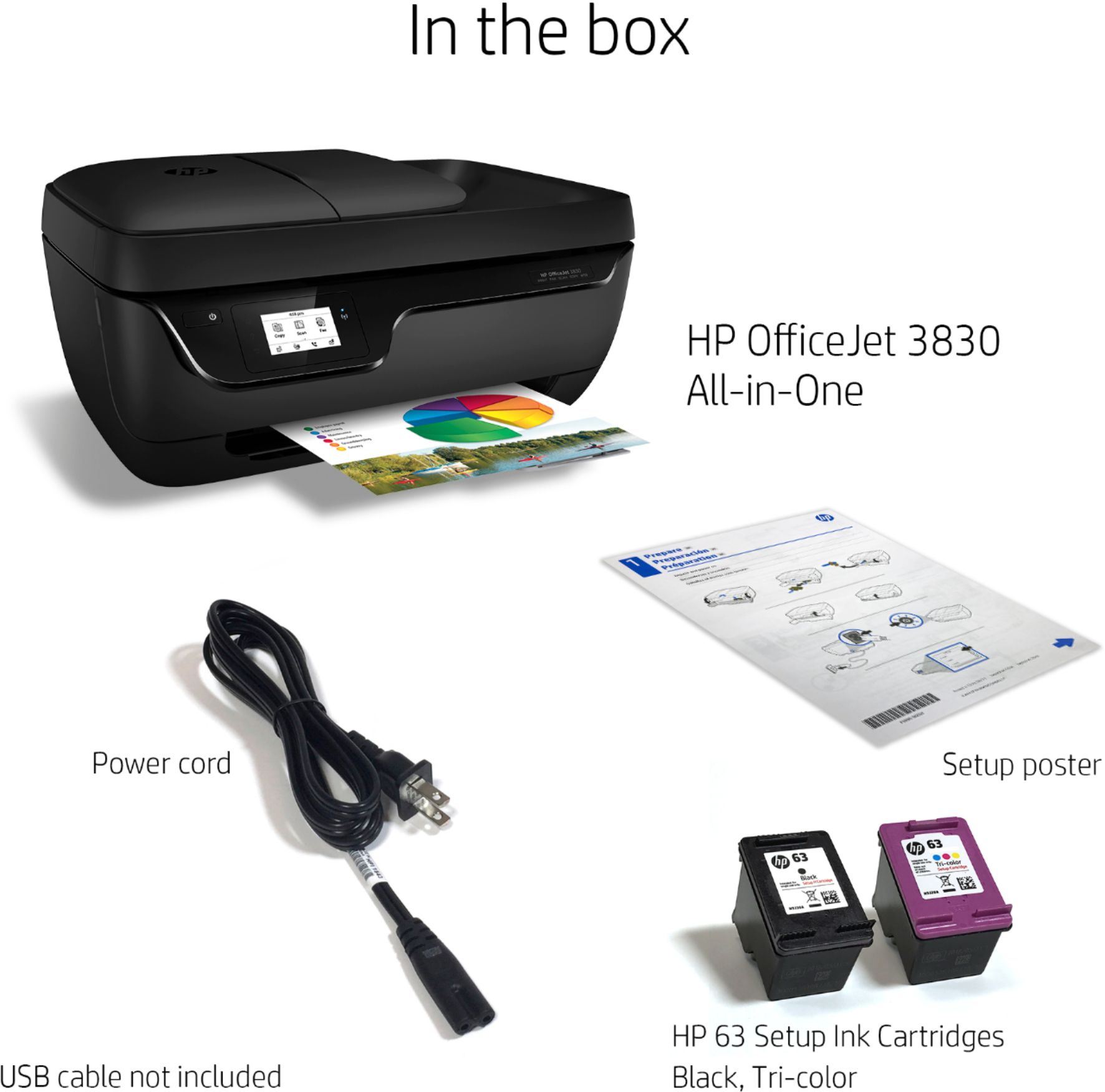
A:AnswerWhen the color cartridge is empty, just take it out. The printer will go into single cartridge mode. From then on, you can just print with the black ink cartridge. You might even want to get the 63XL black ink cartridge which would last longer.
A:AnswerNo need to download any software off a computer. All you need is to download the hp app onto your phone. Then you will be able to print directly from the app to the printer. Hope this helps
A:AnswerAbsolutely. If you disconnect the answering machine so it doesn't automatically pick up when you get a fax, you should be able to send and receive faxes with no problem.
A:AnswerYes, you can absolutely do that. You can even use the HP Smart App on your computer or phone to make Smart Tasks of your receipts. Here are more details: https://support.hp.com/us-en/document/c06211157
A:AnswerYes, as long as the devices are connected the same network. You can print from the tablets. Here are more details: https://support.hp.com/us-en/document/c03722645
A:AnswerYou can setup up the printer using the HP Smart App on the smartphones and tablets. Here are more details: https://support.hp.com/us-en/document/c03561640