A:AnswerHello there. Yes, you can add new apps to the menu on the LG 32LR655BPUA TV. Just access the LG Content Store from your TV’s menu, browse or search for the apps you want, and follow the steps to download and add them to your menu.
If you have any more questions or need further assistance, please send us a private message on our social media platform via @LGUSSupport. We’re here to help! ^Sam
A:AnswerHi there. Thanks for reaching out about the 32LR655BPUA. Shipping windows can vary depending on the retailer or delivery service. Typically, retailers will provide a delivery window, but the specifics such as a 2-hour window can depend on their policies and availability.
For the most accurate information regarding your delivery window, please contact the retailer or delivery service directly. If you have any more questions or need assistance with LG products, feel free to send us a private message on Social Media @LGUSSupport. We're here to help! —Renzo
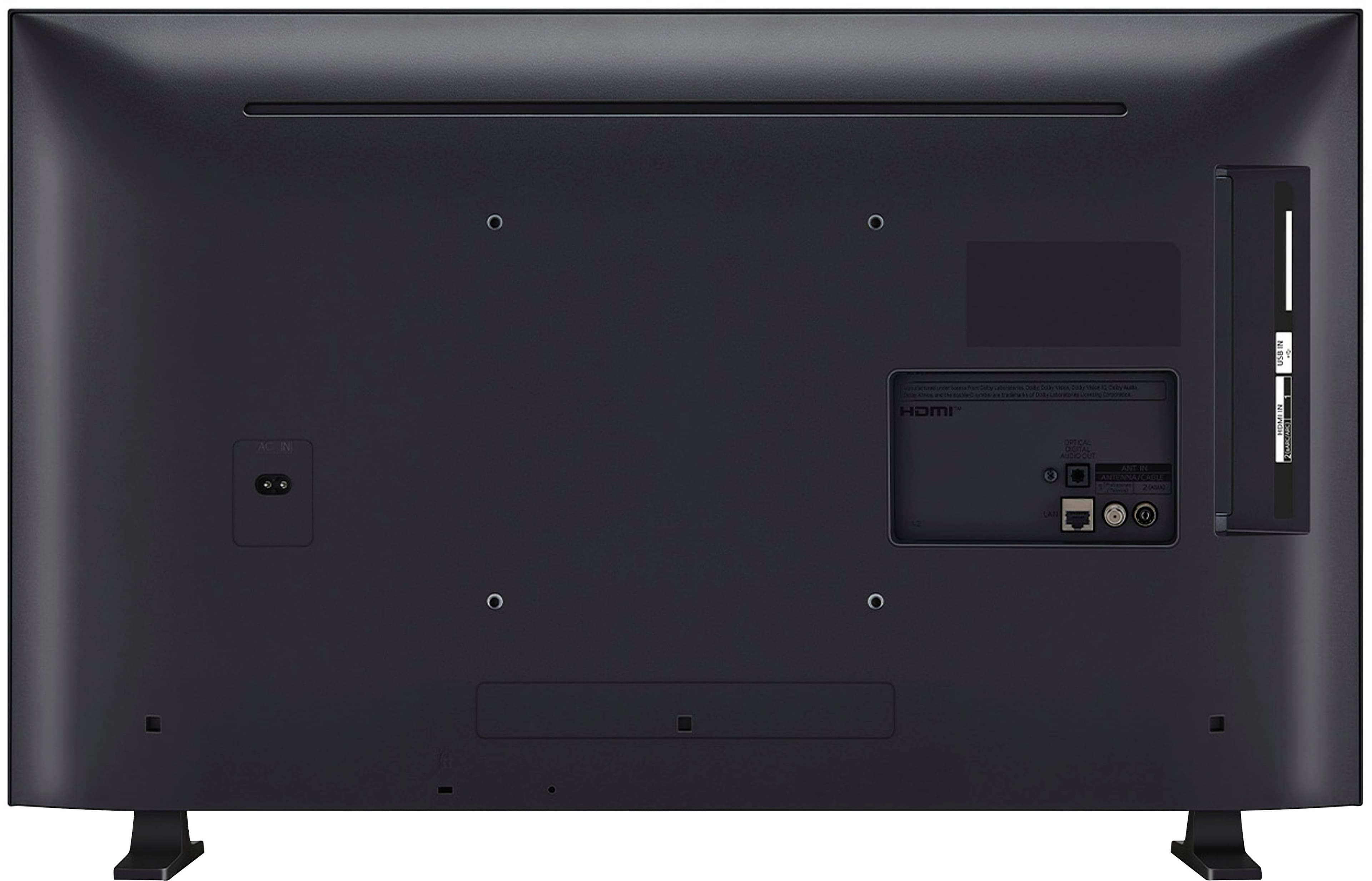
A:AnswerThank you for reaching us regarding LG LED HD WebOS TV. Yes, the LG 32LR655BPUA LED TV can be wall-mounted using a VESA compatible wall mount. You can download its owner's manual through this link for more information: https://www.lg.com/us/support/product/lg-32LR655BPUA.AUS. For additional assistance, please reach out to us on social media @LGUSSupport so we can help you further. ^Cris
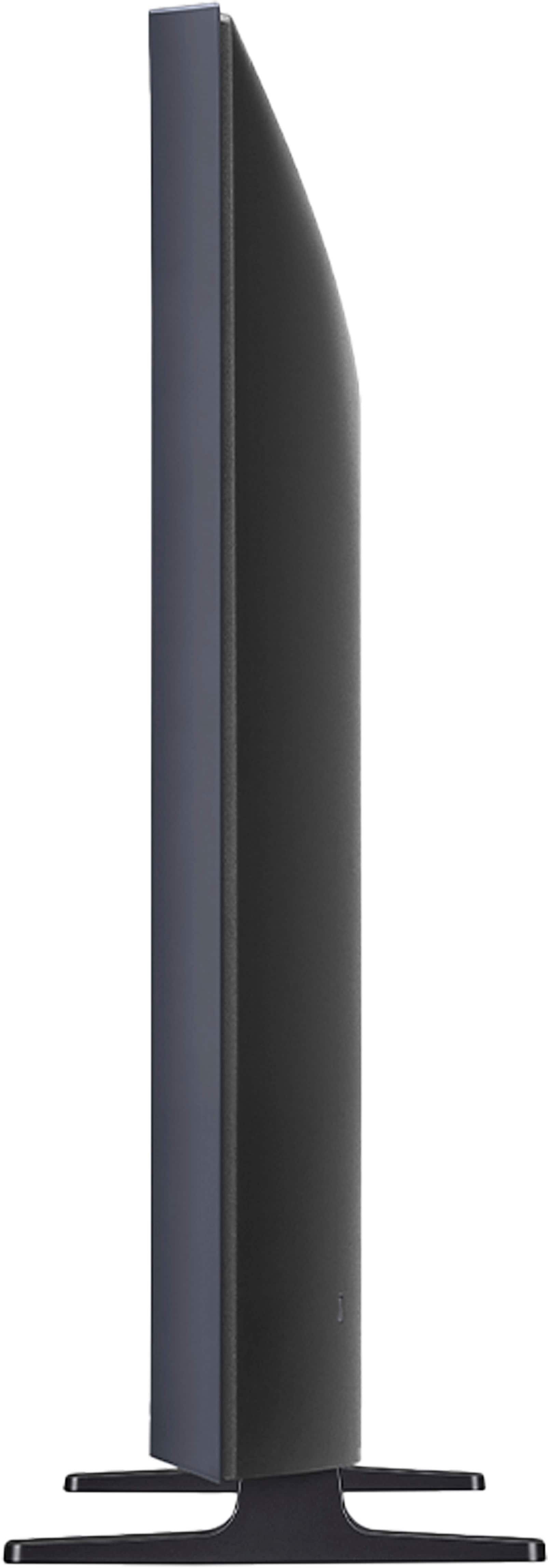
A:AnswerHello there! The weight of the LG 32LR655BPUA TV is approximately 11.7 pounds (5.3 kg). This information should provide you with an accurate understanding of the TV's weight. If you have any more questions or need further assistance, please feel free to ask. We're here to help! -Junel
A:AnswerHi there! Certainly! Here are the steps on how to do so:
1. Make sure your LG Smart TV is connected to the internet.
2. Press the Home button on your remote to bring up the main menu.
3. Scroll right or left until you reach the LG Content Store.
4. Select "Apps & Games" at the top of the page.
5. Choose the Xfinity Stream app.
6. Click on "Install."
7. select "Launch" to start using the Xfinity Stream app once the installation is complete.
8. register your device and sign in with your Xfinity ID and password when prompted.
We hope this helps! ^Anthony
A:AnswerThank you for reaching us regarding LG LED HD WebOS TV. The LG 32LR655BPUA TV does not have a built-in zoom feature, but it is compatible with Comcast cable service. You can download its owner's manual through this link for more information: https://www.lg.com/us/support/product/lg-32LR655BPUA.AUS. For additional assistance, please reach out to us on social media @LGUSSupport so we can help you further. ^Cris
A:AnswerThank you for reaching us regarding LG WebOS TV. Yes, the LG 32LR655BPUA TV is Bluetooth capable. You can download its owner's manual through this link for more information: https://www.lg.com/us/support/product/lg-32LR655BPUA.AUS. For additional assistance, please reach out to us on social media @LGUSSupport so we can help you further. ^Cris
A:AnswerHi there! Thank you for your inquiry about the 32LR655BPUA TV. Yes, this model is indeed a 4K TV, offering stunning resolution and picture quality for your viewing experience. You may access this link for more information, go to "All Specs": https://www.lg.com/us/tvs/lg-32lr655bpua-fhd-tv. If you have any further questions or need assistance with setup or features, please don't hesitate to reach out to us through a private message on Social Media @LGUSSupport. We're here to help!
—Avril
A:AnswerHey there! Every TV we offer, no matter the model, comes equipped with a volume limiter or cap for your convenience. To adjust the volume, simply use the remote that comes included with this TV. ^Anthony