A:AnswerHi KGOB,
Wireless TV ON refers to the ability to connect external devices such as a Cell phone or computer without hard wires through screen sharing or Tap View.
~Samsung Advisor
A:AnswerHi Dragon719,
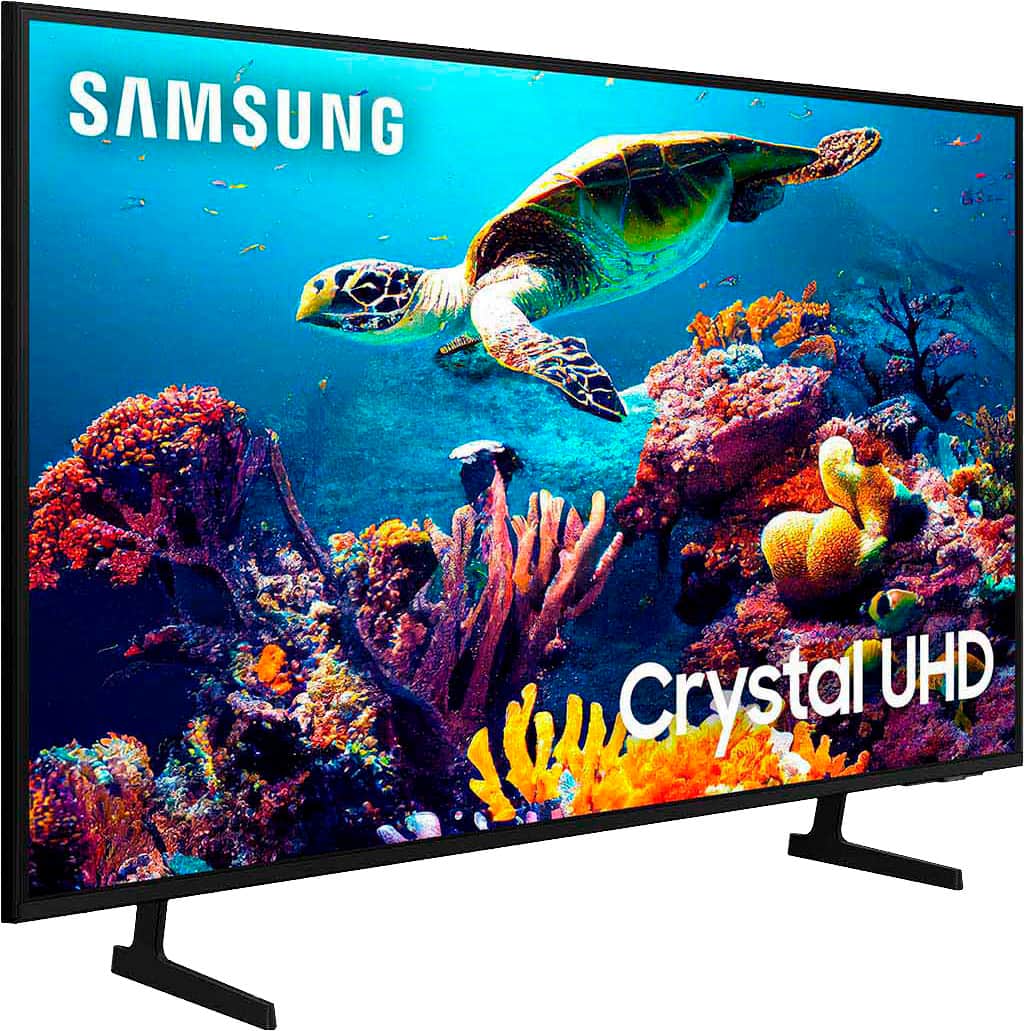
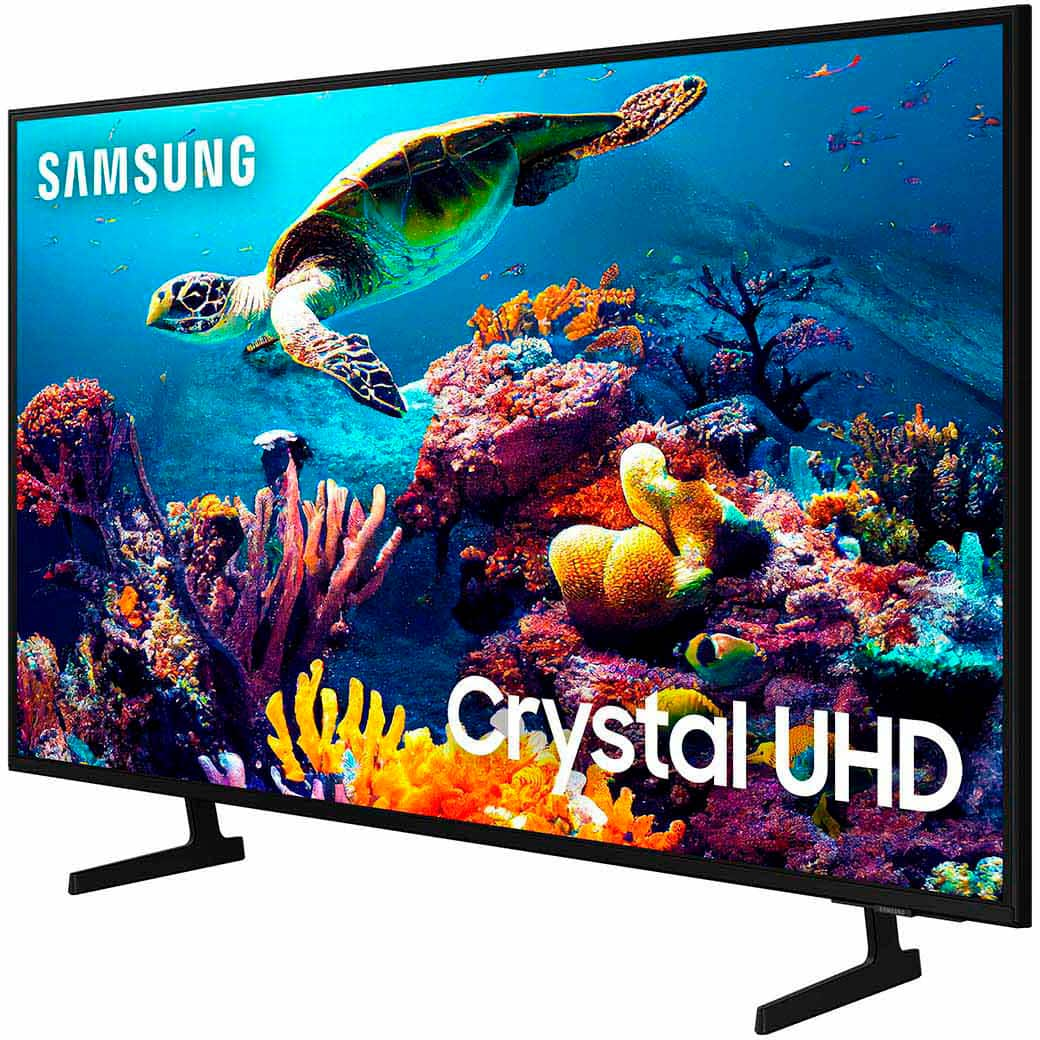
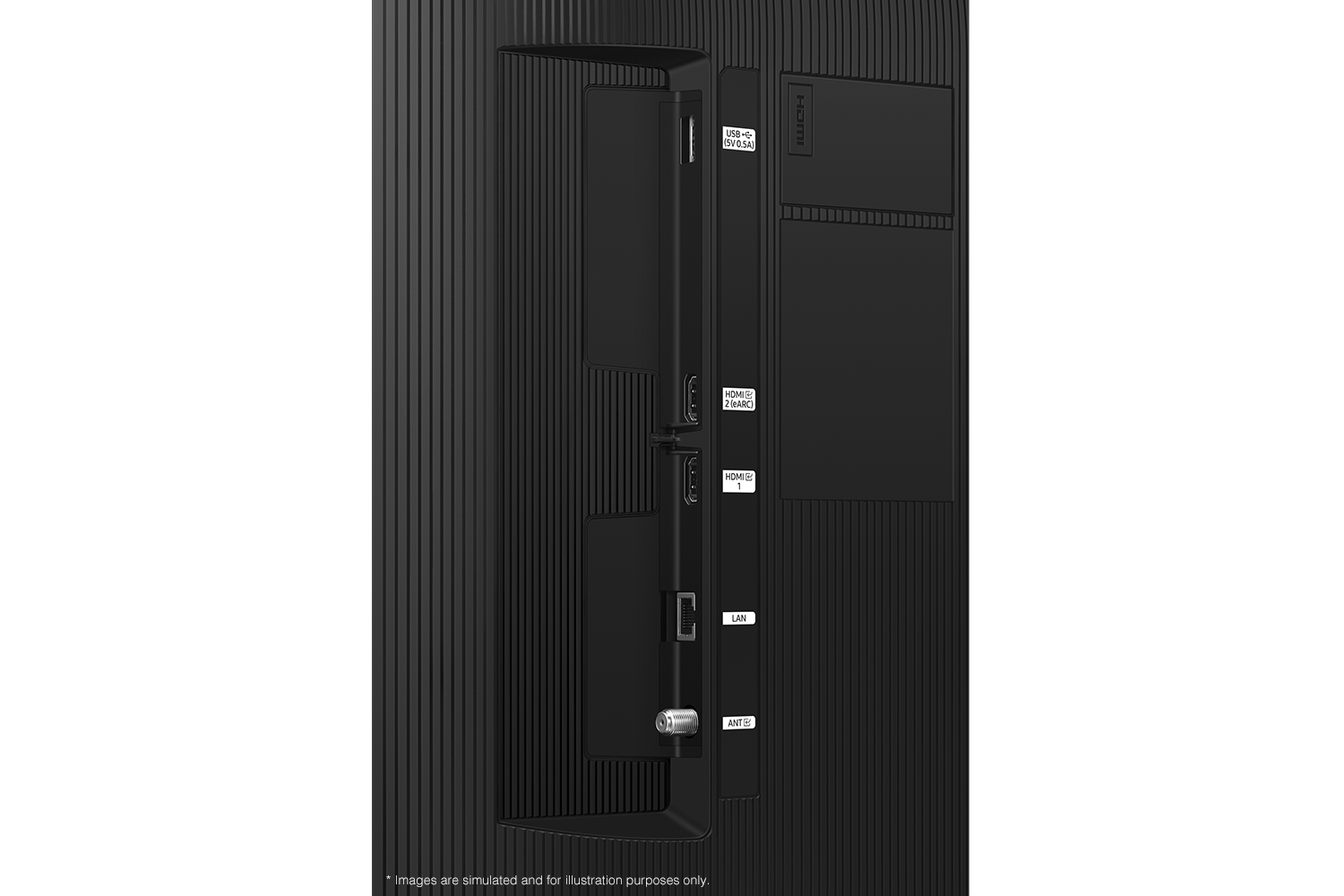
The DU6900 has 2 HDMI ports, both of which support HDR10+ and Auto Low Latency Mode (Auto Game Mode). The “HDMI In 2” port additionally supports eARC. If you’re looking for a TV capable of 4K@120fps (FRL), please consider the 85” DU8000 Series and above.
~Samsung Advisor
A:AnswerHi Vikiyak,
The DU6900 TV uses 60Hz. If you’re looking for a TV with FreeSync Premium Pro, as well as other Next Gen gaming enhancements such as Variable Refresh Rate (VRR) and 4K@120Hz, check out our Q70D Series and above at Best Buy.
~Samsung Advisor
A:AnswerHi Bmike123,
The light conditions of each room environment are different. For optimal glare control, we recommend positioning the TV to minimize incident light falling on the screen or consulting a professional installer.
Anti-Glare designed to minimize ambient light reflection is featured on our 55” QN90C series and higher.
~Samsung Advisor
A:AnswerHi Liz,
To find the apps store, go to the Home screen, navigate to and select Apps, and then select the Search icon in the top-right corner. Type in Paramount Plus and then select download.
~Samsung Advisor
A:AnswerHi Matt,
I'm sorry your TV apps are lagging and crashing while in use. Please try these troubleshooting steps:
First, let's ensure you are running the latest Firmware Update. Go to Settings> Support> Software Update.
Next, let's run a cold boot on your TV. To do so, hold down the Power button on the Samsung TV remote until the TV turns off and then on again. This should take about 5 seconds.
If it is specific apps that keep having the same issue, I recommend deleting and reinstalling the app.
If you need more help, Samsung is here for you! Please call us at 1-800-SAMSUNG, 8 AM - 12 AM EST, seven days a week. Our LiveChat agents are also available by clicking on the ‘Support’ link on our website.
~ Samsung Advisor
A:AnswerHi Anna,
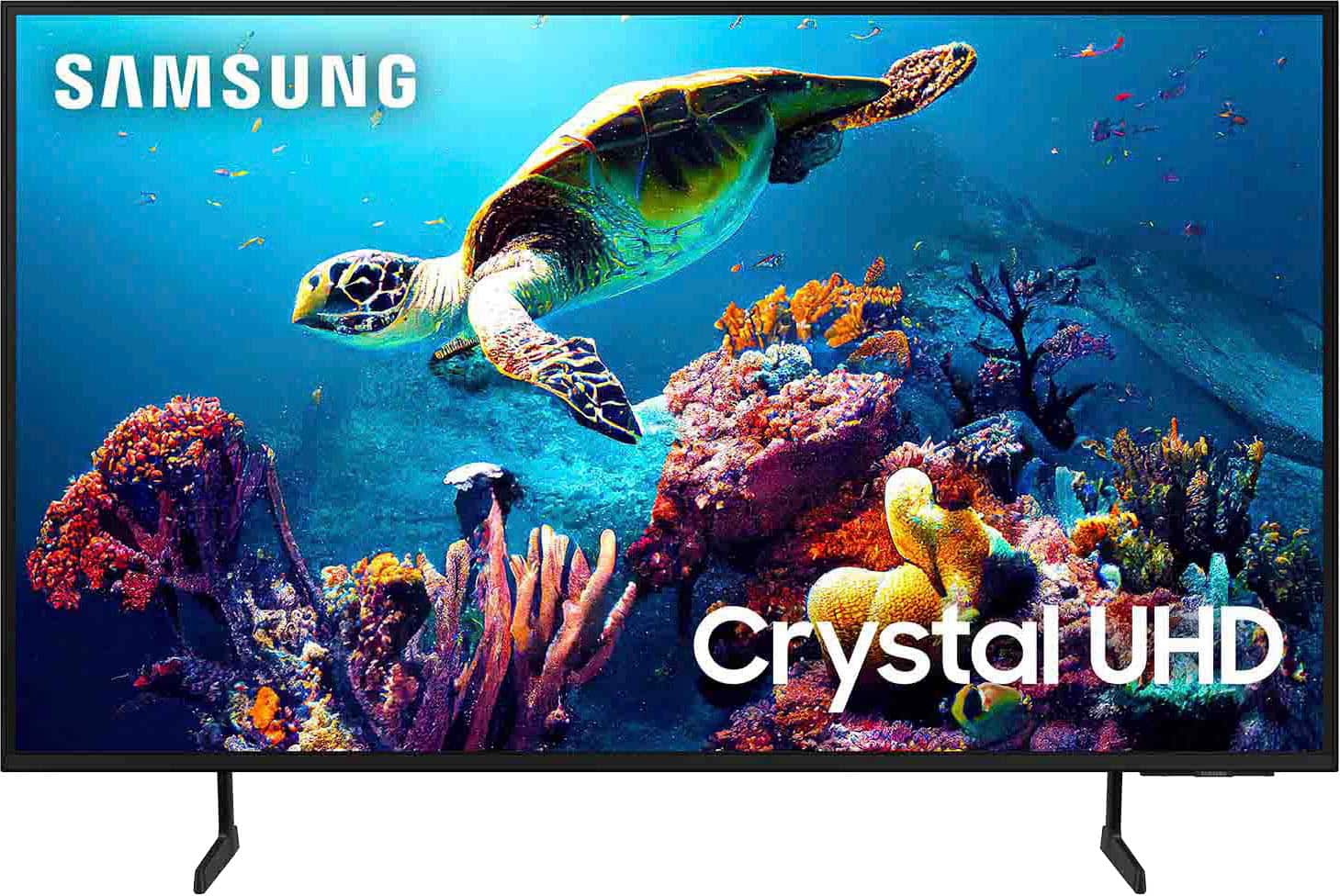
To set up your favorite channels, press and hold the Channel button ( ^ button) to access the Channel List. Click on Edit Channels. Pick, choose, and assign! To download the manual and quick start guide, please follow this link: https://www.samsung.com/us/support/downloads/?model=N0060577&modelCode=UN50DU6900FXZA or by going to our website and clicking Support.
I hope this helps!
~Samsung Advisor
A:AnswerHi Cjblack,
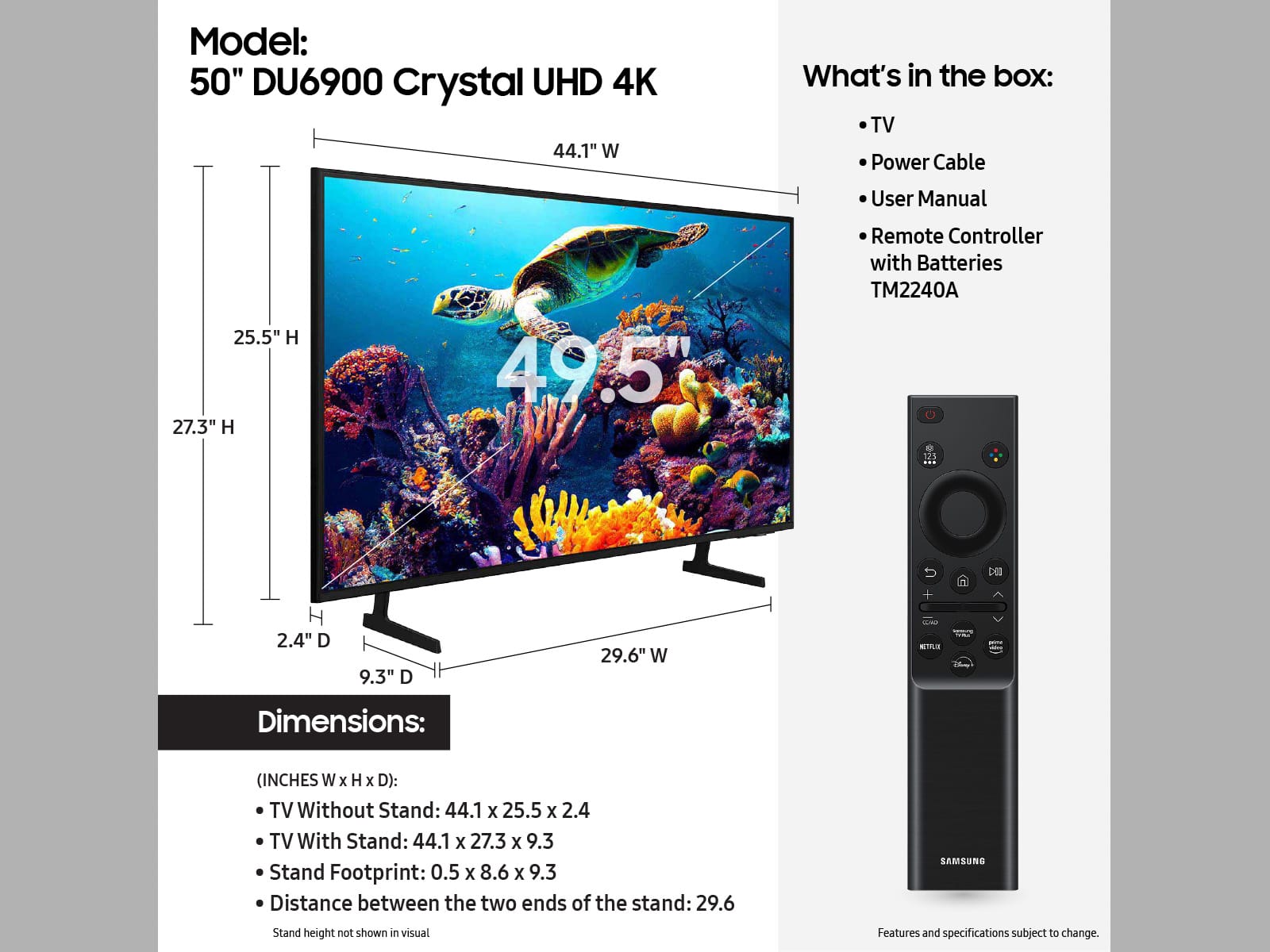
The 50" DU6900 TV requires a mount that is compatible with a VESA Map of 200x200mm. Meaning from screw to screw is about 7.87".
~Samsung Advisor
A:AnswerRula - While Roku OS is not featured on Samsung TVs, they do feature a built-in App Store that allows you to choose from and install hundreds of available apps - no external streaming device necessary.
~ Samsung Specialist